View Full Version : Secure file sharing Windows 7 with Leopard/Snow Leopard
velocityg4
Aug 31, 2009, 10:50 AM
First off let me say I have gotten file sharing working between Windows 7 and Leopard/Snow Leopard. I also setup have my shared folders password protected on my Windows 7 machine and get prompted for a password when logging on from any of my Macs.
My problems are:
1. Windows 7 will not prompt for a User name and password when logging into my Leopard/Snow Leopard shared folders. So I have to leave them set for Read/Write access to everyone. Is there a networking entry that can be changed in "Local Security Policy" to get Windows 7 to prompt for a user name and password when logging onto shared folders?
2. On Leopard/Snow Leopard custom shared folders the User entry for "Everyone" only allows me to select "Read Only" or "Read & Write" while "Write Only" and "No Access" are greyed out. Nor can I delete the Everyone entry. How can I force the "No Access" selection or preferably delete the "Everyone" entry? I only want these folders to be accessible by select users that have the correct user name and password.
CTJoyce
Aug 31, 2009, 09:36 PM
Answer to question one is, Go to Control Panel > User Accounts > Your account and in the left hand side there will be a link to "Manage my saved credentials" In there create a new entry under network credential with the address \\your mac's name then put in your credentials. As long as your mac is sharing using SMB it should not prompt for a user/pass when logging in again.
I am a bit stumped on 2, however it could be that they are sub-folders of shared folders that have access for everyone and thus you would have to get rid of the everyone access at the top most folder.
Cheers
Cameron
velocityg4
Sep 1, 2009, 12:06 AM
Answer to question one is, Go to Control Panel > User Accounts > Your account and in the left hand side there will be a link to "Manage my saved credentials" In there create a new entry under network credential with the address \\your mac's name then put in your credentials. As long as your mac is sharing using SMB it should not prompt for a user/pass when logging in again.
I am a bit stumped on 2, however it could be that they are sub-folders of shared folders that have access for everyone and thus you would have to get rid of the everyone access at the top most folder.
Cheers
Cameron
I'll try that for number one. However, on two the folder in question can be the root directory with the same results. I am sharing the hard drive. Except for laptops I keep my data and OS on separate disks.
brbubba
Sep 3, 2009, 08:19 PM
I'd love to help but windows 7 is giving me problems as well, it stopped working recently. Why can't networking on OS X and Windows be stupid simple. They just make everything more difficult by trying to dumb things down.
velocityg4
Sep 3, 2009, 11:32 PM
I'd love to help but windows 7 is giving me problems as well, it stopped working recently. Why can't networking on OS X and Windows be stupid simple. They just make everything more difficult by trying to dumb things down.
It worked well between XP and OS X. Then they screwed it up with Vista and made networking even worse with 7 and the home group. It took me quite a while to get file sharing to even work between 7 and XP.
Too bad I can not get secure file sharing both ways yet. When I have the time I will hammer away at it some more and try to get some results.
carlosbutler
Sep 5, 2009, 07:31 AM
do you mind telling me how you got file sharing to work between os x and windows please? i can access it but am unable to get it to auto mount.
JessicaD
Sep 8, 2009, 12:01 PM
Brbubba,
Microsoft does have an official Windows 7 Support Forum located here http://tinyurl.com/9fhdl5 . It is supported by product specialists as well as engineers and support teams. You may want to check the threads available there for assistance with the problems you mentioned.
Jessica
Microsoft Windows Client Team
velocityg4
Sep 8, 2009, 01:53 PM
do you mind telling me how you got file sharing to work between os x and windows please? i can access it but am unable to get it to auto mount.
Sorry I did not notice your query
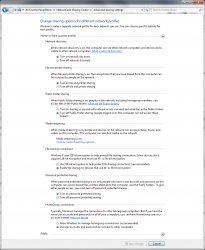
First you will need to change the advanced sharing settings in
Control Panel > Network and Sharing Center > Change advanced sharing settings (switch the control panel from Category to Large Icon view)
Choose the options I chose in the picture. Make sure to set a password for Windows. I could not get the Mac to connect to Windows 7 without a password protected account.
193111
Next you will need to change some other network settings. This is a problem that came from Vista.
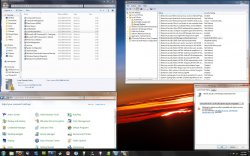
Goto Control Panel > Administration Tools > Local Security Policy
Go to "Local Policies > Security Options"
Then select "Network Security: LAN Manager Authentication Level".
In the window that pops up change the setting to "Send LM & NTLM - use NTLMv2 session if negotiated"
193109
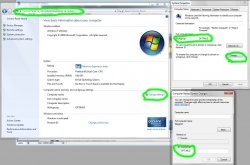
Then just make sure Mac OS X and Windows 7 are in the same workgroup.
Check or change for Windows 7 in Control Panel > System > Advanced System Settings
193110
In Mac OS X
How to change the workgroup name in Mac OS X: Leopard.
1. Open System Preferences from the Apple menu.
2. Open the Network icon in the Internet & Network area.
3. Select the network connection you use to connect to the Windows network.
4. Click Advanced.
5. Click WINS.
6. Type the name of the Windows workgroup in the Workgroup field.
7. Click OK and then click Apply.
Then to connect reliably from Mac OS X type in the Samba address (smb://192.168.xxx.xxx) through Finder > Connect to Server (Command + K). The network browser in Mac OS X is unreliable and always has been.
AaronICT
Sep 27, 2009, 05:40 AM
What can I try if this didn't work? I had SMB shares working -- and they worked for MONTHS. My MacBook Pro went to sleep. When I woke it up it could no longer connect to the SMB shares on my PC.
XBMC running on my Apple TV still can. My daughter's iMac still can. But my MacBook Pro cannot. What happened to my computer's network settings? I didn't change them. They just stopped working.
brbubba
Sep 27, 2009, 08:03 AM
Brbubba,
Microsoft does have an official Windows 7 Support Forum located here http://tinyurl.com/9fhdl5 . It is supported by product specialists as well as engineers and support teams. You may want to check the threads available there for assistance with the problems you mentioned.
Jessica
Microsoft Windows Client Team
Thank you Jessica, but I finally got it working flawlessly. I basically scrubbed all my previous shares and networking settings and started from scratch. This time I got it working somehow with full guest access privileges. No clue how, as before I had to log in to the system, which had suddenly started failing.
badmojo024
Oct 26, 2009, 10:59 PM
hey folks... i wasn't really a part of this discussion, but i recently came across this exact scenerio (trying to get snow leopard & win 7 to talk to each other).
I just wanted to say that you're walkthroughs and advice in this forum thread came in super handy and helped me figure out exactly what i needed to.
thanx to all!
peace!
urahoho
Oct 30, 2009, 08:03 PM
followed all those steps....
worked great for me
connected my MBA to my desktop running windows 7. thanks a lot!
snouter
Nov 7, 2009, 09:57 PM
I don't have access to Local Security in Windows 7 Home Premium.
Is Windows 7 Home Premium less capable of networking with Macs and so forth... or rather different or harder to set-up?
Would upgrading to Professional help me out?
I have 2 Win7 machines and 2 Macs and I've had all kinds of difficulty getting reliable and consistent networking between these machines. Sometimes I can connect and share and all that, sometimes I can't. Sometime I can push or pull from one computer, but not the other. Everything can see everything but the connections either drop with error -36 or the permission errors crop up in all sorts of inconsistent ways. I doubt networking is supposed to work like this.
snouter
Nov 8, 2009, 02:34 AM
ok, one thing I figured out that seems to make a lot of difference... don't share a whole hard drive.
I have a HTPC type thing going on with 4 hard drives in the server. I was trying to share the whole hard drive with say "films" in it. Nonstop trouble.
I put all the files in a folder on the hard drive and shared the folder, and that seems to work completely better.
brbubba
Nov 8, 2009, 05:31 AM
ok, one thing I figured out that seems to make a lot of difference... don't share a whole hard drive.
I have a HTPC type thing going on with 4 hard drives in the server. I was trying to share the whole hard drive with say "films" in it. Nonstop trouble.
I put all the files in a folder on the hard drive and shared the folder, and that seems to work completely better.
That's extremely odd. What happened when you changed your settings? Did it just suddenly start working? Can you now see the Windows shares from the Mac network places?
snouter
Nov 8, 2009, 02:21 PM
That's extremely odd. What happened when you changed your settings? Did it just suddenly start working? Can you now see the Windows shares from the Mac network places?
I swallowed my pride and started clicking on the help and so forth. Right there in the help M$ says it's not a great idea to share a whole drive.
I put the contents of the drive into a folder and shared that folder, and "poof" - instant happiness.
The networking options for sharing a whole drive are different than when sharing a folder.
I can/could always "see" all the other computers in the network window, but, I was getting a lot of "Network Path Not Found" and "Windows cannot access \\qwerty" type errors...
snouter
Nov 8, 2009, 02:25 PM
From the help system in Win7:
Advanced sharing
There are some locations in Windows that, for security reasons, can't be shared directly using the Share with menu. One example is if you attempt to share an entire drive such as drive C on your computer (sometimes referred to as the root of a drive), or system folders (including the Users and Windows folders).
To share these locations, you must use Advanced sharing instead. In general, however, we don't recommend sharing your entire drive or Windows system folders.
I was not trying to share C:, but the share options are better for folders than for drives.
pragma
Nov 15, 2009, 10:52 AM
Amazing! I've been looking for this little gem for a long time. Thanks Velocityg4.
If anyone is having issues with a mount after coming out of sleep. Try rebooting. This seems to be a Snow Leopard issue.
Sorry I did not notice your query
First you will need to change the advanced sharing settings in
Control Panel > Network and Sharing Center > Change advanced sharing settings (switch the control panel from Category to Large Icon view)
Choose the options I chose in the picture. Make sure to set a password for Windows. I could not get the Mac to connect to Windows 7 without a password protected account.
193111
Next you will need to change some other network settings. This is a problem that came from Vista.
Goto Control Panel > Administration Tools > Local Security Policy
Go to "Local Policies > Security Options"
Then select "Network Security: LAN Manager Authentication Level".
In the window that pops up change the setting to "Send LM & NTLM - use NTLMv2 session if negotiated"
193109
Then just make sure Mac OS X and Windows 7 are in the same workgroup.
Check or change for Windows 7 in Control Panel > System > Advanced System Settings
193110
In Mac OS X
Then to connect reliably from Mac OS X type in the Samba address (smb://192.168.xxx.xxx) through Finder > Connect to Server (Command + K). The network browser in Mac OS X is unreliable and always has been.
brbubba
Nov 15, 2009, 12:23 PM
Amazing! I've been looking for this little gem for a long time. Thanks Velocityg4.
If anyone is having issues with a mount after coming out of sleep. Try rebooting. This seems to be a Snow Leopard issue.
Everything seems to be a snow leopard issue these days. :rolleyes:
velocityg4
Nov 16, 2009, 11:00 AM
I swallowed my pride and started clicking on the help and so forth. Right there in the help M$ says it's not a great idea to share a whole drive.
I put the contents of the drive into a folder and shared that folder, and "poof" - instant happiness.
The networking options for sharing a whole drive are different than when sharing a folder.
I can/could always "see" all the other computers in the network window, but, I was getting a lot of "Network Path Not Found" and "Windows cannot access \\qwerty" type errors...
After seeing these posts I tried sharing my whole drive and had no problems at all. You just need to add an authorized user account account an give it full permissions.
Right click the drive > select properties > sharing > advanced sharing > permissions > add
I then typed in the name of my administrator account and clicked check names. If you typed the name correctly then your workgroup name will be added. ie Joe Blow changes to WORKGROUP\Joe Blow. Then click OK and checkmark any permissions you want in the permissions box then OK the boxes to change share settings.
After this I was able to transfer over 100GB without problems and access all my folders.
Note:
- If you originally shared any folders within the shared volume then you must remove all sharing options as this screws with the permissions.
- If you do not have access to one of the folders make sure in the Properties > Security tab you have permissions set for "Users" and "Administrators". If they do not exist add them through the edit button all other steps are the same as noted above.
- You must have a password associated with the username in this case Joe Blow. Mac OS X will just say username and password is incorrect otherwise.
- Once all of this is set up you can even share encrypted folders. Windows will automatically remove the encryption if you transfer.
I don't have access to Local Security in Windows 7 Home Premium.
Is Windows 7 Home Premium less capable of networking with Macs and so forth... or rather different or harder to set-up?
Would upgrading to Professional help me out?
I have 2 Win7 machines and 2 Macs and I've had all kinds of difficulty getting reliable and consistent networking between these machines. Sometimes I can connect and share and all that, sometimes I can't. Sometime I can push or pull from one computer, but not the other. Everything can see everything but the connections either drop with error -36 or the permission errors crop up in all sorts of inconsistent ways. I doubt networking is supposed to work like this.
Unfortunately this seems to be an issue with the Home versions of Windows. The same was true with Vista Home Basic and Premium and likely true for the neutered version of Win 7 Starter. You would be better served by upgrading.
I know these are all settings that can be changed directly through the Windows registry. Via "regedit" through the Run command. Though which entrees to change I could not say which. Eventually I will try to search out the regedit solution. As it stands the only way you could use my guide is with Windows 7 Professional and/or Ultimate, the Corporate edition would likely work as well but I can not confirm this.
Note:
- You can not just copy Local Security Policy Editor "Secpol.msc" from the other editions of 7. I just tried it and it does not work.
- If you do not see Run in your taskbar you can add it by right clicking the taskbar > click Start Menu > customize and check the "Run Command" check box. At this time I would also choose the "System administrative tools" "Display on the All Programs menu and the Start menu" for easier access in the future.
elppa
Nov 16, 2009, 12:10 PM
Is HomeGroup technology open or proprietary?
It would be nice for Apple to add support to the Finder.
Of course Microsoft could have just built Bonjour into Windows Explorer, but, whatever…
jmbuehler
Nov 18, 2009, 12:32 PM
After seeing these posts I tried sharing my whole drive and had no problems at all. You just need to add an authorized user account account an give it full permissions.
Right click the drive > select properties > sharing > advanced sharing > permissions > add
I then typed in the name of my administrator account and clicked check names. If you typed the name correctly then your workgroup name will be added. ie Joe Blow changes to WORKGROUP\Joe Blow. Then click OK and checkmark any permissions you want in the permissions box then OK the boxes to change share settings.
After this I was able to transfer over 100GB without problems and access all my folders.
Note:
- If you originally shared any folders within the shared volume then you must remove all sharing options as this screws with the permissions.
- If you do not have access to one of the folders make sure in the Properties > Security tab you have permissions set for "Users" and "Administrators". If they do not exist add them through the edit button all other steps are the same as noted above.
- You must have a password associated with the username in this case Joe Blow. Mac OS X will just say username and password is incorrect otherwise.
- Once all of this is set up you can even share encrypted folders. Windows will automatically remove the encryption if you transfer.
Unfortunately this seems to be an issue with the Home versions of Windows. The same was true with Vista Home Basic and Premium and likely true for the neutered version of Win 7 Starter. You would be better served by upgrading.
I know these are all settings that can be changed directly through the Windows registry. Via "regedit" through the Run command. Though which entrees to change I could not say which. Eventually I will try to search out the regedit solution. As it stands the only way you could use my guide is with Windows 7 Professional and/or Ultimate, the Corporate edition would likely work as well but I can not confirm this.
Note:
- You can not just copy Local Security Policy Editor "Secpol.msc" from the other editions of 7. I just tried it and it does not work.
- If you do not see Run in your taskbar you can add it by right clicking the taskbar > click Start Menu > customize and check the "Run Command" check box. At this time I would also choose the "System administrative tools" "Display on the All Programs menu and the Start menu" for easier access in the future.
Hi there,
only just set up my old MacBook Pro with Snowleopard, and like most, I seem to be having problems sharing files with Win7.
I follow your step by step guide to the letter, but when I choose to connect to 192.168.1.10 (my Win7 PC) via samba, I am faced with a dialogue requesting me to provide a username and password.
I then contrinue to insert my adminstrator account username and password, only to be told that either/or must be false...
Any ideas what could be going wrong there?
All the best and many thnks for your help!
velocityg4
Nov 18, 2009, 02:44 PM
Are you using your Mac or Windows user name and password? You should be using your Windows 7 user name and password. Both are case sensitive and include any spacing etc...
Also if you look at the settings for your shared items is that username included?
steezy1337
Nov 23, 2009, 06:26 AM
how do i find out the Samba address? also is this from the windows pc or from my Mac? i've been following Velocity's guide so far and i'm stuck at not knowing what this address is or where to find it. also on the windows pc it was picking up my imac before i changed the settings to how he showed them in the first picture, should i change them back to how they were?
velocityg4
Nov 23, 2009, 03:16 PM
Go to Control Panel.
Switch to Large Icon View in the top right corner.
Open Network and Sharing Center.
Click on Change Adapter Settings in the left column.
Right click on your network connection and choose Status.
Click Details.
Look for IPv4 Address the number by it is your samba (SMB) address.
At this point you may want to make your computers IP Address Static via your router, so that it will not change on you in the future. Each router is different so you will need to look in your manual. Some do not have this option, most notably Linksys does not have this ability, every Netgear or D-Link I have seen has this ability though. You can set a manual address on your computer but I would not recommend this on a laptop as it can be a pain when connecting to other networks.
mdh95070
Dec 13, 2009, 10:55 AM
Go to Control Panel.
Switch to Large Icon View in the top right corner.
Open Network and Sharing Center.
Click on Change Adapter Settings in the left column.
Right click on your network connection and choose Status.
Click Details.
Look for IPv4 Address the number by it is your samba (SMB) address.
At this point you may want to make your computers IP Address Static via your router, so that it will not change on you in the future. Each router is different so you will need to look in your manual. Some do not have this option, most notably Linksys does not have this ability, every Netgear or D-Link I have seen has this ability though. You can set a manual address on your computer but I would not recommend this on a laptop as it can be a pain when connecting to other networks.
i can access my windows 7 files just fine on my mac if i use the smb command and IP address. But, with windows xp i saw the PC's name in Finder and this helped with DHCP addressing. All i had to do was double click on the host name and i was connected. Static addressing will not work well in my house and I would like to shield my family from the complexity. any ideas? tks much
velocityg4
Dec 13, 2009, 11:35 PM
i can access my windows 7 files just fine on my mac if i use the smb command and IP address. But, with windows xp i saw the PC's name in Finder and this helped with DHCP addressing. All i had to do was double click on the host name and i was connected. Static addressing will not work well in my house and I would like to shield my family from the complexity. any ideas? tks much
Why won't static addressing work? You just set it in your router and are done with it. When any of your computers connect you get the same address yet the computers themselves use DHCP so when connected to another persons network you will get assigned an IP address automatically.
As for the network browser I have yet to see it work reliably with Windows computers.
If you are just trying to save people the hassle of typing in SMB addresses. Just connect to each volume then make short cuts to those volumes. Then all anyone has to do is double click on that short cut and the network volume in question will mount automatically. You can also drag the drives to your login items in System preferences that way whenever you log on to the Mac the drives will automatically mount.
On the Windows side you can write click any share you want then choose "map network drive..." and assign each share a drive letter then they will always be available in My Computer.
You should note that any auto mounting drive will throw up an error message in OS X or Windows if the host computer is off, asleep or sharing has been disabled.
mdh95070
Dec 14, 2009, 12:59 AM
Why won't static addressing work? You just set it in your router and are done with it. When any of your computers connect you get the same address yet the computers themselves use DHCP so when connected to another persons network you will get assigned an IP address automatically.
As for the network browser I have yet to see it work reliably with Windows computers.
If you are just trying to save people the hassle of typing in SMB addresses. Just connect to each volume then make short cuts to those volumes. Then all anyone has to do is double click on that short cut and the network volume in question will mount automatically. You can also drag the drives to your login items in System preferences that way whenever you log on to the Mac the drives will automatically mount.
On the Windows side you can write click any share you want then choose "map network drive..." and assign each share a drive letter then they will always be available in My Computer.
You should note that any auto mounting drive will throw up an error message in OS X or Windows if the host computer is off, asleep or sharing has been disabled.
Thank you for responding... DHCP works very well since most of my family uses notebook computers... one would think after so many years.... filesharing would be easier.
dnew9999
Jan 2, 2010, 07:07 PM
Are you using your Mac or Windows user name and password? You should be using your Windows 7 user name and password. Both are case sensitive and include any spacing etc...
Also if you look at the settings for your shared items is that username included?
Hi. This whole stream has been incredibly helpful and timely. Thanks to all.
I have my Win7 PC set up to be able to access folders on my Macbook. BUT, when I now try (using all the above suggestions) to access my Win7 PC from my Mac, I get prompted to enter my username on the Win7 PC. OK. However, I do not have a password on that Win7 account yet the MAC seems to want me to type one it -- access fails if I do not.
Any suggestions?
abbala
Jan 6, 2010, 12:33 AM
Thanks for great suggestions.......
ebookmark
Jan 6, 2010, 07:29 PM
followed all those steps....worked great for me :)
greag20
Mar 5, 2010, 01:01 AM
Hello
I was wondering if somebody knows how to solve the problem 1) of the initial post, but in XP? I.e. when accessing a folder on my Mac from XP, I'd like that Mac recognizes me as a particular user (e.g. admin)?
Thanks in advance.
velocityg4
Mar 5, 2010, 01:07 PM
Hello
I was wondering if somebody knows how to solve the problem 1) of the initial post, but in XP? I.e. when accessing a folder on my Mac from XP, I'd like that Mac recognizes me as a particular user (e.g. admin)?
Thanks in advance.
I have looked high and low for this answer and it really depends on if you are using XP Home/Media Center or XP Pro.
In XP Pro you can modify your log on credentials for specific computers with Home/MCE you can not. By default either version will use the Windows user name and password. So all hope is not lost for admin access on the Mac with Home/MCE.
For logging on as an admin from Home/MCE on your Mac the user name and password for the Admin user on the Mac must be exactly the same as that on the Windows box (spacing, case et. all).
For Admin access to your Mac from Windows XP Home, Media Center Edition, Vista Home or 7 Home.
1. Get any and/or all user names and passwords on the Mac that you want file sharing access to.
2. On Windows create user accounts in the user account control panel with the same user name and password as the Mac's user name and password. The Windows user name can be either the full user name or short name used by the Mac. Say on the Mac your user name is Joe Blow by default the short name will be joeblow unless you changed it. Remember this is case sensitive so if on the Mac the user name is Joe Blow then joe blow will not work.
3. Log off Windows then log on with the appropriate user name and password.
Now you should have access to all the shares that user name is authorized for. With standard accounts you will get that user's home folder, public folder and any other authorized shared folders. With admin accounts you will also get full access to connected drives along with all sub folders minus those which that user has no permissions for, such as other users home folders.
You will still need to enable file sharing in Windows and Windows File Sharing on the Mac if you do not know how I will post on that topic.
For XP Pro you do not need to add all the user accounts as you can manage stored passwords.
For this example we will assume your admin name is Joe Blow, the password is 1234 and your Mac's name is iMac.
1. Go to control panel
2. Open user accounts.
3. Open the Stored User Names and Passwords Box.
A. For a limited user account under Related Tasks choose Manage My Network Passwords.
B. For an Admin account under pick an account to change click the appropriate account. Then under Related Tasks choose Manage My Network Passwords.
4. With the Manage My Network Passwords box open click Add.
5. In the add box
A. Server is \\computer name in this case \\iMac
B. The User Name is the your user name plus computer name in this case iMac\Joe Blow
C. The password is your password in this case 1234.
6. Now you can open My Network Places and in the address bar type \\iMac and you should have access to all admin folders.
velocityg4
Mar 5, 2010, 01:09 PM
Hi. This whole stream has been incredibly helpful and timely. Thanks to all.
I have my Win7 PC set up to be able to access folders on my Macbook. BUT, when I now try (using all the above suggestions) to access my Win7 PC from my Mac, I get prompted to enter my username on the Win7 PC. OK. However, I do not have a password on that Win7 account yet the MAC seems to want me to type one it -- access fails if I do not.
Any suggestions?
It wants a User Name and Password used on that Mac. If you do not have one yet I believe it is required for file sharing to function between the two.
Dahon
Mar 15, 2010, 03:32 PM
So, I recently upgraded from Vista to W7 on my pc and from Tiger to SL on my Macbook Pro. I have been trying since then to get a working network between the two, whether just a single folder shared (as I had set up with Tiger/Vista) or an open network between the two.
I followed all the steps layed out by velocityg4, and was able to get my folder which I have set to share on the desktop of my pc to be seen and used by my mac once. After multiple failed attempts trying to connect from my mac, using command+k and entering the correct samba code, it just randomly worked, asked for my W7 id and pw, and poof... it was working like a champ.
I was moving some files from my mac into the shared folder on my pc when about half way through it stopped with an error stating something along the lines that one of the files I was moving was a read only and would not be copied. I clicked ok, and then my mac froze as though it was still trying to move files over. So I left it thinking that it would time out eventually. It did not. I then clicked the "stop copy" icon to the right of the meter, and it froze for a long time saying it was 'attempting to stop copy'.
I then had to force it closed and rebooted. When I rebooted, my mac no longer can connect to my workgroup. What am I missing?
Sorry for the long post, but any help would be greatly appreciated.
Dahon
Mar 15, 2010, 04:22 PM
Although I had rebooted each machine independently of each other, I just rebooted both machines at the same time, and was able to connect with my first attempt. Is this random, -sometimes it works / sometimes it doesn't- to be expected? Or is there a better way I can set them up to have a more consistent network?
satcomer
Mar 15, 2010, 06:06 PM
Although I had rebooted each machine independently of each other, I just rebooted both machines at the same time, and was able to connect with my first attempt. Is this random, -sometimes it works / sometimes it doesn't- to be expected? Or is there a better way I can set them up to have a more consistent network?
That tells me that the machines are not on the same time! Try using the same third party time servers on both the Windows 7 & the 10.6.x machines. I actually changed my windows 7 machine to use the Apple Time server and now I can connect at anytime.
evilzardoz
Mar 16, 2010, 05:39 PM
Would upgrading to Professional help me out?
I have 2 Win7 machines and 2 Macs and I've had all kinds of difficulty getting reliable and consistent networking between these machines. Sometimes I can connect and share and all that, sometimes I can't. Sometime I can push or pull from one computer, but not the other. Everything can see everything but the connections either drop with error -36 or the permission errors crop up in all sorts of inconsistent ways. I doubt networking is supposed to work like this.
I'm seeing this problem ever since I upgraded my PC to Windows 7 Ultimate. I enabled administrative shares (C$, D$ etc), enabled the older authentication types, installed services for unix (perhaps unrelated however this may affect things) and I'm seeing the same problem. I can usually get about a GB of data through before it drops with -36.
Has there been a solution to this problem?
Dahon
Mar 16, 2010, 11:10 PM
I'm seeing this problem ever since I upgraded my PC to Windows 7 Ultimate. I enabled administrative shares (C$, D$ etc), enabled the older authentication types, installed services for unix (perhaps unrelated however this may affect things) and I'm seeing the same problem. I can usually get about a GB of data through before it drops with -36.
Has there been a solution to this problem?
oddly enough, with this last reboot (where I rebooted both machines at the same time), I've been able to connect at will. However, it has dropped the connection by itself a couple times, yet each time I've been able to reconnect simply with command+k. I was able to transfer my music folder from my MBP to my PC, roughly 26g worth with no problems.
maddoglx
Jun 27, 2010, 09:04 AM
Hey All,
This post has been the most helpful information I have found
regarding network sharing Win 7 and OSX
my macbook pro is one week old and is the first mac I have owned.
my workstation is windows 7 home so the Local Security Policy Editor
is not available does this make sharing between the computers impossible?
Habari
Jul 2, 2010, 08:29 AM
Thank you very much for a well laid down process however unable to get excess to
Local Security Policy on windows 7 home premium
Sorry I did not notice your query
First you will need to change the advanced sharing settings in
Control Panel > Network and Sharing Center > Change advanced sharing settings (switch the control panel from Category to Large Icon view)
Choose the options I chose in the picture. Make sure to set a password for Windows. I could not get the Mac to connect to Windows 7 without a password protected account.
193111
Next you will need to change some other network settings. This is a problem that came from Vista.
Goto Control Panel > Administration Tools > Local Security Policy
Go to "Local Policies > Security Options"
Then select "Network Security: LAN Manager Authentication Level".
In the window that pops up change the setting to "Send LM & NTLM - use NTLMv2 session if negotiated"
193109
Then just make sure Mac OS X and Windows 7 are in the same workgroup.
Check or change for Windows 7 in Control Panel > System > Advanced System Settings
193110
In Mac OS X
Then to connect reliably from Mac OS X type in the Samba address (smb://192.168.xxx.xxx) through Finder > Connect to Server (Command + K). The network browser in Mac OS X is unreliable and always has been.
nicko7i
Aug 19, 2011, 06:48 PM
I had file sharing more or less working, but it broke when I installed W7 SP1.
Your instructions not only got it working, but got it working securely, something that has eluded me for years.
I'm inexpressibly grateful. Thanks, velocityg4!
chrono1081
Aug 19, 2011, 07:34 PM
It worked well between XP and OS X. Then they screwed it up with Vista and made networking even worse with 7 and the home group. It took me quite a while to get file sharing to even work between 7 and XP.
Too bad I can not get secure file sharing both ways yet. When I have the time I will hammer away at it some more and try to get some results.
I completely agree. XP was fine for the most part. Vista screwed stuff up and 7 made it worse.
I wasn't the one to work on the networking aspect of it at work, but I know the guys who did found some setting in gpedit that took care of it since a few offices are allowed to use wifi and share files (and some have macs, some have win machines). That being said I don't believe you will have gpedit available if you have a home version but that could be a start.
EDIT: Oops, necro thread.
vBulletin® v3.8.6, Copyright ©2000-2012, Jelsoft Enterprises Ltd.