|
|
#1 |
|
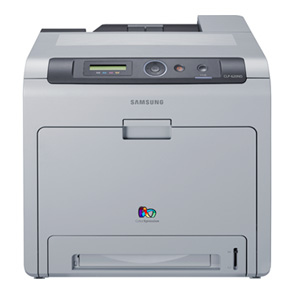
Help with Samsung SCX3405W Printer
Hi - damsel in distress here and in need of help!
I've just purchased a new Samsung printer (model SCX3405W) and I am having major problems getting it to connect to my wireless network. I have called Samsung and they are hopeless - so I am hoping that someone here can help! I have managed to install the printer to the mac, and it will print when connected via a USB cable. I can not however work out how to connect it to my wireless network. I have followed the instructions from Samsung but everytime I try, the computer tells me that it can not see any printers to connect to. Does anyone have any advice on how to get this to work. Or do I need to just return the printer to Dixons? Many thanks!!! |
|
|
|
0
|
|
|
#2 |
|
In order for your printer to work wirelessly under OSX, it must be Airprint (OSX wifi feature) compatible.
I can't see it on the list of printers, but check your Samsung manual...If it doesn't say "AirPrint" then it's not compatible. Here is Apple's list, but there are more printers that work from Epson, Lexmark and others. http://store.apple.com/uk/browse/campaigns/airprint
__________________
Time And Tide Wait For No Man
|
|
|
|
0
|
|
|
#3 |
|
I would recommend checking out the product page on Samsung's website.
http://www.samsung.com/us/support/ow...SCX-3405FW/XAA I just dug around in the troubleshooting guides and found this information. Configuring the wireless connection through USB: http://support-us.samsung.com/cyber/...ame=SCX-3405FW There's also a couple of support articles here on configuring a printer's TCP/IP port in OSX and whether the printer can be connected via an AirPort. http://support-us.samsung.com/cyber/...ame=SCX-3405FW Finally, this is a business printer and Samsung has a different hotline for business printer support -- 1-866-SAM4BIZ. Good luck! Last edited by moovyphreak; Aug 8, 2012 at 02:57 PM. Reason: Corrected phone number |
|
|
|
0
|
|
|
#4 |
|
I am having the same trouble with this printer...i can connect via USB to my mac and it prints, but it just does not connect via the WiFi...did you find any solution?
Thanks! |
|
|
|
0
|
|
|
#5 |
|
I had the same issue and found this procedure works.
First, assuming you have completed the wireless setup for your printer, find your printers IP address (write it down during the wireless setup process or use Samsungs Easy Printer manager software with the USB cable connected to the printer and mac. Look for device network settings. If you are a little bit more adventurous, you can also look at your wifi router's administration menus for IP addresses of connected devices but that may be a little too cumbersome). Then follow these instructions from the Samsung support site http://support-us.samsung.com/cyber/...6320&from_osc= ------------/start samsumg instructions SCX-3405FW Configuring A Printer's TCP/IP Port In OSX If you have changed the IP address of your printer, you will need to update the printer's settings in OSX to reflect the new address: Click the Apple symbol in the top left corner, then select System Preferences. The System Preferences window appears. In the System Preferences window, look under Hardware and choose Print & Fax. A list of printers will appear. Click the + sign to add your printer. If the printer is already listed, select it and click the - sign. The Add Printer dialog will appear. Select the IP tab. Enter the following information: Protocol: Internet Printing Protocol (Line Printer Daemon will also work) Address: Enter the IP address of the printer. Queue: Leave blank unless you have configured a custom queue. Name: Defaults to the IP address you entered above. Change this to something more descriptive. Location: Where the printer is physically located. You can leave this blank. Print Using: This should be automatically be set to the print driver you installed. If not, make sure you've downloaded and installed the latest printer driver from www.samsung.com. If you have already installed the driver but nothing is selected, you can also choose Select Printer Software and pick your model from the list. Click Add. Last edited by somedudeintdot; Sep 19, 2012 at 10:58 PM. |
|
|
|
1
|
|
|
#6 |
|
One more suggestion...if the above steps do not work maybe the printer is not connected to the wireless network. You can test this by going to Applications -> Utilities -> Network Utility
Once the Network Utility tool opens, select Ping and enter the IP address of the printer. IF the printer and mac are both connected to the network you should see something like this: ----------------------------- PING 192.168.0.102 (192.168.0.102): 56 data bytes 64 bytes from 192.168.0.102: icmp_seq=0 ttl=64 time=18.167 ms 64 bytes from 192.168.0.102: icmp_seq=1 ttl=64 time=19.473 ms 64 bytes from 192.168.0.102: icmp_seq=2 ttl=64 time=4.787 ms 64 bytes from 192.168.0.102: icmp_seq=3 ttl=64 time=4.664 ms 64 bytes from 192.168.0.102: icmp_seq=4 ttl=64 time=9.951 ms 64 bytes from 192.168.0.102: icmp_seq=5 ttl=64 time=8.188 ms 64 bytes from 192.168.0.102: icmp_seq=6 ttl=64 time=5.842 ms 64 bytes from 192.168.0.102: icmp_seq=7 ttl=64 time=5.070 ms 64 bytes from 192.168.0.102: icmp_seq=8 ttl=64 time=4.759 ms 64 bytes from 192.168.0.102: icmp_seq=9 ttl=64 time=2.770 ms --- 192.168.0.102 ping statistics --- 10 packets transmitted, 10 packets received, 0% packet loss round-trip min/avg/max/stddev = 2.770/8.367/19.473/5.568 ms ------------- If you get something different...it might be that the printer is not connected to the network and you need to resolve that issue first |
|
|
|
0
|
|
|
#7 |
|
Setting up to Scan an image to a wirelessly connected mac was also a pain. But I found one way to do it by installing the latest drivers for the scanner from this site
http://www.samsung.com/ca/support/mo.../XAA-downloads Once the driver package is installed, included in that package is an application called Scan Assistant. I found it under Applications -> Samsung - > Scan Assistant When you first open up this application, it will look for connected devices. If the USB cable is not connected, select the change port option, and then select Network Connected Device. Here you can either enter the IP address of the printer or select auto detection on the network option. Once the printer is listed, select it, click ok. You should now be able to scan. You may need to configure the default folder to send your files to. |
|
|
|
0
|
|
|
#8 |
|
Solution - Wireless connection for Samsung SCX-3405FW
OK, after 2 days of working on getting a wireless connection (the printer, scanner and fax work with USB), I was able to get the wireless to work. I am not a tech geek and this was purely trial and error but I hope this helps someone.BTW - I didn't find Samsung's response (Configuring the wireless connection through USB: http://support-us.samsung.com/cyber/...ame=SCX-3405FW) helpful - at the outset, this assumes you have the USB from the printer connected to your computer 1) Download the latest printer driver for OS X from Samsung 2) Install the printer driver 3) Go to your printer menu (on the printer) and go to the NETWORK menu 4) Select the TCP/IP 5) Change it to Static (instead of DHCP) 6) OK the IP address, subnet, gateway and DNS - don't change them 7) go back to the NETWORK menu and ensure the wireless is turned "on" 8) if you have a secured wireless router, input your network key 9) go to the NETWORK CONFIG menu and print your settings - you will need these to synch with your computer 10) Now, go to your computer and click on the apple symbol in the right corner 11) Go System Preferences 12) Open Printer and Fax 13) Unlock it so you can make changes 14) click on the Plus "+" sign to add a printer 15) Change protocol to IPP (internet printing protocol) 15) Enter the IP address from the network configuration you printed from the printer (the static IP address) 16) Go to the last part "print using" and select search 17) Type in Samsung SCS3405 and select that print driver 18) Add the printer 19) Open the Samsung Easy Print Manager and to the NETWORK tab 20) Make sure the TCP/IP portion stays "STATIC" and the IP address, subnet, gateway and DNS match up to the print out of the network configuration from your printer (this is why you printed it in step 9). 21) If it looks OK, then save the settings. 22) In the Easy Print Manager, you should see the IP address printer (if it shows up, then all is good so far) 22) The final test is disconnecting the printer cable from your computer - if the printer with the static IP address is still in the Easy Print Manager, then it was a success! ![]() All of my functions work, wireless printing, scanning and fax to PC. |
|
|
|
0
|
|
|
#9 | |
|
Please help :(
Quote:
I have the 3405w. I tried assigning an IP using the setip applet included in the CD. After that, I restarted everything and now the Easy Software Manager doesn't show me the previous settings options it did. It shows the device and no information is available. The 3405w doesn't have the menu that the 3405wf has so the only way to access the wifi direct and change settings is through the software. Also, through the software I was able to "enable" the wifi direct, but no matter what IP address I assign it doesn't work. Any help would really be appreciated. |
||
|
|
0
|
|
|
#10 |
|
I rebooted my mac & printer and the printer and software are now working. I tried using IPP but it didn't work. Sorry, I'm really new at all of this and I'm quite confused by all the different ways people have gotten this to work.
My printer network settings looked like this: DHCP 169.254.19.77 255.255.0.0 When I changed the above to STATIC, the software asked me for a gateway address. Should I have changed IP Address, subnet mask, and gateway to match my wifi router? |
|
|
|
0
|
|
|
#11 |
|
Solve wifi issues for the 3405FW printer
I was very happy with this printer at first, but the settings, drivers and management software are a complete nightmare. Recently I can't access the printer over WIFI nor USB anymore, and the Easy Printer Manager doesn't even see the printer.
However, I did manage to fix this for the SCX3405FW version, which has a front-panel intended for faxing. You can use this panel to configure wifi and that was actually easy. You access it by pressing the top of the circle button and then press left till you reach 4. Wireless. There I set a manual IPv4 address which I knew to be valid (in my case 192.168.1.111) and set the router to 192.168.1.1, submask left as is. My network is a regular ADSL modem and an Airport Express. Then I selected the correct wifi network and entered my password old-school sms style. It refreshed, it worked, and it showed up as a nearby printer in my print/scan preference pane. Image Capture even recognizes and works with the scanner over WIFI now. The "Easy" Printer Manager also sees the printer again, but I hardly dare touch that software as it is as buggy as the first Samsung phone software 10 years ago. All of this (print/scan/set) worked before, but seems to fail as soon as something changes on your network, or the power to the printer was cut for a while. Hope you can work this out too. |
|
|
|
0
|
|
|
#12 |
|
I got it to work by restarting the printer and following the other steps in the original post. But it was a PITA.
|
|
|
|
0
|
|
|
#13 |
|
Wireless printing with MAC on SCX3405W
I initially had similar problems to the above.
The printer did everything it was supposed to when connected by USB, just wouldn't play wirelessly. I knew the printer was connected to the network because my desktop windows PC connected happily wirelessly first time. Eventually I discovered that everything had installed correctly but I hadn't noticed the drop down menu to use said printer wirelessly. For example, when using preview there was: Option 1 - Samsung SCX3405W Option 2 - Samsung SCX3405W (SEC0115............) As soon as I went back to the Apple>System Preferences>Printers and set this as default I had no further issues. Andrew |
|
|
|
0
|
|
|
#14 |
|
As an FYI, the instruction here are a lot easier, and took under 2 minutes:
http://store.apple.com/us/question/a...J79KC7F2DTCYJP I used the first device to attempt to connect option. |
|
|
|
0
|
|
|
#15 |
|
Samsung SCX-3405W Wireless Connectivity
I know your post is old, but if you still have your SCX-3405W and need to connect wirelessly, let me know because I just did it myself today.
|
|
|
|
0
|
|
|
#16 | |
|
Quote:
|
||
|
|
0
|
|
|
#17 |
|
I'm thinking about getting an SCX-3405W and I want to access it via my Time Capsule (AirPort Extreme) router. There seems to be some confusion about how to connect the printer to an AirPort Extreme LAN so please share your walkthroughs.
Thanks! |
|
|
|
0
|
![]() |
|
«
Previous Thread
|
Next Thread
»
| Thread Tools | Search this Thread |
| Display Modes | |
|
|
All times are GMT -5. The time now is 11:33 AM.


OK, after 2 days of working on getting a wireless connection (the printer, scanner and fax work with USB), I was able to get the wireless to work. I am not a tech geek and this was purely trial and error but I hope this helps someone.
Linear Mode