View Full Version : How-To: Automating DVD & Blu-Ray (Backup, Encoding & Tagging) for Mac OS X
mac.jedi
Oct 20, 2009, 12:47 AM
Batch Rip Actions for Automator
How-to Automate DVD & Blu-Ray (Backup, Encoding & Tagging) for Mac OS X 10.7
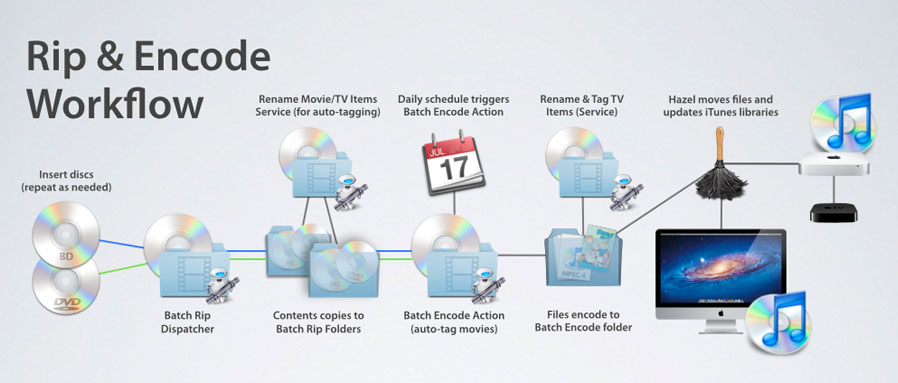
http://dl.dropbox.com/u/242398/BatchRip/screenshots/workflowOverview.jpg
Introduction
Backing up a DVD or Blu-Ray library can be an arduous, time consuming task. Using a GUI tool is a simple task if you do one occasionally, but a lot of us have amassed large collections that would take days, weeks, months or even years to complete.
And, if you’ve ever tried to encode an entire season of TV episodes you know how laborious a project this can be as well: Insert a DVD, rip the disc, choose your encode settings, select and add each title to the queue, process the file, add iTunes metadata; rinse and repeat for each of the discs in the season … and don't even get me started on manually doing this with Blu-ray.
The good news is that most of these tasks can be easily automated to remove the manual intervention required. Just insert a disc and it will rip automagically. When done, pop in another. If you’ve got Mac with two or three optical drives connected, fill em' up and you’ll save yourself some trips. Set a repeating iCal alarm, and at midnight HandBrakeCLI will encode each track within the min/max duration you set in your workflow. You can even set it do multiple encodes if you'd like an iPad version and an Apple TV 720p version. All you need to do now is the tagging, but why should you do it? It's a computer after all … why not automate that as well! If you want to get really fancy, you can take your workflow to the next level by using folder actions or Noodlesoft's Hazel to backup your rips, add the finished files to all the iTunes Libraries on your network and stream em' to an Apple TV. Virtually anything is possible with automation.
This tutorial is broken up into components that can be used individually or together to create one, simple, automated batch workflow.
Workflow Components
Getting Started
Using Batch Rip to Automate DVD & Blu-Ray Backup
Renaming Source Files & Folders
Using Batch Encode to Automate HandBrake Encoding
Auto-tagging Movie Files with iTunes Metadata
Auto-tagging TV Show Files with iTunes Metadata
Using Hazel to manage your media
Note: This tutorial assumes you have some familiarity with Mac OS X and the ripping/encoding process. The focus of this tutorial is how to AUTOMATE your workflow. It is NOT intended to be A BEGINNERS GUIDE to DVD/BD encoding. If you are new to any of the concepts presented in this tutorial, I highly recommend engaging in some of the fantastic forum threads on the macrumors and handbrake forums to help get you started. Then, return to this tutorial after you have become comfortable with the process and have been successful doing it manually. See the section "Additional Resources" for more info.
About Batch Rip Actions for Automator
Batch Rip Actions for Automator is an application that provides Actions and Workflows to automate the rip and encode process.
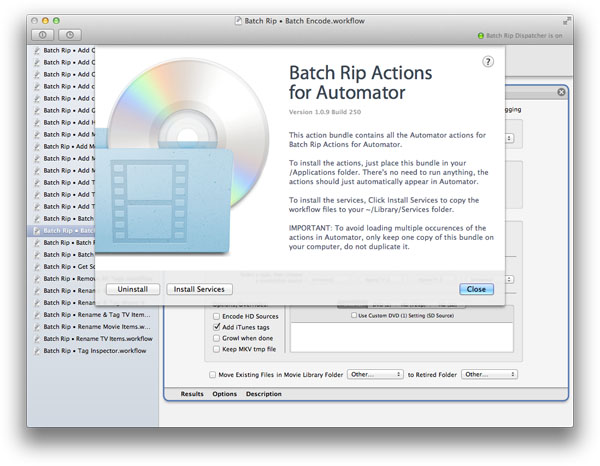
http://dl.dropbox.com/u/242398/BatchRip/screenshots/welcomePanel.jpg
These actions began as a series of scripts that made up my batch rip workflow. When I started writing this tutorial, the focus was to illustrate how to create these scripts and tie them together. However, with the introduction of Snow Leopard, it became clear to me that offering pre-compiled Automator actions and Service workflows would make this a much simpler process.
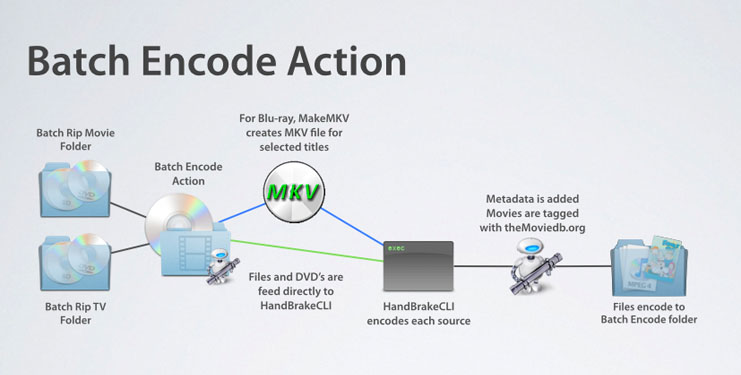
An Automator workflow consists of a sequence of discrete tasks called actions. An Automator action is a kind of functional building block. Each action performs an individual step you might currently do manually‚ such as ripping a disc, changing filenames, encoding files with HandBrake, or tagging files with iTunes metadata. Some actions like Batch Encode, go a step further and perform many operations in one process. For example, with each Blu-ray source it finds … it will create an mkv file, extract the main video, audio, and subtitle tracks. Convert the subtitles to vob, mux them all together, send them to HandBrake which will encode it to mp4, then download all the iTunes tags for your title and tag the file. Imagine doing this manually!
Batch Rip Actions for Automator follows the recommended approach of ripping the complete folder structure of your optical media to your hard drive. For DVD media, this is done with FairMount. For BD media, we use MakeMKV. MakeMKV is still in beta and doesn't fully support BD+ titles and may not work with every disc or drive. If MakeMKV doesn't work for you manually, it's not gonna work with Batch Rip Actions for Automator.
Note: If MakeMKV doesn't work for you, I highly recommend using AnyDVDHD for your BD backups. AnyDVDHD is developed by SlySoft.com and is considered the gold standard for BD backup. The upside to AnyDVDHD is that it fully supports Blu-Ray copying and creates a true backup of the entire disc. The downside is that it is Windows only. AnyDVDHD can be used with the free, open source VirtualBox for Mac, VMware Fusion (recommended) and Parallels.
Once the disc's contents have been ripped to the hard drive, the movies or TV episodes are encoded to an iTunes compatible MP4 format and tagged with metadata iTunes, AppleTV or other devices can manage.
The actions provided in this bundle include:
Batch Rip
This action copies video DVD and BD discs to a chosen folder correctly named for automatic tagging.
Batch Encode
This action encodes DVD/BD content to m4v/mkv and tags them with iTunes metadata. This action receives input from the Finder, other actions, or batch folders specified in the action panel. Input types: DVD-ROM, BD-ROM, VIDEO_TS, BDMV, m2ts, mkv, mp4, m4v, avi, mpg, and mov. Other options include: Growl notification, Blu-ray subtitle conversion, multiple encodes, and custom HandBrake settings.
Add TV Tags
This action searches thetvdb.com database and adds iTunes metadata for the specified TV episode mp4/m4v files. Other options include: renaming, removing tags and optimizing.
Add Movie Tags
This action searches themoviedb.org and tagchimp.com databases and adds iTunes metadata for the specified mp4/m4v files. Other options include: renaming files and folders, removing tags, optimizing, and managing chapter information.
Add Movie Poster
This action will add cover art to selected files.
Add Genre to Movie File
This action tags mp4 files with a selected iTunes genre.
Tag Inspector
This action displays the iTunes metadata for the input file.
Get Source Info from HandBrake
This action scans each source with HandBrakeCLI and saves the info to a text file.
Rename TV Items
This action searches thetvdb.com for shows matching the query and renames items to the selected search result and user specified series, season and episode or disc number.
This tutorial will focus on how to use these actions and their related Automator workflows. But before we get started, we need to install our applications and set up our batch folders.
Getting Started
To complete this tutorial you will need to download and install the following:
Batch Rip Actions for Automator v1.0.9 (http://dl.dropbox.com/u/242398/BatchRip/BatchRipActions-1.0.9.dmg)
Installing Batch Rip Actions for Automator
Download the Batch Rip Actions for Automator installer.
Open the dmg file and Drag the app to your Applications folder.
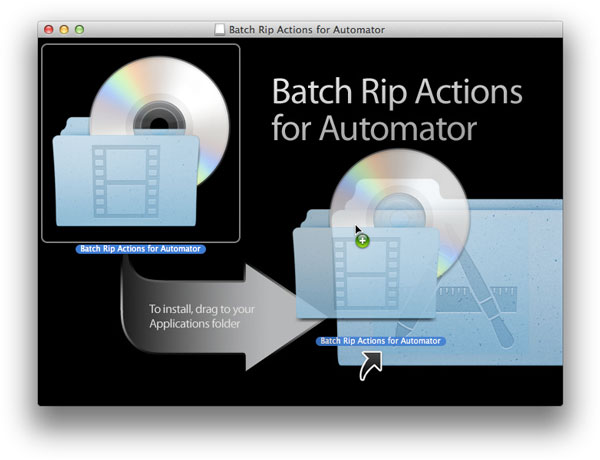
http://dl.dropbox.com/u/242398/BatchRip/screenshots/dmgDrag.jpg
Navigate to your Applications folder.
Double-click the icon to Launch the app.
Follow the installation instructions to install the related workflow files and create your Batch Rip folders.
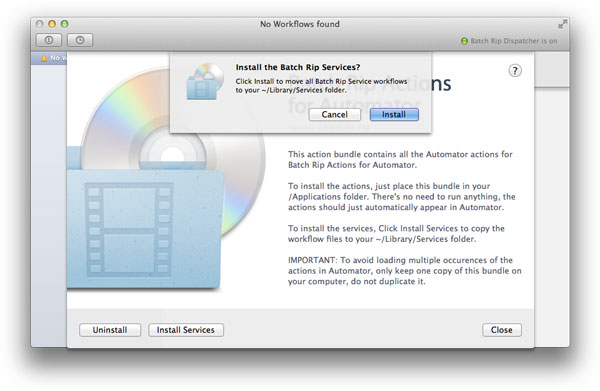
http://dl.dropbox.com/u/242398/BatchRip/screenshots/firstRunPanel.jpg
What you need to get started
Batch Rip Actions for Automator requires the following applications be installed in your Applications Folder. For convenience, I've provided links to these applications via the Download menu in the menu bar.
MANDATORY
FairMount v1.1 (http://www.metakine.com/products/fairmount/)
FairMount is a free tool that allows decryption of DVD content on the fly for a convenient access. FairMount does not perform the actual decryption, it simply forwards the data to VLC Media Player which is used for decryption - thus, VLC Media Player must be installed for FairMount to work. Install in /Applications.
Note: (there is no need to install DVDRemaster that comes with the package)
VLC Media Player v1.1.11 (http://www.videolan.org/vlc/)
VLC media player is a free, open source multimedia player for various audio and video formats (MPEG-1, MPEG-2, MPEG-4, DivX, mp3, ogg, ...) as well as DVDs, VCDs, and various streaming protocols. VLC Media Player must be installed for FairMount and HandBrake to work with DVDs. Install in /Applications.
HandBrakeCLI v0.9.5 (http://handbrake.fr/rotation.php?file=HandBrake-0.9.5-MacOSX.5_CLI_x86_64.dmg)
HandBrake is an open-source, GPL-licensed, multiplatform, multithreaded DVD to MPEG-4 converter, available for MacOS X, Linux and Windows. The Command Line Interface version of HandBrake is a lot faster and more flexible than the MacGui. Using scripting you can automate HandBrakeCLI to encode your files as a background process using the same parameters you'd set in the GUI. Install in /Applications.
Note: DVD disc input is only supported if VLC is installed.
FOR BLU-RAY/HD ENCODING, YOU'LL NEED THE FOLLOWING:
MakeMKV v1.6.12 (http://www.makemkv.com/)
MakeMKV is the only mac native app for ripping Blu-ray discs. However, at this time it may not work with every disc or drive. It converts DVDs and BDs into a set of MKV files. MakeMKV has a GUI and a command-line (makemkvcon) interface that's located in the application's bundle. Install in /Applications.
Mkvtoolnix v4.9.1 (http://jonthn.free.fr/MKVtoolnix/)
MKVToolnix is a set of tools to create, alter and inspect Matroska files under Linux, other Unices and Windows. They do for Matroska what the OGMtools do for the OGM format and then some. Install in /Applications.
About Growl Support
Growl v1.3 (http://growl.info/)
Growl is a notification system for Mac OS X: it allows applications and scripts that support Growl to send you notifications.
Batch Rip and Batch Encode both contain Growl support. The GrowlNotify command-line tool is needed by these actions to notify the Growl application. GrowlNotify is available from the growl website's general downloads page: Growl's download page. (http://growl.info/downloads#generaldownloads)
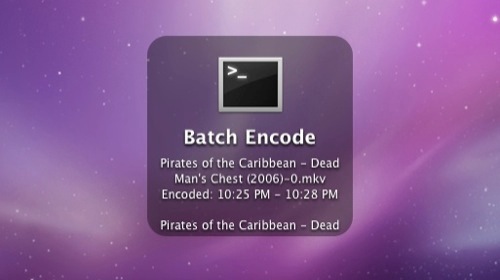
http://dl.dropbox.com/u/242398/screenshots/batch_rip_actions/growl-encode_display.jpg
Download and install Growl from the Mac App Store.
Download GrowlNotify (http://growl.info/downloads#generaldownloads)
Double-click the GrowlNotify.pkg to install GrowlNotify.
Enter your administrator password and growlNotify will then be installed in a hidden directory used for command line tools: /usr/local/bin
To activate notification by email or speech, navigate to the Growl Preferences and click enable in the GrowlNotify application notification settings.
Managing Your Batch Rip Files and Folders
A well planned folder structure will make your workflow much easier to manage. Most of these workflows rely on consistent paths to the source and destination folders, as well as the paths to the actions and applications themselves. For most users, your files should be processed on your local hard disk. External drives can be used, but in some cases they may slow down the speed of your encoding.
For this tutorial, we'll use your ~/Movies folder as the container for your workflow files and folders. Keeping your workflow under this one directory will make this process much easier. You can then have Hazel or Automator move the finished rips and encoded files to another drive or remote volume after they are done.
IMPORTANT: These workflows rely on one important piece of information that needs to be set for each disc, Video Kind. Video Kind is a variable we use in the actions to identify whether a disc contains a Movie or TV Show. The easiest way I've found to do this is to simply rip TV Shows to one folder and Movies to another. A script can then determine a disc's "kind" based on its location. The Batch Rip action allows you to set the video kind for each disc inserted. Also included are two Services located in your Services folder that will add the “video kind” as a Spotlight comment to selected files or folders.
With the video kind set, the Batch Encode action will know whether to encode every episode for TV Shows or only the main feature for Movies. You can also set unique min/max durations for each video kind. Video kind also helps for auto-tagging. Auto-tagging during the encoding process only works reliably for movies. TV Shows need to be done as a separate process after the files have been encoded to ensure that all the episodes have been verified, and sorted in order.
Creating Your Batch Folders
If you chose to have the installer create your Batch Folders during the workflow installation process, they will be located in your ~/Movies directory. If not, follow the steps below to create your Batch Folders:
Navigate to your ~/Movies folder.
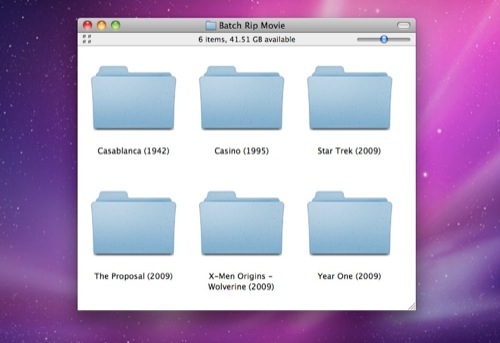
Create two folders and rename them Batch Rip TV and Batch Rip Movies. These folders will be used as the destination folders for your ripped files when copied from DVDs and BDs using the Batch Rip action. These folders will also be the source folders for the Batch Encode action.
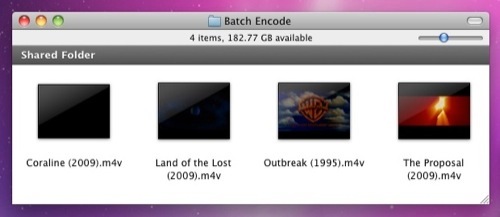
Create another folder named Batch Encode. This folder will be the destination folder for your final encoded m4v/mkv files when using the Batch Encode action.
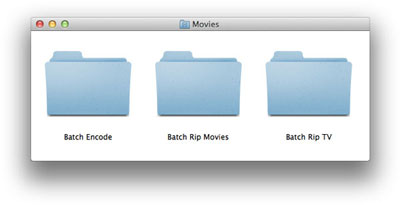
http://dl.dropbox.com/u/242398/BatchRip/screenshots/batchRipFolders.jpg
Using the Workflow Editor
Batch Rip Actions for Automator includes a series of Automator "Service" workflow files pre-built to work with the actions.
http://dl.dropbox.com/u/242398/BatchRip/screenshots/editWorkflow.jpg
The Actions contained in a workflow can have fields, pop-up menus, checkboxes, and other user-interface elements for configuring the action. Batch Rip Actions for Automator features a Workflow Editor to help you quickly edit and save your workflow options.
To edit a workflow:
Choose a workflow from the source list on the left side of the Workflow Editor.
The workflow will open in the layout view on the right side of the window.
Configure the action as desired.
To save your changes, Open the File menu and Choose Save.
Using Batch Rip Service Workflows
A Service is a special type of Automator workflow that can be used from another application or the Finder via contextual menus throughout the OS. Some services require input such as movie files. These types of services can be context sensitive, and only appear in the correct application or if the correct type of input is selected.
In this tutorial, there are two ways we run Services:
Open the application menu (to the right of the Apple menu), choose Services, and then choose the service you want to use.
Open a contextual menu by Control-clicking on an item (or a group of items), choose Services, and then choose the service you want to use.
Tutorial continues below…
mac.jedi
Oct 20, 2009, 12:47 AM
Using Batch Rip to Automate DVD/BD Ripping
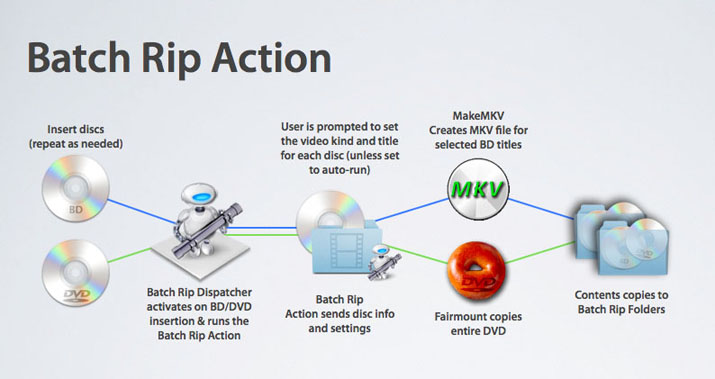
http://dl.dropbox.com/u/242398/BatchRip/screenshots/batchRipOverview.jpg
Batch Rip uses several technologies to automate the ripping process. For DVDs, FairMount and VLC are used to decrypt the DVDs on your system. A subroutine within the Action will then copy the entire DVD to your hard drive. Also, if your have more than one DVD drive, this Action will allow multiple DVDs to copy at the same time. The Action also includes Growl notification support, option to search for show/movie titles for the copy, and an option to eject the discs when finished.
For Blu-Ray, the process is essentially the same, except we use MakeMKV which extracts each title that's between the min/max duration you set in the action. The action also includes an option to do a full BD backup. BD discs are processed sequentially.
Using the Batch Rip Services
There are two Automator Services that can be used with the Batch Rip action.
Batch Rip Batch Rip.workflow
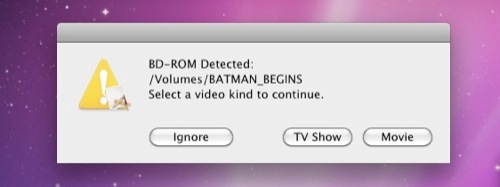
This service receives no input and will act on all mounted video discs. If a BD-ROM or DVD-ROM is mounted, this Service displays a prompt that will cancel after 30 seconds, if no action is received from the user. The prompt will ask if you'd like to copy the disc. Choosing Movie or TV Show will set the video kind for that disc; and repeat for each disc mounted. The action will then copy each disc to your Batch Rip TV or Batch Rip Movies folder. There is also an option to search and select the correct "title" for your source disc which will help for auto-tagging later. You can also set the action to run automatically which disables the dialogs and uses the default video kind set in the action panel.
To use it: Open the application menu (to the right of the Apple menu), choose Services > "Batch Rip Batch Rip".
Batch Rip Batch Rip (Finder).workflow
This Service will act only on items passed as input via the Finder, another Action, or a script.
To use it via the Finder: Select the discs you'd like to copy and run the service. Only the selected items will be processed.
To use it via another script: Pipe the input folders as a list with each source on its own line. Here's an example:
echo -e "/Volumes/IRON_MAN_D1\n/Volumes/DVD_VIDEO" | automator -i - "/Users/username/Library/Services/Batch Rip Batch Rip (Finder).workflow"
Customizing your Batch Rip Workflow
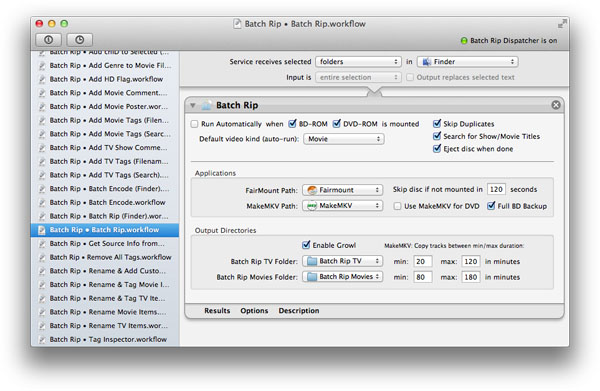
http://dl.dropbox.com/u/242398/BatchRip/screenshots/batchRipPanel2.jpg
In the Workflow Editor, Select the "Batch Rip Batch Rip" workflow.
Set the options in the action panel.
Run Automatically (disables dialog boxes and runs without user intervention). Not recommended for new users.
BD-ROM & DVD-ROM check-boxes (the workflow will act only on the disc types selected).
Default video kind (when Run Automatically is set, this selection will copy all discs to either Batch Rip Movies or TV Folder).
Skip Duplicates prevents copying a disc if it already exists. If unchecked, it will copy the disc and append a number to the name of the new copy (useful in situations where a series of discs have the same name).
Search for show/movie titles will add an additional prompt to search themoviedb/thetvdb for the correct title and release year. Your copy will be named with the selected search result. This is useful for auto-tagging with the Batch Encode action.
Set the path to the FairMount application. Note: FairMount and VLC is required.
Set the time in seconds for the action to skip processing a disc if Fairmount fails to remount it as a disk image (default is 120 secs).
Set the path to the MakeMKV application.
Set your output directories (see section on Folder Setup for more info).
Set the minimum and maximum duration for TV and Movies sources (MakeMKV will only extract tracks between these min/max durations).
Choose additional options: Enable Growl, Eject disc when done, Use MakeMKV for DVD (instead of Fairmount), Full BD Backup.
To save your changes, Open the File menu and Choose Save.
Using Batch Rip Dispatcher
Batch Rip Dispatcher is a LaunchAgent that monitors your /Volumes directory for BD-ROM or DVD-ROM discs. It will automatically activate the "Batch Rip Batch Rip (Finder).workflow" when a disc is detected. To control Batch Rip Dispatcher, Click the status display in the Workflow Editor toolbar to turn it On or Off.
When activated (Green), Batch Rip Dispatcher will start watching for discs. It will then launch "Batch Rip Batch Rip.workflow" whenever a BD-ROM or DVD-ROM is mounted.
-
http://dl.dropbox.com/u/242398/BatchRip/screenshots/dispatcherOn.jpg
-
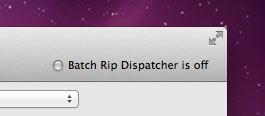
When disabled (Clear), Batch Rip Dispatcher will deactivate and no action will be taken when a disc is inserted.
-
http://dl.dropbox.com/u/242398/BatchRip/screenshots/dispatcherOff.jpg
-
You can enable or disable Batch Rip Dispatcher at any time by clicking the status display in the Workflow Editor toolbar.
Testing your Batch Rip Workflow
Make sure Batch Rip Dispatcher's status indicator is Green, indicating that it's enabled.
Insert a BD or DVD. Wait for the disc to mount.
If you have more than one optical drive, a prompt will appear asking if you'd like to Continue. Click Continue when all discs are mounted.
Next, a dialog box to appear asking if youd like to copy the disc. Choose either TV Show (if the disc contains TV shows) or Movies (if disc contains movies). Choosing Ignore will ignore the disc and cancel the action. Note: no dialog will appear if you have set the action to "Run automatically".
If "Search for Show/Movie Titles" is enabled, you'll get additional prompts to name each disc.
IMPORTANT: If DVD Player.app is set to launch when a Video DVD is mounted, set "Video DVD" to "Ignore" in the CD & DVDs Preference Pane.
-
http://dl.dropbox.com/u/242398/screenshots/batch_rip_actions/batch_rip-folder_action_dialog.jpg
-
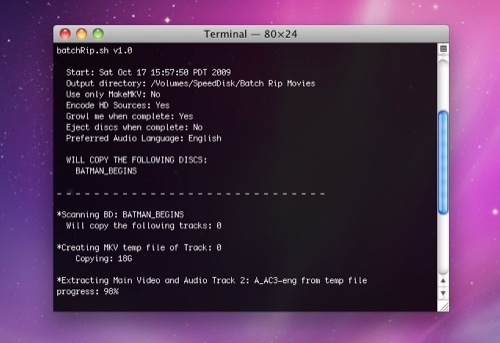
The action will launch Terminal and display the basic setup info. If you have any errors they will be presented here, such as missing apps or incorrect paths. It will also display the options you set in the action.
http://dl.dropbox.com/u/242398/screenshots/batch_rip_actions/batch_rip-terminal.jpg
The action will copy each disc to the selected TV or Movie output folder.
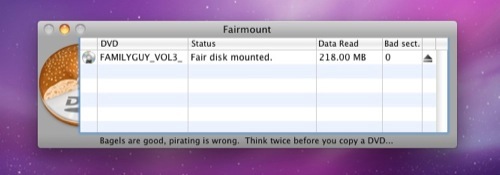
For DVDs, FairMount will launch automatically, then you'll see a graphic of cream cheese being spread on a bagel.
The DVD will unmount and re-mount as a disk image.
After a short delay, the DVD will start copying.
-
http://dl.dropbox.com/u/242398/screenshots/batch_rip_actions/batch_rip-fairmount.jpg
-
FairMount will display the progress as well as any bad sectors it encounters.
Note: Some DVD's may contain copy protection measures that will result in bad sectors and a failed rip using FairMount. For these situations, it may be necessary to rip the DVD with other software such as DVD2One where you can adjust the settings manually.
For BDs, makemkvcon will extract the titles in the background, but the Terminal window will display the progress.
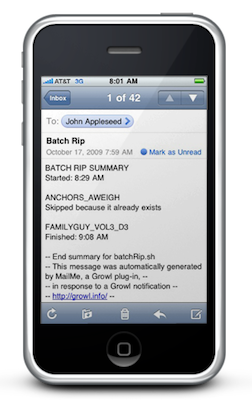
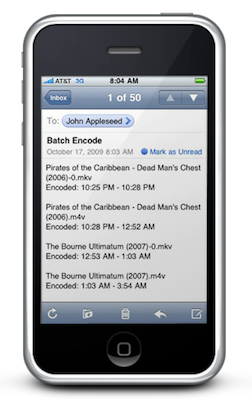
If you've set up growl support, you will be notified by display, speech or email when completed.
-
http://dl.dropbox.com/u/242398/screenshots/batch_rip_actions/growl-rip_iphone.png
-
A Few Words on Source Folder and File Naming
Many applications use the file or folder name to get content info and cover art from sites like tagchimp.com, themoviedb.org and thetvdb.com. It is considered good practice to rename your files and folders, BEFORE encoding your final files. Your source files will then be named correctly making them easier to manage later. In addition, your output files will also be named correctly, allowing for a script or application to associate the correct metadata for your content.
For TV Show sources the naming convention is: <Show Name - S#D#> or Veronica Mars - S1D1. The "D#" represents the disc number. If your using MakeMKV (which creates separate files for each episode), it will add -1, -2, etc. to the end of the filename. Example: Veronica Mars - S1D1-1.mkv. More information on tagging and renaming your final TV show files will be discussed in later chapter.
For movies the naming convention is: <Movie Name (year)>. Example: X-Men Origins - Wolverine (2009). Note that titles that contain a colon [:] are replaced with a space and a dash [ -], as filenames cannot contain this character.
To make this process easier and more reliable, I've provided Automator Services that will search themoviedb.org or thetvdb.com for the correct Movie or Show Title, and automatically rename your file or folder. Just select the files or folders you want to rename and run the Service. A dialog box will appear, enter the title to search. Select the name and year that matches your content and the Service will then rename your item. The Service will loop through each item incrementally. This process has also been added as an option to Batch Rip.action which will prompt a search before copying the discs.
Additionally, there are Rename & Tag Services provided for both TV and Movies; that will rename and tag selected items with iTunes metadata.
Note: themoviedb.org and thetvdb.com are free online services. Periodic outages are not uncommon. If data is not returned, the service may be down.
Using the "Rename Movie Items" and "Rename TV Items" services
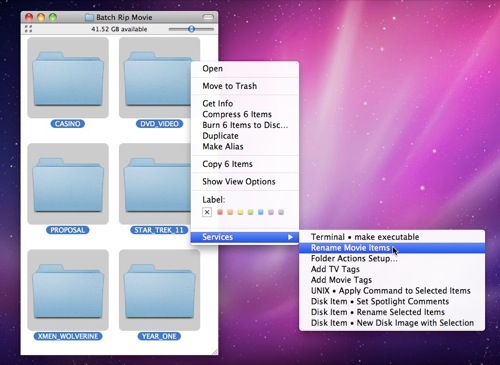
Select a movie file or folder, choose Services, and then choose > "Batch Rip Rename Movie Items" - or - "Batch Rip Rename TV Items"
-
http://dl.dropbox.com/u/242398/screenshots/batch_rip_actions/renamemovie-finder2.jpg
-
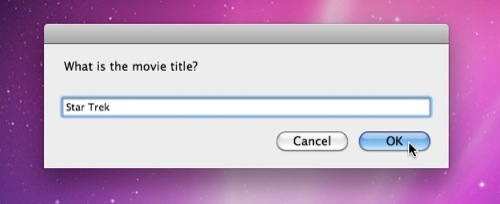
A dialog box will appear listing the active item. Enter the title in the search field for this item and Choose OK.
-
http://dl.dropbox.com/u/242398/screenshots/batch_rip_actions/renamemovieitems-search.jpg
-
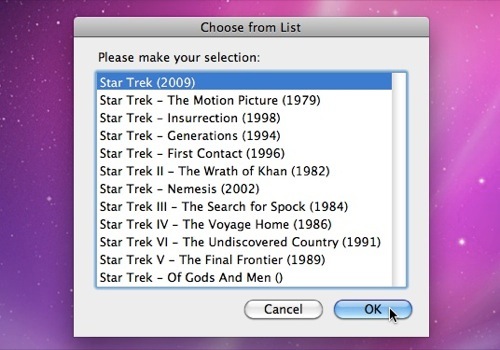
The action will search the database and return a list of possible matches. Choose the title and year that matches your file or folder.
-
http://dl.dropbox.com/u/242398/screenshots/batch_rip_actions/renamemovieitems-select.jpg
-
Choose OK, and the action will rename your item to the selection. The action will repeat for each selected item.
-
http://dl.dropbox.com/u/242398/screenshots/batch_rip_actions/renamemovie-after.jpg
-
Tutorial continues below
mac.jedi
Oct 20, 2009, 12:48 AM
Using Batch Encode to Automate HandBrake Encoding
http://dl.dropbox.com/u/242398/BatchRip/screenshots/batchEncodeOverview.jpg
This Automator Action incorporates many of the tasks commonly used for processing files and includes growl support. The input sources can be files or folders located in your "Batch Rip TV" and "Batch Rip Movies" folders, or optical discs mounted on your system.
If the input source resides in your Batch Rip TV folder or its Spotlight comment is set to "TV Show" the script will select each track that's between the min/max duration set in the script. If the input source resides in your Batch Rip Movies folder, or its Spotlight comment is set to "Movie", only one track is selected, provided it's between the min/max duration you set in the script for movies. The encode script will then encode and output the selected titles to your Batch Encode folder.
The input types supported: Blu-Ray Disc, BDMV, DVD-VIDEO Disc, VIDEO_TS, avi, mp4, m4v, mkv, m2ts, mov and mpg.
The output types supported: m4v (mp4) and mkv.
Encode Targets: The action will output up to four encoded files for each source. Each encode target will be processed using its selected preset.
Presets: Different encode settings can be selected for each encode target. All preset encode settings are based on HandBrake's presets for compatibility with Apple devices.
Custom Presets: You can create up to four custom presets using standard HandBrakeCLI arguments. A custom preset can be selected for each encode target.
Audio Language: Batch Encode selects the audio track based on the "default" language of the source. If you'd like Batch Encode to select audio tracks in your native language: Disable the Use Default Audio button in the action. Batch Encode will then select the audio track (if available) that matches the native language preference set in the workflow, otherwise, it will select the title's default language.
Subtitles: All preset encode settings will burn in forced subtitles in your native language; or all subtitles if the main audio language is not the native language set in the action. For BD sources, BDSup2Sub will convert PGS subtitle tracks in your native language to VOBSUB for input to HandBrakeCLI.
Multi-Channel Audio: The Batch Encode action includes a sub-routine that will set the audio output settings differently depending on the audio source. The sub-routine favors multi-channel audio (DTS or AC-3). If the audio codec is DTS, HandBrake will convert DTS to AC-3 since DTS pass-thru is not an option in m4v files. Certain presets will also include a secondary stereo aac track in addition to the 5.1 multi-ch track.
iTunes Tagging: Once a m4v file is encoded, movies are then optionally embedded with iTunes XML style metadata, cover art and chapter names via theMovieDB.org and tagchimp.com API's. If a 720p or higher m4v file is encoded, the HD flag is set to allow the HD or HD/SD logo to appear in iTunes and the AppleTV. If an HD and SD m4v is created from the same source, they will both be set with the same cnid number. Having the same cnid number will allow the SD and HD versions to show up as one entry in iTunes.
Other Options: There are "Override" settings in the script to allow you to ignore the optical drive, set the video kind for optical sources, and keep the makemkv temp file which contains all audio and subtitle tracks for BD sources.
Batch Encode Services
There are two Automator Services provided to use with Batch Encode.
Batch Rip • Batch Encode.workflow
This service receives no input and will act on all files or folders located in your "Batch Rip TV" and "Batch Rip Movies" folders, or optical discs mounted on your system (if Ignore Optical is not selected).
To use it: Open the application menu (to the right of the Apple menu), choose Services > "Batch Rip • Batch Encode".
Batch Rip • Batch Encode (Finder).workflow
This Service will act only on items passed as input via the Finder, another Action, or a script.
To use it via the Finder: Select the files, folders or discs you'd like to encode and run the service. Only the selected items will be processed.
To use it via another script: Pipe the input files or folders as a list with each source on its own line. Here's an example:
echo -e "/Users/username/Movies/Batch Rip Movies/Toy Story (1995)\n/Users/username/Movies/Batch Rip TV/The Office (US) - S1D1" | automator -i - "/Users/username/Library/Services/Batch Rip • Batch Encode (Finder).workflow"
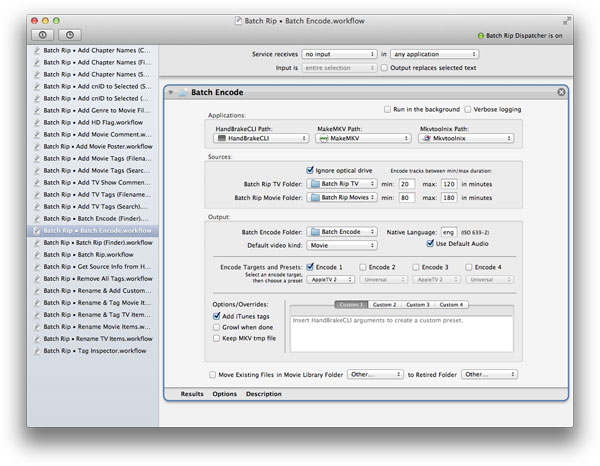
Customizing your Batch Encode Workflow
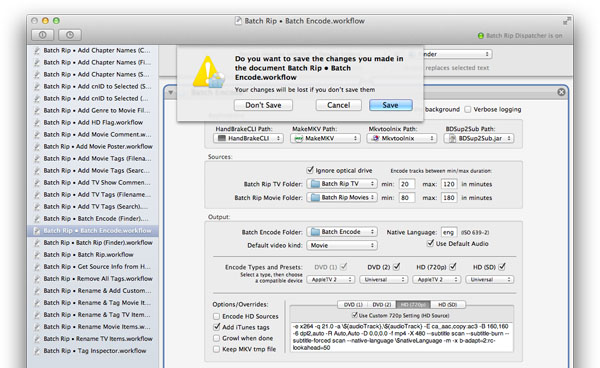
http://dl.dropbox.com/u/242398/BatchRip/screenshots/batchEncodePanel.jpg
In the Workflow Editor, Select the "Batch Rip • Batch Encode" workflow.
Set the options in the action panel.
Select "Other…" from the HandBrakeCLI pull-down menus. Navigate and Select the HandBrakeCLI application. Click Choose.
Select "Other…" from the MakeMKV pull-down menus. Navigate and Select the MakeMKV application. Click Choose.
Select "Other…" from the Mkvtoolnix pull-down menus. Navigate and Select the Mkvtoolnix application. Click Choose.
Select your Batch Rip TV and Batch Rip Movies folders from the Source pull-down menus
Set the minimum and maximum duration for TV and Movies sources (HandBrake will only encode tracks between these min/max durations).
Select your Batch Encode folder from the output pull-down menu.
Select your Default video kind from the pull-down menu (the source will be encoded based on this selection if there is no Spotlight comment or the source is located somewhere other than your Batch Rip TV or Batch Rip Movies folder (like an optical drive).
Enter your Native Language as a 3-character ISO-639-2 code. This setting will be used to select the audio and subtitle tracks based on your language preference.
Use Default Audio: If selected, will use the tracks default language for audio and your native language for subtitles. Useful for films where the main audio differs from your native language. Like if the main audio is Japanese and you want English subtitles.
Choose additional options:
Run in the background (if enabled, the service will run as a background process with no Terminal output).
Verbose logging (if enabled, will display a verbose activity log for each encode).
Add iTunes tags (if enabled, will automatically add iTunes style metadata, cover art and chapter titles to Movie files, TV Shows need to be done as a separate process).
Growl when done (if enabled, will send a notification via Growl, see the Growl section in this tutorial for more info).
Encode Targets:
Encode 1: This item is on by default, will output a file using the selected preset. Use for your main encoded file.
Encode 2: If enabled, will output a second file using the selected preset. Use for your secondary encode.
Encode 3: If enabled, will output a third file using the selected preset.
Encode 4: If enabled, will output a fourth file using the selected preset.
Presets:
Choose a device or custom preset for each Encode Target enabled. For device presets, Handbrake will use it's built-in settings to encode a compatible m4v file based on the capabilities of the chosen device.
Custom Presets:
Enter custom encode settings for each Encode Target (Not recommended for new users).
To enable a custom preset: Select a custom preset for your encode target.
To enter a custom preset: Select a custom preset tab and enter your HandBrakeCLI arguments in the text field.
Batch Encode allows the use of two variables to auto-select the audio and subtitle tracks:
To allow Batch Encode to select the audio track use: \$audioTrack
To allow Batch Encode to select the subtitle language use: \$nativeLanguage
Example: -e x264 -q 21.0 -a \${audioTrack},\${audioTrack} -E ca_aac,copy:ac3 -B 160,160 -6 dpl2,auto -R Auto,Auto -D 0.0,0.0 -f mp4 -X 480 --subtitle scan --subtitle-burn --subtitle-forced scan --native-language \$nativeLanguage -m -x b-adapt=2:rc-lookahead=50
See the HandBrakeCLI wiki for more info on setting your arguments.
To check for existing files in an existing movie library, Check the Move existing files check-box.
Select your movie library folder from the pull-down menu.
Select your retired folder from the retired folder pull-down menu. Existing movies with the same title will be moved to this folder.
Choose Save from the File menu, to save your changes.
You can also set up a keyboard shortcut to execute your workflow by selecting the Application Menu > Services > Services Preferences.
Testing your Batch Encode Workflow
Choose Application Menu > Services > "Batch Rip • Batch Encode" to run the service.
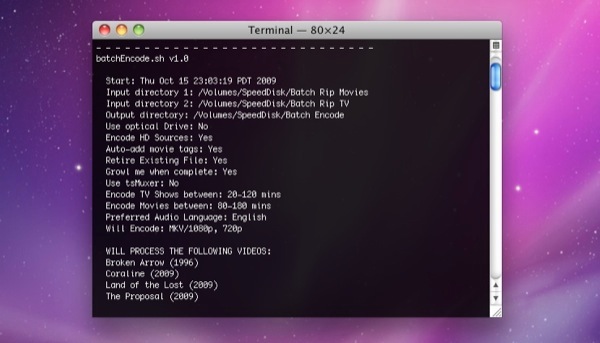
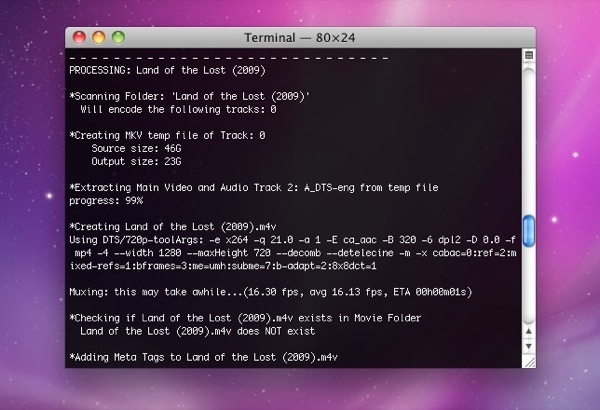
Terminal will launch and display some basic setup info. If you have any errors they will be presented here, such as missing apps or incorrect paths. It will also display the options you set in the action.
-
http://dl.dropbox.com/u/242398/screenshots/batch_rip_actions/batch_encode-terminal.jpg
-
Terminal will display a list of the input sources found and detail the progress of each item/process.
-
http://dl.dropbox.com/u/242398/screenshots/batch_rip_actions/batch_encode-terminal2.jpg
-
Note: If “Run in background” is selected in the action, Terminal will not launch, the action will “run in background”.
-
If you've set up growl support, you will be notified by display, speech or email when completed.
-
http://dl.dropbox.com/u/242398/screenshots/batch_rip_actions/growl-encode_iphone.png
-
Setting Batch Encode to Run Automatically with iCal
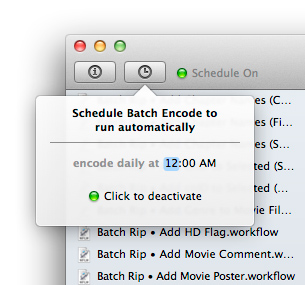
In the Workflow Editor toolbar, click the timer icon to open event panel.
-
http://dl.dropbox.com/u/242398/BatchRip/screenshots/encodeAlarmPanel.jpg
.
Set the time you'd like your encodes to begin (ex. 12:00AM)
Set the the number of days between events (ex. "1" for every day)
Click "Add Event to iCal", to create the events.
iCal will open, create a new Batch Encode calendar and add the events automatically. The alarm type is preset to run your workflow.
-
http://dl.dropbox.com/u/242398/BatchRip/screenshots/iCalEvent.jpg
-
Your workflow will now execute at the interval and time specified.
To deactivate and remove the alarm, delete a Batch Encode event from the calendar and choose remove all events.
To change the time or repeat interval, just create a new Batch Encode event and the Batch Encode calendar will replace the old events with the new ones.
Tutorial continues below…
mac.jedi
Oct 20, 2009, 12:48 AM
How to Automate Movie File Tagging with iTunes Style Metadata
There are three services provided to add iTunes metadata and cover art using the Add Movie Tags Action:
Batch Rip Add Movie Tags (Search).workflow
Batch Rip Add Movie Tags (Filename).workflow
Batch Rip Rename & Tag Movie Items.workflow
These workflows all use the Add Movie Tags Action and operate differently on the settings used in the Service workflows. The workflows are designed to tag movie files that have already been encoded (the Batch Encode workflow has an option to tag files as they are processed). To use, just select the files you want to tag and run a service. The workflows will then tag each file with metadata from themoviedb.org.
Using Batch Rip Add Movie Tags (Search)
This service will display a list of possible matches from themoviedb.org database based on your search criteria. The service will then tag the file with metadata for the title selected.
Select the files you want to tag.
Right-Click and Select the "Batch Rip Add Movie Tags (Search)" Service.
A dialog box will appear listing the active item. Enter the movie name in the search field for this item and Choose OK.
-
http://dl.dropbox.com/u/242398/screenshots/batch_rip_actions/renamemovieitems-search.jpg
-
The action will search the themoviedb.org database and return a list of possible matches. Choose the movie title and year that matches your file.
-
http://dl.dropbox.com/u/242398/screenshots/batch_rip_actions/renamemovieitems-select.jpg
-
Choose OK, and the action will tag the file with metadata for the selected title. The action will repeat for each selected movie file.
Note: themoviedb.org is a free online service. Periodic outages are not uncommon. If data is not returned, the service may be down.
Using Batch Rip Add Movie Tags (Filename)
This service will tag each file based on its filename with metadata from themoviedb.org database.
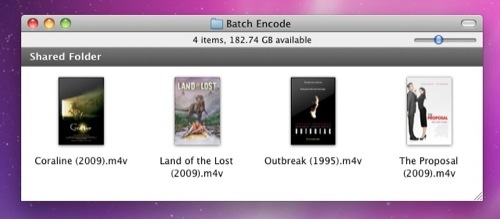
IMPORTANT: Your input files must be named properly with the following naming convention: Movie Name (year).m4v ( example: X-Men Origins - Wolverine (2009).m4v ). Titles that contain a colon [:] are replaced with a space and a dash [ -], as filenames cannot contain this character (see the section on file and folder renaming for more information). There is also a Rename & Tag Movie Items Service included in the Services menu if you also need to rename and tag your finished files.
Visually check to verify that all the files have been named properly (ex. X-Men Origins - Wolverine (2009).m4v).
Select the files you want to tag.
Right-Click and Select the "Batch Rip Add Movie Tags (Filename)" Service.
-
http://dl.dropbox.com/u/242398/screenshots/batch_rip_actions/addMovieTags-before.jpg
-
Each file will then be tagged with the cover art and iTunes metadata for the movie.
-
http://dl.dropbox.com/u/242398/screenshots/batch_rip_actions/addMovieTags-after.jpg
-
Using Batch Rip Rename & Tag Movie Items
This service works like Add Movie Tags (Search) but will rename the file after tagging. See the section on Using the Add Movie Tags (Search) Service for more information.
Changing options for Add Movie Tags Services
Each Service is designed to perform a certain function, however there are options available in the Add Movie Tags Action panel that you may want to tailor to fit your needs.
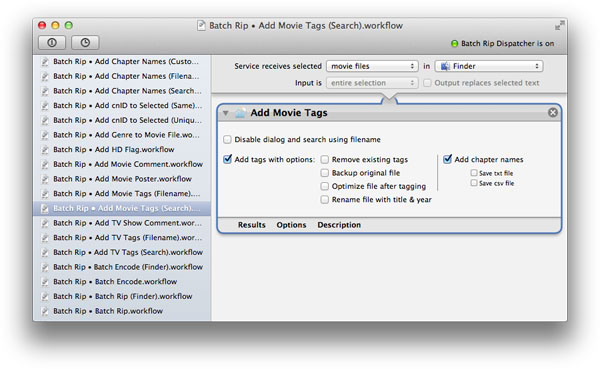
http://dl.dropbox.com/u/242398/BatchRip/screenshots/addMovieTagsPanel.jpg
In the Workflow Editor, Select a "Batch Rip Add Movie Tags" workflow.
Choose action options:
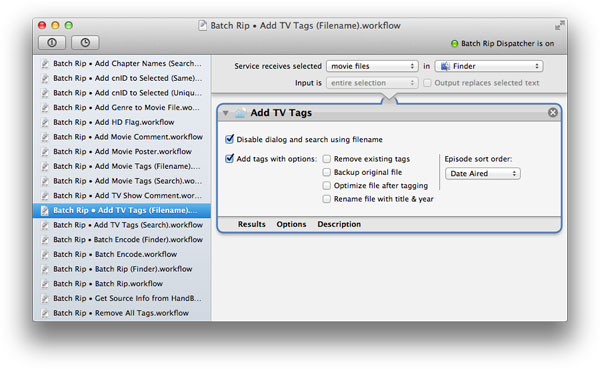
Disable dialog and search using filename (if checked will auto-tag using the filename for the search criteria).
Add tags (if enabled, will tag selected files)
Backup original file (if enabled, will make a backup copy of the input file before tagging)
Remove existing tags (if enabled, will remove existing tags if present)
Optimize file after tagging (interleaves audio and video, and restores QuickTime's "fast-start" ability, takes longer to tag)
Rename file with title & year (if enabled, will rename the tagged file)
Choose Save from the File menu, to save your changes.
How to Automate TV Show File Tagging with iTunes Style Metadata
There are three services provided to add iTunes metadata and cover art using the Add TV Tags Action:
Batch Rip Add TV Tags (Search).workflow
Batch Rip Add TV Tags (Filename).workflow
Batch Rip Rename & Tag TV Items.workflow
These workflows all use the Add TV Tags Action and operate differently on the settings used in the Service workflows. To use, just select the files you want to tag and run a service. The workflows will then tag each file with metadata from thetvdb.com database.
Using Batch Rip Add TV Tags (Search)
This service will display a list of possible matches from thetvdb.com database based on your search criteria, then tag the files with the cover art and iTunes metadata for the show, season and episode.
Select the files you want to tag.
Right-Click and Select the "Batch Rip Add TV Tags (Search)" Service.
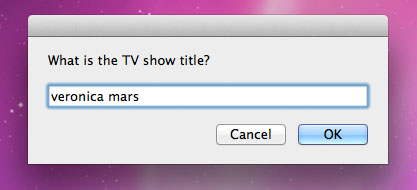
Enter the show title in the search field for this item and Choose OK.
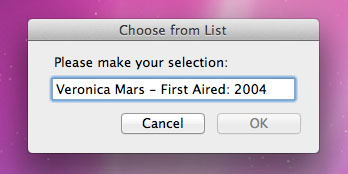
The action will search the thetvdb.com database and return a list of possible matches. Choose the series title and date first-aired that matches your file and Click OK.
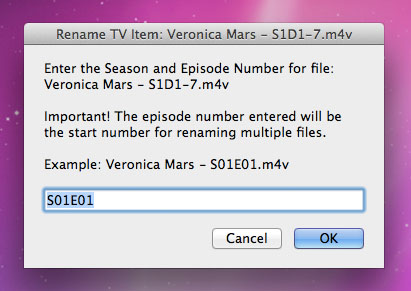
Enter the Season and Episode Number for the file.
Choose OK, and the action will tag the file with metadata for the selected episode. The action will repeat for each selected episode file.
Using Batch Rip Add TV Tags (Filename)
This service will tag each file based on its filename with metadata from thetvdb.com database.
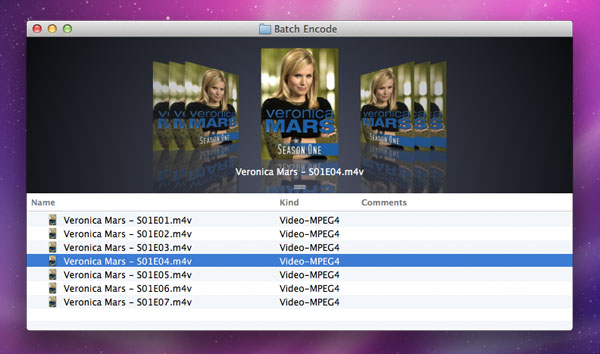
IMPORTANT: Your input files must be named properly with the following naming convention: <Show Name - S##E##> (ex. Veronica Mars - S01E02.m4v). The "S##" signifies the season number and the "E##" represents the episode number. There is also a Rename & Tag TV Items Service included in the Services menu if you also need to rename and tag your finished files.
Visually check to verify that all the files have been named properly (ex. Veronica Mars - S01E02.m4v).
Select the files you want to tag.
Right-Click and Select the "Batch Rip Add TV Tags (Filename)" Service.
Each file will then be tagged with the cover art and iTunes metadata for the show, season and episode.
Rename & Tag TV Items Service
This service works like Add TV Tags (Search) but will rename the file before tagging. See the section on Using the Add TV Tags (Search) Service for more information. The files will be renamed with the following naming convention: <Show Name - S##E##> (ex. Veronica Mars - S01E02.m4v). If multiple files are selected, the service will rename each file with the same show title and season number. The episode number will be assigned sequentially, starting with the episode number you specify when prompted.
IMPORTANT: If you are batch renaming files, they must be pruned and in episodic order BEFORE running this service: I recommend appending each file name with a number. This number does not have to represent the episode number, just a number to keep them in numerical order.
If your are using the Batch Encode Action to encode your TV files, the action will automatically include the title number at the end of the name (example: Veronica Mars - S1D1-1). The files will most likely already be in order with the disc number and title number, but this isn't always the case. You should always verify that all the episodes are present, any extras that may have been encoded are removed, and the files are in the correct order before running this service. Visit thetvdb.com to check your show and season to verify the number of episodes and check your files.
Note, that some discs may present two-part episodes as one title. In this case, these files should be processed in sets (example: if the season starts with a two-parter, process episode
E01. Process your next set with your number sequence starting at
E03, skipping
E02).
IMPORTANT: Thetvdb.com database has different options for episode ordering, Date Aired and DVD Order. Be sure to check the website to verify the correct order for your files. In most cases it will be DVD. However, some blu-ray discs have been released with a different sort order than the DVD versions. So, its good practice to check before renaming or tagging your files and select the appropriate "Sort Order" option in your workflow.
Using the Rename & Tag TV Items Service
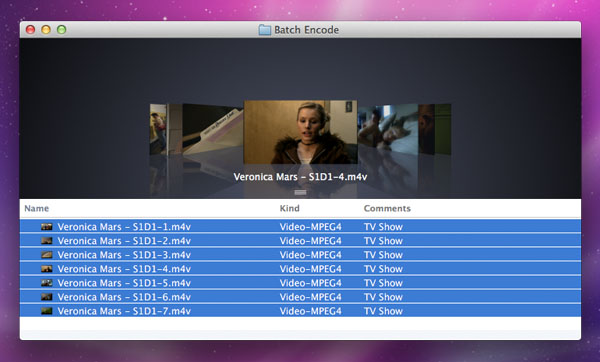
Visually check to make sure all the episodes have been encoded properly and in the right order.
Select the sequence of files you want to rename and tag.
-
http://dl.dropbox.com/u/242398/BatchRip/screenshots/tvRenameTagBefore.jpg
-
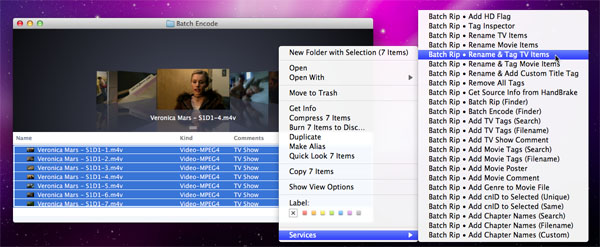
Select the "Batch Rip Rename & Tag TV Items" Service.
-
http://dl.dropbox.com/u/242398/BatchRip/screenshots/renameTagTvSelectService.jpg
-
A dialog box will appear listing the first item. Enter the Show Title in the search field and Choose OK.
-
http://dl.dropbox.com/u/242398/BatchRip/screenshots/tvTagSearchTitle.jpg
-
The action will search the thetvdb.com database and return a list of possible matches. Choose the Show Title that matches your files.
-
http://dl.dropbox.com/u/242398/BatchRip/screenshots/tvTagSearchChoose.jpg
-
Enter the Season number and episode start number in the text field and Choose OK.
-
http://dl.dropbox.com/u/242398/BatchRip/screenshots/tvTagSearchEnterSeason.jpg
Note: Some seasons may start at an episode number other than 1 (0 for Pilots). If you're unsure, visit thetvdb.com to verify the episodes for your show and season.
-
The files will then be renamed in sequential order and tagged based on their new file name.
-
http://dl.dropbox.com/u/242398/BatchRip/screenshots/tvRenameTagAfter.jpg
-
Note: thetvdb.com is a free online service. Periodic outages are not uncommon. If data is not returned, the service may be down.
Customizing your Add TV Tags Services
Each Service is designed to perform a certain function, however there are options available in the Add TV Tags Action panel that you may want to tailor to fit your needs.
-
http://dl.dropbox.com/u/242398/BatchRip/screenshots/AddTvTagsPanel.jpg
In the Workflow Editor, Select a "Batch Rip Add TV Tags" workflow.
Choose action options:
Disable dialog and search using filename (if checked will auto-tag using the filename for the search criteria).
IMPORTANT: Choosing this option requires the files be named with the following naming convention: <Show Name - S##E##> (ex. Veronica Mars - S01E02). The "S##" signifies the season number and the "E##" represents the episode number.
Add TV Tags (if enabled, will tag selected files)
Backup original file (if enabled, will make a backup copy of the input file before tagging)
Remove Existing Tags (if enabled, will remove existing tags if present)
Optimize file after tagging (interleaves audio and video, and restores QuickTime's "fast-start" ability, takes longer to tag)
Rename file (if enabled, will rename the tagged file to: Show Name - S##E##)
Sort Order: DVD or Date Aired (will add episode data based on the selected sort order. Check the thetvdb.com database to determine whether your files are ordered by Date Aired or DVD)
Choose Save from the File menu, to save your changes.
Managing your Media with Hazel
Moving files around can be a chore, especially if you have an elaborate Mac media setup. Rather than going into each step in detail, I'll just touch on a few concepts that might peak some interest in how automation can help manage files on a multi-Mac setup.
The Batch Rip and Batch Encode workflow provide a few elements that will allow you to easily automate and organize your media. The key components are "Finder Label Index" (File/Folder Color) and "Spotlight Comments" (Finder Comments).
Spotlight Comments used in Batch Rip Actions for Automator:
The Batch Rip action will set the output files/folders Spotlight comment to the video kind set in the action.
The Batch Encode action will take the source file's Spotlight comment and use it as the video kind, as well as derive it from the source file's location if the Batch Rip action was not used.
After a source has been encoded, the Batch Encode action will set the Spotlight comment of the resulting output file to the source's video kind.
Finder Labels used in Batch Rip Actions for Automator:
Batch Rip
Changes the Finder Color Labels of the disc folders to Yellow if copied successfully.
Red if the Action encounters an error. Useful for Hazel or other scripting apps.
Batch Encode
Source folders change to Green while processing; Red if the Action encounters an error; Gray if it's done.
Output files (m4v or mkv) change to Green if they're done, and Red if the action sees an error with the file.
Output files (m4v) change to Orange if:
Tmdb couldn't find any metadata for the movie (also changes the source folder to orange)
Cover art failed integrity test (also changes the source folder to orange)
Tagchimp couldn't find chapter names
We can use these elements to automate the file management process with a series of Folder Actions or with Noodlesoft's Hazel application.
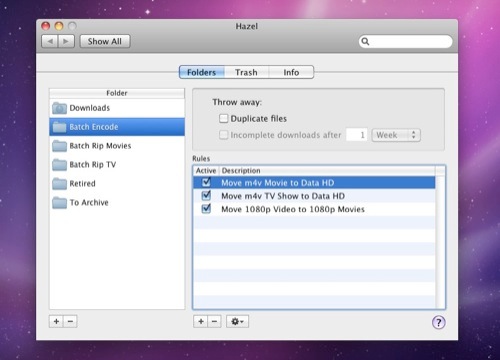
Hazel http://www.noodlesoft.com is a preference pane that allows you to set up Rules based on a file's Spotlight data and specify actions to take when an item matches the Rules. This is similar to the way Smart Playlists function in iTunes and Smart Albums in iPhoto.
http://dl.dropbox.com/u/242398/screenshots/batch_rip_actions/hazel-prefs.jpg
For example: If a file or folder located in our "Batch Rip TV" or "Batch Rip Movies" has a gray Label color we can assume it has already been encoded since the Batch Encode Script will change its color to gray after it has been encoded. We can set a rule in Hazel that will move any file/folder that's gray to a "Backup" drive. One nice thing about Hazel is that it will move the source file to the target location, not just copy it. It has some intelligence and safeguards built in to know if a file has been moved successfully and then deletes the source file, freeing up more space on our Batch Rip volume.
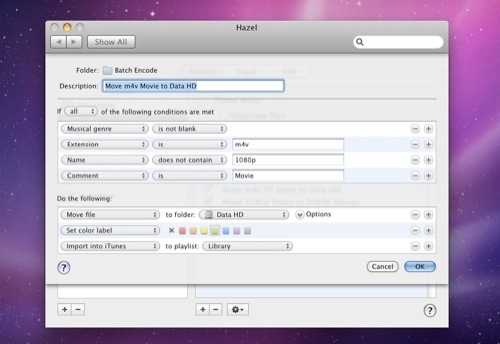
We can also have Hazel monitor our Batch Encode folder for files that have the extension ".m4v", have a Spotlight comment set to Movie, and have a "Finder Label" that is green. If a file has a green label, we can assume it has already been tagged with metadata so it should be considered a finished file. If all these criteria match, we can have Hazel then automatically move the file to our Movie library folder, then add the file to our local iTunes library, then change its color label to purple. You can even set up Hazel on a remote Mac to monitor the Movie folder via file sharing and add and movie file that's color label is purple and add it to its iTunes libraries as well, then change its color. You can repeat this with every Mac on your network to easily sync every added file. You can also duplicate this workflow for TV Shows as well keeping the files in separate folders and automatically creating subfolders based on the show name and season.
http://dl.dropbox.com/u/242398/screenshots/batch_rip_actions/hazel-rules.jpg
In addition to m4v files, we can have a similar Rule for our Batch Encode folder that looks for ".mkv" files with a Spotlight Comment of Movies or TV Shows and move them to a Plex depository on a local or network drive.
Hazel also allows for scripts to run when an item matches our rules. For example, with the "Move existing file to retired folder" option in the Batch Encode action enabled, you can have Hazel run an AppleScript that will remove the existing movie or TV show from iTunes when its file is added to the retired folder set in the action, helping to prevent duplicates in your library.
Hazel is a do-it-as-it-happens approach. The disc rips, the file encodes, the file is tagged, the source is backed up, the 1080p mkv is sent to a Plex folder, the m4v file is moved to my library, the file is then added to all my iTunes libraries and is sync'd to my Apple TV's. Simple and done.
The point is with a few triggers, you can easily automate the process of moving, organizing and syncing your media. I prefer Hazel for it's versatility and ease of use, but a lot of what Hazel provides can also be done with Folder Actions
but with a lot more work.
Conclusion
I hope you enjoyed this tutorial. If you've made it to the end, kudos to you. This process has been a great learning experience for me and hope it is for you as well. The elements of this workflow really demonstrate the power Mac OS X has with Unix, AppleScript, Automator and a brilliant developer community. Though this tutorial is a bit more involved than I had anticipated, I can attest that once you've got it going, you will spend less time managing your content and more time enjoying it. If youd like to dig a little deeper, there are additional resources listed below. Happy Encoding!
Additional Resources:
Batch Rip Help: In the app under the Help menu or via Mac's Help Center.
How To: Rip, Encode and Combine Using Fairmount & DTOX (http://forum.handbrake.fr/viewtopic.php?f=5&t=2937)
Native Blu-ray ripping for OS X (http://forums.macrumors.com/showthread.php?t=748615)
Blu-Ray to Apple TV (http://forums.macrumors.com/showthread.php?t=541517)
Advanced Bluray/HDDVD Workflow & Features (http://forum.handbrake.fr/viewtopic.php?f=14&t=9258)
Subler (http://forum.handbrake.fr/viewtopic.php?f=14&t=9197)
Older automation thread
How-To: Automate DVD Backup w/ FairMount & HandBrake (http://forum.handbrake.fr/viewtopic.php?f=5&t=7681)
mac.jedi
Oct 20, 2009, 12:49 AM
ANNOUNCEMENT: BATCH RIP ACTIONS UPDATED
Update 2011-11-13
Release Notes
Batch Rip Actions for Automator 1.0.9 (http://dl.dropbox.com/u/242398/BatchRip/BatchRipActions-1.0.9.dmg)
IMPORTANT: Even if you've been testing this, you must re-install the Service workflows.
NOTE: The tutorial has been updated as well for v1.0.9. Additional help is available via the Help menu in the app.
1.0.9 build 254
Provides general fixes that enhance the stability, compatibility and functionality of Batch Rip Actions for Automator
No more Action installer! Just drag Batch Rip Actions for Automator.app to /Applications
Actions are now located within Batch Rip Actions for Automator.app
Opening the app will update Launch Services and automatically add the actions to the Automator library
On first run, a new install/upgrade option will notify you if it needs to update the Actions and workflows
Batch Rip Actions for Automator Sparkles! Added support for the Sparkle framework which will automatically alert you of future product upgrades; and quickly get your installation up-to-date
New Workflow Editor! Quickly and easily setup, update and save your Batch Rip workflows all in one interface
Batch Rip Dispatcher is now part of the app UI. Just click on the status icon or text in toolbar to toggle it on or off. The Batch Rip Dispatcher action & workflow have been deprecated
New Action Editor! View and edit the Batch Rip Action script files... if you're daring enough ;)
New Batch Encode for iCal! Easily setup a repeating iCal alarm to automatically run Batch Encode at the time and interval you set
Tagging is now performed by SublerCLI!
mp4v2, SublerCLI and AtomicParsley are now included in the app bundle
Added an "indeterminate progress indicator" for the tagging actions (the spin-thingy in the menu bar). Note: this doesn't control workflow, just shows that it's running
Rename Movie Items.action has been deprecated. Functionality moved to Add Movie Tags.action
Rename and Tagging actions now return the output files as a list for chaining actions
New Help via the Help menu and Mac's Help Center
The Batch Rip (Finder) & Batch Encode (Finder) workflows use their "non-Finder" workflow's settings. No more having to set options in both versions.
Other things that I've already forgotten about
Note: Sadly, but with no remorse, Snow Leopard is no longer supported in v1.0.9. There's very little reason not to upgrade to Lion at this point, so I'm just gonna focus on Lion.
Add TV Tags.action
New option: Search tvdb and tag specific episode files
Improved performance, search and handling of non ASCII characters.
New option: Backup original before tagging
New option: Optimize file after tagging
Rename TV Items.action
Now renames source folders or files using the tvdb API
Batch renaming tv show files made easy. Search tvdb for the show, enter season and episode number to start and it renames all the files: Show Name - S##E##.m4v
Add Movie Tags.action
Renames files or folders
Improved performance, search and handling of non ASCII characters.
New option: Backup original before tagging
New option: Optimize file after tagging
Batch Encode.action
Features tagging updates made in Add TV Tags.action
Fixed an issue where the min-time was being overridden by the GUI's preferences.
_______________________________________________________________________________________________
Update 2011-08-09
Release Notes
Batch Rip Actions for Automator 1.0.8 (http://db.tt/c1esLD9)
Everything
Improved compatiblity with Mac OS X Lion 10.7
Provides general fixes that enhance the stability, compatibility and functionality of Batch Rip Actions for Automator
Actions have moved to the local Library folder: /Library/Automator
Services have been updated for Automator 2.2
And perhaps some other stuff I've forgotten about :)
Note: You will need to reset your options in the Batch Rip and Batch Encode workflows. They are located in ~/Library/Services.
Tip: To open a Workflow in Automator, Choose Open (Command-O). Select > Service from the Type pop-up button which will take you to ~/Library/Services. Select the Workflow you'd like to edit and Choose > Open.
_______________________________________________________________________________________________
Update 2011-07-31
Release Notes
Batch Rip Actions for Automator 1.0.7 (http://db.tt/tNZKOwn)
Everything
Compatible with Mac OS X Lion 10.7
Provides general fixes that enhance the stability, compatibility and functionality of Batch Rip Actions for Automator
Batch Rip.action - UPDATED
Improved compatibility with MakeMKV v1.6.12 and Mkvtoolnix v4.9.1.
Batch Encode.action - UPDATED
Improved compatibility with MakeMKV v1.6.12 and Mkvtoolnix v4.9.1.
_______________________________________________________________________________________________
Update 2010-12-20
Release Notes
Batch Rip Actions for Automator 1.0.6 (http://dl.dropbox.com/u/242398/BatchRipActions-1.0.6.dmg)
Everything
Provides general fixes that enhance the stability, compatibility and functionality of Batch Rip Actions for Automator.
Batch Rip.action - UPDATED
Improved compatibility with MakeMKV.
Removed the built-in delay for multiple optical drives. This functionality has been moved to Batch Rip Dispatcher.
Added a timeout setting which allows the Action to skip a disc if Fairmount has trouble reading its content.
Updated the Sanity Check feature to provide additional feedback if setup isn't configured properly
with any luck you won't even see it.
EXPERIMENTAL: Added support for MakeMKV's full BD backup feature which copies the entire Blu-ray disc structure. May not work with certain discs or drives.
Changes the Finder Color Labels of the disc folders to Yellow if copied successfully; Red if the Action encounters an error. Useful for Hazel or other scripting apps.
Added "Search for Title" feature which allows for searching themoviedb.org or thetvdb.com for the correct titles of your source discs. Copies will be named with the titles selected. Useful for automatically adding iTunes tags later.
Batch Encode.action - UPDATED
THIS UPDATE REQUIRES THE LATEST NIGHTLY BUILD OF HANDBRAKECLI
Added secondary encode option for DVD/SD sources. Two encode types are now available for both HD and SD sources.
Added support for HandBrake's Device Presets. Encode settings can now be selected for compatibility with Apple devices.
Added support for direct "input" to encode the given source(s). You can use the Service "Batch Rip Batch Encode (Finder)" to pass sources to this action. You can also select items in the Finder and run the Service on the selected items. See the Batch Encode (Finder) Service below for more info.
Updated the Sanity Check feature to provide additional feedback if setup isn't configured properly
with any luck you won't even see it.
Added additional feedback on title duration. Provides a list of titles/durations if scan failed to find a title within the min/max duration set in the Action.
Added a notification if the Action failed to scan the source for title info.
Changed the way cnID numbers are allocated. cnID's are now generated by a random number calculation, rather than sequentially.
Added option to keep MakeMKV temp files. These files contain all the original audio and subtitle tracks. Warning: You could run outta disk space pretty fast.
Added additional support for Finder Color Labels. Source folders change to Green while processing; Red if the Action encounters an error; Gray if it's done. Output files (m4v or mkv) change to Green if they're done, and Red if the action sees an error with the file. Useful for Hazel or other scripting apps.
Updated the Verbose mode to provide additional information during processing.
Added Content Ratings, Long Description and Chapter Title support to the Add iTunes Tags feature.
Changed the way MakeMKV accesses optical drives while processing.
Added a "File Integrity Test" to verify that MKV and MP4 output files are valid. Provides notification if files fail verification.
Added a test to check available disk space on destination volume. Provides notification if drive has less capacity than the source. The action will skip sources that exceed capacity.
Batch Rip Dispatcher - UPDATED
Changed the way Batch Rip Dispatcher sends source input to the Batch Rip Action.
Added a dialog visible when multiple optical drives are present. Prompts the user to launch while waiting for additional discs to mount. This feature can be disabled by using the auto-run option in the Batch Rip Service.
Improved the Reset and Enable functions. Reset now clears all existing discs from its record. Clicking Enable now immediately scans for mounted discs and sends them as input to Batch Rip.
Add Movie Tags - UPDATED
Added feature to preserve/set the cnid tag of the movie files.
Added support for adding Chapter Titles from tagchimp.
Original files are now moved to the Trash, rather than kept in its original location as a duplicate. Note: The "Replace existing file" option remains unchanged.
Add TV Tags - UPDATED
Added feature to preserve/set the cnid tag of the movie files.
Original files are now moved to the Trash, rather than kept in its original location as a duplicate. Note: The "Replace existing file" option remains unchanged.
Rename TV Source Folders - NEW ACTION
This action searches thetvdb.com for shows matching the query and renames items to the selected search result and user specified season and disc number.
NEW SERVICES
Batch Rip Add Chapter Names (Custom)
This service has two functions: 1) Will export an editable chapter text file with timecodes and title placeholders from the selected file. 2) When run again, will import and add chapter titles from a text file named "thefilename.chapters.txt" located in the same directory as the movie file.
Batch Rip Add Chapter Names (Filename)
This service will search tagChimp for chapter titles matching the movie file's filename and add them to the file.
Batch Rip Add Chapter Names (Search)
This service will search tagChimp for titles matching a search query and return matching titles. If chapters are found for the selected title, they will be added to the movie file.
Batch Rip Add cnID to Selected (Same).workflow
This service add the same cnID number to selected movie files. Useful for SD/HD encodes.
Batch Rip Add cnID to Selected (Unique).workflow
This service add a unique cnID number to each selected movie files.
Batch Rip Add HD Flag.workflow
This service enables the HD flag in iTunes for HD encoded movie files.
Batch Rip Rename TV Source Folders.workflow
This service searches thetvdb.com for shows matching the query and renames the selected items to the search results and user specified season and disc numbers.
Batch Rip Rename & Add Custom Title Tag.workflow
This service allows you to enter a custom title for your movie file. The service will rename the file and add the title as iTunes metadata to the file.
Batch Rip Batch Encode (Finder).workflow
This service will encode the selected source files with the Batch Encode action. Accepts input from Hazel or other scripts. You can also select items in the Finder and run the Service on the selected items.
To run the workflow from Terminal or from a script you'll need to use the following commands to input files to the "automator" command line tool. Here's an example of how to process a single source:
automator -i "/Users/username/Movies/The Office (US) - S1D1" "/Users/username/Library/Services/Batch Rip Batch Encode (Finder).workflow"
To input multiple files, you'll need to pipe the input files as a list with each source on its own line. Here's an example:
echo -e "/Users/username/Movies/The Office (US) - S1D1\n/Users/username/Movies/The Office (US) - S1D2" | automator -i - "/Users/username/Library/Services/Batch Rip Batch Encode (Finder).workflow"
The important thing to note is that the sources are quoted in one string. The echo command is given the option "-e" and between each source path is the command "\n", which is a newline character. The automator tool's input command "-i" is given the " - " as input, which means it will use the standard input piped into it as input to the workflow.
_______________________________________________________________________________________________
Update 2010-11-23
Release Notes
Batch Rip Actions for Automator 1.0.5 (http://dl.dropbox.com/u/242398/BatchRipActions-1.0.5.dmg)
Everything
Mkvtoolnix is no longer included in the package. You'll need to install Mkvtoolnix.app to your Applications folder. You can download version 4.4.0 from: http://jonthn.free.fr/MKVtoolnix/
Batch Rip.action - UPDATED
Provides general fixes that enhance the stability, compatibility and functionality of Batch Rip
in other words, I forgot to write them all down.
Updated Action UI to include a selectable path to MakeMKV
Fixed compatibility issues with later releases of MakeMKV
Added DiscIdent functionality to auto-name DVD titles
Batch Encode.action - UPDATED
Provides general fixes that enhance the stability, compatibility and functionality of Batch Encode
in other words, I forgot to write them all down.
Fixed compatibility issues with later releases of MakeMKV
Fixed issues with Custom Encode Args
Updated default encode settings for latest Apple devices
Added support for setting a Native Language preference. Used for audio and subtitle tracks.
Added subtitle support. Default encode settings will now burn in forced subtitles in your native language; or all subtitles if the main audio language is not your native language.
Added a 'Use Default Audio' option. If selected, will use the sources main audio language. Useful if the majority of your discs are in your native language. If the main audio language is not your native language, the action will automatically burn-in subtitles in your native language if available.
Added support for BDSup2Sub. Automatically finds forced PGS subs, converts them to VOBSUB and remuxes the files for input to HandBrakeCLI. You'll need to install BDSup2Sub.jar to your Applications folder. You can download the latest version from: http://forum.doom9.org/showthread.php?t=145277&highlight=bdsup2sub+mac
Updated Action UI to include a selectable path to MakeMKV, Mkvtoolnix and BDSup2Sub.jar
Added support for additional input file types including avi, mp4, m4v, mov, mpg.
_______________________________________________________________________________________________
Update 2009-12-02
Release Notes
Batch Rip Actions for Automator 1.0.4 (http://dl.dropbox.com/u/242398/BatchRipActions-1.0.4.dmg)
Everything
Provides general fixes that enhance the stability, compatibility and functionality of Batch Rip Actions for Automator. In other words, I fixed a lot of stuff, but forgot write them all down.
Updated installer package, should provide greater compatibility for those with unique system configurations.
Batch Rip Batch Rip (Folder Action).workflow has been replaced by the new Batch Rip Dispatcher LaunchAgent.
Tutorial has been updated to reflect the changes of v1.0.4.
Batch Rip Dispatcher.action - NEW ACTION
This action controls the Batch Rip Dispatcher LaunchAgent which acts like a folder action to automatically launch Batch Rip when a disc is inserted.
IMPORTANT: The Batch Rip Folder Action is no longer supported. You need to Enable Batch Rip Dispatcher by running the Service after it is installed.
Tag Inspector.action - NEW ACTION
This action displays all the iTunes metadata present in the input file.
Get Source Info from HandBrake.action - NEW ACTION
This action scans each source with HandBrakeCLI and saves the info to a text file.
Batch Rip.action - UPDATED
Updated to version 1.0.4
Added support for Batch Rip Dispatcher
Changed the way variables are passed to the shell
Added an option to skip discs that already exist in the output folder or append the name of new copy.
Added an option to save Terminal output to ~/Library/Logs.
Batch Encode.action - UPDATED
Updated to version 1.0.4
Improved compatibility with HandBrake v0.9.4.
Fixed min/max title selection for Movies, where movies were returning more than one title.
Changed the way variables are passed to the shell, improves stability when running multiple instances
Added ISO8859-1 character substitution in meta-tag info.
The HandBrakeCLI title scan is now saved as a text file to the source directory.
Added an option to display a verbose activity log for HandBrake.
Terminal output from last session is now saved in ~/Library/Logs.
Add Movie Tags.action - UPDATED
Added support for Search & Tag. If enabled, will display a search field and return a list of matches instead of using filename.
Added ISO8859-1 character substitution in meta-tag info.
General improvements in returning titles, handling metadata and processing cover art.
Added option to remove all tags from the input file when the "Add tags" option is off.
Add TV Tags.action - UPDATED
Added ISO8859-1 character substitution in meta-tag info.
General improvements in returning episode info, handling metadata and processing cover art.
Added option to remove all tags from the input file when the "Add tags" option is off.
Rename Movie Items.action - UPDATED
Added underscore replacement when using file/folder name as search criteria.
Added ISO8859-1 character substitution.
General improvements in returning matching titles.
Add Movie Poster.action - UPDATED
Added underscore replacement when using file name as search criteria.
Added ISO8859-1 character substitution.
General improvements in returning matching titles.
mac.jedi
Oct 20, 2009, 11:18 AM
_______________________________________________________________________________________________
Update 2009-11-10
Release Notes
1.0.3
In Apple speak, v1.0.3 provides general fixes that enhance the stability, compatibility and functionality of Batch Rip Actions for Automator
Added workflows to install package. Now installs Services to ~/Library/Services, and Folder Actions to ~/Library/Workflows/Applications/Folder Actions
Shared components are now installed in /usr/local/bin
Fixes an issue that might cause tagging actions to stall when adding cover art
Includes general reliability and speed improvements for Add TV Tags, Add Movie Tags, Add Movie Poster, Batch Encode and Batch Rip
_______________________________________________________________________________________________
Update 2009-10-27
1.0.2
Everything
Requires Mac OS X 10.6 or later
Updated installer package, should correct permissions issues some users were experiencing
Add Genre to Movie File.action - NEW ACTION
This action tags mp4 files with a selected iTunes genre
Add Movie Poster.action - NEW ACTION
This action will add cover art to selected files. There are three options:
Disable dialogs and use clipboard: Will download an image from a URL in the clipboard. The downloaded image will be added as cover art to the mp4/m4v file.
Search themoviedb.org: Will search themoviedb.org and display movie posters matching a search term in Safari. Right-click and choose Copy Link to select a image. In the dialog box Choose OK. The selected image will then be downloaded and added as cover art to the mp4/m4v file.
Choose from file: Will display a choose file window. The selected image will then be added as cover art to the mp4/m4v file.
_______________________________________________________________________________________________
Batch Rip.action - UPDATED
Updated to version 1.0.1
Note: FairMount has a new 64-Bit version and has been updated to 1.0.5.
Added pop-up menu to set the path to FairMount …*since FairMount now has a 64-bit version and has changed its folder structure.
Changed how the Action logs mounted discs
Folder Action log is cleared when Batch Rip start processing
When an active Batch Rip disc item remounts after finishing a process, no dialogs will appear
Changed the way Batch Rip handles discs with the same name
If Batch Rip is set to run automatically, Batch Rip will skip discs if an item with the same name appears in the output directory
If Batch Rip is NOT set to run automatically, Batch Rip will copy the disc and append the filename of the new copy with the current process ID number (PID)
FairMount will now quit after DVDs have been copied
Fixed the error some users were experiencing with MakeMKV returning "No titles longer than" for DVD-ROM sources
Sets the Spotlight comment for all output items to the selected video kind
Batch Encode.action - UPDATED
Updated to version 1.0.1
Changed the egrep syntax for line 786, to fix the "echo: line 786" error message
Updated the subroutine for tsMuxeR, but doesn't matter since tsMuxeR is still not compatible with Snow Leopard
Add Movie Tags.action - UPDATED
Added new tags:
HD-Flag: for file resolutions over 1280x720
Title: will add the filename as the title
Video Type (stik): Movie (9-Short Movie)
Added add chapters from file (mp4chaps)
Chapter file must be named: filename.chapters.txt (filename must be exactly the same as the movie file)
Added cover art resizing. Will now resize images to a maximum of 600x600 pixels as recommended by iTunes. Also allows Finder to update icon more effectively and reduces file size a bit.
Add TV Tags.action - UPDATED
Added HD-Flag: for file resolutions over 1280x720
Added add chapters from file (mp4chaps)
Chapter file must be named: filename.chapters.txt (filename must be exactly the same as the movie file)
Added cover art resizing. Will now resize images to a maximum of 600x600 pixels as recommended by iTunes. Also allows Finder to update icon more effectively and reduces file size a bit
jim.arrows
Oct 20, 2009, 01:45 PM
Wow... I don't know if I will ever use any of this, but THANKS for taking the time to put all of it together. This is just an incredibly nice thing to share with the community.
Cheers,
Jim
TuckBodi
Oct 20, 2009, 02:46 PM
This is super cool. Thanks for putting this together and I'll be giving this a try.
One question though, concerning the Handbrake CLI part. In the past when using it, I found it was not able to process the audio selections correctly of some movies of mine which did not have the AC3 track set as default (I have seen a number of older movies this way). If it didn't have the surround sound set as default it would just process the 2-channel track and that is it. I bailed on the CLI for this reason. Have you figured a way around this?
Thanks again for your hard work on this!
mynamesreallong
Oct 20, 2009, 03:23 PM
Subbed! thx for this writeup
mac.jedi
Oct 20, 2009, 03:36 PM
This is super cool. Thanks for putting this together and I'll be giving this a try.
One question though, concerning the Handbrake CLI part. In the past when using it, I found it was not able to process the audio selections correctly of some movies of mine which did not have the AC3 track set as default (I have seen a number of older movies this way). If it didn't have the surround sound set as default it would just process the 2-channel track and that is it. I bailed on the CLI for this reason. Have you figured a way around this?
Thanks again for your hard work on this!
Hi TuckBodi,
Yes, this was common for older DVDs where the default audio track was usually Dolby Pro-logic. The good news here is that there's a sub-routine in the Action that scans the source with HandBrake to get the audio info
languages, audio formats, and track numbers. As described in the tutorial:
Note: The default encode settings include a sub-routine that will set the audio output settings differently depending on the audio source. The sub-routine favors DTS pass-thru for 1080p mkv, and AC-3 pass-thru for m4v. If AC-3 is not available, it will down-convert DTS to AAC for m4v files (since DTS is not an option in m4v files). The 720p Apple TV default will not include a secondary stereo aac track if 5.1 pass-thru is available.
So, basically if a source contains AC-3, then it will automatically select it as the audio track even if it's not the default (track 1) audio track.
The audio parsing function is only available if you use default encode settings, no overrides.
williamsonajm
Oct 21, 2009, 09:05 AM
Hey
Great tutorial. Slight problem over here I donno if anyone can help with? When I run the Batch Encode script, I get the following error:
PROCESSING: SGA_S3_D3
*Scanning Folder: 'SGA_S3_D3'
Will encode the following tracks: 1, 2, 3, 4
/Users/adam/Library/Automator/Batch Encode.action/Contents/Resources/batchEncode.sh: line 786: echo: write error: Broken pipe
*Creating SGA_S3_D3-1.m4v
Using AC3/DVD-toolArgs: -e x264 -q 20.0 -a 1,1 -E ca_acc,ac3 -B 160,160 -6 dpl2,auto -R 48,Auto -D 0.0,0.0 -f mp4 -4 -X 960 --loose-anamorphic -m -x cabac=0:ref=2:me=umh:b-adapt=2:weightb=0:trellis=0
Script could not complete because SGA_S3_D3-1.m4v does NOT exist
- - - - - - - - - - - - - - - - - - - - - - - - - - - - -
Any idea how to fix this on my end as at the moment it doesn't run
mac.jedi
Oct 21, 2009, 10:30 AM
Hey
/Users/adam/Library/Automator/Batch Encode.action/Contents/Resources/batchEncode.sh: line 786: echo: write error: Broken pipe
Hi williamsonajm,
Sorry you ran into trouble. It looks like the script is having a problem reading the audio info from the HandBrake scan. Could you post full scan data so I can see what problem is? You can use the code below in Terminal to get the scan data, just replace the path to HandBrakeCLI and the input path (after "-i ") to the path to the VIDEO_TS folder. You can also drag your VIDEO_TS folder to the Terminal to insert the path.
Let me know. Thanks!
/Applications/HandBrakeCLI -i /Path/to/SGA_S3_D3/VIDEO_TS -t0
williamsonajm
Oct 21, 2009, 10:40 AM
Donno if this is what you wanted, but here goes:
Last login: Wed Oct 21 14:58:33 on ttys000
MacBook:~ adam$ /Applications/HandBrakeCLI -i /Users/Shared/Batch\ Rip\ TV/Stargate\ Atlantis\ -\ S03D01 -t0
HandBrake 0.9.3 (2008112300) - http://handbrake.fr/
2 CPUs detected
Opening /Users/Shared/Batch Rip TV/Stargate Atlantis - S03D01...
Scanning title 1 of 15...
Scanning title 2 of 15...
Scanning title 3 of 15...
Scanning title 4 of 15...
Scanning title 5 of 15...
Scanning title 6 of 15...
Scanning title 7 of 15...
Scanning title 10 of 15...
Scanning title 11 of 15...
Scanning title 12 of 15...
+ title 1:
+ vts 1, ttn 1, cells 0->12 (710565 blocks)
+ duration: 00:41:42
+ size: 720x576, aspect: 1.78, 25.000 fps
+ autocrop: 2/2/0/0
+ chapters:
+ 1: cells 0->0, 82333 blocks, duration 00:04:48
+ 2: cells 1->1, 33146 blocks, duration 00:02:10
+ 3: cells 2->2, 46856 blocks, duration 00:02:34
+ 4: cells 3->3, 52946 blocks, duration 00:02:57
+ 5: cells 4->4, 56137 blocks, duration 00:03:26
+ 6: cells 5->5, 87176 blocks, duration 00:05:02
+ 7: cells 6->6, 54277 blocks, duration 00:03:20
+ 8: cells 7->7, 29282 blocks, duration 00:01:38
+ 9: cells 8->8, 87487 blocks, duration 00:05:02
+ 10: cells 9->9, 40556 blocks, duration 00:02:17
+ 11: cells 10->10, 81283 blocks, duration 00:05:02
+ 12: cells 11->11, 59080 blocks, duration 00:03:24
+ 13: cells 12->12, 6 blocks, duration 00:00:01
+ audio tracks:
+ 1, English (AC3) (5.1 ch), 48000Hz, 384000bps
+ 2, English (AC3) (Director's Commentary 1) (2.0 ch), 48000Hz, 96000bps
+ subtitle tracks:
+ 1, English (iso639-2: eng)
+ 2, English (Director's Commentary) (iso639-2: eng)
+ title 2:
+ vts 1, ttn 2, cells 0->12 (726016 blocks)
+ duration: 00:41:49
+ size: 720x576, aspect: 1.78, 25.000 fps
+ autocrop: 2/2/0/0
+ chapters:
+ 1: cells 0->0, 73959 blocks, duration 00:04:00
+ 2: cells 1->1, 35491 blocks, duration 00:02:09
+ 3: cells 2->2, 45513 blocks, duration 00:02:46
+ 4: cells 3->3, 122357 blocks, duration 00:07:11
+ 5: cells 4->4, 73551 blocks, duration 00:04:06
+ 6: cells 5->5, 58955 blocks, duration 00:03:11
+ 7: cells 6->6, 64757 blocks, duration 00:03:38
+ 8: cells 7->7, 67597 blocks, duration 00:04:15
+ 9: cells 8->8, 56122 blocks, duration 00:02:56
+ 10: cells 9->9, 54732 blocks, duration 00:02:49
+ 11: cells 10->10, 22799 blocks, duration 00:01:17
+ 12: cells 11->11, 50177 blocks, duration 00:03:29
+ 13: cells 12->12, 6 blocks, duration 00:00:01
+ audio tracks:
+ 1, English (AC3) (5.1 ch), 48000Hz, 384000bps
+ 2, English (AC3) (Director's Commentary 1) (2.0 ch), 48000Hz, 96000bps
+ subtitle tracks:
+ 1, English (iso639-2: eng)
+ 2, English (Director's Commentary) (iso639-2: eng)
+ title 3:
+ vts 1, ttn 3, cells 0->13 (719752 blocks)
+ duration: 00:41:48
+ size: 720x576, aspect: 1.78, 25.000 fps
+ autocrop: 4/4/0/0
+ chapters:
+ 1: cells 0->0, 78003 blocks, duration 00:04:21
+ 2: cells 1->1, 46821 blocks, duration 00:02:51
+ 3: cells 2->2, 39549 blocks, duration 00:02:16
+ 4: cells 3->3, 38634 blocks, duration 00:02:06
+ 5: cells 4->4, 55070 blocks, duration 00:03:13
+ 6: cells 5->6, 93182 blocks, duration 00:05:24
+ 7: cells 7->7, 66939 blocks, duration 00:04:00
+ 8: cells 8->8, 87339 blocks, duration 00:04:59
+ 9: cells 9->9, 78288 blocks, duration 00:04:40
+ 10: cells 10->10, 57838 blocks, duration 00:03:18
+ 11: cells 11->11, 36914 blocks, duration 00:02:06
+ 12: cells 12->12, 41169 blocks, duration 00:02:34
+ 13: cells 13->13, 6 blocks, duration 00:00:01
+ audio tracks:
+ 1, English (AC3) (5.1 ch), 48000Hz, 384000bps
+ 2, English (AC3) (Director's Commentary 1) (2.0 ch), 48000Hz, 96000bps
+ subtitle tracks:
+ 1, English (iso639-2: eng)
+ 2, English (Director's Commentary) (iso639-2: eng)
+ title 4:
+ vts 1, ttn 4, cells 0->12 (716150 blocks)
+ duration: 00:41:49
+ size: 720x576, aspect: 1.78, 25.000 fps
+ autocrop: 4/4/0/0
+ chapters:
+ 1: cells 0->0, 81871 blocks, duration 00:04:15
+ 2: cells 1->1, 50055 blocks, duration 00:03:07
+ 3: cells 2->2, 57820 blocks, duration 00:03:44
+ 4: cells 3->3, 36506 blocks, duration 00:01:58
+ 5: cells 4->4, 95421 blocks, duration 00:05:28
+ 6: cells 5->5, 58775 blocks, duration 00:03:37
+ 7: cells 6->6, 63285 blocks, duration 00:03:30
+ 8: cells 7->7, 42308 blocks, duration 00:02:29
+ 9: cells 8->8, 71736 blocks, duration 00:04:01
+ 10: cells 9->9, 41115 blocks, duration 00:02:39
+ 11: cells 10->10, 43402 blocks, duration 00:02:29
+ 12: cells 11->11, 73850 blocks, duration 00:04:31
+ 13: cells 12->12, 6 blocks, duration 00:00:01
+ audio tracks:
+ 1, English (AC3) (5.1 ch), 48000Hz, 384000bps
+ 2, English (AC3) (Director's Commentary 1) (2.0 ch), 48000Hz, 96000bps
+ subtitle tracks:
+ 1, English (iso639-2: eng)
+ 2, English (Director's Commentary) (iso639-2: eng)
+ title 5:
+ vts 1, ttn 5, cells 0->49 (2872465 blocks)
+ duration: 02:47:06
+ size: 720x576, aspect: 1.78, 25.000 fps
+ autocrop: 4/4/0/0
+ chapters:
+ 1: cells 0->0, 82333 blocks, duration 00:04:48
+ 2: cells 1->1, 33146 blocks, duration 00:02:10
+ 3: cells 2->2, 46856 blocks, duration 00:02:34
+ 4: cells 3->3, 52946 blocks, duration 00:02:58
+ 5: cells 4->4, 56137 blocks, duration 00:03:27
+ 6: cells 5->5, 87176 blocks, duration 00:05:03
+ 7: cells 6->6, 54277 blocks, duration 00:03:20
+ 8: cells 7->7, 29282 blocks, duration 00:01:38
+ 9: cells 8->8, 87487 blocks, duration 00:05:02
+ 10: cells 9->9, 40556 blocks, duration 00:02:17
+ 11: cells 10->10, 81283 blocks, duration 00:05:02
+ 12: cells 11->11, 59080 blocks, duration 00:03:24
+ 13: cells 12->12, 73959 blocks, duration 00:04:00
+ 14: cells 13->13, 35491 blocks, duration 00:02:09
+ 15: cells 14->14, 45513 blocks, duration 00:02:46
+ 16: cells 15->15, 122357 blocks, duration 00:07:11
+ 17: cells 16->16, 73551 blocks, duration 00:04:06
+ 18: cells 17->17, 58955 blocks, duration 00:03:11
+ 19: cells 18->18, 64757 blocks, duration 00:03:38
+ 20: cells 19->19, 67597 blocks, duration 00:04:15
+ 21: cells 20->20, 56122 blocks, duration 00:02:56
+ 22: cells 21->21, 54732 blocks, duration 00:02:49
+ 23: cells 22->22, 22799 blocks, duration 00:01:17
+ 24: cells 23->23, 50177 blocks, duration 00:03:29
+ 25: cells 24->24, 78003 blocks, duration 00:04:21
+ 26: cells 25->25, 46821 blocks, duration 00:02:51
+ 27: cells 26->26, 39549 blocks, duration 00:02:16
+ 28: cells 27->27, 38634 blocks, duration 00:02:06
+ 29: cells 28->28, 55070 blocks, duration 00:03:13
+ 30: cells 29->30, 93182 blocks, duration 00:05:24
+ 31: cells 31->31, 66939 blocks, duration 00:04:00
+ 32: cells 32->32, 87339 blocks, duration 00:04:59
+ 33: cells 33->33, 78288 blocks, duration 00:04:40
+ 34: cells 34->34, 57838 blocks, duration 00:03:18
+ 35: cells 35->35, 36914 blocks, duration 00:02:06
+ 36: cells 36->36, 41169 blocks, duration 00:02:34
+ 37: cells 37->37, 81871 blocks, duration 00:04:16
+ 38: cells 38->38, 50055 blocks, duration 00:03:07
+ 39: cells 39->39, 57820 blocks, duration 00:03:44
+ 40: cells 40->40, 36506 blocks, duration 00:01:59
+ 41: cells 41->41, 95421 blocks, duration 00:05:28
+ 42: cells 42->42, 58775 blocks, duration 00:03:37
+ 43: cells 43->43, 63285 blocks, duration 00:03:30
+ 44: cells 44->44, 42308 blocks, duration 00:02:29
+ 45: cells 45->45, 71736 blocks, duration 00:04:01
+ 46: cells 46->46, 41115 blocks, duration 00:02:39
+ 47: cells 47->47, 43402 blocks, duration 00:02:29
+ 48: cells 48->48, 73850 blocks, duration 00:04:31
+ 49: cells 49->49, 6 blocks, duration 00:00:01
+ audio tracks:
+ 1, English (AC3) (5.1 ch), 48000Hz, 384000bps
+ 2, English (AC3) (Director's Commentary 1) (2.0 ch), 48000Hz, 96000bps
+ subtitle tracks:
+ 1, English (iso639-2: eng)
+ 2, English (Director's Commentary) (iso639-2: eng)
+ title 6:
+ vts 2, ttn 1, cells 0->1 (237473 blocks)
+ duration: 00:15:37
+ size: 720x576, aspect: 1.33, 25.000 fps
+ autocrop: 4/4/0/0
+ chapters:
+ 1: cells 0->0, 237467 blocks, duration 00:15:36
+ 2: cells 1->1, 6 blocks, duration 00:00:01
+ audio tracks:
+ 1, English (AC3) (2.0 ch), 48000Hz, 96000bps
+ subtitle tracks:
+ 1, English (iso639-2: eng)
+ combing detected, may be interlaced or telecined
+ title 7:
+ vts 2, ttn 2, cells 0->1 (272807 blocks)
+ duration: 00:17:56
+ size: 720x576, aspect: 1.33, 25.000 fps
+ autocrop: 64/34/0/20
+ chapters:
+ 1: cells 0->0, 272801 blocks, duration 00:17:55
+ 2: cells 1->1, 6 blocks, duration 00:00:01
+ audio tracks:
+ 1, English (AC3) (2.0 ch), 48000Hz, 96000bps
+ subtitle tracks:
+ 1, English (iso639-2: eng)
+ title 10:
+ vts 4, ttn 1, cells 0->1 (11827 blocks)
+ duration: 00:00:47
+ size: 720x576, aspect: 1.33, 25.000 fps
+ autocrop: 72/72/0/0
+ chapters:
+ 1: cells 0->0, 11821 blocks, duration 00:00:46
+ 2: cells 1->1, 6 blocks, duration 00:00:01
+ audio tracks:
+ 1, English (AC3) (2.0 ch), 48000Hz, 96000bps
+ subtitle tracks:
+ title 11:
+ vts 5, ttn 1, cells 0->1 (10424 blocks)
+ duration: 00:00:28
+ size: 720x576, aspect: 1.78, 25.000 fps
+ autocrop: 0/0/10/8
+ chapters:
+ 1: cells 0->0, 10418 blocks, duration 00:00:27
+ 2: cells 1->1, 6 blocks, duration 00:00:01
+ audio tracks:
+ 1, English (AC3) (5.1 ch), 48000Hz, 448000bps
+ subtitle tracks:
+ title 12:
+ vts 6, ttn 1, cells 0->1 (4074 blocks)
+ duration: 00:00:13
+ size: 720x576, aspect: 1.78, 25.000 fps
+ autocrop: 2/4/6/12
+ chapters:
+ 1: cells 0->0, 4068 blocks, duration 00:00:12
+ 2: cells 1->1, 6 blocks, duration 00:00:01
+ audio tracks:
+ 1, English (AC3) (2.0 ch), 48000Hz, 192000bps
+ subtitle tracks:
+ combing detected, may be interlaced or telecined
HandBrake has exited.
mac.jedi
Oct 21, 2009, 11:33 AM
Donno if this is what you wanted, but here goes:
That was good. I ran the part of the script that failed, and I didn't see a problem, but I did notice a couple of things:
It looks like you're using HandBrake 0.9.3 (2008112300). Please download the latest svn: http://handbrake.fr/snapshot.php. Download both the GUI and the CLI.
The scan data was for different source (Stargate Atlantis - S03D01) than the one in your error post (SGA_S3_D3). Did you have the same issue with Stargate Atlantis - S03D01?
After updating HandBrake, try the Action again. If it fails, try encoding the first chapter of the first title with the GUI and send me your Activity Log from the GUI.
You should also try a different source folder, as some rips may just be bork'd.
BTW what OS and Mac are you using?
I appreciate you taking the time to do this. If we find something I can fix, I'm sure it will help others tremendously.
Thanks,
mac.jedi
williamsonajm
Oct 21, 2009, 11:59 AM
Just updated my Handbrake, and it now complains that there are no tracks longer than the minimum time...
[CODE]PROCESSING: Stargate Atlantis - S03D01
*Scanning Folder: 'Stargate Atlantis - S03D01'
No tracks on this DVD are longer then the minimum track time setting[/QUOTE]
As for the scan source being different, it's a consistent problem with any of the rips I've done, so i get the same error no matter what disc it's been ripped from...
I'm using 10.6.1 as the OS, and I'm running a 13" MacBook Pro (current release).
By the way, as an unrelated issue... It would be better is Fairmount was told to quit after importing a disc... At the moment, after it finishes ripping a DVD to the drive it remains open. If you then insert another DVD Fairmount grabs the disc, but then does nothing with it. To solve this I have to manually quit Fairmount before inserting a new DVD... Unrelated to my other issue, just though I'd point it out :-)
mac.jedi
Oct 21, 2009, 12:55 PM
Just updated my Handbrake, and it now complains that there are no tracks longer than the minimum time...
Please post the entire Terminal log so I can replicate your settings. Also post another HB scan of source folder. I don't have your exact disc, but I do have Season 5 and it seems to be encoding fine:
- - - - - - - - - - - - - - - - - - - - - - - - - - - - -
batchEncode.sh v1.0
Start: Wed Oct 21 09:45:11 PDT 2009
Input directory 1: /Volumes/SpeedDisk/Batch Rip TV
Input directory 2: /Volumes/SpeedDisk/Batch Rip Movies
Output directory: /Volumes/SpeedDisk/Batch Encode
Use optical Drive: No
Encode HD Sources: No
Auto-add movie tags: Yes
Retire Existing File: Yes
Growl me when complete: Yes
Use tsMuxer: No
Encode TV Shows between: 20-120 mins
Encode Movies between: 80-180 mins
Preferred Audio Language: English
Will Encode: SD/DVD
WILL PROCESS THE FOLLOWING VIDEOS:
Stargate Atlantis S5D3
- - - - - - - - - - - - - - - - - - - - - - - - - - - - -
PROCESSING: Stargate Atlantis S5D3
*Scanning Folder: 'Stargate Atlantis S5D3'
Will encode the following tracks: 3, 4, 5, 6
*Creating Stargate Atlantis S5D3-3.m4v
Using AC3/DVD-toolArgs: -e x264 -q 20.0 -a 1,1 -E ca_acc,ac3 -B 160,160 -6 dpl2,auto -R 48,Auto -D 0.0,0.0 -f mp4 -4 -X 960 --loose-anamorphic -m -x cabac=0:ref=2:me=umh:b-adapt=2:weightb=0:trellis=0
Encoding: task 1 of 1, 22.52 % (65.70 fps, avg 67.18 fps, ETA 00h12m03s)
mac.jedi
Oct 21, 2009, 01:07 PM
By the way, as an unrelated issue... It would be better is Fairmount was told to quit after importing a disc... At the moment, after it finishes ripping a DVD to the drive it remains open. If you then insert another DVD Fairmount grabs the disc, but then does nothing with it. To solve this I have to manually quit Fairmount before inserting a new DVD... Unrelated to my other issue, just though I'd point it out :-)
Yeah, I forgot to mention that in the tutorial. At the last minute, I had to deactivate the part of the Action that quits FairMount until I get a chance to test better ways of doing it. The problem is when copying multiple discs at a time, FairMount would quit while another disc was still copying. It not a hard fix, but something that might effect something else, so I need some time to test it. Should be done in a week or so.
williamsonajm
Oct 21, 2009, 01:26 PM
Right...
I'm not getting an error when I do the Terminal task you asked me to do a while ago...
Last login: Wed Oct 21 17:57:25 on ttys000
MacBook:~ adam$ /Applications/HandBrakeCLI -i /Users/Shared/Batch\ Rip\ TV/Stargate\ Atlantis\ -\ S01D04 -t0
-bash: /Applications/HandBrakeCLI: Bad CPU type in executable
However, the Batch Encoding results are below...
Last login: Wed Oct 21 17:01:58 on ttys001
/Users/adam/Library/Automator/Batch\ Encode.action/Contents/Resources/batchEncode.sh ; exit;
MacBook:~ adam$ /Users/adam/Library/Automator/Batch\ Encode.action/Contents/Resources/batchEncode.sh ; exit;
- - - - - - - - - - - - - - - - - - - - - - - - - - - - -
batchEncode.sh v1.0
Start: Wed 21 Oct 2009 17:57:26 BST
Input directory 1: /Users/Shared/Batch Rip Movies
Input directory 2: /Users/Shared/Batch Rip TV
Output directory: /Users/Shared/Batch Encode
Use optical Drive: No
Encode HD Sources: No
Auto-add movie tags: Yes
Retire Existing File: No
Growl me when complete: No
Use tsMuxer: No
Encode TV Shows between: 20-130 mins
Encode Movies between: 80-180 mins
Preferred Audio Language: English
Will Encode: SD/DVD, SD
WILL PROCESS THE FOLLOWING VIDEOS:
EU_104027
Stargate Atlantis - S01D04
Stargate Atlantis - S01D05
Stargate Atlantis - S03D01
Stargate Atlantis - S03D02
Stargate Atlantis - S03D03
Stargate Atlantis - S03D04
Stargate Atlantis - S03D05
Stargate Atlantis - S04D02
Stargate Atlantis - S04D03
Stargate Atlantis - S04D04
- - - - - - - - - - - - - - - - - - - - - - - - - - - - -
PROCESSING: EU_104027
*Scanning Folder: 'EU_104027'
No tracks on this DVD are longer then the minimum track time setting
PROCESSING COMPLETE: EU_104027
- - - - - - - - - - - - - - - - - - - - - - - - - - - - -
- - - - - - - - - - - - - - - - - - - - - - - - - - - - -
PROCESSING: Stargate Atlantis - S01D04
*Scanning Folder: 'Stargate Atlantis - S01D04'
No tracks on this DVD are longer then the minimum track time setting
PROCESSING COMPLETE: Stargate Atlantis - S01D04
- - - - - - - - - - - - - - - - - - - - - - - - - - - - -
- - - - - - - - - - - - - - - - - - - - - - - - - - - - -
PROCESSING: Stargate Atlantis - S01D05
*Scanning Folder: 'Stargate Atlantis - S01D05'
No tracks on this DVD are longer then the minimum track time setting
PROCESSING COMPLETE: Stargate Atlantis - S01D05
- - - - - - - - - - - - - - - - - - - - - - - - - - - - -
- - - - - - - - - - - - - - - - - - - - - - - - - - - - -
PROCESSING: Stargate Atlantis - S03D01
*Scanning Folder: 'Stargate Atlantis - S03D01'
No tracks on this DVD are longer then the minimum track time setting
PROCESSING COMPLETE: Stargate Atlantis - S03D01
- - - - - - - - - - - - - - - - - - - - - - - - - - - - -
- - - - - - - - - - - - - - - - - - - - - - - - - - - - -
PROCESSING: Stargate Atlantis - S03D02
*Scanning Folder: 'Stargate Atlantis - S03D02'
No tracks on this DVD are longer then the minimum track time setting
PROCESSING COMPLETE: Stargate Atlantis - S03D02
- - - - - - - - - - - - - - - - - - - - - - - - - - - - -
- - - - - - - - - - - - - - - - - - - - - - - - - - - - -
PROCESSING: Stargate Atlantis - S03D03
*Scanning Folder: 'Stargate Atlantis - S03D03'
No tracks on this DVD are longer then the minimum track time setting
PROCESSING COMPLETE: Stargate Atlantis - S03D03
- - - - - - - - - - - - - - - - - - - - - - - - - - - - -
- - - - - - - - - - - - - - - - - - - - - - - - - - - - -
PROCESSING: Stargate Atlantis - S03D04
*Scanning Folder: 'Stargate Atlantis - S03D04'
No tracks on this DVD are longer then the minimum track time setting
PROCESSING COMPLETE: Stargate Atlantis - S03D04
- - - - - - - - - - - - - - - - - - - - - - - - - - - - -
- - - - - - - - - - - - - - - - - - - - - - - - - - - - -
PROCESSING: Stargate Atlantis - S03D05
*Scanning Folder: 'Stargate Atlantis - S03D05'
No tracks on this DVD are longer then the minimum track time setting
PROCESSING COMPLETE: Stargate Atlantis - S03D05
- - - - - - - - - - - - - - - - - - - - - - - - - - - - -
- - - - - - - - - - - - - - - - - - - - - - - - - - - - -
PROCESSING: Stargate Atlantis - S04D02
*Scanning Folder: 'Stargate Atlantis - S04D02'
No tracks on this DVD are longer then the minimum track time setting
PROCESSING COMPLETE: Stargate Atlantis - S04D02
- - - - - - - - - - - - - - - - - - - - - - - - - - - - -
- - - - - - - - - - - - - - - - - - - - - - - - - - - - -
PROCESSING: Stargate Atlantis - S04D03
*Scanning Folder: 'Stargate Atlantis - S04D03'
No tracks on this DVD are longer then the minimum track time setting
PROCESSING COMPLETE: Stargate Atlantis - S04D03
- - - - - - - - - - - - - - - - - - - - - - - - - - - - -
- - - - - - - - - - - - - - - - - - - - - - - - - - - - -
PROCESSING: Stargate Atlantis - S04D04
*Scanning Folder: 'Stargate Atlantis - S04D04'
No tracks on this DVD are longer then the minimum track time setting
PROCESSING COMPLETE: Stargate Atlantis - S04D04
- - - - - - - - - - - - - - - - - - - - - - - - - - - - -
End: Wed 21 Oct 2009 17:57:35 BST
logout
[Process completed]
mac.jedi
Oct 21, 2009, 01:45 PM
-bash: /Applications/HandBrakeCLI: Bad CPU type in executable
I think this version of the CLI might not work on your system. Which version did you install, 32-Bit or 64-Bit?
You can try re-installing it. Also try, the other "bit" version.
Again thanks for doing this
you are a Trooper!
williamsonajm
Oct 21, 2009, 01:56 PM
Huzzah!
Ok, that was entirely me being an idiot. Tee hee. The computer I'm using *here* is the current MBP, 64bit. However, I'm running the batch automator encoding bit on my networked media server, my old white MB 32 bit. I copied the 64bit version of Handbrake I have on my MBP over the network to the white MB which can't run it (!) Argh. I'm an imbecile! hehe. It's working now. :-)
Anyway, love the automator process. Thanks for all your work on it. I would suggest two additions to make it even better. The first (as I said earlier) is to fix the Fairmount thing where you have to manually quit it in between rips. The second is to allow you to rename the folder the dvd is ripped into as several of my tv series dvds all have the same name (i.e. my DS9 dvds all tend to be called EN_10427, so it would be nice to be able to rename these on import).
Thanks though! :-D
mac.jedi
Oct 21, 2009, 02:09 PM
Huzzah!
The second is to allow you to rename the folder the dvd is ripped into as several of my tv series dvds all have the same name (i.e. my DS9 dvds all tend to be called EN_10427, so it would be nice to be able to rename these on import).
Thanks though! :-D
Great! I'm glad you worked it out!
In regards to folder naming, I used to have a subroutine that would automatically append the process ID of the script to the output folder if one existed with the same name. I don't remember why I took it out, but I'll add it back in the next release. The truth is I do so few DVDs now that I've forgotten the days when everything was named "DVD_VIDEO" :D
williamsonajm
Oct 21, 2009, 03:23 PM
Argh. Last time I have a problem, I promise! I am getting the following error when the batch rip starts (after I have told it is it a tv/movie):
Last login: Wed Oct 21 20:19:05 on ttys000
/Users/appletv/Library/Automator/Batch\ Rip.action/Contents/Resources/batchRip.sh ; exit;
MacBook:~ appletv$ /Users/appletv/Library/Automator/Batch\ Rip.action/Contents/Resources/batchRip.sh ; exit;
- - - - - - - - - - - - - - - - - - - - - - - - - - - - -
Initializing Batch Rip
cat: /tmp/batchRip/currentItems.txt: No such file or directory
- - - - - - - - - - - - - - - - - - - - - - - - - - - - -
batchRip.sh v1.0
Start: Wed 21 Oct 2009 20:21:11 BST
Output directory: /Volumes
Use only MakeMKV: No
Encode HD Sources: Yes
Growl me when complete: No
Eject discs when complete: No
Preferred Audio Language: English
ERROR: No discs found
Check optical drive, discs and settings
logout
Now what have I done to it? lol
mac.jedi
Oct 21, 2009, 04:49 PM
- - - - - - - - - - - - - - - - - - - - - - - - - - - - -
Initializing Batch Rip
cat: /tmp/batchRip/currentItems.txt: No such file or directory
First, eject all optical discs and try a system restart to clear anything in your /tmp folder. Then, try inserting a disc again.
Also, I noticed your output directory is set to /Volumes. You need to choose an actual folder for your output. You should probably check this before you restart.
I hope this helps. Let me know.
NEBaghead
Oct 21, 2009, 10:40 PM
Argh. Last time I have a problem, I promise! I am getting the following error when the batch rip starts (after I have told it is it a tv/movie):
Last login: Wed Oct 21 20:19:05 on ttys000
/Users/appletv/Library/Automator/Batch\ Rip.action/Contents/Resources/batchRip.sh ; exit;
MacBook:~ appletv$ /Users/appletv/Library/Automator/Batch\ Rip.action/Contents/Resources/batchRip.sh ; exit;
- - - - - - - - - - - - - - - - - - - - - - - - - - - - -
Initializing Batch Rip…
cat: /tmp/batchRip/currentItems.txt: No such file or directory
- - - - - - - - - - - - - - - - - - - - - - - - - - - - -
batchRip.sh v1.0
Start: Wed 21 Oct 2009 20:21:11 BST
Output directory: /Volumes
Use only MakeMKV: No
Encode HD Sources: Yes
Growl me when complete: No
Eject discs when complete: No
Preferred Audio Language: English
ERROR: No discs found
Check optical drive, discs and settings
logout
Now what have I done to it? lol
I'm getting the same error. I've updated the workflow with my settings for target folders but it doesn't seem to update. If I navigate to the workflow folder in my Library, it loads with my settings in place.
UPDATE: I figured out the problem. I didn't have permission to read/write in the Automator Folder under my ~/Library . I changed permissions to the folder and all items under it. Works like a charm now.
mac.jedi
Oct 22, 2009, 12:20 AM
UPDATE: I figured out the problem. I didn't have permission to read/write in the Automator Folder under my ~/Library . I changed permissions to the folder and all items under it. Works like a charm now.
That's strange. You should have already had read/write access since you're logged in with that account. Did you ever change your user/login name on this account? Sometimes that will cause some of your permissions to get screwed up. If anyone else is reading this: don't ever do that, create a new account.
So you got it working okay?
NEBaghead
Oct 22, 2009, 11:20 AM
That's strange. You should have already had read/write access since you're logged in with that account. Did you ever change your user/login name on this account? Sometimes that will cause some of your permissions to get screwed up. If anyone else is reading this: don't ever do that, create a new account.
So you got it working okay?
I think it had to do with my clean install of Snow Leopard and restoring user settings from Time Machine. I've found a few folder permission errors. I did the same thing with my Macbook Pro but I haven't had any of these issues. I might just do a clean install and restore my user settings from the MB Pro.
As far as the scripts working, it is running great. Thanks for all the time you spent to build them. I just need to set up scripts on my iTunes Server to pull the movies over the network and add to iTunes automatically.
JLandis
Oct 22, 2009, 04:28 PM
Hi, thanks for this great article. I plan on setting this up as soon as my new Mac Mini gets here tomorrow. Couple of questions related to the different options in video output.
I see that you are using Fairmount to get the DVD ripped to the HDD, then Handbrake does the encoding to m4v (if I read that correctly). This is great for ATV users, however I will be using solely Plex or VLC to play my videos. Is there any benefits to outputting all my videos as MKV files in my case? Does MakeMKV do a good at DVD -> MKV? Just trying to understand the different output choices out there. After I complete transcoding my collection I want the files to stay in tact for a while. Thanks for any insight as to the differences/benefits.
mac.jedi
Oct 22, 2009, 07:31 PM
I will be using solely Plex or VLC to play my videos. Is there any benefits to outputting all my videos as MKV files in my case?
For me, it depends on the source. I pretty much only use MKV for 1080p encodes. Plex will support DTS audio in MKV files as well
which is great for Blu-Ray content. I always make a 720p and SD m4v file as well, so I can use it on Apple devices/apps.
For DVD content, I prefer m4v. It's more versatile and easier to manage with iTunes and multiple devices. I don't see any real advantage to using MKV for these kinda sources. Plex and VLC will play them just fine.
If you've got enough storage, you can always just use the full FairMount copy in Plex or Front Row. Then you'll get menus and special features as well.
Does MakeMKV do a good at DVD -> MKV? Just trying to understand the different output choices out there.
I prefer HandBrake with h.264 encoding, if I'm extracting individual titles. MakeMKV will be faster, but larger in file size
since it's not doing any compression.
Congrats on your new mini! Enjoy!
bbyers70
Oct 23, 2009, 02:09 PM
First of all I would like to thank mac.jedi for the wonderful guide and taking the time to assemble such huge project.
I do however have a couple requests to further enhance it.
1st When adding movie tags it would be nice if the following fields would be populated: Name, Genre, MPAA Rating, cnID, Media Kind, HD tag.
I used Subler to check the movie after it was tagged and noted the above field missing.
Name: Obiviously the name of the movie
Genre: Comedy, Drama, Kids & Family, etc... (prompt from user if unavailable)
MPAA Rating: G, PG, PG-13, R, NC-17, Unrated
cnID: new field used by iTunes to group HD & SD into a single entry in iTunes. This number must be unique to the film title and not duplicated on another title. I use the MPAA certificate number since they are assigned uniquely to every movie that is rated.
Media Kind: For movie this should always be "short film" and not normal or movie.
HD tag: Tags the movie to show with HD tag in iTunes.
While these additional tags are not show stoppers for me...I still use Subler to add the additional information to make my movies in iTunes look as close to as the movies you purchase from iTunes.
mac.jedi
Oct 23, 2009, 04:16 PM
1st When adding movie tags it would be nice if the following fields would be populated: Name, Genre, MPAA Rating, cnID, Media Kind, HD tag.
Hi bbyers70,
Thanks for the suggestions!
The Add Movie Tags Action is meant for batch tagging, so I tried to keep it to the basics: Album Artists, Release Date, Genre, Description and Cover Art. I also included iTunes rDNS atom that adds an xml style plist to the file so it will also display: Director, Screenwriters, Actors and Producers, etc, when viewed on an Apple TV or thru Front Row. The Add TV Tag Action receives all these tags in addition to Show Name, Episode Name, Episode Number, Season Number and Episode Description.
In addition to these tags, the Batch Encode Action includes most of the other items you're looking for. For HD sources, the output files receive additional tags for: cnID number, media type (Short Movie=9 or TV show=10) and HD flag. DVD sources do not receive a cnID or HD flag.
MPAA ratings are not available from themoviedb.org at this time. I believe this is something they are currently working on, but may take a while before the database is populated. I will definitely add it once it's available.
The Title tag (name) is something I intentionally left out, since iTunes sets the title to the filename minus extension. So if your files are named correctly (which they should be if you're using the Action), it really isn't necessary.
The Media Type tag was something I forgot to include in the Add Movie Tags Action. It's done by separate sub-routine in the Batch Encode action that does the cnID and HD flag, so the code never made it over.
I'll definitely add the media type, rating (when available) and perhaps the HD flag into the Add Movie Tags Action, but it might be better just to use Subler or another Automator workflow for setting the cnID & HD flag outside of the Batch Encode Action. I'll think more on it.
Oh, BTW, I do have an Add Genre to Movie Items action that I'll be adding in the next update, along with one or two others.
Thanks, mac.jedi
bbyers70
Oct 23, 2009, 10:35 PM
Hi bbyers70,
Thanks for the suggestions!
The Add Movie Tags Action is meant for batch tagging, so I tried to keep it to the basics: Album Artists, Release Date, Genre, Description and Cover Art. I also included iTunes rDNS atom that adds an xml style plist to the file so it will also display: Director, Screenwriters, Actors and Producers, etc, when viewed on an Apple TV or thru Front Row. The Add TV Tag Action receives all these tags in addition to Show Name, Episode Name, Episode Number, Season Number and Episode Description....
Thanks, mac.jedi
Thanks for the update mac.jedi
You are on to a great process for those of us that have too many movie/TV DVDs and apparently no life. I've been encoding movies and TV episodes for the ATV since it was introduced and have vested hundreds if not thousands of hours into my collection. This will greatly help out as I tackle my TV DVD collection and get them into iTunes.
I would like to share with everyone what I use for my argument/settings to produce what I believe to be the best possible picture. I'm very finicky about the quality of my encodes. I've encoded hundreds of videos over the years with many of failures and not so good results. This is what I've determined to be the optimum.
TV Show with Dolby Digital (AC3) & AAC
-f m4v -4 -5 -P -e x264 -q 0.59 -a 1 -E faac,ac3 -B 160 -R 48 -6 dpl2 -D 1 -x level=30:cabac=0:ref=3:mixed-refs=1:bframes=6:weightb=1:direct=auto:no-fast-pskip=1:me=umh:subq=7:analyse=all
TV Show with only AAC
-f m4v -4 -5 -P -e x264 -q 0.59 -a 1 -E faac -B 160 -R 48 -6 dpl2 -D 1 -x level=30:cabac=0:ref=3:mixed-refs=1:bframes=6:weightb=1:direct=auto:no-fast-pskip=1:me=umh:subq=7:analyse=all
Movies with Dolby Digital (AC3) & AAC
-f m4v -4 -P -e x264 -q 0.63 -a 1 -E faac,ac3 -B 160 -R 48 -6 dpl2 -D 1 -x level=30:cabac=0:ref=3:mixed-refs=1:bframes=6:weightb=1:direct=auto:no-fast-pskip=1:me=umh:subq=7:analyse=all
Note: If your source is interlaced then be sure to add -5 to the string. This will decomb the picture only where interlacing is detected. If you de-interlaced every single frame it will greatly degrade the picture producing a soft/fuzzy look.
I encode all of my movies with dolby digital even if the original dolby track on the dvd is only 2 or 1 channel. Again, this is just me.
Happy batching!
williamsonajm
Oct 26, 2009, 05:38 AM
Hey again
Quick question. Why is it that when I "Rename & Tag TV Items", I end up with 2 copies of each file: The original and the new one that has been tagged with the new cover-art. Plus, the new 'tagged' files will have a random load of numbers after the filename (eg: "Stargate Atlantis - S03E06-temp-13165.m4v")... Any advice on how to fix this? :-)
mac.jedi
Oct 26, 2009, 10:01 AM
Hey again
Quick question. Why is it that when I "Rename & Tag TV Items", I end up with 2 copies of each file: The original and the new one that has been tagged with the new cover-art. Plus, the new 'tagged' files will have a random load of numbers after the filename (eg: "Stargate Atlantis - S03E06-temp-13165.m4v")... Any advice on how to fix this? :-)
By default, AtomicParsley copies the file and writes the tags to the copy, leaving your original file unaltered. The numbers at the end of the filename are normal, for the temp file. In case you're wondering the numbers represent the process id number (PID) assigned to the process AtomicParsley while it is working on your file.
To replace your original file, open the Rename & Tag TV Items workflow, select the Add TV Tags Action, click on the disclosure triangle to expand the panel and check "Replace original file". This will cause AtomicParsley to replace your original file with the tagged file, once the tags have been successfully added.
williamsonajm
Oct 26, 2009, 02:36 PM
Thanks! :-)
I seem to be the person with all the problems for some reason. I get an error at the end of ripping regarding Growl:
PROCESSING COMPLETE
/Users/adam/Library/Automator/Batch Rip.action/Contents/Resources/batchRip.sh: line 520: growlnotify: command not found
I don't really understand why, as growl is installed and other applications use it successfully?
mac.jedi
Oct 26, 2009, 03:56 PM
growlnotify: command not found
It looks like it can't find the growlnotify tool. growlnotify is needed in order to notify growl from the command-line. It works differently than when called from a cocoa app.
It mentions it in the tutorial, but I heard that I may have gotten the install directions wrong and I haven't had time to test & correct it. You will find growlnotify in the Growl installer disk image in the extras folder. You want to install growlnotify in your "hidden" /usr/local/bin folder. An easy way to get to the folder is to open a finder window. Enter the keyboard shortcut: cmd-shift-g and enter the path /usr/local/bin. Then drag or copy & paste the growlnotify tool to the folder.
I hope this helps. Thanks, mac.jedi
williamsonajm
Oct 26, 2009, 04:18 PM
Cool. I've copied the growlnotify app into the /usr/local/bin directory and guess i'll find out if it's now working when the converter next tries to send a message to it :-P
mac.jedi
Oct 26, 2009, 05:45 PM
Cool. I've copied the growlnotify app into the /usr/local/bin directory and guess i'll find out if it's now working when the converter next tries to send a message to it :-P
It might not work the first time out. I think the first time growlnotify sends a message, it adds itself as an app in the Growl pref pane. Then you can choose how you want Growl to notify you
I prefer mailme. You need to setup mailme with your email address in the Growl display prefs.
Also, there are a couple issues you should be aware of. On some systems growlnotify will fail about half the time. For instance, it works great on my Mini and MacBook Air, but is sketchy on my Mac Pro. It's a known issue and I'm still looking for a workaround. Also, mailme doesn't seem to work with MobileMe set as the mail sender. It has something to do with the Keychain. Growl will use the first email account listed in mail.app as the sender. You need to move another account to the top, like a gmail account, then setup mailme. After mailme has successfully sent a preview message, you can change your default account back.
craig1410
Oct 26, 2009, 07:08 PM
Hi mac.jedi,
Firstly, great job on putting this little lot together - I really appreciate your efforts as it is both directly useful and indirectly useful to me as I am keen to learn a bit more about Automator and Mac scripting.
I found a small issue with the Add Movie Tags action for one of my movies, "Ali (2001)" starring Will Smith as the famous boxer. However, despite using the Rename Movie Items action to set the filename correctly, it instead picks up "Ali G Bling Bling" and adds the tags from this movie instead.
I have had a look at your main.command script in the Add Movie Tags action and have developed a workaround by adding the -x option to the egrep commands which search for the movie title. As you know, this forces an exact match which then recognises the correct movie. I have not regression tested this approach with other movie titles and there is more than likely a better way to solve this problem but it does appear that it is possible to get multiple matches despite filtering by year and the start of a movie title. I expect that this is more likely to happen with short movie titles like "Ali".
Here is the first changed line:
movieTitle=`"$xpathPath" "$movieData" //name 2>/dev/null | awk -F\> '{print $2}' | awk -F\< '{print $1}' | sed "s|'|\'|g" | egrep -ix "$discNameNoYearWildcard"`
and the second three lines below:
movieTitle=`"$xpathPath" "$movieData" //alternative_name 2>/dev/null | awk -F\> '{print $2}' | awk -F\< '{print $1}' | sed "s|'|\'|g" | egrep -ix "$discNameNoYearWildcard"`
I hope you don't mind me digging into your code. :o
Thanks again,
Craig.
mac.jedi
Oct 27, 2009, 11:47 PM
ANNOUNCEMENT: BATCH RIP ACTIONS UPDATED
Release Notes
Batch Rip Actions for Automator (http://dl.getdropbox.com/u/242398/BatchRipActions-1.0.2.dmg)
1.0.2
Everything
Requires Mac OS X 10.6 or later
Updated installer package, should correct permissions issues some users were experiencing
Add Genre to Movie File.action - NEW ACTION
This action tags mp4 files with a selected iTunes genre
Add Movie Poster.action - NEW ACTION
This action will add cover art to selected files. There are three options:
Disable dialogs and use clipboard: Will download an image from a URL in the clipboard. The downloaded image will be added as cover art to the mp4/m4v file.
Search themoviedb.org: Will search themoviedb.org and display movie posters matching a search term in Safari. Right-click and choose Copy Link to select a image. In the dialog box Choose OK. The selected image will then be downloaded and added as cover art to the mp4/m4v file.
Choose from file: Will display a choose file window. The selected image will then be added as cover art to the mp4/m4v file.
Batch Rip.action - UPDATED
Updated to version 1.0.1
Note: FairMount has a new 64-Bit version and has been updated to 1.0.5.
Added pop-up menu to set the path to FairMount
*since FairMount now has a 64-bit version and has changed its folder structure.
Changed how the Action logs mounted discs
Folder Action log is cleared when Batch Rip start processing
When an active Batch Rip disc item remounts after finishing a process, no dialogs will appear
Changed the way Batch Rip handles discs with the same name
If Batch Rip is set to run automatically, Batch Rip will skip discs if an item with the same name appears in the output directory
If Batch Rip is NOT set to run automatically, Batch Rip will copy the disc and append the filename of the new copy with the current process ID number (PID)
FairMount will now quit after DVDs have been copied
Fixed the error some users were experiencing with MakeMKV returning "No titles longer than" for DVD-ROM sources
Sets the Spotlight comment for all output items to the selected video kind
Batch Encode.action - UPDATED
Updated to version 1.0.1
Changed the egrep syntax for line 786, to fix the "echo: line 786" error message
Updated the subroutine for tsMuxeR, but doesn't matter since tsMuxeR is still not compatible with Snow Leopard
Add Movie Tags.action - UPDATED
Added new tags:
HD-Flag: for file resolutions over 1280x720
Title: will add the filename as the title
Video Type (stik): Movie (9-Short Movie)
Added add chapters from file (mp4chaps)
Chapter file must be named: filename.chapters.txt (filename must be exactly the same as the movie file)
Added cover art resizing. Will now resize images to a maximum of 600x600 pixels as recommended by iTunes. Also allows Finder to update icon more effectively and reduces file size a bit.
Add TV Tags.action - UPDATED
Added HD-Flag: for file resolutions over 1280x720
Added add chapters from file (mp4chaps)
Chapter file must be named: filename.chapters.txt (filename must be exactly the same as the movie file)
Added cover art resizing. Will now resize images to a maximum of 600x600 pixels as recommended by iTunes. Also allows Finder to update icon more effectively and reduces file size a bit
Enjoy!
mac.jedi
Oct 28, 2009, 01:15 PM
I checked the code and there was a typo in the code that switches the BD-ROM function on and off … it seems that the force was not with me on that one.
I updated the Batch Rip.action to 1.0.1b at about 8:30AM PST. I highly recommend re-downloading and using the custom install to replace the Batch Rip action if you downloaded the actions last night or this morning.
Thanks, mac.jedi
From the HandBrake Forum:
ERROR: makemkvcon command tool is not setup to execute
ERROR: attempting to use tool at /Applications/MakeMKV.app/Contents/MacOS/makemkvcon
ERROR: makemkvcon command tool could not be found
ERROR: makemkvcon can be installed in ./ /usr/local/bin/ /usr/bin/ ~/ or /Applications/
justflie
Oct 28, 2009, 03:56 PM
Wow... I don't know if I will ever use any of this, but THANKS for taking the time to put all of it together. This is just an incredibly nice thing to share with the community.
Cheers,
Jim
Ditto. Thanks very much for your efforts. I'll be putting together a home theater system in the next 6 months or so and I'll be referring to your post when it's time to start encoding!
bbyers70
Oct 28, 2009, 11:45 PM
mac.jedi,
I'm experiencing issue with tagging TV episodes. There seems to be an issue with 7th Heaven.
After I encode my 7th Heaven season set and try both 'Rename & Tag TV Items' and 'Add TV Tags' it is unable to tag the file. If I rename the file to another show like 30 Rock then it is able to tag. Renaming the file back to 7th Heaven it again fails to tag. I'm using the exact same file on every trial.
7th Heaven - S04E01.m4v = cannot tag
rename file to:
30 Rock - S04E01.m4v = file tagged
rename file back to:
7th Heaven - S04E01.m4v = cannot tag
Tried using a different season number and episode number and still will not tag. It simply seems if the show name is 7th Heaven , then it will not be tagged.
I noticed that version 1.0.2 was available so I downloaded and installed...No difference with new version.
Please assist.... I have a lot of 7th Heaven episodes to import.
Thanks
BByers70
mac.jedi
Oct 29, 2009, 01:27 AM
I'm experiencing issue with tagging TV episodes. There seems to be an issue with 7th Heaven.
I just did a quick test and it looks like the cover art link is bad in thetvdb.org xml file, so it's failing when trying add the cover art. I've only encountered this once before, but to be safe, I'll add some sort of integrity test for the image file. Unfortunately, AtomicParsley doesn't just not add the artwork it just fails the whole process.
I'll let you know when I update the action.
Thanks for letting me know,
mac.jedi
Tastannin
Oct 30, 2009, 12:15 PM
Mac.Jedi,
Thanks for all your hard work on this How-To! I appreciate your efforts making this as simple as possible for the rest of us.
However, here are a couple of questions:
1. The default encoding type - DVD (Default) - what setting does it approximate when using Handbrake GUI on the Mac?
2. How can I get my GUI settings in a CLI string to put in for the Custom Settings?
3. All my sources are DVD's - can I use HD(SD) to get the Universal setting like in the GUI? That's what I use in the GUI anyways.
4. I'd like to include closed captions because I'm deaf. GUI allows me to choose this. However I seem to be unable to find the correct flag to put into the Custom Settings to get this option. Is there any way you can add a picker (like in the GUI) for choosing the default Subtitle track in the Batch Encode Service?
Again, thanks for what you've done. Hopefully I will be able to implement your workflow all the way to make it easier for me to move my media over to iTunes/ATV. :)
craig1410
Oct 30, 2009, 07:01 PM
Hi,
I just tried the new 1.0.2 release and it didn't seem to set the spotlight comment of the rip folder to "Movie" even though that is the media type I chose when running Batch Rip action after inserting the DVD.
Anyone else having this problem?
Thanks,
Craig.
jeremy.king
Oct 30, 2009, 11:34 PM
Hey mac.jedi, thanks for this.
I noticed on my machine, /tmp/batchRip/currentItems.txt wasn't being created, so ultimately I'd get the "No discs found" error.
I was able to fix by using touch, but I was curious at what point in the process is that file created/written?
I'm testing a rip now, looks to be working.
mac.jedi
Oct 31, 2009, 01:37 PM
Here is the first changed line:
movieTitle=`"$xpathPath" "$movieData" //name 2>/dev/null | awk -F\> '{print $2}' | awk -F\< '{print $1}' | sed "s|'|\'|g" | egrep -ix "$discNameNoYearWildcard"`
and the second three lines below:
movieTitle=`"$xpathPath" "$movieData" //alternative_name 2>/dev/null | awk -F\> '{print $2}' | awk -F\< '{print $1}' | sed "s|'|\'|g" | egrep -ix "$discNameNoYearWildcard"`
I hope you don't mind me digging into your code. :o
Hi craig1410,
Thanks for posting! Of course I don't mind you guys digging it to the code, in fact I appreciate it. Just be sure to post (as craig did) or PM me your changes as they might help to benefit everyone.
I think the -x flag will work nicely. I originally wrote that part of the script when I was editing filenames manually, so at the time I needed a little bit of fuzzy matching, otherwise it would fail if I didn't get the name exactly how it appeared in the database. If you are using the renamer action, the names should be correct so the -x flag should assure a correct match.
Thanks again for posting,
mac.jedi
mac.jedi
Oct 31, 2009, 01:44 PM
I just tried the new 1.0.2 release and it didn't seem to set the spotlight comment of the rip folder to "Movie" even though that is the media type I chose when running Batch Rip action after inserting the DVD.
Hi again,
I've tested it, and it seems to be functioning properly. Setting the spotlight comment is pretty much the last thing that's done in the process. Was there any indication that the script didn't finish?
mac.jedi
Oct 31, 2009, 02:11 PM
I noticed on my machine, /tmp/batchRip/currentItems.txt wasn't being created, so ultimately I'd get the "No discs found" error.
I was able to fix by using touch, but I was curious at what point in the process is that file created/written?
I'm testing a rip now, looks to be working.
Hi jeremy.king,
Thanks for posting! How you are using the touch command and what exactly did you fix? It may help to benefit everyone if there's a change that can be made in the code to make the process work better.
In answer to your question, the file is created after selecting the video kind in the dialog box. It basically just writes a line for each disc inserted, the path and the video kind selected. When the action launches Terminal, the file is moved to a new temp folder for the currently running script, deleting the original file. The script will then copy the discs listed in the text file using the video kind selected for each disc.
There are a few reasons for needing to create the file, but the most important one is for FairMount and MakeMKV. They both unmount and remount the discs during the copying process. This makes the folder action run again. To make sure it doesn't, the action contains a test to see if a newly mounted disc is listed in the text file of the currently running process. If it is, the action will stop. If it isn't, the action will continue and display the dialog box.
I hope this helps.
Thanks, mac.jedi
mac.jedi
Oct 31, 2009, 03:16 PM
1. The default encoding type - DVD (Default) - what setting does it approximate when using Handbrake GUI on the Mac?
Hi Tastannin,
Thanks for posting! You actually helped me find an error I made in the code. The default DVD settings should be a slightly modified version of the Universal preset using decomb, detelecine and core audio instead of faac. It looks like during testing, I deactivated the Universal setting and activated a setting that is closer to the Apple TV setting. I'll be sure correct it in the next revision.
2. How can I get my GUI settings in a CLI string to put in for the Custom Settings?
In order to mimic the settings you use in the GUI, you'll need to do some research on using the command-line. The HandBrake wiki has CLI guide, but it's a bit out dated if you are using the latest snapshot. It is however a must read if you aren't familiar with using custom commands.CLIGuide - HandBrake (http://trac.handbrake.fr/wiki/CLIGuide)
For a more up-to-date listing of the commands, use Terminal. Enter the path to (or drag) the HandBrakeCLI tool into the Terminal window. Enter a space after the path and type -h to get a list of all the commands HB supports. Instead of -h you can also type -z which will give you an up-to-date listing of the HandBrake presets in command-line form.
3. All my sources are DVD's - can I use HD(SD) to get the Universal setting like in the GUI? That's what I use in the GUI anyways.
The HD(SD) setting in the action is only for HD sources. You'll want to enter your custom DVD settings in the custom DVD tab.
4. I'd like to include closed captions because I'm deaf. GUI allows me to choose this. However I seem to be unable to find the correct flag to put into the Custom Settings to get this option. Is there any way you can add a picker (like in the GUI) for choosing the default Subtitle track in the Batch Encode Service?
In time, I hope to implement a setting for audio language and subtitles, but it's a big task that I'm not quite ready for as I'd have to do it for BD-ROM also. In the meantime, if you include the subtitle commands in the Action's custom DVD tab, they should be processed just like any other command. You may want to look at the subtitle section of the CLI help for more info on the commands. Also, I know that there has been a lot of work going into subtitles as of late in HB so a quick search of the HB forum might help too. Also look at the app Subler. This will add subtitles to already encoded files.
Anyway, thanks again for posting. I hope this helps.
Thanks, mac.jedi
jeremy.king
Oct 31, 2009, 05:15 PM
Hi jeremy.king,
Thanks for posting! How you are using the touch command and what exactly did you fix? It may help to benefit everyone if there's a change that can be made in the code to make the process work better.
I reviewed your shell script that invokes Fairmount and noticed logic that first checks for /tmp/batchRip-pid/currentItems.txt and if that fails, copies a file from /tmp/batchRip/currentItems.txt to the temp folder. In my case, that file didn't exist at all. So I simply issued a touch currentItems.txt command from within /tmp/batchRip/ directory.
I was asking when it gets created, because its possible there is a flaw in the logic that creates it from some machines (permissions?). I'll check out your action to see if I can issue a patch at some point...
rowsdower
Oct 31, 2009, 06:34 PM
Does this work on Leopard or is it Snow Leopard only?
mac.jedi
Oct 31, 2009, 07:16 PM
Does this work on Leopard or is it Snow Leopard only?
Hi rowsdower,
I haven't had time to test it under 10.5 yet, so It's pretty much 10.6 only at this point. That said, the actions/workflows can probably be tweaked to run on 10.5 provided you have an Intel machine.
Why you no upgrade to 10.6, huh? :confused:
rowsdower
Oct 31, 2009, 09:25 PM
Hi rowsdower,
I haven't had time to test it under 10.5 yet, so It's pretty much 10.6 only at this point. That said, the actions/workflows can probably be tweaked to run on 10.5 provided you have an Intel machine.
Why you no upgrade to 10.6, huh? :confused:
I haven't upgraded because I have a few programs that are incompatible with SL at the moment.
I think the folder action interface might be different in Leopard because when I opened the Batch Rip workflow I don't see the "Folder action receives files and folders added to" thing at the top of the window. I ended up doing Save As Plugin and selecting folder actions, but the Volumes folder isn't visible there so I had to create an alias in Finder and then select the alias. It seems to be working now, or at least the rip action is working. I haven't gotten to the others yet.
King Mook Mook
Nov 1, 2009, 01:20 AM
Mac Jedi, you are A GOD! Seriously, this is one of the best posts I have ever seen on any forum (certainly better than any newspaper, maybe you should write for the New York Times and show them how to do things). Thankyou so much for doing this tutorial because I can presume I took you quite a while to write. If I could give you rep points I would do it. I would create a hundred different accounts and keep on giving you rep points. This should be stickied, it is so good and informative!
Thanks so much!
King Mook Mook
King Mook Mook
Nov 1, 2009, 01:51 AM
Just one thing! When I run Automator and I try to save the Batch Rip folder action Automator comes up with an error saying 'The document Batch Rip Batch Rip (Folder Action) could not be saved as Batch Rip.' It's probably a stupid error I made so if you could help it would be greatly appreciated (and would make you even more of a god :p)
King Mook Mook
mac.jedi
Nov 1, 2009, 08:36 AM
When I run Automator and I try to save the Batch Rip folder action Automator comes up with an error saying 'The document Batch Rip Batch Rip (Folder Action) could not be saved as Batch Rip.
Hi King Mook Mook,
Thank you so much for your post!
Here are few of things you can try:
Make sure you're running Mac OS X 10.6
the workflows were built for Snow Leopard.
Download or open the dmg again and drag another copy of the workflow file from the dmg to your hard drive, and try the new file.
Create a new folder action workflow by opening Automator and choosing the Folder Action template. Drag the Batch Rip Action from your action library pane into your workflow. Then, using the steps outlined in the tutorial, create and save your folder action.
Thanks again for your kind post. I hope this helps!
Happy Encoding,
mac.jedi
mac.jedi
Nov 1, 2009, 08:40 AM
It seems to be working now, or at least the rip action is working. I haven't gotten to the others yet.
Thanks! I'm glad to hear it's working for you. I haven't tried it, but saving the other workflows as Finder plug-ins/applications might work in place of Services.
Good luck!
rowsdower
Nov 1, 2009, 11:31 AM
It seems to be working now, or at least the rip action is working. I haven't gotten to the others yet.
The others seem to work as well if you save them as Finder plugins. They show up under Automator when you right-click on files or folders.
craig1410
Nov 1, 2009, 04:42 PM
Hi again,
I've tested it, and it seems to be functioning properly. Setting the spotlight comment is pretty much the last thing that's done in the process. Was there any indication that the script didn't finish?
Hi,
Interestingly this works fine on my Dad's Mac Mini. The only difference is that he has his Batch Rip Movies and Batch Encode folders on his internal hard drive whereas I have my Batch Rip Movies on the internal drive and the Batch Encode folder on my external FW800 My Book drive (formatted as Mac OS Extended Journaled)
Could the fact I am using an external drive be having an effect? I did it this way to save space on my internal drive and because it should be slightly faster as FW800 is almost native speed and will avoid the drive heads from jumping back and forward between the two folders on the internal drive.
Any thoughts or should I just switch to using the internal drive for everything?
Thanks,
Craig.
King Mook Mook
Nov 2, 2009, 01:38 AM
Hi King Mook Mook,
Thank you so much for your post!
Here are few of things you can try:
Make sure you're running Mac OS X 10.6 … the workflows were built for Snow Leopard.
Download or open the dmg again and drag another copy of the workflow file from the dmg to your hard drive, and try the new file.
Create a new folder action workflow by opening Automator and choosing the Folder Action template. Drag the Batch Rip Action from your action library pane into your workflow. Then, using the steps outlined in the tutorial, create and save your folder action.
Thanks again for your kind post. I hope this helps!
Happy Encoding,
mac.jedi
Hi Mac Jedi,
I tried your ideas but, alas, they did not work! I have also noticed a couple of things about my computer that do not seem right:
For some reason I have no /Library/Workflows/Folder Actions, but I do however have /Library/Workflows/Applications/Folder Actions and when I receive the error that I previously mentioned the workflow saves in there.
Also when I try to do the Growl commands Terminal just pops up the error 'No such file or directory'. Probably just a silly mistake I made though!
This may be the same for everyone but in my Finder there is no Services menu. Maybe this is because there is no Folder Actions folder but I do not know!
This information may mean nothing but if you could help, I would be most appreciative!
Thanks,
King Mook Mook
P.S. I am definitely running Snow Leopard! Unless that guy at the store sold me a dud version, but somehow I doubt it! :p
King Mook Mook
Nov 6, 2009, 05:22 PM
Can anyone help me?!?!? Pretty please with a cherry on top! :o
mac.jedi
Nov 7, 2009, 10:49 AM
Could the fact I am using an external drive be having an effect? Any thoughts or should I just switch to using the internal drive for everything?
Hi craig1410, setting the spotlight comment is pretty simple process. The only thing I think of is
perhaps there is permissions issue, but it would seem if you're able to write to the disk, you should also be able to change the comment. I am at a loss.
There are advantages to using the internal drive for ripping and encoding, I've found that throughput and read/write is usually faster. You can try the free AJA System Test to compare the speed: http://www.aja.com/products/software/
Good luck! mac.jedi
mac.jedi
Nov 7, 2009, 12:02 PM
Hi King Mook Mook,
I think you're problems may be deeper than the scope of this thread, I'll give you some info that may help you find a solution, but your best bet might be to post your issues or try a search in another forum like the Mac OS X or Mac Desktop/Laptop forum.
For some reason I have no /Library/Workflows/Folder Actions, but I do however have /Library/Workflows/Applications/Folder Actions and when I receive the error that I previously mentioned the workflow saves in there.
I assume you mean ~/Library, not /Library. When you choose Save As
, the folder action should be saved automatically to your home library folder. Automator should create the folders automatically, same with Services and iCal Alarms. The correct path for Folder Actions should be: ~/Library/Workflows/Applications/Folder Actions/. If the tutorial shows the wrong path, it is probably a typo.
Also when I try to do the Growl commands Terminal just pops up the error 'No such file or directory'. Probably just a silly mistake I made though!
You need to be very precise when working in the command-line. There should also be directions on installing growlnotify in the growl.dmg.
This may be the same for everyone but in my Finder there is no Services menu. Maybe this is because there is no Folder Actions folder but I do not know!
Folder Actions and Services are two different processes. Only the Folder Actions Setup utility is available in a Services menu.
There are a few different ways to access Services. The Services menu in the Finder will only display items that match a certain criteria for a selected Finder item. For example, the Add Movie Tags Service will only display if a movie file is selected. That being said, I've found the Services menu in Finder toolbar to be a bit unstable. I suggest right-clicking on an item (or set of items) or using the Application Menu Bar to the right of the Apple logo on the top of your screen: "ApplicationName" > Services
Anyway, I hope some of this helps.
Thanks, mac.jedi
CypherSpider
Nov 7, 2009, 04:39 PM
First I would like to thank mac.jedi for all the hard work on these scripts and tutorial, they are tremendously helpful.
Secondly I am having a strange problem, for the last three days I have been unable to tag the encoded episodes of several TV shows. When I select the episodes and chose rename & tag the files are renamed as they should be but no meta data is tagged to the file. If I then chose add TV tags still no meta data is added, the little gear icon shows up on my menu bar and just spins and spins for about 15 or 20 minutes then goes away no error messages or term windows pop up just the spinning gear. I have had no problems before this and have tagged close to 40 TV episodes with these scripts and about 5 movies. I have made no changes to my system (no software additions/deletions, or hardware changes) since installing the scripts about 6 days ago. I have tried reinstalling the scripts and the actions but still no luck. At this point I'm stumped. Any thoughts or suggestions?
Thanks Cypher Spider
craig1410
Nov 7, 2009, 06:03 PM
Hi craig1410, setting the spotlight comment is pretty simple process. The only thing I think of is
perhaps there is permissions issue, but it would seem if you're able to write to the disk, you should also be able to change the comment. I am at a loss.
There are advantages to using the internal drive for ripping and encoding, I've found that throughput and read/write is usually faster. You can try the free AJA System Test to compare the speed: http://www.aja.com/products/software/
Good luck! mac.jedi
Hi,
I'll give it another try on my machine in a moment and let you know if it works now. I know there can be issues with label colours on networked (AFP) drives where the change in label colour is not immediately shown but if you add or remove a file from the folder any label colour changes suddenly get refreshed. I just wondered if something similar was happening on the firewire drive.
Thanks for the pointer to AJA System Test. I ran it and found the following:
My Book FW800: Read 72.7 MB/s, Write 61.4 MB/s
Internal Drive: Read 67.8 MB/s, Write 67.3 MB/s
Time Capsule (GBit Ethernet): Read 26.3 MB/s, Write 10.2 MB/s
As you can see, my FW800 drive is a bit faster at reading but a bit slower at writing compared to the internal drive. My Time Capsule is considerably slower which is no surprise really.
I would prefer for the rip to go from DVD to Internal and then the encode from Internal to External because that is where I intend to store my movies anyway as my internal drive is only 320GB and 70GB of that is assigned to boot camp. I then make a second copy onto my Time Capsule so that movies can be watched anywhere in the house and it acts as a backup as well.
I'll let you know how I get on.
Thanks again,
Craig.
mac.jedi
Nov 8, 2009, 09:42 AM
I am having a strange problem, for the last three days I have been unable to tag the encoded episodes of several TV shows.
Hi CypherSpider,
I'm sorry you are having problems. What are the file names you are trying to tag? Please post the full name with extension. I can test it on my end and see if there is a problem with the code or with tvdb's database.
Thanks for posting!
mac.jedi
mac.jedi
Nov 8, 2009, 10:11 AM
I'll give it another try on my machine in a moment and let you know if it works now.
Hi again,
To help troubleshoot this, try to select the folder and use the "Add Movie Comment" Service. Then do a Get Info
on the folder to see if the comment was added. Also look at the permissions for the folder and make sure you have read/write access, sometimes the ACLs get copied over from the disc and prevent modification. Then, let me know the results.
Also, you can check to see if folder is perhaps not registering/updating the changes by issuing a couple commands in Terminal:
touch "/Volumes/path/to/folder"
Then do a get info to see if the comment is present
You can also try:
osascript -e "set theFile to POSIX file \"/Volumes/path/to/folder\"" -e 'tell application "Finder" to update theFile'
Then do a get info again to see if the comment is present
Let me know you findings.
Thanks again,
mac.jedi
CypherSpider
Nov 8, 2009, 05:28 PM
mac.jedi
The files I'm having trouble with are. Stargate Atlantis - S01E08.mv4 trough E19.m4v; Stargate Atlantis - S02E01.m4v through E20.m4v; Stargate SG-1 - S01E01.m4v trough E21.m4v; The Dresden Files - S01E01.m4v through E12.m4v; and Eureka - S03E01.m4v through E18.m4v.
Also I have tried a few movies with the same results they are Hancock (2008).mv4; Batman Begins (2005).m4v; and Duplicity (2009).m4v
I appreciate your help.
Thank you,
Cypher Spider
mac.jedi
Nov 11, 2009, 12:21 AM
ANNOUNCEMENT: BATCH RIP ACTIONS UPDATED
Release Notes
Batch Rip Actions for Automator (http://dl.dropbox.com/u/242398/BatchRipActions-1.0.3.dmg)
1.0.3
In Apple speak, v1.0.3 provides general fixes that enhance the stability, compatibility and functionality
of Batch Rip Actions for Automator and is recommended for all users.
Added workflows to install package. Now installs Services to ~/Library/Services, and Folder Actions to ~/Library/Workflows/Applications/Folder Actions
Shared components are now installed in /usr/local/bin
Fixes an issue that might cause tagging actions to stall when adding cover art
Includes general reliability and speed improvements for Add TV Tags, Add Movie Tags, Add Movie Poster, Batch Encode and Batch Rip
Enjoy!
mac.jedi
Nov 11, 2009, 01:44 AM
The files I'm having trouble with are. Stargate Atlantis - S01E08.mv4 trough E19.m4v; Stargate Atlantis - S02E01.m4v through E20.m4v; Stargate SG-1 - S01E01.m4v trough E21.m4v; The Dresden Files - S01E01.m4v through E12.m4v; and Eureka - S03E01.m4v through E18.m4v. Also I have tried a few movies with the same results they are Hancock (2008).mv4; Batman Begins (2005).m4v; and Duplicity (2009).m4v
Hi CypherSpider,
Thanks for posting! I'm sorry you are having trouble. I think your problem is related to a compatibility issue I found with certain cover art images and mp4v2.
I tested the items you were having issues with and they all tagged fine with the latest version. Try installing v1.0.3 (just posted) and it should resolve your problem.
Also, I noticed that some of your file extensions may have been mistyped with "mv4" instead of "m4v". It was probably just a typo in your post, but it might be a good idea to make sure your files all have the m4v extension.
Thanks again, mac.jedi
CypherSpider
Nov 11, 2009, 05:02 AM
I tested the items you were having issues with and they all tagged fine with the latest version. Try installing v1.0.3 (just posted) and it should resolve your problem.
Thanks I am away (working offshore) from the machine I run this on and will try the new version once I am back home.
Also, I noticed that some of your file extensions may have been mistyped with "mv4" instead of "m4v". It was probably just a typo in your post, but it might be a good idea to make sure your files all have the m4v extension.
Yeah that was a typo, dyslexia rears its ugly head once again. :o
Thanks again for all your hard work this is an invaluable tool.
Cypher Spider
DevNoull
Nov 11, 2009, 05:56 PM
Hi,
thanks for this great stuff man! Really cool use of automator :D
But i have a problme during the installing phase. I installed via your Installer with admin rights. No errors so far. But when i try to follow your tutorial along and want to open the folder actions under ~/Library/Workflows/Applications/Folder Actions there are no actions .... don't know why ..
mac.jedi
Nov 11, 2009, 06:37 PM
~/Library/Workflows/Applications/Folder Actions there are no actions .... don't know why ..
Hi DevNoull, is there anything in /Users/username/Library/Workflows/Applications/Folder Actions? Do the folders even exist? It could be a problem with the installer, but I tested it quite a bit. Have you tried doing a custom install of just the Folder actions?
DevNoull
Nov 12, 2009, 01:54 AM
The Folder exists - but is empty. Just did a custom install of just the folder actions and it is still not there. The normal actions are installed in ~/Library/Automator.
Is there anywhere an install log?
PaulCaden
Nov 12, 2009, 03:53 AM
How do I uninstall everything and start again?
I have been playing around with trying to get this to work with the 1.0.2 version and installed 1.0.3 over the top. Now nothing happens when I insert a DVD. I would rather revert to a known state than continue to second guess what should be happening...
Thanks
mac.jedi
Nov 12, 2009, 09:57 AM
The Folder exists - but is empty. Just did a custom install of just the folder actions and it is still not there. The normal actions are installed in ~/Library/Automator. Is there anywhere an install log?
Hi DevNoull,
I've uploaded the workflows as a compressed ZIP archive. You can open them in Automator and do a Save As
which will automatically save them to the correct locations. Did the Services install correctly for you?
Workflows.zip (http://dl.dropbox.com/u/242398/Workflows.zip)
There isn't an install log that I know of, only a receipt in ~/Library/Receipts and /Library/Receipts/InstallHistory.plist
DevNoull
Nov 12, 2009, 10:08 AM
Thanks for the Workflows - i can open them and i assume that they now will work ;)
I checked the receipts - there are receipts for the actions but not for the workflows. Kinda strange cause it seems i am the only with this problem.
mac.jedi
Nov 12, 2009, 10:16 AM
How do I uninstall everything and start again? Now nothing happens when I insert a DVD.
Hi PaulCaden,
I'm sorry you are having problems. If your issue is just with the Folder Action, I'd hold off on trying to uninstall and reinstall as that probably won't solve your problem. Sometimes the system fails to launch folder actions for whatever reason. Unfortunately, folder actions have never been entirely stable, but in Snow Leopard they seem to be much more reliable. If the folder action doesn't seem to trigger, I use the folder actions set up and toggle the actions on and off and try inserting a disc again. If it still fails, try a system restart. Most folder action issues seem to resolve themselves after a restart. I've also tried force quitting Folder Action Dispatcher, AppleScript Runner and Automator Runner in Activity Monitor. This seemed to work as well, but a restart would probably be your best bet.
There isn't and uninstaller, yet. Apple doesn't provide an easy way to do it with in the installer, so I have to create a separate app, just for the uninstaller. If you want to uninstall manually, it's pretty simple:
Delete the Actions from your Home/Library/Automator folder
Delete the Services from your Home/Library/Services folder
Delete the Folder Actions from your Home/Library/Workflows/Applications/Folder Actions folder
Let me know if you still can't get it working and we'll try something else.
Thanks again,
mac.jedi
mac.jedi
Nov 12, 2009, 10:26 AM
I checked the receipts - there are receipts for the actions but not for the workflows. Kinda strange cause it seems i am the only with this problem.
Yeah, it does seem strange, but I'm sure you are not the only one. I'll keep a look out see if anyone else has the same issue.
The Services and Folder Action, are installed to your /tmp folder before being moved to your Home Folder, which is why there is no receipt. The workflow files save your workflow settings (encode settings, folders locations, options, etc.), I need to make sure they don't exist before installing, otherwise they'll overwrite your existing files on updates and you'll have to reenter all your settings.
Let me know if you run into anything else.
Thanks again,
mac.jedi
DevNoull
Nov 12, 2009, 11:24 AM
okay next problem - the alert window will not come up if i enter a dvd :(
Checked permissions and settings of the actions / folder / workflow.
tried to deactivate the folderactions and reactivet, restarted - nothing helps ..
in the console i get:
12.11.09 17:14:23 com.apple.FolderActions.enabled[1783] launchctl: Error unloading: com.apple.FolderActions.folders
maybe it is related.
mac.jedi
Nov 12, 2009, 12:28 PM
okay next problem - the alert window will not come up if i enter a dvd :(
Checked permissions and settings of the actions / folder / workflow.
tried to deactivate the folderactions and reactivet, restarted - nothing helps ..
in the console i get:
12.11.09 17:14:23 com.apple.FolderActions.enabled[1783] launchctl: Error unloading: com.apple.FolderActions.folders
maybe it is related.
I'll try to do some troubleshooting on my end later today. I'm at work and don't have any discs loaded on my home system. In the meantime, let's try to see if we can get the action to run and rip. Open the "Batch Rip Batch Rip (Service).workflow" file located in your ~/Library/Services folder. Set the workflow options following the directions in the tutorial. Save the Service when you are done configuring the setup. Insert a DVD. Select the disc's icon and right-click. Choose the Services menu item and Select the "Batch Rip Batch Rip (Service)". The workflow should run and display any errors it encounters. Let me know what you find.
Thanks for doing this. It might help to benefit everyone if we can find a solution to your problem.
Thanks again, mac.jedi
DevNoull
Nov 12, 2009, 07:26 PM
No Problem - i have to thank you for this great job. And i think i got a clue what went wrong. I am using a MacPro and I moved the Users dir to a different location. I just found out that the installer "installed" the files to my users partition but not my Macintosh hd as it should be. There are the workflows too.
Seems you have to check the copy location a bit more.
Anyway: Ripping via Service worked like a charm.
Renaming did a great job too!
I am at encoding at the moment. At the beginning difficulties with not finding mp4libz tools and AtomicParsley but after fixing the problem with the wrong partition and manually installing it to Macintosh hd it works.
But i still got one question. Is it possible to change the default audio language? And is it maybe possible to include two soundtracks into the movies?
mac.jedi
Nov 12, 2009, 11:38 PM
No Problem - i have to thank you for this great job. And i think i got a clue what went wrong. I am using a MacPro and I moved the Users dir to a different location. I just found out that the installer "installed" the files to my users partition but not my Macintosh hd as it should be. There are the workflows too.
Seems you have to check the copy location a bit more.
Anyway: Ripping via Service worked like a charm.
Renaming did a great job too!
I am at encoding at the moment. At the beginning difficulties with not finding mp4libz tools and AtomicParsley but after fixing the problem with the wrong partition and manually installing it to Macintosh hd it works.
But i still got one question. Is it possible to change the default audio language? And is it maybe possible to include two soundtracks into the movies?
Hi DevNoull,
I'm glad you got it working. I'm interested in hearing more about your setup so I can plan for it in future releases.
For now, the default audio language cannot be changed. I need to write a subroutine to parse all different languages and there abbreviations. Unfortunately, the abbreviations are different in HandBrake, MakeMKV and MKVtoolsnix, so it will be a bit of work. You can however set a custom encode setting, but you'll need to know the audio track number for the language you want to encode. See the HB wiki for more info on custom args.
Thanks for posting back your progress!
mac.jedi
DevNoull
Nov 13, 2009, 03:31 AM
Mh maybe i can try and help you with the automatation - i am interested in finding out how everything works under the hood.
my setup is:
mac pro with 10.6.2 server
disk 1 - partition 1 - Mac Os
partition 2 - Users
problem was that everything that should go to /usr/ and /tmp ist not copied to / (partition 1) but to /Volumes/Users/ (partition 2) where my current active user "lives".
BTW: Folder actions are still not working ...
Edit: Folder actions started working out of nothing - Did not change anything - strange.
About the Audio: Got an TV Show here with track 1 mono english soundtrack and track 3 mono german soundtrack. If i wanna include both of these tracks and insert custom args in the workflow - do they override the default setting for your preset? do i have to insert the complete args or is it enough to just change the audio args for my needs?
mac.jedi
Nov 13, 2009, 09:39 AM
Mh maybe i can try and help you with the automatation - i am interested in finding out how everything works under the hood.
Building actions is pretty easy using Xcode. The Apple Developer site has some great info on this, as well as macosxautomation.com and automator.us. For the apple dev site all you need is to do is to sign up with your Apple/iTunes ID and you'll get loads of content as well as the newest version of xcode.
If you're pretty comfortable with shell scripting, you can take a look at the scripts and main.command files in the Action bundles using a text editor. The only thing that's not editable is the GUI's as they are compiled during the build.
If you're not comfortable with shell scripting, now is great time to start learning since you've got some interest and a goal in mind. That's how I got started doing this whole thing. There are a lot of great resources on the web for Mac as well as Unix/linux shell scripting. Apple has a great tutorial on shell scripting that's a resource I use all the time: http://developer.apple.com/mac/library/documentation/opensource/conceptual/shellscripting/Introduction/Introduction.html
Folder actions started working out of nothing - Did not change anything - strange.
Welcome to the wonderful world of Folder Actions. Believe it or not, they're much better than they used to be. Yesterday, I made a new action that controls a custom LaunchAgent for Batch Rip. I'm testing it now. If it proves to be more reliable, I'll probably ditch the Folder Action. The benefit to this is that you can activate and deactivate it through Services as opposed to going into the Folder Actions Setup Utility.
About the Audio: Got an TV Show here with track 1 mono english soundtrack and track 3 mono german soundtrack. If i wanna include both of these tracks and insert custom args in the workflow - do they override the default setting for your preset? do i have to insert the complete args or is it enough to just change the audio args for my needs?
You'll need to do a complete command, just not the input and output paths. I've included a sample setting below using an Apple TV Preset, but changing the audio (-a) to tracks 1 & 3.
-e x264 -q 20.0 -a 1,3 -E ca_aac,ca_aac -B 320,320 -R 48,48 -D 0.0,0.0 -f mp4 -4 -X 960 --loose-anamorphic --decomb --detelecine -m -x cabac=0:ref=2:me=umh:b-adapt=2:weightb=0:trellis=0
I hope this helps! Thanks again, mac.jedi
DevNoull
Nov 13, 2009, 04:17 PM
hi
two things now
a) i tried the "rename and tag tv shows" service. I ended up with two files of the episode. one which is correctly named and got a nice poster and one with a random number at the end with the correct tags inside - guess there is a small bug
b)encode with custom paramaters works like a charm for me and i started with some simple bash scripting for different audio languages. some small progress is already reached. but it will take some time.
mac.jedi
Nov 13, 2009, 04:49 PM
hi
two things now
a) i tried the "rename and tag tv shows" service. I ended up with two files of the episode. one which is correctly named and got a nice poster and one with a random number at the end with the correct tags inside - guess there is a small bug
b)encode with custom paramaters works like a charm for me and i started with some simple bash scripting for different audio languages. some small progress is already reached. but it will take some time.
I think it's explained in the tutorial, but the default for the tagging actions is set to not overwrite existing files. If want to overwrite your existing files, check the "Replace existing file" check-box in the Action Panel.
TheVanLaing5150
Nov 14, 2009, 01:05 AM
I'm in the middle of the process right now but had a question;
How big are these files supposed to be? In terms of a normal movie like Star Wars: A New Hope, am I looking at like 10GB worth of a movie?
DevNoull
Nov 14, 2009, 02:27 AM
I think it's explained in the tutorial, but the default for the tagging actions is set to not overwrite existing files. If want to overwrite your existing files, check the "Replace existing file" check-box in the Action Panel.
but i do not think that it is normal that i get one file correctly tagged and no poster and one file with a correct poster but no tags.
i would expect one original file which stay like before - no renaming, tagging and posters
and one new file - correctly renamed with tags and poster
maybe i got one feature request for the future - put computer to sleep when encoding is done ;)
PaulCaden
Nov 14, 2009, 09:44 AM
Hi PaulCaden,
<snip> Let me know if you still can't get it working and we'll try something else.
Thanks again,
mac.jedi
Hi
I have tried your suggestions, deleted and reinstalled the workflows, but still nothing happens when a DVD is inserted.
I watched Activity Monitor when the DVD was loading and neither AppleScript Runner or Automator Runner came up as running processes.
mac.jedi
Nov 14, 2009, 07:07 PM
I watched Activity Monitor when the DVD was loading and neither AppleScript Runner or Automator Runner came up as running processes.
Hi PaulCaden,
In Activity Monitor, is Folder Action Dispatcher running?
Also, I'm currently testing a custom LaunchAgent for Batch Rip that may help you, but before we go there, I'd like you try creating a new folder action:
Select File > New and select the Folder Action template from the Automator Template Chooser.
Type "Batch Rip" in the search bar, and drag the Batch Rip action into to your workflow.
Select "Other" from the "Folder Action receives files and folders added to" pop-up menu.
Select your main boot drive and enter the following keyboard shortcut to see the hidden directories: Cmd+Shift+Period.
Select the Volumes folder and Click Choose.
Next, follow the tutorial to set the options in the Action.
Then Choose File > Save, Save Folder Action as: "Batch Rip Batch Rip.workflow"
Restart your computer and try inserting another DVD
There is also a Service named "Batch Rip Batch Rip (service).workflow". This is a Service you can execute manually when you select a disc in the Finder.
I hope this helps. Thanks, mac.jedi
Jasonhenley
Nov 16, 2009, 10:09 AM
Hi,
Superb guide and worked like a dream.
One thing though, I was using VisualHub which would convert AVI or MP4 files to M4V files that both iPhone and Apple TV could use, even without iTunes needing to convert the file for the iPhone first (and having two copies of the file one for ATV and another for iPhone)
Does anyone know if this can be automated, or if there are settings to reflect this.
Thanks
J
mac.jedi
Nov 16, 2009, 12:35 PM
Hi,
Superb guide and worked like a dream.
One thing though, I was using VisualHub which would convert AVI or MP4 files to M4V files that both iPhone and Apple TV could use, even without iTunes needing to convert the file for the iPhone first (and having two copies of the file one for ATV and another for iPhone)
Does anyone know if this can be automated, or if there are settings to reflect this.
Thanks
J
Hi Jasonhenley,
Thanks for your post! The default setting for DVD uses a modified version of HandBrake's "Universal" preset that creates one file that should work on all Apple devices. If space is a consideration, creating a smaller iPhone only file is also possible if you create another, separate Service workflow using a custom iPhone encode setting. You can also setup an iCal alarm to execute both Services, though I haven't tested creating two files from the same source, at the same time. It would probably work using folder input, but not optical input.
I hope this helps. Thanks, mac.jedi
TheVanLaing5150
Nov 16, 2009, 01:36 PM
Mac.Jedi...
Thank for the great guide and automated way of encoding...
I'm having two problems;
1) I believe I'm following your guide correctly but when I think I've encoded at 720p, the HD-SD logo doesn't show up in iTunes
2) My TV shows are showing up in the movies section.
Thank you for all your help...
William
mac.jedi
Nov 16, 2009, 03:02 PM
Mac.Jedi...
Thank for the great guide and automated way of encoding...
I'm having two problems;
1) I believe I'm following your guide correctly but when I think I've encoded at 720p, the HD-SD logo doesn't show up in iTunes
2) My TV shows are showing up in the movies section.
Thank you for all your help...
William
Hi William,
It sounds like your files aren't being tagged.
First, check the resolution of your file by doing a get info. If it's over ?x720 you can be sure you've got an HD file. Note that your source must be over 720p in pixel height in order for it to encode in HD.
If your HD file checks out, then try using the "Add Movie Tags" or "Add TV Tags" Service to add the tags.
As for your TV Shows showing up as movies, are you using the "Add TV Tags" Service before adding to iTunes? TV shows need to be tagged after they are encoded. Movies can be tagged during the encode process by checking the "Add iTunes Tags" check-box.
I hope this helps. Thanks, mac.jedi
PaulCaden
Nov 17, 2009, 05:38 AM
Hi PaulCaden,
In Activity Monitor, is Folder Action Dispatcher running?
Also, I'm currently testing a custom LaunchAgent for Batch Rip that may help you, but before we go there, I'd like you try creating a new folder action:
Select File > New and select the Folder Action template from the Automator Template Chooser.
Type "Batch Rip" in the search bar, and drag the Batch Rip action into to your workflow.
Select "Other" from the "Folder Action receives files and folders added to" pop-up menu.
Select your main boot drive and enter the following keyboard shortcut to see the hidden directories: Cmd+Shift+Period.
Select the Volumes folder and Click Choose.
Next, follow the tutorial to set the options in the Action.
Then Choose File > Save, Save Folder Action as: "Batch Rip • Batch Rip.workflow"
Restart your computer and try inserting another DVD
There is also a Service named "Batch Rip • Batch Rip (service).workflow". This is a Service you can execute manually when you select a disc in the Finder.
I hope this helps. Thanks, mac.jedi
Still nothing happens. Is there an activity log I can post?
I notice on the tutorial, when I set up GrowlNotify, I get an extra folder created under /usr/local called 'man'. This folder contains another folder, 'man1', which contains the file growlnotify.1. Not sure if this is correct?
Edit: Just run the manual workflow and get this in terminal:
Last login: Tue Nov 17 10:31:16 on ttys000
Gandalf:~ Paul$ /Users/Paul/Library/Automator/Batch\ Rip.action/Contents/Resources/batchRip.sh ; exit;
ERROR: FairMount.app command tool is not setup to execute
ERROR: attempting to use tool at /Applications/FairMount/FairMount.app
ERROR: FairMount.app command tool could not be found
ERROR: FairMount.app can be installed in ./ /usr/local/bin/ /usr/bin/ ~/ or /Applications/
logout
[Process completed]
I am using VLC 1.0.3 and Fairmount 1.0.5 (tried the 'normal' and the 64 bit versions).
mac.jedi
Nov 17, 2009, 10:25 AM
Still nothing happens. Is there an activity log I can post?
Hi PaulCaden,
I'm sorry you are still having trouble. First, make sure you are running Mac OS X v10.6. Regarding the activity log, are you still talking about Folder Actions? Folder Actions are built in to the OS and the Batch Rip workflow is only a file that is launched when the system sees a change in the directory you tell it to watch, in this case /Volumes. Since this seems to be more of a problem with OS X, the best I can do for you at this point, is try to attach a basic folder action to a folder to see if Launchd and Folder Action Dispatch are working at all. Are you still up to giving it a try?
I notice on the tutorial, when I set up GrowlNotify, I get an extra folder created under /usr/local called 'man'. This folder contains another folder, 'man1', which contains the file growlnotify.1. Not sure if this is correct?
This is the normal install location for growlnotify's cli manual. I've never looked at it, but you should be able to read it by typing the following in terminal: man growlnotify
ERROR: FairMount.app command tool could not be found
ERROR: FairMount.app can be installed in ./ /usr/local/bin/ /usr/bin/ ~/ or /Applications/
It looks like the Action can't find FairMount. Where do you have it installed? The FairMount installation should contain a folder which contains both versions (32 & 64 bit). This folder should be installed in your /Applications folder. VLC is a stand-alone application which should be installed in your /Applications folder. Note that VLC needs to be named: VLC and not be enclosed in any other folder. FairMount expects VLC in this location. You might want to try opening FairMount to see if it sees VLC, it should tell you if it's not, or if it's seeing an incompatible bit-version. Also, the last time I checked, there wasn't a 64-bit version of VLC 1.0.3, only 1.0.2, but this may have changed. It may be best just to go with the 32-bit versions until you get it working.
Next, open the workflow in Automator and in the Action setup panel, you need to target the correct version of FairMount (depending on the version of VLC), not the folder, in the pull-down menu. Once all your other settings have been made, Choose Save As
and save your workflow. Then try running the workflow again.
Once you get it running we'll see about the folder action. Also, is there anything special about your setup? Please let me know what system and hardware you are running, if I've got a similar system, I may to offer more insight to your problem.
Thanks again for posting, mac.jedi.
PaulCaden
Nov 17, 2009, 12:14 PM
First, make sure you are running Mac OS X v10.6.
Absolutely - version 10.6.2
Regarding the activity log, are you still talking about Folder Actions?
I was wondering if you had built in a logging function to any of the scripting to capture actions as they are executed.
Since this seems to be more of a problem with OS X, the best I can do for you at this point, is try to attach a basic folder action to a folder to see if Launchd and Folder Action Dispatch are working at all. Are you still up to giving it a try?
I'll give it a try, sure. Launchd and FAD are both running...
It looks like the Action can't find FairMount. Where do you have it installed?
It's a standard installation. I have it in the /Applications folder
VLC is a stand-alone application which should be installed in your /Applications folder. Note that VLC needs to be named: VLC and not be enclosed in any other folder. FairMount expects VLC in this location. You might want to try opening FairMount to see if it sees VLC
It does.
Next, open the workflow in Automator and in the Action setup panel, you need to target the correct version of FairMount (depending on the version of VLC), not the folder, in the pull-down menu. Once all your other settings have been made, Choose Save As
and save your workflow. Then try running the workflow again.
Still nothing!
Also, is there anything special about your setup? Please let me know what system and hardware you are running
Nothing exotic. I have a 2 x 2.66 Ghz Dual Core Intel Xeon Mac Pro with 8 Gb RAM.
Bit of a head scratcher this one I think!
PaulCaden
Nov 17, 2009, 12:42 PM
Ok. Some progress...
I re-ran the Batch Rip (Service) workflow manually, and spotted in the terminal window output that it was looking for Fairmount inside a folder in /Applications. I edited the script to point to the correct location of Fairmount and this is the result:
Last login: Tue Nov 17 17:34:36 on ttys000
Gandalf:~ Paul$ /Users/Paul/Library/Automator/Batch\ Rip.action/Contents/Resources/batchRip.sh ; exit;
- - - - - - - - - - - - - - - - - - - - - - - - - - - - -
batchRip.sh v1.0.1
Start: Tue 17 Nov 2009 17:36:47 GMT
TV Show Output directory: /Users/Paul/Movies/Batch Rip TV
Movie Output directory: /Users/Paul/Movies/Batch Rip Movies
Use only MakeMKV: No
Encode HD Sources: No
Growl me when complete: Yes
Eject discs when complete: No
Preferred Audio Language: English
WILL COPY THE FOLLOWING DISCS:
DEJA_VU_GBR
- - - - - - - - - - - - - - - - - - - - - - - - - - - - -
*Scanning DVD-ROM: DEJA_VU_GBR
Copying /Volumes/DEJA_VU_GBR /VIDEO_TS
I guess this proves the workflow is working, but still stuck on why it doesn't fire up automatically as a Folder Action :confused:
mac.jedi
Nov 17, 2009, 02:44 PM
I guess this proves the workflow is working, but still stuck on why it doesn't fire up automatically as a Folder Action :confused:
Hi Paul,
I'm glad to hear you're making progress. Let's take a look and see if we can get your folder actions working. Please follow the steps listed below.
Also, as I was writing this, I realized that the Home directory you have listed in the Batch Rip Terminal output has your username as "Paul". The capitalization of the username in your home directory tells me that you may have changed the name of your user account or Home Folder at some point. This may lead to a lot of issues with permissions and links to your home directory, which may be causing some issues. If the steps outlined below still do not work. Try creating a new user account and try the workflow on the new user account.
TEST ONE:
Navigate to /Users/Paul/Library/LaunchAgents/
Select the following files and move them to the trash:
com.apple.FolderActions.enabled.plist
com.apple.FolderActions.folders.plist
Create a new folder on your desktop named "test folder"
Right-click on the "test folder" and Choose: Services > Folder Actions Setup…
The Folder Action Setup Utility should launch and present the "Choose a Script to Attach:" pane
Select the item named "add - new item alert.scpt", and Click > Attach
Next, toggle the "Enable Folder Actions" check-box at the top of the window off and on. Uncheck to disable it, then Re-check the check-box to enable it.
Close the Folder Action Setup Utility window.
Now let's test your action. Drag any item into the "test folder" on your Desktop.
A dialog box should open indicating whether a new item was added.
If successful, congratulations you have a working folder action.
TEST TWO:
Next we're going to test the folder action on your /Volumes directory.
Open a new Finder window.
In the Main Menu, Select > Go > Go to Folder… (CMD+SHIFT+G).
A drop-down window will appear in the Finder.
In the "Go to the folder" text field, type: /Volumes
Choose > Go
Select the Volumes folder and attach the "add new item alert.scpt" as we did in the previous test by Right-clicking on the "Volumes" folder and Choosing: Services > Folder Actions Setup…
In the "Choose a Script to Attach:" pane, Select the item named "add - new item alert.scpt", and Click > Attach
Now let's test your action. Insert a DVD or mount a network drive
A dialog box should open indicating whether the new item was added.
If successful, congratulations we're almost there.
TEST THREE:
Next we're going to test the Batch Rip folder action on your /Volumes directory.
Open a new Finder window.
In the Main Menu, Select > Go > Go to Folder… (CMD+SHIFT+G).
A drop-down window will appear in the Finder.
In the "Go to the folder" text field, type: /Volumes
Choose > Go
Select the Volumes folder and attach the "Batch Rip • Batch Rip (Folder Action).workflow" as we did in the previous test by Right-clicking on the "Volumes" folder and Choosing: Services > Folder Actions Setup…
In the "Choose a Script to Attach:" pane, Select the item named "Batch Rip • Batch Rip (Folder Action).workflow", and Click > Attach
If the workflow is not in the list, you need to be sure it is installed in: /Users/Paul/Library/Workflows/Applications/Folder Actions/Batch Rip • Batch Rip (Folder Action).workflow
Next we're going to turn off the "add new item alert.scpt" added from the previous test.
In Folder Actions Setup, Select the Volumes folder on the left side panel.
Select the item "add new item alert.scpt" and un-check the check-box to deactivate it. The "Batch Rip • Batch Rip (Folder Action).workflow" should remain checked/active.
Now let's test your action. Insert a DVD and pray.
If successful, congratulations you should be good to go.
If not, try reactivating the "add new item alert.scpt" and turning off the "Batch Rip • Batch Rip (Folder Action).workflow"
Let me know how you get on.
Thanks, mac.jedi
PaulCaden
Nov 17, 2009, 04:47 PM
Also, as I was writing this, I realized that the Home directory you have listed in the Batch Rip Terminal output has your username as "Paul". The capitalization of the username in your home directory tells me that you may have changed the name of your user account or Home Folder at some point.
I have never changed the user account name or home folder. The reason why it is capitalised is when I did the clean installation of SL, I replaced the offered lower case 'paul' with 'Paul' as the main account name. I always do this.
TEST ONE: Success!
TEST TWO: Success!
TEST THREE: Success
Looks like all is working as intended :D Many thanks for not giving up on this one and for all the help...
mac.jedi
Nov 17, 2009, 04:59 PM
I have never changed the user account name or home folder. The reason why it is capitalised is when I did the clean installation of SL, I replaced the offered lower case 'paul' with 'Paul' as the main account name. I always do this.
Success!
Success!
Success
Looks like all is working as intended :D Many thanks for not giving up on this one and for all the help...
Great news Paul! I'm happy to help. I'm sure this process will help others as well! Thanks for sticking with it!
mac.jedi
Idgit
Nov 21, 2009, 04:51 PM
mac.jedi,
Fabulous work and tutorial.
Is there any way to easily modify the automator workflow to convert AVI/MKV to MP4/M4V?
I'd like to be able to right-click on an AVI or folder of AVIs, select the Batch Encode service, chose one of several presets (Apple TV, iPhone, iPod, Custom), and let it run. The end result would be a folder of encoded and properly tagged MP4s.
Can this be done?
TuckBodi
Nov 21, 2009, 07:47 PM
That's strange. You should have already had read/write access since you're logged in with that account. Did you ever change your user/login name on this account? Sometimes that will cause some of your permissions to get screwed up. If anyone else is reading this: don't ever do that, create a new account.
So you got it working okay?
So I'm running into this now to (w/v1.03 on SL 10.6.2). Going through your tutorial, I'm stuck on the step 10 "(Choose Save As > Save folder action as: Batch Rip • Batch Rip (Folder Action), replacing the existing file. Note: Folder Actions are saved in ~/Library/Workflows/Applications/Folder Actions.)" of the Creating your Batch Rip Folder Action section. I get the "You don't have permission" error.
I changed the permissions to the Automator folder and enclosed items, per the suggestion of the post above the one you replied...no go.
I don't recall changing the user login name on this account and I just verified it's the same one I've used forever and on other machines. I do have another user in there with admin rights though, which I use for XBMC stuff for my AppleTV. Could that be a problem?
Thoughts? Ideas?
Sidenote: I did have my first install attempt fail. I had a terminal window open, so I quit that, and tried again successfully. Weird.
UPDATE: Since nothing was happening using the default action when I stuck a disc in the drive, I did the following, and now all is golden (and I can save my Automator file).
1) Open the Batch Rip • Batch Rip (Folder Action) in Automator per the tutorial.
2) Go to the ~/Library/Workflows/Applications/Folder Actions folder and move the Batch Rip • Batch Rip (Folder Action) file off to the Desktop (for safe keeping)
3) Back to Automator and make any changes you'd like and save the file as Batch Rip • Batch Rip (Folder Action) to the ~/Library/Workflows/Applications/Folder Actions folder
4) Plug in disc and hopefully you will get the pop-up window after the disc mounts
Seems to me something weird going on with permissions on the Batch Rip • Batch Rip (Folder Action) file but I couldn't figure it out. YMMV on the steps above but they worked for me.
TuckBodi
Nov 22, 2009, 07:04 PM
I'm a little confused on the TV Show encoding part. The Batch Rip but a folder called SURVIVOR1 in the Batch Rip TV folder. Per the instructions I renamed this folder to SURVIVOR - S1D1 and ran the Finder Menu - Services - Batch Rip Batch Encode service.
The script found 5 tracks, and Handbrake started, but it only processed one of the tracks (SURVIVOR - S1D1-5.m4v). Am I supposed to be naming the VOB's in the ripped folder (which appear to have 6 1gb files)? How are others doing this? Thx
Last login: Sun Nov 22 13:35:21 on ttys000
/Users/chrispy/Library/Automator/Batch\ Encode.action/Contents/Resources/batchEncode.sh ; exit;
minirawk:~ chrispy$ /Users/chrispy/Library/Automator/Batch\ Encode.action/Contents/Resources/batchEncode.sh ; exit;
- - - - - - - - - - - - - - - - - - - - - - - - - - - - -
batchEncode.sh v1.0.1
Start: Sun Nov 22 13:49:21 MST 2009
Input directory 1: /Users/chrispy/Movies/Batch Rip Movies
Input directory 2: /Users/chrispy/Movies/Batch Rip TV
Output directory: /Users/chrispy/Movies/Batch Encode
Use optical Drive: No
Encode HD Sources: No
Auto-add movie tags: No
Retire Existing File: No
Growl me when complete: No
Use tsMuxer: No
Encode TV Shows between: 20-120 mins
Encode Movies between: 80-180 mins
Preferred Audio Language: English
Will Encode: SD/DVD, SD
WILL PROCESS THE FOLLOWING VIDEOS:
SURVIVOR - S1D1
- - - - - - - - - - - - - - - - - - - - - - - - - - - - -
PROCESSING: SURVIVOR - S1D1
*Scanning Folder: 'SURVIVOR - S1D1'
Will encode the following tracks: 5
*Creating SURVIVOR - S1D1-5.m4v
Using AC3/DVD-toolArgs: -e x264 -q 20.0 -a 1,1 -E ca_aac,ac3 -B 160,160 -6 dpl2,auto -R 48,Auto -D 0.0,0.0 -f mp4 -4 -X 720 --loose-anamorphic --decomb --detelecine -m -x cabac=0:ref=2:mixed-refs=1:me=umh
Muxing: this may take awhile...(28.64 fps, avg 17.61 fps, ETA 00h00m00s)
*Adding Meta Tags to SURVIVOR - S1D1-5.m4v
- - - - - - - - - - - - - - - - - - - - - - - - - - - - -
PROCESSING COMPLETE: SURVIVOR - S1D1
- - - - - - - - - - - - - - - - - - - - - - - - - - - - -
End: Sun Nov 22 14:25:26 MST 2009
logout
[Process completed]
craig1410
Nov 22, 2009, 07:36 PM
Hi mac.jedi,
On the whole I have got this working pretty well now with your 1.0.3 release but am having trouble tagging the following movies:
The Thomas Crown Affair (1999).m4v
Alien³ (1992).m4v (note this is Alien 3 with the 3 superscript)
The Bourne Ultimatum (2007).m4v
Shooter (2007).m4v
Three (2005).m4v
K-19 - The Widowmaker (2002).m4v
Note that I have processed 60 other movies with no issues so I think the above files may be with an issue with TMDB or in the case of the Alien 3 movie caused by special characters in the movie name.
Note that I didn't have any issues with the "Rename Movie Items" step and the above filenames are what was passed back from it.
I tried to figure out what was going wrong with these by following the main.command in the "Add Movie Tags" action but I can't seem to nail it down. I'd appreciate it if you could take a look.
With the exception of the Alien movie the others all successfully attach the poster image but the iTunes tags are missing. The movie file appears to be processed by Atomic Parsley as I get a temp file created so I think something must be going wrong in Atomic Parsley or else the parameters being sent to it might be bad.
Many thanks,
Craig.
MCRunning
Nov 22, 2009, 10:03 PM
Thanks for the guide. I gave it a go today on two normal DVDs and just checked the box HD (SD). Everything got converted and tagged correctly. The only problem I have is I can't add these two movies to my 2nd gen touch. Isn't it supposed to use the universal setting on Handbrake?
mac.jedi
Nov 23, 2009, 11:32 AM
- - - - - - - - - - - - - - - - - - - - - - - - - - - -
PROCESSING: SURVIVOR - S1D1
*Scanning Folder: 'SURVIVOR - S1D1'
Will encode the following tracks: 5
*Adding Meta Tags to SURVIVOR - S1D1-5.m4v
- - - - - - - - - - - - - - - - - - - - - - - - - - - - -
Hi TuckBodi,
I'm on va-ca, so might take me a while to get back to you again.
It looks like the action is seeing the source as a movie rather than a TV Show. The tell tale sign is that it is trying to add the iTunes tags. First make sure the source folder is located in the Batch Rip TV folder, next try using the Add TV Show comment service on the source folder.
I hope this helps, thanks, mac.jedi
TuckBodi
Nov 23, 2009, 09:18 PM
Hi TuckBodi,
I'm on va-ca, so might take me a while to get back to you again.
It looks like the action is seeing the source as a movie rather than a TV Show. The tell tale sign is that it is trying to add the iTunes tags. First make sure the source folder is located in the Batch Rip TV folder, next try using the Add TV Show comment service on the source folder.
I hope this helps, thanks, mac.jedi
Thanks for replying mac.jedi and while on vacation no less! Couple of things:
- I had set the Batch Encode to default as a TV Show so didn't think I had to set the Spotlight Comment. But even after setting the comment it still did the same thing.
- BUT, after looking at my disc a little closer I realized I had thrown in the Season 1 - Special Feature "The Greatest and Most Outrageous Moments" which is a single show/documentary disc.
- To get it to encode I had to tell it it was a movie and then it seemed to encode okay (although it took over 5 hrs and the size of the 2hr 15min movie is nearly 4gb, which seems pretty high). Guess I could have adjusted the TV min/max settings to see if that helped on the TV side, but I'm happy with what I have.
Thanks for your help!
mac.jedi
Nov 25, 2009, 10:17 AM
I had set the Batch Encode to default as a TV Show so didn't think I had to set the Spotlight Comment. But even after setting the comment it still did the same thing.
I'll test the default video kind on my end to make sure it's still working properly. Note, that the default only works when the action is set to run automatically
no dialogs asking for video kind.
mac.jedi
Nov 25, 2009, 05:17 PM
Hi mac.jedi,
On the whole I have got this working pretty well now with your 1.0.3 release but am having trouble tagging the following movies:
The Thomas Crown Affair (1999).m4v
Alien³ (1992).m4v (note this is Alien 3 with the 3 superscript)
The Bourne Ultimatum (2007).m4v
Shooter (2007).m4v
Three (2005).m4v
K-19 - The Widowmaker (2002).m4v
Note that I have processed 60 other movies with no issues so I think the above files may be with an issue with TMDB or in the case of the Alien 3 movie caused by special characters in the movie name.
Note that I didn't have any issues with the "Rename Movie Items" step and the above filenames are what was passed back from it.
I tried to figure out what was going wrong with these by following the main.command in the "Add Movie Tags" action but I can't seem to nail it down. I'd appreciate it if you could take a look.
With the exception of the Alien movie the others all successfully attach the poster image but the iTunes tags are missing. The movie file appears to be processed by Atomic Parsley as I get a temp file created so I think something must be going wrong in Atomic Parsley or else the parameters being sent to it might be bad.
Many thanks,
Craig.
Hi Craig,
I tested the titles you listed and there were some issues with the data being returned from themoviedb.org
spaces at the end of the titles and special characters in cast/crew names. Since the database content is user submitted, these kind of errors can happen. I've written a subroutine which should take care of these issues. It'll be included in the next release. If you want, I'll send you a link to a beta of the new version that you can test, if you'd like
just let me know.
I was successful with all titles, except for "Three" which appears to have no data: http://www.themoviedb.org/movie/13367
If you wanna give a little back, you can spend a little time updating themoviedb.org for that movie. Note that may take a day or so for the db cache to update with the new data.
I hope this helps.
Thanks, mac.jedi
mac.jedi
Nov 25, 2009, 05:30 PM
Thanks for the guide. I gave it a go today on two normal DVDs and just checked the box HD (SD). Everything got converted and tagged correctly. The only problem I have is I can't add these two movies to my 2nd gen touch. Isn't it supposed to use the universal setting on Handbrake?
Hi MCRunning,
Thanks for posting! The default is a slightly modified version of HB's universal setting (ca_aac instead of faac). Which version of HandBrakeCLI are you using? Also, which DVD's are you trying to copy?
Note that the HD (SD) setting only works on HD sources. It should have no effect for DVD sources. The DVD setting is on by default.
Thanks, mac.jedi
mac.jedi
Nov 25, 2009, 06:06 PM
mac.jedi,
Fabulous work and tutorial.
Is there any way to easily modify the automator workflow to convert AVI/MKV to MP4/M4V?
I'd like to be able to right-click on an AVI or folder of AVIs, select the Batch Encode service, chose one of several presets (Apple TV, iPhone, iPod, Custom), and let it run. The end result would be a folder of encoded and properly tagged MP4s.
Can this be done?
Hi Idgit,
Thanks for posting! I'm sorry, but I don't believe HandBrake supports AVI anymore. For Batch Encode, the input types supported are DVD-ROM, BD-ROM, VIDEO_TS, BDMV, m2ts & mkv.
Thanks, mac.jedi
TuckBodi
Nov 25, 2009, 10:44 PM
I'll test the default video kind on my end to make sure it's still working properly. Note, that the default only works when the action is set to run automatically
no dialogs asking for video kind.
Yeah, that explains it...I didn't have it set to run automatically. I'm also starting to think this was an oddity disc, because while it was a TV show, it was long like a movie and really a documentary. Tagging on it was odd because thetvdb showed it as a special, not as an episode, and it'll probably have to be hand-tagged. Non-issue.
On a sidenote, I did do an actual TV show (Stephen King's The Stand), which had two episodes per side, and everything worked great..except it looks like the cover art was applied to the original (the icon changed) while the metatags were applied to the temp file. Is that supposed to happen? Once I feel comfortable with the files not getting hosed/corrupted I'll be turning off the temp file so this may be a non-issue too.
Awesome tool and as I get more into it I'm sure I'll have some more questions and suggestions. Thanks for making this and the patience & prompt responses!
craig1410
Nov 29, 2009, 09:09 PM
Hi,
Anyone else having trouble using encoded DVD's with their iPod/iPhone? I've just ripped 20 or so films and only just got around to trying one of them on my iPhone and it says it isn't compatible! :(
In the past I just used the Handbrake "Universal" encoding settings which allowed me to play the files on iPhone or Apple TV or Computer. Is this not the case with the default settings in the Batch Encode action? Anything I can do to make these movies playable on my iPhone other than re-encode them all?
Here is the line I used to have in my old batchEncode.scpt file:
property encodeSettings : "--preset=\"Universal\" --subtitle-scan --native-language eng" -- Note: you must escape quotes for presets.
Thanks,
Craig.
ps. I know, I should have tried them on my iPhone sooner... :p
mac.jedi
Nov 30, 2009, 06:57 PM
Hi,
Anyone else having trouble using encoded DVD's with their iPod/iPhone? I've just ripped 20 or so films and only just got around to trying one of them on my iPhone and it says it isn't compatible! :(
In the past I just used the Handbrake "Universal" encoding settings which allowed me to play the files on iPhone or Apple TV or Computer. Is this not the case with the default settings in the Batch Encode action? Anything I can do to make these movies playable on my iPhone other than re-encode them all?
Here is the line I used to have in my old batchEncode.scpt file:
property encodeSettings : "--preset=\"Universal\" --subtitle-scan --native-language eng" -- Note: you must escape quotes for presets.
Thanks,
Craig.
ps. I know, I should have tried them on my iPhone sooner... :p
Hi Craig,
I'm sorry your encodes aren't making it to your iPhone. There is some noise on the HandBrake site related to a change in either iTunes or HB that is causing compatibility problems, but I'm not sure if your issue is related or not. The default setting for batch encode is basically hb's universal preset, but it has changed a few times through HB's development to 0.9.4. I'm currently testing v1.0.4 of The Batch Encode action that improves compatibility with the latest release of HB. I did a test encode yesterday and sync'd it to my iPhone with no problems. I'll be releasing v1.0.4 shortly. In the meantime, you can try to use a custom encode setting to see if you get better results. Try the code below:
--preset="Universal"
I hope this helps. Thanks, mac.jedi
craig1410
Nov 30, 2009, 07:14 PM
Hi Craig,
I'm sorry your encodes aren't making it to your iPhone. There is some noise on the HandBrake site related to a change in either iTunes or HB that is causing compatibility problems, but I'm not sure if your issue is related or not. The default setting for batch encode is basically hb's universal preset, but it has changed a few times through HB's development to 0.9.4. I'm currently testing v1.0.4 of The Batch Encode action that improves compatibility with the latest release of HB. I did a test encode yesterday and sync'd it to my iPhone with no problems. I'll be releasing v1.0.4 shortly. In the meantime, you can try to use a custom encode setting to see if you get better results. Try the code below:
--preset="Universal"
I hope this helps. Thanks, mac.jedi
Hi mac.jedi,
No need to apologise, you are doing great work! This little hiccup is all part of the process.
I've installed Handbrake 0.9.4 and have just kicked off an encode using the following settings which I am setting as custom DVD encode settings in my Batch Encode (Service) workflow. This is just the Universal preset as extracted using the -z CLI option with the subtitle scan and native language switch added. I have found that these are required to ensure that the subtitles are shown where there are short foreign language scenes with english subtitles within an otherwise english audio track. There may be a better way to achieve this of course.
-e x264 -q 20.0 -a 1,1 -E faac,ac3 -B 160,160 -6 dpl2,auto -R 48,Auto -D 0.0,0.0 -f mp4 -X 720 --loose-anamorphic --subtitle-scan --native-language eng -m -x cabac=0:ref=2:me=umh:bframes=0:8x8dct=0:trellis=0:subme=6
I wondered if the issue was to do with the use of ca_aac in your version versus faac in the Universal preset? Most of the rest seems very similar other than the x264 special options which I don't know much about.
Anyway, I'll find out in the morning if these settings are more successful as there should be four movies encoded and waiting for me.
Thanks,
Craig.
Edit: Forget what I said about the subtitle scan. It causes the movies to fail to encode. I think it is due to the fact it becomes a two pass process and the controlling script doesn't expect this. Maybe the subtitles will work okay, I'll find out tomorrow. Running the encodes without the subtitle scan and native language switch.
mac.jedi
Nov 30, 2009, 08:19 PM
Edit: Forget what I said about the subtitle scan. It causes the movies to fail to encode. I think it is due to the fact it becomes a two pass process and the controlling script doesn't expect this. Maybe the subtitles will work okay, I'll find out tomorrow. Running the encodes without the subtitle scan and native language switch.
Hi Craig,
I just tried your settings in Terminal and it looks like the [ --subtitle-scan ] command is no longer supported. You need to use [ --subtitle "scan" ]. I tried running it and the hb output said I needed to use it with --subtitle-burn. I haven't really gotten into subs yet, so my knowledge is limited, but it looks like it works, encoding a file with subs now.
Check out the subtitle arg info in the HBCLI help, it looks like the HB wiki is still showing the old commands: /path/to/HandBrakeCLI -h
Thanks,
mac.jedi
mac.jedi
Dec 2, 2009, 09:44 PM
ANNOUNCEMENT: BATCH RIP ACTIONS UPDATED
Update 2009-12-02
Release Notes
Batch Rip Actions for Automator 1.0.4 (http://dl.dropbox.com/u/242398/BatchRipActions-1.0.4.dmg)
Everything
Provides general fixes that enhance the stability, compatibility and functionality of Batch Rip Actions for Automator. In other words, I fixed a lot of stuff, but forgot write them all down.
Updated installer package, should provide greater compatibility for those with unique system configurations.
Batch Rip Batch Rip (Folder Action).workflow has been replaced by the new Batch Rip Dispatcher LaunchAgent.
Tutorial has been updated to reflect the changes of v1.0.4.
Batch Rip Dispatcher.action - NEW ACTION
This action controls the Batch Rip Dispatcher LaunchAgent which acts like a folder action to automatically launch Batch Rip when a disc is inserted.
IMPORTANT: The Batch Rip Folder Action is no longer supported. You need to Enable Batch Rip Dispatcher by running the Service after it is installed.
Tag Inspector.action - NEW ACTION
This action displays all the iTunes metadata present in the input file.
Get Source Info from HandBrake.action - NEW ACTION
This action scans each source with HandBrakeCLI and saves the info to a text file.
Batch Rip.action - UPDATED
Updated to version 1.0.4
Added support for Batch Rip Dispatcher
Changed the way variables are passed to the shell
Added an option to skip discs that already exist in the output folder or append the name of new copy.
Added an option to save Terminal output to ~/Library/Logs.
Batch Encode.action - UPDATED
Updated to version 1.0.4
Improved compatibility with HandBrake v0.9.4.
Fixed min/max title selection for Movies, where movies were returning more than one title.
Changed the way variables are passed to the shell, improves stability when running multiple instances
Added ISO8859-1 character substitution in meta-tag info.
The HandBrakeCLI title scan is now saved as a text file to the source directory.
Added an option to display a verbose activity log for HandBrake.
Terminal output from last session is now saved in ~/Library/Logs.
Add Movie Tags.action - UPDATED
Added support for Search & Tag. If enabled, will display a search field and return a list of matches instead of using filename.
Added ISO8859-1 character substitution in meta-tag info.
General improvements in returning titles, handling metadata and processing cover art.
Added option to remove all tags from the input file when the "Add tags" option is off.
Add TV Tags.action - UPDATED
Added ISO8859-1 character substitution in meta-tag info.
General improvements in returning episode info, handling metadata and processing cover art.
Added option to remove all tags from the input file when the "Add tags" option is off.
Rename Movie Items.action - UPDATED
Added underscore replacement when using file/folder name as search criteria.
Added ISO8859-1 character substitution.
General improvements in returning matching titles.
Add Movie Poster.action - UPDATED
Added underscore replacement when using file name as search criteria.
Added ISO8859-1 character substitution.
General improvements in returning matching titles.
Happy Encoding!
mac.jedi
Idgit
Dec 2, 2009, 11:38 PM
Hi Idgit,
Thanks for posting! I'm sorry, but I don't believe HandBrake supports AVI anymore. For Batch Encode, the input types supported are DVD-ROM, BD-ROM, VIDEO_TS, BDMV, m2ts & mkv.
Thanks, mac.jedi
Actually, Handbrake 0.94 still supports AVI input, but no longer outputs to AVI.
I have a bunch of old AVI rips (made with ffmpegX and MacTheRipper) that I would like to transcode to MP4/M4V. Is there any way I could modify your Automator actions to accept XviD/DivX AVI input types?
mac.jedi
Dec 3, 2009, 01:10 AM
Actually, Handbrake 0.94 still supports AVI input, but no longer outputs to AVI.
I have a bunch of old AVI rips (made with ffmpegX and MacTheRipper) that I would like to transcode to MP4/M4V. Is there any way I could modify your Automator actions to accept XviD/DivX AVI input types?
Hi Idgit,
Thanks for posting! It's definitely possible, but it would take quite a bit of work. There are a lot of sections in the code that would need to be updated to support it and unfortunately, it's not a feature I plan on adding.
Your best bet would be to create a shell script that loops through a folder of AVI's and encodes them with HB using the settings you desire. You can then tag those files using the actions provided. I think I may still have a basic batch script laying around if you're interested. Just let me know and I'll try to dig it up.
Thanks again, mac.jedi
mac.jedi
Dec 3, 2009, 11:02 AM
ANNOUNCEMENT: BATCH RIP ACTIONS UPDATED
I did a stealth update to Batch Rip.action and Batch Encode.action at about 8:30AM PST. I highly recommend re-downloading and re-installing to replace the actions if you downloaded v1.0.4 last night or this morning.
The Dirt - The change was a small one, the line that sent the variables (your settings) to Terminal was set as a background process. In some instances the Service would quit too early before issuing the complete command to Terminal. This only happened once during testing, but it happened again this morning. So, I thought I'd issue a quick fix.
Happy Encoding, mac.jedi
mac.jedi
Dec 3, 2009, 07:35 PM
ANNOUNCEMENT: BATCH RIP ACTIONS UPDATED, AGAIN.
I did another update to Batch Rip.action and Batch Encode.action at about 4:30PM PST. I highly recommend re-downloading and re-installing to replace the actions if you've previously downloaded v1.0.4.
The fix I made earlier, didn't fix the issue. Should be resolved now. Sorry for all the updates.
Happy Encoding, mac.jedi
craig1410
Dec 5, 2009, 12:42 PM
Hi mac.jedi,
Thanks for your latest updates, I am just ripping a disc using them just now.
Further to my last post about subtitles, it appears that your suggested approach using the new command line options works fine so thanks for pointing that out.
The new rename and movie tagging actions are working better as I had previously had issues with "Alien 3 (1992)" where the 3 was in superscript. I am also now able to tag "Shooter (2007)", "The Bourne Ultimatum (2007)", "The Thomas Crown Affair (1999)" and "Three (2005)". These were a bit different because I could previously rename them but not tag them. All work fine now.
Thanks again, keep up the good work! :D
Flaz
Dec 5, 2009, 07:06 PM
Hi Guys, can anyone help me with this problem. I am using ANYDVD HD through Fusion 3 to rip my blu-rays and I have tried to submit the eac3to batch script in cmd, by copying and pasting the command in this tutorial, but I get this following error:http://sn.im/tktya-yl5
At the end of the command it says "J was unexpected at this time."
I am not familiar with batch scripting and would like to get info for my AnyDVD files.
If someone could point me in he right direction it would be much appreciated.
Cheers
Tim
mac.jedi
Dec 5, 2009, 08:35 PM
Hi Guys, can anyone help me with this problem. I am using ANYDVD HD through Fusion 3 to rip my blu-rays and I have tried to submit the eac3to batch script in cmd, by copying and pasting the command in this tutorial, but I get this following error:http://sn.im/tktya-yl5
At the end of the command it says "J was unexpected at this time."
I am not familiar with batch scripting and would like to get info for my AnyDVD files.
If someone could point me in he right direction it would be much appreciated.
Cheers
Tim
Hi Tim, thanks for posting!
You need to insert the paths to eac3to and your batch folders in the batch script. Eac3to should be on your "C" drive. If your using VMware, you should set your batch folders as shared folders, the paths should be something like, "Z:\Batch Rip Movies".
I hope this helps! Thanks again, mac.jedi
Nerdy
Dec 5, 2009, 09:21 PM
Hi all, first off. A big thank-you to macjedi for your contribution.
I seem to be having a little trouble with the TV tagging. After the action has complete I am still left with the temp files as well as the original files.
I have tried on 2 different macs and get the same result.
Also, the TV Episode renaming when selecting a new name results in duplications in the file name. Anyone else having the same problems?
I can post more details if needed.
Cheers
mac.jedi
Dec 5, 2009, 11:20 PM
Hi all, first off. A big thank-you to macjedi for your contribution.
I seem to be having a little trouble with the TV tagging. After the action has complete I am still left with the temp files as well as the original files.
I have tried on 2 different macs and get the same result.
Also, the TV Episode renaming when selecting a new name results in duplications in the file name. Anyone else having the same problems?
I can post more details if needed.
Cheers
Hi Nerdy, make sure you have the Replace existing file checkbox enabled in the workflows, otherwise it will keep the temp file.
Can you explain/give examples of what you're experiencing with the renamer?
Thanks for posting! mac.jedi
Nerdy
Dec 6, 2009, 01:36 AM
Ok, looks like my temp file problems was solved with a simple check box. Don't know how I missed that one.
The next issue is the TV ep naming.
Say I have an original filename of stargate_sg1_s01e01.m4v and I want to rename it to something that the tagger will like.
I right click on the file and choose Rename & Tag Tv Items.
In the pop-up I select New Name and type Stargate SG1 - S01E
Leave place number as afer name and change separated by to nothing. When I hit continue I end up with a file name like
Stargate SG1 - S01EStagate SG1 - S01E01.m4v
Any ideas?
Cheers
Flaz
Dec 6, 2009, 07:25 AM
Hi Tim, thanks for posting!
You need to insert the paths to eac3to and your batch folders in the batch script. Eac3to should be on your "C" drive. If your using VMware, you should set your batch folders as shared folders, the paths should be something like, "Z:\Batch Rip Movies".
I hope this helps! Thanks again, mac.jedi
Thanks macJedi,
I believe I do have the paths correct. The only difference with my setup from your tutorial is that my shared Z: drive in VMware is on another internal drive in my mac Pro and not on the main MAC HD. But the paths still stay the same (Z:\Batch Rip Movies) The folders are set up identical to your tutorial (Batch Rip Movies ect..) which are the only folders I am sharing with VMware. The one thing I don't know much about is the eac3to.
I downloaded the eac3to folder from a website and placed it on the C: drive next to other folders like "program files", so I am guessing that is the place to put it.
Do I need to install anything or is that it??
And do I copy and paste your entire script in your tutorial under the AnyDvd part?
Love what you have done with Automator, and I appreciate you helping out us beginners.
Cheers
Tim
mac.jedi
Dec 6, 2009, 11:13 AM
Thanks macJedi,
I believe I do have the paths correct. The only difference with my setup from your tutorial is that my shared Z: drive in VMware is on another internal drive in my mac Pro and not on the main MAC HD. But the paths still stay the same (Z:\Batch Rip Movies) The folders are set up identical to your tutorial (Batch Rip Movies ect..) which are the only folders I am sharing with VMware. The one thing I don't know much about is the eac3to.
I downloaded the eac3to folder from a website and placed it on the C: drive next to other folders like "program files", so I am guessing that is the place to put it.
Do I need to install anything or is that it??
And do I copy and paste your entire script in your tutorial under the AnyDvd part?
Love what you have done with Automator, and I appreciate you helping out us beginners.
Cheers
Tim
Hi Tim,
I should have explained how to use the script a bit more. The eac3info.command code in the tutorial is a batch script that you must edit in a text editor and save to a file in your Windows virtual machine. I'll outline the steps below to help you get it up and running.
Open TextEdit and Create a new Plain Text document (CMD+SHIFT+T).
Copy and Paste the script below into the document.
eac3info.command
for /d %%i in ("Z:\Path\to\Batch Rip Movies\*") do "C:\Path\to\eac3to\eac3to.exe" "%%i" > "%%i\%%~ni_info.txt"
)
for /d %%j in ("Z:\Path\to\Batch Rip TV\*") do "C:\Path\to\eac3to\eac3to.exe" "%%j" > "%%j\%%~nj_info.txt"
)
Edit the "\Path\to\eac3to\eac3to.exe" file paths in the text file to the paths of your eac3to.exe file. The eac3to file should be located in the eac3to folder.
Note: You need to make this change in two places in the script, for Batch Rip Movies and Batch Rip TV.
Next, Edit the paths to your Batch Rip Movies and Batch Rip TV.
Here is a completed example below:
for /d %%i in ("Z:\Batch Rip Movies\*") do "C:\Program Files\eac3to\eac3to.exe" "%%i" > "%%i\%%~ni_info.txt"
)
for /d %%j in ("Z:\Batch Rip TV\*") do "C:\Program Files\eac3to\eac3to.exe" "%%j" > "%%j\%%~nj_info.txt"
)
Next, Save the TextEdit file to one of your shared folders as: eac3info.command
In Windows, Open Explorer and navigate to your eac3info.command file. Copy this file to your Windows Desktop.
To use the batch file, double-click on the eac3info file and it will run in Command Prompt, scanning each source folder in your Batch Rip Movies or Batch Rip TV folders. The eac3to info will be saved as a text file in the source folder for each source it finds.
Note that eac3info.command is intended to be used after you've copied all the discs in your VM session, not after copying each disc.
I hope this helps!
Thanks, mac.jedi
mac.jedi
Dec 6, 2009, 11:55 AM
Ok, looks like my temp file problems was solved with a simple check box. Don't know how I missed that one.
The next issue is the TV ep naming.
Say I have an original filename of stargate_sg1_s01e01.m4v and I want to rename it to something that the tagger will like.
I right click on the file and choose Rename & Tag Tv Items.
In the pop-up I select New Name and type Stargate SG1 - S01E
Leave place number as afer name and change separated by to nothing. When I hit continue I end up with a file name like
Stargate SG1 - S01EStagate SG1 - S01E01.m4v
Any ideas?
Cheers
Hi Nerdy,
The problem stems from the name of your original file. The Rename & Tag TV Items Service is meant for a very specific filename convention. Please read the section of the tutorial called "How to Automate TV Show File Tagging with iTunes Style Metadata" for more info on why it won't work with your existing filenames.
http://forums.macrumors.com/showpost.php?p=8667474&postcount=4
If your files are already in order, you can rename your existing files to the filename convention used by the Add TV Tags.action by creating your own renamer workflow.
Creating a Finder Rename Finder Items Service
In Automator, Select the Service workflow Template.
At the top of the Workflow, Set the Service properties to "Files or Folders" in "Service receives selected" pop-up menu, and "Finder" in the "in" pop-up menu.
Drag the Rename Finder Items action from the Action Library into your workflow.
Select "Make Sequential" from the pop-up menu in the action panel.
Select the "new name" radio button and enter the text you'd like to rename your files, example: Stargate SG1 - S01E
Make sure "after name" is selected in the "Place number" pop-up menu.
Select "nothing" in the "separated by" pop-up menu.
Next in the "Start numbers at" text field, enter the number you'd like the Action to start as the first episode number (enter 1 for episode 1). The action will append each file with a sequential number starting with the number you enter in this text field.
Then, Enable the "Make all numbers" check-box and enter "2" in the digits long text field.
Check the example at the bottom of the action to make sure it looks like it conforms to the following naming convention: Show Name - S##E##.xxx (ex. Stargate SG1 - S01E01.xxx).
Next, Select "Options" from the bottom of the action panel.
Enable the "Show this action when the workflow runs" which will show the action panel each time you run the Service. This is helpful when you need to change the title, season or episode numbers.
Choose File > Save As
and save the Service as "Finder Rename Finder Items". Choose Save.
To run your Service, select the items you want to rename. Right-click and Select the Service.
The action pane should open allowing you to edit if needed.
Click Continue to rename the selected files.
I hope this helps.
Thanks,
mac.jedi
Flaz
Dec 6, 2009, 09:09 PM
Hi Mac.Jedi,
Thank you for you're patience with me. I think I have followed what you have outlined, but am still having problems.
I am using windows 7(not sure if that changes anything??)
Here is what I did
[list=1]
Open TextEdit and Create a new Plain Text document (CMD+SHIFT+T).
Copy and Paste the script below into the document.
Didi this, no problems.
Next, Edit the paths to your Batch Rip Movies and Batch Rip TV.
Here is a completed example below:
for /d %%i in ("Z:\Batch Rip Movies\*") do "C:\Program Files\eac3to\eac3to.exe" "%%i" > "%%i\%%~ni_info.txt"
)
for /d %%j in ("Z:\Batch Rip TV\*") do "C:\Program Files\eac3to\eac3to.exe" "%%j" > "%%j\%%~nj_info.txt"
)
It made sense to delete the previous script above and just copy and paste your example script as it pointed to where my Batch Rip movie/TV and Eac3to folders are.
Next, Save the TextEdit file to one of your shared folders as: eac3info.command
Done. Desktop is a shared folder so I saved it there.
In Windows, Open Explorer and navigate to your eac3info.command file. Copy this file to your Windows Desktop.
Done.
To use the batch file, double-click on the eac3info file and it will run in Command Prompt,
Windows did not recognize it as a .command file so I needed to either choose form a program on the web or "open with" a program on the computer, so I choose the "CMD" program in the "System 32 folder"
scanning each source folder in your Batch Rip Movies or Batch Rip TV folders. The eac3to info will be saved as a text file in the source folder for each source it finds.
When I double clicked on the file we just saved (eac3toinfo.command) This is what came up
http://sn.im/tl7l3-wtq
So I am not sure what is going on. It appears that the paths are now good but the script we made is not executing??
Should I Re-download another version of eac3to? Is there a site in particular I should go to?
Much appreciated
Tim
mac.jedi
Dec 7, 2009, 10:13 AM
I am using windows 7(not sure if that changes anything??)
I use the release candidate of Windows 7, so all should be good there.
Windows did not recognize it as a .command file so I needed to either choose form a program on the web or "open with" a program on the computer, so I choose the "CMD" program in the "System 32 folder"
Try changing the file extension to .cmd, then double-click it again.
If it still doesn't work, then try opening Command Prompt, it's in Accessories via the programs menu. Drag the file into the command-line window. Press Enter, and try running it from there.
Should I Re-download another version of eac3to? Is there a site in particular I should go to?
This is the forum where I download eac3to, link is at the top of the thread. http://forum.doom9.org/showthread.php?t=125966
Try downloading it to your Windows desktop and unzip it there. Then, change the path in the script to: "C:\Users\Tim\Desktop\eac3to\eac3to.exe"
I hope this helps,
Thanks, mac.jedi
Nerdy
Dec 8, 2009, 05:34 AM
Hi Nerdy,
The problem stems from the name of your original file. The Rename & Tag TV Items Service is meant for a very specific filename convention. Please read the section of the tutorial called "How to Automate TV Show File Tagging with iTunes Style Metadata" for more info on why it won't work with your existing filenames.
All sorted. Thank-you very much for your help.
Flaz
Dec 8, 2009, 06:15 AM
I use the release candidate of Windows 7, so all should be good there.
Try changing the file extension to .cmd, then double-click it again.
If it still doesn't work, then try opening Command Prompt, it's in Accessories via the programs menu. Drag the file into the command-line window. Press Enter, and try running it from there.
This is the forum where I download eac3to, link is at the top of the thread. http://forum.doom9.org/showthread.php?t=125966
Try downloading it to your Windows desktop and unzip it there. Then, change the path in the script to: "C:\Users\Tim\Desktop\eac3to\eac3to.exe"
I hope this helps,
Thanks, mac.jedi
Hey Mac.Jedi,
Just to let you know I did a re-install of eac3to and i used a .cmd on the end of the script and it worked:):):):):)
Thanks again for your support. Amazing job.
Tim
Flaz
Dec 8, 2009, 06:29 PM
Hi Mac.Jedi,
If you don't mind I would like to ask 2 more questions.
1#The size of you're 1080p preset encodes are way to big (23-24GB) for my popcorn hour 110.
Is there a way to change you're "1080P preset" to reduce the size of the movies to around 10gb)?
On the GUI version I use the "Apple TV" preset and change the aspect to 1080p and use around 60% constant bit rate quality. That normally gives me around 7-14GB depending on the movie.
2#Secondly, now that I have eac3to getting info for my "Batch Rip Movies" will Hanbrake CLI be able to see chapters through you're presets?
Any help would be much appreciated.
Tim
boramilrn
Dec 9, 2009, 08:39 PM
Thanks for the hard work, mac.jedi. This took away any excuses I had for finally ripping my DVD collection.
One problem I can't seem to figure out, though. I can go through the whole process of popping in a disc, answering the Dispatcher's question about what type it is and then watch as fairmount does its thing and the rip finishes.
If I pop in a second DVD, the Dispatcher comes up and asks "Ignore", "TV Show" or "Movie" just like I expect, but then nothing happens when I choose something other than "Ignore". No matter what I try, I can't rip 2 DVDs back to back without restarting in between.
I'm relatively new to Mac, so, while I know how to open things up in Automator to have a look at how they work, I don't know enough to be able to trace what's happening between the Dispatcher and the Batch Rip action.
Any ideas? I'm using the latest 1.0.4 package.
Thanks!
mac.jedi
Dec 18, 2009, 09:44 AM
1#The size of you're 1080p preset encodes are way to big (23-24GB) for my popcorn hour 110.
Is there a way to change you're "1080P preset" to reduce the size of the movies to around 10gb)?
Hi Tim,
Sorry for the late response. The "HD (1080p)" setting in the action should produce files around that 7-14GB range you are looking for. Just make sure you have the check-box enabled. The setting is basically HB's Apple TV preset with h.264 compression and max height of 1080px and max width of 1920px (for standard or widescreen).
Perhaps you are using the source MKV file. The action will first create an uncompressed MKV file for HandBrake. This file is usually really big. I use this file for Plex, since it only takes a few minutes to encode. If you have the "HD (1080p)" setting enabled, this file will be used as the source for HB to create the h.264 MKV which is much smaller in file size.
2#Secondly, now that I have eac3to getting info for my "Batch Rip Movies" will Hanbrake CLI be able to see chapters through you're presets?
The eac3to info is only for title selection. For HD sources, HB can only read the chapters from MKV files. The MakeMKV file created from your source will allow HB to read and include them in your m4v or 1080p mkv file.
I hope this helps! Thanks, mac.jedi
mac.jedi
Dec 18, 2009, 09:47 AM
If I pop in a second DVD, the Dispatcher comes up and asks "Ignore", "TV Show" or "Movie" just like I expect, but then nothing happens when I choose something other than "Ignore". No matter what I try, I can't rip 2 DVDs back to back without restarting in between.
Hi boramilrn,
Try running the Dispatcher Service and selecting "Reset"? After it resets, it should pop-up again and then select "Enable".
Let me know if you continue to have problems.
Thanks, mac.jedi
boramilrn
Dec 18, 2009, 01:49 PM
Hi boramilrn,
Try running the Dispatcher Service and selecting "Reset"? After it resets, it should pop-up again and then select "Enable".
Let me know if you continue to have problems.
Thanks, mac.jedi
That did the trick! I feel dumb for not having tried that right away.
Thanks again!
nickthebrodie
Dec 20, 2009, 01:31 AM
Thanks for all the work on this. I used your previous method when running leopard and it worked great. However, I'm running into problems getting this setup under Snow Leopard. When I go to test the Batch Rip service, I get the dialog asking disk type, then terminal launches and this is what I get;
Last login: Sat Dec 19 23:47:13 on ttys000
/tmp/batchRipTmp.sh ; exit;
Nick-Stallbaumers-iMac:~ nickthebrodie$ /tmp/batchRipTmp.sh ; exit;
/Users/nickthebrodie/Library/Automator/Batch Rip.action/Contents/Resources/batchRip.sh: line 36: basename: command not found
/Users/nickthebrodie/Library/Automator/Batch Rip.action/Contents/Resources/batchRip.sh: line 518: osascript: command not found
/Users/nickthebrodie/Library/Automator/Batch Rip.action/Contents/Resources/batchRip.sh: line 519: osascript: command not found
/Users/nickthebrodie/Library/Automator/Batch Rip.action/Contents/Resources/batchRip.sh: line 108: tr: command not found
/Users/nickthebrodie/Library/Automator/Batch Rip.action/Contents/Resources/batchRip.sh: line 109: tr: command not found
/Users/nickthebrodie/Library/Automator/Batch Rip.action/Contents/Resources/batchRip.sh: line 110: tr: command not found
/Users/nickthebrodie/Library/Automator/Batch Rip.action/Contents/Resources/batchRip.sh: line 525: ioreg: command not found
/Users/nickthebrodie/Library/Automator/Batch Rip.action/Contents/Resources/batchRip.sh: line 525: grep: command not found
/Users/nickthebrodie/Library/Automator/Batch Rip.action/Contents/Resources/batchRip.sh: line 525: sed: command not found
/Users/nickthebrodie/Library/Automator/Batch Rip.action/Contents/Resources/batchRip.sh: line 525: grep: command not found
/Users/nickthebrodie/Library/Automator/Batch Rip.action/Contents/Resources/batchRip.sh: line 535: mkdir: command not found
/Users/nickthebrodie/Library/Automator/Batch Rip.action/Contents/Resources/batchRip.sh: line 540: /tmp/batchRip-3862/currentItems.txt: No such file or directory
/Users/nickthebrodie/Library/Automator/Batch Rip.action/Contents/Resources/batchRip.sh: line 138: tr: command not found
ERROR: could not be found
Check $movieOutputDir to set your Batch Rip Movies folder
ERROR: could not be found
Check $tvOutputDir to set your Batch Rip TV folder
logout
[Process completed]
I've removed everything a couple of times hoping that starting over would help with no luck. Everything is where it should be, file names match, etc... I just can't get past the first step. Thanks for any help.
Flaz
Dec 22, 2009, 05:37 AM
Hi Tim,
Sorry for the late response. The "HD (1080p)" setting in the action should produce files around that 7-14GB range you are looking for. Just make sure you have the check-box enabled. The setting is basically HB's Apple TV preset with h.264 compression and max height of 1080px and max width of 1920px (for standard or widescreen).
Perhaps you are using the source MKV file. The action will first create an uncompressed MKV file for HandBrake. This file is usually really big. I use this file for Plex, since it only takes a few minutes to encode. If you have the "HD (1080p)" setting enabled, this file will be used as the source for HB to create the h.264 MKV which is much smaller in file size.
The eac3to info is only for title selection. For HD sources, HB can only read the chapters from MKV files. The MakeMKV file created from your source will allow HB to read and include them in your m4v or 1080p mkv file.
I hope this helps! Thanks, mac.jedi
Hi mac.jedi,
I have just re-encoded another movie and the file size turned out to be 27GB, a large file again. Here is the log: http://sn.im/tsqbd-dal
I dont know whats going on. I do have "1080P" checked:
http://sn.im/tsqcf-vgo
Kinda scratching my head:confused:
mstrze
Dec 22, 2009, 11:57 AM
mac.jedi...thank you SO much for this. It's really made what I thought would be a daunting task become extremely easy. :D
Two questions for you:
1) Should alternate audio, like commentary tracks, be coming thorugh in the encoding? I did Apollo 13 over the weekend, but neither of the two commentary tracks shows up on AppleTV.
2) Will DVDs encode as HD...or rather pseudo HD I guess I should say since DVDs are not HD sources...if I choose the HD720 checkbox in the automator script for HandBrake? I guess I am wondering if the video would 'upconvert' for lack of a better term.
And an aside: I have yet to find AppleTV presets in the Handbrake program. Are they buried in some preferences menu somewhere. I encoded some DVDs prior to this method you provided and saw very few options...basically just a quality slider that I set to 70% to get a good looking finished product.
Thanks for any and all answers.
weldon
Dec 22, 2009, 12:01 PM
And an aside: I have yet to find AppleTV presets in the Handbrake program. Are they buried in some preferences menu somewhere. I encoded some DVDs prior to this method you provided and saw very few options...basically just a quality slider that I set to 70% to get a good looking finished product.
Check out the "Toggle Presets" button in Handbrake's toolbar (far right side).
jakerules133
Dec 25, 2009, 11:36 PM
Hi, I have a quick question to ask about using makemkv for this. When I use the over ride check mark to use makemkv instead of fairmount it works like it should, making an mkv file. When I try to use batch encode it says that no video exists. I did a test with fairmount and the batch encode will recognize it and is making a encoded video using the handbrake cli. Is there any way I can use makemkv so i can still batch encode?
Also, a dvd on fairmount has 4000 plus bad sectors and is taking forever, I'm guessing that's just a bad dvd then right?
The only reason I want to is because fairmount is taking forever, and as of right now, I don't know if fairmount is just an unstable app or if my dvd is just bad.
Thanks jedi, you have no idea how much simpler you have made my life already :)
iMerlin
Dec 29, 2009, 03:03 PM
I dont have a question... yet! I just ran the first part of this tutorial last night. I followed along jedi's excellent tutorial and this thread and was able to get the batch rip service working wonderfully. I am very impressed at how smooth and reliable this is. Ive played with Automator before but never like this. Im very impressed jedi. Thanks so much for putting the hours into this one. Ive done walk throughs before and know how much work they can be, this one is above and beyond!!
Im going to play with the rest of the actions shortly, wish me luck!
Thanks again
EDIT: HAHA, I knew I would run into something!! 3 discs in a row have simply stopped ripping about 5 minutes in. Thoughts? Im sure its something Im missing.
- - - - - - - - - - - - - - - - - - - - - - - - - - - - -
batchRip.sh v1.0.4
Start: Tue Dec 29 14:13:50 CST 2009
TV Show Output directory: /Users/Merlins_iMac/Movies/Batch Rip TV
Movie Output directory: /Users/Merlins_iMac/Movies/Batch Rip Movies
Use only MakeMKV: Yes
Encode HD Sources: Yes
Growl me when complete: Yes
Eject discs when complete: Yes
Preferred Audio Language: English
WILL COPY THE FOLLOWING DISCS:
LOGICAL_VOLUME_ID
- - - - - - - - - - - - - - - - - - - - - - - - - - - - -
*Scanning BD-ROM: LOGICAL_VOLUME_ID
Will copy the following tracks: 0
*Creating MKV temp file of Track: 0
Copying: 517M
*Extracting Main Video and Audio Track 2: A_PCM/INT/LIT-eng from temp file
progress: 82%
2009-12-29 14:16:12.856 osascript[78219:903] Error loading /Library/ScriptingAdditions/Adobe Unit Types.osax/Contents/MacOS/Adobe Unit Types: dlopen(/Library/ScriptingAdditions/Adobe Unit Types.osax/Contents/MacOS/Adobe Unit Types, 262): no suitable image found. Did find:
/Library/ScriptingAdditions/Adobe Unit Types.osax/Contents/MacOS/Adobe Unit Types: no matching architecture in universal wrapper
osascript: OpenScripting.framework - scripting addition "/Library/ScriptingAdditions/Adobe Unit Types.osax" declares no loadable handlers.
- - - - - - - - - - - - - - - - - - - - - - - - - - - - -
PROCESSING COMPLETE
Disk /Volumes/LOGICAL_VOLUME_ID ejected
End: Tue Dec 29 14:16:33 CST 2009
- - - - - - - - - - - - - - - - - - - - - - - - - - - - -
2009-12-29 14:16:33.062 osascript[78271:903] Error loading /Library/ScriptingAdditions/Adobe Unit Types.osax/Contents/MacOS/Adobe Unit Types: dlopen(/Library/ScriptingAdditions/Adobe Unit Types.osax/Contents/MacOS/Adobe Unit Types, 262): no suitable image found. Did find:
/Library/ScriptingAdditions/Adobe Unit Types.osax/Contents/MacOS/Adobe Unit Types: no matching architecture in universal wrapper
osascript: OpenScripting.framework - scripting addition "/Library/ScriptingAdditions/Adobe Unit Types.osax" declares no loadable handlers.
logout
Philgr
Jan 3, 2010, 05:29 AM
I could do with some guidance as to what im doing wrong here im trying to run the Batch Rip * Batch Encode and im getting the following in the terminal window
Last login: Sun Jan 3 10:14:05 on ttys000
/tmp/batchEncodeTmp.sh ; exit;
Imac:~ phillipgravett$ /tmp/batchEncodeTmp.sh ; exit;
ERROR: mp4tags command tool is not setup to execute
ERROR: attempting to use tool at /usr/local/bin/mp4tags
ERROR: mp4tags command tool could not be found
ERROR: mp4tags can be installed in ./ /usr/local/bin/ /usr/bin/ ~/ or /Applications/
ERROR: growlnotify command tool is not setup to execute
ERROR: attempting to use tool at /usr/local/bin/growlnotify
ERROR: growlnotify command tool could not be found
ERROR: growlnotify can be installed in ./ /usr/local/bin/ /usr/bin/ ~/ or /Applications/
logout
[Process completed]
any ideas, you help would be much appreciated
Regards
Phil G
Philgr
Jan 3, 2010, 10:27 AM
Ignore my post above im sorted
my problem was the /usr/local/bin/ folder was read only and once i changed the permissions all was good :)
I have found that Fairmount to be a bit hit and miss, so i have stated to use Ripit instead
about to start ripping my couple of hundred DVD collection, so im hoping the information in this thread will save me time
Thanks for the info Mac.Jedi
Regards
Phil G
iMerlin
Jan 3, 2010, 01:21 PM
EDIT: HAHA, I knew I would run into something!! 3 discs in a row have simply stopped ripping about 5 minutes in. Thoughts? Im sure its something Im missing.
Not sure what I was doing wrong, but it all seems to be working now. Excellent tool Jedi. Im still only using the Batch Rip but plan on figuring out the encode tonight.
Now if only I could get my PS3 Media Server to start working consistently!
cadujr
Jan 3, 2010, 05:05 PM
First let me just thank you for a great work!!!
I'm having a odd issue.
I installed everything in my MBP and everything went ok, i even manage to add some personal settings in order to get a better video quality.
I tried to install everything on a mac mini but i'm getting this odd error msg
.*Scanning DVD-ROM: FRIENDS3_D1
Copying /Volumes/FRIENDS3_D1
ditto: can't get real path for source
chmod: /Users/cadujr/Movies/Batch Rip TV/FRIENDS3_D1: No such file or directory
But i really sure that i created the folders in the right place.
AND pointed the workflow to the right path.
As i told before i got this running 100% in a MBP but can't make it work in the mini.
Any thoughts?
I really need help on this, it's driving me crazy
Regards
Cadujr
Hi Again mac.jedi
Another problem i'm running into is that when i try to use the "rename and tag tv shows" i got a error saying that the source name is not in the correct format but the file name is what "batch encode" give to the files.
I used a work around that is to type by hand "<name> - S##E" and let the workflow rename appending a number. This let the workflow runs and adds the tags but in the end i got a really odd file name , "<name> - S##E<name> - S##E##"
Am i doing something wrong?
Thanks for the awesome work
Cadujr
First let me just thank you for a great work!!!
I'm having a odd issue.
I installed everything in my MBP and everything went ok, i even manage to add some personal settings in order to get a better video quality.
I tried to install everything on a mac mini but i'm getting this odd error msg
.*Scanning DVD-ROM: FRIENDS3_D1
Copying /Volumes/FRIENDS3_D1
ditto: can't get real path for source
chmod: /Users/cadujr/Movies/Batch Rip TV/FRIENDS3_D1: No such file or directory
But i really sure that i created the folders in the right place.
AND pointed the workflow to the right path.
As i told before i got this running 100% in a MBP but can't make it work in the mini.
Any thoughts?
I really need help on this, it's driving me crazy
Regards
Cadujr
Any one care to help?
I'm really freaking out on this...
Help most needed
Cadujr
First let me just thank you for a great work!!!
I'm having a odd issue.
I installed everything in my MBP and everything went ok, i even manage to add some personal settings in order to get a better video quality.
I tried to install everything on a mac mini but i'm getting this odd error msg
.*Scanning DVD-ROM: FRIENDS3_D1
Copying /Volumes/FRIENDS3_D1
ditto: can't get real path for source
chmod: /Users/cadujr/Movies/Batch Rip TV/FRIENDS3_D1: No such file or directory
But i really sure that i created the folders in the right place.
AND pointed the workflow to the right path.
As i told before i got this running 100% in a MBP but can't make it work in the mini.
Any thoughts?
I really need help on this, it's driving me crazy
Regards
Cadujr
I Figured that the problem is Batch Rip Dispatcher. If i Rip using the Batch Rip (Service) it works ok.
Although this tutorial is really awesome , i would like to suggest a USD 20,00 alternative to the entire Batch Rip Action that is much easier and quicker.
You can substitute all the steps to needed to implement the Rip part of the tutorial.
Just buy the ripit app ( http://thelittleappfactory.com/ripit/ ) (shareware, 10 free rips).
The app is as simple as possible.
1)Insert DVD
2)run the app
3)Hit "rip"
4)Let it do it's thing
The easiest way to integrate this app with the rest of the tutorial is to create the Batch rip Tv and Batch Rip Movies and point ripit to the appropriate folder.
Ripit will save the files in the correct names Batch Encode action needs to do it's thing
After ripit is done just follow the Batch Encode tutorial.
Regards
Cadujr
UPDATE: I forgot to say that you also should uncheck the " use .dvdmedia extension" box
TuckBodi
Jan 8, 2010, 09:37 PM
Although this tutorial is really awesome , i would like to suggest a USD 20,00 alternative to the entire Batch Rip Action that is much easier and quicker.
You can substitute all the steps to needed to implement the Rip part of the tutorial.
Just buy the ripit app ( http://thelittleappfactory.com/ripit/ ) (shareware, 10 free rips).
I tried RipIt on about a dozen discs and it failed on a third of them. I haven't used it since.
Philgr
Jan 9, 2010, 05:09 AM
I tried RipIt on about a dozen discs and it failed on a third of them. I haven't used it since.
Strange
Im about 70 discs in with Ripit and only one failure so far
cadujr
Jan 9, 2010, 07:19 AM
I tried RipIt on about a dozen discs and it failed on a third of them. I haven't used it since.
So i think i'm lucky, all discs riped ok so far
cheapa55
Jan 9, 2010, 03:28 PM
Thank you mac.jedi! I set this up last night. After a couple of hiccups, everything works great!
Do you guys know what the best quality I can rip/encode for a regular dvd? to be played on apple TV?
I did everything for 1 movie and it didn't look that great on my 52" tv. (but on the other hand, I ripped movies before with handbrake with apple tv setting and it didn't look great either).
Thanks again!
cadujr
Jan 10, 2010, 05:45 AM
Thank you mac.jedi! I set this up last night. After a couple of hiccups, everything works great!
Do you guys know what the best quality I can rip/encode for a regular dvd? to be played on apple TV?
I did everything for 1 movie and it didn't look that great on my 52" tv. (but on the other hand, I ripped movies before with handbrake with apple tv setting and it didn't look great either).
Thanks again!
I second that.
I'm ripping movies with the GUI Handbrake because i can't find a way to rip it using Batch Encode with good quality, file size is not a problem to me, i just want to play it with apple tv.
Regards
Cadujr
jnyberg
Jan 13, 2010, 09:04 AM
Hi there,
I'm sorry if this question is already asked in this thread, but here goes:
I'm anxious to try out the new version of HandBrake, since I had some problems with verison 0.9.3. I hope it is much more stable and compatible now. I have two questions:
1. I plan on using the files on iTunes and Apple TV only. Does this automation sequence create good enough quality encodes to be watched on a 32 inch full HD TV, and not notice a huge difference from the actual DVD? Or is there some tweak I could do, to make it more to my liking?
2. I have a few DVDs with different versions of the movie (Director's Cut and Theatrical Cut for example). How can I choose which one to encode as the main feature, if everything is automated, and it automatically encodes the longest title on a DVD?
I'm sorry if these questions seem hard to understand, hope you can ge me an answer.
cheapa55
Jan 15, 2010, 01:45 AM
Need help. I'm ripping all the tv shows we have and for some reason when I "batch rip - rename & tag tv items" it makes another copy of the file with the metadata and it adds some numbers after the file name.
Is there anyway to avoid the duplicate file with extra digits at the end?
Thanks in advance.
mstrze
Jan 15, 2010, 07:31 AM
1. I plan on using the files on iTunes and Apple TV only. Does this automation sequence create good enough quality encodes to be watched on a 32 inch full HD TV, and not notice a huge difference from the actual DVD? Or is there some tweak I could do, to make it more to my liking?
I have a 42" TV and since the AppleTV is hooked up through HDMI and my DVD player is only hooked up through S-Video, they look BETTER than my original DVDs...in my case at least.
I don't think you will be disappointed. The presets that are built into these encode files are really, really good.
As for number 2, I am not sure of this answer. It seems to only rip the main movie....and I am not sure if the automation has successfully captured any secondary audio like director's commentary, but you can easily do this yourself manually.
wysinawyg
Jan 18, 2010, 09:38 AM
First off thanks to mac.jedi, only started playing with this after Christmas but it is Awesome so far. Just a shame I decided to start with American Dad where the (UK) DVDs don't remotely match the seasons. Also adding in special features etc. which makes it a bit of a pain but still soooo easy compared to the alternatives I was contemplating.
I second that.
I'm ripping movies with the GUI Handbrake because i can't find a way to rip it using Batch Encode with good quality, file size is not a problem to me, i just want to play it with apple tv.
Regards
Cadujr
I'm only just starting to play and not in front of my Mac, but isn't there a custom setting for DVD that lets you put in your own CLI? If you look a couple of pages back mac.jedi gave the code for just using the Universal preset, change that to the AppleTV preset and you should have the best quality which the Handbrake team are confident is AppleTV compatible (more or less).
Just looked it up and the suggestion was:
--preset="Universal"
so presumably
--preset="AppleTV"
works, but do check the preset is called AppleTV.
SilentPanda
Jan 22, 2010, 12:50 AM
Edit: I was able to get 3 of my other Blu-Ray discs to rip so it may just be an issue with that particular one. Works like a charm otherwise!
I've done about 80 DVD's so far not counting TV episodes and it's been working very well. However I did just get a Blu-Ray drive today and have been working on that. I ended up having to use Windows to copy the disc and then I copied it over to my Mac's hard drive. I threw the data folder into the "Batch Rip Movies" and it has the subfolders of BDMV and CERTIFICATE. Also it has the videoname_info.txt file there too. So I think directory structure wise I'm okay.
I was getting an error on line 594 in the batchEncode.sh, "Too many arguments". I ended up altering the line from:
if [ ! $checkForDuplicate = "" ] ; then
to
if [ ! "$checkForDuplicate" = "" ] ; then
I no longer get the error. But now it says:
Will encode the following tracks: 1=0
*Creating MKV temp file of Track: 1=0
Source size: 46G
Skipped because file already exists
Line 708 says:
if [[ -e "$tmpFile" ...
But the file that is named in $tmpFile (I echoed it temporarily) hasn't been written. $outFile doesn't exist so that condition seems to be met. I also echoed out the $cmd to make sure I had MakeMKV installed properly.
"/Applications/MakeMKV.app/Contents/MacOS/makemkvcon" mkv file:"/Users/SilentPanda/Movies/Batch Rip Movies/vid_folder_name" 1=0 "/Users/SilentPanda/Movies/Batch Rip Movies/vid_folder_name" > /dev/null 2>&1
It seems to run fine. Anyway... that's all I could figure out for now.
gocardsfan1
Jan 22, 2010, 09:11 PM
Thank you so much for posting this tutorial, but I am having a problem. When I insert a DVD, the Batch Rip Dispatcher does not display any dialog box asking me for what type of video it is. I have reset the dispatcher and clicked enable several times now, but it does not seem to work. I know that the computer sees the DVD fine because it shows up in Finder, so it must be a problem related to the Batch Rip Dispatcher (which, most likely, is something that I have done wrong in the setup).
Thanks for your help
cadujr
Jan 23, 2010, 05:45 AM
Please don't think i'm complaining, but it seems that this thread does not provide help anymore. So i'm thinking if someone knows any other place to look?
I DO thanks mac.jedi for this tutorial and i DO understand that help isn't a "must do" thing so please do not accuse me of being ungrateful i just want to know if there is any other way to get help.
Thanks again
Cadujr
BTW my issues are:
Can't figure a way to make dispatcher work (just like the post above)
batch rename tv shows does not work (workaround is change the actions setup to input name, but this causes the files to end with duplicate names)
batch tag Tv shows doubles the files and adds strange numbers on it( ithink it's caused by the duplicated names)
If someone can point me were to get help i will be most thankful
Cadujr
PSUlion01
Jan 23, 2010, 08:30 AM
Great thread and workflow tools! Just a question though... for the movies, shows, etc that don't work using your service (items not in the db, etc) is there a way to manually add the tags, thumbnail/cover images, descriptions? Can this be done in iTunes so that it writes the changes to my files, or would the info only be retained in my iTunes library? Is there a way to tag these in Finder?
I'm not against adding stuff to the online db for the benefit of all others, but some of these movies are either too obscure or personal stuff that I want to add my own details, art, etc.
Thanks... great stuff!
SilentPanda
Jan 23, 2010, 09:10 AM
for the movies, shows, etc that don't work using your service (items not in the db, etc) is there a way to manually add the tags, thumbnail/cover images, descriptions?
You can try MetaX (http://www.kerstetter.net/index.php/projects/software/metax).
PSUlion01
Jan 26, 2010, 09:40 AM
I know I can manually assign the closed caption track for each disc, but I want to utilize this batch process to rip and encode, and have it automatically scan for the CC track and use it in the encode. I know I can scan for the english track, or leave the subtitle track # blank to get the first, but is there a way to identify and use the CC (soft title) track, which seems to be the last track listed on most discs? As a result, I can't hard-code, say, track 7 in my CLI batch instructions, as it won't work every time (i.e. if a disc has the CC track as #4).
Thoughts?
nixterrimus
Jan 30, 2010, 01:59 AM
This is amazing work! Thank you for posting everything here. I was wondering if you would release the source for the automator action that looks up the TV episode information and modifies the movie file. I really would like to integrate this function into another bash script I'm working with. Right now I call automator from the command line and while it works, its a little hacky. I would really appreciate it if you would.
Thanks!
-Nick
nixterrimus
Jan 30, 2010, 02:32 AM
After some poking around I found the source in ~/Library/Automator/Add TV Tags.action/Contents/Resources/main.command and noticed that the script is GPL'd. Thanks! Any helpful tips on invoking it from the command line?
It looks like it should be:
./main.command [file]
but that doesn't seem to work.
Help!
Thanks!
-Nick
wysinawyg
Feb 3, 2010, 08:42 AM
Thank you so much for posting this tutorial, but I am having a problem. When I insert a DVD, the Batch Rip Dispatcher does not display any dialog box asking me for what type of video it is. I have reset the dispatcher and clicked enable several times now, but it does not seem to work. I know that the computer sees the DVD fine because it shows up in Finder, so it must be a problem related to the Batch Rip Dispatcher (which, most likely, is something that I have done wrong in the setup).
Are you able to view the Batch Rip Dispatcher in Automator?
Have you set AutoRun (which disables the dialogue) and then just given a wrong path to Fairmount?
gocardsfan1
Feb 4, 2010, 12:11 AM
Are you able to view the Batch Rip Dispatcher in Automator?
Have you set AutoRun (which disables the dialogue) and then just given a wrong path to Fairmount?
Yes, I am able to open up Batch Rip Dispatcher in Automator (I think that's what you mean by view it in Automator).
I do not have it set to AutoRun, and I have triple-checked my path to Fairmount.
P.S. If it is of any value at all, I am running an Aluminum Macbook 2.4 GHz
cwhite16
Feb 4, 2010, 06:58 PM
I have tried to rip several BDs but each time I get the following:
Any suggestions? I have gone into the MakeMKV gui and I don't see any length setting under BD, and the minimum for dvd is 120 seconds.
batchRip.sh v1.0.4
Start: Thu 4 Feb 2010 19:50:25 AST
TV Show Output directory: /Volumes/Drobo/DVD RIPS
Movie Output directory: /Users/CWhite/Movies/Batch Rip Movies
Use only MakeMKV: No
Encode HD Sources: Yes
Growl me when complete: Yes
Eject discs when complete: Yes
Preferred Audio Language: English
WILL COPY THE FOLLOWING DISCS:
QUACK_D1_CAN
- - - - - - - - - - - - - - - - - - - - - - - - - - - - -
*Scanning BD-ROM: QUACK_D1_CAN
No tracks on this disc are longer then the minimum track time setting
- - - - - - - - - - - - - - - - - - - - - - - - - - - - -
PROCESSING COMPLETE
Disk /Volumes/QUACK_D1_CAN ejected
End: Thu 4 Feb 2010 19:50:50 AST
- - - - - - - - - - - - - - - - - - -
SilentPanda
Feb 10, 2010, 08:38 AM
I have tried to rip several BDs but each time I get the following:
Any suggestions? I have gone into the MakeMKV gui and I don't see any length setting under BD, and the minimum for dvd is 120 seconds.
Are you using the EAC thing? If so, send that to me the EAC info from that disc somehow and I can take a look at it. I found an issue in the batchEncode .sh where it isn't processing duplicates correctly and I'm going to try to fix that tonight. After that I might be able take a look at your issue.
How to fix "1=0" issue with Blu-Ray
In the "batchEncode.sh" there is a line that states the following:
titleList=`echo "$duplicateList" | sed 's|=[0-9].||g' | tr ' ' '\n'`
I believe the line needs to read as such (added a *):
titleList=`echo "$duplicateList" | sed 's|=[0-9].*||g' | tr ' ' '\n'`
Now that I have that fixed...
If anybody has other issues post away... if they are issues (not new features) I'll see if I can figure out what they are for ya. Overall I love this workflow and I'd be happy to help people work out the kinks with it. Not I think you guys scared mac.jedi away... :p
cwhite16
Feb 10, 2010, 07:20 PM
Are you using the EAC thing? If so, send that to me the EAC info from that disc somehow and I can take a look at it. I found an issue in the batchEncode .sh where it isn't processing duplicates correctly and I'm going to try to fix that tonight. After that I might be able take a look at your issue.
I don't know what you mean by EAC thing. Also, It's not just this disc, I have tried several:
Wall-e
Rataouille
Harry Potter 6
National Treasure
Pirates of the Caribbean
SilentPanda
Feb 10, 2010, 08:28 PM
I don't know what you mean by EAC thing. Also, It's not just this disc, I have tried several:
Wall-e
Rataouille
Harry Potter 6
National Treasure
Pirates of the Caribbean
Have you gotten any Blu-Ray discs to work at all? How are you copying them to your hard drive? If you haven't gotten any of them to work my guess would be that the copying of the disc to your hard drive isn't working properly which is why the encode process can't find anything to encode.
Edit: I've fixed another issue.
Creation of root level folders
In the batchEncode.sh there is a line (457ish) that reads:
if [ ! -e "$sourceTmpFolder" ]; then
Change this line to:
if [[ ! "$tmpFolder" = "" && ! -e "$sourceTmpFolder" ]]; then
Otherwise you'll get a bunch of directories created at the root of your drive, one for each disc. The function that this line is in gets called twice per disc and it looks like it was just an oversight that made the root level directories be created. This makes it see if the tmpFolder variable is empty (which it will be on the first pass) and make it not generate those folders. It will still generate them in the temp folder but the script cleans those up upon completion anyway.
sparkie1984
Feb 13, 2010, 04:37 AM
hi guys!!!
firstly amazing job to the OP!!!
secondly i cant get it working.
im probably missing a simple trick here as this is pushing my mac knowledge to the limits to be honest....
following the guide, ive installed all the software as instructed.
now im at the stage where i have to open automator:
"Figure 3-3 Batch Rip Automator Service
1. Launch Automator and open the "Batch Rip Batch Rip (Service).workflow" file located in ~/Library/ Automator.
2. Set the options in the action panel. 3. Run Automatically (disables dialog boxes and runs without user intervention). 4. BD-ROM & DVD-ROM check-boxes (type selected will launch the workflow).
5. Skip Duplicates prevents copying a disc if it already exists. If unchecked, will copy the disc and append a number to the name of the new copy (useful in situations where a series of discs have the same name).
6. Default video kind (when Run Automatically is set, this selection will copy all discs to either Batch Rip Movies or TV Folder).
7. Set the path to the FairMount application (32 or 64-Bit, depending on version of VLC installed). 8. Set your output directories (see section on Folder Setup for more info)."
but when i open automator and select choose existing workflow theres nothing in there????
ive tried installing the package 4 times and also installed the older one but still nothing???
im sure its me whos doing something wrong but if someone can help me out id be so grateful!
ive got about 200 dvd's to get through and this program is the answer to my prayers!!!
thanks
edit:
managed to get it working!!!!
quite proud of myself to be honest :)
it was user error for the record
yet to do any encoding but i guess everyone just does that as a job lot after ripping a certain amount of dvds
SilentPanda
Feb 23, 2010, 11:23 PM
Need help. I'm ripping all the tv shows we have and for some reason when I "batch rip - rename & tag tv items" it makes another copy of the file with the metadata and it adds some numbers after the file name.
Is there anyway to avoid the duplicate file with extra digits at the end?
Thanks in advance.
You've probably given up by now, but this is next on my list of things to investigate. I don't personally use that automater action much but when I did use it I noticed this too. I'll see if I can get this fixed by the weekend at latest should nothing else major come up.
Edit: Well that was quick. I thought I'd just "take a peek" to see what the issue was. Turns out it should be an easy fix!
Open Automater then open up the file "Batch Rip • Rename & Tag TV Items.workflow" in the "~\Library\Services\" directory. Near the bottom of the Automater workflow you should see an "Add TV Tags" area. Check the "Replace original file." You should no longer have double the files when it's done. The downside is if atomicparsley messes up your file, you'll have to reencode. The reason it's left off is because sometimes atomicparsley will goof up and corrupt your file (it's rare). So use at your own risk! But the risk is somewhat minimal. At worst you'll have to reencode the video.
MakeMKV 1.4.12
Holy buckets... so I was having issues with MakeMKV 1.4.12 and Blu-Ray discs. But I believe I figured it out. So here's the code update!
Open up your batchEncode.sh. Search for:
scanTitles=`"$makemkvconPath" info file:"$sourcePath"
There should only be one instance, roughly around line 574. You should see the line continues and has:
egrep '(003316:000000:0000 |003313:000000:0000|003317:000000:0000)'
Add "|003307:0000" right before the last parenthesis so it now looks like:
egrep '(003316:000000:0000 |003313:000000:0000|003317:000000:0000|003307:0000)'
I don't personally use the Optical source type but if you do, doing the same change two lines down should resolve it. Phew! This is not an issue with MakeMKV 1.4.11/before (that I know of).
bassrock
Mar 3, 2010, 07:29 PM
is there a way to take .avi files as input files for the whole workflow I can't seem to find a way
thanks
-dan
SilentPanda
Mar 3, 2010, 09:20 PM
There isn't without some more serious modification, at least to make it user friendly also.
Uh oh:
MakeMKV 1.5
I just upgraded to MakeMKV 1.5. It doesn't provide the same information via makemkvcon as 1.4.x so it looks like 1.5 is not going to currently be helpful. I'll see if I can come up with a workaround or hopefully MakeMKV 1.5+ will give the information again. But right now it looks like if you have to upgrade to that, it's not going to happen for a bit. MakeMKV 1.4.12 should work until near the end of March though.
hypersapien
Mar 15, 2010, 06:53 PM
Will this process work for ripping a region 2 DVD on a region 1 drive?
I've successfully used this tutorial to rip one movie and one tv show disc (both region 1), and now I'm wondering if I will be able to use it to rip a few region 2 discs I've got.
Most of the hits I get by googling the phrase "mac rip region 2 dvd" come up with Mac the Ripper tuts, so that will be my plan B. But I'd still like to use this process for the sake of consistency, if possible.
SilentPanda
Mar 15, 2010, 07:08 PM
Well... you could always just try it. I don't think it will though.
hypersapien
Mar 15, 2010, 07:10 PM
I probably will take a swing at it just to see what happens, I'm just a little hesitant because I'm afraid of accidently consuming some of the finite amount of region switches it gives me.
SilentPanda
Mar 15, 2010, 07:11 PM
It won't autoswitch regions on you. It'll either work, or it will fail. Most likely it will just fail. If it tries to switch regions on you it would prompt you yes or no.
hypersapien
Mar 15, 2010, 07:21 PM
cool, thanks.
While I'm here, what is the best way to abort the ripping/encoding scripts once they are running? I don't have a thorough understanding of what my machine is doing during these automated processes...
This morning before leaving work I tried to start another round of encoding, only to realize I hadn't removed last night's ripped files. No harm done, I'm just going to have duplicate copies of the same disc of LOST that I'll have to clean up when I get home. How would I abort the encoding process the next time this happens?
HackerJL
Mar 19, 2010, 11:41 AM
This thread has made my life sooo much better. I cant beleive how well it works.
Anyhow, here is a small suggestion. I would put the posted date of the automator tools download (first post) beside it.
Automated 1.0.4 (updated July 4, 2003)
That will help when people (myself and others) come to this site and check for update...I am never really sure of the file number, but the date would jump out more for me.
My 2 cents. Keep up the good work!
SilentPanda
Mar 19, 2010, 11:46 AM
While I'm here, what is the best way to abort the ripping/encoding scripts once they are running? I don't have a thorough understanding of what my machine is doing during these automated processes...
You can abort the process at any time with a CTRL C or whatever. Just quit terminal if you are not hiding the processing. If you have hidden the processing it's more complicated. I never hide the processing personally.
Anyhow, here is a small suggestion. I would put the posted date of the automator tools download (first post) beside it.
That's mac.jedi's call. You can check the "last edited date" though at the bottom of his posts to see when he last updated the post though which can be a semi-decent indicator.
mstrze
Mar 19, 2010, 02:16 PM
This morning before leaving work I tried to start another round of encoding, only to realize I hadn't removed last night's ripped files. No harm done, I'm just going to have duplicate copies of the same disc of LOST that I'll have to clean up when I get home.
I doubt it. :o When I have run the scripts and I had already-ripped items within the queue, it noticed this and did not re-rip them.
macosgeek
Mar 22, 2010, 09:57 PM
First I wanted to say on behalf of ATV users everywhere, thank you!
Also for people who would like to batch a bunch of .avi video files from a folder, just use the Handbrake CLI for encoding. CD to the folder and run:
for InputItem in *;
do /Applications/HandBrakeCLI -i "$InputItem" -o "${InputItem}.mp4" --preset "AppleTV";
done
hypersapien
Mar 25, 2010, 12:04 AM
First I wanted to say on behalf of ATV users everywhere, thank you!
Also for people who would like to batch a bunch of .avi video files from a folder, just use the Handbrake CLI for encoding. CD to the folder and run:
for InputItem in *;
do /Applications/HandBrakeCLI -i "$InputItem" -o "${InputItem}.mp4" --preset "AppleTV";
done
Could you explain this in laymen's terms? Particularly the phrase "CD to the folder".
Also, where do I paste that code? The most I've used the CLI is these automated batch services...
travman1974
Mar 25, 2010, 11:35 PM
When I run the Rename & tag TV items, using the replace file option, the TV show comment gets stripped. Anyone have an idea on how to get the tv show comment from getting stripped?
HackerJL
Mar 26, 2010, 03:23 PM
I had the need/want to change the automator for 'Add TV Tags' so it not only deleted the original file, as described, but to move to it the 'Automatically Add to Itunes' Folder as stated here. (http://support.apple.com/kb/HT3832)
When I do that, it adds the video files to itunes, but not part of the TV shows heading, I find them under the music. They play as video's, but just not sorted properly. Any ideas?
macosgeek
Apr 1, 2010, 07:15 PM
Could you explain this in laymen's terms? Particularly the phrase "CD to the folder".
Also, where do I paste that code? The most I've used the CLI is these automated batch services...
1) Fire up Terminal (Inside utilities folder).
2) Type "cd " then drag the folder you want to process over the terminal window. The path should then be paste in. Hit return.
3) Paste the first line "for InputItem in *;" and hit return.
4) Paste the second line "do /Applications/HandBrakeCLI -i "$InputItem" -o "${InputItem}-Processed.mp4" --preset "Universal";" and hit return.
5) Type the third line "done" and hit return.
The handbrake CLI should then take over and process all the files, regardless of file type.
PSUlion01
Apr 10, 2010, 11:25 AM
I know I can manually assign the closed caption track for each disc, but I want to utilize this batch process to rip and encode, and have it automatically scan for the CC track and use it in the encode. I know I can scan for the english track, or leave the subtitle track # blank to get the first, but is there a way to identify and use the CC (soft title) track, which seems to be the last track listed on most discs? As a result, I can't hard-code, say, track 7 in my CLI batch instructions, as it won't work every time (i.e. if a disc has the CC track as #4).
Thoughts?
Following up on this as I'm still not clear how to do this. Can someone offer some help as to how to identify the english 5.1 track and then enable closed captions (text overlays, not subtitle burned into video), or at a minimum how to enable the forced subtitles that should appear during foreign language sections of english movies.
Thanks!
SilentPanda
Apr 10, 2010, 11:48 AM
I think handbrake can only burn subtitles in. I don't think it can extract it to use as an overlay.
PhoenixMac
Apr 10, 2010, 01:58 PM
Hi i am extremely grateful for your information you posted I have a question though.
Is there a way to change the 720p settings to where it will stay mkv. and use 6 channels of audio verus using only 2 when converting to m4v. I have a huge collection of blue ray movies and dont mind watching them 720p because its a lot shorter time to encode them thanks.
Mauitime
Apr 10, 2010, 09:30 PM
Hi Folks, I am hoping someone may be of assistance to a problem I am having ripping Bluray DVDs using Batch Rip.action. Ripping DVDs works fine, but BD-ROMs yield the problem reported in the log below
iMac 27"
External Plextor PX-B31OU Bluray player
Software installed:
Mac OS 10.6.3 (Snow Leopard)
MakeMKV 1.5.4 for Mac OS X
Handbrake 0.9.4
BatchRipActions-1.0.4
Batch Rip Settings:
Run automatically = 1
BD-ROM =1
DVD-ROM =1
Default Video = Movie
Skip Duplicates =1
Eject disk = 1
Enable Growl =1
Save Session log =1
You will also note the line "launchctl list returned unknown response" listed right after the Initialization line in Terminal. This is an odd one. It does not show up in Terminal, but it does in Console.
Very frustrating. Hopefully someone can help this newbie.
________
Last login: Sat Apr 10 16:51:30 on ttys001
/tmp/batchRipTmp.sh ; exit;
maui-iMac:~ maui$ /tmp/batchRipTmp.sh ; exit;
- - - - - - - - - - - - - - - - - - - - - - - - - - - - -
Initializing Batch Rip
launchctl list returned unknown response
- - - - - - - - - - - - - - - - - - - - - - - - - - - - -
batchRip.sh v1.0.4
Start: Sat Apr 10 16:57:50 PDT 2010
TV Show Output directory: /Users/maui/Movies/Batch Rip TV
Movie Output directory: /Users/maui/Movies/Batch Rip Movies
Use only MakeMKV: No
Encode HD Sources: Yes
Growl me when complete: Yes
Eject discs when complete: Yes
Preferred Audio Language: English
WILL COPY THE FOLLOWING DISCS:
X_FILES1_US
- - - - - - - - - - - - - - - - - - - - - - - - - - - - -
*Scanning BD-ROM: X_FILES1_US
No tracks on this disc are longer then the minimum track time setting
- - - - - - - - - - - - - - - - - - - - - - - - - - - - -
PROCESSING COMPLETE
Disk /Volumes/X_FILES1_US ejected
End: Sat Apr 10 16:59:02 PDT 2010
- - - - - - - - - - - - - - - - - - - - - - - - - - - - -
SilentPanda
Apr 11, 2010, 12:35 AM
MakeMKV no longer works after 1.4.12. They changed makemkvcon to output different data, none of which is currently useful. Unfortunately you can't use 1.4.12 or earlier because they are all date constrained.
If you feel handy with editing the script, around line 642 of batchEncode.sh it states:
# returns the final list of titles to be encoded
echo "$aReturn"
If you comment out the echo statement and put underneath it:
echo "0 1 2 3"
and save it, it will run makemkv on tracks 0, 1, 2, and 3. Adjust depending on which tracks you want it to go on. Next time I rip a Bluray disc I'm going to look into fixing it if possible, unless some other enterprising forumer does so first. Make sure you restore the echo "$aReturn" line after running it, otherwise it'll always do whatever tracks you've specified. The script should work fine as is for DVD's though unless you force MakeMKV for them.
PSUlion01
Apr 11, 2010, 11:43 AM
I think handbrake can only burn subtitles in. I don't think it can extract it to use as an overlay.
Nope, the GUI can definitely do overlay closed captions. Just can't seem to figure out how to autodetect and include via CLI. No help in the HB forum either...
SilentPanda
Apr 11, 2010, 11:58 AM
Ah. Looks like the latest version of Handbrake can. I saw a thread on it in the handbrake forums and was going to link it to you but... it's your thread! :p
silncer
Apr 27, 2010, 05:26 PM
can someone please tell me the reason you Rip the DVD 1st to a folder and then encode? why not just encode and skip the whole ripping process? i'm sure once someone gives the answer it will be come obvious to me . . .
thx.
hypersapien
Apr 27, 2010, 05:52 PM
can someone please tell me the reason you Rip the DVD 1st to a folder and then encode? why not just encode and skip the whole ripping process? i'm sure once someone gives the answer it will be come obvious to me . . .
thx.
Since it takes less time to rip a DVD than to encode one, you can rip many dvds back to back, and then start your encode process to run overnight or when you're away from your computer for a long time. If you only need to rip a single dvd, than doing it the way you mentioned works fine.
silncer
Apr 27, 2010, 05:59 PM
i kind of figured that was the situation but was wondering if i was missing something. i just used Automator with the Rip Script and after overcoming all the minor errors i got it to work. the 1st disc burned was The Rock, Criterion Collection. everything went along fine and then at the end i got this message in the Terminal window:
ROCESSING COMPLETE
2010-04-27 14:53:55.933 osascript[20422:903] Error loading /Library/ScriptingAdditions/Adobe Unit Types.osax/Contents/MacOS/Adobe Unit Types: dlopen(/Library/ScriptingAdditions/Adobe Unit Types.osax/Contents/MacOS/Adobe Unit Types, 262): no suitable image found. Did find:
/Library/ScriptingAdditions/Adobe Unit Types.osax/Contents/MacOS/Adobe Unit Types: no matching architecture in universal wrapper
osascript: OpenScripting.framework - scripting addition "/Library/ScriptingAdditions/Adobe Unit Types.osax" declares no loadable handlers.
End: Tue Apr 27 14:54:00 MST 2010
- - - - - - - - - - - - - - - - - - - - - - - - - - - - -
2010-04-27 14:54:00.857 osascript[20451:903] Error loading /Library/ScriptingAdditions/Adobe Unit Types.osax/Contents/MacOS/Adobe Unit Types: dlopen(/Library/ScriptingAdditions/Adobe Unit Types.osax/Contents/MacOS/Adobe Unit Types, 262): no suitable image found. Did find:
/Library/ScriptingAdditions/Adobe Unit Types.osax/Contents/MacOS/Adobe Unit Types: no matching architecture in universal wrapper
osascript: OpenScripting.framework - scripting addition "/Library/ScriptingAdditions/Adobe Unit Types.osax" declares no loadable handlers.
logout
[Process completed]
can someone explain what this means and how i fix it/make sure it doesn 't happen again? does it mean my copy is no good or that i shouldn't use it ?
thx.
hypersapien
Apr 27, 2010, 06:04 PM
Did it output a video file? When I use the batch scripts I get all kinds of errors in the terminal window, but the video file that is created still works.
So far I've converted over 100 DVDs to digital, and for about a dozen of them I ran into problems that these scripts couldn't handle. These were namely foreign DVDs (often choses the wrong audio track or subtitles), or dvds that used additional security measures to prevent them from being ripped (I'm looking at you, Pixar). For these discs, I used MacTheRipper, and then encoded the resulting rip with the GUI version of handbrake.
If your situation is not resulting in any video file at all, then I don't know how to help you =\. I'm not as smart as most of the people here...
SilentPanda
Apr 27, 2010, 11:28 PM
Don't worry about those errors. A while back I looked into them and found out they don't have any adverse effects... then promptly forgot why they were there. :)
si77hay
May 8, 2010, 07:14 AM
Trying to download Fairmount from the Metakine (http://www.metakine.com/products/fairmount/) website, but it doesn't seem to be available. It seems to redirect to DVDRemaster. Any suggestions?
SilentPanda
May 8, 2010, 09:51 AM
Fairmount is in the DVDRemaster DMG file.
si77hay
May 10, 2010, 03:25 AM
Fairmount is in the DVDRemaster DMG file.
Argh!!! Thank you
rajendradhakal
May 29, 2010, 11:14 PM
thank you about DVD
really i'm very happy to get this information. I'm new to this information.
macosgeek
Jun 7, 2010, 10:10 AM
Increasingly I find many TV seasons have 'Special' next to them instead of a episode number in thetvdb.com. I'm not able to tag them automatically using the tools described in this thread. Any plans to add this feature?
1Publican
Jul 11, 2010, 04:08 PM
I am getting the below error but I have Fairmount installed. Any ideas?
ERROR: FairMount.app command tool is not setup to execute
ERROR: attempting to use tool at /Applications/FairMount.app
Thanks in advance
Nabby
Jul 15, 2010, 08:46 PM
I am getting the below error but I have Fairmount installed. Any ideas?
ERROR: FairMount.app command tool is not setup to execute
ERROR: attempting to use tool at /Applications/FairMount.app
Thanks in advance
Have you tried launching FairMount directly 1 time? Most apps warn you that they were downloaded the first time you run them and I think I had an issue with that the first time I tried this process.
Nabby
stmurdoch
Jul 17, 2010, 01:50 AM
Hi, I am experiencing an error message during the ripping process.
(also posted in this thread once by someone else, but not answered)
Scanning DVD-ROM: DVD_VIDEO
Copying /Volumes/DVD_VIDEO
ditto: can't get real path for source
chmod: /Users/Murdoch/Media Conversion/Batch Rip Movies/DVD_VIDEO: No such file or directory
I find resetting the batch rip dispatcher resolves this issue sometimes, but not all of the time. Sometimes I have to reboot, reset and then the disc will rip.
Does anyone have any thoughts or advice?
- All DVD's are real, and I am copying them to create a HTPC on my mid 2010 mac mini. The details below are taken from the disc 'Final Fantasy - The Spirits Within' - not that it really makes a difference.
Full terminal text below.
Last login: Sat Jul 17 14:24:29 on ttys000
/tmp/batchRipTmp.sh ; exit;
study:~ Murdoch$ /tmp/batchRipTmp.sh ; exit;
- - - - - - - - - - - - - - - - - - - - - - - - - - - - -
batchRip.sh v1.0.4
Start: Sat 17 Jul 2010 15:27:09 EST
TV Show Output directory: /Users/Murdoch/Media Conversion/Batch Rip TV
Movie Output directory: /Users/Murdoch/Media Conversion/Batch Rip Movies
Use only MakeMKV: No
Encode HD Sources: Yes
Growl me when complete: Yes
Eject discs when complete: Yes
Preferred Audio Language: English
WILL COPY THE FOLLOWING DISCS:
DVD_VIDEO
- - - - - - - - - - - - - - - - - - - - - - - - - - - - -
*Scanning DVD-ROM: DVD_VIDEO
Copying /Volumes/DVD_VIDEO
ditto: can't get real path for source
chmod: /Users/Murdoch/Media Conversion/Batch Rip Movies/DVD_VIDEO: No such file or directory
- - - - - - - - - - - - - - - - - - - - - - - - - - - - -
PROCESSING COMPLETE
Disk /Volumes/DVD_VIDEO ejected
End: Sat 17 Jul 2010 15:28:05 EST
- - - - - - - - - - - - - - - - - - - - - - - - - - - - -
logout
[Process completed]
Thanks in advance to anyone with any thoughts.
Cheers
Steven
crow
Jul 17, 2010, 01:56 PM
Hi, when using the Add Tags service, for either TV shows or movies I have recently been getting the error that "artwork failed integrity test". This is on a couple different Macs, so now no artwork is getting saved to the media files. Wondering if this is a known issue, or if their might be a fix somehow.
Thanks.
Ferromet
Jul 17, 2010, 04:33 PM
Hi, when using the Add Tags service, for either TV shows or movies I have recently been getting the error that "artwork failed integrity test". This is on a couple different Macs, so now no artwork is getting saved to the media files. Wondering if this is a known issue, or if their might be a fix somehow.
Thanks.
Having the same issue...
Nerdy
Jul 18, 2010, 01:38 AM
Having the same issue...
Same here.
SilentPanda
Jul 18, 2010, 02:54 AM
TheMovieDB.org changed their API a bit back. Not sure about TV Shows but they may have also.
It's probably just a matter of updating some URL's in the scripts.
c.s.philli
Jul 24, 2010, 02:20 AM
Mac.Jedi - First off, many many MANY thanks for this! I haven't been a mac user for very long but love them already!!
I've gone through your tutorial following everything to the T. Worked through a couple of my own issues that others may have had. But now, Im running into a similar problem William originally had with Terminal saying:
*Scanning Folder: 'Harry Potter and the Goblet Of Fire (2005)'
No tracks on this DVD are longer then the minimum track time setting
However, unlike him, Im running the correct version of handbrake ( I have a 64bit version and running OSX 10.6.4
I would appear terminal is saying something is wrong with Adobe?? Not quite sure, don't have a strong computer language background.
Here is the Terminal Log (and yes, copying movies for my kids lol) - Thanks for your continued help!!
Last login: Sat Jul 24 08:54:48 on ttys000
/tmp/batchEncodeTmp.sh ; exit;
iMacMike:~ chris$ /tmp/batchEncodeTmp.sh ; exit;
2010-07-24 09:09:46.845 osascript[93940:903] Error loading /Library/ScriptingAdditions/Adobe Unit Types.osax/Contents/MacOS/Adobe Unit Types: dlopen(/Library/ScriptingAdditions/Adobe Unit Types.osax/Contents/MacOS/Adobe Unit Types, 262): no suitable image found. Did find:
/Library/ScriptingAdditions/Adobe Unit Types.osax/Contents/MacOS/Adobe Unit Types: mach-o, but wrong architecture
osascript: OpenScripting.framework - scripting addition "/Library/ScriptingAdditions/Adobe Unit Types.osax" declares no loadable handlers.
2010-07-24 09:09:47.045 osascript[93941:903] Error loading /Library/ScriptingAdditions/Adobe Unit Types.osax/Contents/MacOS/Adobe Unit Types: dlopen(/Library/ScriptingAdditions/Adobe Unit Types.osax/Contents/MacOS/Adobe Unit Types, 262): no suitable image found. Did find:
/Library/ScriptingAdditions/Adobe Unit Types.osax/Contents/MacOS/Adobe Unit Types: mach-o, but wrong architecture
osascript: OpenScripting.framework - scripting addition "/Library/ScriptingAdditions/Adobe Unit Types.osax" declares no loadable handlers.
- - - - - - - - - - - - - - - - - - - - - - - - - - - - -
batchEncode.sh v1.0.4
Start: Sat Jul 24 09:09:47 EEST 2010
Input directory 1: /Users/chris/Movies/Batch Rip Movies
Input directory 2: /Users/chris/Movies/Batch Rip TV
Output directory: /Users/chris/Movies
Use optical Drive: No
Encode HD Sources: Yes
Auto-add movie tags: Yes
Retire Existing File: Yes
Growl me when complete: No
Use tsMuxer: No
Encode TV Shows between: 20-120 mins
Encode Movies between: 80-120 mins
Preferred Audio Language: English
Will Encode: SD/DVD, CUSTOM, 720p
WILL PROCESS THE FOLLOWING VIDEOS:
Harry Potter and the Goblet Of Fire (2005) : (Movie)
Harry Potter and the Sorcerer's Stone (2001) : (Movie)
- - - - - - - - - - - - - - - - - - - - - - - - - - - - -
PROCESSING: Harry Potter and the Goblet Of Fire (2005)
*Scanning Folder: 'Harry Potter and the Goblet Of Fire (2005)'
No tracks on this DVD are longer then the minimum track time setting
PROCESSING COMPLETE: Harry Potter and the Goblet Of Fire (2005)
- - - - - - - - - - - - - - - - - - - - - - - - - - - - -
2010-07-24 09:09:47.622 osascript[94117:903] Error loading /Library/ScriptingAdditions/Adobe Unit Types.osax/Contents/MacOS/Adobe Unit Types: dlopen(/Library/ScriptingAdditions/Adobe Unit Types.osax/Contents/MacOS/Adobe Unit Types, 262): no suitable image found. Did find:
/Library/ScriptingAdditions/Adobe Unit Types.osax/Contents/MacOS/Adobe Unit Types: mach-o, but wrong architecture
osascript: OpenScripting.framework - scripting addition "/Library/ScriptingAdditions/Adobe Unit Types.osax" declares no loadable handlers.
- - - - - - - - - - - - - - - - - - - - - - - - - - - - -
PROCESSING: Harry Potter and the Sorcerer's Stone (2001)
*Scanning Folder: 'Harry Potter and the Sorcerer's Stone (2001)'
No tracks on this DVD are longer then the minimum track time setting
PROCESSING COMPLETE: Harry Potter and the Sorcerer's Stone (2001)
- - - - - - - - - - - - - - - - - - - - - - - - - - - - -
2010-07-24 09:09:47.777 osascript[94151:903] Error loading /Library/ScriptingAdditions/Adobe Unit Types.osax/Contents/MacOS/Adobe Unit Types: dlopen(/Library/ScriptingAdditions/Adobe Unit Types.osax/Contents/MacOS/Adobe Unit Types, 262): no suitable image found. Did find:
/Library/ScriptingAdditions/Adobe Unit Types.osax/Contents/MacOS/Adobe Unit Types: mach-o, but wrong architecture
osascript: OpenScripting.framework - scripting addition "/Library/ScriptingAdditions/Adobe Unit Types.osax" declares no loadable handlers.
End: Sat Jul 24 09:09:49 EEST 2010
2010-07-24 09:09:49.928 osascript[94158:903] Error loading /Library/ScriptingAdditions/Adobe Unit Types.osax/Contents/MacOS/Adobe Unit Types: dlopen(/Library/ScriptingAdditions/Adobe Unit Types.osax/Contents/MacOS/Adobe Unit Types, 262): no suitable image found. Did find:
/Library/ScriptingAdditions/Adobe Unit Types.osax/Contents/MacOS/Adobe Unit Types: mach-o, but wrong architecture
osascript: OpenScripting.framework - scripting addition "/Library/ScriptingAdditions/Adobe Unit Types.osax" declares no loadable handlers.
logout
[Process completed]
SilentPanda
Jul 24, 2010, 04:35 AM
Are you attempting to encode blu-ray? Blu-ray is broken. MakeMKV changed their info output and last time I checked there wasn't an easy way to fix it. It should still work with DVD's just fine though.
c.s.philli
Jul 24, 2010, 05:54 AM
Are you attempting to encode blu-ray? Blu-ray is broken. MakeMKV changed their info output and last time I checked there wasn't an easy way to fix it. It should still work with DVD's just fine though.
Hi - If you were replying to me, no, just standard DVD format. Is there any other info I can provide you with to assist with this problem?
SilentPanda
Jul 24, 2010, 06:05 AM
I'm heading to bed but you might look through some of my prior posts in this thread as I've fixed a few issues with the code. I can't remember if any of them would affect DVD's though.
atharofsigil
Jul 29, 2010, 03:28 PM
first off, I want to say what an awesome workflow compilation. I love automator and love what you've done with this. I have a few things that are preventing me from being able to use this as a stand-alone solution to encoding/tagging my entier collection: theres a few show titles that I can't get to tag and use the search engine correctly. What I have trouble with are getting things like CSI: Miami, Law & Order: Criminal Intent, and strangely The Tonight Show with Conan O'Brien. I check thetvdb.com first before I assume its a database error, but I can't get those to tag right. If theres any ideas or a way to manually select the page that is the show (which might improve the workflow even more than its already at, like maybe a prompt for thetvdb cannot find the metadata you wish to use, would you like to manually give us a URL for the Show you wish to tag?). Anyway, would love help on this. I think the issue with the tonight show w/Conan is it goes into the 100s on episodes per season, I'm not 100% sure though.
The Tonight Show with Conan O'Brien - S01E122
The Tonight Show with Conan O'Brien - S01E146
thats how I set them up. I can't even do that with Law & Order: Criminal Intent because of the ":" is there a replacement character that the finder won't get angry at to be able to mimic it? Once again, great workflow Mac.Jedi, I look forward to hearing what you have to say about my tagging problem.
Also, is there a way to add additional databases to search for episode summaries and such? TV.com is the one I had in mind, but I'm guessing that doesn't work to get descriptions since its not a copy and paste box. Just an idea (since there are multiple suggestions, though just one website).
Love your workflow man, keep it up
-JD
jjk454ss
Aug 1, 2010, 10:55 AM
First, thanks for the ton of work youve put into this, it looks great.
Now, I am stuck at this step:
Launch Automator and open the "Batch Rip Batch Rip (Service).workflow" file located in ~/Library/Automator.
When I go to open "Batch Rip + Batch Rip (Service).workflow" it is greyed out. Any ideas? Thanks
tahitibub
Aug 1, 2010, 06:49 PM
Hi,
First, I'd like to say many thanks to Mac.Jedi for his script.
One question : I'd like to use this "Batch Encode.action" script to encode my DVDs with all subtitles and languages (setting french as preffered language if possible).
The easiest way seems to consider DVD as if they were BlueRay discs because, if I do understand, BD are encoded in MKV containers keeping all that data.
How can I patch the script in this way ?
Best regards
mrgoat
Aug 11, 2010, 08:34 PM
I have a brand new mac mini and i am getting this error now. I have checked permissions and repaired, all is well there. Occasionally, a dvd will copy but 90% of the time i get this. Also i can never rip 2 dvd's back to back.
- - - - - - - - - - - - - - - - - - - - - - - - - - - - -
batchRip.sh v1.0.4
Start: Wed Aug 11 20:32:33 EDT 2010
TV Show Output directory: /Users/Cody/Movies/Batch Rip TV
Movie Output directory: /Users/Cody/Movies/Batch Rip Movies
Use only MakeMKV: No
Encode HD Sources: No
Growl me when complete: Yes
Eject discs when complete: Yes
Preferred Audio Language: English
WILL COPY THE FOLLOWING DISCS:
ROBOTS_43
- - - - - - - - - - - - - - - - - - - - - - - - - - - - -
*Scanning DVD-ROM: ROBOTS_43
Copying /Volumes/ROBOTS_43
ditto: can't get real path for source
chmod: /Users/Cody/Movies/Batch Rip Movies/ROBOTS_43: No such file or directory
toleda
Aug 11, 2010, 10:53 PM
to c.s.philli:
re: No tracks on this DVD are longer then the minimum track time setting
I had the same issue on a couple of movies. Try shortening the title to one or two words. Change it back when the encoding finishes.
mrgoat
Aug 12, 2010, 04:20 PM
I have a brand new mac mini and i am getting this error now. I have checked permissions and repaired, all is well there. Occasionally, a dvd will copy but 90% of the time i get this. Also i can never rip 2 dvd's back to back.
- - - - - - - - - - - - - - - - - - - - - - - - - - - - -
batchRip.sh v1.0.4
Start: Wed Aug 11 20:32:33 EDT 2010
TV Show Output directory: /Users/Cody/Movies/Batch Rip TV
Movie Output directory: /Users/Cody/Movies/Batch Rip Movies
Use only MakeMKV: No
Encode HD Sources: No
Growl me when complete: Yes
Eject discs when complete: Yes
Preferred Audio Language: English
WILL COPY THE FOLLOWING DISCS:
ROBOTS_43
- - - - - - - - - - - - - - - - - - - - - - - - - - - - -
*Scanning DVD-ROM: ROBOTS_43
Copying /Volumes/ROBOTS_43
ditto: can't get real path for source
chmod: /Users/Cody/Movies/Batch Rip Movies/ROBOTS_43: No such file or directory
It seems as though Fairmount is stalling, then i get the error, then the dvd mounts. Any clue why that happens?
stmurdoch
Aug 13, 2010, 08:04 PM
Same issue here, (see post #212). Using an new mac mini too.
I have resorted to using MacTheRipper in the meantime to rip my DVD's to the Batch Rip Movie folder, and let the automator encoder process take over from there.
SilentPanda
Aug 13, 2010, 08:13 PM
Make sure you launch Fairmount at least once manually before running the script. That might be the issue if Fairmount seems to not be launching.
mrgoat
Aug 13, 2010, 08:49 PM
Fair mount will launch for me, then it stalls on starting data server.
Also why does the script create an empty folder on / for every dvd i rip?
SilentPanda
Aug 13, 2010, 08:55 PM
Fair mount will launch for me, then it stalls on starting data server.
Also why does the script create an empty folder on / for every dvd i rip?
Look at my other posts in this thread. I believe one of them has a fix for that folder issue.
.
Edit: Found the post (http://forums.macrumors.com/showpost.php?p=9255758&postcount=175).
Have you launched fairmount manually once? I can't recall what happens if you don't but I do know I had to run it once manually to get it to work. Also you might try a few different discs as I've had the occasional one not copy to my hard drive with fair mount.
mrgoat
Aug 14, 2010, 08:55 AM
Look at my other posts in this thread. I believe one of them has a fix for that folder issue.
.
Edit: Found the post (http://forums.macrumors.com/showpost.php?p=9255758&postcount=175).
Have you launched fairmount manually once? I can't recall what happens if you don't but I do know I had to run it once manually to get it to work. Also you might try a few different discs as I've had the occasional one not copy to my hard drive with fair mount.
Where are the scripts stored now? I can't seem to find them.
Yes i have launched fairmount manually. When the script fails that is how i rip the dvd. Launch FM, Drag Video TS and Audio TS (if there is one) to my batch rip folder.
SilentPanda
Aug 14, 2010, 09:16 AM
Where are the scripts stored now? I can't seem to find them.
/Users/<username>/Library/Automator/Batch Encode.action/Contents/Resources
Batch Encode.action looks like a file. Right click it and choose "Show Package Contents".
BadgerMark
Sep 1, 2010, 03:49 PM
Mac.Jedi, what a great set of scripts you've put together, thanks for the hard work!
I've run into a problem, and am wondering if someone might know how to get the batchRip.sh script and Batch Rip Dispatcher to activate for DVD+R DL type of disc, as well as DVD-ROM? I've tried to modify the batchRip.sh script to no avail, it still doesn't recognize a DVD+R DL movie in the drive. Has anyone else encountered this?
Thank you,
Mark
Imsuperjp
Sep 2, 2010, 03:42 PM
Can someone tell me if this guide still works? I plan on buying a mac mini just to do this and would hate to go through all this and this guide is not up to date. Thanks.
SilentPanda
Sep 2, 2010, 03:49 PM
Can someone tell me if this guide still works? I plan on buying a mac mini just to do this and would hate to go through all this and this guide is not up to date. Thanks.
It still works for DVD. Just not for Blu-Ray. I actually have my Mini do my rip/encodes for me.
Imsuperjp
Sep 2, 2010, 05:56 PM
It still works for DVD. Just not for Blu-Ray. I actually have my Mini do my rip/encodes for me.
Awesome. Thanks. Mind if I ask what your set up is? Mainly storage.
SilentPanda
Sep 2, 2010, 06:08 PM
Awesome. Thanks. Mind if I ask what your set up is? Mainly storage.
I have my Mac Pro with 2TB of space on it and 2TB time machine. Nothing fancy.
Imsuperjp
Sep 2, 2010, 08:55 PM
I am also getting the message.
*Scanning Folder: 'Finding Nemo (2003)'
No tracks on this DVD are longer then the minimum track time setting
I tried rename the folder to something shorter like someone suggested but didnt work. Any ideas?
SilentPanda
Sep 2, 2010, 09:04 PM
I am also getting the message.
*Scanning Folder: 'Finding Nemo (2003)'
No tracks on this DVD are longer then the minimum track time setting
I tried rename the folder to something shorter like someone suggested but didnt work. Any ideas?
Is there a VIDEO_TS folder directly inside that folder? It looks like you renamed the parent folder so figured I'd check.
Also Disney/Pixar DVD's tend to be problematic so you might want to choose a different one to start with.
Imsuperjp
Sep 2, 2010, 10:35 PM
Is there a VIDEO_TS folder directly inside that folder? It looks like you renamed the parent folder so figured I'd check.
Also Disney/Pixar DVD's tend to be problematic so you might want to choose a different one to start with.
Yes there is a VIDEO_TS folder diretcly inside the folder. I tried another movie and same thing.
ROCESSING: ATTACK_OF_THE_CLONES_D1
*Scanning Folder: 'ATTACK_OF_THE_CLONES_D1'
No tracks on this DVD are longer then the minimum track time setting
PROCESSING COMPLETE: ATTACK_OF_THE_CLONES_D1
petergent
Sep 7, 2010, 08:27 AM
I'm also having identical problems with the minimum time length... I've tried looking for the encode script but I couldn't locate it on my local computer.
*Reproducibility 3/3.*
DESCRIPTION:
Attempting to rip the movie "Hot fuzz" results in the following error:
*Scanning DVD-ROM: HOT_FUZZ
No tracks on this disc are longer then the minimum track time setting
- - - - - - - - - - - - - - - - - - - - - - - - - - - - -
PROCESSING COMPLETE
Disk /Volumes/HOT_FUZZ ejected
End: Tue 7 Sep 2010 12:20:00 BST
- - - - - - - - - - - - - - - - - - - - - - - - - - - - -
logout
[Process completed]
when the expected result would be that the dvd should be ripped
STR:
1) run batch dispatcher service.
2) Reset and enable the service
3) Insert DVD - in this case hot fuzz.
4) force quit dvd player :) and wait for terminal script to run. Instead of the dvd being ripped the error "No tracks on this disc are longer then the minimum track time setting"
Extra:I've attached a video to detail the problem.
also I guess the needed modifications are in here somewhere (batchrip script). any ideas?
getTrackListMakeMKV() # Gets the only the tracks with in the min/max duration
{
aReturn=""
duplicateList=""
# parse track info for BD optical disc
# gets a list of tracks added by makemkv, weeds out angle2 & 3 tracks
scanTitles=`"$makemkvconPath" info disc:$deviceNum | egrep '(003036:000000:0000|003316:000000:0000 |003313:000000:0000|003317:000000:0000)' | sed 's|003316:000000:0000.* in file||g' | tr '\n' ',' | sed -e 's|title #[0-9]|&\||g' | tr '|' '\n' | sed -e 's|,|\||g' -e 's|\| |\||g' -e 's|^ ||' -e 's| |+|g' -e 's|^\|||' -e 's|\|$||' | grep -v "angle+2" | grep -v "angle+3"`
# BDresult=00000.m2ts|003313:000000:0000+File+00012.mpls+was+added+as+title+#0
# DVDresult=003036:000000:0000+Title+#0+was+added+(41+cell(s)|1:54:42)
SilentPanda
Sep 7, 2010, 08:37 AM
Yes there is a VIDEO_TS folder diretcly inside the folder. I tried another movie and same thing.
ROCESSING: ATTACK_OF_THE_CLONES_D1
*Scanning Folder: 'ATTACK_OF_THE_CLONES_D1'
No tracks on this DVD are longer then the minimum track time setting
PROCESSING COMPLETE: ATTACK_OF_THE_CLONES_D1
Can you right click the "ATTACK_OF_THE_CLONES_D1" folder, choose "Get Info" and tell me what's in the "Spotlight Comments" box?
I'm also having identical problems with the minimum time length... I've tried looking for the encode script but I couldn't locate it on my local computer.
*Reproducibility 3/3.*
The part of the script you're looking at is for Blu-Ray discs. MakeMKV *will not* work anymore for ripping with this script. Also I would recommend disabling the launch of DVD Player. That may be causing your issues.
Imsuperjp
Sep 7, 2010, 05:45 PM
Can you right click the "ATTACK_OF_THE_CLONES_D1" folder, choose "Get Info" and tell me what's in the "Spotlight Comments" box?
It is blank
itsmequinn
Sep 10, 2010, 08:36 PM
I'm also getting the error that says no video files are over the minimum time limit when trying to encode Clue (1985). Spotlight comments for the folder are blank. I have the 64 bit version of handbrake and VLC and they work when I do a manual encode using handbrake. any ideas?
Imsuperjp
Sep 10, 2010, 08:54 PM
I havent figured it out and cant find any when googling. ABout to give up. :(:(
JLandis
Sep 12, 2010, 12:56 PM
I have a problem with Fairmount. I have opened it at least once and it is opening fine on its own, and reading discs. However, the Batch Rip service does not recognize the app. I have changed the "Fairmount path" to look directly at the program. Still not recognizing it. Thanks for any direction.
Also, I am testing the service on Blu-ray discs and the service does not open after BD mount. Is this normal at this stage?
- - - - - - - - - - - - - - - - - - - - - - - - - - - - -
Initializing Batch Rip
ERROR: FairMount.app command tool is not setup to execute
ERROR: attempting to use tool at /Applications/FairMount.app
- - - - - - - - - - - - - - - - - - - - - - - - - - - - -
batchRip.sh v1.0.4
Start: Sun Sep 12 09:49:15 PDT 2010
TV Show Output directory: /Users/jlandis/Movies/Batch Rip TV
Movie Output directory: /Users/jlandis/Movies/Batch Rip Movies
Use only MakeMKV: No
Encode HD Sources: No
Growl me when complete: No
Eject discs when complete: No
Preferred Audio Language: English
WILL COPY THE FOLLOWING DISCS:
I_AM_LEGEND
- - - - - - - - - - - - - - - - - - - - - - - - - - - - -
*Scanning DVD-ROM: I_AM_LEGEND
The file /Applications/FairMount/FairMount.app does not exist.
Copying /Volumes/I_AM_LEGEND
lixe
Sep 13, 2010, 05:00 PM
Hey,
I've tried your encoding script and selected SD and 720p for a 720p MKV file, but I got the same file twice, because the 720p shouldbe version was only SD. What could I've done wrong?
JThomasc
Sep 27, 2010, 07:51 PM
I'm curious is it possible to trigger the encode process as soon as the copy process is complete? And continuing that concept through tagging and moving and adding to iTunes?
I have just followed the tutorial and I am running my first go right now but I'd like to stick the disc in and forget it until it is in iTunes and the disc ejects all without the ical events and the manual tagging.
It seems to me, as a layman who doesn't really know much about the deep inner workings of what you have so thoughtfully created here, that it should be possible no?
Does anyone have a suggestion on how to go that route?
Thanks for everything.
lixe
Sep 28, 2010, 09:28 PM
EDIT: My fault ;)
But I have an other question:
How can I choose the language which should be used. For example (I live in Germany):
I have a tv show on dvd containing german and english language. If I put the dvd into my standalone player I get german language, because its the default setting. I didn't try until yet, because I have a lot more dvds I want to encode ;), but I guess if I start the "Batch Encode Workflow" I will get movie files containing german language? How could I change it so that I'll get english language instead? Is it possible? When I use Handbrake GUI I can choose a default language in the settings and I can change it for every source under audio settings. Maybe I just have to enter a custom code in the workflow?
EDIT:
Ok I just found out, that the preferred language is english. So just in case... would it be possible to change the preferred language?
Apple Expert
Oct 4, 2010, 05:35 PM
What is a good blu-ray drive so I can start ripping my blu-rays to the new apple tv?
vBulletin® v3.8.6, Copyright ©2000-2012, Jelsoft Enterprises Ltd.