|
|||||||
![]() |
|
|
Thread Tools | Search this Thread | Display Modes |
|
|
#1 |
|
How-To: Automating DVD & Blu-Ray (Backup, Encoding & Tagging) for Mac OS X
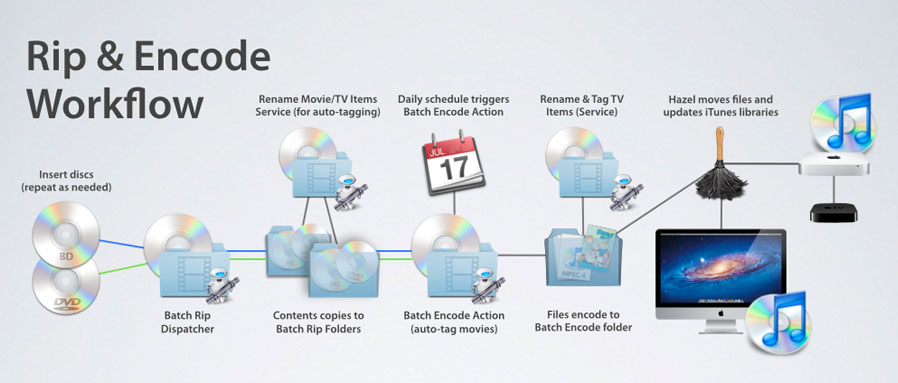
Batch Rip Actions for Automator How-to Automate DVD & Blu-Ray (Backup, Encoding & Tagging) for Mac OS X 10.7 ![]() Introduction Backing up a DVD or Blu-Ray library can be an arduous, time consuming task. Using a GUI tool is a simple task if you do one occasionally, but a lot of us have amassed large collections that would take days, weeks, months or even years to complete. And, if you’ve ever tried to encode an entire season of TV episodes you know how laborious a project this can be as well: Insert a DVD, rip the disc, choose your encode settings, select and add each title to the queue, process the file, add iTunes metadata; rinse and repeat for each of the discs in the season … and don't even get me started on manually doing this with Blu-ray. The good news is that most of these tasks can be easily automated to remove the manual intervention required. Just insert a disc and it will rip automagically. When done, pop in another. If you’ve got Mac with two or three optical drives connected, fill em' up and you’ll save yourself some trips. Set a repeating iCal alarm, and at midnight HandBrakeCLI will encode each track within the min/max duration you set in your workflow. You can even set it do multiple encodes if you'd like an iPad version and an Apple TV 720p version. All you need to do now is the tagging, but why should you do it? It's a computer after all … why not automate that as well! If you want to get really fancy, you can take your workflow to the next level by using folder actions or Noodlesoft's Hazel to backup your rips, add the finished files to all the iTunes Libraries on your network and stream em' to an Apple TV. Virtually anything is possible with automation. This tutorial is broken up into components that can be used individually or together to create one, simple, automated batch workflow. Workflow Components
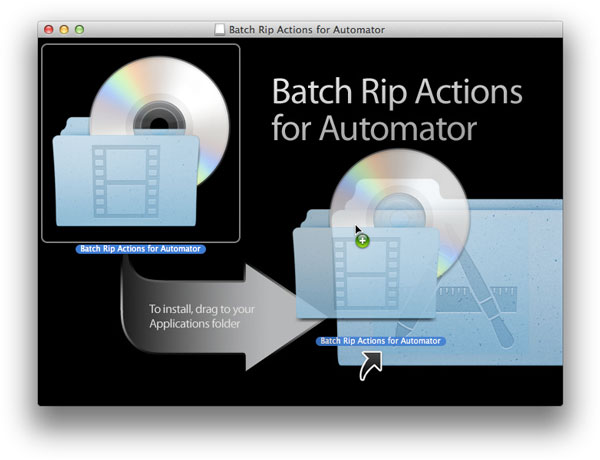
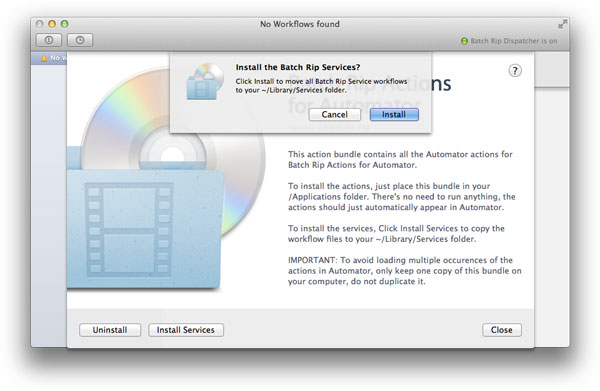
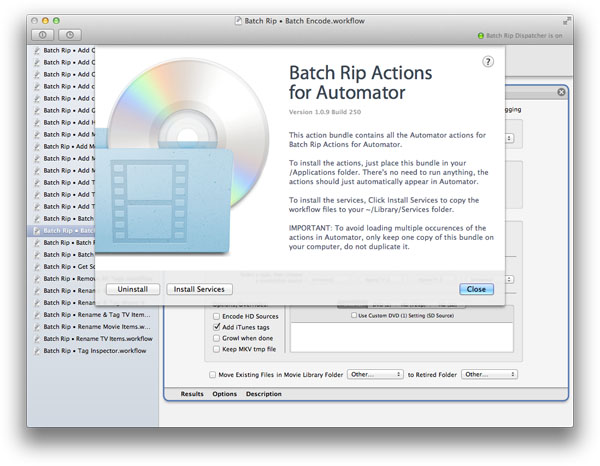
Note: This tutorial assumes you have some familiarity with Mac OS X and the ripping/encoding process. The focus of this tutorial is how to AUTOMATE your workflow. It is NOT intended to be A BEGINNERS GUIDE to DVD/BD encoding. If you are new to any of the concepts presented in this tutorial, I highly recommend engaging in some of the fantastic forum threads on the macrumors and handbrake forums to help get you started. Then, return to this tutorial after you have become comfortable with the process and have been successful doing it manually. See the section "Additional Resources" for more info. About Batch Rip Actions for Automator Batch Rip Actions for Automator is an application that provides Actions and Workflows to automate the rip and encode process. ![]() These actions began as a series of scripts that made up my batch rip workflow. When I started writing this tutorial, the focus was to illustrate how to create these scripts and tie them together. However, with the introduction of Snow Leopard, it became clear to me that offering pre-compiled Automator actions and Service workflows would make this a much simpler process. An Automator workflow consists of a sequence of discrete tasks called actions. An Automator action is a kind of functional building block. Each action performs an individual step you might currently do manually‚ such as ripping a disc, changing filenames, encoding files with HandBrake, or tagging files with iTunes metadata. Some actions like Batch Encode, go a step further and perform many operations in one process. For example, with each Blu-ray source it finds … it will create an mkv file, extract the main video, audio, and subtitle tracks. Convert the subtitles to vob, mux them all together, send them to HandBrake which will encode it to mp4, then download all the iTunes tags for your title and tag the file. Imagine doing this manually! Batch Rip Actions for Automator follows the recommended approach of ripping the complete folder structure of your optical media to your hard drive. For DVD media, this is done with FairMount. For BD media, we use MakeMKV. MakeMKV is still in beta and doesn't fully support BD+ titles and may not work with every disc or drive. If MakeMKV doesn't work for you manually, it's not gonna work with Batch Rip Actions for Automator. Note: If MakeMKV doesn't work for you, I highly recommend using AnyDVDHD for your BD backups. AnyDVDHD is developed by SlySoft.com and is considered the gold standard for BD backup. The upside to AnyDVDHD is that it fully supports Blu-Ray copying and creates a true backup of the entire disc. The downside is that it is Windows only. AnyDVDHD can be used with the free, open source VirtualBox for Mac, VMware Fusion (recommended) and Parallels. Once the disc's contents have been ripped to the hard drive, the movies or TV episodes are encoded to an iTunes compatible MP4 format and tagged with metadata iTunes, AppleTV or other devices can manage. The actions provided in this bundle include: Batch Rip This action copies video DVD and BD discs to a chosen folder correctly named for automatic tagging. Batch Encode This action encodes DVD/BD content to m4v/mkv and tags them with iTunes metadata. This action receives input from the Finder, other actions, or batch folders specified in the action panel. Input types: DVD-ROM, BD-ROM, VIDEO_TS, BDMV, m2ts, mkv, mp4, m4v, avi, mpg, and mov. Other options include: Growl notification, Blu-ray subtitle conversion, multiple encodes, and custom HandBrake settings. Add TV Tags This action searches thetvdb.com database and adds iTunes metadata for the specified TV episode mp4/m4v files. Other options include: renaming, removing tags and optimizing. Add Movie Tags This action searches themoviedb.org and tagchimp.com databases and adds iTunes metadata for the specified mp4/m4v files. Other options include: renaming files and folders, removing tags, optimizing, and managing chapter information. Add Movie Poster This action will add cover art to selected files. Add Genre to Movie File This action tags mp4 files with a selected iTunes genre. Tag Inspector This action displays the iTunes metadata for the input file. Get Source Info from HandBrake This action scans each source with HandBrakeCLI and saves the info to a text file. Rename TV Items This action searches thetvdb.com for shows matching the query and renames items to the selected search result and user specified series, season and episode or disc number. This tutorial will focus on how to use these actions and their related Automator workflows. But before we get started, we need to install our applications and set up our batch folders. Getting Started To complete this tutorial you will need to download and install the following: Batch Rip Actions for Automator v1.0.9 Installing Batch Rip Actions for Automator
What you need to get started Batch Rip Actions for Automator requires the following applications be installed in your Applications Folder. For convenience, I've provided links to these applications via the Download menu in the menu bar. MANDATORY FairMount v1.1 FairMount is a free tool that allows decryption of DVD content on the fly for a convenient access. FairMount does not perform the actual decryption, it simply forwards the data to VLC Media Player which is used for decryption - thus, VLC Media Player must be installed for FairMount to work. Install in /Applications. Note: (there is no need to install DVDRemaster that comes with the package) VLC Media Player v1.1.11 VLC media player is a free, open source multimedia player for various audio and video formats (MPEG-1, MPEG-2, MPEG-4, DivX, mp3, ogg, ...) as well as DVDs, VCDs, and various streaming protocols. VLC Media Player must be installed for FairMount and HandBrake to work with DVDs. Install in /Applications. HandBrakeCLI v0.9.5 HandBrake is an open-source, GPL-licensed, multiplatform, multithreaded DVD to MPEG-4 converter, available for MacOS X, Linux and Windows. The Command Line Interface version of HandBrake is a lot faster and more flexible than the MacGui. Using scripting you can automate HandBrakeCLI to encode your files as a background process using the same parameters you'd set in the GUI. Install in /Applications. Note: DVD disc input is only supported if VLC is installed. FOR BLU-RAY/HD ENCODING, YOU'LL NEED THE FOLLOWING: MakeMKV v1.6.12 MakeMKV is the only mac native app for ripping Blu-ray discs. However, at this time it may not work with every disc or drive. It converts DVDs and BDs into a set of MKV files. MakeMKV has a GUI and a command-line (makemkvcon) interface that's located in the application's bundle. Install in /Applications. Mkvtoolnix v4.9.1 MKVToolnix is a set of tools to create, alter and inspect Matroska files under Linux, other Unices and Windows. They do for Matroska what the OGMtools do for the OGM format and then some. Install in /Applications. About Growl Support Growl v1.3 Growl is a notification system for Mac OS X: it allows applications and scripts that support Growl to send you notifications. Batch Rip and Batch Encode both contain Growl support. The GrowlNotify command-line tool is needed by these actions to notify the Growl application. GrowlNotify is available from the growl website's general downloads page: Growl's download page. ![]()
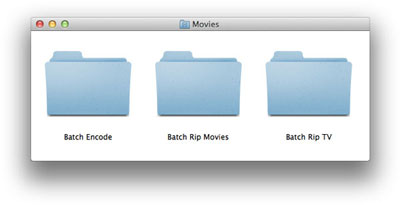
Managing Your Batch Rip Files and Folders A well planned folder structure will make your workflow much easier to manage. Most of these workflows rely on consistent paths to the source and destination folders, as well as the paths to the actions and applications themselves. For most users, your files should be processed on your local hard disk. External drives can be used, but in some cases they may slow down the speed of your encoding. For this tutorial, we'll use your ~/Movies folder as the container for your workflow files and folders. Keeping your workflow under this one directory will make this process much easier. You can then have Hazel or Automator move the finished rips and encoded files to another drive or remote volume after they are done. IMPORTANT: These workflows rely on one important piece of information that needs to be set for each disc, Video Kind. Video Kind is a variable we use in the actions to identify whether a disc contains a Movie or TV Show. The easiest way I've found to do this is to simply rip TV Shows to one folder and Movies to another. A script can then determine a disc's "kind" based on its location. The Batch Rip action allows you to set the video kind for each disc inserted. Also included are two Services located in your Services folder that will add the “video kind” as a Spotlight comment to selected files or folders. With the video kind set, the Batch Encode action will know whether to encode every episode for TV Shows or only the main feature for Movies. You can also set unique min/max durations for each video kind. Video kind also helps for auto-tagging. Auto-tagging during the encoding process only works reliably for movies. TV Shows need to be done as a separate process after the files have been encoded to ensure that all the episodes have been verified, and sorted in order. Creating Your Batch Folders If you chose to have the installer create your Batch Folders during the workflow installation process, they will be located in your ~/Movies directory. If not, follow the steps below to create your Batch Folders:
Using the Workflow Editor Batch Rip Actions for Automator includes a series of Automator "Service" workflow files pre-built to work with the actions. ![]() The Actions contained in a workflow can have fields, pop-up menus, checkboxes, and other user-interface elements for configuring the action. Batch Rip Actions for Automator features a Workflow Editor to help you quickly edit and save your workflow options. To edit a workflow:
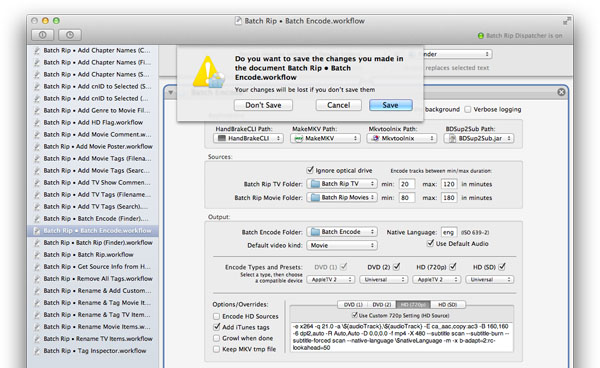
Using Batch Rip Service Workflows A Service is a special type of Automator workflow that can be used from another application or the Finder via contextual menus throughout the OS. Some services require input such as movie files. These types of services can be context sensitive, and only appear in the correct application or if the correct type of input is selected. In this tutorial, there are two ways we run Services:
Tutorial continues below… Last edited by mac.jedi; Nov 27, 2011 at 12:28 PM. Reason: updated actions to 1.0.9 |
|
|
|
4
|
|
|
#2 |
|
How-To: Continued…
Using Batch Rip to Automate DVD/BD Ripping
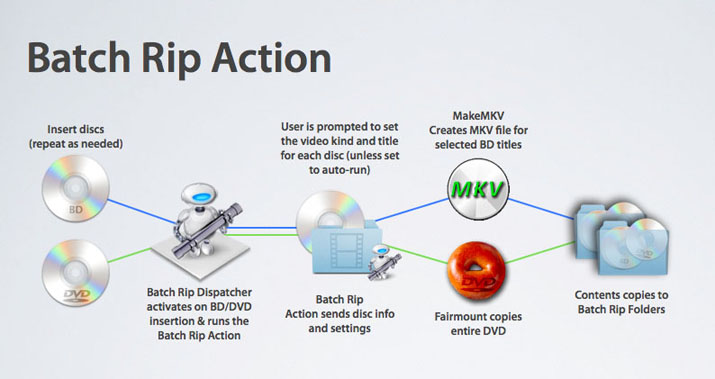
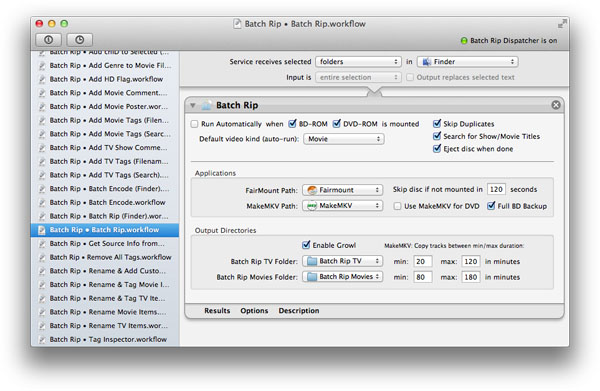
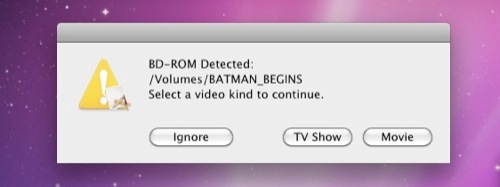
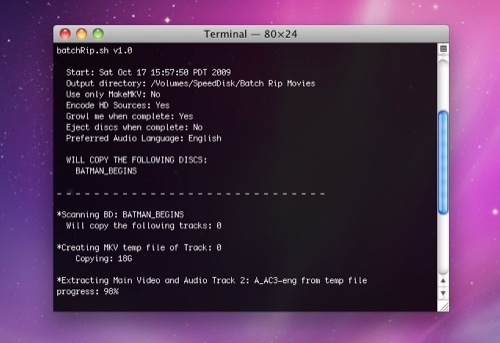
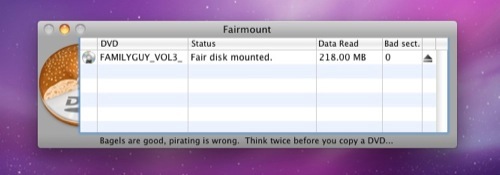
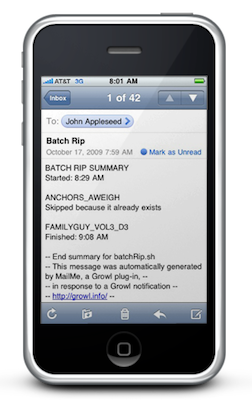
![]() Batch Rip uses several technologies to automate the ripping process. For DVDs, FairMount and VLC are used to decrypt the DVDs on your system. A subroutine within the Action will then copy the entire DVD to your hard drive. Also, if your have more than one DVD drive, this Action will allow multiple DVDs to copy at the same time. The Action also includes Growl notification support, option to search for show/movie titles for the copy, and an option to eject the discs when finished. For Blu-Ray, the process is essentially the same, except we use MakeMKV which extracts each title that's between the min/max duration you set in the action. The action also includes an option to do a full BD backup. BD discs are processed sequentially. Using the Batch Rip Services There are two Automator Services that can be used with the Batch Rip action. Batch Rip • Batch Rip.workflow This service receives no input and will act on all mounted video discs. If a BD-ROM or DVD-ROM is mounted, this Service displays a prompt that will cancel after 30 seconds, if no action is received from the user. The prompt will ask if you'd like to copy the disc. Choosing Movie or TV Show will set the video kind for that disc; and repeat for each disc mounted. The action will then copy each disc to your Batch Rip TV or Batch Rip Movies folder. There is also an option to search and select the correct "title" for your source disc which will help for auto-tagging later. You can also set the action to run automatically which disables the dialogs and uses the default video kind set in the action panel. To use it: Open the application menu (to the right of the Apple menu), choose Services > "Batch Rip • Batch Rip". Batch Rip • Batch Rip (Finder).workflow This Service will act only on items passed as input via the Finder, another Action, or a script. To use it via the Finder: Select the discs you'd like to copy and run the service. Only the selected items will be processed. To use it via another script: Pipe the input folders as a list with each source on its own line. Here's an example: Code:
echo -e "/Volumes/IRON_MAN_D1\n/Volumes/DVD_VIDEO" | automator -i - "/Users/username/Library/Services/Batch Rip • Batch Rip (Finder).workflow" Customizing your Batch Rip Workflow ![]()
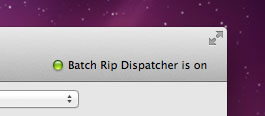
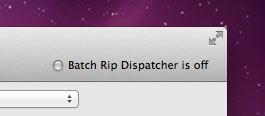
Using Batch Rip Dispatcher Batch Rip Dispatcher is a LaunchAgent that monitors your /Volumes directory for BD-ROM or DVD-ROM discs. It will automatically activate the "Batch Rip • Batch Rip (Finder).workflow" when a disc is detected. To control Batch Rip Dispatcher, Click the status display in the Workflow Editor toolbar to turn it On or Off.
Testing your Batch Rip Workflow
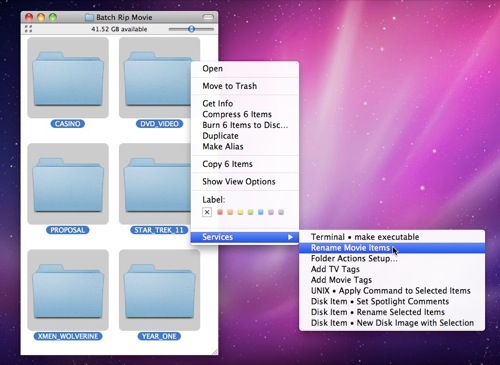
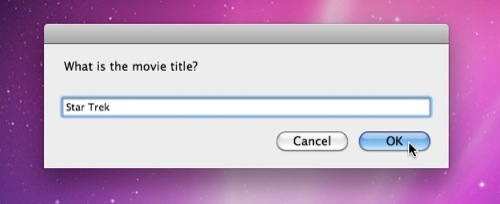
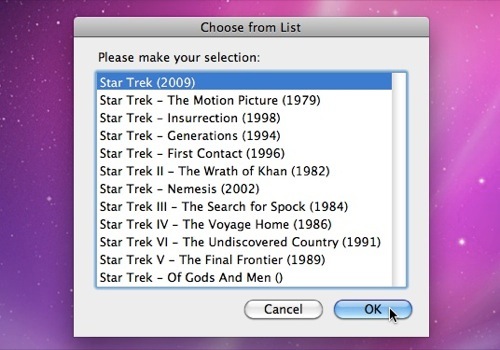
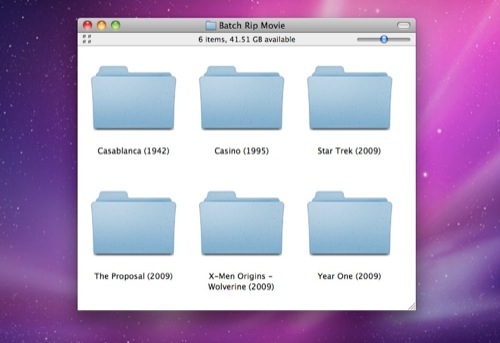
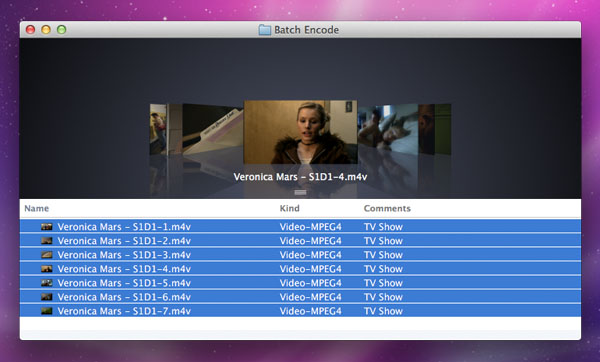
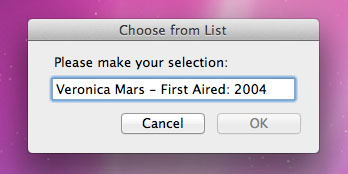
A Few Words on Source Folder and File Naming Many applications use the file or folder name to get content info and cover art from sites like tagchimp.com, themoviedb.org and thetvdb.com. It is considered good practice to rename your files and folders, BEFORE encoding your final files. Your source files will then be named correctly making them easier to manage later. In addition, your output files will also be named correctly, allowing for a script or application to associate the correct metadata for your content. For TV Show sources the naming convention is: <Show Name - S#D#> or Veronica Mars - S1D1. The "D#" represents the disc number. If your using MakeMKV (which creates separate files for each episode), it will add -1, -2, etc. to the end of the filename. Example: Veronica Mars - S1D1-1.mkv. More information on tagging and renaming your final TV show files will be discussed in later chapter. For movies the naming convention is: <Movie Name (year)>. Example: X-Men Origins - Wolverine (2009). Note that titles that contain a colon [:] are replaced with a space and a dash [ -], as filenames cannot contain this character. To make this process easier and more reliable, I've provided Automator Services that will search themoviedb.org or thetvdb.com for the correct Movie or Show Title, and automatically rename your file or folder. Just select the files or folders you want to rename and run the Service. A dialog box will appear, enter the title to search. Select the name and year that matches your content and the Service will then rename your item. The Service will loop through each item incrementally. This process has also been added as an option to Batch Rip.action which will prompt a search before copying the discs. Additionally, there are Rename & Tag Services provided for both TV and Movies; that will rename and tag selected items with iTunes metadata. Note: themoviedb.org and thetvdb.com are free online services. Periodic outages are not uncommon. If data is not returned, the service may be down. Using the "Rename Movie Items" and "Rename TV Items" services
Tutorial continues below… Last edited by mac.jedi; Nov 13, 2011 at 08:41 PM. Reason: updated actions to 1.0.9 |
|
|
|
1
|
|
|
#3 |
|
How-To: Continued…
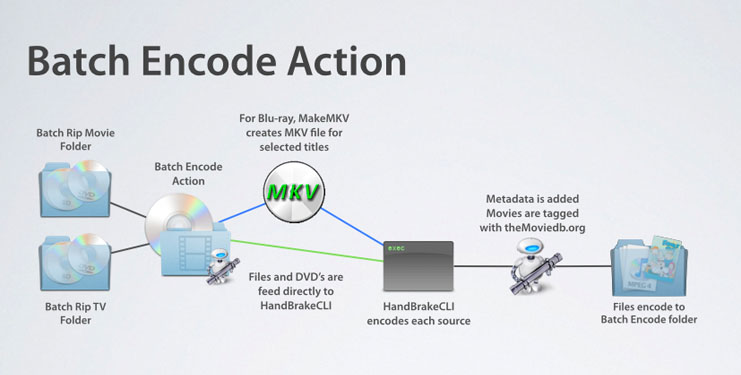
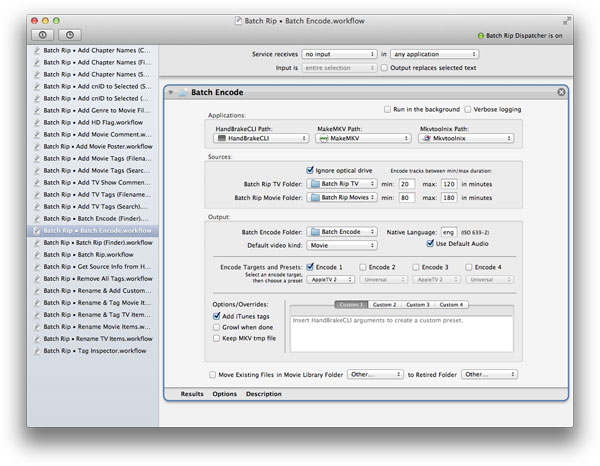
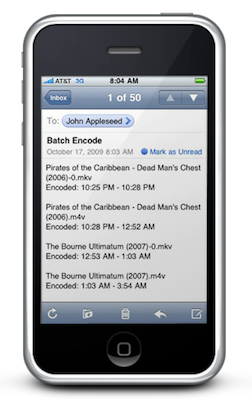
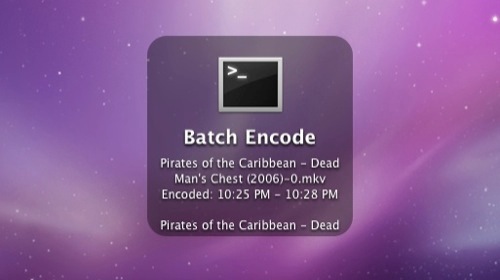
Using Batch Encode to Automate HandBrake Encoding ![]() This Automator Action incorporates many of the tasks commonly used for processing files and includes growl support. The input sources can be files or folders located in your "Batch Rip TV" and "Batch Rip Movies" folders, or optical discs mounted on your system. If the input source resides in your Batch Rip TV folder or its Spotlight comment is set to "TV Show" the script will select each track that's between the min/max duration set in the script. If the input source resides in your Batch Rip Movies folder, or its Spotlight comment is set to "Movie", only one track is selected, provided it's between the min/max duration you set in the script for movies. The encode script will then encode and output the selected titles to your Batch Encode folder. The input types supported: Blu-Ray Disc, BDMV, DVD-VIDEO Disc, VIDEO_TS, avi, mp4, m4v, mkv, m2ts, mov and mpg. The output types supported: m4v (mp4) and mkv. Encode Targets: The action will output up to four encoded files for each source. Each encode target will be processed using its selected preset. Presets: Different encode settings can be selected for each encode target. All preset encode settings are based on HandBrake's presets for compatibility with Apple devices. Custom Presets: You can create up to four custom presets using standard HandBrakeCLI arguments. A custom preset can be selected for each encode target. Audio Language: Batch Encode selects the audio track based on the "default" language of the source. If you'd like Batch Encode to select audio tracks in your native language: Disable the Use Default Audio button in the action. Batch Encode will then select the audio track (if available) that matches the native language preference set in the workflow, otherwise, it will select the title's default language. Subtitles: All preset encode settings will burn in forced subtitles in your native language; or all subtitles if the main audio language is not the native language set in the action. For BD sources, BDSup2Sub will convert PGS subtitle tracks in your native language to VOBSUB for input to HandBrakeCLI. Multi-Channel Audio: The Batch Encode action includes a sub-routine that will set the audio output settings differently depending on the audio source. The sub-routine favors multi-channel audio (DTS or AC-3). If the audio codec is DTS, HandBrake will convert DTS to AC-3 since DTS pass-thru is not an option in m4v files. Certain presets will also include a secondary stereo aac track in addition to the 5.1 multi-ch track. iTunes Tagging: Once a m4v file is encoded, movies are then optionally embedded with iTunes XML style metadata, cover art and chapter names via theMovieDB.org and tagchimp.com API's. If a 720p or higher m4v file is encoded, the HD flag is set to allow the HD or HD/SD logo to appear in iTunes and the AppleTV. If an HD and SD m4v is created from the same source, they will both be set with the same cnid number. Having the same cnid number will allow the SD and HD versions to show up as one entry in iTunes. Other Options: There are "Override" settings in the script to allow you to ignore the optical drive, set the video kind for optical sources, and keep the makemkv temp file which contains all audio and subtitle tracks for BD sources. Batch Encode Services There are two Automator Services provided to use with Batch Encode. Batch Rip • Batch Encode.workflow This service receives no input and will act on all files or folders located in your "Batch Rip TV" and "Batch Rip Movies" folders, or optical discs mounted on your system (if Ignore Optical is not selected). To use it: Open the application menu (to the right of the Apple menu), choose Services > "Batch Rip • Batch Encode". Batch Rip • Batch Encode (Finder).workflow This Service will act only on items passed as input via the Finder, another Action, or a script. To use it via the Finder: Select the files, folders or discs you'd like to encode and run the service. Only the selected items will be processed. To use it via another script: Pipe the input files or folders as a list with each source on its own line. Here's an example: Code:
echo -e "/Users/username/Movies/Batch Rip Movies/Toy Story (1995)\n/Users/username/Movies/Batch Rip TV/The Office (US) - S1D1" | automator -i - "/Users/username/Library/Services/Batch Rip • Batch Encode (Finder).workflow" Customizing your Batch Encode Workflow ![]()
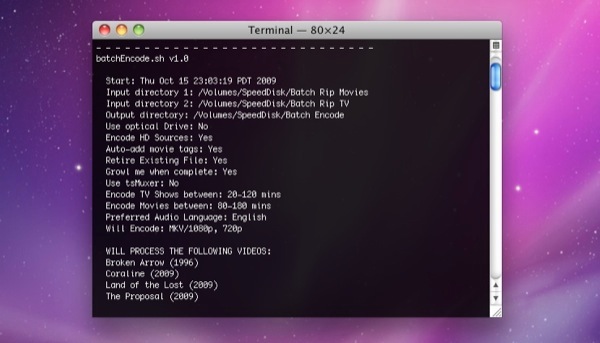
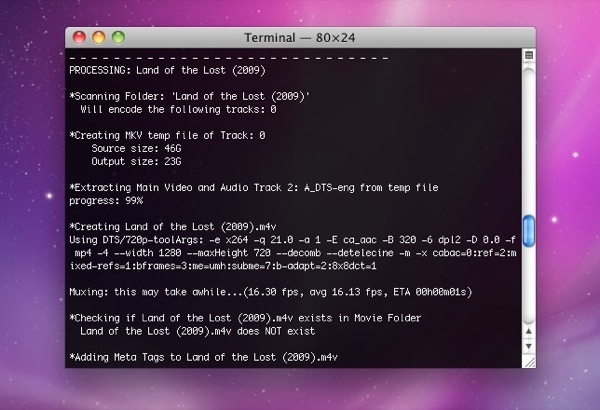
Testing your Batch Encode Workflow
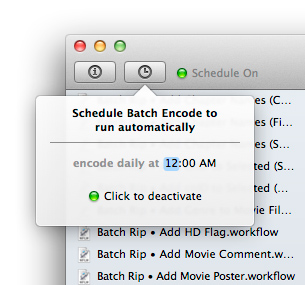
Setting Batch Encode to Run Automatically with iCal
Tutorial continues below… Last edited by mac.jedi; Dec 2, 2011 at 11:16 PM. Reason: updated actions to 1.0.9 |
|
|
|
1
|
|
|
#4 |
|
How-To: Continued…
How to Automate Movie File Tagging with iTunes Style Metadata
There are three services provided to add iTunes metadata and cover art using the Add Movie Tags Action:
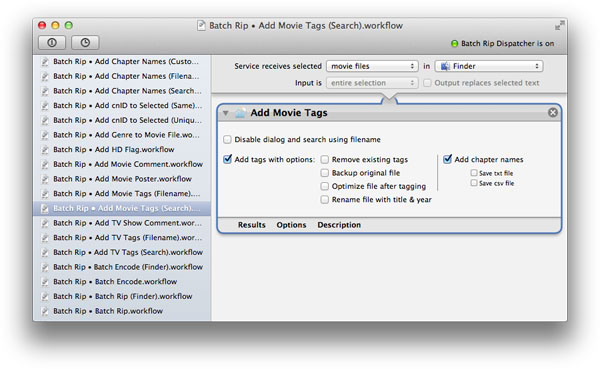
These workflows all use the Add Movie Tags Action and operate differently on the settings used in the Service workflows. The workflows are designed to tag movie files that have already been encoded (the Batch Encode workflow has an option to tag files as they are processed). To use, just select the files you want to tag and run a service. The workflows will then tag each file with metadata from themoviedb.org. Using Batch Rip • Add Movie Tags (Search) This service will display a list of possible matches from themoviedb.org database based on your search criteria. The service will then tag the file with metadata for the title selected.
Using Batch Rip • Add Movie Tags (Filename) This service will tag each file based on its filename with metadata from themoviedb.org database. IMPORTANT: Your input files must be named properly with the following naming convention: Movie Name (year).m4v ( example: X-Men Origins - Wolverine (2009).m4v ). Titles that contain a colon [:] are replaced with a space and a dash [ -], as filenames cannot contain this character (see the section on file and folder renaming for more information). There is also a Rename & Tag Movie Items Service included in the Services menu if you also need to rename and tag your finished files.
Using Batch Rip • Rename & Tag Movie Items This service works like Add Movie Tags (Search) but will rename the file after tagging. See the section on Using the Add Movie Tags (Search) Service for more information. Changing options for Add Movie Tags Services Each Service is designed to perform a certain function, however there are options available in the Add Movie Tags Action panel that you may want to tailor to fit your needs. ![]()
How to Automate TV Show File Tagging with iTunes Style Metadata There are three services provided to add iTunes metadata and cover art using the Add TV Tags Action:
These workflows all use the Add TV Tags Action and operate differently on the settings used in the Service workflows. To use, just select the files you want to tag and run a service. The workflows will then tag each file with metadata from thetvdb.com database. Using Batch Rip • Add TV Tags (Search) This service will display a list of possible matches from thetvdb.com database based on your search criteria, then tag the files with the cover art and iTunes metadata for the show, season and episode.
Using Batch Rip • Add TV Tags (Filename) This service will tag each file based on its filename with metadata from thetvdb.com database. IMPORTANT: Your input files must be named properly with the following naming convention: <Show Name - S##E##> (ex. Veronica Mars - S01E02.m4v). The "S##" signifies the season number and the "E##" represents the episode number. There is also a Rename & Tag TV Items Service included in the Services menu if you also need to rename and tag your finished files.
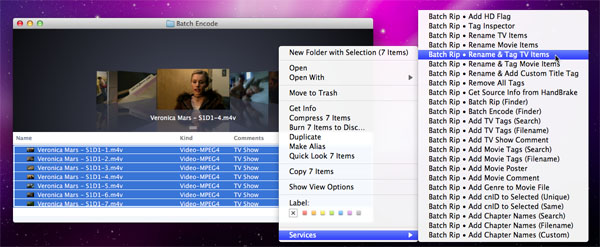
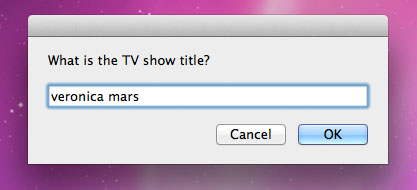
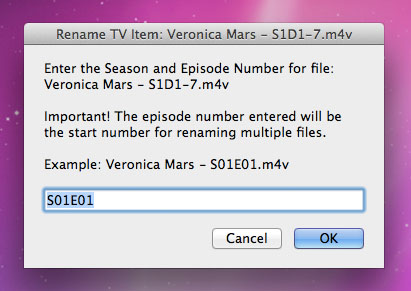
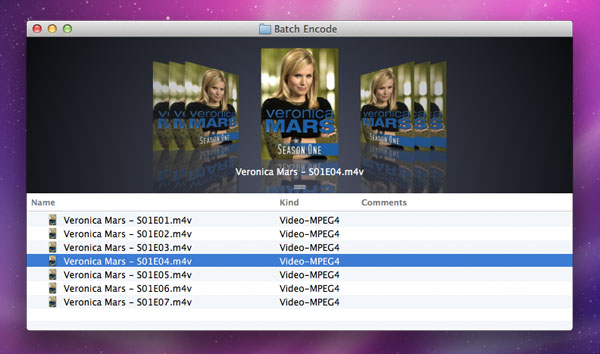
Rename & Tag TV Items Service This service works like Add TV Tags (Search) but will rename the file before tagging. See the section on Using the Add TV Tags (Search) Service for more information. The files will be renamed with the following naming convention: <Show Name - S##E##> (ex. Veronica Mars - S01E02.m4v). If multiple files are selected, the service will rename each file with the same show title and season number. The episode number will be assigned sequentially, starting with the episode number you specify when prompted. IMPORTANT: If you are batch renaming files, they must be pruned and in episodic order BEFORE running this service: I recommend appending each file name with a number. This number does not have to represent the episode number, just a number to keep them in numerical order. If your are using the Batch Encode Action to encode your TV files, the action will automatically include the title number at the end of the name (example: Veronica Mars - S1D1-1). The files will most likely already be in order with the disc number and title number, but this isn't always the case. You should always verify that all the episodes are present, any extras that may have been encoded are removed, and the files are in the correct order before running this service. Visit thetvdb.com to check your show and season to verify the number of episodes and check your files. Note, that some discs may present two-part episodes as one title. In this case, these files should be processed in sets (example: if the season starts with a two-parter, process episode …E01. Process your next set with your number sequence starting at …E03, skipping …E02). IMPORTANT: Thetvdb.com database has different options for episode ordering, Date Aired and DVD Order. Be sure to check the website to verify the correct order for your files. In most cases it will be DVD. However, some blu-ray discs have been released with a different sort order than the DVD versions. So, it’s good practice to check before renaming or tagging your files and select the appropriate "Sort Order" option in your workflow. Using the Rename & Tag TV Items Service
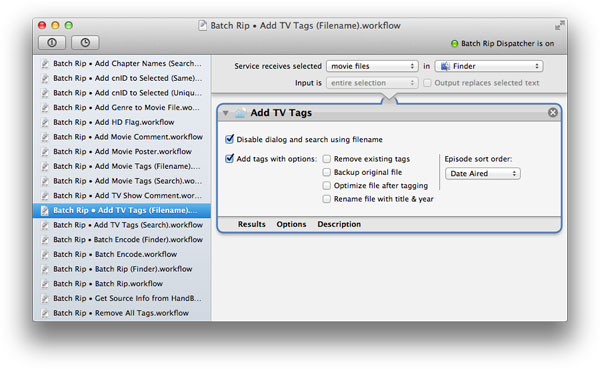
Customizing your Add TV Tags Services Each Service is designed to perform a certain function, however there are options available in the Add TV Tags Action panel that you may want to tailor to fit your needs. - ![]()
Managing your Media with Hazel Moving files around can be a chore, especially if you have an elaborate Mac media setup. Rather than going into each step in detail, I'll just touch on a few concepts that might peak some interest in how automation can help manage files on a multi-Mac setup. The Batch Rip and Batch Encode workflow provide a few elements that will allow you to easily automate and organize your media. The key components are "Finder Label Index" (File/Folder Color) and "Spotlight Comments" (Finder Comments). Spotlight Comments used in Batch Rip Actions for Automator:
Finder Labels used in Batch Rip Actions for Automator:
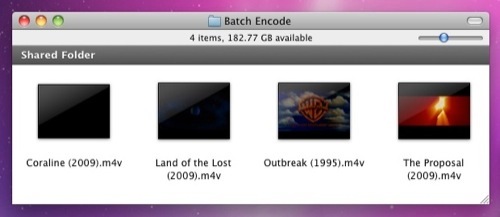
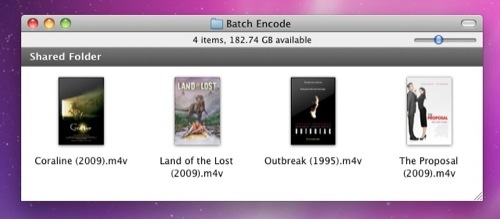
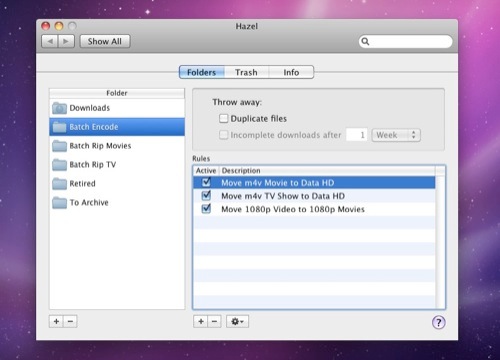
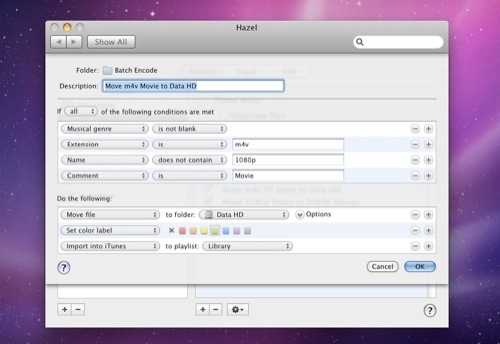
We can use these elements to automate the file management process with a series of Folder Actions or with Noodlesoft's Hazel application. Hazel http://www.noodlesoft.com is a preference pane that allows you to set up Rules based on a file's Spotlight data and specify actions to take when an item matches the Rules. This is similar to the way Smart Playlists function in iTunes and Smart Albums in iPhoto. ![]() For example: If a file or folder located in our "Batch Rip TV" or "Batch Rip Movies" has a gray Label color we can assume it has already been encoded since the Batch Encode Script will change its color to gray after it has been encoded. We can set a rule in Hazel that will move any file/folder that's gray to a "Backup" drive. One nice thing about Hazel is that it will move the source file to the target location, not just copy it. It has some intelligence and safeguards built in to know if a file has been moved successfully and then deletes the source file, freeing up more space on our Batch Rip volume. We can also have Hazel monitor our Batch Encode folder for files that have the extension ".m4v", have a Spotlight comment set to Movie, and have a "Finder Label" that is green. If a file has a green label, we can assume it has already been tagged with metadata so it should be considered a finished file. If all these criteria match, we can have Hazel then automatically move the file to our Movie library folder, then add the file to our local iTunes library, then change its color label to purple. You can even set up Hazel on a remote Mac to monitor the Movie folder via file sharing and add and movie file that's color label is purple and add it to its iTunes libraries as well, then change its color. You can repeat this with every Mac on your network to easily sync every added file. You can also duplicate this workflow for TV Shows as well keeping the files in separate folders and automatically creating subfolders based on the show name and season. ![]() In addition to m4v files, we can have a similar Rule for our Batch Encode folder that looks for ".mkv" files with a Spotlight Comment of Movies or TV Shows and move them to a Plex depository on a local or network drive. Hazel also allows for scripts to run when an item matches our rules. For example, with the "Move existing file to retired folder" option in the Batch Encode action enabled, you can have Hazel run an AppleScript that will remove the existing movie or TV show from iTunes when its file is added to the retired folder set in the action, helping to prevent duplicates in your library. Hazel is a do-it-as-it-happens approach. The disc rips, the file encodes, the file is tagged, the source is backed up, the 1080p mkv is sent to a Plex folder, the m4v file is moved to my library, the file is then added to all my iTunes libraries and is sync'd to my Apple TV's. Simple and done. The point is with a few triggers, you can easily automate the process of moving, organizing and syncing your media. I prefer Hazel for it's versatility and ease of use, but a lot of what Hazel provides can also be done with Folder Actions … but with a lot more work. Conclusion I hope you enjoyed this tutorial. If you've made it to the end, kudos to you. This process has been a great learning experience for me and hope it is for you as well. The elements of this workflow really demonstrate the power Mac OS X has with Unix, AppleScript, Automator and a brilliant developer community. Though this tutorial is a bit more involved than I had anticipated, I can attest that once you've got it going, you will spend less time managing your content and more time enjoying it. If you’d like to dig a little deeper, there are additional resources listed below. Happy Encoding! Additional Resources: Batch Rip Help: In the app under the Help menu or via Mac's Help Center. How To: Rip, Encode and Combine Using Fairmount & DTOX Native Blu-ray ripping for OS X Blu-Ray to Apple TV Advanced Bluray/HDDVD Workflow & Features Subler Older automation thread How-To: Automate DVD Backup w/ FairMount & HandBrake Last edited by mac.jedi; Nov 13, 2011 at 08:50 PM. Reason: updated actions to 1.0.9 |
|
|
|
1
|
|
|
#5 |
|
Release Notes
ANNOUNCEMENT: BATCH RIP ACTIONS UPDATED
Update 2011-11-13 Release Notes Batch Rip Actions for Automator 1.0.9 IMPORTANT: Even if you've been testing this, you must re-install the Service workflows. NOTE: The tutorial has been updated as well for v1.0.9. Additional help is available via the Help menu in the app. 1.0.9 build 254
Note: Sadly, but with no remorse, Snow Leopard is no longer supported in v1.0.9. There's very little reason not to upgrade to Lion at this point, so I'm just gonna focus on Lion. Add TV Tags.action
Rename TV Items.action
Add Movie Tags.action
Batch Encode.action
_______________________________________________________________________________________________ Update 2011-08-09 Release Notes Batch Rip Actions for Automator 1.0.8 Everything
Note: You will need to reset your options in the Batch Rip and Batch Encode workflows. They are located in ~/Library/Services. Tip: To open a Workflow in Automator, Choose Open (Command-O). Select > Service from the Type pop-up button which will take you to ~/Library/Services. Select the Workflow you'd like to edit and Choose > Open. _______________________________________________________________________________________________ Update 2011-07-31 Release Notes Batch Rip Actions for Automator 1.0.7 Everything
Batch Rip.action - UPDATED
Batch Encode.action - UPDATED
_______________________________________________________________________________________________ Update 2010-12-20 Release Notes Batch Rip Actions for Automator 1.0.6 Everything
Batch Rip.action - UPDATED
Batch Encode.action - UPDATED THIS UPDATE REQUIRES THE LATEST NIGHTLY BUILD OF HANDBRAKECLI
Batch Rip Dispatcher - UPDATED
Add Movie Tags - UPDATED
Add TV Tags - UPDATED
Rename TV Source Folders - NEW ACTION
NEW SERVICES Batch Rip • Add Chapter Names (Custom)
Batch Rip • Add Chapter Names (Search)
Batch Rip • Add cnID to Selected (Same).workflow
Batch Rip • Add cnID to Selected (Unique).workflow
Batch Rip • Add HD Flag.workflow
Batch Rip • Rename TV Source Folders.workflow
Batch Rip • Rename & Add Custom Title Tag.workflow
Batch Rip • Batch Encode (Finder).workflow
_______________________________________________________________________________________________ Update 2010-11-23 Release Notes Batch Rip Actions for Automator 1.0.5 Everything
Batch Rip.action - UPDATED
Batch Encode.action - UPDATED
_______________________________________________________________________________________________ Update 2009-12-02 Release Notes Batch Rip Actions for Automator 1.0.4 Everything
Batch Rip Dispatcher.action - NEW ACTION
Tag Inspector.action - NEW ACTION
Get Source Info from HandBrake.action - NEW ACTION
Batch Rip.action - UPDATED
Batch Encode.action - UPDATED
Add Movie Tags.action - UPDATED
Add TV Tags.action - UPDATED
Rename Movie Items.action - UPDATED
Add Movie Poster.action - UPDATED
Last edited by mac.jedi; Nov 14, 2011 at 09:49 AM. Reason: updated to 1.0.9 |
|
|
|
1
|
|
|
#6 |
|
_______________________________________________________________________________________________
Update 2009-11-10 Release Notes 1.0.3 In Apple speak, v1.0.3 provides general fixes that enhance the stability, compatibility and functionality of Batch Rip Actions for Automator
_______________________________________________________________________________________________ Update 2009-10-27 1.0.2 Everything
Add Genre to Movie File.action - NEW ACTION
Add Movie Poster.action - NEW ACTION
_______________________________________________________________________________________________ Batch Rip.action - UPDATED
Batch Encode.action - UPDATED
Add Movie Tags.action - UPDATED
Add TV Tags.action - UPDATED
Last edited by mac.jedi; Nov 14, 2011 at 09:50 AM. |
|
|
|
0
|
|
|
#7 |
|
Wow... I don't know if I will ever use any of this, but THANKS for taking the time to put all of it together. This is just an incredibly nice thing to share with the community.
Cheers, Jim |
|
|
|
1
|
|
|
#8 |
|
This is super cool. Thanks for putting this together and I'll be giving this a try.
One question though, concerning the Handbrake CLI part. In the past when using it, I found it was not able to process the audio selections correctly of some movies of mine which did not have the AC3 track set as default (I have seen a number of older movies this way). If it didn't have the surround sound set as default it would just process the 2-channel track and that is it. I bailed on the CLI for this reason. Have you figured a way around this? Thanks again for your hard work on this! |
|
|
|
0
|
|
|
#9 |
|
Subbed! thx for this writeup
|
|
|
|
0
|
|
|
#10 | |
|
Quote:
Yes, this was common for older DVDs where the default audio track was usually Dolby Pro-logic. The good news here is that there's a sub-routine in the Action that scans the source with HandBrake to get the audio info… languages, audio formats, and track numbers. As described in the tutorial: Note: The default encode settings include a sub-routine that will set the audio output settings differently depending on the audio source. The sub-routine favors DTS pass-thru for 1080p mkv, and AC-3 pass-thru for m4v. If AC-3 is not available, it will down-convert DTS to AAC for m4v files (since DTS is not an option in m4v files). The 720p Apple TV default will not include a secondary stereo aac track if 5.1 pass-thru is available. So, basically if a source contains AC-3, then it will automatically select it as the audio track even if it's not the default (track 1) audio track. The audio parsing function is only available if you use default encode settings, no overrides. |
||
|
|
0
|
|
|
#11 |
|
Broken Pipes
Hey
Great tutorial. Slight problem over here I donno if anyone can help with? When I run the Batch Encode script, I get the following error: Code:
PROCESSING: SGA_S3_D3 *Scanning Folder: 'SGA_S3_D3' Will encode the following tracks: 1, 2, 3, 4 /Users/adam/Library/Automator/Batch Encode.action/Contents/Resources/batchEncode.sh: line 786: echo: write error: Broken pipe *Creating SGA_S3_D3-1.m4v Using AC3/DVD-toolArgs: -e x264 -q 20.0 -a 1,1 -E ca_acc,ac3 -B 160,160 -6 dpl2,auto -R 48,Auto -D 0.0,0.0 -f mp4 -4 -X 960 --loose-anamorphic -m -x cabac=0:ref=2:me=umh:b-adapt=2:weightb=0:trellis=0 Script could not complete because SGA_S3_D3-1.m4v does NOT exist - - - - - - - - - - - - - - - - - - - - - - - - - - - - - |
|
|
|
0
|
|
|
#12 | |
|
Quote:
Sorry you ran into trouble. It looks like the script is having a problem reading the audio info from the HandBrake scan. Could you post full scan data so I can see what problem is? You can use the code below in Terminal to get the scan data, just replace the path to HandBrakeCLI and the input path (after "-i ") to the path to the VIDEO_TS folder. You can also drag your VIDEO_TS folder to the Terminal to insert the path. Let me know. Thanks! Code:
/Applications/HandBrakeCLI -i /Path/to/SGA_S3_D3/VIDEO_TS -t0 |
||
|
|
0
|
|
|
#13 |
|
Donno if this is what you wanted, but here goes:
Code:
Last login: Wed Oct 21 14:58:33 on ttys000
MacBook:~ adam$ /Applications/HandBrakeCLI -i /Users/Shared/Batch\ Rip\ TV/Stargate\ Atlantis\ -\ S03D01 -t0
HandBrake 0.9.3 (2008112300) - http://handbrake.fr/
2 CPUs detected
Opening /Users/Shared/Batch Rip TV/Stargate Atlantis - S03D01...
Scanning title 1 of 15...
Scanning title 2 of 15...
Scanning title 3 of 15...
Scanning title 4 of 15...
Scanning title 5 of 15...
Scanning title 6 of 15...
Scanning title 7 of 15...
Scanning title 10 of 15...
Scanning title 11 of 15...
Scanning title 12 of 15...
+ title 1:
+ vts 1, ttn 1, cells 0->12 (710565 blocks)
+ duration: 00:41:42
+ size: 720x576, aspect: 1.78, 25.000 fps
+ autocrop: 2/2/0/0
+ chapters:
+ 1: cells 0->0, 82333 blocks, duration 00:04:48
+ 2: cells 1->1, 33146 blocks, duration 00:02:10
+ 3: cells 2->2, 46856 blocks, duration 00:02:34
+ 4: cells 3->3, 52946 blocks, duration 00:02:57
+ 5: cells 4->4, 56137 blocks, duration 00:03:26
+ 6: cells 5->5, 87176 blocks, duration 00:05:02
+ 7: cells 6->6, 54277 blocks, duration 00:03:20
+ 8: cells 7->7, 29282 blocks, duration 00:01:38
+ 9: cells 8->8, 87487 blocks, duration 00:05:02
+ 10: cells 9->9, 40556 blocks, duration 00:02:17
+ 11: cells 10->10, 81283 blocks, duration 00:05:02
+ 12: cells 11->11, 59080 blocks, duration 00:03:24
+ 13: cells 12->12, 6 blocks, duration 00:00:01
+ audio tracks:
+ 1, English (AC3) (5.1 ch), 48000Hz, 384000bps
+ 2, English (AC3) (Director's Commentary 1) (2.0 ch), 48000Hz, 96000bps
+ subtitle tracks:
+ 1, English (iso639-2: eng)
+ 2, English (Director's Commentary) (iso639-2: eng)
+ title 2:
+ vts 1, ttn 2, cells 0->12 (726016 blocks)
+ duration: 00:41:49
+ size: 720x576, aspect: 1.78, 25.000 fps
+ autocrop: 2/2/0/0
+ chapters:
+ 1: cells 0->0, 73959 blocks, duration 00:04:00
+ 2: cells 1->1, 35491 blocks, duration 00:02:09
+ 3: cells 2->2, 45513 blocks, duration 00:02:46
+ 4: cells 3->3, 122357 blocks, duration 00:07:11
+ 5: cells 4->4, 73551 blocks, duration 00:04:06
+ 6: cells 5->5, 58955 blocks, duration 00:03:11
+ 7: cells 6->6, 64757 blocks, duration 00:03:38
+ 8: cells 7->7, 67597 blocks, duration 00:04:15
+ 9: cells 8->8, 56122 blocks, duration 00:02:56
+ 10: cells 9->9, 54732 blocks, duration 00:02:49
+ 11: cells 10->10, 22799 blocks, duration 00:01:17
+ 12: cells 11->11, 50177 blocks, duration 00:03:29
+ 13: cells 12->12, 6 blocks, duration 00:00:01
+ audio tracks:
+ 1, English (AC3) (5.1 ch), 48000Hz, 384000bps
+ 2, English (AC3) (Director's Commentary 1) (2.0 ch), 48000Hz, 96000bps
+ subtitle tracks:
+ 1, English (iso639-2: eng)
+ 2, English (Director's Commentary) (iso639-2: eng)
+ title 3:
+ vts 1, ttn 3, cells 0->13 (719752 blocks)
+ duration: 00:41:48
+ size: 720x576, aspect: 1.78, 25.000 fps
+ autocrop: 4/4/0/0
+ chapters:
+ 1: cells 0->0, 78003 blocks, duration 00:04:21
+ 2: cells 1->1, 46821 blocks, duration 00:02:51
+ 3: cells 2->2, 39549 blocks, duration 00:02:16
+ 4: cells 3->3, 38634 blocks, duration 00:02:06
+ 5: cells 4->4, 55070 blocks, duration 00:03:13
+ 6: cells 5->6, 93182 blocks, duration 00:05:24
+ 7: cells 7->7, 66939 blocks, duration 00:04:00
+ 8: cells 8->8, 87339 blocks, duration 00:04:59
+ 9: cells 9->9, 78288 blocks, duration 00:04:40
+ 10: cells 10->10, 57838 blocks, duration 00:03:18
+ 11: cells 11->11, 36914 blocks, duration 00:02:06
+ 12: cells 12->12, 41169 blocks, duration 00:02:34
+ 13: cells 13->13, 6 blocks, duration 00:00:01
+ audio tracks:
+ 1, English (AC3) (5.1 ch), 48000Hz, 384000bps
+ 2, English (AC3) (Director's Commentary 1) (2.0 ch), 48000Hz, 96000bps
+ subtitle tracks:
+ 1, English (iso639-2: eng)
+ 2, English (Director's Commentary) (iso639-2: eng)
+ title 4:
+ vts 1, ttn 4, cells 0->12 (716150 blocks)
+ duration: 00:41:49
+ size: 720x576, aspect: 1.78, 25.000 fps
+ autocrop: 4/4/0/0
+ chapters:
+ 1: cells 0->0, 81871 blocks, duration 00:04:15
+ 2: cells 1->1, 50055 blocks, duration 00:03:07
+ 3: cells 2->2, 57820 blocks, duration 00:03:44
+ 4: cells 3->3, 36506 blocks, duration 00:01:58
+ 5: cells 4->4, 95421 blocks, duration 00:05:28
+ 6: cells 5->5, 58775 blocks, duration 00:03:37
+ 7: cells 6->6, 63285 blocks, duration 00:03:30
+ 8: cells 7->7, 42308 blocks, duration 00:02:29
+ 9: cells 8->8, 71736 blocks, duration 00:04:01
+ 10: cells 9->9, 41115 blocks, duration 00:02:39
+ 11: cells 10->10, 43402 blocks, duration 00:02:29
+ 12: cells 11->11, 73850 blocks, duration 00:04:31
+ 13: cells 12->12, 6 blocks, duration 00:00:01
+ audio tracks:
+ 1, English (AC3) (5.1 ch), 48000Hz, 384000bps
+ 2, English (AC3) (Director's Commentary 1) (2.0 ch), 48000Hz, 96000bps
+ subtitle tracks:
+ 1, English (iso639-2: eng)
+ 2, English (Director's Commentary) (iso639-2: eng)
+ title 5:
+ vts 1, ttn 5, cells 0->49 (2872465 blocks)
+ duration: 02:47:06
+ size: 720x576, aspect: 1.78, 25.000 fps
+ autocrop: 4/4/0/0
+ chapters:
+ 1: cells 0->0, 82333 blocks, duration 00:04:48
+ 2: cells 1->1, 33146 blocks, duration 00:02:10
+ 3: cells 2->2, 46856 blocks, duration 00:02:34
+ 4: cells 3->3, 52946 blocks, duration 00:02:58
+ 5: cells 4->4, 56137 blocks, duration 00:03:27
+ 6: cells 5->5, 87176 blocks, duration 00:05:03
+ 7: cells 6->6, 54277 blocks, duration 00:03:20
+ 8: cells 7->7, 29282 blocks, duration 00:01:38
+ 9: cells 8->8, 87487 blocks, duration 00:05:02
+ 10: cells 9->9, 40556 blocks, duration 00:02:17
+ 11: cells 10->10, 81283 blocks, duration 00:05:02
+ 12: cells 11->11, 59080 blocks, duration 00:03:24
+ 13: cells 12->12, 73959 blocks, duration 00:04:00
+ 14: cells 13->13, 35491 blocks, duration 00:02:09
+ 15: cells 14->14, 45513 blocks, duration 00:02:46
+ 16: cells 15->15, 122357 blocks, duration 00:07:11
+ 17: cells 16->16, 73551 blocks, duration 00:04:06
+ 18: cells 17->17, 58955 blocks, duration 00:03:11
+ 19: cells 18->18, 64757 blocks, duration 00:03:38
+ 20: cells 19->19, 67597 blocks, duration 00:04:15
+ 21: cells 20->20, 56122 blocks, duration 00:02:56
+ 22: cells 21->21, 54732 blocks, duration 00:02:49
+ 23: cells 22->22, 22799 blocks, duration 00:01:17
+ 24: cells 23->23, 50177 blocks, duration 00:03:29
+ 25: cells 24->24, 78003 blocks, duration 00:04:21
+ 26: cells 25->25, 46821 blocks, duration 00:02:51
+ 27: cells 26->26, 39549 blocks, duration 00:02:16
+ 28: cells 27->27, 38634 blocks, duration 00:02:06
+ 29: cells 28->28, 55070 blocks, duration 00:03:13
+ 30: cells 29->30, 93182 blocks, duration 00:05:24
+ 31: cells 31->31, 66939 blocks, duration 00:04:00
+ 32: cells 32->32, 87339 blocks, duration 00:04:59
+ 33: cells 33->33, 78288 blocks, duration 00:04:40
+ 34: cells 34->34, 57838 blocks, duration 00:03:18
+ 35: cells 35->35, 36914 blocks, duration 00:02:06
+ 36: cells 36->36, 41169 blocks, duration 00:02:34
+ 37: cells 37->37, 81871 blocks, duration 00:04:16
+ 38: cells 38->38, 50055 blocks, duration 00:03:07
+ 39: cells 39->39, 57820 blocks, duration 00:03:44
+ 40: cells 40->40, 36506 blocks, duration 00:01:59
+ 41: cells 41->41, 95421 blocks, duration 00:05:28
+ 42: cells 42->42, 58775 blocks, duration 00:03:37
+ 43: cells 43->43, 63285 blocks, duration 00:03:30
+ 44: cells 44->44, 42308 blocks, duration 00:02:29
+ 45: cells 45->45, 71736 blocks, duration 00:04:01
+ 46: cells 46->46, 41115 blocks, duration 00:02:39
+ 47: cells 47->47, 43402 blocks, duration 00:02:29
+ 48: cells 48->48, 73850 blocks, duration 00:04:31
+ 49: cells 49->49, 6 blocks, duration 00:00:01
+ audio tracks:
+ 1, English (AC3) (5.1 ch), 48000Hz, 384000bps
+ 2, English (AC3) (Director's Commentary 1) (2.0 ch), 48000Hz, 96000bps
+ subtitle tracks:
+ 1, English (iso639-2: eng)
+ 2, English (Director's Commentary) (iso639-2: eng)
+ title 6:
+ vts 2, ttn 1, cells 0->1 (237473 blocks)
+ duration: 00:15:37
+ size: 720x576, aspect: 1.33, 25.000 fps
+ autocrop: 4/4/0/0
+ chapters:
+ 1: cells 0->0, 237467 blocks, duration 00:15:36
+ 2: cells 1->1, 6 blocks, duration 00:00:01
+ audio tracks:
+ 1, English (AC3) (2.0 ch), 48000Hz, 96000bps
+ subtitle tracks:
+ 1, English (iso639-2: eng)
+ combing detected, may be interlaced or telecined
+ title 7:
+ vts 2, ttn 2, cells 0->1 (272807 blocks)
+ duration: 00:17:56
+ size: 720x576, aspect: 1.33, 25.000 fps
+ autocrop: 64/34/0/20
+ chapters:
+ 1: cells 0->0, 272801 blocks, duration 00:17:55
+ 2: cells 1->1, 6 blocks, duration 00:00:01
+ audio tracks:
+ 1, English (AC3) (2.0 ch), 48000Hz, 96000bps
+ subtitle tracks:
+ 1, English (iso639-2: eng)
+ title 10:
+ vts 4, ttn 1, cells 0->1 (11827 blocks)
+ duration: 00:00:47
+ size: 720x576, aspect: 1.33, 25.000 fps
+ autocrop: 72/72/0/0
+ chapters:
+ 1: cells 0->0, 11821 blocks, duration 00:00:46
+ 2: cells 1->1, 6 blocks, duration 00:00:01
+ audio tracks:
+ 1, English (AC3) (2.0 ch), 48000Hz, 96000bps
+ subtitle tracks:
+ title 11:
+ vts 5, ttn 1, cells 0->1 (10424 blocks)
+ duration: 00:00:28
+ size: 720x576, aspect: 1.78, 25.000 fps
+ autocrop: 0/0/10/8
+ chapters:
+ 1: cells 0->0, 10418 blocks, duration 00:00:27
+ 2: cells 1->1, 6 blocks, duration 00:00:01
+ audio tracks:
+ 1, English (AC3) (5.1 ch), 48000Hz, 448000bps
+ subtitle tracks:
+ title 12:
+ vts 6, ttn 1, cells 0->1 (4074 blocks)
+ duration: 00:00:13
+ size: 720x576, aspect: 1.78, 25.000 fps
+ autocrop: 2/4/6/12
+ chapters:
+ 1: cells 0->0, 4068 blocks, duration 00:00:12
+ 2: cells 1->1, 6 blocks, duration 00:00:01
+ audio tracks:
+ 1, English (AC3) (2.0 ch), 48000Hz, 192000bps
+ subtitle tracks:
+ combing detected, may be interlaced or telecined
HandBrake has exited.
|
|
|
|
0
|
|
|
#14 |
|
That was good. I ran the part of the script that failed, and I didn't see a problem, but I did notice a couple of things:
After updating HandBrake, try the Action again. If it fails, try encoding the first chapter of the first title with the GUI and send me your Activity Log from the GUI. You should also try a different source folder, as some rips may just be bork'd. BTW what OS and Mac are you using? I appreciate you taking the time to do this. If we find something I can fix, I'm sure it will help others tremendously. Thanks, mac.jedi |
|
|
|
0
|
|
|
#15 |
|
Just updated my Handbrake, and it now complains that there are no tracks longer than the minimum time...
[CODE]PROCESSING: Stargate Atlantis - S03D01 *Scanning Folder: 'Stargate Atlantis - S03D01' No tracks on this DVD are longer then the minimum track time setting[/QUOTE] As for the scan source being different, it's a consistent problem with any of the rips I've done, so i get the same error no matter what disc it's been ripped from... I'm using 10.6.1 as the OS, and I'm running a 13" MacBook Pro (current release). By the way, as an unrelated issue... It would be better is Fairmount was told to quit after importing a disc... At the moment, after it finishes ripping a DVD to the drive it remains open. If you then insert another DVD Fairmount grabs the disc, but then does nothing with it. To solve this I have to manually quit Fairmount before inserting a new DVD... Unrelated to my other issue, just though I'd point it out :-) |
|
|
|
0
|
|
|
#16 | |
|
Quote:
Code:
- - - - - - - - - - - - - - - - - - - - - - - - - - - - - batchEncode.sh v1.0 Start: Wed Oct 21 09:45:11 PDT 2009 Input directory 1: /Volumes/SpeedDisk/Batch Rip TV Input directory 2: /Volumes/SpeedDisk/Batch Rip Movies Output directory: /Volumes/SpeedDisk/Batch Encode Use optical Drive: No Encode HD Sources: No Auto-add movie tags: Yes Retire Existing File: Yes Growl me when complete: Yes Use tsMuxer: No Encode TV Shows between: 20-120 mins Encode Movies between: 80-180 mins Preferred Audio Language: English Will Encode: SD/DVD WILL PROCESS THE FOLLOWING VIDEOS: Stargate Atlantis S5D3 - - - - - - - - - - - - - - - - - - - - - - - - - - - - - PROCESSING: Stargate Atlantis S5D3 *Scanning Folder: 'Stargate Atlantis S5D3' Will encode the following tracks: 3, 4, 5, 6 *Creating Stargate Atlantis S5D3-3.m4v Using AC3/DVD-toolArgs: -e x264 -q 20.0 -a 1,1 -E ca_acc,ac3 -B 160,160 -6 dpl2,auto -R 48,Auto -D 0.0,0.0 -f mp4 -4 -X 960 --loose-anamorphic -m -x cabac=0:ref=2:me=umh:b-adapt=2:weightb=0:trellis=0 Encoding: task 1 of 1, 22.52 % (65.70 fps, avg 67.18 fps, ETA 00h12m03s) |
||
|
|
0
|
|
|
#17 | |
|
Quote:
|
||
|
|
0
|
|
|
#18 |
|
Right...
I'm not getting an error when I do the Terminal task you asked me to do a while ago... Code:
Last login: Wed Oct 21 17:57:25 on ttys000 MacBook:~ adam$ /Applications/HandBrakeCLI -i /Users/Shared/Batch\ Rip\ TV/Stargate\ Atlantis\ -\ S01D04 -t0 -bash: /Applications/HandBrakeCLI: Bad CPU type in executable Code:
Last login: Wed Oct 21 17:01:58 on ttys001 /Users/adam/Library/Automator/Batch\ Encode.action/Contents/Resources/batchEncode.sh ; exit; MacBook:~ adam$ /Users/adam/Library/Automator/Batch\ Encode.action/Contents/Resources/batchEncode.sh ; exit; - - - - - - - - - - - - - - - - - - - - - - - - - - - - - batchEncode.sh v1.0 Start: Wed 21 Oct 2009 17:57:26 BST Input directory 1: /Users/Shared/Batch Rip Movies Input directory 2: /Users/Shared/Batch Rip TV Output directory: /Users/Shared/Batch Encode Use optical Drive: No Encode HD Sources: No Auto-add movie tags: Yes Retire Existing File: No Growl me when complete: No Use tsMuxer: No Encode TV Shows between: 20-130 mins Encode Movies between: 80-180 mins Preferred Audio Language: English Will Encode: SD/DVD, SD WILL PROCESS THE FOLLOWING VIDEOS: EU_104027 Stargate Atlantis - S01D04 Stargate Atlantis - S01D05 Stargate Atlantis - S03D01 Stargate Atlantis - S03D02 Stargate Atlantis - S03D03 Stargate Atlantis - S03D04 Stargate Atlantis - S03D05 Stargate Atlantis - S04D02 Stargate Atlantis - S04D03 Stargate Atlantis - S04D04 - - - - - - - - - - - - - - - - - - - - - - - - - - - - - PROCESSING: EU_104027 *Scanning Folder: 'EU_104027' No tracks on this DVD are longer then the minimum track time setting PROCESSING COMPLETE: EU_104027 - - - - - - - - - - - - - - - - - - - - - - - - - - - - - - - - - - - - - - - - - - - - - - - - - - - - - - - - - - PROCESSING: Stargate Atlantis - S01D04 *Scanning Folder: 'Stargate Atlantis - S01D04' No tracks on this DVD are longer then the minimum track time setting PROCESSING COMPLETE: Stargate Atlantis - S01D04 - - - - - - - - - - - - - - - - - - - - - - - - - - - - - - - - - - - - - - - - - - - - - - - - - - - - - - - - - - PROCESSING: Stargate Atlantis - S01D05 *Scanning Folder: 'Stargate Atlantis - S01D05' No tracks on this DVD are longer then the minimum track time setting PROCESSING COMPLETE: Stargate Atlantis - S01D05 - - - - - - - - - - - - - - - - - - - - - - - - - - - - - - - - - - - - - - - - - - - - - - - - - - - - - - - - - - PROCESSING: Stargate Atlantis - S03D01 *Scanning Folder: 'Stargate Atlantis - S03D01' No tracks on this DVD are longer then the minimum track time setting PROCESSING COMPLETE: Stargate Atlantis - S03D01 - - - - - - - - - - - - - - - - - - - - - - - - - - - - - - - - - - - - - - - - - - - - - - - - - - - - - - - - - - PROCESSING: Stargate Atlantis - S03D02 *Scanning Folder: 'Stargate Atlantis - S03D02' No tracks on this DVD are longer then the minimum track time setting PROCESSING COMPLETE: Stargate Atlantis - S03D02 - - - - - - - - - - - - - - - - - - - - - - - - - - - - - - - - - - - - - - - - - - - - - - - - - - - - - - - - - - PROCESSING: Stargate Atlantis - S03D03 *Scanning Folder: 'Stargate Atlantis - S03D03' No tracks on this DVD are longer then the minimum track time setting PROCESSING COMPLETE: Stargate Atlantis - S03D03 - - - - - - - - - - - - - - - - - - - - - - - - - - - - - - - - - - - - - - - - - - - - - - - - - - - - - - - - - - PROCESSING: Stargate Atlantis - S03D04 *Scanning Folder: 'Stargate Atlantis - S03D04' No tracks on this DVD are longer then the minimum track time setting PROCESSING COMPLETE: Stargate Atlantis - S03D04 - - - - - - - - - - - - - - - - - - - - - - - - - - - - - - - - - - - - - - - - - - - - - - - - - - - - - - - - - - PROCESSING: Stargate Atlantis - S03D05 *Scanning Folder: 'Stargate Atlantis - S03D05' No tracks on this DVD are longer then the minimum track time setting PROCESSING COMPLETE: Stargate Atlantis - S03D05 - - - - - - - - - - - - - - - - - - - - - - - - - - - - - - - - - - - - - - - - - - - - - - - - - - - - - - - - - - PROCESSING: Stargate Atlantis - S04D02 *Scanning Folder: 'Stargate Atlantis - S04D02' No tracks on this DVD are longer then the minimum track time setting PROCESSING COMPLETE: Stargate Atlantis - S04D02 - - - - - - - - - - - - - - - - - - - - - - - - - - - - - - - - - - - - - - - - - - - - - - - - - - - - - - - - - - PROCESSING: Stargate Atlantis - S04D03 *Scanning Folder: 'Stargate Atlantis - S04D03' No tracks on this DVD are longer then the minimum track time setting PROCESSING COMPLETE: Stargate Atlantis - S04D03 - - - - - - - - - - - - - - - - - - - - - - - - - - - - - - - - - - - - - - - - - - - - - - - - - - - - - - - - - - PROCESSING: Stargate Atlantis - S04D04 *Scanning Folder: 'Stargate Atlantis - S04D04' No tracks on this DVD are longer then the minimum track time setting PROCESSING COMPLETE: Stargate Atlantis - S04D04 - - - - - - - - - - - - - - - - - - - - - - - - - - - - - End: Wed 21 Oct 2009 17:57:35 BST logout [Process completed] |
|
|
|
0
|
|
|
#19 | |
|
Quote:
You can try re-installing it. Also try, the other "bit" version. Again thanks for doing this … you are a Trooper! |
||
|
|
0
|
|
|
#20 |
|
Huzzah!
Ok, that was entirely me being an idiot. Tee hee. The computer I'm using *here* is the current MBP, 64bit. However, I'm running the batch automator encoding bit on my networked media server, my old white MB 32 bit. I copied the 64bit version of Handbrake I have on my MBP over the network to the white MB which can't run it (!) Argh. I'm an imbecile! hehe. It's working now. :-) Anyway, love the automator process. Thanks for all your work on it. I would suggest two additions to make it even better. The first (as I said earlier) is to fix the Fairmount thing where you have to manually quit it in between rips. The second is to allow you to rename the folder the dvd is ripped into as several of my tv series dvds all have the same name (i.e. my DS9 dvds all tend to be called EN_10427, so it would be nice to be able to rename these on import). Thanks though! :-D |
|
|
|
0
|
|
|
#21 | |
|
Quote:
In regards to folder naming, I used to have a subroutine that would automatically append the process ID of the script to the output folder if one existed with the same name. I don't remember why I took it out, but I'll add it back in the next release. The truth is I do so few DVDs now that I've forgotten the days when everything was named "DVD_VIDEO"
|
||
|
|
0
|
|
|
#22 |
|
Argh. Last time I have a problem, I promise! I am getting the following error when the batch rip starts (after I have told it is it a tv/movie):
Code:
Last login: Wed Oct 21 20:19:05 on ttys000 /Users/appletv/Library/Automator/Batch\ Rip.action/Contents/Resources/batchRip.sh ; exit; MacBook:~ appletv$ /Users/appletv/Library/Automator/Batch\ Rip.action/Contents/Resources/batchRip.sh ; exit; - - - - - - - - - - - - - - - - - - - - - - - - - - - - - Initializing Batch Rip… cat: /tmp/batchRip/currentItems.txt: No such file or directory - - - - - - - - - - - - - - - - - - - - - - - - - - - - - batchRip.sh v1.0 Start: Wed 21 Oct 2009 20:21:11 BST Output directory: /Volumes Use only MakeMKV: No Encode HD Sources: Yes Growl me when complete: No Eject discs when complete: No Preferred Audio Language: English ERROR: No discs found Check optical drive, discs and settings logout |
|
|
|
0
|
|
|
#23 | |
|
Quote:
Also, I noticed your output directory is set to /Volumes. You need to choose an actual folder for your output. You should probably check this before you restart. I hope this helps. Let me know. |
||
|
|
0
|
|
|
#24 | |
|
Quote:
UPDATE: I figured out the problem. I didn't have permission to read/write in the Automator Folder under my ~/Library . I changed permissions to the folder and all items under it. Works like a charm now.
__________________
|21.5" iMac, i5 2.5ghz QC Ghz 12GB|13" MBP 2.26GHZ 4GB -160GB SSD| |White 16gb iPhone 4s| TV2|iPad 2 16gb White|
Last edited by NEBaghead; Oct 21, 2009 at 10:04 PM. |
||
|
|
0
|
|
|
#25 | |
|
Quote:
So you got it working okay? |
||
|
|
0
|
![]() |
|
«
Previous Thread
|
Next Thread
»
| Thread Tools | Search this Thread |
| Display Modes | |
|
|
Similar Threads
|
||||
| thread | Thread Starter | Forum | Replies | Last Post |
| Make Mac OS Forget Server | alexanderl | Mac OS X | 1 | May 3, 2012 03:43 AM |
| Excel 11 for Mac on a 27" iMac | Crotonmark | Mac Applications and Mac App Store | 2 | Sep 12, 2011 02:00 PM |
| Mac OS X 10.8 Nyan Cat | Vasileios | Wasteland | 6 | Jul 22, 2011 08:45 AM |
| Screen recorders for mac like hypercam | Ringo-Chan | MacBook | 2 | May 19, 2011 12:15 AM |
| My mac disconnects the whole network | abdpse | MacBook Pro | 0 | Nov 16, 2010 07:34 AM |
All times are GMT -5. The time now is 02:51 AM.


TV2|iPad 2 16gb White|
Linear Mode