Become a MacRumors Supporter for $50/year with no ads, ability to filter front page stories, and private forums.

Terraaustralis

macrumors 6502
Original poster
Nov 10, 2022
272
81
Sydney, Australia
I am trying to clean install Mavericks on a 27" 2011 iMac (12,2) Core i7 3.4GHz. using a bootable USB.

Safari/Apple support does not work on this machine so Apple store services are unavailable. Firefox cannot connect with Apple support

1. .app METHOD: I have succeeded in downloading Mavericks.app complete install file and created a bootable USB.
However, the Mavericks file will not install as the o/s needs to be verified by Apple and thus fails.

I used manual file adjustment with invisible files and Disk Utility. USB created but install failed at verification. I reverted to Diskmaker, the resulting USB also failed due to verification issue.

2. OSX Daily
from 2013: This article appears straight forward but script fails. O/s installer needs Apple verification.

3. TERMINAL METHOD: I have also read Startergo’s comprehensive macOS Installer Links and USB Creation Guide at https://forums.macrumors.com/thread...acos-installers-from-lion-to-sequoia.2378889/ This post offers two optional scripts for Mavericks; osxiso.command and
https://gist.github.com/startergo/6dd3893c805c4aeed7eae0a226055b3f
each of which require knowledge of coding conventions which I do not have.

4. Perhaps the Installers I obtained from Internet Archive Digital Library are the problem. I understood they were original. However, I read Apple has updated legacy o/s. So which are most suitable, original or updated? which source should I use?

Can anyone give me a complete code I can simply copy into Terminal and create a Mavericks Install USB from existing Installer apps (.app or .iso) in Application file please?

OSX Daily extract;
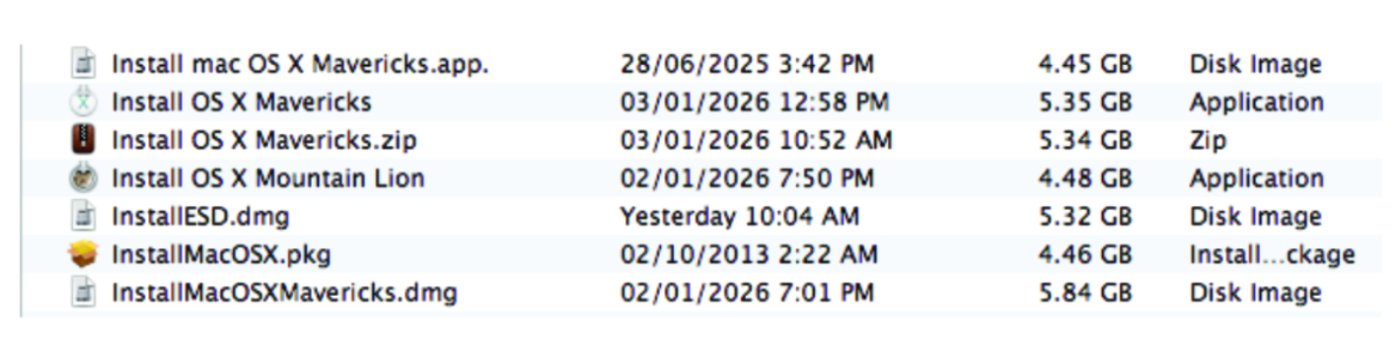
Installers 1 (Modified)
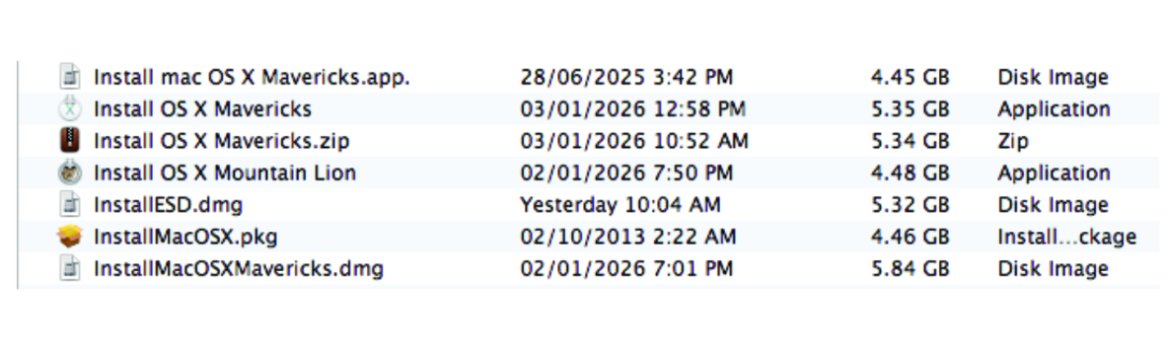
Installers 2 (original.iso).

Help very much appreciated.

Addendum!

Internet Digital Archive offers a solution for the verification issue quote:

NOTE: If you get a damaged message when launching, no need to worry. Run this command in Terminal:
xattr -cr "wherever your installer is. drag and drop into terminal, and remove quotes." Please don't complain about this in the review section I literally put the solution in this description.

I have tried this solution. Changed date and entered xattr -cr in Terminal; dragged install file into Terminal. No quotes to temove. Did not work for me.
Also tried install over existing Snow Leopard OSX partition. Did not verify.
 

Attachments
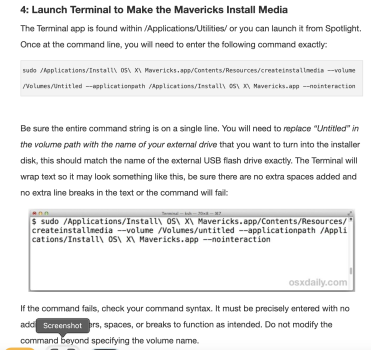
  • 2. OSX Daily extract.png
    2. OSX Daily extract.png
    502.8 KB · Views: 1
  • 3. Installers (modified).jpg
    3. Installers (modified).jpg
    1,005.5 KB · Views: 2
  • 3. Installers 1 (modified).jpg
    3. Installers 1 (modified).jpg
    919.6 KB · Views: 2
Last edited:
I am trying to clean install Mavericks on a 27" 2011 iMac (12,2) Core i7 3.4GHz. using a bootable USB.

Could you jump to High/Sierra instead? Mavericks appears to be the single and recurring exception in all those instructions/scripts. At best creating a bootable installer for it looks difficult for someone without CLI skills and doing so will require that you to have bought it through the Mac App store in the past with your current Apple Account. Unclear to me why Apple handled Mavericks differently than all other macOS but accepting that they did it will be easier to go to High/Sierra if that otherwise meets your needs.
 
From where did you get the Mavericks installer app? Apple has not made it available for download.

Create Mavericks bootable USB install media
Hi Bigwaff.
See item 4 above: https://archive.org/details/os-x-mavericks-installer-app

Also via command line: curl mavericksforever.com/get.sh | sh

Also: https://www.mediafire.com/file/vhqd5mhg3jfo24k/macOS_X_Mavericks_ISO_by_techrechard.com.iso/file

Thanks for the link but it is the same command line ’createinstallmedia‘ shown in my attachement.
 
Last edited:
Could you jump to High/Sierra instead? Mavericks appears to be the single and recurring exception in all those instructions/scripts. At best creating a bootable installer for it looks difficult for someone without CLI skills and doing so will require that you to have bought it through the Mac App store in the past with your current Apple Account. Unclear to me why Apple handled Mavericks differently than all other macOS but accepting that they did it will be easier to go to High/Sierra if that otherwise meets your needs.
No, defeats my purpose of running legacy OSX for both CS5 software, Artixscan M1 scanner and Epson R2400 printer.

I have a 2019 imac running Ventura for day to day work. I need the old iMac to handle legacy files.

My impression from several articles is that Terminal installer code using ‘createinstallmedia’ command (.pkg or .app) will always fail for clean install as the previously automatic Apple verification process is broken. Apple dropped old versions of Safari ages ago and that killed the verification process. The clean installation of legacy software on an old computer depends upon earlier versions having been used. Presumably the verification code remains logged somewhere in the system data. It appears that fresh code can be created which somehow satisfies or by-passes the verification process. startergo collected several such codes including hi own. I just cannot connect the GitHub osxiso.command strings together correctly for Unix and need help with Mavericks.

I have Lion and Yosamite working from previously backed up clones of entire system and data. I did reload them and update with combo upgrades. Unfortunately there are glitches occurring in Yosamite with Font Agent type editing software which may or may not be o/s dependent. I wanted to run Mavericks as the next most recent o/s to Yosamite.

Scanner and CS5 have problems in El Capitan so moving forward is no solution. Mavericks has significant feature improvements over Lion.

Finally, I read that Apple had made Mavericks available free to everyone. Apple files are available at several sources. See Bigwaff above.
 
Last edited:
OP:

Have you tried either of the following?
(download and try BOTH of them before you say "it doesn't work". If one doesn't work, try the OTHER one...)

Install Disk Creator:

Diskmaker X:
Specific version for Mavericks:
(there's now a DiskMaker X "pro" version, but I haven't tried it)

One other thought:
Mavericks is about the only earlier OS version that Apple doesn't seem to want folks downloading. There's proabably a reason for that, although I can't speculate as to what it is...
 
No, defeats my purpose of running legacy OSX for both CS5 software, Artixscan M1 scanner and Epson R2400 printer.

I have Lion and Yosamite working from previously backed up clones of entire system and data. I did reload them and update with combo upgrades. Unfortunately there are glitches occurring in Yosamite with Font Agent type editing software which may or may not be o/s dependent. I wanted to run Mavericks as the next most recent o/s to Yosamite.

Just wanted to see if there was an easier option before going forward since Mavericks is an outlier for whatever reason. Sounds like you want to at least test whether Mavericks avoids the Font Agent issue and if so you'll use that. And if it doesn't make a difference then perhaps try to debug the issue under Yosamite. But in any case, you need to get Mavericks working again in order to make that determination.

Few questions:
1. Did you create your last USB installer by following the Maverick-specific instructions (see below) from that forum post you included?
2. If not, did you set the clock back on the computer to sometime before the Maverick's builtin certificate expired and disconnect the computer from the Internet (so auto-time-sync stuff doesn't reset it back)?
3. Can you share the messages/screen photo from using the last USB installer you created?


For a Mavericks USB installer creation follow this:
  1. Format an 8GB USB drive with HFS+ GUID Partition scheme and label it Untitled.
  2. Extract the installer:
    Code:
    pkgutil --expand /Applications/Install\ OS\ X\ Mavericks.app/Contents/SharedSupport/InstallESD.dmg ~/Mavericks
  3. Show the Hidden files:
    Code:
    defaults write com.apple.finder AppleShowAllFiles TRUE && killall Finder
    # In newer macOS: hold SHIFT+COMMAND+.
  4. Attach and copy BaseSystem.dmg:
    Code:
    cd ~/Mavericks/InstallMacOSX.pkg && hdiutil attach InstallESD.dmg
    cd /Volumes/OS\ X\ Install\ ESD && cp BaseSystem.dmg ~/Mavericks/
    asr imagescan --source ~/Mavericks/BaseSystem.dmg
  5. Find your USB device and the Apple_HFS partition on it:
    Code:
    diskutil list
    # Example output:
    # /dev/disk19 (external, physical):
    # 0: GUID_partition_scheme *8.0 GB disk19
    # 1: EFI EFI 209.7 MB disk19s1
    # 2: Apple_HFS Untitled 7.7 GB disk19s2
  6. Restore BaseSystem.dmg to USB and copy packages:
    Code:
    sudo asr restore --source ~/Mavericks/BaseSystem.dmg --target /dev/disk19s2 --erase
    sudo unlink /Volumes/OS\ X\ Base\ System/System/Installation/Packages
    cp -Rpv /Volumes/OS\ X\ Install\ ESD/Packages /Volumes/OS\ X\ Base\ System/System/Installation
    diskutil rename OS\ X\ Base\ System Install\ Mavericks
    sudo bless --folder /Volumes/Install\ Mavericks/System/Library/CoreServices --label Install\ Mavericks
    cp /Volumes/Install\ Mavericks/Install\ OS\ X\ Mavericks.app/Contents/Resources/InstallAssistant.icns /Volumes/Install\ Mavericks/.VolumeIcon.icns
    cd "$HOME"
    rm -r ~/Mavericks
    This command takes time. Watch the cursor at the terminal to indicate that the copy command is done.
  7. Final steps:
    Code:
    cp -Rpv /Volumes/OS\ X\ Install\ ESD/BaseSystem.dmg /Volumes/Install\ Mavericks
    cp -Rpv /Volumes/OS\ X\ Install\ ESD/BaseSystem.chunklist /Volumes/Install\ Mavericks
    diskutil eject Install\ Mavericks
  8. Boot the Install Mavericks USB by holding OPTION key at boot time and install Mavericks. No messing with the date is needed.
 
Register on MacRumors! This sidebar will go away, and you'll see fewer ads.