Become a MacRumors Supporter for $50/year with no ads, ability to filter front page stories, and private forums.

kyeol58

macrumors newbie
Original poster
May 15, 2012
8
0
hi,
firstly I'd like to apologize if this has been answered before, but I couldnt find anything I could relate to on google.
my macbook pro mid 2010 keeps running out of hard disk space, every time I turn it on. I run bootcamp, theres 60gb for that and 180 for the os x. I felt the speed drop dramatically and the hard disk says it needs to be cleared. when i do free up about 10gb of space, it slowly gets filled up (without downloading or anything) then when i reboot the mac there is just barely any space left on the hard drive. does it have anything to do with running bootcamp?
Its just so frustrating because I have to delete videos or music to free up space, just to find out the next day I have to delete another batch to free up space.
Can someone tell me whats going on and what to do about this?
Thanks so much!

p.s. specs:
(macbook pro 13” mid 2010, core2duo, 8gb ram, 250gb hard drive 10.6.8)
 
Last edited:
thank you for the quick reply!
I've seen many suggestions to use these programs, and I have, but the problem is even if I do free up some space, whenever I spend some time on the mac or reboot it, the space gets eaten up.... is this common? is there any long term solution to this rather than deleting things all the time?
thanks once again!
 
thank you for the quick reply!
I've seen many suggestions to use these programs, and I have, but the problem is even if I do free up some space, whenever I spend some time on the mac or reboot it, the space gets eaten up.... is this common? is there any long term solution to this rather than deleting things all the time?
thanks once again!

Sorry, didn't see, that you use Mac OS X 10.6 Snow Leopard, thus the Other doesn't apply.
Maybe it is a runaway .log file* or you have massive page outs**.

* In that case, the applications I linked to can help actually locate the file.
** Open Activity Monitor and go to the System Memory*** tab and look for Page Outs and Swap used and report back.
 
page outs:0bytes
swap used: 0bytes....
lol
 

Attachments

  • screen-capture-7.png
    screen-capture-7.png
    21.8 KB · Views: 76
this is omnisweep, i've seen people talk about this var thing thats 10gb, is it safe to delete?

ill try the diff programs as well and get back to you
 

Attachments

  • screen-capture-8.png
    screen-capture-8.png
    110.1 KB · Views: 89
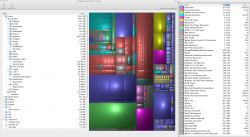
disk inventory x
 

Attachments

  • screen-capture-9.png
    screen-capture-9.png
    997.6 KB · Views: 78
Deleting and disabling the sleepimage will only get you 8 GB back, maybe invest in a bigger internal HDD or also an external HDD for data storage and backups, as you have quite a lot of data on your Desktop.
 
oh ok thats what it is.. my ram is just saved into the hard drive so it can use it next time.
so that means every time I reboot it'll save another 8gb if i delete it.. haha so theres no point right?

anyway yeh..I'm not really good with all this tech, and I still dont know what the problem is LOL (why my disk keeps filling up with some random thing)

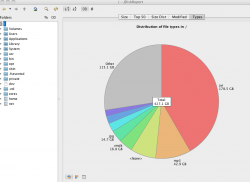
JDiskReport is has just finished.
btw I have an external hdd connected so thats the extra space filled with videos, and not on the mac itself.
 

Attachments

  • screen-capture-10.png
    screen-capture-10.png
    86.8 KB · Views: 67
so that means every time I reboot it'll save another 8gb if i delete it.. haha so theres no point right?
The sleepimage, as explained in the first article I linked to in post #8, only gets created upon putting your Mac to sleep and is written to upon every other time you put your Mac to sleep. It is just a copy of the RAM contents, in case there is no power and the machine shuts off during sleep.
There will not be multiple sleepimage files, only the one.
And as you are already cutting it close to not enough free capacity, a bigger HDD is advisable.

MacBook, MacBook Pro: Replacing the Hard Disk Drive, transferring data to the new HDD

the guide includes:
  • 0. Identify your MacBook or MacBook Pro
  • 1. Getting a new HDD
  • 2. Guides to replace the internal HDD with a newer one
  • 3. Transferring data from the old HDD to the new HDD
  • 4. Using the optical disk drive (ODD) slot for placing an SSD or HDD inside the MB/P (OPTIBAY)
 
Register on MacRumors! This sidebar will go away, and you'll see fewer ads.