Become a MacRumors Supporter for $50/year with no ads, ability to filter front page stories, and private forums.

gradi

macrumors 6502
Original poster
Feb 20, 2022
309
160
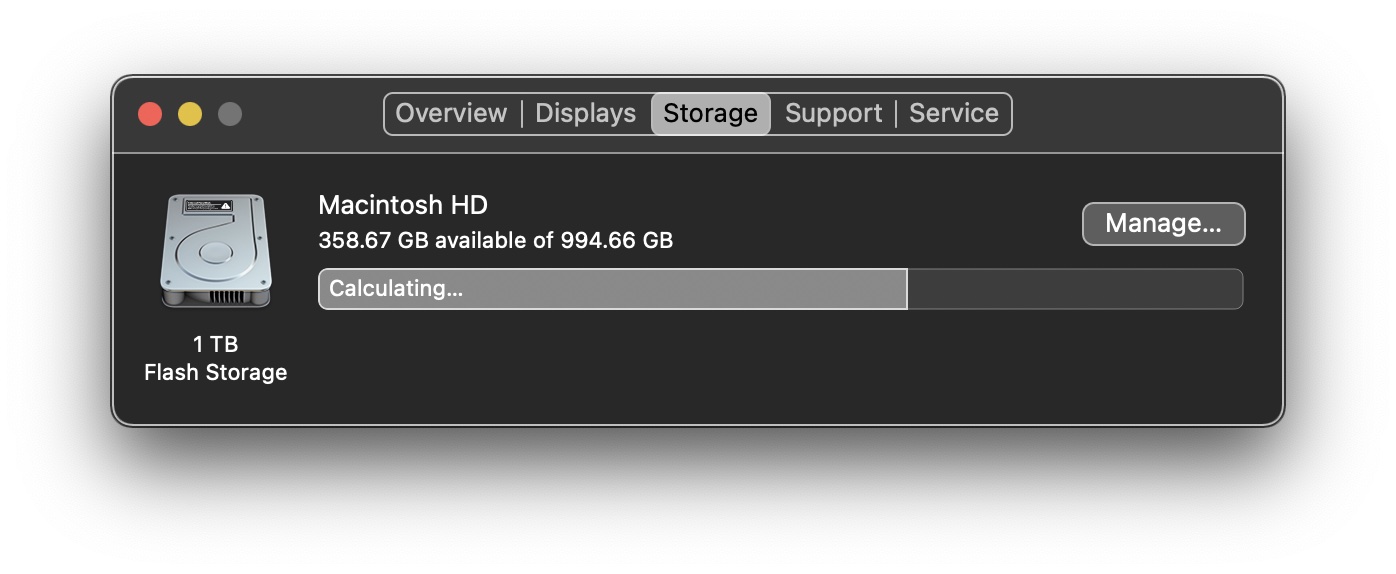
I am confused by the info below for my 1tb internal SSD. It says the capacity is 994.66 GB.

What does 402.29 GB purgeable mean? My Trash is empty.

It says that I have used 833.98 GB, but at the same time it says I have 554.31 GB available. 833.98 + 554.31 GB = 1,388.29 GB. Something seems wrong here.

Can someone explain all this to me? I don't think my SSD is almost full with 833.98 GB, but is it?

Screenshot 2026-01-03 at 15.51.31.jpg
 
Basically, there's all kinds of temp stuff that the OS puts there, which it will "purge" if the space is needed.

So, 834 Gb is currently being used, of which 402 Gb is temporary OS stuff. 554 Gb is available for your files (though you should never fill any disk completely -- I'd recommend leaving around 250 Gb free on a 1Tb disk).

Purgeable data can include temporary Time Machine backups, if TM is enabled and you haven't backed up for a while; APFS "snaphots"; OS updates that have been downloaded; and all kinds of other stuff.


Occasionally, purgeable space can go wrong and completely fill the disk, and not get deleted. iCloud Drive has been implicated in some issues with purgeable space. 402 Gb is quite a lot; but a restart should reduce it.

Generally, you don't need to manage this yourself; and you shouldn't need to use any "maintenance utilities" as part of normal use to try to minimize it. Purgeable data is not, of itself, bad.


Last edited:
Thank you for your reply. I rebooted and then it shows this:

Screenshot 2026-01-04 at 7.05.19.jpg


I also read that article. I have always had Optimize Mac Storage turned off. I use Time Machine, but my drive is always connected and it is up to date on backups.

Is there anything here for me to be concerned about or is everything fine and normal?

If I truly have 555.9 GB free and available for use then that is what I expect. That means my SSD has plenty of swap space, etc. available also. But I am still confused about the 405.47 GB purgeable. Does it mean there is almost no swap space available for MacOS? Also, shouldn't an SSD ideally have plenty of empty space for other SSD health management chores that MacOS does?
 
Look at Activity Monitor's memory tab to see how much swap you're using. MacOS will use as much swap as it needs to; and will purge the purgeable data if necessary. Swap is in a separate volume, called VM, and APFS can re-size the VM and the Data volumes accordingly.

Have you done a restart? Or even try booting to Safe Boot mode, and then a normal restart.

The purgeable space is quite high -- my 1Tb disk has 24.5 GB purgeable, for 434.84 GB available. I dare say you'll find someone that would say it's too high and you need to do something. But unless a problem actually arises -- like OS alerts that you're running out of space -- I'd be inclined not to pursue it too much.

Some people vigilantly monitor disk space, memory usage, CPU temp etc, and continually react to every change in the numbers. But I'd rather just get on with my important cat GIFs.
 
Have you done a restart?
Yes, I did do that. I wrote:

I rebooted and then it shows this:

I just recalled something. Back in 2023 I was away from home for a few months and I carried this MBP with me. During that time I did not have the Time Machine HDD with me, but then later in 2023 I was back home and reconnected it. And then in early 2024 I switched to an SSD to use as my Time Machine drive instead. Do you think any of this is relevant?
 
No: it should clear any TM snapshots when you next run TM.

What OS version are you on? If there's an update, then running the installer might clear it. But as said, the OS should delete the purgeable space as and when it needs.
 
No: it should clear any TM snapshots when you next run TM.
I don't believe this is correct. All three of my Macs (two laptops and a desktop) have TM running 24/7 hourly back ups, and all three always have the last 24 hrs of local snapshots on the boot drive (as visible in Disk Utility or CCC). See attached. I think it may have been as you say in the early days of TM.

Finder is not supposed to count these as used space but in my experience it some does for periods, resulting in big apparent fluctuations in free space...which is caused either by snapshots rolling out of the last 24hrs or Finder waking up and not including them as used space.

Screenshot 2026-01-04 at 12.28.12.png
 
Last edited:
Search for and get rid of "local snapshots".
One reason why I will NEVER use time machine.
... and really cannot be swayed by arguments of why I should be using it.

(for a similar reason -- indexing -- I've disabled Spotlight since the time it was first introduced)
 
Could be. I thought TM snapshots were slightly different from APFS snapshots; and how much of this is calculated as additional data, rather than just the same files in different catalogs, I really don't know.
The local (ie on the boot volume) TM snapshots are snapshots of the whole of the -Data drive, irrespective of any TM exclusions, which only apply to the APFS snapshots on the backup drive, so yes completely different.

The local TM snapshots are by the fastest way of rolling back the whole machine to a previous state and I have used them for this several times when I have taken a misstep and it realised it is much quicker to roll back than undo the misstep. It seems a little known and little used method. Most people treat them as a nuisance to be deleted as they can be the cause of feee space fluctuations. Of course the TM snapshots can only roll back up to 24 hrs, but CCC snapshots (which are the same) can be preserved for longer. However you can't use a local snapshot to roll back across a macOS update unfortunately as the snapshot is only of the -Data volume.
 
  • Like
Reactions: benwiggy
I just checked and without me doing anything I see that purgeable is now 360.2. GB. That seems to still be weirdly very high though.

Screenshot 2026-01-05 at 8.08.28.jpg
 
Last edited:
I do not know if this info is useful or relevant to my problem, but I will show this screenshot of Time Machine. The SSD is San2tb2 and it has been my Time Machine drive for almost a year. The older Time Machine drive HDD is TOSHIBA EXT and I have not used it or had it connected since starting to use the SSD.

Screenshot 2026-01-05 at 11.04.19.jpg
 
Last edited:
Search for and get rid of "local snapshots".
One reason why I will NEVER use time machine.
... and really cannot be swayed by arguments of why I should be using it.

(for a similar reason -- indexing -- I've disabled Spotlight since the time it was first introduced)
Your loss; if you gave up on micromanaging use of every byte on your drives you'd get back some really nice features.

Especially Spotlight. Spotlight indexes use very little space so I'm not even sure why you're so opposed.
 
  • Like
Reactions: Ifti and benwiggy
I wanted to partition my 4 TB drive with 3.4 GB free storage and was only able to use about 680 GB for the second one. The APFS snapshots used only a few GB and had nothing to do with the purgeable space. There was also nothing purgeable shown in the info window. Very strange. Seems to be even worse in Tahoe.

But I have this Mac Cleaner Pro app and there is a description for purgeable space but it only showed 70 GB without any further information what it will delete. After doing it I was able to use the full free space for another partition and none of the snapshots got deleted. Also strange.

But this app once deleted every offline data stored in my Proton Drive before when I first used it in Sequoia. It showed about 600 GB purgable and the data was stored in /users/username/library/cloudstorage. Do you maybe have anything in there?

Screenshot 2026-01-05 at 03.27.04.png


I still don't really understand what purgeable space is.


The snapshots can be located and deleted with Tinker Tool System for example, but as said they don't belong to purgeable.

Screenshot 2026-01-05 at 03.43.14.png
 
But I have this Mac Cleaner Pro app
I'd be wary of using these sort of apps. There's certainly no need to perform regular "maintenance" on a Mac. And things like caches and temp data does have a purpose (otherwise it wouldn't be there in the first place); so assiduously removing stuff that the OS wants to put on the disk might well cause as many problems as it solves.


The older Time Machine drive HDD is TOSHIBA EXT and I have not used it or had it connected since starting to use the SSD.
May be remove it as a TM destination? See if that changes anything.


I just checked and without me doing anything I see that purgeable is now 360.2. GB. That seems to still be weirdly very high though.
Well, it's less than it was, so things are moving in the right direction. I'd recommend masterful inactivity for a few days and see how it goes.
 
May be remove it as a TM destination? See if that changes anything.

To do that I should click on the TOSHIBA EXT drive in Time Machine to highlight it and then click the - option?

Well, it's less than it was, so things are moving in the right direction. I'd recommend masterful inactivity for a few days and see how it goes.

I am not familiar with that term masterful inactivity. Do you mean leave my MBP turned on for a few days, but don't use it at all? I need to use it everyday. Or do you mean something else?
 
Register on MacRumors! This sidebar will go away, and you'll see fewer ads.