Become a MacRumors Supporter for $50/year with no ads, ability to filter front page stories, and private forums.

Buadhai

macrumors 65816
Original poster
Jan 15, 2018
1,245
460
Korat, Thailand
iPad Mini 6 OS 26.1

I would like to be able to read my E-Mail messages full screen in portrait mode. Is there any way to get rid of the message list sidebar?

I suspect not but I feel compelled to ask.
mail.jpg
 
Last edited:
To get a single conversation in full screen on an iPad, you need to
enable portrait mode and open the conversation in a new window, then make that window full screen. However, the main Messages app on iPad is designed with a persistent two-column layout and cannot show a single conversation as a full-screen option within the standard app view. You can, however, make the main app view full screen by ensuring rotation lock is off and then rotating the iPad to portrait mode, which hides the left-hand conversation list.

Method 1: Open a single conversation in a new, full-screen window
This method is only available if you have enabled multitasking features on your iPad.
  1. Open the Messages app.
  2. Hold down on the conversation you want to see in full screen.
  3. Tap "Open in new window" from the pop-up menu.
  4. A new window will appear with the conversation.
  5. Tap the three dots (...) at the top of the window.
  6. Tap the "Full screen" option.
  7. To return to the previous view, tap the green arrow at the top of the window.
See video how to
 
  • Like
Reactions: Buadhai
To view an email in full-screen mode on an iPad,
rotate your iPad to portrait mode to hide the sidebar, or long-press the email and select "Open in New Window" to see the message in a separate window that can then be expanded to full screen.

Method 1: Rotate to Portrait Mode
  1. Open the Mail app.
  2. Rotate your iPad so it is vertical (portrait mode).
  3. The sidebar with your mailboxes will disappear, and you will see the full content of the email.
  4. Rotate back to landscape mode to see the sidebar again.
This video shows how to view your email in full screen by rotating your iPad to portrait mode:

Method 2: Open in a New Window
  1. In the Mail app, find the email you want to view.
  2. Touch and hold the message, then select Open in New Window from the menu.
  3. A new window with the email will appear. At the top center of this new window, tap the ... button.
  4. From the options that appear, tap Full Screen to make the email view take up the entire screen.
  5. To exit full screen, tap the ... button at the top again and select the restore icon (the four squares) or drag the divider to close the window.
You can watch this video to learn how to open an email in a new window and make it full screen:

How to viedo
 
  • Like
Reactions: Buadhai
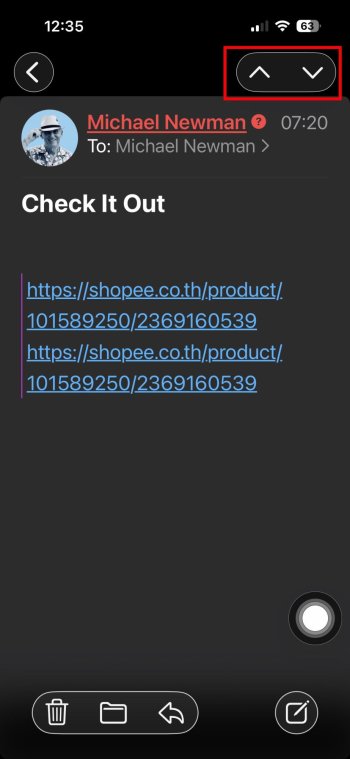
Thanks for taking the time to post that. It seems a rather complex and convoluted way to look at a single email message in full screen. What I was hoping for was the convenience offered by the iPhone version of Mail where I can scroll through full screen versions of mail messages by just pressing the up and down arrow keys highlighted in the screenshot:

mail.jpg

I gather that level of convenience isn't offered in the iPad version of mail?
 
Thanks for taking the time to post that. It seems a rather complex and convoluted way to look at a single email message in full screen. What I was hoping for was the convenience offered by the iPhone version of Mail where I can scroll through full screen versions of mail messages by just pressing the up and down arrow keys highlighted in the screenshot:

View attachment 2578697

I gather that level of convenience isn't offered in the iPad version of mail?
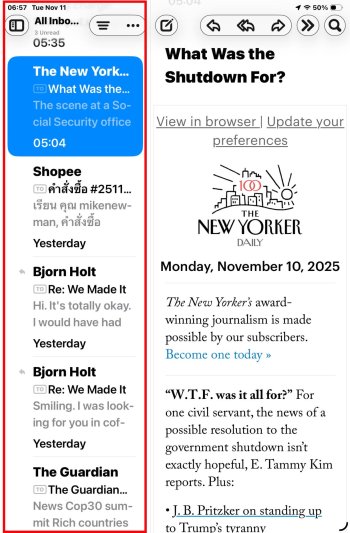
It is the same in in iPad Mail, but it may not be possible on smaller iPads. In my screenshot you can see the fullscreen option on the far left inside my red circle. The screenshot was taken in landscape mode but the same symbol/option is there in portrait mode. Once you do that you can use arrow keys on your physical keyboard or the onscreen arrows to move from one full screen message to another. I have the big 13” iPad Pro so I don’t know if these options are there on smaller iPads.
 

Attachments

  • IMG_1354.jpeg
    IMG_1354.jpeg
    9.5 KB · Views: 28
It is the same in in iPad Mail, but it may not be possible on smaller iPads. In my screenshot you can see the fullscreen option on the far left inside my red circle. The screenshot was taken in landscape mode but the same symbol/option is there in portrait mode. Once you do that you can use arrow keys on your physical keyboard or the onscreen arrows to move from one full screen message to another. I have the big 13” iPad Pro so I don’t know if these options are there on smaller iPads.
The control you circled is not available on my iPad A16. 😕
 
Since I don’t use windowed apps, I realized that there is no longer a customize toolbar option in Mail, so you can’t add a function such as that full-screen icon over the message list. I had done that some time ago and it’s just carried over into 26. But enabling windowed apps when in Mail gives you a View heading, and a customize toolbar option in the menu bar, so that icon should be there, at least on the big iPads. If that icon is there you could add it to the toolbar.
 
Register on MacRumors! This sidebar will go away, and you'll see fewer ads.