I have a Studio M1-Max and I am unable to change the wallpaper to a picture of my choice. I can take a JPG that is on my desktop and I can right click and it gives me the choice to make as desktop picture but after clicking on it, it doesn't ever change. When I go to the wallpapers line in settings I can only choose the wallpapers that come with macOS Tahoe. Am I missing something really simple?


Got a tip for us?
Let us know
Become a MacRumors Supporter for $50/year with no ads, ability to filter front page stories, and private forums.
Unable to change wallpaper to a photo of my choice.
- Thread starter n7vy
- Start date
- Sort by reaction score
You are using an out of date browser. It may not display this or other websites correctly.
You should upgrade or use an alternative browser.
You should upgrade or use an alternative browser.
I’ve got the same exact problem on Macbook Pro M1 Max 16 inches. Very frustrating.I have a Studio M1-Max and I am unable to change the wallpaper to a picture of my choice. I can take a JPG that is on my desktop and I can right click and it gives me the choice to make as desktop picture but after clicking on it, it doesn't ever change. When I go to the wallpapers line in settings I can only choose the wallpapers that come with macOS Tahoe. Am I missing something really simple?

I'm running the final release (haven't tried any betas), it seems to be a bug on some Macs onlyThe add photo link doesn't seem to have made it into the final release.


I have the same problem on a MacMini M2 Pro. I was able to add one desktop photo by dragging it to the window. But it doesn't stick as wallpaper on all screens including the Lock screen. It will revert to the first landscape (Tahoe) after a few minutes. Also the screensaver is intermittent non-functional. I can add a folder, but hot corners won't activate it up. I can see the preview in the dialog box, but not on the screen if I click it.
I also don't have a right-click add to desktop option on any photo that I select.
I also don't have a right-click add to desktop option on any photo that I select.

Maybe it finished indexingWell, it appears that the wallpaper and screensaver issue that I reported have "fixed" themselves after a day or two. Did Apple install some latent AI in teh OS?
Now if I can only get iPhone mirroring to recognize my new 17 Pro Max instead of the old 15 Pro.........
That makes sense - except for those with missing selection parameters.Maybe it finished indexing

Can someone post a screenshot of the menu after right-clicking on any image file?
Does "Set Desktop Picture" even appear in that menu in Tahoe?
Does "Set Desktop Picture" even appear in that menu in Tahoe?
On my system (MacMini M2 Pro) if an image is on my computer or on a removable disk, set desktop picture is not part of the right-click menu. However, if the photo is on a web page, that option is indeed available.Can someone post a screenshot of the menu after right-clicking on any image file?
Does "Set Desktop Picture" even appear in that menu in Tahoe?
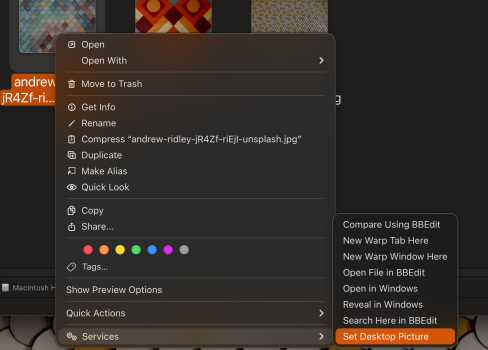
There is no Services submenu in either of my examples...Mine shows up under the Services submenu.
I think this is the sort of problem ChatGPT may have the answer to. Ask it how do I right click a picture in Finder and set it as desktop picture when there's no such option in the context menu. I know you can run a terminal command to do it. But how to integrate that into a context menu in FinderThere is no Services submenu in either of my examples...

Well I did that and got a plethora of options to try.. Basically, Apple removed the set desktop function. I have several options to look at and some of them haven't paned out for me. "it suggested" creating a shortcut apple script to add it back in with options. I may try that, but I am definitely not mucking with the command terminal-I screwed up once already. 😄I think this is the sort of problem ChatGPT may have the answer to. Ask it how do I right click a picture in Finder and set it as desktop picture when there's no such option in the context menu. I know you can run a terminal command to do it. But how to integrate that into a context menu in Finder
Oh, try this:Well I did that and got a plethora of options to try.. Basically, Apple removed the set desktop function. I have several options to look at and some of them haven't paned out for me. "it suggested" creating a shortcut apple script to add it back in with options. I may try that, but I am definitely not mucking with the command terminal-I screwed up once already. 😄
System Settings > Keyboard > Keyboard shortcut > Services > Pictures > Set desktop picture. Set a keyboard shortcut, like shift+cmd+option+p or something. Now in Finder, select a picture and press that shortcut.
Register on MacRumors! This sidebar will go away, and you'll see fewer ads.