Become a MacRumors Supporter for $50/year with no ads, ability to filter front page stories, and private forums.

LucMac

macrumors member
Original poster
Hi folks,

I just updated from 26.3.1(a) to 26.4, because Safari always chrashed immediatly after start and I wantetd to know if the new update would fix this - it did.

Now I'm facing a new problem... (on my Mac Pro 7,1)
All my previously changed folder or volume icons now showing the generic blue folder icon instead, volumes are showing the generic volume icon.

My icons are still there I guess, there is no such problem on my M1 MacBook Pro after updating to 26.4.

All icons were changed years ago by copying the icon from elsewhere and paste it into the little preview upper left corner after hitting cmd+i.

Is there a way to rebuild the macOS icon cache or something like that?

thanks x
Lucas
 
  • Like
Reactions: gadgetboyj
Okay, so I'm not the only one…what a mess Tahoe has been so far 😂

If anyone got a solution for please let me know.
 
Just copying over from another thread:
@mcrinsane suggests this terminal command.

sudo find /private/var/folders/ -name com.apple.dock.iconcache -exec rm {} \;

(Then reboot.)
First, thank you for this hint.

Just tried it but unfortunately nothing changed after reboot.

Noticed that even App icons that I had changed in the past now showing the original icon… that sucks.
 
My Intel Mac is also affected. All my custom map icons are gone, I'm an avid user so it really slows down my Finder navigation.
 
I’m facing the same major issue with folder icons on my iMac Retina 5K, 27-inch, 2020 (Intel) after the latest system update. All my customized folder icons have been replaced by the standard blue macOS folder icon, and I’m unable to restore them.

The Symptoms:

  • Global Reset: Every single custom folder icon is gone. This includes folders on the internal SSD and, crucially, all folders on external drives that were plugged in during the update.
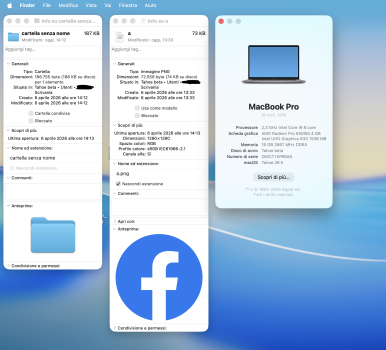
  • Broken 'Get Info' UI: When I press Cmd + I on a folder or file, the small icon preview in the top-left corner is missing. Instead of the folder icon or a thumbnail, it shows a generic document/image placeholder.
  • Manual Overrides Fail: I cannot drag-and-drop or paste a new icon onto that top-left placeholder. It simply doesn't react.
Everything I’ve tried (without success):

  1. Safe Mode Boot: Performed a full restart in Safe Mode to clear system caches. No change.
  2. Terminal - LaunchServices: Tried resetting the database via lsregister, but the system returned: "The -kill option has been removed because it was dangerous and no longer useful."
  3. Terminal - IconServices: Deleted the cache manually via sudo rm -rf /Library/Caches/com.apple.iconservices.store and restarted Finder. The icons remain generic.
  4. Permissions Check: Verified that I have Full Disk Access and Read/Write permissions for the affected folders.
  5. Manual Replacement: Tried the "Cmd+C / Cmd+V" method in the Info window; the system ignores the command entirely.
It seems like this update has broken the way Intel-based Macs render or recognize com.apple.ResourceFork metadata or custom icon resources.

Has anyone found a workaround or a new Terminal string that works for this specific OS build? It feels like the system is intentionally (or via a bug) blocking user-defined folder skins. Thanks in advance for any insights!
 
  • Like
Reactions: LucMac
Hi folks,

I just updated from 26.3.1(a) to 26.4, because Safari always chrashed immediatly after start and I wantetd to know if the new update would fix this - it did.

Now I'm facing a new problem... (on my Mac Pro 7,1)
All my previously changed folder or volume icons now showing the generic blue folder icon instead, volumes are showing the generic volume icon.

My icons are still there I guess, there is no such problem on my M1 MacBook Pro after updating to 26.4.

All icons were changed years ago by copying the icon from elsewhere and paste it into the little preview upper left corner after hitting cmd+i.

Is there a way to rebuild the macOS icon cache or something like that?

thanks x
Lucas
Same issue here on a 2019 Intel Mac Pro rack. I lost all my custom icons. Can’t paste new ones in the get info window. I demonstrated this to Apple support via a screen share but they said the only way to get engineering to look at it was to submit feedback at apple.com/feedback. Nuts, it’s like they design the support system so that bug reports can’t reach engineering. How could they not have seen this one. It’s quite obvious.
 
  • Like
Reactions: mretondo
It seems Apple is doing this intentionally to accelerate the phasing out of older Intel Macs. I'll fallback to 26.3.2 for now and see how things go.
 
I noticed this and reported it on both my M2 Ultra Mac Pro and my M2 MBA on the first Tahoe 6.2 Beta. The phenomenon persisted through 26.3 but was corrected by the second or third beta of MacOS 26.4.

But, I guess it was never corrected for Intel Macs - Shame on Apple
dunno.gif


Lou
 
  • Like
Reactions: LucMac
I noticed this and reported it on both my M2 Ultra Mac Pro and my M2 MBA on the first Tahoe 6.2 Beta. The phenomenon persisted through 26.3 but was corrected by the second or third beta of MacOS 26.4.

But, I guess it was never corrected for Intel Macs - Shame on Apple

Lou
Hi Lou,

interesting information - especially regarding the existence of the problem under Apple Silicon during the beta phase.

So there is hope, Apple will fix this in a future update and all the custom icons will appear back again?
 
I’m having the same issue after updating to 26.4. But I’ve noticed a pattern: it only fails for me when there’s a dot in the filename. If there’s no dot, everything works fine 🙂

 
  • Like
Reactions: LizKat
Updated broken custom icons on Intel Macs...
On macOS 26.5 beta1, the problem hasn't been resolved yet.

EVERYTHING BROKEN... the folders increase in size when copying and pasting into the info, but the custom image isn't displayed.

Come on Apple, just one more effort, you can do it...

in Apple we Trust!!!
 

Attachments

  • icon 26.5b1.png
    icon 26.5b1.png
    2.3 MB · Views: 50
Last edited:
  • Like
Reactions: LucMac
Icons Issue is fixed on 26.4.1 (25E253)

MacBook Pro
Model Identifier: MacBookPro16,1
Processor Name: 8-Core Intel Core i9
 
  • Like
Reactions: LucMac
Hi folks,

I just updated from 26.3.1(a) to 26.4, because Safari always chrashed immediatly after start and I wantetd to know if the new update would fix this - it did.

Now I'm facing a new problem... (on my Mac Pro 7,1)
All my previously changed folder or volume icons now showing the generic blue folder icon instead, volumes are showing the generic volume icon.

My icons are still there I guess, there is no such problem on my M1 MacBook Pro after updating to 26.4.

All icons were changed years ago by copying the icon from elsewhere and paste it into the little preview upper left corner after hitting cmd+i.

Is there a way to rebuild the macOS icon cache or something like that?

thanks x
Lucas
I'm pleased to report that the latest system update has fixed the issue of deleted icons from folders. Everything is back to normal. Well done, Apple!
 
  • Like
Reactions: LucMac
I’m facing the same major issue with folder icons on my iMac Retina 5K, 27-inch, 2020 (Intel) after the latest system update. All my customized folder icons have been replaced by the standard blue macOS folder icon, and I’m unable to restore them.

The Symptoms:

  • Global Reset: Every single custom folder icon is gone. This includes folders on the internal SSD and, crucially, all folders on external drives that were plugged in during the update.
  • Broken 'Get Info' UI: When I press Cmd + I on a folder or file, the small icon preview in the top-left corner is missing. Instead of the folder icon or a thumbnail, it shows a generic document/image placeholder.
  • Manual Overrides Fail: I cannot drag-and-drop or paste a new icon onto that top-left placeholder. It simply doesn't react.
Everything I’ve tried (without success):

  1. Safe Mode Boot: Performed a full restart in Safe Mode to clear system caches. No change.
  2. Terminal - LaunchServices: Tried resetting the database via lsregister, but the system returned: "The -kill option has been removed because it was dangerous and no longer useful."
  3. Terminal - IconServices: Deleted the cache manually via sudo rm -rf /Library/Caches/com.apple.iconservices.store and restarted Finder. The icons remain generic.
  4. Permissions Check: Verified that I have Full Disk Access and Read/Write permissions for the affected folders.
  5. Manual Replacement: Tried the "Cmd+C / Cmd+V" method in the Info window; the system ignores the command entirely.
It seems like this update has broken the way Intel-based Macs render or recognize com.apple.ResourceFork metadata or custom icon resources.

Has anyone found a workaround or a new Terminal string that works for this specific OS build? It feels like the system is intentionally (or via a bug) blocking user-defined folder skins. Thanks in advance for any insights!
I'm pleased to report that the latest system update has fixed the issue of deleted icons from folders. Everything is back to normal. Well done, Apple!
 
  • Like
Reactions: LucMac
Register on MacRumors! This sidebar will go away, and you'll see fewer ads.