Become a MacRumors Supporter for $50/year with no ads, ability to filter front page stories, and private forums.

thewall

macrumors regular
Original poster
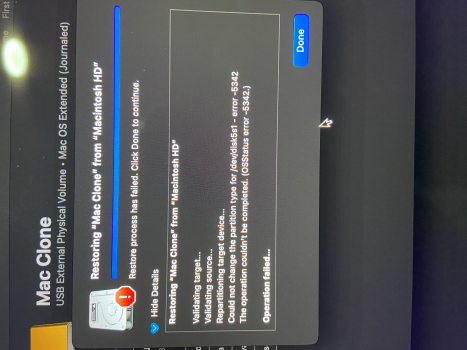
I have a 2020 iMac running 15.7.4 and i want to upgrade to a ssd so i thought i would have a practice cloning with a external HDD but i need getting this error message telling me it cannot perform the restore process, is it because the Mac HD is APFS (Encrypted) and the only option when formatting is Mac OS Extended (Journaled) or because i have it plugged into a usb hub
 

Attachments

  • tempImageciRjWJ.png
    tempImageciRjWJ.png
    13.9 MB · Views: 91
I have a 2020 iMac running 15.7.4 and i want to upgrade to a ssd so i thought i would have a practice cloning with a external HDD but i need getting this error message telling me it cannot perform the restore process, is it because the Mac HD is APFS (Encrypted) and the only option when formatting is Mac OS Extended (Journaled) or because i have it plugged into a usb hub
Cloning macOS is a thing of the past due to the Signed System Volume. To "clone", make a backup (Time Machine, SuperDuper, CarbonCopyCloner, etc) to an external disk.

Follow these instructions to install macOS and boot from external disk

Once macOS installed to external disk, "restore" from backup using Migration Assistant. Now you have "clone".
 
is it because the Mac HD is APFS (Encrypted) and the only option when formatting is Mac OS Extended (Journaled)
You certainly need APFS for any macOS boot disk.

Clone and cloning are loaded words with not much clarity. You need to say how you are trying to "clone".

But you should be doing as @Bigwaff says and install macOS to your destination and use Migration Assistant to transfer apps and user data from source (or a TM backup) to destination.
 
+1 for Migration Assistant.

Carbon Copy Cloner (link) and SuperDuper (link) have run into issues in the past. Because of the increasingly complex structure of the macOS boot drive (link), it is getting increasingly difficult for the 3rd-party Backup App developers to keep up.

Install a fresh macOS on your external drive, then during initial setup, choose Migration Assistant to copy all your stuff from the internal drive.

Also: Do yourself a favor and do not use a spinning hard disk (even for testing). macOS is no longer built for running on a spinning disk.
 
OP wrote:
"I have a 2020 iMac running 15.7.4 and i want to upgrade to a ssd"

Question:
I could be wrong (and welcome correction), but don't ALL 2020 iMacs already have an SSD inside?
 
  • Like
Reactions: Nermal and gilby101
Thanks for all the replies as I’m a novice could somebody go into more detail how to install MacOS and how to use Migration Assistance
Hi Fishrrman my Mac is a 27” 2020 model with a HDD one of the last ones on the refurbished site
 
  • Like
Reactions: ignatius345
Hi Fishrrman my Mac is a 27” 2020 model with a HDD one of the last ones on the refurbished site
I could be wrong (and welcome correction), but don't ALL 2020 iMacs already have an SSD inside?
Maybe it is a 2019 model (purchased in 2020) which can have a Fusion drive (SSD+HDD). The 2020 27" iMacs are all SSD only.

Assuming it is a Fusion drive, a change to HDD only boot drive will bring a very noticeable loss of performance.
 
Thanks for all the replies as I’m a novice could somebody go into more detail how to install MacOS and how to use Migration Assistance
Hi Fishrrman my Mac is a 27” 2020 model with a HDD one of the last ones on the refurbished site
You can run macOS Sequoia version 15.7.5 quite well on that 2020 iMac, or even Tahoe version 26.4.1.
I recommend Sequoia, but it is your choice. You can get the macOS installer from the Apple App Store or from Mr. Macintosh's site <https://mrmacintosh.com/macos-sequoia-full-installer-database-download-directly-from-apple/>
Run the installer pkg from that downloaded file. It will install the actual macOS installer in the Application folder.
Connect the target external SSD drive and run the macOS installer app, pointing it to the target external disk.
At the end of the installation process, you will be prompted and then you can choose to use Migration Assistant to copy your data from the internal disk to the target SSD. If you have any questions, do a Goggle search in your Browser.
Nowadays, you can find out almost anything that way. Almost I said.
BTW, that 2020 27" iMac came with either a 256GB or a 512GB SSD, or on special order at purchase, several larger SSD options; 1TB to 8TB. Get the useful, free MacTracker app from the Apple App Store and use it to see all the information on your iMac. You probably have the 512GB SSD version, but you should use the System Information app in the Applications/Utilities folder to check on that.
 
Last edited:
Yes, I think there may be some confusion in this thread between 2020 being a model date (i.e. when first sold) and a purchase date.
The OP said he bought that iMac from "the refurbished site" and therein is the confusion, i.e., I, at least, assumed he meant the Apple site and in that case the computer would be a 2020 "model date" as you out it, as that is how Apple does things on that site, but we all know it is possible to buy a computer from Apple a year or more after the actual model date. That is one reason why I suggested the OP should download MacTracker and check his System Information data to determine the actual iMac he has. He did say it was a 27", in a second post, and he did say "the Mac HD is APFS", and the 2020 27" iMac had only SSDs in various sizes, which we can assume would be formatted as APFS. Clarity in forum posts is an ongoing process, as the politicians say, and a desirable improvement indeed. The 21" 2019 iMac had several HD configurations: 1 TB (5400-rpm SATA), 1 TB Fusion Drive, or 256, 512 GB, or 1 TB flash storage. I assume that Apple would have initialized the first two of those options as HFS+, but I am not sure about that. In any case the OP should run the System Information utility and check the actual hardware he has. Then if he could post that info, we may be able to help him further, maybe....
 
Last edited:
Yes i brought it from the Apple refurb site it has 1TB with fusion drive
I would like to know if i can migrate the internal HDD to my new SSD via usb using Migrate Assistant or would it be best to use Time Machine, i would appreciate it if somebody could explain how to do both.
 

Attachments

  • Screenshot 2026-04-29 at 15.25.52.png
    Screenshot 2026-04-29 at 15.25.52.png
    192.2 KB · Views: 49
OP the screenshot you posted has no HD info. However, the CPU and GPU are indeed from the 2020 27" iMac. There was no Fusion Drive available in that model. Additionally, the SSD is soldered to the motherboard so there is no way to upgrade the internal drive.
 
hope this gives more info
 

Attachments

  • Screenshot 2026-04-29 at 18.27.02.png
    Screenshot 2026-04-29 at 18.27.02.png
    1.4 MB · Views: 56

Attachments

  • ssd.png
    ssd.png
    87.2 KB · Views: 56
Yes i brought it from the Apple refurb site it has 1TB with fusion drive
I would like to know if i can migrate the internal HDD to my new SSD via usb using Migrate Assistant or would it be best to use Time Machine, i would appreciate it if somebody could explain how to do both.
Why did you think it has a 1TB Fusion drive? As I and someone else said, the 2020 27" iMac model only had SSDs, with no fusion drives offered. That is why I suggested you should use the System Information app in the Applications/Utilities filder to check your hardware and post the results here. I.e., what is the internal Hard Drive (HD) (HD does not only mean a Hard Disk Drive, a spinning hard disk, it can also indicate an SSD).

OK as @NoBoMac said, You have a SSD as the internal drive, There is no need for an external boot up drive. That screenshot shows about 18GB used and 275GB empty, suggesting a bootable partition of about 300GB and over 700GB as another volume, so it must be a 1TB SSD, with 2 partitions or volumes.
It looks like nothing needs to be done, 275 GB free on the boot volume should be enough.

Can you see that other 700GB Volume? Check the finder settings. Do you have show Show Hard Disks selected in the side panel?

As for your question, if you connect an SSD to the USB port, using Disk Utility (make sure to use the View Menu in Disk Utility and select "Show all devices") you should be able to initialize it as APFS, which is designed for SSDs.
Then download Carbon Copy Cloner and install it. You can use it (free for a month, with no restrictions) to make a backup of the internal drive to the new external SSD.
This is the Carbon Copy Cloner (CCC) site. https://bombich.com/
There is a blog on the CCC site about bootable external drives, I suggest you read it.
While many have used bootable clones, and some suggest doing so, the author of CCC suggests that having a CCC backup is quite sufficient and I agree. It has saved my bacon several times!
Of course you can also use Time Machine, but I canT recommend that, have seen too many cases where it didn't work when needed to restore a system CCC has never failed in my usage.

 
Last edited:
well everyday is a school day i never knew it had a SSD thanks for telling me saved me a lot of expense and time, i just thought because it said Macintosh HD it was a HDD 😀😀😀
 
well everyday is a school day i never knew it had a SSD thanks for telling me saved me a lot of expense and time, i just thought because it said Macintosh HD it was a HDD 😀😀😀
You didn't answer that question, about the other 700GB. Can you see that volume, or partition?
And did you use the System Information utility to check the hardware?

That Macintosh HD name is a left-over traditional name, used back in the days when hard disks were all 'spinners', with spinning metal platters holding the data. Now, SSDs can be thought of as hard disks in the sense that they are real hardware, albeit that they store information in RAM chips rather than on platters. In this case, a lack of a basic knowledge of computer 'lingo' almost cost you a small fortune. Good that you asked before leaping off that cliff!
 
Last edited:
That screenshot shows about 18GB
Which is the read-only macOS volume.
Can you see that other 700GB Volume?
That will be nearly all Macintosh HD - Data. The partition is the Container disk1.

hope this gives more info
It does. The APPLE SSD AP1024N Media (top left) confirms it is an SSD.

Even better if you were to show Disk Utility with "Container disk1" selected as that will show all the volumes. Don't be surprised by the number of small volumes which are hidden from the left hand sidebar but shown in the main pane.

But all good for you having a 1GB SSD. Using that SSD is the highest performance you will get for a boot disk - faster than any external SSD. Everything looks normal.
 
Which is the read-only macOS volume.

That will be nearly all Macintosh HD - Data. The partition is the Container disk1.


It does. The APPLE SSD AP1024N Media (top left) confirms it is an SSD.

Even better if you were to show Disk Utility with "Container disk1" selected as that will show all the volumes. Don't be surprised by the number of small volumes which are hidden from the left hand sidebar but shown in the main pane.

But all good for you having a 1GB SSD. Using that SSD is the highest performance you will get for a boot disk - faster than any external SSD. Everything looks normal.
Thanks @gilby101 for the clarification. On my MBA, I couldn't read that screenshot well, couldn't see the container section etc. so I thought the 1TB may have been split into 2 volumes. Looks like it is just one then right? With tons of empty space. Even given the Intel-based CPU, that iMac looks like it is usable!
 
OP:

If the internal drive is "filling up" (looks like it has about 700gb used now), you could attach an external SSD and use it for more storage space. But you still want to boot and run from the internal SSD.

I would suggest USB3.1 gen2 (I believe this is also called USB3.2). One of these external SSDs should give read speed of around 900MBps or so.

One last thing:
Before you add another drive, is there "stuff" you could remove from the internal, that you don't need?
(such as time machine snapshots, etc.)
 
Thank you Fishrrman i will sort out my lack of space
Maybe you could answer a query for me when looking to create more space i noticed under General-storage Documents is 151gb but when i look finder at Documents its only 1.5gb are the 2 documents the same if so why the difference and what is stored in the 151gb
the reason i wanted to change what i thought was a HDD is because not even under heavy work (only really watch YT) the fan goes mental to the point that some times i have to restart, looked at Activity Monitor and i think it's Mcaffe do i need that what's your thoughts on that type of software for a Mac
 
Thank you Fishrrman i will sort out my lack of space
Maybe you could answer a query for me when looking to create more space i noticed under General-storage Documents is 151gb but when i look finder at Documents its only 1.5gb are the 2 documents the same if so why the difference and what is stored in the 151gb
the reason i wanted to change what i thought was a HDD is because not even under heavy work (only really watch YT) the fan goes mental to the point that some times i have to restart, looked at Activity Monitor and i think it's Mcaffe do i need that what's your thoughts on that type of software for a Mac
Granted, English is a difficult language, just as Macintosh HD does not directly mean a hard disk drive (HDD), "under General-storage, Documents" does not mean just the files in the 'Documents' folder. I believe it means all document-like files, everywhere, but Apple may have its own idea about what that phrase means.
Also, I am not sure what application that "Mcaffe" means, but if it is anti-virus software, I think you should delete it using the Mcaffe uninstaller. Such applications are famous for installing a LOT of stuff in a lot of places around your system. Getting rid of it may be quite a task. In my opinion (others may disagree) it is not necessary and may well be the cause of your loud fans (and the heat generated that the fans are trying to deal with).
 
Last edited:
  • Like
Reactions: niteflyr
Register on MacRumors! This sidebar will go away, and you'll see fewer ads.