

Become a MacRumors Supporter for $50/year with no ads, ability to filter front page stories, and private forums.

MacRumors

macrumors bot
Original poster


The Calendar and Reminders apps look about the same as they did in iOS 26, but there are a couple of useful new Apple Intelligence features that make both apps more intuitive.


Natural Language for Calendar

Apple Intelligence in Calendar lets you add events by describing them in natural language. It identifies people, dates, and places while you are typing, and you can tap to add that info.
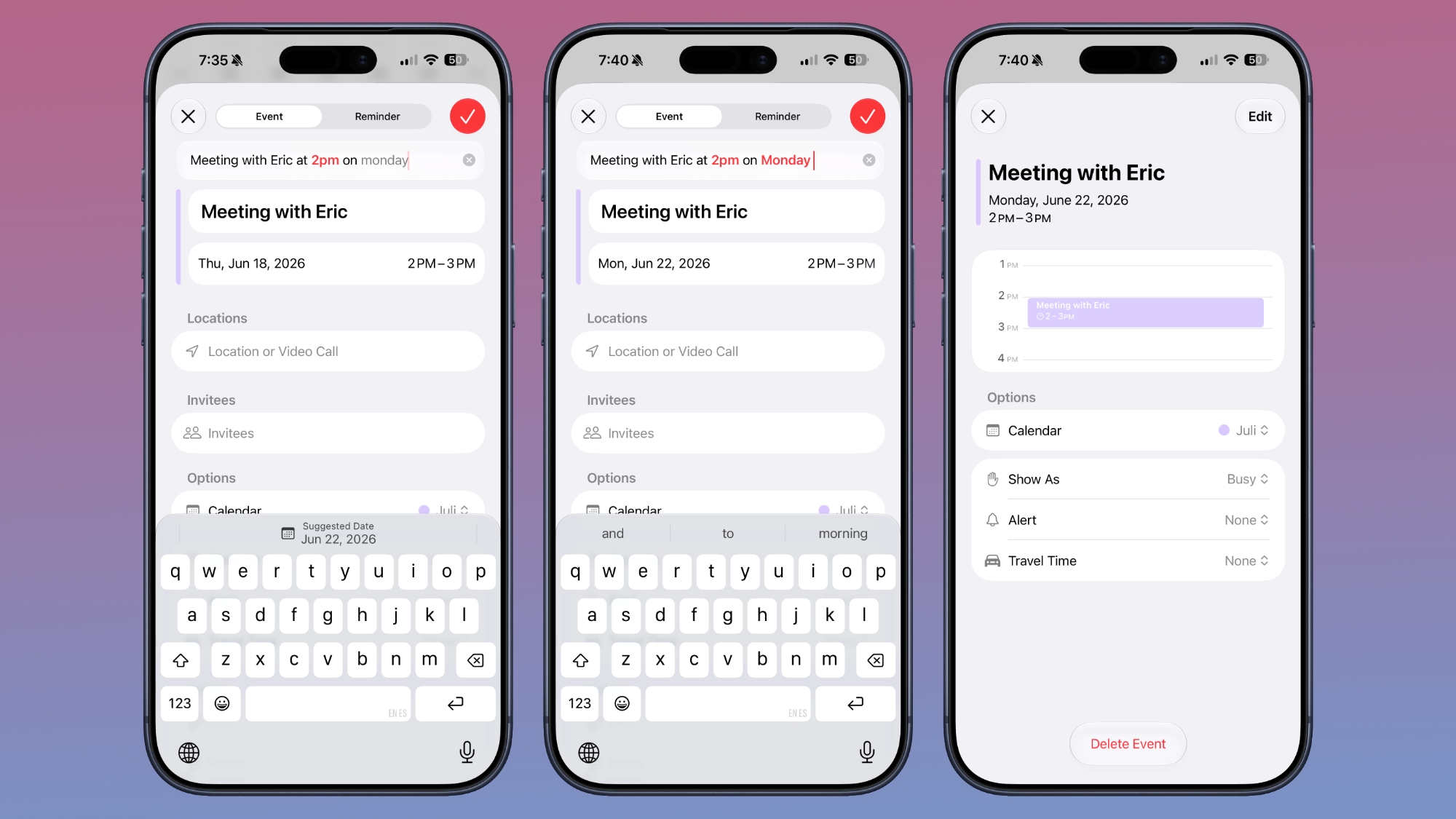
ios-27-calendar-natural-language.jpg

It's not as fluid as Fantastical, but it's better than before. You can't just open the Calendar app and type "meeting at 2pm with Eric on July 14" and have it filed correctly as you do in Fantastical because it doesn't have the same automatic date swapping.

Calendar adds an event on the date that's selected, and by default, that's the current date. To use natural language to select another date, you can type in "meeting at 2pm with Eric on July 14," but you need to tap on the July 14 suggestion at the top of the keyboard.

The Calendar app will automatically set the event to the time that you type in with natural language, so you don't need to tap for that.

Natural Language for Reminders

In Reminders, you can now describe a reminder in natural language and it will autofill the metadata that you mention. It can add date, time, and location automatically.
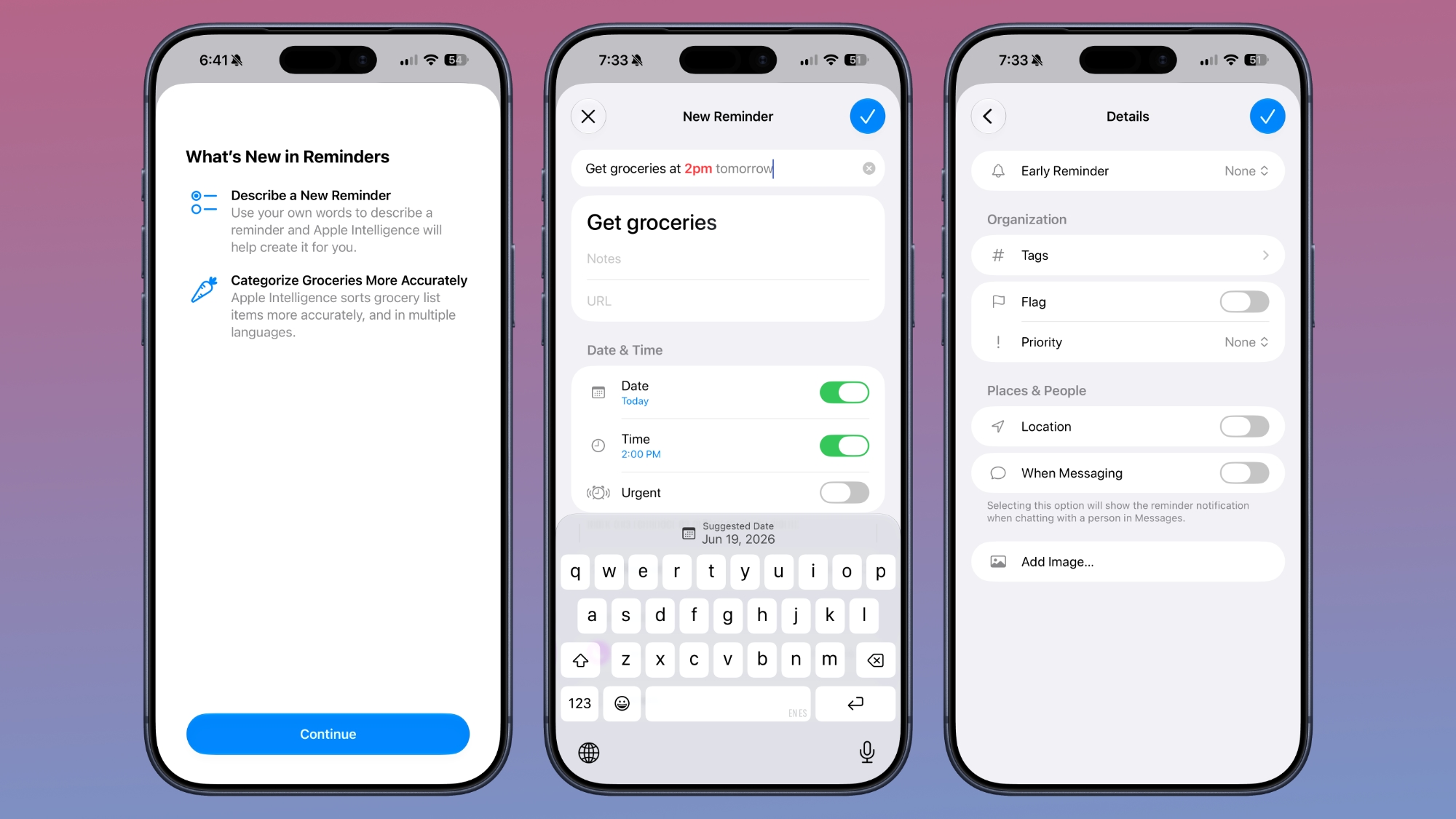
ios-27-reminders.jpg

You can write in a reminder like "get the groceries at 6pm tonight" or "send the photos to John tomorrow at 4pm" and it will add the correct times to your reminder. The feature is in beta and it's not entirely consistent, so sometimes you need to tap on the suggestion below to add the correct date and time, and sometimes it does it automatically.

With natural language support, Apple removed the menu bar at the bottom of the interface for adding a new reminder. Adding extra features like an image or metadata such as a flag can now be done through the "Details" interface.

Calendar Event Editing

The event editing interface is a little simpler to use, and it's quicker to get to time adjustments. If you adjust the frequency of an event, Calendar can intelligently apply changes to all events. Siri can also be used for editing calendar events.

Holiday-Aware Alarms in China

The Calendar app tracks holidays, and can alert you the day before a holiday to ask if you want to change the time of the wake-up alarm that you have set. With iOS 27, this feature now extends to China.

Large Widgets

The Calendar and Reminders apps both have a new extra-large widget size that takes up an entire app page.

Siri AI

Siri has full access to your calendar and can add events to it with natural language requests. What you can't do with the natural language entry, you can do with Siri.

Siri is much more capable than before, and it does a better job correctly adding events to the calendar on the day and time you intend, and with parameters, like repeating events.

Just describe the event you want to create and Siri can get it done. Siri can add events to your calendar from other apps, like Mail and Messages.

Siri is able to search across the Calendar app and Reminders, so it knows your schedule and what's on your to-do list.

Visual Intelligence

Visual Intelligence in iOS 27 supports adding multiple events to your calendar at one time from a schedule. If you have a document with a list of dates, like a child's sports practice schedule, you can take a picture and add them to the Calendar app all at once.
Reminders Grocery Lists

In iOS 27, the Reminders app has improved grocery list sorting. It also supports more languages than before.

Shortcuts for Reminders

There are new Reminders actions in the Shortcuts app, including Create Group, Create List, Create Section, Delete Groups, Delete Lists, and Delete Sections. There's also a new "Get What's On Screen" option that can be used with Reminders.

Apple Intelligence Requirements

To use the Apple Intelligence features in iOS 27, you need an iPhone 15 Pro or later.

Article Link: Everything New in Calendar and Reminders in iOS 27
 
Last edited:
  • Haha
Reactions: Z-4195
Having now seen some more demos of people using it, I am actually excited about trying New Siri for this.

I assume (and hope) the natural language entry will be refined as the betas go on.

But according to what they say and what I've seen, I should finally just be able to open my calendar and tell Siri to add and adjust the things I see there.
 
  • Like
Reactions: decypher44
All I want is to be able to specify which Reminders lists will show up on my calendar; I don’t want every single scheduled reminder on my calendar. We’ll see what iOS 28 brings, I guess.
 
  • Like
Reactions: nt5672
They need to fix Contacts.

It is terrible and each of their changes for two years have just made it worse and less useful.

I am not going to get excited about Calendar since I stopped using it years ago. Apparently Apple took their third-string developers and put them on the most core apps.
 
I stopped using Calendar years ago for two reasons: my government job blocks Apple Calendar (along with all iCloud stuff), and more importantly, with Google calendar I can set the events to nice, BRIGHT colors...with Apple they are all dull and subdued UNLESS SELECTED, which blows. I like bright colors.
 
Call me when:
1) Calendar event location search results finally match those in Maps (they woefully do not yet)
2) Transit routes from Maps can be saved in the Calendar
 
  • Like
Reactions: nt5672
Instead of typing an event in Calendar, press the side Siri button and tell Siri to create an event for whatever day and time. Works 99% of the time for me that way.

I do that for reminders, but I don't usually trust it for calendar events. It mangles the reminders bad enough.

Very excited for the new version based on what I've seen as it is now.
 
I do that for reminders, but I don't usually trust it for calendar events. It mangles the reminders bad enough.

Very excited for the new version based on what I've seen as it is now.
I don't have good experience with Reminders, either. Calendar 366 pro works a lot better for me.
 
  • Like
Reactions: nt5672
I stopped using Calendar years ago for two reasons: my government job blocks Apple Calendar (along with all iCloud stuff), and more importantly, with Google calendar I can set the events to nice, BRIGHT colors...with Apple they are all dull and subdued UNLESS SELECTED, which blows. I like bright colors.

If they use Exchange (if it's a locked down corporate / government job they probably do) then you probably use Outlook, and can probably view that in Calendar and have most of the same benefits. Outlook itself will likely be updated to support this soon. Unless they get anticompetitive and force Copilot (which is probably also blocked by your government job.)

I use Google Calendar. Can Google do these things?

Same as above, especially with a regular Google account. Just sign in and add it as viewable in Calendar.
 
Finally reaching Fantasticall smartness?. Just took 10 years, and probably still will be bad at understanding, just not sooooo bad.hopw it works for all iPhones, why a Fantastical works and not Calendar for natural language requests?
 
  • Sad
Reactions: GlassHollow
Anyone know why they are still using that stupid font for Reminders ?

It is completely unique in the OS and looks so budget.
 
it would be awesome if I could change the color text on my reminders. For example something urgent is in bold red so I notice it glancing at my phone. Unless that’s already a thing and I just don’t know how to do it
 
By far my favorite improvement to Calendar is the ability to set more than 2 alerts on iOS, like it's been possible forever (AFAIK) on macOS.
 
It's not as fluid as Fantastical, but it's better than before. You can't just open the Calendar app and type "meeting at 2pm with Eric on July 14" and have it filed correctly as you do in Fantastical because it doesn't have the same automatic date swapping.
BusyCal also handles natural language events very well. IMO it’s a really good, non-subscription competitor to Fantastical, and has a ton more features than Apple’s Calendar app.

Here’s the example text input in BusyCal. If you put “at” and a location it generally parses that quite well too.

iMac 2026-06-19 at 12.10.08 AM.png
 
Natural language entry is a neat feature but I don't think I'll be using it.

Maybe it's because of my age, I rather fill it out like a form than formulating grammatically correct sentences to get it to do what I want.
 
  • Like
Reactions: goudinuf and chrash
Register on MacRumors! This sidebar will go away, and you'll see fewer ads.