From iMovie11 Help:
With your project open, click the Audio Waveform button at the bottom of the Project browser, or select an Event and then click the Audio Waveform button at the bottom of the Event browser.
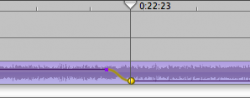
In the Project browser and Event browser, blue waveforms represent the sound that was recorded with your video. In the Project browser, green or purple waveforms represent sounds and music youve added to your project. Names appear in the top-left corner of purple or green waveforms to make it easy to identify them.
If you cant see a waveform below a clip, the volume bar may be all the way at the bottom of the blue, green, or purple band. Simply drag it up so that you can see the waveform.
In the waveform band, move your pointer over the beginning of the portion of audio you want to modify, and then drag right or left to select the entire part you want to change.
As you drag, a yellow outline delineates the area youre selecting.
You can also simply click the waveform band, which selects a portion of the waveform. Then move your pointer over either end of the yellow outline (the pointer changes to a resize pointer) and drag right or left to modify the selection range.
Move your pointer over the volume bar (the thin black horizontal line) of the selected portion of the clip, and then drag up (to increase volume) or down (to decrease volume) when the pointer changes to a resize pointer.
To modify the transition into and out of the modified portion (for example, to make the transition shorter or longer), move the yellow dots that appear on the volume bar.
Move the pointer over a dot until it changes to a hand, and then drag to lengthen or shorten the transition.
To play back changes to the selected clip, move the playhead (the red vertical line) to the left of the clip and then press the Space bar; press it again to stop playback.
To play back in an automatic loop as youre making changes, choose View > Loop Selection. To stop the loop, press the Space bar.
The View menu appears in a light gray bar across the top of your computer screen.