
Got a tip for us?
Let us know
Become a MacRumors Supporter for $50/year with no ads, ability to filter front page stories, and private forums.
Help For: System Data Enormous Sizes On Macbook Pro's & Cleaning App Questions!
- Thread starter Bazzy
- Start date
- Sort by reaction score
You are using an out of date browser. It may not display this or other websites correctly.
You should upgrade or use an alternative browser.
You should upgrade or use an alternative browser.


Fishrrman
macrumors Nehalem
Try something like OnyX.
It's free and seems reliable to use.
I also found another utility named "PrettyClean" that can clean out caches, etc. I run it at night, just before shut down. No problems from it that I can see.
The following won't help you with the problems you're having now, but I've never had problems with cache files or other app-related files that just grow to enormous sizes.
How I do it:
First, I TURN OFF virtual memory disk swapping. Completely. My Mac runs in "live memory", or it won't run it all. It's always run fine this way and doesn't crash (because I NEVER use "tabs" and control what apps I leave open).
Next, I TURN OFF spotlight. No "indexes", ever. I use EasyFind and Find Any File if I need to search for something.
Finally, I buy Macs with enough RAM so I don't have to worry about VM in the first place.
My m4 Mini has 32gb RAM, 1tb SSD.
No files of enormous size being created, RAM never gets clogged up, either.
Works for me.
My opinion only
Others will disagree
Some will disagree vehemently
It's free and seems reliable to use.
I also found another utility named "PrettyClean" that can clean out caches, etc. I run it at night, just before shut down. No problems from it that I can see.
The following won't help you with the problems you're having now, but I've never had problems with cache files or other app-related files that just grow to enormous sizes.
How I do it:
First, I TURN OFF virtual memory disk swapping. Completely. My Mac runs in "live memory", or it won't run it all. It's always run fine this way and doesn't crash (because I NEVER use "tabs" and control what apps I leave open).
Next, I TURN OFF spotlight. No "indexes", ever. I use EasyFind and Find Any File if I need to search for something.
Finally, I buy Macs with enough RAM so I don't have to worry about VM in the first place.
My m4 Mini has 32gb RAM, 1tb SSD.
No files of enormous size being created, RAM never gets clogged up, either.
Works for me.
My opinion only
Others will disagree
Some will disagree vehemently
Thanks immensely for pointing this out - just so you are aware, what I posted was just a few pages from ONE of the many files you can see in the images I posted - there are tons more files & some of them had email addresses & message details as well but they were all under the Mail Caches if that is of any matter.From your first post, these huge *.txt files exist in the directory~/Library/Containers/com.apple.mail/Data/Library/Logs/Emphasis on "Logs".
From your post number 5 with the screenshots, it seems very clear to me that these are indeed log files (NOT cache files). It appears that Mail.app was (perhaps still is?) logging every transaction it did with the mail "imap" servers. For example, WROTE, READ, STATUS, INITIALIZING CONNECTION, CONNECTED, etc.
Thanks kindly for letting me me I very likely do not need these files - it reassures me. It does indeed seem that something in Mail is causing these issues. I really do not know if Mail is working correctly - tbh, I have never really got on well with Mail - it is the most buggiest of Apps & really does some very strange things in all the many years I have been using it - I wish there was some sort of diagnostic tool etc to check if Mail is indeed working & set up normally/correctly and if there are any issues that need to be addressed. I once went to the Apple Store Genuis appointment just due to issues I was having with Mail & he shrugged his shoulders with a withdrawn look on his face & actually told me it is not good & use something else.I have Monterey, and Sequoia systems running and using Mail (my Mojave system doesn't have mail set up). Both of those systems DO have the directory~/Library/Containers/com.apple.mail/Data/Library/Logs/, but that directory is empty (no files).
I don't know for sure, but I doubt that Clean My Mac and similar programs will delete these rather hidden, and apparently unusual, log files.
If Mail.app has been working correctly, I'm very confident that you do not need these .txt files in the Logs directory. The real question, in my mind, is why were they created? Is there a hidden "debug" setting in Mail.app that causes these files? Maybe in the long-past Apple Support told you to issue some Terminal command that turned on log file creation?
I too would like to know why these files are being created so we can figure out how to stop this happening again. How to check for for any hidden “Debug” setting in Mail do you know? Apple have never told me to ever go into Terminal.
I agree - if it were to happen, it would have done so many years ago - currently I am 6 years & still counting so something has gone awry with MacOS cleaning & clearing these files.While it's true that macOS usually deletes files that are no longer needed (caches, logs, etc), in your case I'm pretty sure that's not going to happen.
OK - On my 15” rMBP, I went to: ~/Library/Caches & found no Mail files there at all - the biggest file there is currently “com.apple.ctcatorgories.service" at 11.9MB. The entire Cache folder is currently 3.46GB. Please bear in mind that all the problem Mail files are in the Bin as previously stated so I do not know if that might have any bearing.Here's what I would do:
First, try to determine if these log *.txt files are still being created. Sort by date and see if any have a very recent date. Use Finder, or here's a Terminal command that will list all files in that Logs directory, sorted from oldest to newest (so you can easily see if any are recent):ls -ltr ~/Library/Containers/com.apple.mail/Data/Library/Logs/
I also ran that command you kindly gave in Terminal & it came up with this:
Excellent advice & something I would have never have thought of - I will copy these problem files onto an external disk first before deleting them & report back to you - Thank You!Next, I would just delete them and empty the Trash. That might feel risky, though, so an alternative is to copy them to an external disk or thumb drive, and then delete them from your internal drives. Hold on to the external copy until you're convinced that everything is working ok.
I have not used Time Machine for back up for quite some time now as my Time Capsule HDD is making a whirring noise & I was led to understand that could be a sign of a failing drive so did not want to risk it - made back ups via SuperDuper & Carbon Copy Cloner. I do not know when using CCC, if the snapshot support was turned on but I really suspect so as the size of the back up was very similar to the size of the Mackintosh HD on my laptop.Keep in mind, as @Mactech20 mentioned, that if you use Time Machine (or CCC with snapshot support turned on for the source volume), then all those GB's of .txt files may still exist in a filesystem snapshot, and the space won't be freed until the snapshot is deleted. Time Machine should delete it in about 24 hours, or we can tell you how to use Disk Utility.app to see the snapshots and delete them manually. Again, this only applies if you're using an app like TM to make snapshots.
May I ask, just for future reference & relating to this issue & also other issues that might cause large amounts of SSD space being taken up by “System Data”, which would be the better option for Backing Up - Time Machine, SuperDuper or CCC? Or indeed - something else?
OK, will follow what you say precisely & it would indeed be great to discover why my Mail.app is acting the way it is & how to set it back right!A day or a week after removing the .txt files, I would again look in that directory (you can use the same command) to see if any new ones have popped up. If so, the next task is to figure out what's different about Mail.app on your systems compared to (seemingly) everyone else...
Listen, I trust you kind folks here way more than I could ever trust myself! I have watched a numerous YouTube videos from Mac knowledgeable people but even then, I did not follow them blindly - I came here just to be sure & in case folks here have had similar issues with System Data taking up humorous amount of disk space!Again, that's what I would do. I can't make any guarantees about a positive outcome, though. Oh yeah, I guess the FIRST step should be to make sure you have a backup of your system -- but everyone knows that, right? ;-)
Like I said, I have two separate back ups but I guess as they were entire disk cloning back ups, all these problems System Data Mail Cache files & logs will still be there - I will however, make a third back up with them in the Bin so if they are ever needed (pray not) they can still be accessed.
Thank You Most Dearly & Kindly!
Apple very specifically supports and highlights/recommend CleanMyMac, and I have used it from version 3 all the way to the current 5.3.1, I've never had issues with it, but still, you're not likely to see a huge decrease of space used in this area. Only real way is to do a TimeMachine backup, reload macOS and then restore your TM backup. It's going to be initially lean in this space, but it WILL come back again over time...it's a guarantee.
Hi!
Thank you kindly! I must admit like I stated before, I am somewhat bemused as so many people are vehemently against Clean My Mac (mot just MacKeeper) - when ever I see comments about CMM, they are very negative indeed & many claim that is akin to Malware. This coming from people who are die hard, experienced Mac Geeks with tons of knowledge/experience etc & way more than neophyte me so I take heed. I see you are also very experienced & seemed to have no issues it with over the years.
The thing is why if it is so bad do Apple have it on their App Store since they say only approved, verified & those that pass their standards get to go on the App Store as they will then guarantee them. Some have also said that even if CMM is on the App Store, Apple do not recommend or support it so I am wondering who is right? Many novices like myself would just think that as it is on the App Store, it must be good/safe etc.
The Good Folks here are way more expert & knowledgeable about fixing & dealing with Mac problems by themselves as they are very technically competent & experienced but for someone like myself, when things do go wrong, it is a nightmare for me to try & figure out what & how to resolve - this thread as a prime example. It then when I get really frustrated & depressed with my Mac issues that my heart says just get a Mac Cleaning App when my head at the same time reminds me of all the warnings not to use.
If I were to ever go into system files etc without clear guidance & direction, I gaurantee you I will very likely mess things up.
I will take fully onboard what you say about doing a Time Machine Back Up, Reload MacOS & then restore from the TM Back Up since you say that it is a guarantee to solve the issue.
Very Many Thanks!
Hi - Thanks kindly for the links - will read with great interest & fervour!Well, that last part definitely rings a bell.
In the Connection Doctor window of the Mail app, there is a checkbox named "Log Connection Activity". If that's checked, then all connection activity is logged. Because it's a checkbox, it will stay on until turned off.
Awesome of you to zero in on this - thank you so much! Here is what I found:Step one is to open the Mail app, then in the Window menu choose "Connection Doctor". If the window shows a checked "Log Connection Activity" checkbox, then uncheck it. If it's unchecked, I'd check it, close the window, reopen the window, then uncheck it. That's the do-si-do I often use if I suspect a setting might be stuck in a weird state.
After confirming the checkbox is unchecked, I'd probably quit Mail, reopen it, and have it check for mail. If none of the log files in Mail's log dir show a mod-date after Mail's most recent launch, then it should be good. Personally, I'd check the log dir over the next few days of Mail.app use, just to make sure nothing has turned that setting on.
Just opening "Connection Doctor” it shows this:
"Connection Doctor” Log Connection Activity is unticked:
Pressing “Show Logs” shows this:
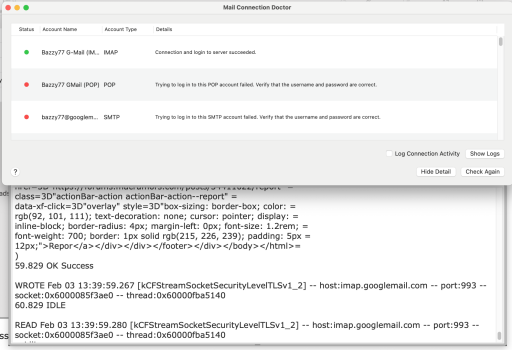
However, pressing “Check Again” shows that there is Data being generated in real time right before my eyes & the data is getting longer & longer so it seems it is continually adding information to the logs:
As "Log Connection Activity” was unticked, I did what you said - ticked it > closed the window > reopened the window > checked if "Log Connection Activity” was still ticked & then un-ticked it. Then closed Mail.app > reopened it > checked for new mail > checked logs & it showed this:
Looking At “Show Detail” in Connection Doctor shows:
So, it seems to me as it is still happening at today’s date, that the issue is still persisting & something is not working or broken in Mail.app? Anything else I can try?
Many Kind Thanks!
Attachments
Thank Most Kindly!There is an excellent free open source program (Mole) available on GitHub here.

GitHub - tw93/Mole: 🐹 Clean, uninstall, analyze, optimize, and monitor your Mac from the terminal.
🐹 Clean, uninstall, analyze, optimize, and monitor your Mac from the terminal. - tw93/Molegithub.com

!!!
macrumors 65816
You can just copy and paste a small segment. Obviously you cannot upload hundreds of gigabytes of logs to the MR forums.Please forgive me as I tried to attach a PDF but it was not working so I had to take individual images of an infinitessmal small section from one of the files starting at the beginning - the file was around 50GB so no idea how long that would take to copy & paste - even scrolling through it ay very high speed took me about an hour or so.
Most of this stuff looks extremely verbose. I'm wondering if your Mail app is set to debug logging or something.
A simple google search brought me here, inside the Mail > Window > Connection Doctor, do you have "Log Connection Activity" enabled? If so, disabling that will likely solve the issue.
You can click into them. The emails are in .emlx format, you can press space bar to QuickLook themIs there anyway on my Mac to see what the emails in this V6 folder are please?
Clearly something is awry if Mail is using hundreds of gigabytes of space for logs.If you're not using the space - what's the problem? You have nothing better to do, I guess?
I got a new M4 MBA last spring and had about 250-300gb space taken by system data on a 1TB drive and no matter what I did it remained. I just ended up living with it.
However a few weeks ago I noticed it had lowered to 60gb for no reason apparent to me. In other words it’s likely it’ll sort itself out over time.
Hi,
Glad it worked out for you - Really am! The thing is some people say just leave it there & it will sort itself out but it takes such along time - 6 Years for MacOS to clear all this crap out is crazy & like you I was living with without even knowing - assuming that it was my Data taking up all the space.
If it did not affect my laptops performance then OK but it was & is really messing my system up big time as mentioned before so it has a very real impact in my case at least & I have been thinking then it must ne my 2015 15" MBP that is the issue & it is getting old, out of date, worn out etc & that I would now need to spend a fortune on a new one. Then I see tons of other users on YouTube who are still using their 2015 MBP's very well indeed with none of the issues I am having & some are even running Sequoia on them without issues!
They use theirs to full potential & I do not - I use mine just for web browsing, some office work, watching movies, storing photographs & basic data like documents, movies & music not intense graphical or CAD work etc. I also bought it for the stability of MacOS - that's it. I do not need the latest & greatest & if mine works for what I need then I will use it till I am forced to get a newer one - why get rid of something that works perfectly fine for your needs & spend a bunch of cash on a much newer one in which you will basically be doing the exact same things?
Also, we paid a very handsomely for the very expensive expanded storage at Apple's insane upgrade prices & for our needs - not for a huge chunk of it to be used by unnecessary system files - imagine if I had bought a 256GB model instead of a 1TB model - all my space would be taken up by this System Data crap & I would likely not be able to even use the computer.
Many Thanks!
I finished some other stuff I had to do, and did some MR site searches. The search terms that got the best results were: mail connection log
Some of the relevant threads that mention huge logs are:

MacBook Air hard drive full
I'm trying to find out what is taking up all the space on my 2020 MacBook Air M1. Its 251GB HD is nearly full, with 160GB taken up with 'Other' files. Mail is taking up 13GB so maybe that can be tidied up, but my Photos and Video files aren't taking up any more than 8GB, so is there an easy...forums.macrumors.com

M1 iMac Internal Drive Nearly Full
Early this year I bought an M1 iMac for my wife to compliment her older MBA. She was only using about 150 GB of storage on the MBA so I opted for a 256GB SSD and 16GB RAM. Today I was surprised to see that she has only 15GB of free space on the internal drive. Photo and Music libraries consume...

World Record! Huge, Gigantic, Colossal Text File!
Yesterday a friend asked if I could call her elderly mother who lives several hours away because her mom's iMac was really slow. A 2017 i5 8GB w/ 1TB HDD running MacOS Mojave. "All mom ever does is email". So I called mom, had her reboot, try Safe Mode, no change. Talked her through signing into...
System Storage is enormous!
I have a 2016 MacBook Pro and I have noticed that suddenly I am almost out of storage. When I go to "About This Mac" I can see that my storage is mostly "System" and it's over 153 Gb!! I had this problem on an old laptop and I cannot remember how to fix it. I should say I am NOT a super...
I probably missed some, but in all cases the solution is to turn off logging.
Another bunch of search results are about using the "Connection Doctor" window to diagnose connection problems. Sometimes that involves turning on logging for a while, to capture the details of what goes wrong when the problems are sporadic.
Thanks kindly for that!
If what you say is true then I must have a serious problem somewhere as I have ensured that in Connection Doctor, Log Connection Activity is UNTICKED & it is still generating logs - see screen-shots in previous post. I also just now checked & it is generating new logs at speed while I am watching. These then each end up being many, many GB's each.
Thanks for the links - I will have a read of then when able - at least I will attempt to learn somethings.
Here is a Screen-shot showing Connection Activity Unticked & logs being generated in real time quite fast before my eyes taken just a few seconds ago:
It seems unticking Log Connection Activity does not resolve the issue as it is still happening at today’s date, that the issue is still persisting & something is not working or broken in Mail.app? Anything else I can try?
Many Kind Thanks!
Hi,@Bazzy Do you have Apple Intelligence enabled?
No, I am not - mine is 2015 rMP 2.8 so Apple Intelligence is not available or supported.
Thanks!
Its the iCloud Drive downloading itself automatically, and you can't do anything about it.
Hi,
The thing is I do not use iCloud for my Mac - only a 2GB version for my Apple Phone for automatic back-ups on it.
Thanks
Hi,You can just copy and paste a small segment. Obviously you cannot upload hundreds of gigabytes of logs to the MR forums.
Most of this stuff looks extremely verbose. I'm wondering if your Mail app is set to debug logging or something.
Yes, I have already posted some screen-shots of what is happening & segments from a file & your most correct - he stuff is extremely verbose.
I have no way of knowing if de-bugging is occurring - do not even know what it is! Is there any way to find out?
A simple google search brought me here, inside the Mail > Window > Connection Doctor, do you have "Log Connection Activity" enabled? If so, disabling that will likely solve the issue.
Unfortunately, this is not working - see screen-shots posted &you will see Log Connection Activity unticked & it is logging away like an express train.
Thank you so much - I always wondered what those emix files are & why I could not open them - learn'y something valuable from you!You can click into them. The emails are in .emlx format, you can press space bar to QuickLook them
Completely agree - thanks for appreciating that!Clearly something is awry if Mail is using hundreds of gigabytes of space for logs.
Hi!Bazzy
If you were to set up another administrator account on one of your laptops, you could sign into your email on that mirror account.
Let the system download all of your emails and see if the log files travel with it.
Thank you for the suggestion - might very well try this. Sorry to sound dense, but may I ask, since I have 1TB storage which is currently 750GB full, by opening a new administrator account, will the process work as I will only have 250GB space free for the new account to transfer all that data?
If they don’t then a non technical solution might be to use the new admin account as your primary, the apps will be there by default, sign into iCloud , import your files, the lot.
I do not use iCloud to store my Laptop Data - I use a number of external hard drives & back up cloning apps like SuperDuper & Carbon Copy Cleaner. I used to use Time Machine but stopped doing so as the HDD in my Time Capsule is making whirring noises so was concerned it was failing & did not want to take the risk.
Is there another way apart from using iCloud may I ask? If not, I guess I will just have to buy 1TB worth of iCloud then - even if it is for the short term?
OK, if then, if the problem files do not appear in the new user account, will delete problem user account - will report back!When you are confident that this new account is the old you, minus the log files, delete the account that has a massive log file issue.
I suspect some of the beach ball issue is Mail having to open a stupendously large file, add a line and then close it.
Just a thought.
You may very well be right especially if these logs are being generated everyday, all the time. I also find that after a time, Safari starts getting beach balls all the time or just randomly quits & the only way to stop it is to Force Quit Safari & do a restart.
Thank You Kindly!
Hi!Try something like OnyX.
It's free and seems reliable to use.
Is it easy for a non technical person to use may I ask?
OK - will look into it - I know you are a very long time Mac user so have experience of which is a good app or not!I also found another utility named "PrettyClean" that can clean out caches, etc. I run it at night, just before shut down. No problems from it that I can see.

FreakinEurekan
macrumors G3
85% is what I use, though it's not a hard-and-fast number. You can go fuller, of course, but your chances of performance-related problems goes up.I the read that never to let your SSD go over 75% full so I then started deleting anything & everything I could on my user account & transferred what I could not delete on to an external HDD.
I think you're incorrectly attributing the "Stress" involved. I like watching YouTube myself but not everyone out there is as knowledgeable as they purport to be.If 200+GB had not been eaten up by this System Data then as a novice & from what everything I have learned from watching YouTube videos I can only assume from what they tell me, is that all that extra space would not be stressing the SSD out so much & might well have alleviated some of the many issues I have being having over the years.
Because it wasn't necessary.Please enlighten me as to why then if MacOS does everything by itself including maintenance & self cleaning etc - then why did it not clear 200+GB & 300+GB on my Mac's with which I have now learnt are mainly Cache files in the last 6 years?
If it got to the point where your free space was starting to get low - then it would have cleared what space it could. That may be 200 or 300GB or may be a lot less, no telling. You COULD at that point have a legitimate concern about free space not clearing properly, but most likely you would not.
The point I was trying to make is - don't manufacture a problem out of whole cloth. If the Mac is working for you, let it work.
How do I turn off virtual memory disk swapping please? I am running Monterey 12.7.6. Can you kindly guide me through the process?The following won't help you with the problems you're having now, but I've never had problems with cache files or other app-related files that just grow to enormous sizes.
How I do it:
First, I TURN OFF virtual memory disk swapping. Completely. My Mac runs in "live memory", or it won't run it all. It's always run fine this way and doesn't crash (because I NEVER use "tabs" and control what apps I leave open).
Also when you say you never use "tabs" do you mean like when on Safari, having multiple website tabs open at the same time so you can easily go from webpage to another? If so, I am extremely & totally absolutely guilty of this - I do, when web browsing on Safari mainly or sometimes Firefox, have many of these types of tabs open.
If not, do you mean some other type of tabs?
Next, I TURN OFF spotlight. No "indexes", ever. I use EasyFind and Find Any File if I need to search for something.
Again, can you guide me on how to turn spotlight of?
Also, by turning it off, will I still be able to do Time Machine Back Ups - either to a connected external disk or wirelessly via a Time Capsule?
Finally, I buy Macs with enough RAM so I don't have to worry about VM in the first place.
My m4 Mini has 32gb RAM, 1tb SSD.
No files of enormous size being created, RAM never gets clogged up, either.
Works for me.
I have 16GB of RAM - it is the DDR3 type at 1600Hz - will this be enough to ensure no big files created or RAM not getting clogged up - 16GB RAM is the very max I can install on my MBP.
Thank You Kindly!
85% is what I use, though it's not a hard-and-fast number. You can go fuller, of course, but your chances of performance-related problems goes up.
I think you're incorrectly attributing the "Stress" involved. I like watching YouTube myself but not everyone out there is as knowledgeable as they purport to be.
Because it wasn't necessary.
If it got to the point where your free space was starting to get low - then it would have cleared what space it could. That may be 200 or 300GB or may be a lot less, no telling. You COULD at that point have a legitimate concern about free space not clearing properly, but most likely you would not.
The point I was trying to make is - don't manufacture a problem out of whole cloth. If the Mac is working for you, let it work.
Hi,
The thing is I am not a very heavy user like you & most others here - I do not do heavy graphics, editing, movie making, CAD stuff, modelling etc - none of that stuff. I only use it for basic things most everyday people do but after hell with Windows moved on to Mac purely for the reliability & stability of MacOS & not to have problems like this & why I spent a small fortune (by my standards) on my MBP's over Windows laptops that I could have got for a quarter to half the price at the time - I wanted a system designed for neophytes like me who do not have to ask when things on my MBP goes wrong because a Mac "Just Works".
I also upgraded to 1TB SSD (max at the time) as I store a lot of stuff like photos, videos, documents etc & had to store stuff I cannot now on my Macbook to external drives.
So, this System Data eating up 300GB on my SSD is a very big deal for me as it forces me to store stuff outside the Macbook when I should really not have to.
Like I said, all references from some very respectable & expert sources have stated, never to let your SSD space go below around 75% -80% which is exactly what I did.
Right now, the situation is stopping me using my larger 1TB SSD to full potential by storing this System Data crap on it & depriving me of storing my own personal data on it - I did not pay Apple Tax for a larger SSD for then to let System Data to occupy huge amounts of space on it but for my data space needs & requirements.
Like I also said, it was causing issues like fans going full speed, beach balls, app crashes, slow & buggy operation - all of which is still happening at a notable level even now but better than when I had deleted/transferred about 65GB worth so maybe I was on that fine line limit on my SSD.
Thanks
macbookj0e
macrumors 6502a
Hi,
Glad it worked out for you - Really am! The thing is some people say just leave it there & it will sort itself out but it takes such along time - 6 Years for MacOS to clear all this crap out is crazy & like you I was living with without even knowing - assuming that it was my Data taking up all the space.
If it did not affect my laptops performance then OK but it was & is really messing my system up big time as mentioned before so it has a very real impact in my case at least & I have been thinking then it must ne my 2015 15" MBP that is the issue & it is getting old, out of date, worn out etc & that I would now need to spend a fortune on a new one. Then I see tons of other users on YouTube who are still using their 2015 MBP's very well indeed with none of the issues I am having & some are even running Sequoia on them without issues!
They use theirs to full potential & I do not - I use mine just for web browsing, some office work, watching movies, storing photographs & basic data like documents, movies & music not intense graphical or CAD work etc. I also bought it for the stability of MacOS - that's it. I do not need the latest & greatest & if mine works for what I need then I will use it till I am forced to get a newer one - why get rid of something that works perfectly fine for your needs & spend a bunch of cash on a much newer one in which you will basically be doing the exact same things?
Also, we paid a very handsomely for the very expensive expanded storage at Apple's insane upgrade prices & for our needs - not for a huge chunk of it to be used by unnecessary system files - imagine if I had bought a 256GB model instead of a 1TB model - all my space would be taken up by this System Data crap & I would likely not be able to even use the computer.
Many Thanks!
Yes agreed. It is very annoying.
In my case this happened from the moment I set it up from new though I didn’t notice any performance issues as it’s only a personal computer for light tasks.
I do wonder if it somehow uses a percentage of available space so if we had 512gb drives the system data would be halved?
It might be worth getting in touch with apple support if you’ve noticed it bogging your machine down?
Wish I could help you and good luck!

MacCheetah3
macrumors 68040
Well, that last part definitely rings a bell.
In the Connection Doctor window of the Mail app, there is a checkbox named "Log Connection Activity". If that's checked, then all connection activity is logged. Because it's a checkbox, it will stay on until turned off.
Here's a MacRumors thread on the topic, in the Monterey Forum:

Mail log grows to enormous size
I use MacOS Mail to check my Hotmail account. Every month or two my macbook runs out of storage space. When I check why, it's because of those damn Mail logs again...
It's also mentioned here, with a nice screenshot:
How to stop Mail logs from eating your disk space – Six Colors
Six Colors by Jason Snell, Dan Moren and friendssixcolors.com
Step one is to open the Mail app, then in the Window menu choose "Connection Doctor". If the window shows a checked "Log Connection Activity" checkbox, then uncheck it. If it's unchecked, I'd check it, close the window, reopen the window, then uncheck it. That's the do-si-do I often use if I suspect a setting might be stuck in a weird state.
After confirming the checkbox is unchecked, I'd probably quit Mail, reopen it, and have it check for mail. If none of the log files in Mail's log dir show a mod-date after Mail's most recent launch, then it should be good. Personally, I'd check the log dir over the next few days of Mail.app use, just to make sure nothing has turned that setting on.
So, it appears, despite the option not being enabled (supposedly), Mail is still logging. Did you try:Hi - Thanks kindly for the links - will read with great interest & fervour!
Awesome of you to zero in on this - thank you so much! Here is what I found:
Just opening "Connection Doctor” it shows this:
"Connection Doctor” Log Connection Activity is unticked:
View attachment 2601611
Pressing “Show Logs” shows this:
View attachment 2601612
However, pressing “Check Again” shows that there is Data being generated in real time right before my eyes & the data is getting longer & longer so it seems it is continually adding information to the logs:
View attachment 2601616
As "Log Connection Activity” was unticked, I did what you said - ticked it > closed the window > reopened the window > checked if "Log Connection Activity” was still ticked & then un-ticked it. Then closed Mail.app > reopened it > checked for new mail > checked logs & it showed this:
View attachment 2601617
Looking At “Show Detail” in Connection Doctor shows:
View attachment 2601618
So, it seems to me as it is still happening at today’s date, that the issue is still persisting & something is not working or broken in Mail.app? Anything else I can try?
Many Kind Thanks!
If it's unchecked, I'd check it, close the window, reopen the window, then uncheck it. That's the do-si-do I often use if I suspect a setting might be stuck in a weird state.
The next topic, err, recommendation: change your habit. Despite Mail having an archive function, it’s bad practice to use the Mail (or any email app/service) as long-term storage. I say this as someone who had that mentality for a long time and broke free.
For active conversation messages or those you might need to respond in the foreseeable future, keep those in Mail. For everything else (e.g., purchase receipts, tracking notifications, appointment details), delete/trash or externally archive. It’s easy, use the built-in PDF creation function per message.
Save a document as a PDF on Mac
On your Mac, to save any document as a PDF, click the PDF button in the Print dialog, then enter the name and choose a location for the PDF.
I have a literal “Archives” folder (with sub-folders, of course, that also go beyond what I save from email) in my Documents folder. Obviously, that gets duplicated with my Mac backups (i.e., Time Machine).
Think of it with a direct analogy. You don’t leave every letter, including after opening, in your postal mailbox, right? In an office environment, it would be a huge mess to leave everything in the inbox, correct? You put what’s seemingly important to reference later in folders, drawers, cabinets or some kind of organizational storage system… hopefully.
By the way, my ~/Library/Containers/Mail and ~/Library/Containers/com.apple,MailServiceAgent folders are less than 100KB each. And my System Data is less than 50GB.
Related, for your knowledge:
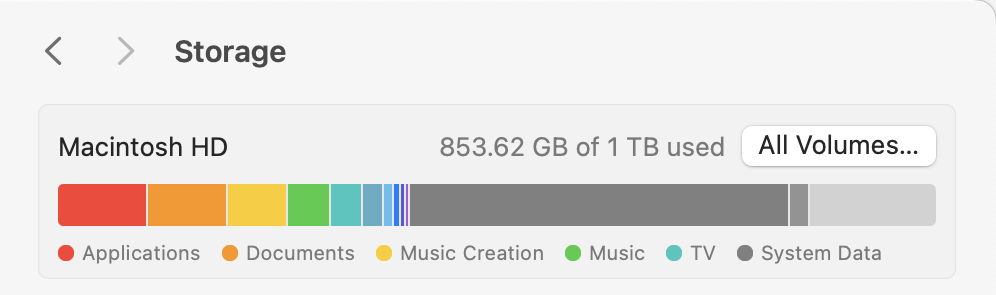
What is System Data in Storage Settings?
The bar chart in Storage Settings shows most of your startup volume is full of System Data. What does it mean, and what use is it? Is its measure of used and free space accurate?
 eclecticlight.co
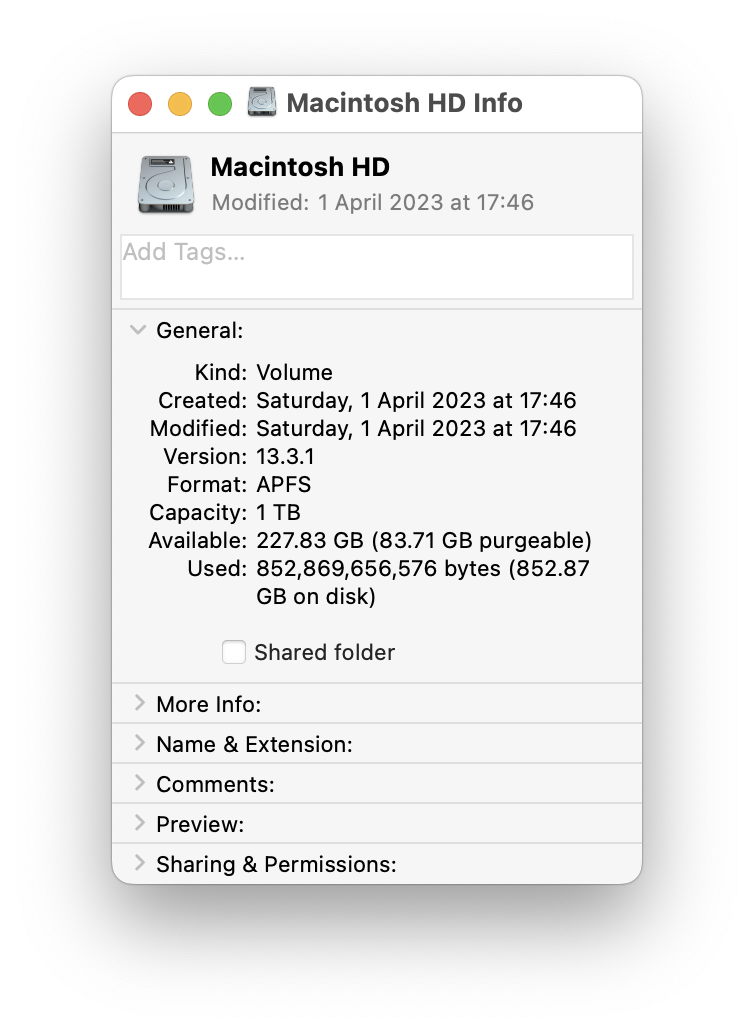
What is purgeable disk space?
When the Finder works out how much space is available on disk, what does it count as being “purgeable”? The answer may surprise you.
eclecticlight.co
View APFS snapshots in Disk Utility on Mac
In Disk Utility on Mac, view a list of APFS snapshots, copy information about the snapshots, and delete them.
P.S. Another common bad practice I see a lot is not using Web (browser) bookmarks. Instead, leaving windows/tabs open endlessly if you think you might need the info (i.e., page) later. I finally stopped this behavior after having dozens of tabs wiped away following a Firefox update many moons ago.
Add websites to your Favorites in Safari on Mac
In Safari on your Mac, add websites to your Favorites.

How to Manage Bookmarks in Safari on iOS and Mac
Are you new to Safari bookmarks? Or are your bookmarks out of control? This helpful tutorial teaches you how to manage Safari bookmarks.
 appletoolbox.com
P.P.S.
Hide distractions when reading articles in Safari on Mac
In Safari on your Mac, use Safari Reader to hide menus and diversions when reading articles. See a table of contents and summary for longer articles.

p33t3r
macrumors regular
It seems as thought you're using both POP and IMAP with Gmail at the same time. Might that be the problem?
POP is a protocol that downloads e-mails to the local machine from the server, but IMAP lets you keep your e-mails on the server and syncs read, delete and archive states and so on both ways. You might have a legitimate reason to use both at the same time, but in most cases I would choose one or the other.
POP is a protocol that downloads e-mails to the local machine from the server, but IMAP lets you keep your e-mails on the server and syncs read, delete and archive states and so on both ways. You might have a legitimate reason to use both at the same time, but in most cases I would choose one or the other.
Hi All,
I have just taken a video of the issue so you all can see it happening in real time - I tried posting it here but get a message saying - Oops - we ran into a problem - my video is 1:06 minute long & 196mb.
I have searched high & low on the website help & guidance sector for file & attachment size limit but cannot seem to locate such myself.
If the video exceeds any video file size limit for posting here, can anyone please kindly tell me what the size limit is please & I will try again.
Many Thanks!
I have just taken a video of the issue so you all can see it happening in real time - I tried posting it here but get a message saying - Oops - we ran into a problem - my video is 1:06 minute long & 196mb.
I have searched high & low on the website help & guidance sector for file & attachment size limit but cannot seem to locate such myself.
If the video exceeds any video file size limit for posting here, can anyone please kindly tell me what the size limit is please & I will try again.
Many Thanks!
Last edited:

MayflyMaven
macrumors member
If what you say is true then I must have a serious problem somewhere as I have ensured that in Connection Doctor, Log Connection Activity is UNTICKED & it is still generating logs - see screen-shots in previous post. I also just now checked & it is generating new logs at speed while I am watching. These then each end up being many, many GB's each.
I don't think Mail's "Log connection activity" is actually the issue here (EDIT: I don't think it is an issue any longer. The screenshot in your initial post definitely shows large mail log files. Did you also empty the Bin?). Mail will show the connection activity in that "Show Activity" drawer as long as the Connection Doctor window is open. It shouldn't be appending the data to the logs, though, if the "Log connection activity" box is unchecked. One of your screenshots showed an empty Logs folder (Finder bug: Finder's "Show path bar" doesn't show the path for this item within a container 😡), then another shows the folder populated with logs, but it doesn't show the file sizes. I tried this on my own system – as soon as you tick the box to log connection activity, those files get created, but they're 0 bytes. If you uncheck the box, the files remain there, but Mail doesn't append any data to them when connection activity is generated.
I also ran that command you kindly gave in Terminal & it came up with this:
You would have to grant Terminal Full Disk Access to resolve the "Operation not permitted" error. You can do that in System Settings > Privacy & Security > Full Disk Access, but I don't think that's necessary here, you can easily reveal that Mail log folder via the button in Mail.
I do not know when using CCC, if the snapshot support was turned on but I really suspect so as the size of the back up was very similar to the size of the Mackintosh HD on my laptop.
That actually would suggest that snapshots on the startup disk are not the problem if the size of the (initial) backup matches (roughly) the disk usage of the startup disk. Snapshots aren't copied as part of the backup, so if the initial backup is as large as the amount of space used on the startup disk, then the backup is finding that much "real" data. It gets murky if you've being running backups for a while, though, because snapshots will start to consume space on the backup as part of backup versioning (if you're using Time Machine or CCC; not applicable to SuperDuper which doesn't do backup versioning).
You can get the answer directly though. In CCC, click "Volumes" in the sidebar, then select "Macintosh HD - Data" or "Data" in the sidebar and see if any snapshots are listed there. Or in Disk Utility, select that volume in the sidebar and choose "Show APFS snapshots" from the View menu, then you'll see a list of snapshots at the bottom of the window. You can delete any snapshots you see on the startup disk's Data volume, they're expendable. [side note: you'll see a snapshot on the "Macintosh HD" volume too, but you can't (and wouldn't want to) delete that one, it's your System snapshot].
May I ask, just for future reference & relating to this issue & also other issues that might cause large amounts of SSD space being taken up by “System Data”, which would be the better option for Backing Up - Time Machine, SuperDuper or CCC? Or indeed - something else?
I have tried them all and personally settled on CCC. Time Machine creates snapshots on the startup disk that are kept there for 24 hours. I hate that. Apple puts a price premium on non-upgradeable internal storage space, so I don't want to use any space on my startup disk for backup versioning if I can get that functionality on cheaper external storage. CCC offers the same kind of backup versioning as Time Machine and gives me more control over what storage space (and how much) is used for that functionality.
SuperDuper doesn't offer any backup versioning. Frankly I would be hard-pressed to recommend SuperDuper right now, it seems they have some systemic security issues they're working through (and even with the latest update, I'm not convinced the fundamentals have been addressed).
Last edited:
brilliantthings
macrumors 65816
This isn't what you were asking but is all of your media on an sd card? They fail much more often than a hard disk or SSD. Not a good idea.
TechnoMonk
macrumors 68040
Turning of swap is a disaster waiting to happen especially with problems you are facing and usage patterns.
TechnoMonk
macrumors 68040
how much % of ssd space are you using? Unless you are in 90% are close to it, you shouldn’t see beachbsll or fans going off. If you are on an Intel Mac something else could be going on. The system dusk space could be a symptom not the root cause:Hi,
The thing is I am not a very heavy user like you & most others here - I do not do heavy graphics, editing, movie making, CAD stuff, modelling etc - none of that stuff. I only use it for basic things most everyday people do but after hell with Windows moved on to Mac purely for the reliability & stability of MacOS & not to have problems like this & why I spent a small fortune (by my standards) on my MBP's over Windows laptops that I could have got for a quarter to half the price at the time - I wanted a system designed for neophytes like me who do not have to ask when things on my MBP goes wrong because a Mac "Just Works".
I also upgraded to 1TB SSD (max at the time) as I store a lot of stuff like photos, videos, documents etc & had to store stuff I cannot now on my Macbook to external drives.
So, this System Data eating up 300GB on my SSD is a very big deal for me as it forces me to store stuff outside the Macbook when I should really not have to.
Like I said, all references from some very respectable & expert sources have stated, never to let your SSD space go below around 75% -80% which is exactly what I did.
Right now, the situation is stopping me using my larger 1TB SSD to full potential by storing this System Data crap on it & depriving me of storing my own personal data on it - I did not pay Apple Tax for a larger SSD for then to let System Data to occupy huge amounts of space on it but for my data space needs & requirements.
Like I also said, it was causing issues like fans going full speed, beach balls, app crashes, slow & buggy operation - all of which is still happening at a notable level even now but better than when I had deleted/transferred about 65GB worth so maybe I was on that fine line limit on my SSD.
Thanks
Last edited: