If you use an AppleID and iCloud to backup/save the keychain etc. on your Mac and log into the other Mac with the same AppleID you should be able to log into known/preferred networks on both machines automatically. If both Macs run different versions of macOS, there might be a difference how preferred networks are determined.
yes you can. Either you export and import from within keychain or you copy the user login.keychain frm ~/Library/Keychains/ to the second Mac (via Airdrop, Ethernet, USB-whatever-drive, …).
On the target Mac, hit ⌘ + spacebar to open Spotlight and type “Keychain Access” then hit return, the Keychain manager app should open. Select “Add Keychain” from the “File”-menu and browse to the keychain file you copied. Add it to import the keychain data to the target Mac.
yes you can. Either you export and import from within keychain or you copy the user login.keychain frm ~/Library/Keychains/ to the second Mac (via Airdrop, Ethernet, USB-whatever-drive, …).
On the target Mac, hit ⌘ + spacebar to open Spotlight and type “Keychain Access” then hit return, the Keychain manager app should open. Select “Add Keychain” from the “File”-menu and browse to the keychain file you copied. Add it to import the keychain data to the target Mac.
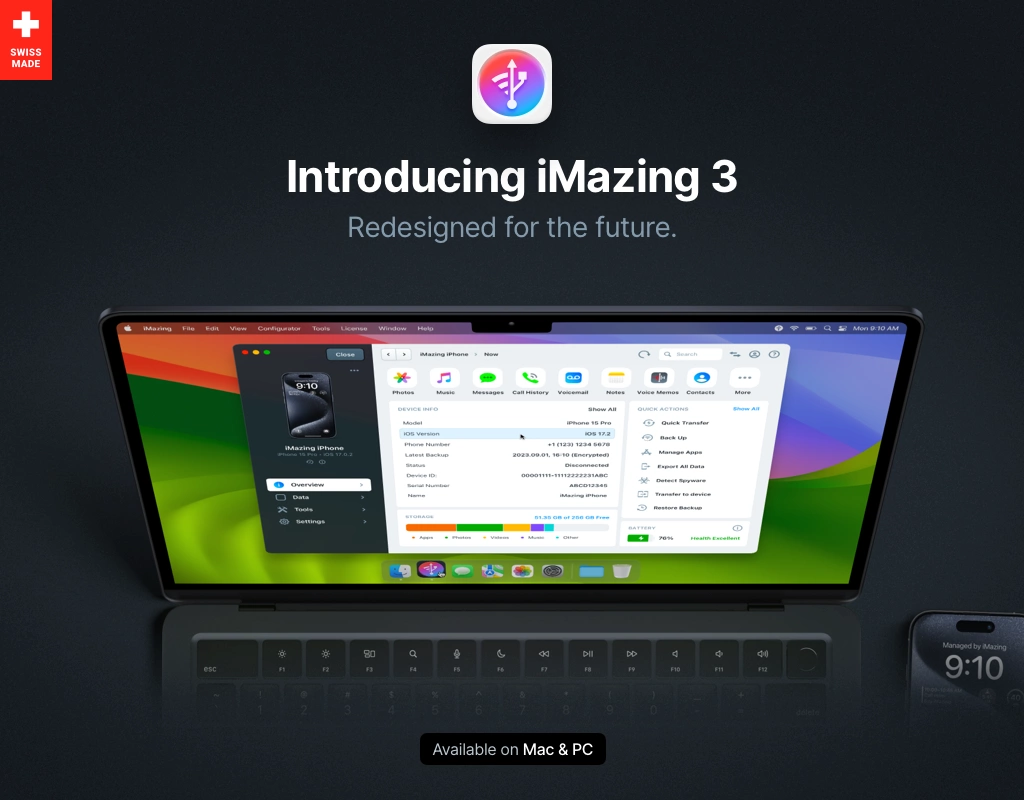
iMazing lets you transfer music, files, messages, apps and more from any iPhone, iPad, or iPod to a computer, Mac or PC. Manage and backup your iOS device simply without iTunes. (was DiskAid)
iMazing is to "Manage your iPhone"
You can use the free iMazing Profile Editor https://apps.apple.com/app/id1487860882 to create Wi-Fi profiles for macOS or iOS.