Become a MacRumors Supporter for $50/year with no ads, ability to filter front page stories, and private forums.

tony359

macrumors regular
Original poster
I've realised that changing the "resolution" in Displays, won't change the actual resolution sent to the monitor, it just rescales everything to make it look like the selected resolution. I'm talking about HDMI monitors on a mac mini.

Sometimes this is a nice feature. But there are times where I want the mac to send a lower resolution stream to the monitor for XYZ reasons.

I haven't been able to find how to do that. My monitor is constantly reporting its native resolution and nothing I do changes that.

I've read about changing EDID and stuff like that - surely there is a simpler way to tell macOS "send FullHD even though the monitor is reporting 4K capable"??

Thanks!
 
  • Like
Reactions: Parowdy
AFAIK, this is by design. The OS knows to render the full screen, and everything is just scaled to fit. Seeing as GPUs are so fast now, there is no reason to not scale the UI to the screen. The reason they do this is to have a consistent UI size, regardless of physical display size/resolution. i.e., icons drawn on my 40" 4K display have the same size as the icons on my 27" iMac 5K, despite the displays having radically different pixel densities, dimensions, and resolutions.
 
Just looking here, the best you can do is select the option for "Most Space" in Displays. This will draw the UI 1:1 with your physical screen resolution (in my case it says 3840x2160 as I have a 4K monitor).
 
I understand why macOS might want to do that but there are situations where I might need a lower actual resolution: for example, my hdmi cable is not great and I’m getting artefacts in 4K (of course the solution is to replace the cable but it’s an example)


@QuarterSwede
I have better display and I fiddled with it with no luck. Can you give me a pointer please?
 
  • Like
Reactions: Parowdy
Click on the Advanced button and check "Show resolution as list", the click on the "Show all resolutions".
Thanks - That doesn't change the output resolution though - I confirmed on the monitor's own menu. It's a 4K monitor, it always get 4K regardless of what I select.

My understanding is that those resolutions mean "I will keep driving the monitor at the native resolution but I will make it look like whatever you select".

Which is great for many use case scenarios. But I'd like to be able to select a lower ACTUAL resolution if I needed to.
 
  • Like
Reactions: Parowdy
Looks like on Apple Silicon it always rescale to the display actual resolution. LCD and OLED panels have a fixed resolution anyway, so in the end it won't make much difference. I guess the only option is to play around in Better Display.
 
  • Like
Reactions: blufrog
I have BetterDisplays but I couldn't find a way to change the actual output. I'd agree you wouldn't normally want to send a non-native output to your screen, it's just sometimes it might be required in a temporary situation.
 
  • Like
Reactions: Parowdy
Does SwitchResX or BetterDisplay let you create custom timings on Apple Silicon? They should show which modes are scaled modes and which modes are actual timings. I know SwitchResX does on Intel Macs.
 
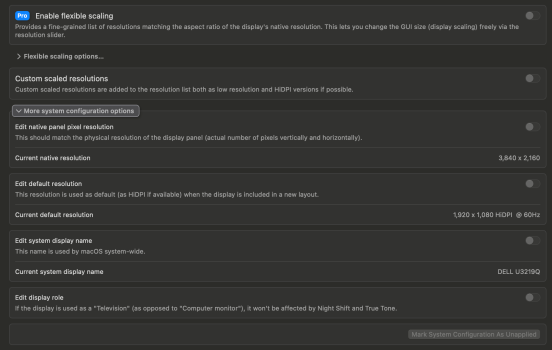
No, unless all those options live under the "Enable flexible scaling" umbrella?
 

Attachments

  • SCR-20260516-khmy.png
    SCR-20260516-khmy.png
    214.8 KB · Views: 168
And yet one more vote for BetterDisplay.

If you can't get your display "the way you want it" with BetterDisplay...
then
You ain't gettin' it.

Hmmm...
Maybe I missed it above, but...
- tell us WHAT MAC you have
- tell us WHAT DISPLAY you have
- tell us WHAT RESOLUTION you want to see.
 
Potentially this solution. Also, BetterDisplay and SwitchResX can load custom EDIDs so you can report any resolution you want to macOS. Be careful, that’s a good way to create a non working output.

I’m not sure an LCD will output anything other than native. It’s fixed. And even if it says it is doing so the monitor would be scaling the output anyway.
 
  • Like
Reactions: BigMcGuire
I know nothing about displays but I have a display for my mac mini that connects via USB-C which I was told is better than HDMI.
 
I've realised that changing the "resolution" in Displays, won't change the actual resolution sent to the monitor, it just rescales everything to make it look like the selected resolution. I'm talking about HDMI monitors on a mac mini.
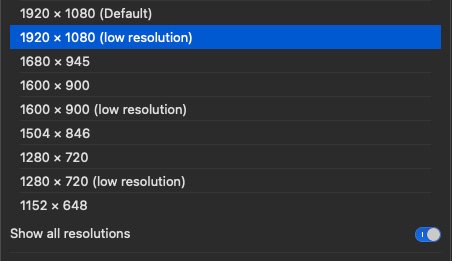
If you check “Show all resolutions”, you should see 1920 x 1080 (low resolution). That should be the setting for true FullHD output.
1920x1080_low_resolution.jpg
 
  • Like
Reactions: 840quadra
If you check “Show all resolutions”, you should see 1920 x 1080 (low resolution). That should be the setting for true FullHD output.
View attachment 2630285
It does not unfortunately. At least on my display. The scaling changes and gets worse but not the output. The monitor still receives 4K.

I’m not sure an LCD will output anything other than native. It’s fixed. And even if it says it is doing so the monitor would be scaling the output anyway.
Of course they do! They will re-scale it internally of course. But a good LCD monitor can accept any resolution.

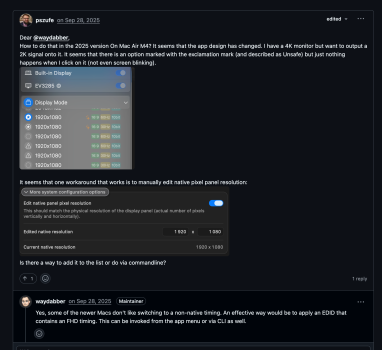
The potential solution you linked (thanks!) doesn't seem to be working with later Apple silicon machines...

SCR-20260516-objk.png
Once again, I understand nobody wants to run their LCD display at a resolution different than the native one. But when you have to deal with many different systems, monitors, projectors, splitters, cables, there will be THAT occasion where things just don't automagically work and you need a different resolution.

With Windows, I can set whatever I want as long as it's a supported one. With macOS it doesn't seem so and I find it very limiting.

No, changing EDID on someone else's monitor doesn't sound like a viable option 🙂
 
I know nothing about displays but I have a display for my mac mini that connects via USB-C which I was told is better than HDMI.
Correct. That would be DisplayPort (spec depends on the chip you have) which can be higher bandwidth than HDMI 2.1 (the latest).
 
Have you tried turning off HiDPI mode in BetterDisplay?

macOS hides this mode because it’s considered a worse output for most people.

I can make my monitor (4K) look borderline unreadable or terrible with that off.
 
The potential solution you linked (thanks!) doesn't seem to be working with later Apple silicon machines...

View attachment 2630289
He is recommending editing the Eizo’s EDID to change the timing (you can back it up). BetterDisplay will output what you tell it (when you’re essentially hacking it), so if you’re confident the Eizo will display a 1080p signal (non-macOS scaled signal) then check out how to do so. This is beyond my knowledge so I can’t guide you. Good luck!
 
Have you tried turning off HiDPI mode in BetterDisplay?
I can make my monitor (4K) look borderline unreadable or terrible with that off.
Yes, same here.
But the monitor still receives a 4K signal. 🙂

Changing EDID on a monitor to fool the OS to output a non-native resolution is not an option I'm afraid.
 
Again, as I asked above in reply 13:
- tell us WHAT MAC you have
- tell us WHAT DISPLAY you have
- tell us WHAT RESOLUTION you want to see.

You have not given us ANY information as to those questions.

The display has the number of pixels it has.
You are not going to change that.

I don't think you can change how the display "presents itself" to the OS as boot.
By "presents itself" I mean that during bootup, the display communicates with the Mac and most likely giving its highest resolution possible (i.e., pixel-for-pixel 4k) -- and then leaves it to the Mac to determine what other resolutions can be scaled to and displayed.

If there's any app out there that can "tweak things around", it's BetterDisplay.
Have you upgraded to the "Pro" version?
(I did, it's worth it)
 
@Fishrrman
Only bit I forgot to mention is that it's a mac mini M4 - "apple silicon", the model is irrelevant.

The rest is irrelevant. I use my gear for work in the AV world and it can happen that I need to supply a different resolution for (whatever reason which is not important). The setup changes every time.

I cannot ask the customer to change their EDID or their wiring so I understand that macOS does NOT allow to send a resolution different from the one advertised by the sink connected to the mac.

This is kind of weird. While I understand that 99% of the time you wouldn't want anything but the native resolution being sent to the sink, there ARE situations where you want to take control and force something different.

Everybody has mentioned Better Display but I've played with it and I do not see an option that does what I am asking. I am using the free version.
 
Everybody has mentioned Better Display but I've played with it and I do not see an option that does what I am asking. I am using the free version.
If you absolutely cannot wrestle the Mac into outputting the actual resolution you want, perhaps there exists a suitable piece of hardware you could put in between the Mac and the display you’re using for final output. Someone else with way more AV knowledge would have to weigh in on this.
 
  • Like
Reactions: rb2112
Register on MacRumors! This sidebar will go away, and you'll see fewer ads.