


Apple this week made available the fifth public beta of iOS 27, bringing a more stable version of the software to a wider audience following lengthy testing by developers. Keep reading to learn how to prepare your device for the beta software and how to install it.
Signing up to get the iOS 27 or iPadOS 27 public beta is simple once you know how – it can be done by enrolling an iPhone or iPad in Apple's free Apple Beta Software Program. The steps you need to complete to install the software on your device are provided towards the end of this article, but before you jump ahead, here are a few things worth considering.
Is My iPhone Compatible With iOS 27?
iOS 27 is supported on iPhone 11 and all of the same iPhone models as iOS 26. They include the following:
- iPhone 17e
- iPhone 17
- iPhone 17 Pro & Pro Max
- iPhone Air
- iPhone 16e
- iPhone 16
- iPhone 16 Plus
- iPhone 16 Pro
- iPhone 16 Pro Max
- iPhone 15
- iPhone 15 Plus
- iPhone 15 Pro
- iPhone 15 Pro Max
- iPhone 14
- iPhone 14 Plus
- iPhone 14 Pro
- iPhone 14 Pro Max
- iPhone 13
- iPhone 13 mini
- iPhone 13 Pro
- iPhone 13 Pro Max
- iPhone 12
- iPhone 12 mini
- iPhone 12 Pro
- iPhone 12 Pro Max
- iPhone 11 Pro
- iPhone 11 Pro Max
- iPhone 11
- iPhone SE (3rd generation)
iPadOS 27 cuts support for more iPad models than last year's iPadOS 26 did, with older iPad Pro, iPad Air, iPad, and iPad mini models all losing compatibility. iPadOS 27 is supported on the following iPad models:
- 13-inch iPad Pro (M4)
- 12.9-inch iPad Pro (6th generation)
- 12.9-inch iPad Pro (5th generation)
- 12.9-inch iPad Pro (4th generation)
- 11-inch iPad Pro (M4)
- 11-inch iPad Pro (4th generation)
- 11-inch iPad Pro (3rd generation)
- 11-inch iPad Pro (2nd generation)
- iPad Air (M3)
- iPad Air (M2)
- iPad Air (5th generation)
- iPad Air (4th generation)
- iPad (A16)
- iPad (10th generation)
- iPad (9th generation)
- iPad mini (A17 Pro)
- iPad mini (6th generation)
For example, iOS 27's more intelligent and personal version of Siri is available on the iPhone 15 Pro and newer, while two specific features tied to it are exclusive to the iPhone 17 Pro, iPhone 17 Pro Max, and iPhone Air.
Should I Install iOS 27 Public Beta?
Great question! Before downloading the update, it's worth noting that Apple does not recommend installing iOS 27 beta updates on your main iPhone/iPad, so if you have a secondary device, use that. This is beta software, which means there are often bugs and issues that pop up that can prevent software from working properly or cause other problems. Apple still has fixes to make before the final release in September.
Make an Archived Backup of Your Device First
Before installing the beta, make sure to back up your iOS device before installing the software using the following method, otherwise you won't be able to revert back to iOS 26 if things go wrong.
- Plug your iPhone into your Mac using the supplied cable.
- Allow the accessory to connect by clicking Allow in the dialog prompt.
- Open a Finder window by clicking the Finder icon in the Dock.
- Click your iOS device's name in the sidebar.
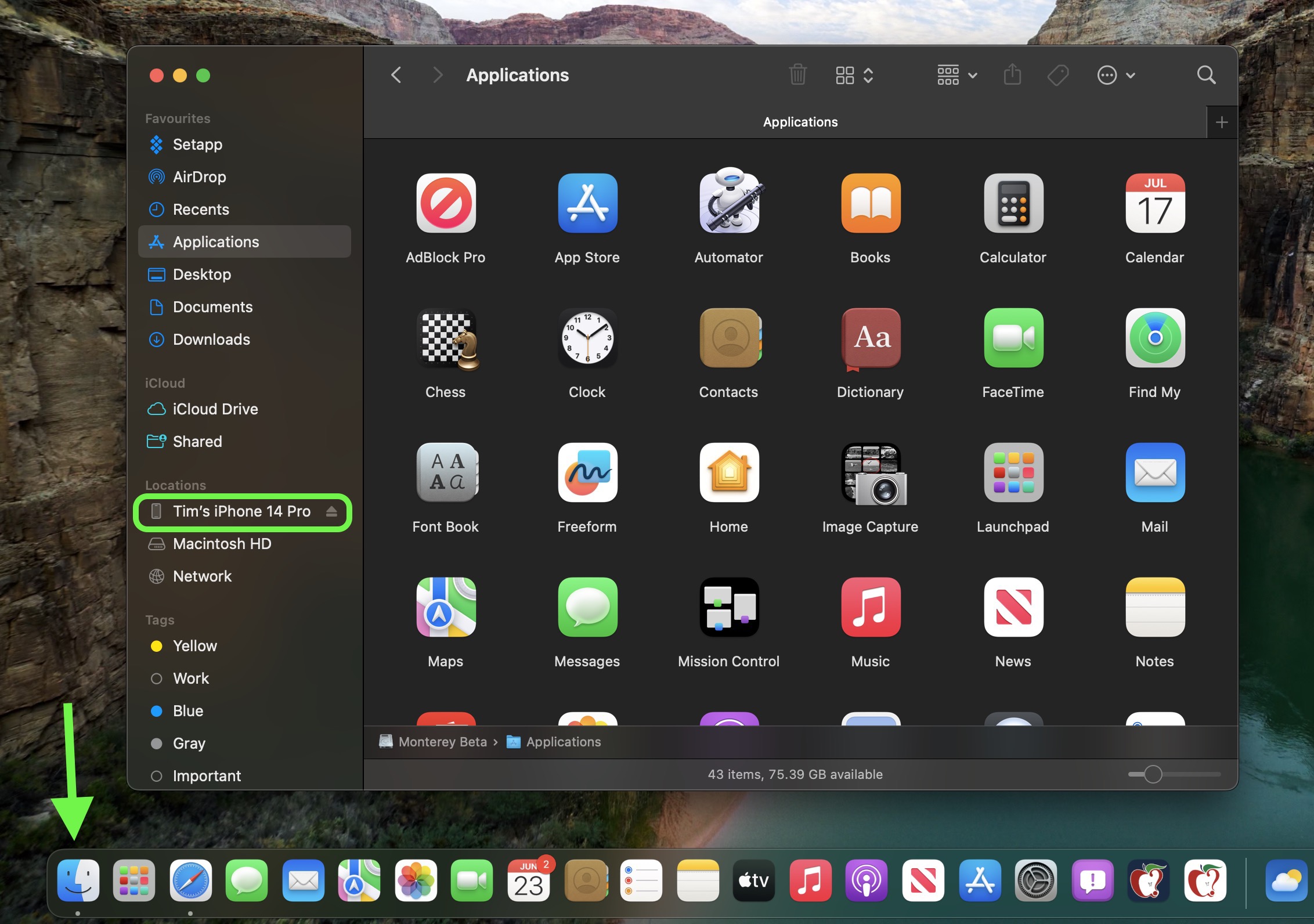
If this is the first time connecting your device to your Mac, click Trust in the Finder window.
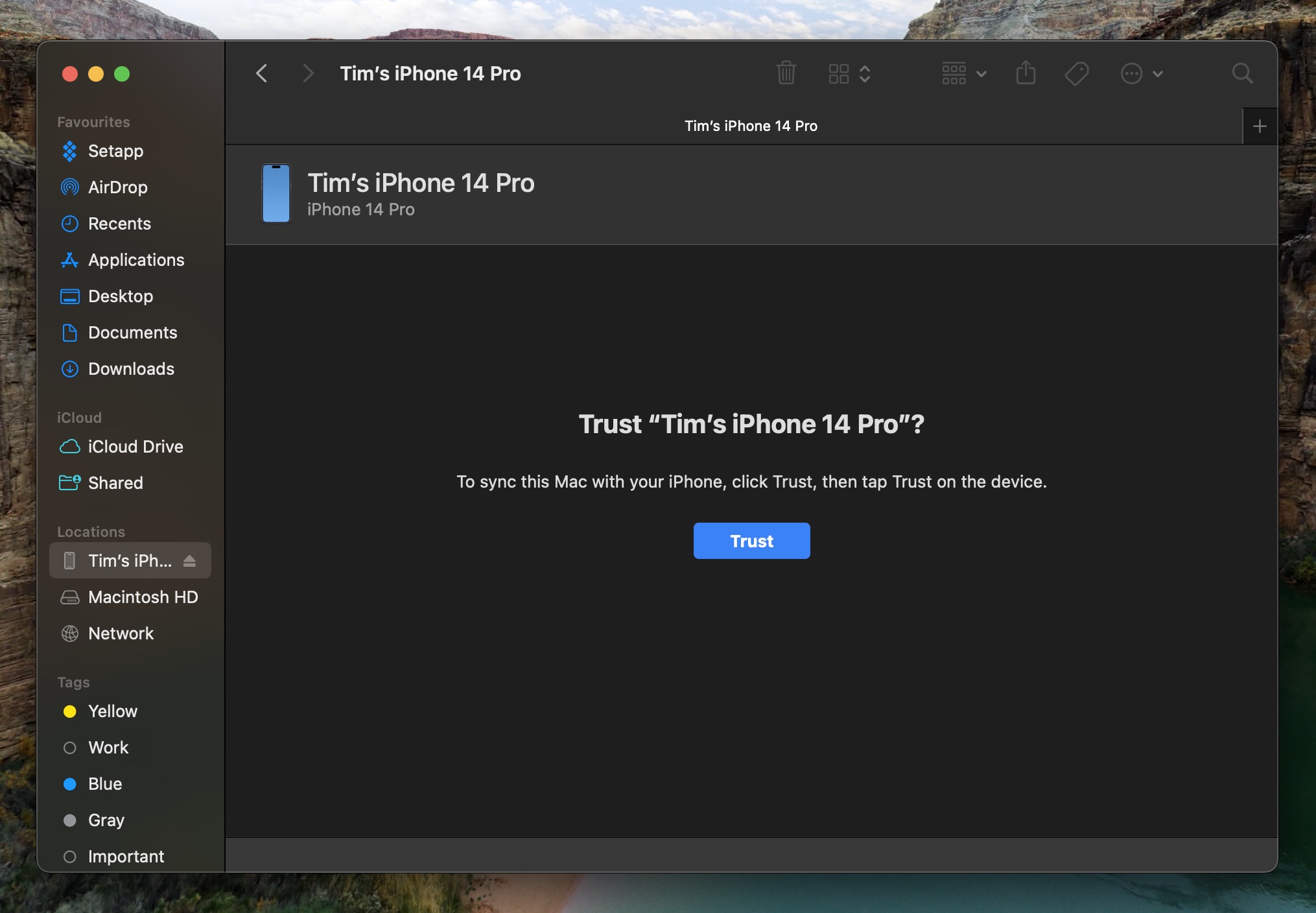
Tap Trust on your device when prompted, then enter your passcode to confirm. - In the General tab, click the circle next to where it says Back up all of the data on your iPad to this Mac.
- If you want to encrypt the backup, check the box next to Encrypt local backup, then enter a password to protect your data.
- If you don't want to create an encrypted backup, or you've already set up encrypted backups, click Back Up Now.
How to Download iOS 27 Public Beta
Downloading and install the iOS 27 Public Beta is very straightforward. Simply follow these steps:
- Head over to Apple's Beta Software Program website and sign up using your Apple Account credentials.
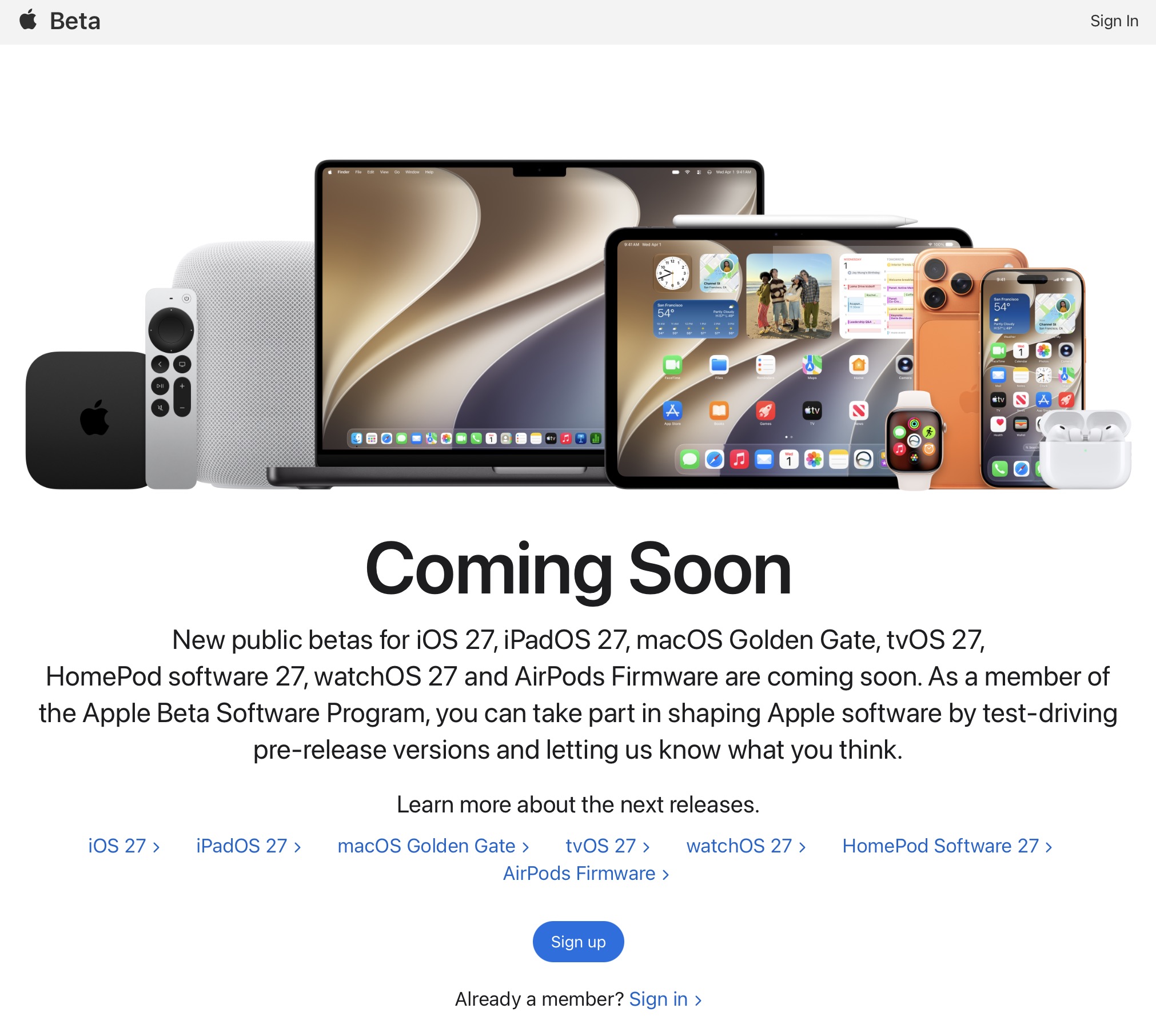
Now go to Settings ➝ General ➝ Software Update on your iPhone. - Tap Beta Updates. If you don't see the option, try switching off Download iOS Updates (Automatic Updates ➝ Download iOS Updates), then tap Back and it should appear.
- Select iOS 27 Public Beta in the list, then tap Back.
- Wait for the Software Update screen to check Apple's servers. When the iOS 27 Public Beta appears, tap Download and Install, then follow the instructions and wait for installation to complete.
iOS 27 Features
iOS 27's headline change is a... Click here to read rest of article
Article Link: How to Install iOS 27 Public Beta 5 on Your iPhone
Last edited:


