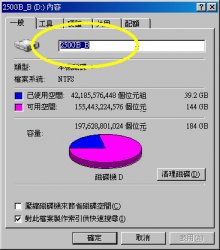
1. You can change of name of the Bootcamp drive from within Windows. Click on My Computer and rename the drive (probably the C: drive).
2. You can change the icon on the Bootcamp drive using CandyBar. You have to change the icon for internal drives to the icon you want to use for your Bootcamp drive. Only problem is that it changes all internal drives to that icon, so if you want a different icon for your Macintosh HD drive, you'll have to change that by the usual cut and paste method.
3. You can change your Bootcamp drive to have full read and write privileges, including changing the name and icon from within OS X, by using NTFS for Mac OS X. It costs a bit, but it allows you move files freely between your Mac and Windows partitions.
The Vista icon is posted here. I can't recall where I got it, so I can't give credit to the author. I've posted it in ICO format and in CandyBar Container format (either should work).
CandyBar does cost some $, but I use it a lot. It's great for changing app and system icons.
Only problem is that it changes all internal drives to that icon, so if you want a different icon for your Macintosh HD drive, you'll have to change that by the usual cut and paste method.
See here for the steps for changing icons in OS X using the cut and paste method.
If you want to use different icons for your Mac and Windows partitions, you (1) use CandyBar to change the icon for all internal drives to the icon you want for your Windows drive and then (2) override that icon for your Mac drive by doing the cut and paste method described in the link above.