Become a MacRumors Supporter for $50/year with no ads, ability to filter front page stories, and private forums.

bd700pilot

macrumors regular
Original poster
Had power outage in the house today and also a lightning strike on sprinkler timer which exploded. So that's the other issue ha ha. Mac mini M4 was plugged into 2 LG displays (via one thunderbolt cable), ethernet and a surge protector strip. Attempted to power it on, flashing red LED, displays not coming on. Followed Apple support page to try a Revive via another Mac. I have my MacBook Pro M4 so I used that. Using a USB C cable from an iPhone, plugged into port next to MagSafe on the MacBook, plugged into the middle port on back of Mini as per Apple.

Mini shows up in MacBook Finder, but nothing happens when I click the "Revive" button. MacBook connected to wi-fi. It gives no error messages, just nothing. Tried the "Restore" button, same thing. Both Macs running same 15.7.8. I have tried normal power up of the Mini, actually got a power on Mac sound once or twice, and flashing red LED and then white LED, but with the displays plugged in they do not light up, then after a while the LED goes back to flashing red. Both displays work fine when plugged into the MacBook.

A bit strange that the Mini was affected this badly by the outage. Bummed if its totally dead because I got this M4 for $500 at Costco and its the best Mac ever, other than my MacBook Pro M4.

Any ideas folks?
 

Attachments

  • Screenshot 2026-08-06 at 20.37.00.png
    Screenshot 2026-08-06 at 20.37.00.png
    80.9 KB · Views: 105
If you can't reach Apple's servers for a proper revive, you could - as a last resort - download an IPSW manually.

Then you can option-click on "Restore", point to the IPSW you just downloaded and completely factory reset the Mac. Your data will be completely gone.

You should not attempt to "Revive" a 15.7.8 Mac with a manually downloaded 15.6.1 or 26.6.1 IPSW. This will most likely lead to mismatches between firmware, RecoveryOSes and the actual OS.
 
Last edited:
My uses of DFU may not be the same as yours, but “Revive” has never worked for me. I have always had to “Restore”.

Howard Oakleys article on Revive and Restore has this helpful statement:

Reviving installs a fresh copy of all the firmware and the Recovery container on the internal SSD, but leaves the macOS container untouched. Restoring erases the whole internal SSD, then installs the firmware, Recovery and macOS containers to the same state when that Mac was first unboxed, ready for personalisation and configuration of the fresh copy of macOS, and migration of data from a backup”.
 
  • Like
Reactions: tonmischa
If you can't reach Apple's servers for a proper revive, you could - as a last resort - download an IPSW manually.

Then you can option-click on "Restore", point to the IPSW you just downloaded and completely factory reset the Mac. Your data will be completely gone.

You should not attempt to "Revive" a 15.7.8 Mac with a manually downloaded 15.6.1 or 26.6.1 IPSW. This will most likely lead to mismatches between firmware, RecoveryOSes and the actual OS.
Thank you. Going to try the option click restore with 15.6.1. Fingers crossed, or its off to Best Buy to send for service.
 
If the MacBook won’t see it, then it’s more than likely truly fried. Desktops are often the most sensitive electronics connected to our buildings and the first to go when lightning strikes nearby. A whole home surge protector could help in the future but it also may not if the building is directly hit. Sorry to hear about the M4 mini, it is truly an incredible machine. Taps.
 
The lightning strike may have done it in.

Two questions:
Is it still under warranty?
Is there a brick n mortar Apple Store anywhere near?
If the answer is "yes" to both questions, make an appt for the genius bar and get it to them, pronto.

One other thing to try re DFU mode:
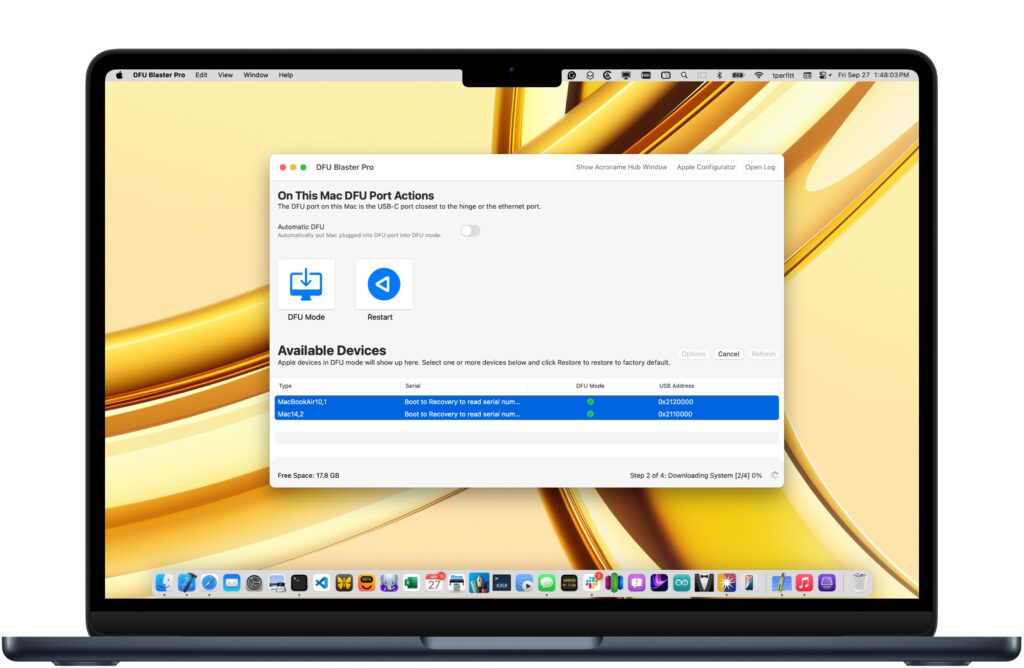
"DFUBlaster Pro"
Download it here:
IMPORTANT:
DFU Blaster is "pay for" software (if you want to use all of the features).
HOWEVER...
It also runs in "free mode" -- and that is all you need to "blast" the target Mac into DFU mode.
I strongly suggest you download and try this.

Another thought:
For now, ditch the second display. Try to diagnose/fix it with JUST ONE display.

I've seen the "flashing amber" power light on the m4 Mini before.
But didn't even know there was a "red" iteration.
I'm going to take A GUESS that the red means "something hardware-related is busted inside".

The Apple genius folks would probably be able to diagnose this.
I doubt many (any?) at BestBuy can.

I've had devices destroyed by close-in lightning strikes, even though they were connected to a surge suppressor. Lost a GCC SCSI-based printer once that way...
 
Best Buy is authorized Apple repair, way closer than Apple Store, they got it to begin a restore but it failed twice. Shipped off to repair depot. I don’t buy AppleCare anymore. It’s less than 2 years old so my Chase card will reimburse me for all repairs. Just hoping it doesn’t come back with Tahoe on it. I’ve got a time machine backup though.

Never thought lightning could damage stuff plugged into good surge protectors in a new home on top of that… just happy my two LG ultrafine displays are undamaged, they are fantastic.

Thanks all for the suggestions!
 
Nearby strikes often get in through the ethernet line, not the AC. Surge strips protect the wall side and do nothing for the induced pulse riding cat5/6 that runs through walls near the strike path. Same story for HDMI/USB-C if the peripheral has its own AC feed elsewhere in the house — that's why one desktop dies while everything else on the same strip is fine. An in-line network surge protector (APC PNET1GB or similar) sits between the wall jack and the Mac and catches that path. Nothing to do about it now, but worth adding to the setup if the replacement goes back in the same spot.

On the Best Buy handoff: on the intake sheet ask them to write "do not upgrade OS during service." The depot can honor that. Otherwise it comes back on whatever's current.
 
Nearby strikes often get in through the ethernet line, not the AC. Surge strips protect the wall side and do nothing for the induced pulse riding cat5/6 that runs through walls near the strike path. Same story for HDMI/USB-C if the peripheral has its own AC feed elsewhere in the house — that's why one desktop dies while everything else on the same strip is fine. An in-line network surge protector (APC PNET1GB or similar) sits between the wall jack and the Mac and catches that path. Nothing to do about it now, but worth adding to the setup if the replacement goes back in the same spot.
That’s a good point.
 
While surge protectors and lightening arrestors are a good idea to use, it is still best to disconnect cables during a lightening storm.

I have surge protectors for everything to include my network cables and I also have lightening arrestors on every coax coming into my home. I have my amateur radio license and there are plenty of antennas (lightening rods) in my yard. I also have all of the antennas grounded and those ground Roda are also bonded to my service ground. I still disconnect everything during bad storms.
 
Nearby strikes often get in through the ethernet line, not the AC. Surge strips protect the wall side and do nothing for the induced pulse riding cat5/6 that runs through walls near the strike path. Same story for HDMI/USB-C if the peripheral has its own AC feed elsewhere in the house — that's why one desktop dies while everything else on the same strip is fine. An in-line network surge protector (APC PNET1GB or similar) sits between the wall jack and the Mac and catches that path. Nothing to do about it now, but worth adding to the setup if the replacement goes back in the same spot.

On the Best Buy handoff: on the intake sheet ask them to write "do not upgrade OS during service." The depot can honor that. Otherwise it comes back on whatever's current.

I have lost surge protectors while everything plugged into them was fine. I have also lost one device out of several that were all plugged into the same surge protector.
 
Here's a question... my last Time Machine backup is labeled from June 18 of this year. How do I know what version macOS that was? I was doing updates as soon as they were released. Because last time I had to use Time Machine to actually restore a system I went though all the nonsense of "this backup is from an OS that is not the one currently installed on this Mac blah blah".

Okay so I found the info that my TM backup from June is probably when the Mini was on 15.7.7. Problem is, the newest firmware available from that Mr Mac site is 15.6.1. So I suppose I am screwed and won't be able to use a TM backup from a later release?
 
Last edited:
So I suppose I am screwed and won't be able to use a TM backup from a later release?
- After the manual DFU Restore to 15.6.1, do not use Migration Assistant. Set the Mac up as new and create a new user account (choose a random name, it is a temporary account).
- Do the OTA update to 15.7.9. Don't setup anything else.
- After the reboot, use Applications --> Utilites --> Migration Assistant to import your TM backup. You will now have two users on that machine. The "temp" one and your "real" one from TM backup.
- Verify that your "real" account works fine, then delete the "temp" user.
 
  • Like
Reactions: bd700pilot
If you do a revive or full restore, you will "bring over" your stuff -- NOT the OS.
The original OS gets "left behind" during the migration. The OS you end up with is the one that comes with the repaired Mac.

You can control WHICH version of the OS (and firmware) gets "restored" using Apple Configurator, I believe. But the process will "wipe" ALL user-installed data that was previously there.

(I could be wrong, and welcome correction from others who know more than I)

When you get the Mac back, just try using the backup you have and see what happens.
If it doesn't work, THEN come back and we'll go on from there.

And (I know folks probably get tired of me posting this)...
If you want a backup that will work EVERY time (regardless of the OS), try either CarbonCopyCloner or SuperDuper...
 
If you do a revive or full restore, you will "bring over" your stuff -- NOT the OS.
The original OS gets "left behind" during the migration. The OS you end up with is the one that comes with the repaired Mac.

You can control WHICH version of the OS (and firmware) gets "restored" using Apple Configurator, I believe. But the process will "wipe" ALL user-installed data that was previously there.

(I could be wrong, and welcome correction from others who know more than I)

When you get the Mac back, just try using the backup you have and see what happens.
If it doesn't work, THEN come back and we'll go on from there.

And (I know folks probably get tired of me posting this)...
If you want a backup that will work EVERY time (regardless of the OS), try either CarbonCopyCloner or SuperDuper...
You guys rock, many thanks! Pretty sure it will come back from depot with a clean install of some OS, but none of my data.
 
If you do a revive or full restore, you will "bring over" your stuff
The restore itself will NOT bring your stuff over.

Let's sort through this:

A "revive" will simply overwrite the firmware and the various RecoveryOSes. Your data and the macOS will (well... should) stay intact.
Do NOT use an 15.6.1 IPSW to revive a 15.7.7 Mac. Firmware and macOS will not match afterwards.

A "restore" will wipe the Mac completely. New firmware, new RecoveryOSes, fresh macOS, empty data volume. Factory Reset.
You can use a 15.6.1 IPSW to restore your Mac without any problems.

You "bring your stuff over" by using Migration Assistant. Which is an optional step during initial setup after the restore.

But: You can't use Migration Assistant to restore a 15.7.7 TM backup to a 15.6.1 macOS. The macOS has to be equal or newer than the TM Backup. Hence my advice to update the macOS first, then use Migration Assistant later.

Re CCC: Even if you did your backup with CCC, it is recommended to use Migration Assistant to restore it. So the same restrictions regarding macOS versions apply.
 
The restore itself will NOT bring your stuff over.

Let's sort through this:

A "revive" will simply overwrite the firmware and the various RecoveryOSes. Your data and the macOS will (well... should) stay intact.
Do NOT use an 15.6.1 IPSW to revive a 15.7.7 Mac. Firmware and macOS will not match afterwards.

A "restore" will wipe the Mac completely. New firmware, new RecoveryOSes, fresh macOS, empty data volume. Factory Reset.
You can use a 15.6.1 IPSW to restore your Mac without any problems.

You "bring your stuff over" by using Migration Assistant. Which is an optional step during initial setup after the restore.

But: You can't use Migration Assistant to restore a 15.7.7 TM backup to a 15.6.1 macOS. The macOS has to be equal or newer than the TM Backup. Hence my advice to update the macOS first, then use Migration Assistant later.

Re CCC: Even if you did your backup with CCC, it is recommended to use Migration Assistant to restore it. So the same restrictions regarding macOS versions apply.
So how exactly do you update the Mac to match the SPECIFIC Time Machine backup version if there are no images of 15.7.7 available?
 
So how exactly do you update the Mac to match the SPECIFIC Time Machine backup version if there are no images of 15.7.7 available?
As I said, the macOS has to be equal or newer than the version the TM backup was made with. You don't have to match the SPECIFIC version.
So, updating to 15.7.9 after the 15.6.1 restore - like I previously described - should do the trick.
 
  • Like
Reactions: bd700pilot
When I said "restore" above, I was not talking about Apple Configurator.

Just a restore/replacement of the user data using setup assistant (when first booted) or migration assistant (later on).

If you have a tm backup created with Sequoia, it should restore to Sequoia without problems.

A lot will depend on how the unit "comes back" to you.
Will they put a fresh install of the OS onto the drive, and nothing more, so that it "boots to you" just as if it came out of the box? Unknown.

One of the reasons I recommend a backup created by either CarbonCopyCloner or SuperDuper is that these seem to be less "software version dependent" than a tm backup is. They can be used by migration assistant, same as a tm backup.
AND... a cloned backup can mount right on the desktop like any other drive. If you "know where your files are" on your internal drive, you know where they are on a cloned backup -- because it looks exactly the same. You can even copy them over manually.
 
Best Buy repair depot says it needs new logic board, but the part is back ordered. $560 repair if they get the part. Thankfully I have my other Mac to use.
 
Register on MacRumors! This sidebar will go away, and you'll see fewer ads.