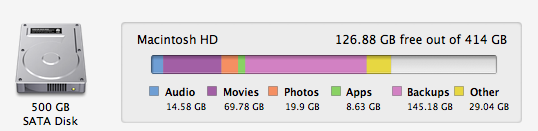
Search with Finder to see if the space is being consumed by a very large file or several large files. Adjust the 50GB in the illustration to whatever size you deem appropriate.
This has to be one of the most ridiculous pre set replies I've ever seen. Can't you just tell him what the backups portion of the space indicator means instead of spewing all that nonsense for things he didn't even ask about? There's no need to answer everything there is to know about storage on Lion for this question.
When you answer thousands of posts asking related questions, you'll find the value in covering all bases. The OP got the answer they wanted, obviously.
It is just temp Time Machine backups from when your machine was away from a backup destination. Lion will delete (shrink) that space if the system needs it, so you can ignore it. If you want to manually reclaim the space, just turn Time Machine off then back on and it will zero out that backup space you see in your screen cap.
You may not want to disable that. It will leave you without temp backups when away from an external backup source. Say you are away from the backup drive and discover you want to retrieve a file you deleted a couple hours ago... with this feature turned on you would be able to go into Time Machine and get the file back from this temp storage area. Lion manages this space so there really is no harm in leaving it turned on.