
Got a tip for us?
Let us know
Become a MacRumors Supporter for $50/year with no ads, ability to filter front page stories, and private forums.
Need some help in creating this...
- Thread starter summero
- Start date
- Sort by reaction score
You are using an out of date browser. It may not display this or other websites correctly.
You should upgrade or use an alternative browser.
You should upgrade or use an alternative browser.


macaddict23
macrumors 6502
In Photoshop:
1) Place the textured layer in layer one. Make sure this layer is not locked. If it is, double click this layer and click OK to unlock it.
2) Next, select the Type tool in the Toolbox palette. Type away on top of the image. This automatically creates a type layer on the Layers palette.
3) With the Type layer still selected, Go to Layer>Rasterize>Type. Finally, position your cursor between the Textured layer and the Type layer until the cursor turns into what looks like an "8" icon. Then, do an Option+Click. You're done.
1) Place the textured layer in layer one. Make sure this layer is not locked. If it is, double click this layer and click OK to unlock it.
2) Next, select the Type tool in the Toolbox palette. Type away on top of the image. This automatically creates a type layer on the Layers palette.
3) With the Type layer still selected, Go to Layer>Rasterize>Type. Finally, position your cursor between the Textured layer and the Type layer until the cursor turns into what looks like an "8" icon. Then, do an Option+Click. You're done.

In Photoshop:
1) Place the textured layer in layer one. Make sure this layer is not locked. If it is, double click this layer and click OK to unlock it.
2) Next, select the Type tool in the Toolbox palette. Type away on top of the image. This automatically creates a type layer on the layers pallette.
3) With the type layer still selected, Go to Layer>Rasterize>Type. Finally, position your cursor right between the Textured layer and the Type layer, and press the Option Key on your keyboard. You're done.
Awesome! 🙂 Thank you so much for your help. I will try this out tonight.

This can also be done in Fireworks, by copying the background image and pasting in inside the text using the edit menu.
if you are interested I can give you step by step, just ask.
Unfortunately I do not have Fireworks 🙁 I only have Photoshop.

iMeowbot
macrumors G3
macaddict23
macrumors 6502
1) Make sure the Type layer is above the Image layer.
2) Make sure you Rasterize your live type.
Then . . .
In your Layers Palette, you should have two layers, your Image layer, and your Type Layer. When you mouse over the Layers Palette, your cursor becomes a hand icon. Position this hand icon right between the two layers. Press Option on your keyboard (the hand icon now becomes what looks like an "8"), then click your mouse.
2) Make sure you Rasterize your live type.
Then . . .
In your Layers Palette, you should have two layers, your Image layer, and your Type Layer. When you mouse over the Layers Palette, your cursor becomes a hand icon. Position this hand icon right between the two layers. Press Option on your keyboard (the hand icon now becomes what looks like an "8"), then click your mouse.

wheezy
macrumors 65816
Step 1. Using the Rectangle Tool (U) draw your vector rectangle where you want it, adjust the size color etc (I'm guessing you can do that).
Step 2. Using the Type Tool, add your text to where you want, size it up to the right size, position it and pick the font you want, color does not matter.
Step 3. Now that your text is exactly how you want it to look, other than being transparent, go to your Menu bar and choose Layer > Type > Convert to Shape. This now turns your editable text into a Vector Shape, in Photoshop you can no longer edit the actual type (change the font, add words etc).
Step 4. Using your Path Selection Tool (A) (Solid Black Arrow), select all the characters in your text. I just click and drag around the lot of it so it selects them all.
**Note - I don't know the tech terms for this, but you need to have the Vector Shape selected so there is a 1pt line wrapped around each of the shapes. If you click in the Layers Tab on the Vector area, you can click this feature on and off.

Notice the black line around the text

This is how it looks in your Layers tab, both layers are vectors, but one has the vector area selected.
Once you have that figured out and you use your Path Selection Tool, this is what you will see:

Notice that all the points in the vector shape are selected.
Step 4. Now that you have the text selected, you will need to do a Copy/Cut of the selection. So, Apple + C, then Apple + X. When you do this you will get a popup dialogue asking which to delete, the top selection is default and this is what you want. Now your text is gone.
Step 5. Using the same selection process as Step 3, Path Select the rectangle that you created in step 1. Now Paste (Apple + V) You will now see the point paths of your text appear over your rectangle, but will all be the same color. Don't unselect or anything, leave it be.

Step 6. Now go to the Menu bar and select the option below. I don't know the terms for it. You will click on the 'Subtract from Shape Area' button, 2nd from the left.

When you select this, if you had your text paths selected, you will now have a transparency where the text is, allowing you to see the image below.

I hope this wasn't too muddy for ya to understand, it's a simple process once you learn how to work with Vectors in Photoshop.
Step 2. Using the Type Tool, add your text to where you want, size it up to the right size, position it and pick the font you want, color does not matter.
Step 3. Now that your text is exactly how you want it to look, other than being transparent, go to your Menu bar and choose Layer > Type > Convert to Shape. This now turns your editable text into a Vector Shape, in Photoshop you can no longer edit the actual type (change the font, add words etc).
Step 4. Using your Path Selection Tool (A) (Solid Black Arrow), select all the characters in your text. I just click and drag around the lot of it so it selects them all.
**Note - I don't know the tech terms for this, but you need to have the Vector Shape selected so there is a 1pt line wrapped around each of the shapes. If you click in the Layers Tab on the Vector area, you can click this feature on and off.
Notice the black line around the text
This is how it looks in your Layers tab, both layers are vectors, but one has the vector area selected.
Once you have that figured out and you use your Path Selection Tool, this is what you will see:
Notice that all the points in the vector shape are selected.
Step 4. Now that you have the text selected, you will need to do a Copy/Cut of the selection. So, Apple + C, then Apple + X. When you do this you will get a popup dialogue asking which to delete, the top selection is default and this is what you want. Now your text is gone.
Step 5. Using the same selection process as Step 3, Path Select the rectangle that you created in step 1. Now Paste (Apple + V) You will now see the point paths of your text appear over your rectangle, but will all be the same color. Don't unselect or anything, leave it be.
Step 6. Now go to the Menu bar and select the option below. I don't know the terms for it. You will click on the 'Subtract from Shape Area' button, 2nd from the left.
When you select this, if you had your text paths selected, you will now have a transparency where the text is, allowing you to see the image below.
I hope this wasn't too muddy for ya to understand, it's a simple process once you learn how to work with Vectors in Photoshop.
wheezy
macrumors 65816
BTW you don't have to rasterize the type!
Here is a really small PS file showing you the layers you need for get this effect with 'live' type.
The key once again in a clipping mask.
This is another good way! Just don't do any of the Rasterize Type ways...

Mydriasis
macrumors 6502
Well, if your not going to change the size you might as well rasterize! But if I didn't care about live type, I'd just add a mask to the color rectangle layer in the shape of the text. I think its far easier than your subtract from shape method and the rasterize methode, but maybe not as 'flexible'.Don't Rasterize your type, don't rasterize anything unless you have to. When you rasterize your type, you can no longer adjust the size of what your doing. Keep everything as a Vector as much as you can.
DON'T RASTERIZE.
Just command click your text layer icon (to make into selection), drop the fill opacity to 0%, highlight the color rectangle layer and option click the 'add layer mask' icon.
But I guess the beauty of PS is that there are a million ways to get the same effect, all of them with dis/advantages.🙂
macaddict23
macrumors 6502
BTW you don't have to rasterize the type!
Here is a really small PS file showing you the layers you need for get this effect with 'live' type.
The key once again in a clipping mask.
That's great. But what if one does not want the yellow bar? How do you make it work then?
wheezy
macrumors 65816
But I guess the beauty of PS is that there are a million ways to get the same effect, all of them with dis/advantages.🙂
How true this is! There are so many ways to go about doing the same thing. I prefer to never rasterize, I don't see any advantages to it but if you need to do something quick and not worry about future changes etc then to each his own.
Mydriasis
macrumors 6502
That's great. But what if one does not want the yellow bar? How do you make it work then?
What exactly do you mean?
Something like this... or that...?
Attachments

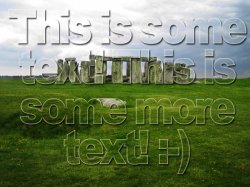
What exactly do you mean?
Something like this... or that...?
Hey! I'd like to know how to do the first one in your example where the picture is in the text 🙂 Thanks!

iMeowbot
macrumors G3
Is there a way to do this preferably in Illustrator? I had a quick 5 min go converting the text to outlines and playing around with that.
But I didn't get too far.
Yeah. One way: Make a text layer, higher up than the object/group/whatever, select both, and pick Object->Clipping Mask->Make. There is no need to turn the text into paths.
Another similar effect you can try: pick the two objects again, and from the Transparency palette's flyout menu, pick Make Opacity Mask. The result will depend on the ordering of the objects, try experimenting to see how they work. You can use this one in conjunction with gradients etc. to get fades and the like.