Become a MacRumors Supporter for $50/year with no ads, ability to filter front page stories, and private forums.

MacRumors

macrumors bot
Original poster


Noise-canceling headphones are great for blocking out distractions, but they can also block out sounds you actually need to hear, like a courier at the front door with your all-important package. Well, thanks to an Apple accessibility feature, your iPhone can do the listening for you and alert you when your doorbell rings.
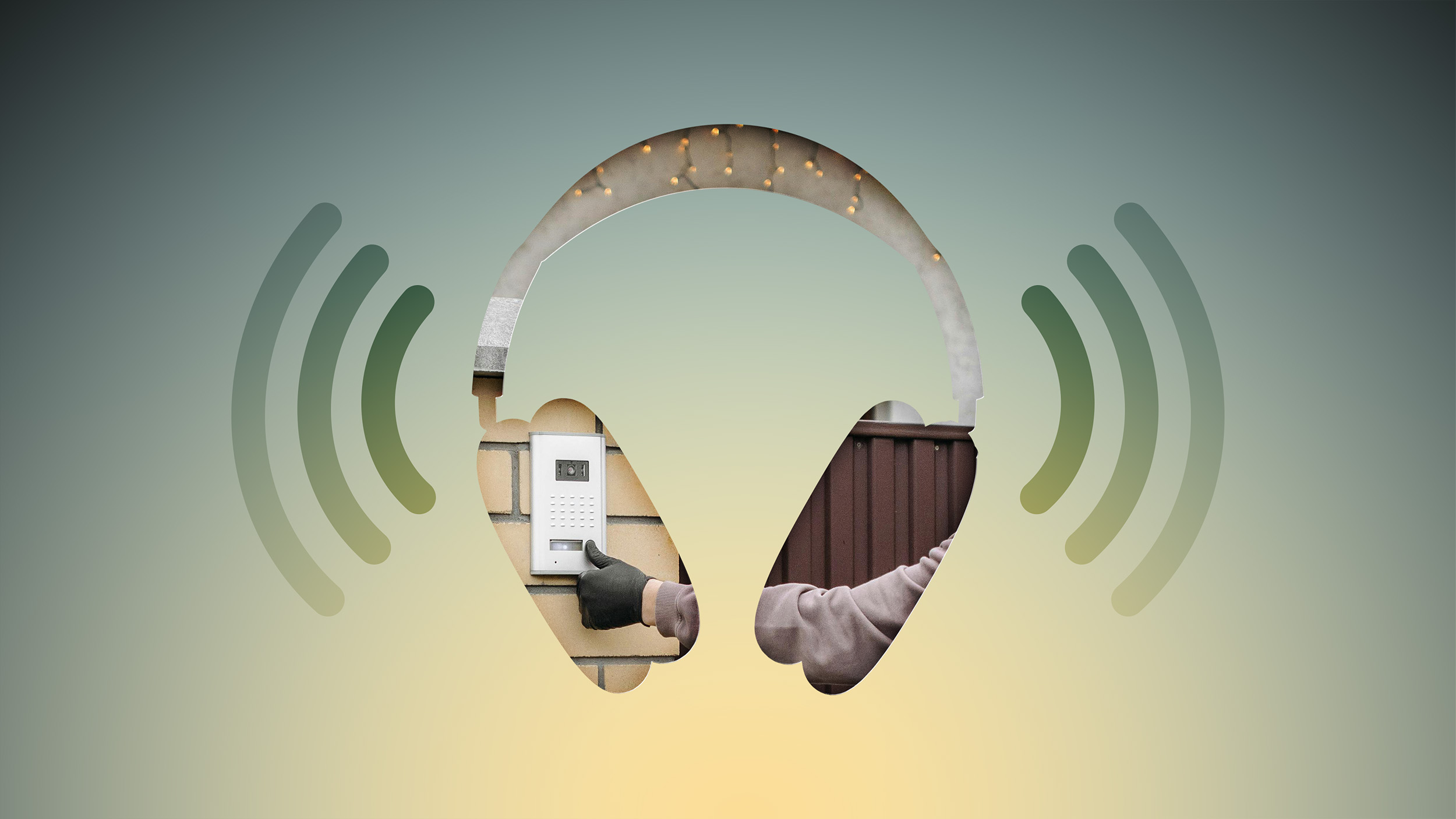
Never-Miss-Your-Doorbell-While-Wearing-Headphones-on-iPhone-Feature.jpg

Meet Sound Recognition, the feature in question that uses your iPhone's microphone to continuously monitor for specific sounds. When it detects one, you'll receive a notification that plays through your connected headphones, along with a vibration on your iPhone (or Apple Watch if you're wearing one).

The feature is primarily designed for people who are deaf or hard of hearing, but it's equally useful for anyone who works from home and regularly wears AirPods or noise-canceling headphones.

How to Enable Doorbell Alerts

  1. Open Settings on your iPhone.
  2. Tap Accessibility.
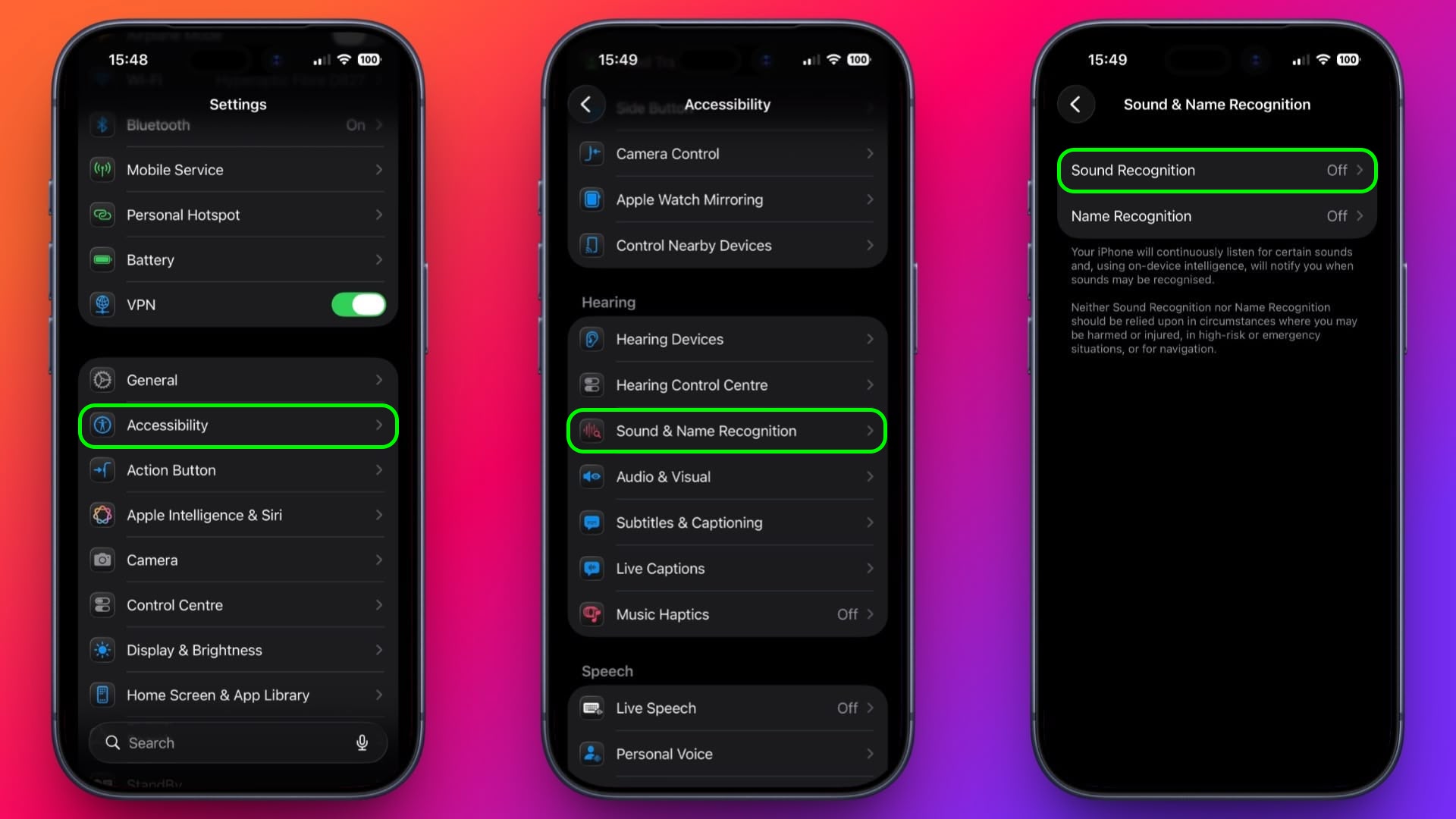
  3. Under "Hearing," tap Sound & Name Recognition, then tap through to Sound Recognition.
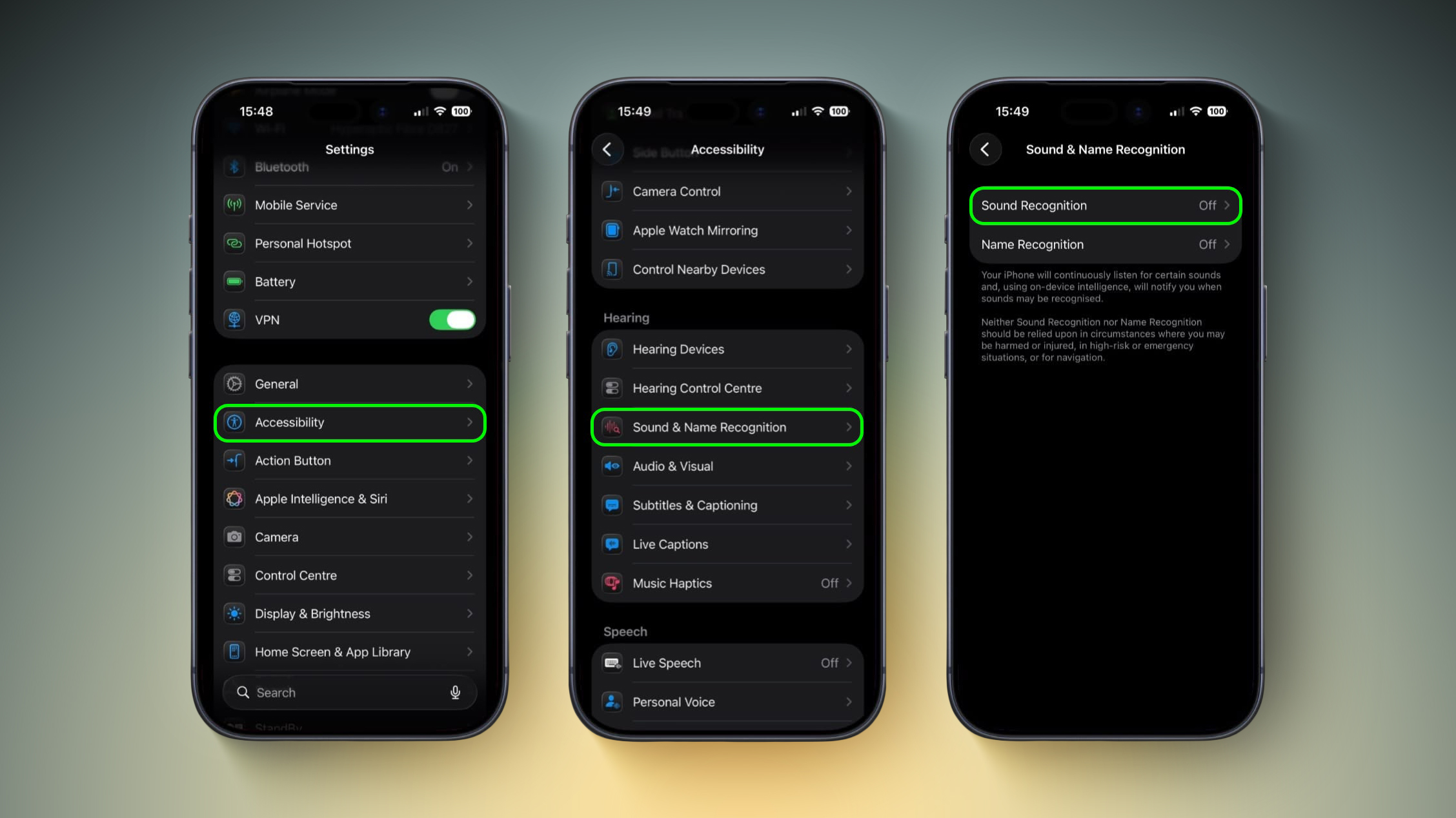
    doorbell-sound-recognition2-1.jpg

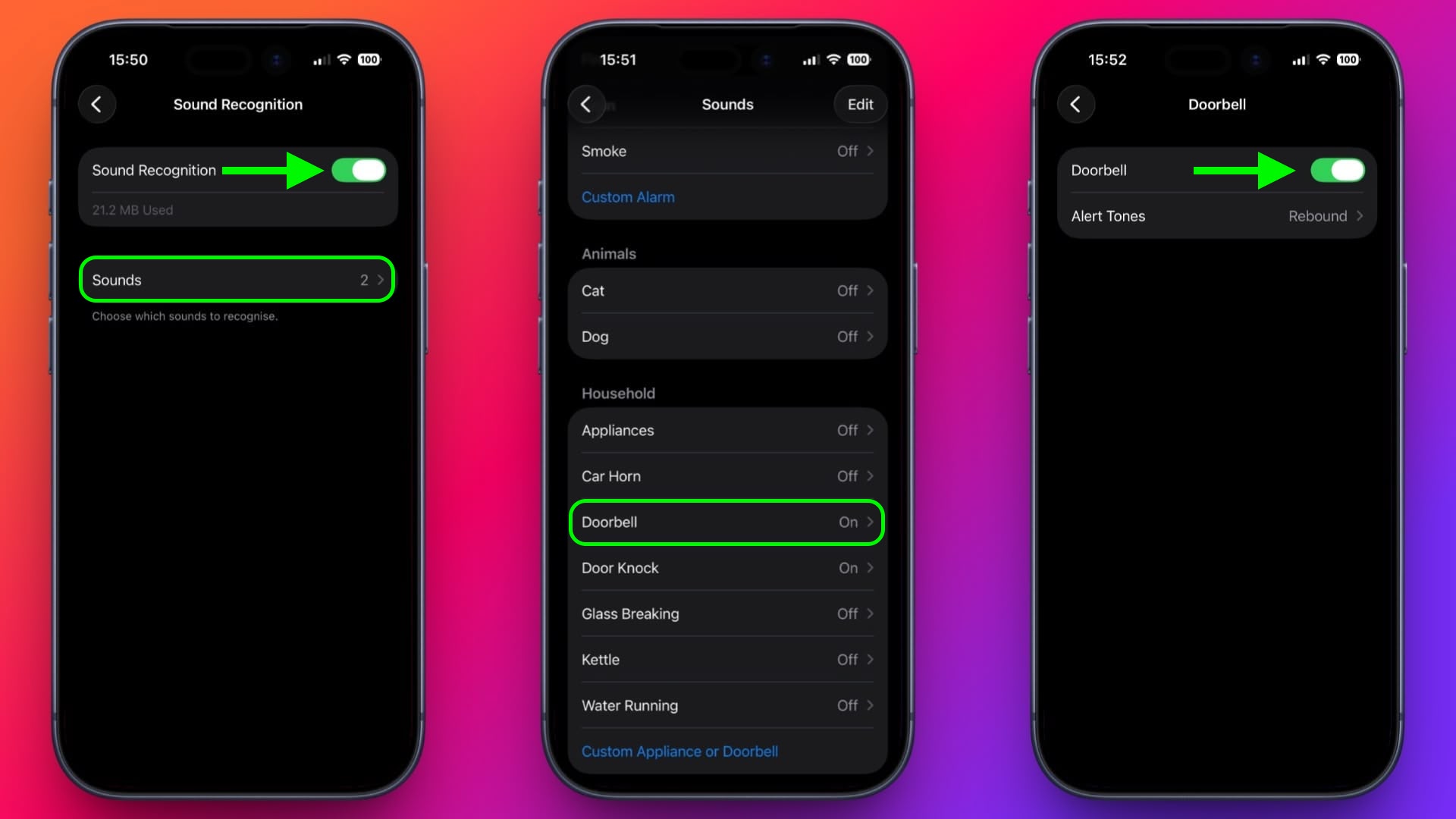
    Toggle on Sound Recognition, then tap Sounds.
  4. Under "Household," tap Door Bell and toggle it on in the next screen. You'll also see the option to choose a specific alert tone.
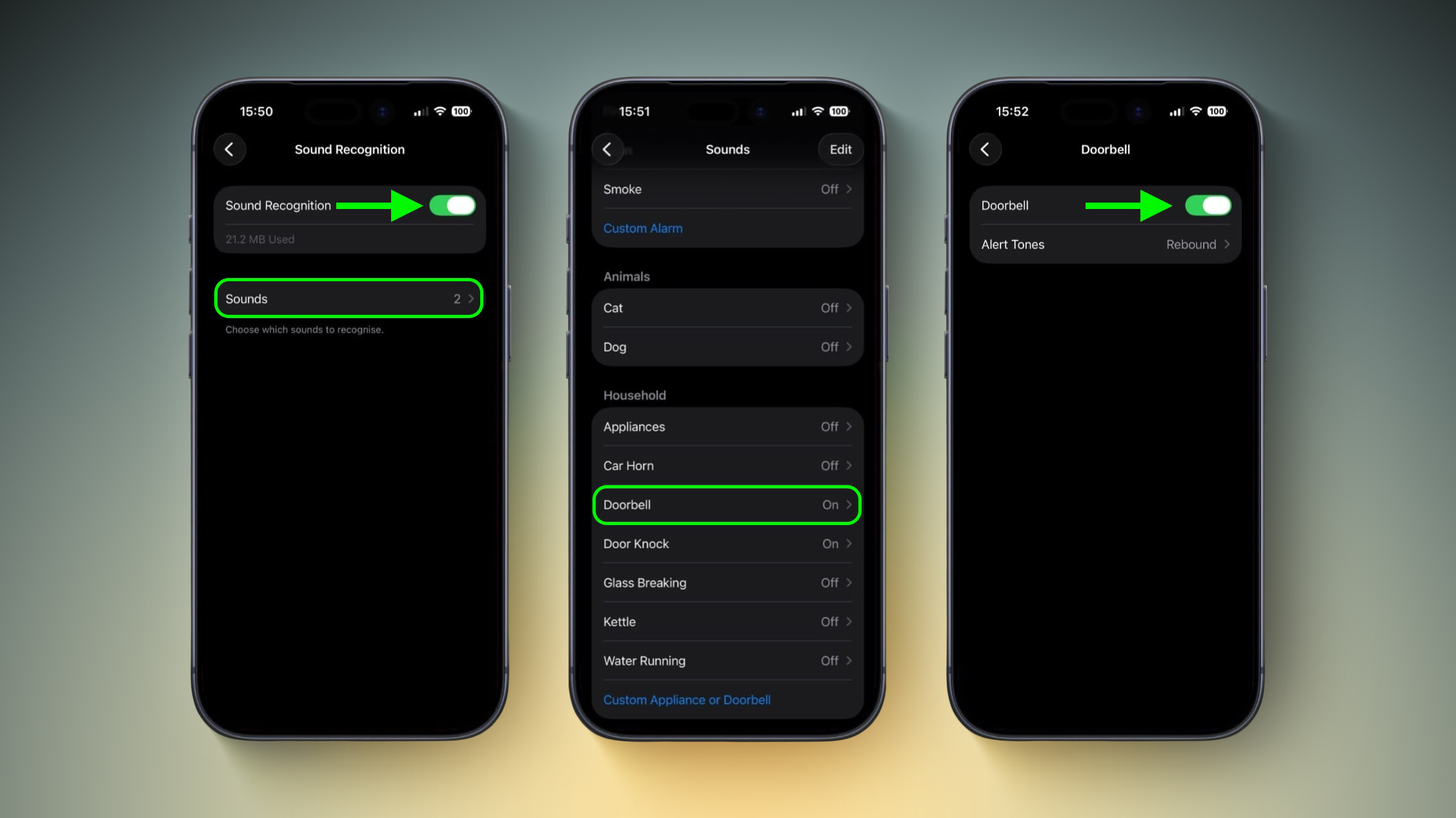
    doorbell-sound-recognition1-1.jpg
Note that your iPhone may need to download a small file (around 30MB) before the feature becomes active, so a Wi-Fi or data connection could be needed.

Training Your iPhone to Recognize Your Doorbell

If your iPhone doesn't reliably detect your specific doorbell, you can train it to recognize the sound by following these steps:

  1. Go to SettingsAccessibilitySound & Name RecognitionSound RecognitionSounds.
  2. Tap Custom Appliance or Doorbell, then enter a name.
  3. Place your iPhone near the doorbell and tap Start Listening.
  4. Ring your doorbell. Repeat this five times to complete the training.
Quick Access via Control Center

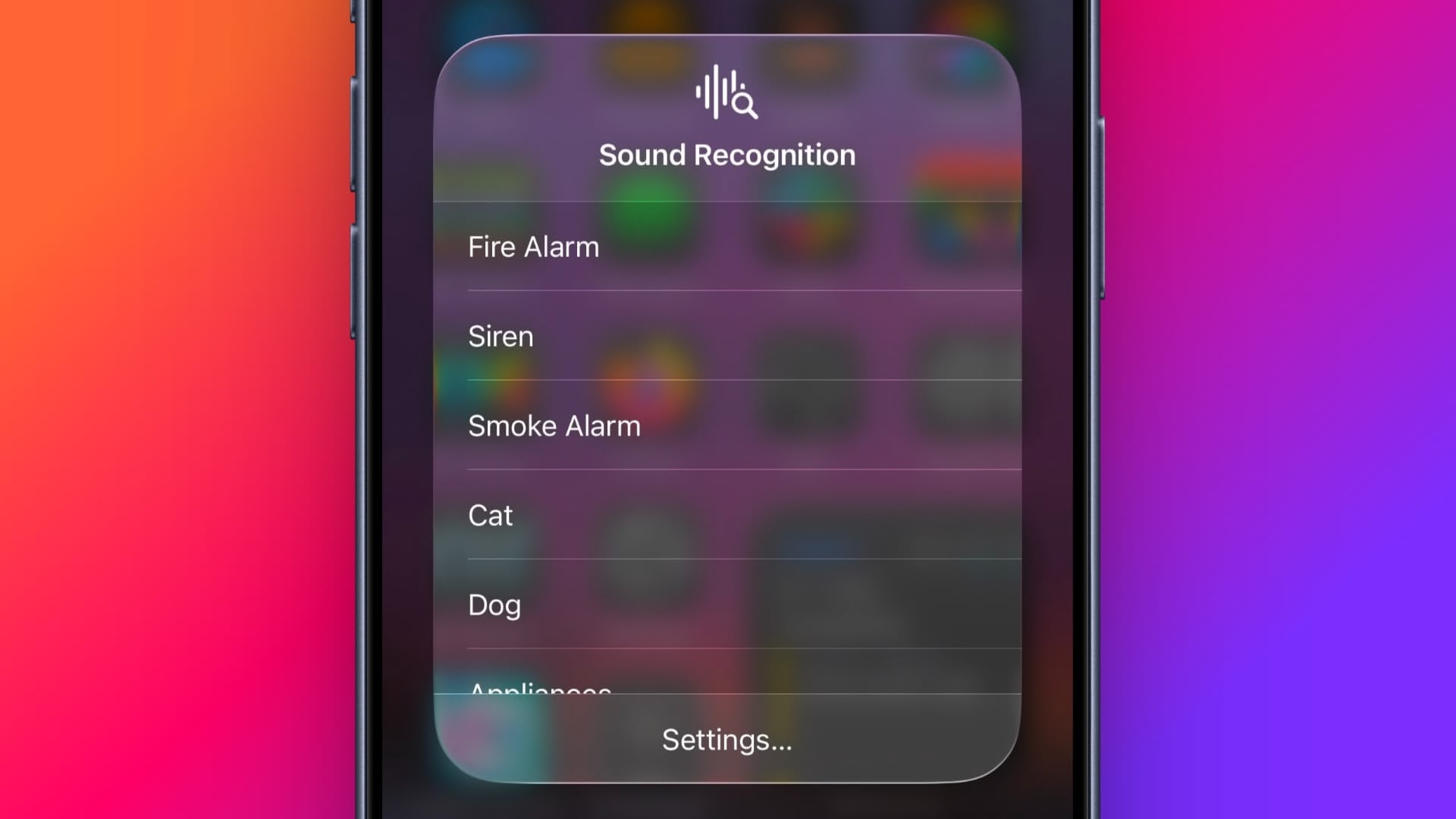
Once Sound Recognition is enabled, iOS automatically adds a toggle to Control Center. From here, you can press and hold the Sound Recognition icon to quickly enable or disable specific sounds without diving into Settings, which is handy if you only want doorbell detection when you're at home wearing headphones.
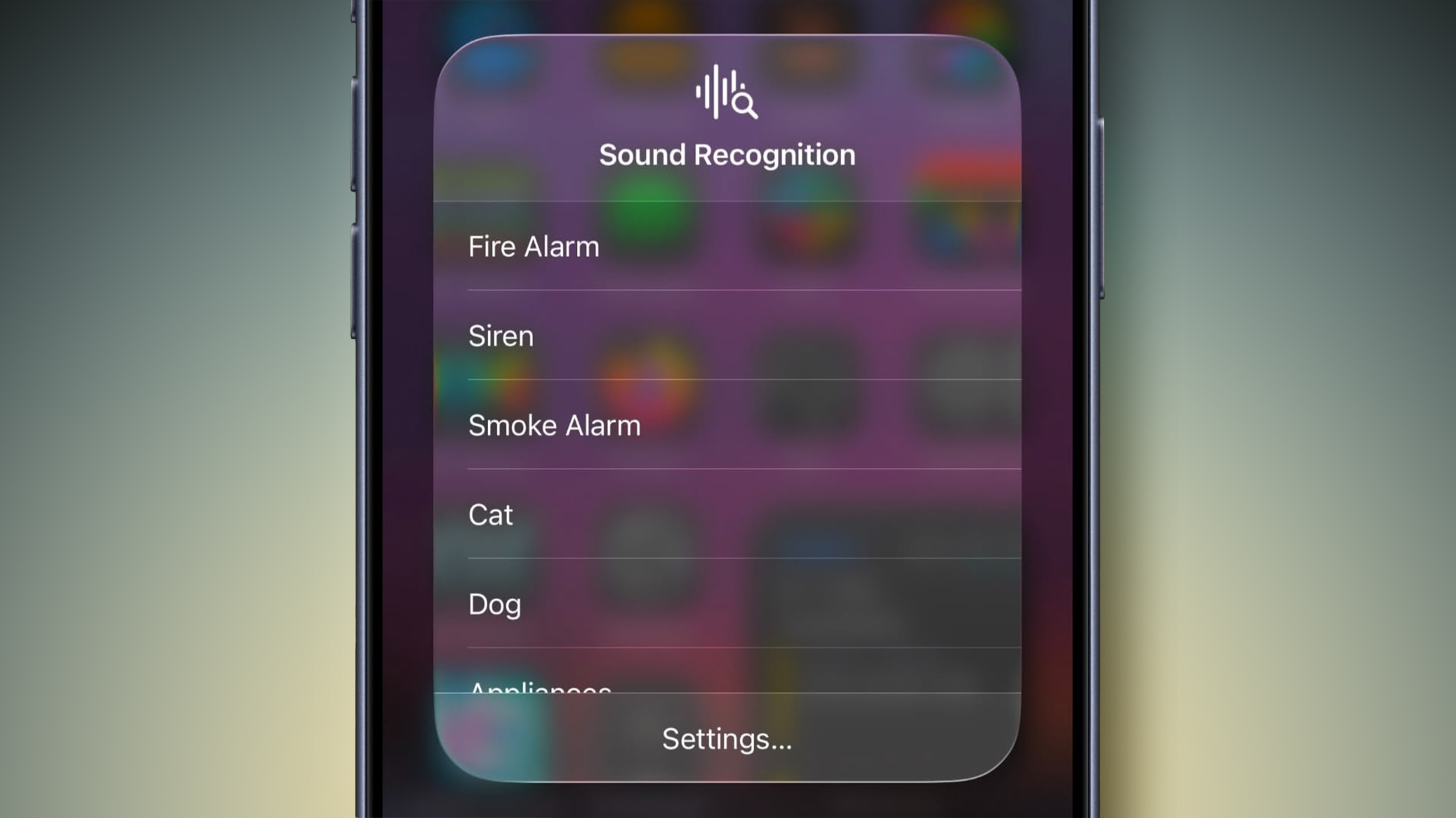
control-center-sound-recognition.jpg

Sound Recognition can also detect smoke alarms, dog barking, babies crying, water running, and more. Just keep in mind that Apple advises against relying on this feature in high-risk or emergency situations.

Article Link: Never Miss Your Doorbell While Wearing Headphones on iPhone
 
Last edited:
How about a feature that recognizes my wife's voice, especially when she calls my name while not knowing that I am wearing AirPods...then gets frustrated when I don't answer.

I'm actually not kidding. I listen to podcasts, etc while doing household chores and I can only wear one AirPod because I also have to listen for voices calling me.

God forbid I put that second AirPod in while running a blender or other loud appliance, then forget to remove it...my wife has a hidden sense and calls my name every time...it never fails.🤣
 
  • Like
Reactions: b17777
Imagine when the apple doorbell can tell you exactly who is at the door and you get notified via your airpods

I think this is creepy as ****. They already started repurposing Ring as a surveillance network.

I've got an analogue video entry phone that makes enough noise that you can hear it listening to black metal with the airpods in and noise cancellation on.
 
  • Love
Reactions: Huck
I think this is creepy as ****. They already started repurposing Ring as a surveillance network.

I've got an analogue video entry phone that makes enough noise that you can hear it listening to black metal with the airpods in and noise cancellation on.

Wife said the same thing when we saw the Ring Super Bowl commercial with the lost dogs.

No thank you.


Noise-canceling headphones are great for blocking out distractions, but they can also block out sounds you actually need to hear, like a courier at the front door with your all-important package. Well, thanks to an Apple accessibility feature, your iPhone can do the listening for you and alert you when your doorbell rings.

Never-Miss-Your-Doorbell-While-Wearing-Headphones-on-iPhone-Feature.jpg

Meet Sound Recognition, the feature in question that uses your iPhone's microphone to continuously monitor for specific sounds. When it detects one, you'll receive a notification that plays through your connected headphones, along with a vibration on your iPhone (or Apple Watch if you're wearing one).

The feature is primarily designed for people who are deaf or hard of hearing, but it's equally useful for anyone who works from home and regularly wears AirPods or noise-canceling headphones.

How to Enable Doorbell Alerts

  1. Open Settings on your iPhone.
  2. Tap Accessibility.
  3. Under "Hearing," tap Sound & Name Recognition, then tap through to Sound Recognition.
    doorbell-sound-recognition2.jpg

    Toggle on Sound Recognition, then tap Sounds.
  4. Under "Household," tap Door Bell and toggle it on in the next screen. You'll also see the option to choose a specific alert tone.
    doorbell-sound-recognition1.jpg
Note that your iPhone may need to download a small file (around 30MB) before the feature becomes active, so a Wi-Fi or data connection could be needed.

Training Your iPhone to Recognize Your Doorbell

If your iPhone doesn't reliably detect your specific doorbell, you can train it to recognize the sound by following these steps:

  1. Go to SettingsAccessibilitySound & Name RecognitionSound RecognitionSounds.
  2. Tap Custom Appliance or Doorbell, then enter a name.
  3. Place your iPhone near the doorbell and tap Start Listening.
  4. Ring your doorbell. Repeat this five times to complete the training.
Quick Access via Control Center

Once Sound Recognition is enabled, iOS automatically adds a toggle to Control Center. From here, you can press and hold the Sound Recognition icon to quickly enable or disable specific sounds without diving into Settings, which is handy if you only want doorbell detection when you're at home wearing headphones.

control-center-sound-recognition.jpeg

Sound Recognition can also detect smoke alarms, dog barking, babies crying, water running, and more. Just keep in mind that Apple advises against relying on this feature in high-risk or emergency situations.

Article Link: Never Miss Your Doorbell While Wearing Headphones on iPhone
I already have this feature in my home. It's called "having a Terrier".
 
Amazing - Apple creates problems while trying to solve problems, and then solves the problems they create.

I'm sure the list of things that you would actually want to be able to hear is quite long, such as the sound of breaking glass, gunfire etc. Trying to 'whitelist' all of those is quite the challenge. AI to the rescue? It never ends...
 
  • Like
Reactions: sos47 and Huck
So this is about legacy doorbells, but what about doing something about Apple Home smart doorbells? I constantly miss them while wearing AirPods because the sound they make on the iPhone it’s just the sound of a regular notification. Make them distinctive and unmissable.
 
I wear APP3s pretty much all day, every day (I have ASD so I'm sensitive to sound and live in a loud city). As such, I've definitely missed the doorbell on some occasions as the ANC of the AirPods is very effective. So this doorbell listening feature is interesting. Though I wonder what bearing ite might have on battery life.

One of the ingenious engineering tricks with the AirPods was the way they got around the necessity of having the microphone on and always listening for the user to speak (for Siri, etc.), which would be really taxing for the battery. Apparently the solve was to use the built-in accelerometer (which uses far less power than the microphones) to detect the minute vibrations that happen in your skull when you begin to speak, which triggers the microphone to turn on only when it is needed.
 
I'm not putting my headphones on my iPhone. They go on/in my ears.

I do have a system of cameras and a smart doorbell, so I don't need this feature, but it's neat that it's available for those who do!
 
can you make a HomePod listen for specific sounds like this? I'd like my kitchen HomePod to know when my fridge is beeping since the door always gets stuck
It would actually be great if it could do this for just notifications. i.e. my doorbell rang while I wasn't home.
 
How about a feature that recognizes my wife's voice, especially when she calls my name while not knowing that I am wearing AirPods...then gets frustrated when I don't answer.

I'm actually not kidding. I listen to podcasts, etc while doing household chores and I can only wear one AirPod because I also have to listen for voices calling me.

God forbid I put that second AirPod in while running a blender or other loud appliance, then forget to remove it...my wife has a hidden sense and calls my name every time...it never fails.🤣
Get yourselves both apple watches, listen to your podcasts via your watch and use the walkie talkie feature so your wife can speak to you whenever she wants without finding you --> problem solved.
 
  • Haha
Reactions: anakin44011
Good article. Sound recognition is a very useful feature. Have turned off active noise cancellation in the past in these situations. Will give this method a try.
 
  • Like
Reactions: mganu
Register on MacRumors! This sidebar will go away, and you'll see fewer ads.