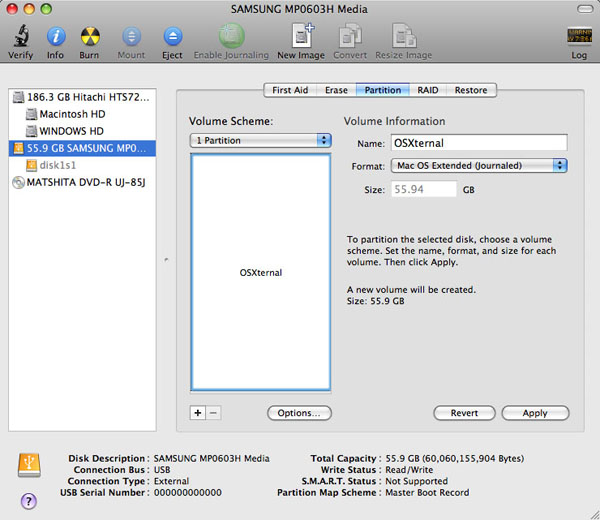
Before doing any partitioning work, it's always a good idea to back up your data! It's also good to make sure you've made the right selections before you hit Apply! 🙂
Plug in the drive, turn it on, and open up Disk Utility. Select the drive on the left side (if it's indented, it's a partition, and you don't want to select that) and click the Partition tab on the right side.
I'm going to assume that the drive already has a partition on it. If so, follow method 1.
Method 1: Click the + sign under the partition diagram to add as many partitions as you want.
Method 2: Under "Volume Scheme", use the listbox to choose how many partitions you want.
Use the handles on the bottom right of each rectangle to resize the partitions, or enter a size on the right side, and hit Apply when you're ready.
All the data on the drive may be erased!
When that's done, choose each partition in turn on the left side, go to the Erase tab, and give the partition a name and file system. For your Time Machine partition, that should be HFS+ Journaled. If you want to let Windows computers put data on the drive, make a partition use NTFS.