Become a MacRumors Supporter for $50/year with no ads, ability to filter front page stories, and private forums.

rib00

macrumors member
Original poster
I have a Time Machine backup drive from a computer that was running El Capitan during most of the backups. Some backups could be from an operating system or two before El Capitan (before computer was upgraded to El Capitan).

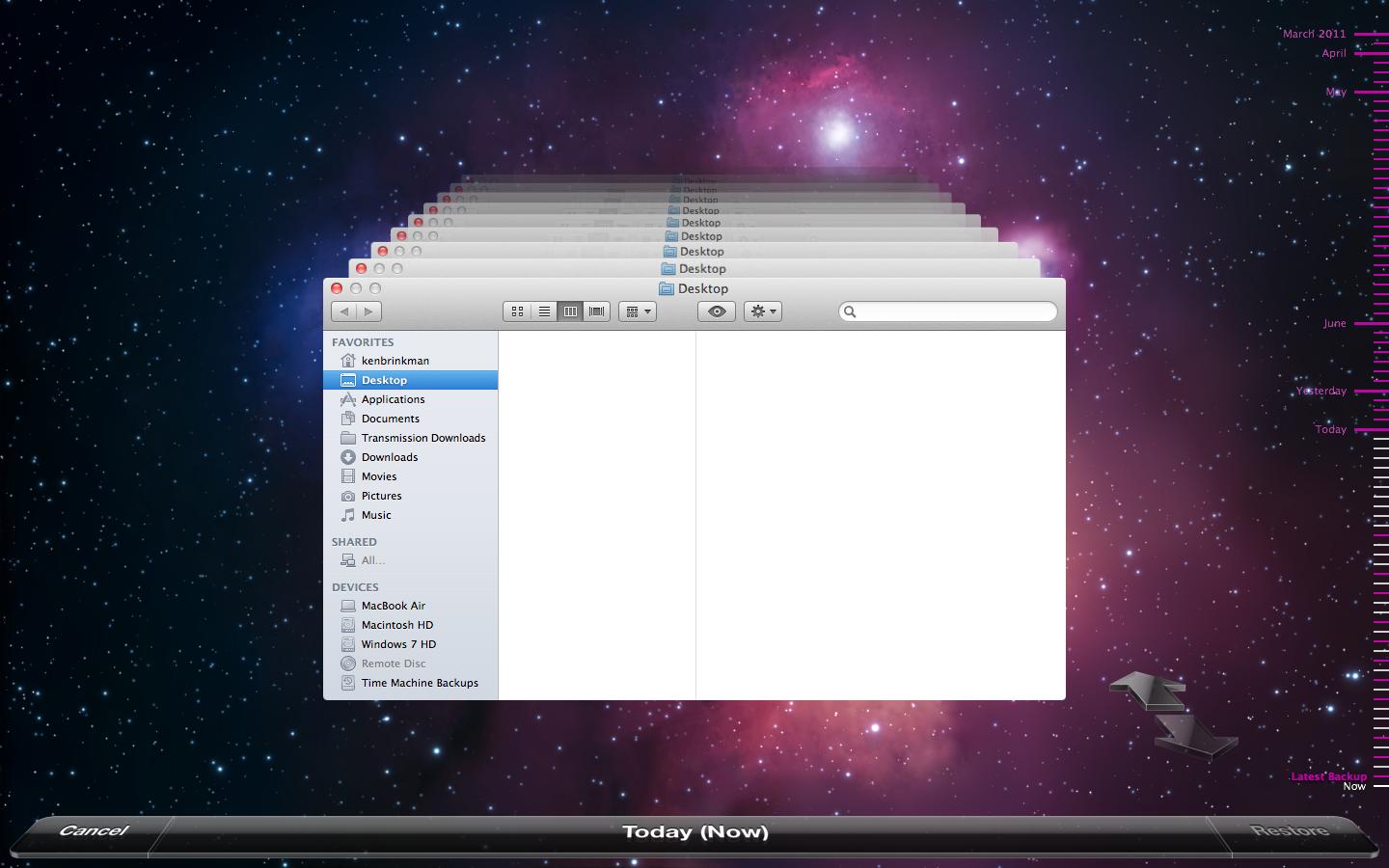
I plugged the drive into a computer running High Sierra. There is an option in Time Machine,
"Browse Other Backup Disks"
I chose this.

I am in the downloads folder.

On the right hand side, I see different dates with bars and a date next to them as I move the mouse up and down in that area. They are all red. Nothing comes up when I click on a bar with a date next to it.

I exited Time Machine and browsed a little in the file browser (instead of Time Machine). I browsed to downloads for a particular date. It's mostly compressed PDFs.

edit: made the wording more clear/readable.
 
Last edited:
Check for compatibility and especially encryption.
I don't know what steps you are suggesting.
I don't remember ever choosing to encrypt the backup. And I am even more confident that I don't enter a password when connecting the drive.
I am not sure what compatibility means in this context. I know that High Sierra uses file system APFS and El Capitan uses file system HFS+. But, High Sierra should be able to read HFS+.
 
Evidently, I’ve forgotten, but apparently, Apple has changed the color coding for the TM GUI (i.e., date tick marks) a few times throughout its existence.


As for further troubleshooting, have you browsed any other folders (beyond Downloads)?
 
There is an option in Time Machine,
"Browse Other Backup Disks"
I chose this.
This is for if you have multiple backup disks of the same computer. Different machines are isolated and don't really interact with each other in Time Machine.
I exited Time Machine and browsed a little in the file browser (instead of Time Machine). I browsed to downloads for a particular date. It's mostly compressed PDFs.
Yes, you can of course access the files from any backed up machine from the Finder, provided you have matching permissions.
 
  • Like
Reactions: rib00
This is for if you have multiple backup disks of the same computer. Different machines are isolated and don't really interact with each other in Time Machine.
Ok, then I started off on the wrong foot.
I am trying to figure out how to look at the files that are on Time machine and copy those into a directory on another computer (running High Sierra)
Yes, you can of course access the files from any backed up machine from the Finder, provided you have matching permissions.
1. The permissions might be different in the sense of different usernames on each computer. On present day Linux, this usually doesn't matter. I can change my username on the destination machine if that's what's needed.
2. In Finder, I would expect that a lot of the files are just shortcuts. But, just click on one and brings you to the source?
 
There is an option in Time Machine,
"Browse Other Backup Disks"
I chose this.
This is for if you have multiple backup disks of the same computer. Different machines are isolated and don't really interact with each other in Time Machine.
Ok, then I started off on the wrong foot.
I am trying to figure out how to look at the files that are on Time machine and copy those into a directory on another computer (running High Sierra)
If you use multiple backup disks, you can see timelines for all disks or for an individual disk.
To see a timeline for all backup disks: Click
the Time Machine icon
in the menu bar, then choose “Browse Time Machine backups.”
To see the timeline for a specific backup disk: Click
the Time Machine icon
in the menu bar, press the Option key, then choose Browse Other Backup Disks.
I have multiple TM backup drives and, alternatively, (the) Time Machine (GUI) will only show available the backups (i.e., snapshots) of the drive(s) currently connected. In other words, if you only have this (old(er)) TM backup drive connected, you’ll only see what it contains — even if you have multiple TM drives configured for that Mac.

For example, I have a small (960GB) drive as one TM backup, which remains always connected to my Mac mini. I also have a 4TB drive that I connect (about) once per week. If I launch Time Machine at this moment, I can look back to April 14 — the small drive allows for about a month and a half of incremental backups. If I connect the large (4TB) TM backup, whether or not the small drive remains connected/mounted, and relaunch Time Machine, I could browse all the way back to late 2024.
 
Last edited:
1. The permissions might be different in the sense of different usernames on each computer. On present day Linux, this usually doesn't matter. I can change my username on the destination machine if that's what's needed.
In Unix/Linux, usernames are associated to integer user ids. Identical usernames on two different Unix/Linux systems can have different user ids. Your assumption you can simply change the username and deal with permission issues is incorrect.
 
In Unix/Linux, usernames are associated to integer user ids. Identical usernames on two different Unix/Linux systems can have different user ids. Your assumption you can simply change the username and deal with permission issues is incorrect.
Thank you. I did know all of that I just didn't explain my understanding very well.
I was just trying to question whether the integer user id mattered on Mac OS High Sierra, as it seems to on most Linux systems. It sounds like you are saying that High Sierra probably does care about integer User ID and ignores the name.

I thought that it was unlikely that Apple would change the Integer User ID for the first user account created, just 2 versions of Mac OS later (El Capitan vs High Sierra).

Edit:
Is this possible:
I am not seeing the files in ~/newme/Downloads because Time Machine rightfully is saying that the files are in ~/oldme/Downloads
do you follow what I am saying?
 
Last edited:

I have multiple TM backup drives and, alternatively, (the) Time Machine (GUI) will only show available the backups (i.e., snapshots) of the drive(s) currently connected. In other words, if you only have this (old(er)) TM backup drive connected, you’ll only see what it contains — even if you have multiple TM drives configured for that Mac.

For example, I have a small (960GB) drive as one TM backup, which remains always connected to my Mac mini. I also have a 4TB drive that I connect (about) once per week. If I launch Time Machine at this moment, I can look back to April 14 — the small drive allows for about a month and a half of incremental backups. If I connect the large (4TB) TM backup, whether or not the small drive remains connected/mounted, and relaunch Time Machine, I could browse all the way back to late 2024.
that all sounds different than the use case that I am struggling with. But, your system of backing up seems pretty good with the weakness being malware (drives are connected to the computer a lot so malware has a crack at it).
I have
computer A with a Time machine external drive.
computer B no time Machine drive. Further, wants some data from computer A Time Machine backup.

right now I am running on the assumption that I can hook the Time Machine external drive up to computer B and use the command line or file browser to move the files from the drive to my computer. Permissions issue is the current roadblock. The hypothesis is that on the destination machine my user account is considered "everyone." Everyone is basically the worst category to be in when it comes to permissions. I could be a little bit off on the last 2 sentences because I am speaking from a Linux background but I am pretty sure it's all correct for Mac OS, too. It seems as though the solution is to change the permissions for the "everyone" category. Or, more conservatively, to image the whole drive to a new drive before messing around with it.
 
Last edited:
Register on MacRumors! This sidebar will go away, and you'll see fewer ads.