
Got a tip for us?
Let us know
Become a MacRumors Supporter for $50/year with no ads, ability to filter front page stories, and private forums.
rMBP upgrade
- Thread starter Z17
- Start date
- Sort by reaction score
You are using an out of date browser. It may not display this or other websites correctly.
You should upgrade or use an alternative browser.
You should upgrade or use an alternative browser.

simsaladimbamba
Guest
No. If you are in the 14 day return period, you could return your Mac and exchange it with a higher specced model.
Well thats not going to happen. I've had the rMBP since June 21st. Wonder if there is another way to exchange it. Hmmmmm 😕
sell it on craigslist and buy another rmbp

Dark Void
macrumors 68030
Well thats not going to happen. I've had the rMBP since June 21st. Wonder if there is another way to exchange it. Hmmmmm 😕
Not a formal replacement, no. As the user above pointed out, your best bet is to try to flip it for some cash to put towards another computer. You're going to take a loss though.
You could simply use external storage too as a way around your need for larger internal capacity.
Not a formal replacement, no. As the user above pointed out, your best bet is to try to flip it for some cash to put towards another computer. You're going to take a loss though.
You could simply use external storage too as a way around your need for larger internal capacity.
Yeh an external would be another solution. I would like an external hard drive that is USB 3.0, bus powered and I can use it between Mac OS X and Windows.

GGJstudios
macrumors Westmere
Any external drive with a USB 3.0 interface will work. You can format it to suit your needs.Yeh an external would be another solution. I would like an external hard drive that is USB 3.0, bus powered and I can use it between Mac OS X and Windows.
Format A Hard Drive Using Disk Utility (which is in your /Applications/Utilities folder)
Choose the appropriate format:
HFS+ (Hierarchical File System, a.k.a. Mac OS Extended (Journaled) Don't use case-sensitive)
- Read/Write HFS+ from native Mac OS X
- Required for Time Machine or Carbon Copy Cloner or SuperDuper! backups of Mac OS X system files.
[*]To Read/Write HFS+ from Windows, Install MacDrive
[*]To Read HFS+ (but not Write) from Windows, Install HFSExplorer - Maximum file size: 8EiB
- Maximum volume size: 8EiB
- Mac OS X: Mac OS Extended format (HFS Plus) volume and file limits
- You can use this format if you only use the drive with Mac OS X, or use it for backups of your Mac OS X internal drive, or if you only share it with one Windows PC (with MacDrive installed on the PC)
NTFS (Windows NT File System)
- Read/Write NTFS from native Windows.
- Read only NTFS from native Mac OS X
[*]To Read/Write/Format NTFS from Mac OS X, here are some alternatives:- For Mac OS X 10.4 or later (32 or 64-bit), install Paragon ($19.95) (Best Choice for Lion and Mountain Lion)
- For Mac OS X 10.5 and later, including Lion, FUSE for OS X
- For 32-bit Mac OS X, install NTFS-3G for Mac OS X (free) (does not work in 64-bit mode)
- For 64-bit Snow Leopard, read this: MacFUSE for 64-bit Snow Leopard
- Some have reported problems using Tuxera (approx $36), which is an enhanced version of NTFS-3G with faster performance.
- Native NTFS support can be enabled in Snow Leopard and later versions, but is not advisable, due to instability.
- AirPort Extreme (802.11n) and Time Capsule do not support NTFS
- Maximum file size: 16 TB
- Maximum volume size: 256TB
- You can use this format if you routinely share a drive with multiple Windows systems.
exFAT (FAT64)
- Supported in Mac OS X only in 10.6.5 or later.
- Not all Windows versions support exFAT. See disadvantages.
- exFAT (Extended File Allocation Table)
- AirPort Extreme (802.11n) and Time Capsule do not support exFAT
- Maximum file size: 16 EiB
- Maximum volume size: 64 ZiB
- You can use this format if it is supported by all computers with which you intend to share the drive. See "disadvantages" for details.
FAT32 (File Allocation Table)
- Read/Write FAT32 from both native Windows and native Mac OS X.
[*]Maximum file size: 4GB. - Maximum volume size: 2TB
- You can use this format if you share the drive between Mac OS X and Windows computers and have no files larger than 4GB.
monkeybagel
macrumors 65816
I assume you looked at the drive from OWC? It's 480GB, and expensive, but is an option.
http://eshop.macsales.com/shop/SSD/OWC/Aura_Pro_Retina_2012
http://eshop.macsales.com/shop/SSD/OWC/Aura_Pro_Retina_2012
Any external drive with a USB 3.0 interface will work. You can format it to suit your needs.
Format A Hard Drive Using Disk Utility (which is in your /Applications/Utilities folder)
Choose the appropriate format:
HFS+ (Hierarchical File System, a.k.a. Mac OS Extended (Journaled) Don't use case-sensitive)
- Read/Write HFS+ from native Mac OS X
- Required for Time Machine or Carbon Copy Cloner or SuperDuper! backups of Mac OS X system files.
[*]To Read/Write HFS+ from Windows, Install MacDrive
[*]To Read HFS+ (but not Write) from Windows, Install HFSExplorer- Maximum file size: 8EiB
- Maximum volume size: 8EiB
- Mac OS X: Mac OS Extended format (HFS Plus) volume and file limits
- You can use this format if you only use the drive with Mac OS X, or use it for backups of your Mac OS X internal drive, or if you only share it with one Windows PC (with MacDrive installed on the PC)
NTFS (Windows NT File System)
- Read/Write NTFS from native Windows.
- Read only NTFS from native Mac OS X
[*]To Read/Write/Format NTFS from Mac OS X, here are some alternatives:
- For Mac OS X 10.4 or later (32 or 64-bit), install Paragon ($19.95) (Best Choice for Lion and Mountain Lion)
- For Mac OS X 10.5 and later, including Lion, FUSE for OS X
- For 32-bit Mac OS X, install NTFS-3G for Mac OS X (free) (does not work in 64-bit mode)
- For 64-bit Snow Leopard, read this: MacFUSE for 64-bit Snow Leopard
- Some have reported problems using Tuxera (approx $36), which is an enhanced version of NTFS-3G with faster performance.
- Native NTFS support can be enabled in Snow Leopard and later versions, but is not advisable, due to instability.
- AirPort Extreme (802.11n) and Time Capsule do not support NTFS
- Maximum file size: 16 TB
- Maximum volume size: 256TB
- You can use this format if you routinely share a drive with multiple Windows systems.
exFAT (FAT64)
- Supported in Mac OS X only in 10.6.5 or later.
- Not all Windows versions support exFAT. See disadvantages.
- exFAT (Extended File Allocation Table)
- AirPort Extreme (802.11n) and Time Capsule do not support exFAT
- Maximum file size: 16 EiB
- Maximum volume size: 64 ZiB
- You can use this format if it is supported by all computers with which you intend to share the drive. See "disadvantages" for details.
FAT32 (File Allocation Table)
- Read/Write FAT32 from both native Windows and native Mac OS X.
[*]Maximum file size: 4GB.- Maximum volume size: 2TB
- You can use this format if you share the drive between Mac OS X and Windows computers and have no files larger than 4GB.
Wow thanks for the guide. Well based on this information I think I'll give HFS+ a chance. Basically I want to be able to transfer files between my MacBook and my Windows PC that are greater than 4GB. I want to be able to read and write on either. I currently already have an external Western Digital HDD 2TB and USB 3.0 only problem is that it's not bus powered. So I assume all I'll have to do is format the HDD to HFS+ and get MacDrive for Windows and I should be good to go?
GGJstudios
macrumors Westmere
Correct.So I assume all I'll have to do is format the HDD to HFS+ and get MacDrive for Windows and I should be good to go?
Correct.
Thank you. I'll let you know how I get on. Do you know any good external hard drives?
GGJstudios
macrumors Westmere
I've been very pleased with both of these models in various capacities, from Other World Computing (OWC):Thank you. I'll let you know how I get on. Do you know any good external hard drives?
OWC Mercury On-The-Go Pro..........................OWC Mercury Elite-AL Pro™ (not available with USB 3.0)
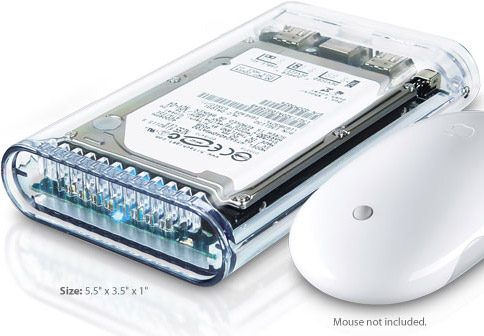
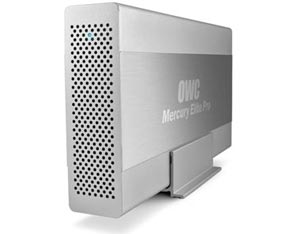
I've been very pleased with both of these models in various capacities, from Other World Computing (OWC):
OWC Mercury On-The-Go Pro..........................OWC Mercury Elite-AL Pro (not available with USB 3.0)
Thanks for your help.
As far as external drives - consider how much external storage you need, then try to find a drive that has a solid warranty (3+ years). You could simply get the cheapest drive you can find, I would personally find one with a reasonable warranty though.
Is that because they are unpredictable and can break at any time?
Dark Void
macrumors 68030
Is that because they are unpredictable and can break at any time?
Not necessarily, it's just something that I like to consider when buying drives. Drives at the same price point can have a 1 year warranty as opposed to a 5 year warranty - it's best to go with the product that is back with a longer warranty in my opinion. This isn't because it is going to break or stop working, just for the possibility that it may.

brand
Suspended
I assume you looked at the drive from OWC? It's 480GB, and expensive, but is an option.
http://eshop.macsales.com/shop/SSD/OWC/Aura_Pro_Retina_2012
I think you missed the part where he specifically said that he didn't want to do that. That would mean it is not an option.

Orlandoech
macrumors 68040
OWC is overpriced hardware because threw a "Mac compatible" sticker on their product when in reality it's just the same PC part you can get from newegg.com
Some Mac users are so oblivious that a Mac is pc hardware and it doesn't need to say "Mac compatible", it just needs to be of the same spec to actually work.
People also think because OWC slaps a "Mac compatible" sticker on their products that they will "just work", well guess what? They can fail or be doa like any other hardware.
Some Mac users are so oblivious that a Mac is pc hardware and it doesn't need to say "Mac compatible", it just needs to be of the same spec to actually work.
People also think because OWC slaps a "Mac compatible" sticker on their products that they will "just work", well guess what? They can fail or be doa like any other hardware.
monkeybagel
macrumors 65816
I think you missed the part where he specifically said that he didn't want to do that. That would mean it is not an option.
I saw where he said he didn't want to do the upgrade himself, but I thought he may be open to taking it in and having it done?
Which perhaps it would void his warranty that he wanted to avoid.
----------
OWC is overpriced hardware because threw a "Mac compatible" sticker on their product when in reality it's just the same PC part you can get from newegg.com
Some Mac users are so oblivious that a Mac is pc hardware and it doesn't need to say "Mac compatible", it just needs to be of the same spec to actually work.
People also think because OWC slaps a "Mac compatible" sticker on their products that they will "just work", well guess what? They can fail or be doa like any other hardware.
Isn't this particular drive proprietary to the retina?
Last edited:

bobcan
macrumors 6502a
OWC ~ Aura ~
To be honest, I don't consider the OWC ~ Aura Pro SDD to be very expensive at $580 for 480GB vs Selling and buying another.. especially as they have 'rated the do it yourself factor' at a 2 out of 5 Stars.. However, some folks may not want to, I understand, but I sure wouldn't hesitate..
Apple made it sound as though the SSD was 'non-replaceable' and I expected it to be Soldered on to the board, it is NOT, need a TORX Driver .. it looks about 3 minutes Tougher than replacing the RAM in my 2011 MBP.. which takes me 5 minutes to do!!
The OWC video is VERY straight forward and says 15 minutes.. and I'll bet 10 minutes would be LOTS, even if you stop to clean the fuzz out of your fans, which I would suggest.. ALWAYS!! 😀
http://eshop.macsales.com/installvideos/macbookpro_15_retinadisplay_mid12_unibody_ssd_m/
To be honest, I don't consider the OWC ~ Aura Pro SDD to be very expensive at $580 for 480GB vs Selling and buying another.. especially as they have 'rated the do it yourself factor' at a 2 out of 5 Stars.. However, some folks may not want to, I understand, but I sure wouldn't hesitate..
Apple made it sound as though the SSD was 'non-replaceable' and I expected it to be Soldered on to the board, it is NOT, need a TORX Driver .. it looks about 3 minutes Tougher than replacing the RAM in my 2011 MBP.. which takes me 5 minutes to do!!
The OWC video is VERY straight forward and says 15 minutes.. and I'll bet 10 minutes would be LOTS, even if you stop to clean the fuzz out of your fans, which I would suggest.. ALWAYS!! 😀
http://eshop.macsales.com/installvideos/macbookpro_15_retinadisplay_mid12_unibody_ssd_m/


clyde2801
macrumors 601
Just to be clear for me a Noob, if I upgrade the SSD on my own, it would void the warrantee right? Question 2, if you have apple upgrade you hard drive don't they use the same $500.00 hardware.?
If the SSD is listed in the manual for your rMBP as a user replaceable part, then you may replace it without voiding the warranty. If it is not, then no.
But it's starting to become a sort of gray area, since you can presumably keep the original SSD and pop it back in should you need to take the rMBP back for servicing. Also, the conventional wisdom with upgrading the classic MBP is to also restore those machines back to stock configuration prior to returning for repair to keep the geniuses from blaming any problem on the 3rd party parts and promptly returning the laptop back to you unfixed.
Were you to upgrade the SSD, the wise thing to do would be to keep the original just in case.
GGJstudios
macrumors Westmere
Yes, it would void the warranty. From the MacBook Pro (Retina, Mid 2012) - Important Product Information Guide:Just to be clear for me a Noob, if I upgrade the SSD on my own, it would void the warrantee right?
Your MacBook Pro does not have any user-serviceable parts.

maxwelltech
macrumors 6502
I agree, OWC sells overpriced stuff. The Mercury Extreme Pro 120GB is $168 while a Samsung 830 using the same NAND is $99. OWC is the only one producing an SSD for the retina MBP though.OWC is overpriced hardware because threw a "Mac compatible" sticker on their product when in reality it's just the same PC part you can get from newegg.com
Some Mac users are so oblivious that a Mac is pc hardware and it doesn't need to say "Mac compatible", it just needs to be of the same spec to actually work.
People also think because OWC slaps a "Mac compatible" sticker on their products that they will "just work", well guess what? They can fail or be doa like any other hardware.