Become a MacRumors Supporter for $50/year with no ads, ability to filter front page stories, and private forums.

tacman7

macrumors member
Original poster
Dec 16, 2022
65
10
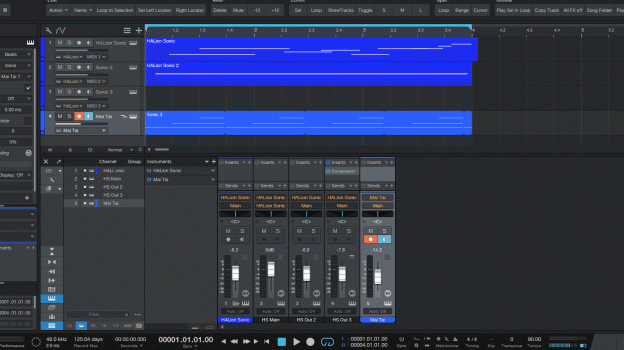
I was used to using screen to gif on windows to make quick gifs to show how to do things on the screen.

I need to edit parts to get rid of mistakes or taking too long doing something.

I tried gifhy but it didn't have an editor screen.

Thanks
 
You can use the built-in screen recorder from CMD-SHIFT-5 (alternatively search "screenshot" in Spotlight), or open QuickTime Player and do File > New Screen Recording.

After that you can edit the movie file in iMovie, or any other video editor. You can use ffmpeg or some other tool if you must have it as a gif.

I wouldn't try to use gifs though, they're an ancient format with very, very poor compression. You will be much better off with an actual video file. (Or animated webp, apng, animated jxl/avif, though these formats have poor support)
 
  • Like
Reactions: MacCheetah3
I've been using gifs a long time to put up useful information on forums with very little bandwidth.

Really helpful trying to explain something.

I can jump over to a windows machine when I need to.

M4 mini outperforms a lot of way more expensive windows machines running pro audio, especially for a bedroom studio.

Thanks, I do need to learn the built in features some, I setup my machine and use my DAW software and it's just like I'm on windows, well except for really low latency.
 

Attachments

  • Toggle editor.gif
    Toggle editor.gif
    578.8 KB · Views: 19
Last edited:
I wouldn't try to use gifs though, they're an ancient format with very, very poor compression. You will be much better off with an actual video file. (Or animated webp, apng, animated jxl/avif, though these formats have poor support)
For images with few colors and simple design, gifs will compress about as well as JPEG, and being lossless will reult in better looking images. Screen will quite often fall into this category.
 
For images with few colors and simple design, gifs will compress about as well as JPEG, and being lossless will reult in better looking images. Screen will quite often fall into this category.
No, using default settings on Handbrake results in the video file being 1/3 the size of the gif. The gif was at 10fps while the H.264 video was at 60. I can get the video file down to about 13% the size of the gif before artifacting becomes noticeable. The default gif settings will already induce color banding and gif playback just isn't smooth.

Additionally, converting to gif is not lossless, they have a limited color palette which will induce loss. Gifs do have lossless compression, yes, but converting initially will result in certain colors being lost.

Converting the gif OP uploaded to a video resulted in a size reduction of 4.2x, or the video file being 23% the size of the gif. There is just no world where an outdated image format from the 1980s will do as well as modern video codecs.
 
I should try doing it in video. So to record a video of a section of my screen what would I do?

Is that built into the OS?

Workflow is more important than quality issues, like to see how that would work.

Thanks
Reply.gif
 
I should try doing it in video. So to record a video of a section of my screen what would I do?

Is that built into the OS?

Use the Screenshot app​

Requires macOS Mojave 10.14 or later
Shift, Command, and 5 keys.

  1. Open the Screenshot app by pressing these three keys together: Shift, Command, and 5.
  2. You should see an onscreen toolbar with controls for capturing a still image of your screen, followed by controls for recording a video of the screen:
    The toolbar of the Screenshot app.
    • Record Entire Screen
      menubar-dock-rectangle-badge-record-icon.png
    • Record Selected Window
      inset-filled-rectangle-badge-record-icon.png
      (available in macOS Tahoe 26 or later)
    • Record Selected Portion
      rectangle-dashed-badge-record-icon.png
      . You can adjust the selected portion by dragging its borders with your mouse or trackpad.
 
I tried that. See results. What would I do now to get that file size down?

I would go into iMovie, could crop the end off there.

 
Register on MacRumors! This sidebar will go away, and you'll see fewer ads.