Hi everybody,
I've got some serious permissions issues.
Ages ago I installed Snow Leopard on Partiton 1
Then I installed Lion (Dev) on a new Partition 2
I then copied by dragging most my files from partition 1 to Lion (on partition 2)
Next I went back to Snow Leopard for awhile and dragged my main work folder back from Lion to SL
Now I've moved back to Lion and again dragged my files from partition 1.
Get it?
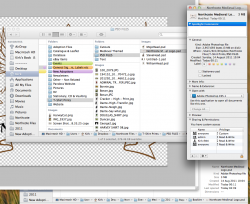
But a lot of the files are screwed up, IE permissions. In the get info window there seems to be two " everybody " users and a " staff " user. On Snow Leopard & Lion I only have ONE user called " Kirk ".
I've tried using the disk to repair permissions, I've tried using the dropbox option in the get info window. I've tried so much, but nothing is working?
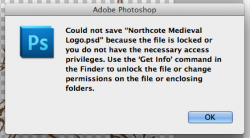
Now in apps like Photoshop it tells me it can't save because the file is locked or I don't have permission.
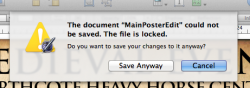
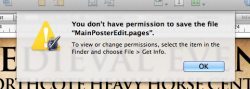
And because of the new Versions thing in Pages / Preview, it tells me it can't save because, again, I don't have permission.
Help me please !
!
Attached is a picture of what the messed up permissions look like.
Thank you!
I've got some serious permissions issues.
Ages ago I installed Snow Leopard on Partiton 1
Then I installed Lion (Dev) on a new Partition 2
I then copied by dragging most my files from partition 1 to Lion (on partition 2)
Next I went back to Snow Leopard for awhile and dragged my main work folder back from Lion to SL
Now I've moved back to Lion and again dragged my files from partition 1.
Get it?
But a lot of the files are screwed up, IE permissions. In the get info window there seems to be two " everybody " users and a " staff " user. On Snow Leopard & Lion I only have ONE user called " Kirk ".
I've tried using the disk to repair permissions, I've tried using the dropbox option in the get info window. I've tried so much, but nothing is working?
Now in apps like Photoshop it tells me it can't save because the file is locked or I don't have permission.
And because of the new Versions thing in Pages / Preview, it tells me it can't save because, again, I don't have permission.
Help me please
! Attached is a picture of what the messed up permissions look like.
Thank you!