Become a MacRumors Supporter for $50/year with no ads, ability to filter front page stories, and private forums.

Hergesheimer

macrumors member
Original poster
Dear all,

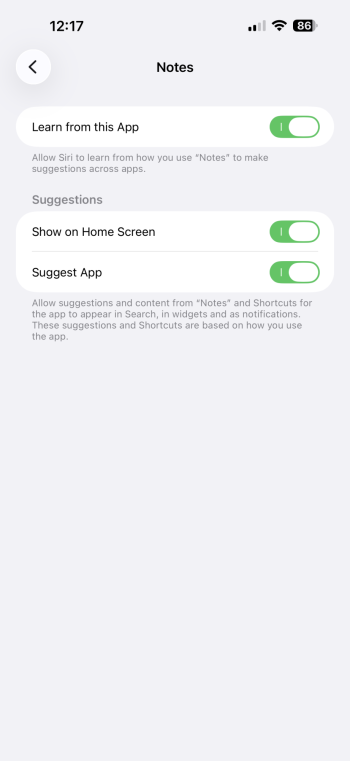
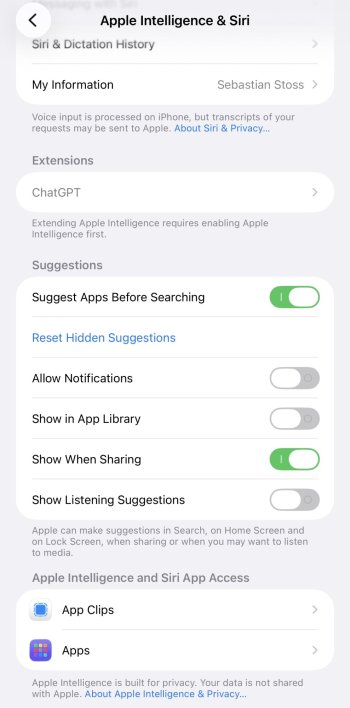
Can someone please explain to me 🙄 all the possibilities we have under Siri Suggestions in iOS? I only understood I can switch them all off at once, but that is not what I want. Kindly explain each of those eight available switches? Please see attached photos. Thanks a lot!!
 

Attachments

  • IMG_9295.jpeg
    IMG_9295.jpeg
    154.3 KB · Views: 68
  • IMG_9297.PNG
    IMG_9297.PNG
    145.1 KB · Views: 61
When thou dost grant to Siri leave to guess,
She learns thy ways from taps and words once said;
From habits formed, she humbly doth confess
What app or task thou next shalt likely tread.

In Search she whispers hints before thou’rt asked,
In Look Up shows what aid may fit thy need;
On Lock Screen’s face her proffers may be masked,
Soft signs of paths she thinks thou soon shalt heed.

Within each app her counsel may appear,
Suggesting acts ere thou hast formed the thought;
In Notifications too she draweth near,
To time her cues when most they may be sought.

Yet all these gifts thou may’st command or stay:
Grant leave, or bid her hold her tongue and sway.
 
When thou dost grant to Siri leave to guess,
She learns thy ways from taps and words once said;
From habits formed, she humbly doth confess
What app or task thou next shalt likely tread.

In Search she whispers hints before thou’rt asked,
In Look Up shows what aid may fit thy need;
On Lock Screen’s face her proffers may be masked,
Soft signs of paths she thinks thou soon shalt heed.

Within each app her counsel may appear,
Suggesting acts ere thou hast formed the thought;
In Notifications too she draweth near,
To time her cues when most they may be sought.

Yet all these gifts thou may’st command or stay:
Grant leave, or bid her hold her tongue and sway
Oh how lovely, a Shakespearean/Marlovian AI answer. Guess it wasn’t Apple Intelligence though.
 
Okay, if you want a real answer, here's a pretty good tutorial:

The App Library one is my archenemy. Turn that off. It makes an extra folder called Suggestions next to Recents and makes it look like you have double of some of your apps. App Library launched with iOS 14 and is still the worst app drawer experience I have ever had and not improved on once since launch.
 
  • Like
Reactions: Hergesheimer
Okay, if you want a real answer, here's a pretty good tutorial:

The App Library one is my archenemy. Turn that off. It makes an extra folder called Suggestions next to Recents and makes it look like you have double of some of your apps. App Library launched with iOS 14 and is still the worst app drawer experience I have ever had and not improved on once since launch.I will switch that ine off. I saw some other clips already but they all couldn‘t answer very clearly. Might be my stupidity. Will watch your video later today.
I will switch that of for sure. I have watched some other videos alteady but those were not able to answer my questions. Maybe it‘s my stupidity!?

I will watch your clip later tonight. Thanks a lot.
 
-System:

Suggest Apps Before Searching - When you swipe down on the Home Screen (or tap search) for spotlight search there will be apps suggested that you are likely to use so you don't ned to search for them. This toggle turns that entire thing on or off.

Allow Notifications - This is contextual alerts, for example I had a hair cut the other day and Siri saw it in calendars and then used maps to see traffic was heavy to alert me to leave early. If applicable you can get anything really, I mostly get ETA's via maps to work during the week, ETA to the grocery store Saturday morning and ETA to home from both.

Show in App Library - If you swipe all the way to the right to the App Library there is an app suggestion box based on usage.

Show When Sharing - When you share things (photos, files, links, etc) you'll get suggestions of people to share with for quick access based on location, time, frequency you share with that person or group, etc.

Show Listening Suggestions - Connecting specific devices will put related widgets for that app on the screen. For example if I connect via bluetooth to my headphones I get an Apple Music widget with recently searched songs. If I connect via bluetooth to my car I get a podcast widget with recent episodes.


-Apps (these are for individual apps and the implementation is controlled by the developer) :

Learn from this App - Monitors when and how you use the app for better suggestions.

Show in App - Apps can have shortcuts within them, for example Safari has suggestions of recent and frequency visited webpages.

Show on Home Screen - Supposedly will put a shortcut on the Home Screen for quick access. I have all my used apps in folders on the Home Screen so I've never actually seen this

Suggest app - Pretty much the same as Suggest Apps Before Searching but on a per app basis. This is where I turned off Facebook so I wasn't getting a Meta AI suggestion.


It's nothing special I guess I find it helpful on occasion without giving it too much credit. I use the 'Show When Sharing' a lot and generally it works very well, occasionally a contact isn't there that I would expect to be but that's fairly rare. I also use the Apple Music and Podcast widgets a lot.

If I were to gripe about something it would be the consistency. Sometimes I'll get a very useful Siri Suggestion that reminds me of something helpful or streamlines a bunch of task and then I'll never see that suggestion again....
 
  • Like
Reactions: Hergesheimer
@cynics Thanks so much. That is the explanation I was looking for. Apple should add that to their official help pages. I will follow up that carefully. Thanks again appreciating all your effort.
 
@cynics Thanks so much. That is the explanation I was looking for. Apple should add that to their official help pages. I will follow up that carefully. Thanks again appreciating all your effort.

Yes, they really should, it's crazy they don't tbh. Don't give a toggle if you don't explain exactly what they do.
 
Register on MacRumors! This sidebar will go away, and you'll see fewer ads.