Become a MacRumors Supporter for $50/year with no ads, ability to filter front page stories, and private forums.

ResoluteOne

macrumors newbie
Original poster
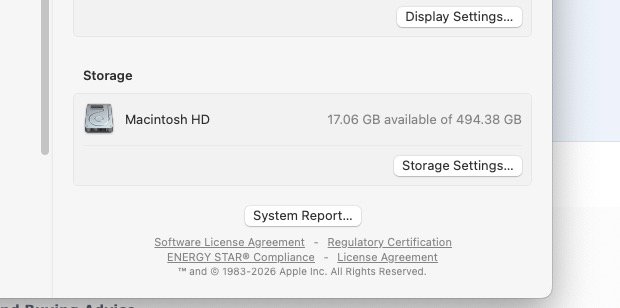
I'm somewhat of a veteran with Mac computers, since 2005. I've been cleaning excess music files and videos from my computer, and yet system data seems to be growing. Not sure I want to buy an app like Cleanmymac, etc, to clean excess files. The thing is, when my system storage was showing less than 35 GB free of the 493.38 GB of my internal drive, I got rid of high res versions of music files (just kept redbook versions) and moved family movies to iCloud. At least 100 GB were deleted from my drive. I use SuperDuper to back up, with an external drive, and I do smart updates of my backup. I should have something like 135 GB of available storage capacity at this point. But clicking on 'about this Mac', 'more info', then 'storage settings', the amount of available storage is worse, showing 13.92 GB available of 494.38 GB. I'm not sure why the supposed available storage is getting worse with more than 100 GB of music and movies deleted from my system. Help!
 
It could be caching your iCloud files. And if you use Time Machine, it will create snapshots until you backup.

In other words, MacOS uses up storage with purgeable files, so as you need more storage, you can get it.
 
  • Like
Reactions: johnsawyercjs
I appreciate your advice. I never use Time Machine, I only use SuperDuper as a backup on an external SandDisk SSD. I actually have an older 2018 Mac mini, identical setup with iCloud, the same applications, same files, etc, I am running Ventura, and I use it in another room, doing the same activities like serving music via a Linn App or Roon to my streamer. Two Mac minis, virtually identical content on each, same files, same actions performed, and I don't have a problem with usable storage continually shrinking.

That said, how do I reduce caching of iCloud files, if that is the problem? After owning several iMacs, 4 MacBooks, 3 Mac Minis, I have never seen an issue like this. Over the years, if I remove large .mov files or delete 100 GB of songs from my desktop drive, about this Mac will (give or take) show an extra 100 GB of available storage space. I've never had the available space decrease. Since my first iMac in 2006.
 
So I blew $39.99 CAD on a cleaner called BuhoCleaner.app and I safely removed around 6 GB.

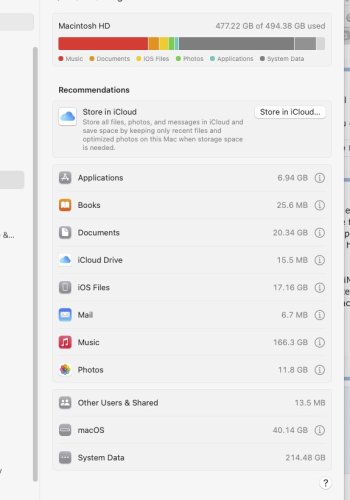
It's incomprehensible that with basically the only major items of note being 166 GB of music, 12 GB of photos and videos, and 40 GB of macOS, that there's 17 GB left.

I have to backup my wife's iPhone on another Mac. Her backup (20 GB) exceeds what we have left of storage. It would use it up.

I gave up years of high-res music files and reduced them to redbook sized files. System data just keeps growing.
 

Attachments

  • Storage 1.jpg
    Storage 1.jpg
    27.5 KB · Views: 15
  • Storage 2.jpg
    Storage 2.jpg
    66.5 KB · Views: 15
Well, I'm doing the best I can with whatever is at my disposal. iCloud caches cleared, no iCloud items downloaded to this particular Mac mini desktop. I'm running scripts in terminal from people I know on Reddit to help delete crud that I'm not aware of, I started in safe mode to get 'recalculation' of storage, I made another PayPal donation to Joel at Titanium software to run his Onyx software for Sequoia. I've clawed back a few extra GB to now have a whopping 36.38 GB available of 494.38 GB.

Still, System Data using 211 GB of disc space is ridiculous. I'm hoping that sooner or later someone on this forum will be able to figure out what the problem is.

The 'Music' app used to use up 250 GB of disc space up until yesterday. And at that point I only had about 35 GB of storage space left.

Now Music only uses 166.3 GB of storage space. And I removed my wife's iPhone backup to another computer.

There should be an extra 103.7 GB of storage space. Why System Data is now using that space is beyond my pay grade. I'm an almost 70 year old dinosaur who once upon a time was programming in Cobol and a few High Level languages and taking machine language courses in summer school. The lack of extra storage space does not add up literally and figuratively.

Dave
 
DaisyDisk is great for this kind of thing - finding what's taking up space.
There's a fully functional demo.

Focus on the list of folder sizes on the right, and don't bother with the fancy sector graphics. When you find the culprit, right-click and 'send to collector', then empty the collector.
 
Last edited:
  • Like
Reactions: Lloigorr
Thank you Ben. I used DaisyDisk once upon a time, and I forgot all about it, so I appreciate the reminder. It's another piece of the puzzle.

Thank you for helping!
 
DaisyDisk is great for this kind of thing - finding what's taking up space.
There's a fully functional demo.

Focus on the list of folder sizes on the right, and don't bother with the fancy sector graphics. When you find the culprit, right-click and 'send to collector', then empty the collector.

Thanks, I am new to MacOS, but I will give this app a try too!
 
  • Like
Reactions: Ben J.
I purchased DaisyDisk, it has full access to everything, 'snapshots' are supposedly using up 188.1 GB of hidden space, the app says delete, and nothing changes. So DaisyDisk isn't allowed to delete this supposed 'wasted space'.

So my Mac mini now says a grand total of 36.03 GB available of 494.38 GB.

I'm still holding off moving to macOS Tahoe. Once bitten, twice shy moving to new Apple software.

In any event, with barely 35 GB to spare, I may not have enough disc space left to allow an upgrade. An internal SSD needs a comfortable margin of extra space to update the operating system.

So any other ideas?

Thanks,

Dave
 
  • Love
Reactions: _Mitchan1999
Sometimes, with Daisydisk, you have to 'scan as administrator'. I guess this applies to deleting snapshots. But you can easily delete snapshots in Disk Utilities. Select the drive, in the view menu, select 'show snapshots', select all snapshots and delete. Takes about a second.

Oh, and I wouldn't regret spending the money on Daisydisk. It's very useful for general management of data, not only crisis situations. I use it all the time.
 
Last edited:
So in Disk Utility, the only 'view' is along the top menubar on the Mac desktop while Disk Utility shows in the menubar, there is no drop down indicating an option to 'show snapshots'. What am I missing here in regards to your suggestion to delete snapshots? I can't access that option from any 'view' aspect.
 
So in Disk Utility, the only 'view' is along the top menubar on the Mac desktop while Disk Utility shows in the menubar, there is no drop down indicating an option to 'show snapshots'. What am I missing here in regards to your suggestion to delete snapshots? I can't access that option from any 'view' aspect.
Then use the shortcut, shift-command-S
 
Okay, the only thing on my desktop is an open window of disk utility.

I'm pressing 'shift-command-S' on the keyboard.

Nothing changes anywhere.

What am I missing?

Thanks,

Dave
 
Thanks.

I'm following Apple's suggestions.

There are no '3 dots' to click on to delete a snapshot. There is no 'tab' to 'click' for more options.

So this is a dead end.

Thanks anyway.

This is way beyond my pay paygrade.

The first screenshot is what Apple says I should see. The second is what I actually see.

Thanks anyways.

Dave

Screenshot 2026-04-25 at 11.47.26 PM.jpg

Screenshot 2026-04-25 at 11.46.16 PM.jpg
 
Thanks.

I'm following Apple's suggestions.

There are no '3 dots' to click on to delete a snapshot. There is no 'tab' to 'click' for more options.

So this is a dead end.

Thanks anyway.

Simply select the greyed-out 'Macintosh HD' in the left panel and you'll see the snapshots.
 
Simply select the greyed-out 'Macintosh HD' in the left panel and you'll see the snapshots.
This is what the OP should be seeing, after following your instructions (except on my Macbook's SSD, I don't have any APFS snapshots). I'm wondering if another reason he's not seeing this might be due to using an earlier version of macOS? This is with Tahoe 26.5 beta 3:
Screenshot 2026-04-25 at 10.40.28 PM cropped.png
 
Last edited:
OK. The confusion lies with ether viewing with 'show all devices' selected or not. Anyway; select Macintosh HD Data, and make sure 'view APFS snapshots is still enabled, and you'll be there. This is the volume where snapshots (and all other user files) is located. But it's a part of the boot volume group 'Macintosh HD', that's why it looks a bit convoluted.
 
Register on MacRumors! This sidebar will go away, and you'll see fewer ads.