
Got a tip for us?
Let us know
Become a MacRumors Supporter for $50/year with no ads, ability to filter front page stories, and private forums.
SwitchResX. Cannot remove fully?
- Thread starter -BigMac-
- Start date
- Sort by reaction score
You are using an out of date browser. It may not display this or other websites correctly.
You should upgrade or use an alternative browser.
You should upgrade or use an alternative browser.
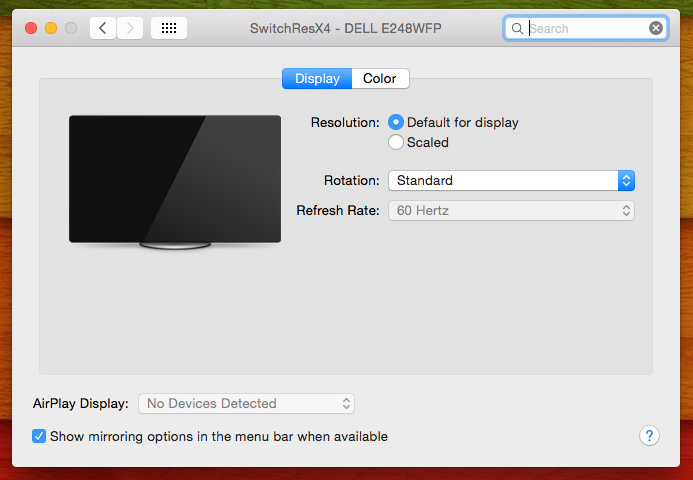

It looks like the app is likely gone, but left behind a custom color profile that is being used.
Try looking in these two folders for the color profile.
The ~ is your users folder.
Try looking in these two folders for the color profile.
The ~ is your users folder.
Code:
/Library/ColorSync/Profiles/Displays

~/Library/ColorSync/Profiles

SDAVE
macrumors 601
It looks like the app is likely gone, but left behind a custom color profile that is being used.
Try looking in these two folders for the color profile.
The ~ is your users folder.
Code:/Library/ColorSync/Profiles/Displays ~/Library/ColorSync/Profiles
Bumping old thread. Anyone know how to get rid of SwitchResX in display as OP?
Everytime I delete the .icc, it magically comes back into:
/Library/ColorSync/Profiles/Displays
Any help appreciated.

Ended up having to clean install. I couldnt get rid of itBumping old thread. Anyone know how to get rid of SwitchResX in display as OP?
Everytime I delete the .icc, it magically comes back into:
/Library/ColorSync/Profiles/Displays
Any help appreciated.
SDAVE
macrumors 601
Whoa that's drastic!Ended up having to clean install. I couldnt get rid of it

ivanwi11iams
macrumors 601
There is also an app that can remove all residue of uninstalled apps. Don't recall the name of it (and I'm not near my iMac to confirm)...
SDAVE
macrumors 601
AppCleaner?There is also an app that can remove all residue of uninstalled apps. Don't recall the name of it (and I'm not near my iMac to confirm)...
I use that all the time.
I tried to install SwitchResX again, then uninstalled from the app, and then used App Cleaner to remove SwitchResX completely.
It still shows SwitchResX in display :\
ivanwi11iams
macrumors 601
AppCleaner?
I use that all the time.
I tried to install SwitchResX again, then uninstalled from the app, and then used App Cleaner to remove SwitchResX completely.
It still shows SwitchResX in display :\
Very weird! Maybe prior to uninstall, one has to set all the app settings to default first, then uninstall.
Maybe it requires a chat with their support. Talk about a bloody hassle...
Long time, now former, user of SRX - I'm using a DP.org certified cable now on all of my Macs and PCs - and had to root out all of the detritus left behind. Ugh...
What's been created that you're seeing the result of SRX's work - and don't misunderstand me, I think that dev did a fabulous job working around the issues with non-certified cables - is a custom override created by SRX for each display that is being used. You should see an override for each display, and each display connected via multiple means - in other words, you'll see an override for a display attached via a TB cable, the same display connected via a mDP cable or mDP>DP cable or a mDP>DVI-D cable or an HDMI cable. Besides all of the SRX preferences and ColorSync profiles, you'll need to remove the Override files created by SRX...
The Overrides folder/directory path is: /System/Library/Displays/Contents/Resources/Overrides - and the standard OS X/macOS install contains a bunch of installed overrides. Some vendors, like Dell and BenQ and Eizo (each of which I use at home or one of my offices) don't have overrides installed in the default installation of OS X/macOS but, when you connect an external display your Mac will create an override file inside a Vendor folder/directory, and SRX does this creation in the background - nifty, that. The tweaks you make to your display are contained in the Override file; SRX handles that for you if you're using that utility, and OS X/macOS handles this if you're using a certified DP.org cable.
FYI, a certified cable conveys EDID info between your Mac and a connected external display, while SRX "spoofs" the capabilities of your display to OS X/macOS. My gripe with that dev is they're likely aware that using a non-certified cable - carrying power over Pin 20 (Google it) - is likely damaging your Mac's GPU/dGPU (again, Google it); several of my PCs and Macs had fried motherboards before I figured this bit out, and I've not had a problem since switching to certified cables. I started suspecting the crap cables when I looked at my repair history and found that none of my company's Macs/PC connected to Eizo displays had a single repair request - they ship with certified cables.
Now, the other part of this. The question you'll have now is "Crap! Which of these Override Vendors belongs to my display?!?!?!?" Easy peasy. Open Terminal and enter the following Command:
ioreg -lw0 | grep IODisplayPrefsKey
(Don't copy the whole line, which includes a "Return" character - just copy the text in the above line)
Terminal should return something like (including the quotes):
"IODisplayPrefsKey" = "IOService:/AppleACPIPlatformExpert/PCI0@0/AppleACPIPCI/P0P2@1/IOPP/GFX0@0/NVDA,Display-C@2/NVDA/display0/AppleDisplay-10ac-40bd"
"10ac" is Dell, and "40bd" is the specific display that is identified (Dell P2715Q). The second Dell display that I have attached, but it's not on right now, is "40bc".
Specific to my Mac, I would delete the "DisplayProductID-40bd" file in the "DisplayVendorID-10ac" folder/directory, or, rather, the entire "DisplayVendorID-10ac" folder/directory - then reboot your Mac. Your Mac will rebuild the appropriate directory if your external display is connected. SwitchResX created an Overrides Vendor folder/directory, and that is what your Displays Pref Pane "sees" when you boot up - your Mac will do the same if a Overrides Vendor folder/directory isn't present. I loved SRX until I found out it was just a hack to get around crap cables, but now I know better... Cheers!
What's been created that you're seeing the result of SRX's work - and don't misunderstand me, I think that dev did a fabulous job working around the issues with non-certified cables - is a custom override created by SRX for each display that is being used. You should see an override for each display, and each display connected via multiple means - in other words, you'll see an override for a display attached via a TB cable, the same display connected via a mDP cable or mDP>DP cable or a mDP>DVI-D cable or an HDMI cable. Besides all of the SRX preferences and ColorSync profiles, you'll need to remove the Override files created by SRX...
The Overrides folder/directory path is: /System/Library/Displays/Contents/Resources/Overrides - and the standard OS X/macOS install contains a bunch of installed overrides. Some vendors, like Dell and BenQ and Eizo (each of which I use at home or one of my offices) don't have overrides installed in the default installation of OS X/macOS but, when you connect an external display your Mac will create an override file inside a Vendor folder/directory, and SRX does this creation in the background - nifty, that. The tweaks you make to your display are contained in the Override file; SRX handles that for you if you're using that utility, and OS X/macOS handles this if you're using a certified DP.org cable.
FYI, a certified cable conveys EDID info between your Mac and a connected external display, while SRX "spoofs" the capabilities of your display to OS X/macOS. My gripe with that dev is they're likely aware that using a non-certified cable - carrying power over Pin 20 (Google it) - is likely damaging your Mac's GPU/dGPU (again, Google it); several of my PCs and Macs had fried motherboards before I figured this bit out, and I've not had a problem since switching to certified cables. I started suspecting the crap cables when I looked at my repair history and found that none of my company's Macs/PC connected to Eizo displays had a single repair request - they ship with certified cables.
Now, the other part of this. The question you'll have now is "Crap! Which of these Override Vendors belongs to my display?!?!?!?" Easy peasy. Open Terminal and enter the following Command:
ioreg -lw0 | grep IODisplayPrefsKey
(Don't copy the whole line, which includes a "Return" character - just copy the text in the above line)
Terminal should return something like (including the quotes):
"IODisplayPrefsKey" = "IOService:/AppleACPIPlatformExpert/PCI0@0/AppleACPIPCI/P0P2@1/IOPP/GFX0@0/NVDA,Display-C@2/NVDA/display0/AppleDisplay-10ac-40bd"
"10ac" is Dell, and "40bd" is the specific display that is identified (Dell P2715Q). The second Dell display that I have attached, but it's not on right now, is "40bc".
Specific to my Mac, I would delete the "DisplayProductID-40bd" file in the "DisplayVendorID-10ac" folder/directory, or, rather, the entire "DisplayVendorID-10ac" folder/directory - then reboot your Mac. Your Mac will rebuild the appropriate directory if your external display is connected. SwitchResX created an Overrides Vendor folder/directory, and that is what your Displays Pref Pane "sees" when you boot up - your Mac will do the same if a Overrides Vendor folder/directory isn't present. I loved SRX until I found out it was just a hack to get around crap cables, but now I know better... Cheers!
singermustdie
macrumors newbie
Another SwitchResX installer here who soon after bought a DP.org cable that eliminated the need for the hack.
I have uninstalled SRX as best as I can figure. But now my display freezes once/twice a day and I wonder if it has anything to do with some remnant from it.
I went through all the steps listed on the SRX site (cannot link as I'm a new forum user—I already got banned on my 1st attempt to write this!) and also on the other site linked to from SRX to get rid of the preference pane.
Is there a way to make sure all the detritus from SRX is gone? I vaguely remember a new override being created but I can't figure out which one it is. I'm concerned I might delete something important.
On that note, campyguy mentioned that any deleted overrides will be recreated once a display is plugged back in. So, ostensibly I could delete them all (other than the imac's own) and the non-SRX overrides will be recreated as I plug the monitor back in?
Hope this all made sense. Any and all info or questions welcome.
Gear:
imac 27" 2013 running Mojave
monitor LG UltraWide 29UM57-P (displayID: 1e6d-59f1)
I have uninstalled SRX as best as I can figure. But now my display freezes once/twice a day and I wonder if it has anything to do with some remnant from it.
I went through all the steps listed on the SRX site (cannot link as I'm a new forum user—I already got banned on my 1st attempt to write this!) and also on the other site linked to from SRX to get rid of the preference pane.
Is there a way to make sure all the detritus from SRX is gone? I vaguely remember a new override being created but I can't figure out which one it is. I'm concerned I might delete something important.
On that note, campyguy mentioned that any deleted overrides will be recreated once a display is plugged back in. So, ostensibly I could delete them all (other than the imac's own) and the non-SRX overrides will be recreated as I plug the monitor back in?
Hope this all made sense. Any and all info or questions welcome.
Gear:
imac 27" 2013 running Mojave
monitor LG UltraWide 29UM57-P (displayID: 1e6d-59f1)
Long time, now former, user of SRX - I'm using a DP.org certified cable now on all of my Macs and PCs - and had to root out all of the detritus left behind. Ugh...
What's been created that you're seeing the result of SRX's work - and don't misunderstand me, I think that dev did a fabulous job working around the issues with non-certified cables - is a custom override created by SRX for each display that is being used. You should see an override for each display, and each display connected via multiple means - in other words, you'll see an override for a display attached via a TB cable, the same display connected via a mDP cable or mDP>DP cable or a mDP>DVI-D cable or an HDMI cable. Besides all of the SRX preferences and ColorSync profiles, you'll need to remove the Override files created by SRX...
The Overrides folder/directory path is: /System/Library/Displays/Contents/Resources/Overrides - and the standard OS X/macOS install contains a bunch of installed overrides. Some vendors, like Dell and BenQ and Eizo (each of which I use at home or one of my offices) don't have overrides installed in the default installation of OS X/macOS but, when you connect an external display your Mac will create an override file inside a Vendor folder/directory, and SRX does this creation in the background - nifty, that. The tweaks you make to your display are contained in the Override file; SRX handles that for you if you're using that utility, and OS X/macOS handles this if you're using a certified DP.org cable.
FYI, a certified cable conveys EDID info between your Mac and a connected external display, while SRX "spoofs" the capabilities of your display to OS X/macOS. My gripe with that dev is they're likely aware that using a non-certified cable - carrying power over Pin 20 (Google it) - is likely damaging your Mac's GPU/dGPU (again, Google it); several of my PCs and Macs had fried motherboards before I figured this bit out, and I've not had a problem since switching to certified cables. I started suspecting the crap cables when I looked at my repair history and found that none of my company's Macs/PC connected to Eizo displays had a single repair request - they ship with certified cables.
Now, the other part of this. The question you'll have now is "Crap! Which of these Override Vendors belongs to my display?!?!?!?" Easy peasy. Open Terminal and enter the following Command:
ioreg -lw0 | grep IODisplayPrefsKey
(Don't copy the whole line, which includes a "Return" character - just copy the text in the above line)
Terminal should return something like (including the quotes):
"IODisplayPrefsKey" = "IOService:/AppleACPIPlatformExpert/PCI0@0/AppleACPIPCI/P0P2@1/IOPP/GFX0@0/NVDA,Display-C@2/NVDA/display0/AppleDisplay-10ac-40bd"
"10ac" is Dell, and "40bd" is the specific display that is identified (Dell P2715Q). The second Dell display that I have attached, but it's not on right now, is "40bc".
Specific to my Mac, I would delete the "DisplayProductID-40bd" file in the "DisplayVendorID-10ac" folder/directory, or, rather, the entire "DisplayVendorID-10ac" folder/directory - then reboot your Mac. Your Mac will rebuild the appropriate directory if your external display is connected. SwitchResX created an Overrides Vendor folder/directory, and that is what your Displays Pref Pane "sees" when you boot up - your Mac will do the same if a Overrides Vendor folder/directory isn't present. I loved SRX until I found out it was just a hack to get around crap cables, but now I know better... Cheers!

allan.nyholm
macrumors 68020
I believe that you can remove all SwitchResX settings if you download the free EasyFind utility from the Mac App Store and do a search on your whole boot drive for "madrau" or "switchresx" tick various boxes like the option to search system files and such. SwitchResX - I believe injects into NVRAM - and as such a reset of this would be an option too - in your Terminal you can write "sudo nvram -xp" for a list of things that NVRAM handles - doesn't make much sense what is written there because the entries are encrypted. You can enter "sudo nvram -c" to clear all NVRAM settings and have everything reset for the next boot. You'll notice that when using the first command here your NVRAM entries are different and not populated all that much like before.
I'm a SwitchResX user and to get rid of everything after uninstalling - for one reason or another - I tend to do the above and also reset the PRAM upon boot(although I think the naming are different over the years) Please excuse all the errors that might have occurred in this text. I wish you the best in getting SwitchResX removed fully.
I'm a SwitchResX user and to get rid of everything after uninstalling - for one reason or another - I tend to do the above and also reset the PRAM upon boot(although I think the naming are different over the years) Please excuse all the errors that might have occurred in this text. I wish you the best in getting SwitchResX removed fully.
singermustdie
macrumors newbie
I'll check all those solutions out. Thanks allan.
I believe that you can remove all SwitchResX settings if you download the free EasyFind utility from the Mac App Store and do a search on your whole boot drive for "madrau" or "switchresx" tick various boxes like the option to search system files and such. SwitchResX - I believe injects into NVRAM - and as such a reset of this would be an option too - in your Terminal you can write "sudo nvram -xp" for a list of things that NVRAM handles - doesn't make much sense what is written there because the entries are encrypted. You can enter "sudo nvram -c" to clear all NVRAM settings and have everything reset for the next boot. You'll notice that when using the first command here your NVRAM entries are different and not populated all that much like before.
I'm a SwitchResX user and to get rid of everything after uninstalling - for one reason or another - I tend to do the above and also reset the PRAM upon boot(although I think the naming are different over the years) Please excuse all the errors that might have occurred in this text. I wish you the best in getting SwitchResX removed fully.

Kyle Panerio
macrumors newbie
I have the same problem but I solved It! First Click Go>Go to folder> copy one of this...
/Library/ColorSync/Profiles/Displays

~/Library/ColorSync/Profiles
Remove Everything, And go to System Preferences>Display>Colors Now it should change!
[doublepost=1559050651][/doublepost]
/Library/ColorSync/Profiles/Displays

~/Library/ColorSync/Profiles
Remove Everything, And go to System Preferences>Display>Colors Now it should change!
[doublepost=1559050651][/doublepost]
it helped me! And I Worked it on my own thx!It looks like the app is likely gone, but left behind a custom color profile that is being used.
Try looking in these two folders for the color profile.
The ~ is your users folder.
Code:/Library/ColorSync/Profiles/Displays ~/Library/ColorSync/Profiles
Kyle Panerio
macrumors newbie
I forgot. Delete the "SwitchResX.pref" and
Yeah, my color change. And Your comment helped me out fixed it!I have the same problem but I solved It! First Click Go>Go to folder> copy one of this...
/Library/ColorSync/Profiles/Displays
~/Library/ColorSync/Profiles
Remove Everything, And go to System Preferences>Display>Colors Now it should change!
[doublepost=1559050651][/doublepost]
it helped me! And I Worked it on my own thx!
Now, the other part of this. The question you'll have now is "Crap! Which of these Override Vendors belongs to my display?!?!?!?" Easy peasy. Open Terminal and enter the following Command:
ioreg -lw0 | grep IODisplayPrefsKey
(Don't copy the whole line, which includes a "Return" character - just copy the text in the above line)
Terminal should return something like (including the quotes):
"IODisplayPrefsKey" = "IOService:/AppleACPIPlatformExpert/PCI0@0/AppleACPIPCI/P0P2@1/IOPP/GFX0@0/NVDA,Display-C@2/NVDA/display0/AppleDisplay-10ac-40bd"
"10ac" is Dell, and "40bd" is the specific display that is identified (Dell P2715Q). The second Dell display that I have attached, but it's not on right now, is "40bc".
Specific to my Mac, I would delete the "DisplayProductID-40bd" file in the "DisplayVendorID-10ac" folder/directory, or, rather, the entire "DisplayVendorID-10ac" folder/directory - then reboot your Mac. Your Mac will rebuild the appropriate directory if your external display is connected. SwitchResX created an Overrides Vendor folder/directory, and that is what your Displays Pref Pane "sees" when you boot up - your Mac will do the same if a Overrides Vendor folder/directory isn't present. I loved SRX until I found out it was just a hack to get around crap cables, but now I know better... Cheers!
I know it's an old post, however campguy's solution above helped me to resolve the issue removing the remainder of the switchersx profiles.
The solution for me was to remove all subfolders (and the content within) from: /Library/Displays/Contents/Resources/Overrides then reboot the machine.
htomi what you have done is delete all the display configuration files for all manufacturers and products.The solution for me was to remove all subfolders (and the content within) from: /Library/Displays/Contents/Resources/Overrides then reboot the machine.
To get proper resolutions SwitchResX had to modify the config file for your monitor - and just changed the display name so you knew it was a modified config. It wasn't causing a problem.
But don't worry, these config files will probably be replaced next time there's a macOS update. I'm not sure how Macs handle the situation of a non-existent monitor config file but I guess there'll be some default method.
FWIW I’ve managed to track down the cause of the fuzzy text problem and the solution for poor text rendering on non-Retina and non-UHD monitors.
After much searching, encountering much nonsense (e.g. Apple renders fonts so perfectly they only look good on Retina screens etc etc) I finally found the solution - kudos to the serious Geek who figured out how to solve it.
Each individual monitor has a configuration file.
They are organised by manufacturer (folders) and model (plist files without plist extension) located here:
Macintosh HD ▸ System ▸ Library ▸ Displays ▸ Contents ▸ Resources ▸ Overrides
I don’t know if these are generated by Apple or the display manufacturers.
For various reasons these no longer play well from Mojave onwards.
To get clean text the display must be in Apple’s “HiDPI” mode for the selected resolution.
And there are gotchas: to get a nice 1920 x 1080 resolution, it needs to be configured as double that, 3840 x 2160.
So to fix that you need to customise the configuration file for you monitor.
Thankfully a wonderful geek has made a tool so you can generate a new config file.
But as well, the display resolutions that you see listed under System Prefs | Displays do not show all the available resolutions. You can often see more by holding down <Option> while clicking <Scaled> but even then many may be missing.
So to fix that, you need a free tool called RDM which pops a button in the menu bar that shows all possible resolutions and also identifies those that are HiDPI and will and give the best possible text rendering.
The process once you’ve done it is actually straightforward. There are a few tricks to identify the file you need to modify and then to replace it you have to run commands in Recovery Mode, including disabling then re-enabling System Integrity Protection.
The guy who figured it out (very clear explanation): Force HiDPI Resolutions for Dell U2515H Monitor
Display configuration file generator tool he created: PropertyList Parser and Generator
RDM app (just save it in Applications folder): RDM
Hope that solves the mystery and helps someone ~ it's been a nightmare tracking this issue down!
Hello friends, I have the same problem, and I have tried all solution above but failed ,maybe it is because difference between mac system version... I use my m1 macbook air run big sur 11.4 version.
Thank god I found how to fix it finally.
1. Go to url(https://www.madrau.com/srx_download/download.html) download SwitchResX and install it.
2. Uinstall it according url(https://www.madrau.com/support/supp...o_I_uninstall_SwitchResX_.html?TB_iframe=true)
3. Remove the SwitchResX preferences pane from MacOS X manually(https://www.idownloadblog.com/2015/10/14/how-to-remove-mac-preference-panes/)
4. reboot your mac, and see if it worked
Thank god I found how to fix it finally.
1. Go to url(https://www.madrau.com/srx_download/download.html) download SwitchResX and install it.
2. Uinstall it according url(https://www.madrau.com/support/supp...o_I_uninstall_SwitchResX_.html?TB_iframe=true)
3. Remove the SwitchResX preferences pane from MacOS X manually(https://www.idownloadblog.com/2015/10/14/how-to-remove-mac-preference-panes/)
4. reboot your mac, and see if it worked
nickpapageorgio
macrumors newbie
Excellent instructions BUT ... it does not resolve the name override issue, at least not for me.
I've been on forums all morning trying to figure this out, connected my monitor to a PC and downloaded additional tools to find my VendorID and DisplayID, etc. The values are different in decimal and hex, etc etc.
I shouldn't have to go through all this trouble and the one thing I was avoiding was the solution, which is in line with your instructions:
I've been on forums all morning trying to figure this out, connected my monitor to a PC and downloaded additional tools to find my VendorID and DisplayID, etc. The values are different in decimal and hex, etc etc.
I shouldn't have to go through all this trouble and the one thing I was avoiding was the solution, which is in line with your instructions:
- Reinstall SwitchResX, selecting "install for ALL users" option
- Go to System Preferences and open SwitchResX
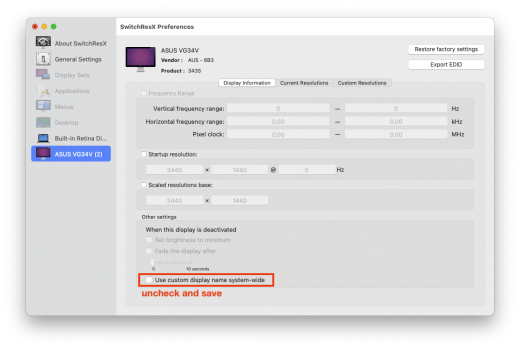
- For EACH monitor listed on the left hand side of the window, uncheck "Use custom display name system wide" and SAVE using File --> Save (it will save "modified" at the bottom right corner of the window if you don't). This is the part that solves the problem.
- Restart the computer (precaution)
- Uninstall
- Open SwitchResX and make sure to stop daemon
- Uninstall helper tool
- Uninstall using their built-in option https://www.madrau.com/support/supp...o_I_uninstall_SwitchResX_.html?TB_iframe=true
- In System Preferences, right-click on SwitchResX and select "Remove"
- Restart
Hello friends, I have the same problem, and I have tried all solution above but failed ,maybe it is because difference between mac system version... I use my m1 macbook air run big sur 11.4 version.
Thank god I found how to fix it finally.
1. Go to url(https://www.madrau.com/srx_download/download.html) download SwitchResX and install it.
2. Uinstall it according url(https://www.madrau.com/support/supp...o_I_uninstall_SwitchResX_.html?TB_iframe=true)
3. Remove the SwitchResX preferences pane from MacOS X manually(https://www.idownloadblog.com/2015/10/14/how-to-remove-mac-preference-panes/)
4. reboot your mac, and see if it worked
Attachments
On my Mac Studio with Monterey, none of that would work. There *is* no Uninstall button on the SwitchResX Control screen! It's maddening.
I tried everything suggested here. What worked was using Find All Files to locate and trash all the "madrau" files, as suggested above. And then searching for the Overrides and trashing that whole folder, too.
When I did *both* of these things, Hazel kicked in and asked me if I wanted to delete some other associated files. This is a lovely feature of that particular program, and I use it often. I said "yes," of course...rebooted, and voila – problem solved.
This software is a nightmare. Very buggy in Monterey – it frequently reset my monitor resolutions to seemingly random values, and reversed my monitor layout. It even started mirroring the monitors for no clear reason. My setup isn't complicated...one Samsung monitor on Thunderbolt, another Samsung via HDMI. Both at scaled resolutions. I bought SwitchResX because Monterey itself can't seem to remember my monitor layout. The software seemed to help at first, but it was unstable. Not ready for primetime, at least as far as the newer OSs are concerned.
I tried everything suggested here. What worked was using Find All Files to locate and trash all the "madrau" files, as suggested above. And then searching for the Overrides and trashing that whole folder, too.
When I did *both* of these things, Hazel kicked in and asked me if I wanted to delete some other associated files. This is a lovely feature of that particular program, and I use it often. I said "yes," of course...rebooted, and voila – problem solved.
This software is a nightmare. Very buggy in Monterey – it frequently reset my monitor resolutions to seemingly random values, and reversed my monitor layout. It even started mirroring the monitors for no clear reason. My setup isn't complicated...one Samsung monitor on Thunderbolt, another Samsung via HDMI. Both at scaled resolutions. I bought SwitchResX because Monterey itself can't seem to remember my monitor layout. The software seemed to help at first, but it was unstable. Not ready for primetime, at least as far as the newer OSs are concerned.
Excellent instructions BUT ... it does not resolve the name override issue, at least not for me.
I've been on forums all morning trying to figure this out, connected my monitor to a PC and downloaded additional tools to find my VendorID and DisplayID, etc. The values are different in decimal and hex, etc etc.
I shouldn't have to go through all this trouble and the one thing I was avoiding was the solution, which is in line with your instructions:
Thank you everyone for all their knowledge and help getting me to this spot.
- Reinstall SwitchResX, selecting "install for ALL users" option
- Go to System Preferences and open SwitchResX
- For EACH monitor listed on the left hand side of the window, uncheck "Use custom display name system wide" and SAVE using File --> Save (it will save "modified" at the bottom right corner of the window if you don't). This is the part that solves the problem.
- Restart the computer (precaution)
- Uninstall
- Open SwitchResX and make sure to stop daemon
- Uninstall helper tool
- Uninstall using their built-in option https://www.madrau.com/support/supp...o_I_uninstall_SwitchResX_.html?TB_iframe=true
- In System Preferences, right-click on SwitchResX and select "Remove"
- Restart
7 years after I started this thread, still no uninstall button lol what a joke😕
Isn't the developer on this forum?

BillyJoeJimBob
macrumors regular
Any remaining traces of a program after using the company's stated method of uninstalling it makes it malware.
Last edited: