Become a MacRumors Supporter for $50/year with no ads, ability to filter front page stories, and private forums.

withers99

macrumors newbie
Original poster
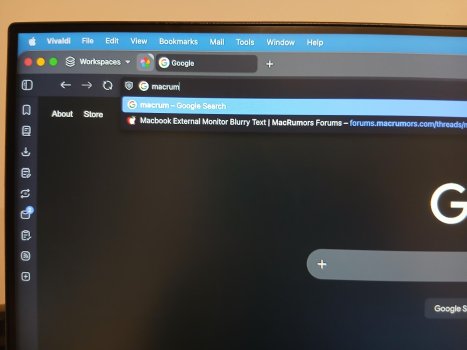
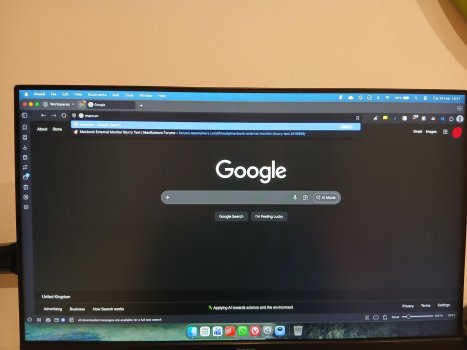
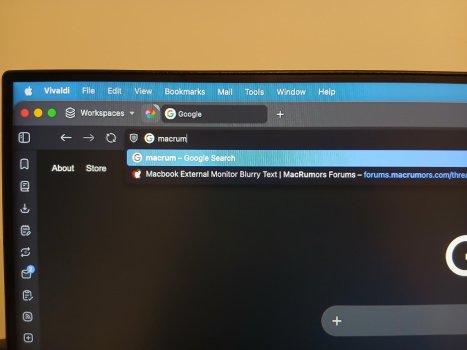
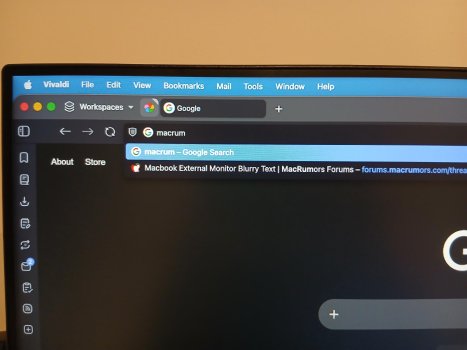
I recently purchased a new MacBook Air M1, this is my first Apple device so I am still figuring some things out. I connected it to my BenQ 1080p 24 inch external monitor for the first time today, initially I noticed that the text was too small. So I went into the display settings and changed the resolution, this made the text and interface a nice size. But the menu bar and smaller text (such as the address bar in Vivaldi or the search in spotlight), is pixelated and hard to read. The text is the right size, but so pixelated it's basically impossible to read.

I am running macOS Tahoe, the MacBook updated a few days ago, I have only ever used Tahoe, so I don't know if this happened on previous versions.

I have read some articles about this, and have installed and tried Better Display, but I couldn't seem to get it to work, I aren't sure if I am doing something wrong, but some guidance or an alternative method would be much appreciated.

Many thanks in advance to anyone who helps.
 
  • Like
Reactions: Herr Podspro
Can you do a screenshot of the external monitor so that we can see what you see?
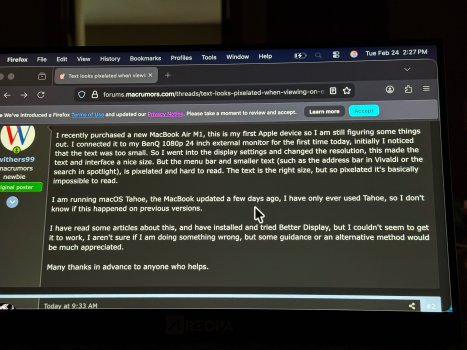
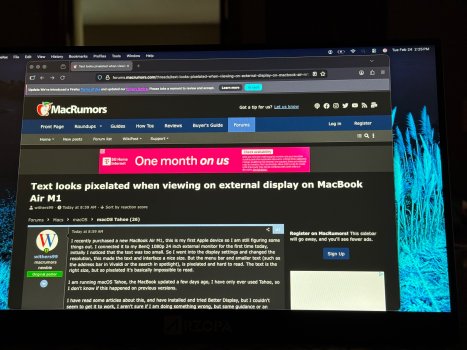
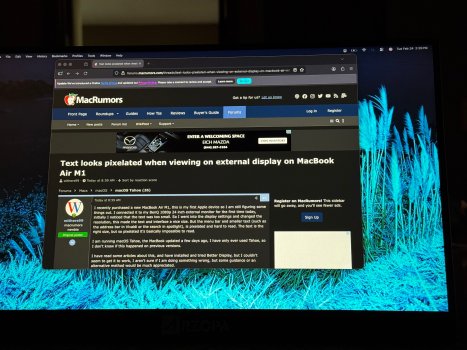
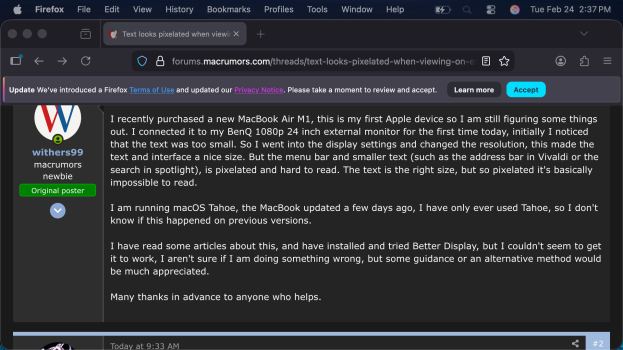
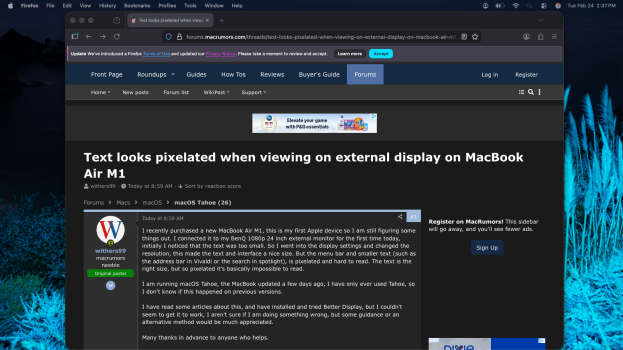
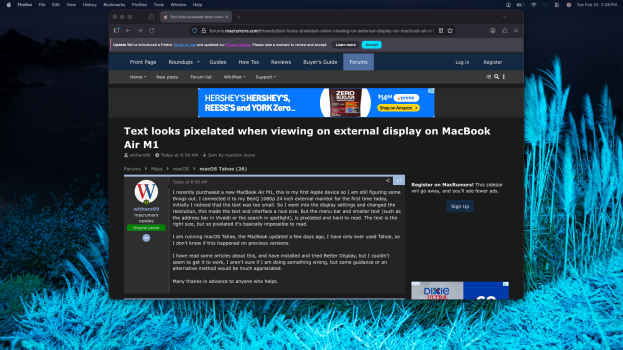
The issue doesn't appear at all in screenshots, but it is slightly visible in photos, so I have attached some below, but you can't really see how bad it is, since some of it is the photo.

Looking online lots of people also seem to have this issue, but the Better Display suggestions don't seem to work.
 

Attachments

  • shared image (1).jpg
    shared image (1).jpg
    134.8 KB · Views: 119
  • shared image.jpg
    shared image.jpg
    164.8 KB · Views: 106
  • shared image (2).jpg
    shared image (2).jpg
    174.3 KB · Views: 87
  • shared image (3).jpg
    shared image (3).jpg
    158.3 KB · Views: 93
  • Like
Reactions: Herr Podspro
Scaling is definitely off. Are you running the monitor at it's native resolution? If not, do that, then adjust the text size to whatever want via:

1771958598138.png


I use Betterdisplay on 4k monitor to make it look right, but 1080 is a resolution that should look correct without it.
 
Scaling is definitely off. Are you running the monitor at it's native resolution? If not, do that, then adjust the text size to whatever want via:

View attachment 2607641

I use Betterdisplay on 4k monitor to make it look right, but 1080 is a resolution that should look correct without it.
When I look in the preferences of the monitor, I don't see the larger text, default and more space options, only the resolution. If I set the resolution to 192x1080, the text is too small, but if I change it to 1600x900 the text looks a good size, but is pixelated.

I do see the larger text, default, more space options for the MacBooks bult in display, but not the external monitor.
 
I’ll try to keep this succinct as possible but yet, hopefully, thorough enough.

Thanks for the response, I use a Windows laptop on the same monitor and it doesn't look pixelated, so I think it is something to do with MacOS.

Scaling: Windows vs macOS

Windows and macOS handle display scaling quite differently, particularly with high-resolution displays. macOS uses a HiDPI scaling method that makes text and UI elements larger and smoother, while Windows allows for independent adjustment of resolution and scaling, which can lead to different visual experiences across applications.

That source doesn’t have the best explanations, in my opinion, but it’s decent.

As mentioned above, the Mac OS/macOS UI is designed and optimized for HiDPI (also referred to as pixel-doubling) — I cannot recall if this began with the introduction of “Retina” or prior. HiDPI, put simply, uses four dots or physical pixels to display one logical or software pixel.


HiDPI makes it possible to produce smoother graphical edges. However, the caveat is that you’re effectively losing three-quarters of capable display real estate.


I tossed together some examples using my MBP and a portable LCD — the only FHD/1080p display I have on hand. Attached are screenshots as well as actual-ish (i.e., camera) via my iPhone. Photos captured from ~18 in/46 cm from the portable display.

Resolutions: 1920x1080 (native), 1600x900, 960x540 (HiDPI)

Nowadays, 960x540 is definitely going to feel cramped as few, if any, software developers/designers are considering anything below 1024x768 or most likely anything below 1280x800. Speaking of 1280x800 and HiDPI. Your MBA M1’s (physical) display is 2560x1600, although the default “UI looks like” is 1280x800, that is, HiDPI or pixel-doubling. On my MBP M1 Pro, the integrated LCD is 3456x2234 though the default software resolution is 1728x1117. Get the picture? (Pun not intended, happy coincidence.)
 

Attachments

  • 960x540_camera-capture.jpg
    960x540_camera-capture.jpg
    2.8 MB · Views: 136
  • 1600x900_camera-capture.jpg
    1600x900_camera-capture.jpg
    3 MB · Views: 57
  • 1920x1080_camera-capture.jpg
    1920x1080_camera-capture.jpg
    3.3 MB · Views: 72
  • Screenshot_960x540.png
    Screenshot_960x540.png
    466.1 KB · Views: 82
  • Screenshot_1600x900.png
    Screenshot_1600x900.png
    799.6 KB · Views: 91
  • Screenshot_1920x1080.png
    Screenshot_1920x1080.png
    1.8 MB · Views: 97
Last edited:
As an Amazon Associate, MacRumors earns a commission from qualifying purchases made through links in this post.
  • Like
Reactions: conmee and Tozovac
Scaling is definitely off. Are you running the monitor at it's native resolution? If not, do that, then adjust the text size to whatever want via:

View attachment 2607641

I use Betterdisplay on 4k monitor to make it look right, but 1080 is a resolution that should look correct without it.
When I look in the preferences of the monitor, I don't see the larger text, default and more space options, only the resolution. If I set the resolution to 192x1080, the text is too small, but if I change it to 1600x900 the text looks a good size, but is pixelated.

I do see the larger text, default, more space options for the MacBooks bult in display, but not the external monitor.
The external display doesn’t show the preview method for me either. I’m not sure as to why.

FYI: The selection method can be changed/toggled, at least for the main display, in Settings>Display>Advanced…>Show resolutions as list (switch).
Also, hovering the cursor over a preview icon reveals the resolution, as shown here:
 
From what I understand, macOS is heavily optimized for retina displays (the one on your MacBook) that text on non macbook displays just look very bad because macOS thinks that all displays are retina displays... its so annoying but it is what it is.

Images will look the same as if you were using Windows.
 
a problem earlier (say ca 2000) Macs suffered regularly as I recall when fiddling with display size
 
The external display doesn’t show the preview method for me either. I’m not sure as to why.
I think it's likely to do with the fact it's not an Apple display, but I am not sure.
From what I understand, macOS is heavily optimized for retina displays (the one on your MacBook) that text on non macbook displays just look very bad because macOS thinks that all displays are retina displays... its so annoying but it is what it is.
Are you aware of anyway to fix this issue, without using an official Apple display?
 
It's the pixel-doubling approach macOS takes as well as the lower resolution display. As @WarmWinterHat suggests, make sure to reset your display settings and confirm it is running at 1920x1080 no scaling on the display. I have an Alienware 27" 4K "dual resolution" monitor that lets me set 4K or 1920x1080 on the display itself. Windows PC looks fine when I run it at 1080p, but on my MBP it looks all pixelated. If I set the display to 4K then I get the different resolutions in settings and I can select 1920x1080 which is the lowest resolution macOS offers for the monitor. It looks really good with the monitor set for 4K and let macOS scale down to 1080p. And it also looks good if I select 1600x1200 and other higher resolutions. But with the monitor set to 1080p, it just never looked good no matter what macOS settings I used.

If you check/reset the display settings and still aren't able to get clear fonts, you may need to go to a 4K monitor to get clean 1080p scaling with macOS.
 
If you check/reset the display settings and still aren't able to get clear fonts, you may need to go to a 4K monitor to get clean 1080p scaling with macOS.
Thanks once again for the reply, I have reset the monitor and it still occurs, it also occurs on my 24 inch 1080p Lenovo monitor.
 
I took a quick look at one of the Benq user guides (applicable to many 24" displays, maybe even yours). If your display has DisplayPort, I'd use a USB-C to DP cable instead of HDMI. I use that instead of an HDMI cable with my Alienware monitor. Not sure if it makes any difference, but worth trying. Also, if your display has the Display Mode setting with Full or Aspect as the options, try toggling to Aspect or vice versa (I think Full is the default) and see if that clears up the fonts at all. Ok, that's the extent of my technical support. 🙂

Benq1.png
Benq2.png
 
I took a quick look at one of the Benq user guides (applicable to many 24" displays, maybe even yours). If your display has DisplayPort, I'd use a USB-C to DP cable instead of HDMI. I use that instead of an HDMI cable with my Alienware monitor. Not sure if it makes any difference, but worth trying. Also, if your display has the Display Mode setting with Full or Aspect as the options, try toggling to Aspect or vice versa (I think Full is the default) and see if that clears up the fonts at all. Ok, that's the extent of my technical support. 🙂

View attachment 2607785View attachment 2607783
On my monitor the only option in display mode is full, so I don't think that is the problem, since it also occurs on the Lenovo monitor.

One of the BenQ monitors does support DisplayPort, but I don't have a DisplayPort to USB-C cable, do you think it's worth getting one to see if it helps?
 
  • Like
Reactions: conmee
On second thought, I don't think it will solve the problem since even with that type of cable I encountered pixelation on my Alienware display. If you already had the cable maybe worth a try. But I wouldn't buy a cable. I think ultimately it's the way macOS scales. Do you have a 4K display you can hook up to it?
 
When I look in the preferences of the monitor, I don't see the larger text, default and more space options, only the resolution. If I set the resolution to 192x1080, the text is too small, but if I change it to 1600x900 the text looks a good size, but is pixelated.

I do see the larger text, default, more space options for the MacBooks bult in display, but not the external monitor.
I think I overlooked this post. So does everything look sharp (but just small) at 1920x1080? I didn't realize you were trying to go to a resolution that pixel doubling might have trouble with (1600x900). If it looks good at 1920x1080 but just too small, it would probably only look sharp if you went down to 960x540 (or 1440x810 if you can select a custom resolution) but may be ridiculously large, a waste of space, and as @MacCheetah3 mentions, not a lot of software will be compatible with less than 1024x768. The Accessibility setting for font size unfortunately doesn't apply system wide. It only applies to supported macOS and 3rd-party apps. I just maxed out the size of my fonts in Accessibility and the font in Settings is now huge, but no change in Safari/Chrome/Firefox.

Hope you can find a working solution, but it's looking iffy if you can't live with 1920x1080 on your 24"/1080p monitor.
 
I think I overlooked this post. So does everything look sharp (but just small) at 1920x1080? I didn't realize you were trying to go to a resolution that pixel doubling might have trouble with (1600x900). If it looks good at 1920x1080 but just too small, it would probably only look sharp if you went down to 960x540 (or 1440x810 if you can select a custom resolution) but may be ridiculously large, a waste of space, and as @MacCheetah3 mentions, not a lot of software will be compatible with less than 1024x768. The Accessibility setting for font size unfortunately doesn't apply system wide. It only applies to supported macOS and 3rd-party apps. I just maxed out the size of my fonts in Accessibility and the font in Settings is now huge, but no change in Safari/Chrome/Firefox.

Hope you can find a working solution, but it's looking iffy if you can't live with 1920x1080 on your 24"/1080p monitor.
Yes that is correct, I haven't noticed an issue at 1920x1080 apart from everything being too small. So I went down to 1600x900, which then caused the issue.

I was just looking at the accessibility settings, and wouldn't appear to apply system wide, like scaling on Windows or changing the resolution on MacOS.

When I get a chance (I aren't at my monitor right now), I will try the 960x540 resolution and see what happens.
 
I think the only benefit of trying 960x540 is to confirm that macOS pixel doubling approach does indeed work (and is likely the issue) on your 1080p display when you're using a resolution that is halved from the display's native resolution (which is why 2560x1440 looks excellent on the Apple Studio Display 5120x2880 native resolution and 1920x1080 looks great on my native 4K Alienware display).
 
I think the only benefit of trying 960x540 is to confirm that macOS pixel doubling approach does indeed work (and is likely the issue) on your 1080p display when you're using a resolution that is halved from the display's native resolution (which is why 2560x1440 looks excellent on the Apple Studio Display 5120x2880 native resolution and 1920x1080 looks great on my native 4K Alienware display).
I will try it, just to confirm what's causing the issue.
 
  • Like
Reactions: conmee
Hi there,
I was doing some more playing around in Better Display today, and I thought I would try adding a virtual display. I am pleased to say that buy adding a virtual display, mirrored to my BenQ, I seem to have been able to resolve this issue.

I aren't sure why, but using the virtual display, seems to enable the MacOS scaling options that are available for only Apple displays, which doesn't cause the pixelation.
 
Register on MacRumors! This sidebar will go away, and you'll see fewer ads.