Become a MacRumors Supporter for $50/year with no ads, ability to filter front page stories, and private forums.

MacRumors

macrumors bot
Original poster


Apple's autocorrect on iPhone and iPad always aims to help when you're typing a message, but it's by no means perfect, and some of the replacements it continually spews out can be frustrating. Fortunately, Apple's software includes a feature called Text Replacement that allows you to specify what word or phrase replaces the specific text you type in.
on-my-way-text-replacement.jpg

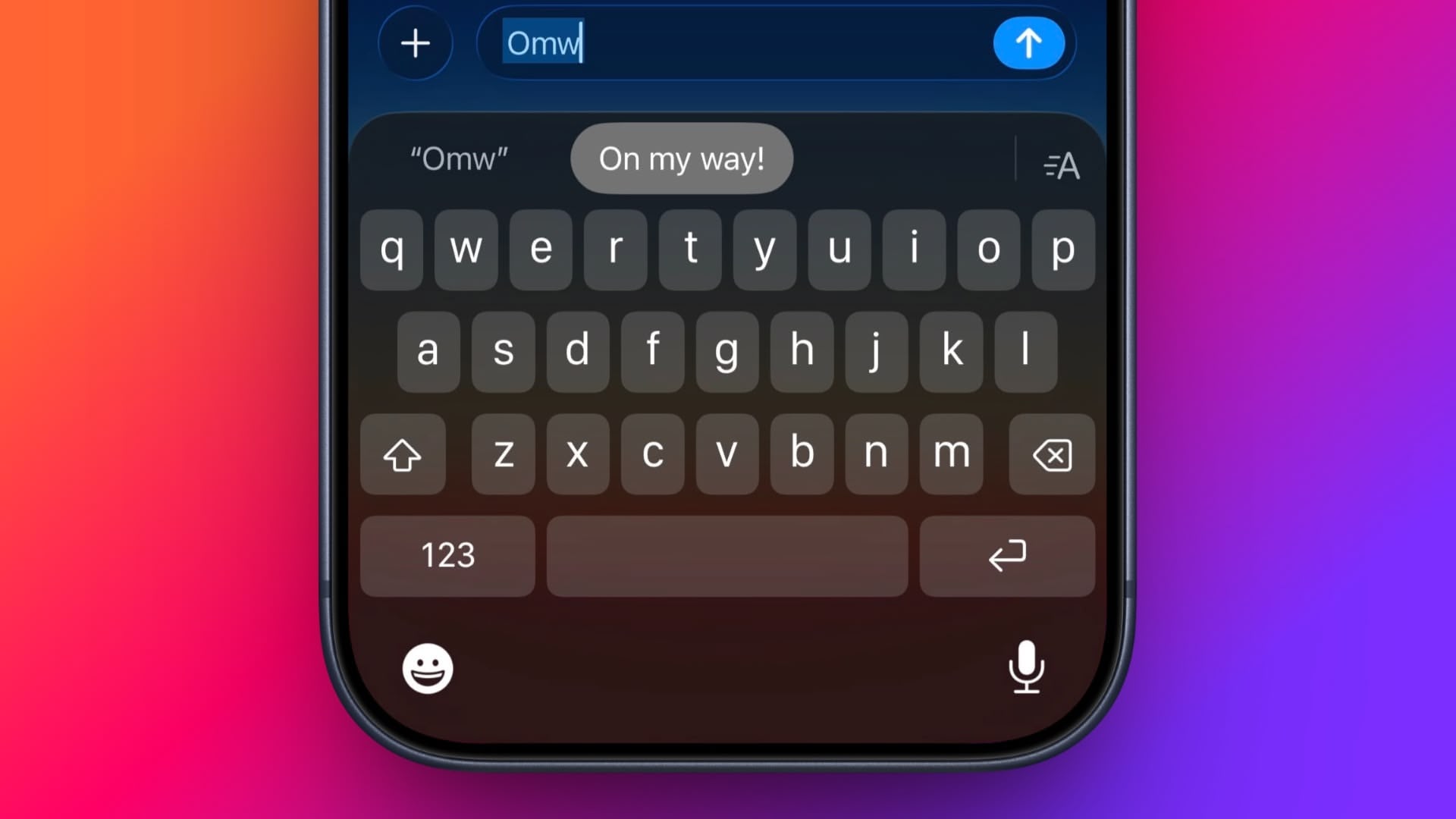
Even if you haven't set up Text Replacement, you can try it out with Apple's pre-set example: In any app that accepts text input, type "Omw" followed by a space, and it will change to "On my way!" automatically.

The following steps guide you through the process of setting up your own handy shortcut phrases with text replacements on both iOS devices and Mac.

How to Set Up Text Replacement on iPhone

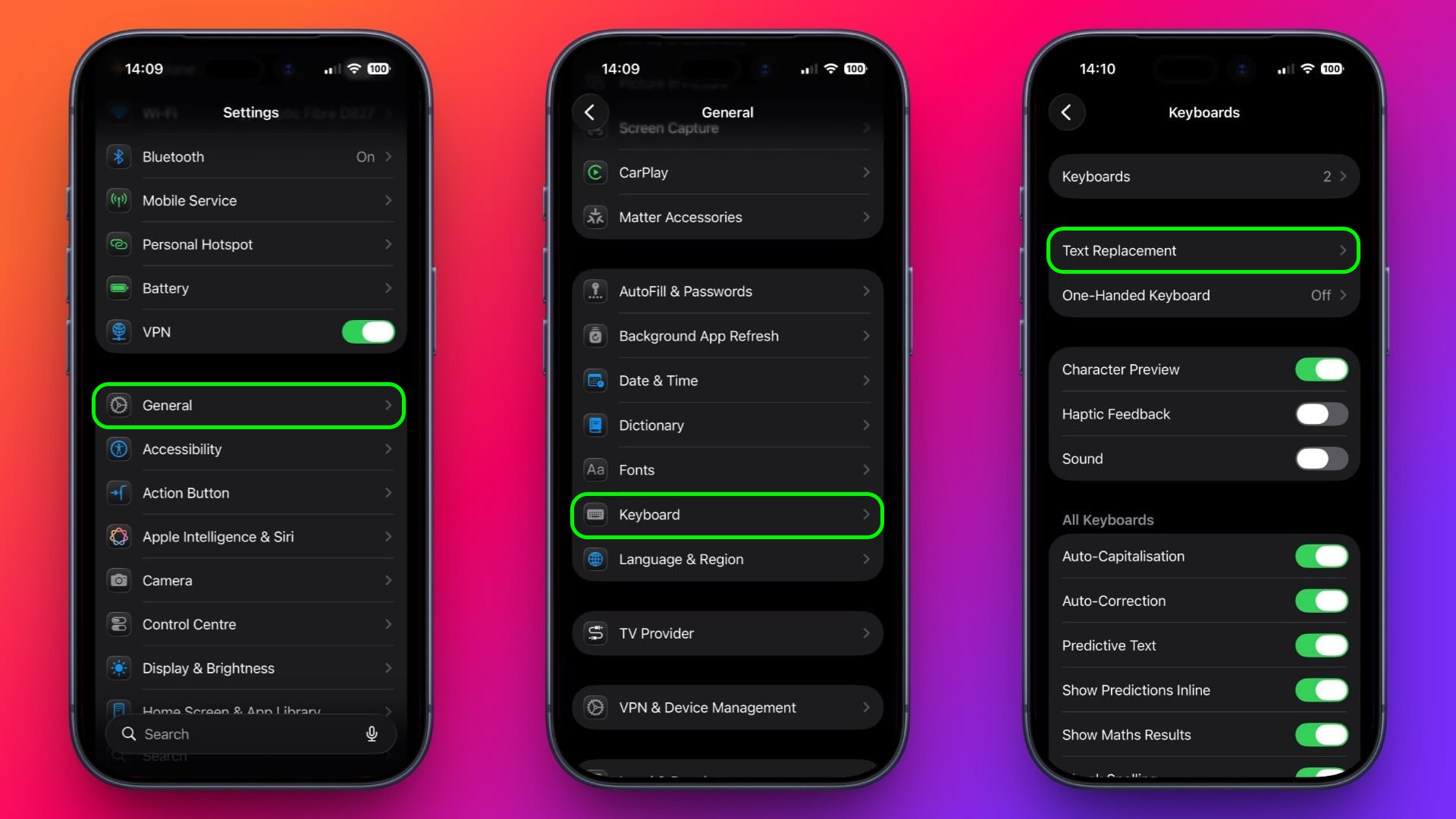
  1. Launch the Settings app on your iPhone or iPad.
  2. Tap General ➝ Keyboard.
  3. Tap Text Replacement.
    iphone-text-replacement2.jpg

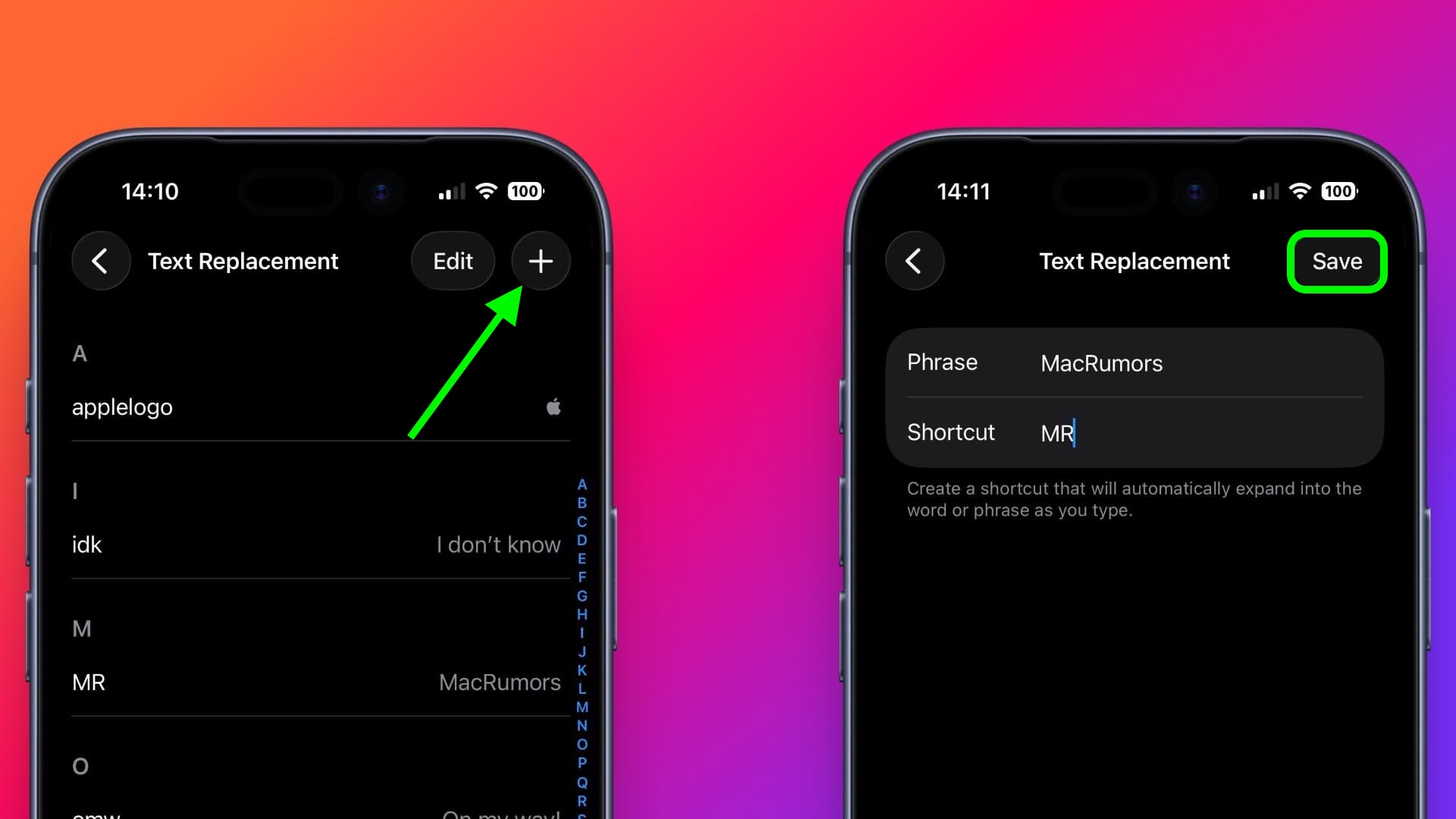
    Tap the plus (+) button in the top-right corner of the screen.
  4. On the next screen, fill in the "Phrase" field with the text you want to appear every time you type your shortcut.
  5. In the "Shortcut" field, input the text of your choice that you want to be replaced by the phrase above.
  6. Tap Save in the top-right corner to finish.
    iphone-text-replacement1.jpg
How to Set Up Text Replacement on Mac

The following steps work on Macs running macOS Ventura and later.
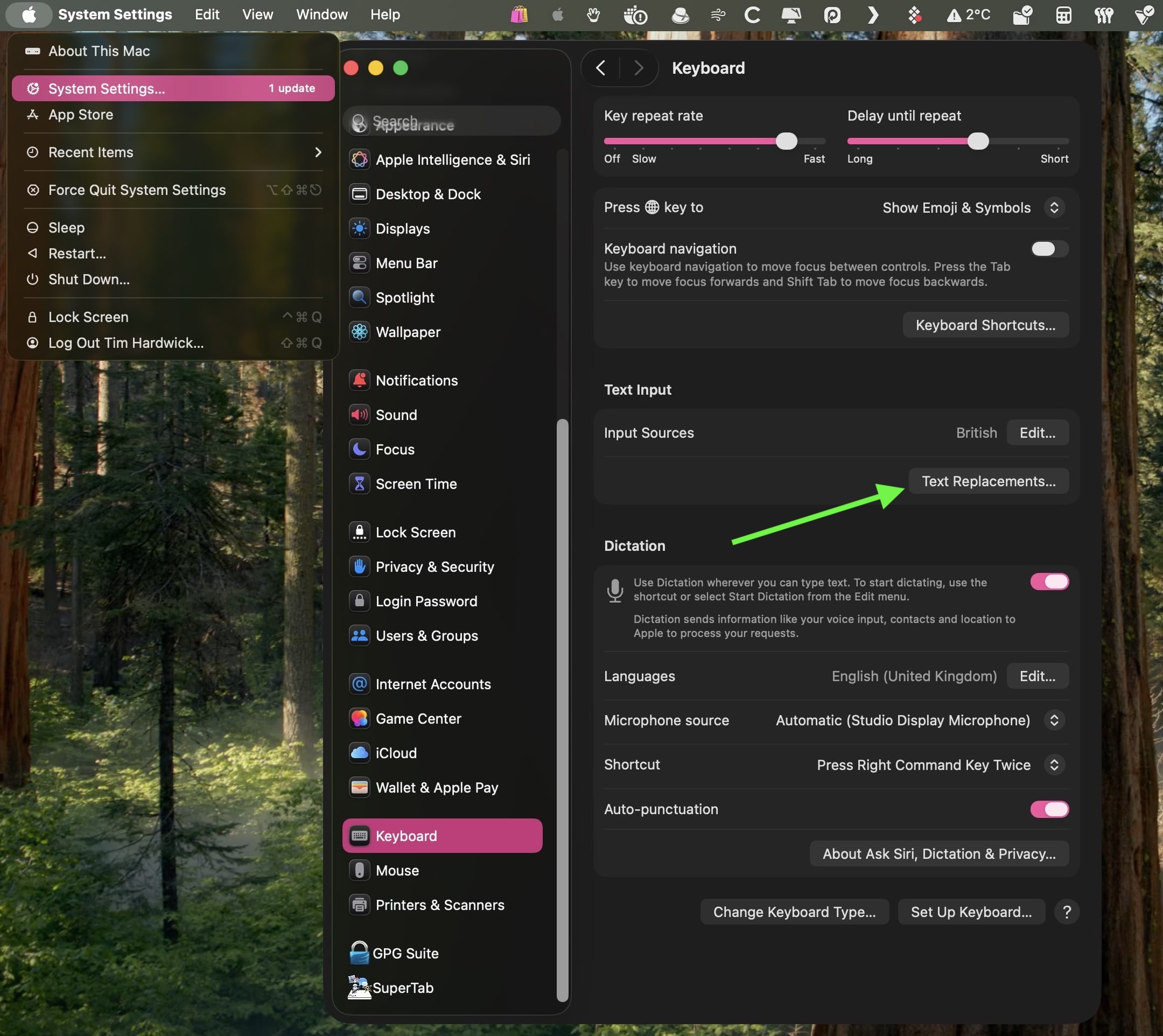
  1. On your Mac, click the  logo in the top-left corner of the menu bar at the top of the screen and select System Settings....
  2. Scroll down and select Keyboard in the sidebar.
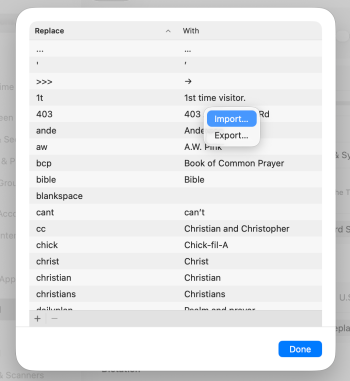
  3. Under "Text Input," click Text Replacements....
    macos-text-replacement.jpg

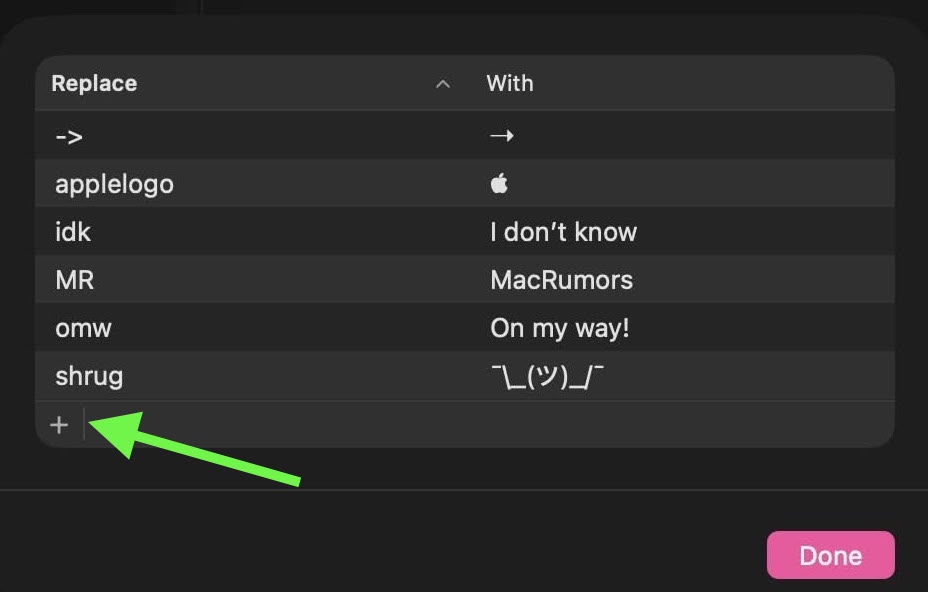
    Click the + button to add a text replacement.
    macos-add-text-replacement-1.jpg

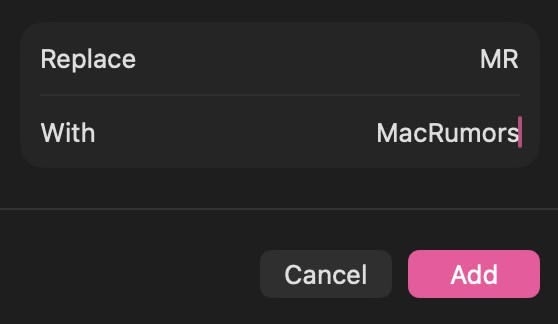
    In the "Replace" column, enter the text that you want replaced with something else.
    In the "With" column, type the replacement text that you want it to change to.
    add-macrumors-text-replacement.jpg
If you're using the same Apple account across all of your Apple devices, any Text Replacements that you add on your Mac will be automatically synced to your iPhone and/or iPad, and vice versa.

Article Link: Text Shortcuts You Should Be Using on iPhone and Mac
 
I use this feature for several things, since it syncs between Mac and iPhone, but tend to prefer Typinator due to its regex support [and other advanced features that I do use]. But nothing beats something that is system wide.

Question - is this a macOS 26 thing? No text collision detection? *sigh*
text collision.png
 
A few tips from mine:

1. Don’t use real words for shortcuts or you won’t be able to type that word easily anymore (you have to tap the x on the replacement suggestion, and it’s a pain to do regularly). Instead of “shrug,” I simply use “shr,” because I’ll rarely type that without the “ug” afterward.

2. Make them as short as possible. Most of mine are 3 letters. I use “apl” for the Apple logo. It’s a lot faster to type than “applelogo.”

3. Save things like your address, email address, and the name of your city. It saves so much time.

4. I also have lots of special characters saved. For example: ←, →, ↑, ↓, ≠.

5. I also have some links I send fairly frequently.
 
I use these all the time! Especially with ascii emojis like (╯°□°)╯︵ ┻━┻, which is how i've felt about iOS 26 lately. The only thing is i wish that "On my way!" would stop resetting to "On my way!" and let me keep it to "on my way" since i use that in sentences.

the keyboard doesnt even work while typing
mmm yeah i think you have to make sure it's plugged in before typing on it
 
yes—along with the OS26 text collision 'feature' 😉 —text replacement is only good when its working.
often in Safari, Messages, TR will just stop 'popping up' while the typing, requiring a quit or restart.
 
Last edited:
  • Like
Reactions: vjl323
The shortcut should be allowed to contain spaces/multiple words.

Adding your email addresses is a must. First four or five letters of each email address for completion in full. Handy out.
 
Last edited:
  • Like
Reactions: Agile55 and mevans7
I teach music, so I have `fhlat` substitute in for `♭` and `shsharp` for `♯` on all my devices. On my Mac, I have more involved ones through TextExpander, but having these as a baseline on my phone and iPad are both great.

Musician too, though (while typing) why go thru all the extra keystrokes—Why not just use lowercase 'b' for flat♭ and pound # for 'sharp'♯ ?

Ab
A#
 
Ewww. No thanks. I turned off all autocorrect or replacement features years ago. I type every word, to the letter, on all my devices thank you very much. I'd rather correct my own errors than Apples. It all works a lot worse on non-english, and I'd rather keep remembering how to spell.
 
I've been using this feature since it was added to iOS 6 (I think? I know it was on there on my 4th gen iPod touch, but it may have been added earlier?) and I love it.

Some shortcuts I use regularly are for some bands and common phrases I text, such as "kfs" being made into "Kara's Flowers", "bnl" becoming "Barenaked Ladies", "e4" becoming "Elite Four", and "bs" becoming "blood sugar". 😛 But I also use, as others have mentioned, @@ for my email address, "fave" to go to "favorite", and "prob" to become "probably". I'm sure there are more that I could add that I haven't thought of, so I'll be reading these replies to get ideas!
 
I used to use these but I migrated to Raycast snippets, dynamic placeholders are great. I can type “,em” on my computer and a list of all email addresses comes up. I don’t have much need for text replacement/expansion on mobile.
 
What an archaic 20th century concept. 95% of all the typing on my devices are done with dictation. You can teach dictation to put anything up there that you want. You just have to practice a little bit and learn the rules.

I literally use none of these abbreviations at all. Typing in text manually is like sitting in a rocking chair. Gives you something to do but really doesn’t get you very far.

Dictated on my iPad
 
  • Like
Reactions: deijmaster
Many years ago I set one so that "ducking" is corrected to what it should be.

Also fun if you get ahold of your friends phone. Set it so "love" is automatically changed to "hate" and other silliness like that.
 
I use text shortcuts to populate ASCII emoji's

Example:
  • tf - (╯°□°)╯︵ ┻━┻ (tf stands for table flip)
  • shruggie - ¯\_(ツ)_/¯
  • xx - 𝕏
  • @@ - personal email
  • @@@ - work email
It always gets a chuckle out of people
 
This definitely does not work with all text input fields. I use this feature to type me email address and a lot of times it doesn’t work.
 
Register on MacRumors! This sidebar will go away, and you'll see fewer ads.