Become a MacRumors Supporter for $50/year with no ads, ability to filter front page stories, and private forums.

Black_Mage

macrumors 6502a
Original poster
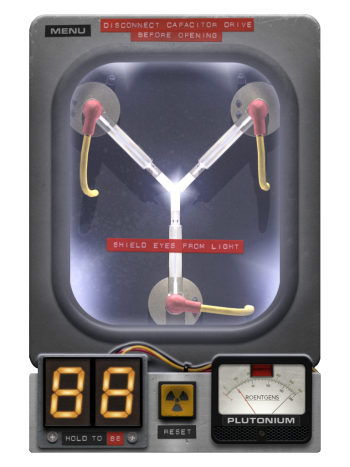
I think the default icon used for Time Machine in Tahoe is ugly, so I replaced it with this picture. For those of you who don't know, it's from a movie(s) called Back to the Future. The device, called a flux capacitor, allowed Doc Brown to turn a DeLorean into a time machine. I don't know why I didn't do this sooner. Probably because in the past the default icon was good enough.

FluxCapacitor.jpg
 
  • Wow
Reactions: ignatius345
I'm still at a loss as to why the Time Machine drive shows up on the Desktop by default at all - and that there isn't a user-friendly method to hide it.

But yeah, the above icon could work, too....
 
I think the default icon used for Time Machine in Tahoe is ugly, so I replaced it with this picture.
Here’s this image with the background removed and saved to a PNG with transprency in case anybody wants it as an icon replacement.

1. Save the PNG image to your desktop

2. right-click your Time Machine drive and Get Info

3. drag the PNG into the info window right over the existing Time Machine icon. You’ll be asked for TouchID/password to authenticate
 

Attachments

  • FluxCapacitor.png
    FluxCapacitor.png
    786.6 KB · Views: 49
Last edited:
  • Like
Reactions: Black_Mage
Yeah, but that also hides all external drives - including any HDD / SSD or USB drives you may have connected.
And I want them on the desktop.
Yeah, but the Time Machine drive is an external drive. I think it would be pretty weird to not have it there with the other external drives.
 
  • Like
Reactions: Alameda
Yeah, but the Time Machine drive is an external drive. I think it would be pretty weird to not have it there with the other external drives.
Yeah, but clicking on Time Machine on Desktop does not activate access to Time Machine. And neither does clicking on the files shown once opened. This only done by Time Machine icon in Menu Bar via Browse. So really, no point behind drive showing up on Desktop by default. Its like showing a hidden partition, really.

Every other external drive shown on Desktop allows you to access folders / files directly.
 
Yeah, but clicking on Time Machine on Desktop does not activate access to Time Machine. And neither does clicking on the files shown once opened. This only done by Time Machine icon in Menu Bar via Browse. So really, no point behind drive showing up on Desktop by default. Its like showing a hidden partition, really.

Every other external drive shown on Desktop allows you to access folders / files directly.
Fair point, but when externals are displayed on the desktop you know they’re mounted. On macOS, that’s important because you have to eject them all before unhooking cables -- particularly on a laptop. Even though you can’t do much of anything, as you point out, with a Time Machine drive through the Finder inteface, it’s still a physical plugged in drive just like the others displayed there.
 
  • Like
Reactions: zevrix and colodane
Fair point, but when externals are displayed on the desktop you know they’re mounted. On macOS, that’s important because you have to eject them all before unhooking cables -- particularly on a laptop...
Well, there is that, certainly.

That said, maybe that's a missing command accessed via a right-click / Control-click when on the Desktop that offers 'Eject All'?

But we digress...
 
Would be nice! Alfred is really good at ejecting drives (among other things) if you’re so inclined.

Well, I do have Jettison, which does do the whole '...ejecting drives (among other things)...' deal as well. But again, that's ejecting - not hiding - a drive that the user can't use.
Apple should figure out a way to encourage folks to use an external Time Machine, but not necessarily have present on the Desktop. Maybe only present when TM is actually doing its backup. Otherwise ejected or visible in Finder > Left Bar > Locations?
 
I'm still at a loss as to why the Time Machine drive shows up on the Desktop by default at all - and that there isn't a user-friendly method to hide it.

But yeah, the above icon could work, too....

Many people use that to get access to the backups, rather than using the animated browser. When I used to use Time Machine, the animated browser often malfunctioned when displayed on external monitors. If I wanted to restore a file without any hassle, I would just get at the backups from what's provided using those desktop icons.

Those special icons expose special content. When you open those you are actually not browsing the contents of that volume's APFS filesystem. Rather, you're seeing all the APFS snapshots of the volume. Each time you look inside one, that snapshot is immediately mounted as a volume so you can browse that snapshot.

I suspect Apple really does intend those icons to be used.

Hiding them is pretty easy at the terminal, but maybe you already knew this. "chflags hidden /Volumes/xxx" and then restart Finder. ("nohidden" to show again) There are Finder replacements that can take over the Desktop display. Perhaps some of those make it easier to hide individual drive icons. In Finder you only have the choice to hide all external disks or hide none.
 
So really, no point behind drive showing up on Desktop by default

Nope there's a pretty huge point to show the Time Machine drive.

Because if you don't see the Time Machine drive, it means that it could not be mounted for some reason and that your backup is not being performed (or that the snapshots are being saved on your local drive instead). And thus you have to immediately check what's going on and replace the faulty drive, if needed (of which situation I'm aware quite well as I had to go through this recently).

Especially since Apple, in its eternal wisdom, doesn't notify the user anymore about a failure of the Time Machine drive. macOS will notify you about every possible piece of nonsense that nobody ever asked to be notified of, but they discontinued one of the few truly crucial notifications.
 
  • Like
Reactions: ignatius345
Register on MacRumors! This sidebar will go away, and you'll see fewer ads.