UPDATE 12/8/25:
i decided to rewrite the tutorial as it was very confusing. sorry!
for facetime:
install charles proxy 3.12.3 from https://www.charlesproxy.com/assets/release/3.12.3/charles-proxy-3.12.3.dmg (any mitm proxy should work, but i found charles to be somewhat reliable on mavericks)
license keys for charles: install the root certificate to the "system" keychain from the help menu
set certificate trust settings to always trust
enable mac os x proxy in the "proxy" menu
make sure it has been around 15 minutes from the last login attempt
make sure recording is enabled in charles proxy (important)
go to ssl proxying settings and enable ssl proxying for host *ess.apple.com, leave port blank
request code from system prefs by opening the icloud prefpane, and logging in or by checking the keychain box, or get verification code from apple id settings on a trusted 2fa device
attempt to log in to facetime with your password AND the 2fa code at the end (important)
facetime should spin for a few seconds longer than usual, then give you the registration error
you should see two requests to https://profile.ess.apple.com/WebObjects/VCProfileService.woa/wa/authenticateUser
head over to the "response" tab, and go to "xml text"
one should have a token and profile id while the other has an error
command a and command c to copy the entire response for the one without the error
go to proxy -> breakpoint settings
enable breakpoints for POST to https://profile.ess.apple.com/WebObjects/VCProfileService.woa/wa/authenticateUser, and check only the response box
now attempt to log in to facetime again by clicking the sign in button once more
charles proxy should jump to the front and you should see a breakpoint
go to the "edit response" tab at the top, and "xml text"
paste the response you copied earlier into the field here, replacing it entirely
click execute
a second breakpoint should come up immediately
do the same here, and click execute
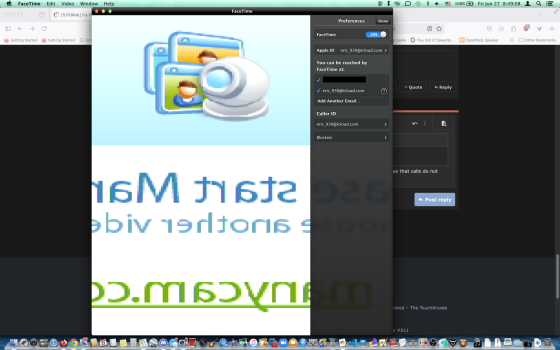
facetime should log in and ask which caller ids you want to use. everything after this point should work, since it no longer needs to use your plain username and password.
you can feel free to quit charles now, you won't need it anymore. if you aren't very technical, you can use aquaproxy for https issues.
technical details:
facetime login actually uses the same endpoint as the imessage login. we have seen that the endpoint was updated to only allow one login attempt every 10-15 minutes or so, if the request has a plain username and password. newer systems still use this same endpoint, but they use the GrandSlam Authentication (GSA) protocol, which incorporates a hashed password and other details such as board id, hashed api secrets, etc to gsa.apple.com. the device gets a special set of gsa credentials in return, which is whats sent to the facetime/imessage login endpoint in place of the plain username and password that yosemite and earlier send. gsa was implemented in ios 9/os x 10.11 el capitan. now, for some weird reason, the facetime app requests authentication twice, rather than just once, like imessage does. this causes the first response to have your profile id and token, but the second response has a status 5068 error message. facetime sees the first one, but sees the second one is an error, so it fails to log in. this is why it spins for a little longer, because the first request succeeds. we are essentially just stitching in the working response into both responses, so facetime can accept the data and register the device.
for game center:
unfortunately, the gc login endpoint has no mercy. it wont give you the right response, not even once. dont worry! apple seems to have left an alternate endpoint up, and has forgotten about it. it's used by ios 5/6.
once again, open charles proxy and enable mac os x proxy in the proxy menu
make sure certificate is installed and trusted
enable ssl proxying with *gc.apple.com
import the attached rewrite set into tools -> rewrite, enable it
make sure charles is recording
attempt to log in to game center without the 2fa code
find the connection to https://profile.gc.apple.com/WebObjects/GKProfileService.woa/wa/authenticateUser
click the pencil icon at the top to edit the request
click on the "xml text" tab
dont do anything there, just go back to "headers" now
remove the Content-Encoding header
remove the Accept-Encoding header
click execute
if the rewrite set worked, it should connect to https://setup.icloud.com/setup/iosbuddy/loginDelegates and you should receive a 2fa code
then, go back to the request edit page
enter the 2fa code at the end of your password, and click execute
head over to the xml response of loginDelegates
the response should consist of a plist, which has a dict inside, which contains only the "auth-token" key, and "player-id" key, and nothing else
copy the entire response, command a command c
add a breakpoint to POST response for https://profile.gc.apple.com/WebObjects/GKProfileService.woa/wa/authenticateUser
disable the rewrite set
attempt to log in to game center again
charles will come to the front
go to "edit response" on the breakpoint
paste the copied response into the response field
click execute, and game center should log in successfully
you will get logged out once the token expires. just repeat the process.
setting status and profile picture won't work
technical details:
same deal, the endpoint is still used nowadays by modern systems. it just only takes gsa now. it was actually working until early 2024.
finally figured it out! its a very weird process.
facetime process is below:
update 7/12: there is a simpler way to do facetime, the old tutorial is quite confusing, i apologize!
make sure you have not attempted to sign in to facetime within the last 30 minutes or so, there is a small "cooldown"
you will need charles proxy installed on your mac. make sure mac os x proxy is selected in the proxy menu. enable ssl proxying with *.ess.apple.com. install the root certificate into the system keychain. trust the certificate.
1. import the attached rewrite (tools -> rewrite) set; MAKE SURE TO TURN IT OFF!!
2. open system preferences -> icloud
3a. if currently signed out, enter your id and password in the boxes; do not use the 2fa code here
3b. if currently signed in, check the box next to keychain and enter your password; do not use the 2fa code here
4. once you receive the 2fa code, click allow on your other device to see it
5. make sure charles is recording at this point; if you were recording beforehand, i recommend you click the trash can icon to clear the session to reduce clutter
6. go to facetime and enter your password with the 6-digit code at the end (thisismypassword123098765, where thisismypassword123 is the password and 098765 is the code)
7. in charles, expand the https://profile.ess.apple.com connection and click on the first instance of authenticateUser; you can stop recording at this point
8. go to response -> xml text
9. copy everything from and including <key>profile-id</key>, NOT the outer <dict> or <plist>, to the very end of the auth-token, including </string>, but NOT including the outer </dict> or </plist>; you can copy the <dict></dict> on the inside. if you do not want to wait to copy the entire auth-token because it is very long i would recommend you highlight down to the indentation before </dict> and use shift + left arrow to slowly reduce the highlight, until you end up at </string>.
10. paste exactly as is into the *replace* value box of the last item in the rewrite set, the rule with <key>status</key><integer>5068</integer>, click ok on everything. NOW MAKE SURE TO TURN THE REWRITE SET BACK ON!!
11. repeat step 3
12. repeat step 4
13. repeat step 6
-------------------------------------
old tutorial, complicated:
you will need charles proxy installed on your mac. make sure mac os x proxy is selected in the proxy menu. enable ssl proxying with *.ess.apple.com and setup.icloud.com. install the root certificate into the system keychain. trust the certificate.
1. compose a new request in charles
2. https://setup.icloud.com/setup/iosbuddy/loginDelegates as the url, POST method, text/plist in content type
3. go to the raw tab at the bottom
4. select all the text (cmd a), then paste in the following:
POST /setup/iosbuddy/loginDelegates HTTP/1.1
Host: setup.icloud.com
Proxy-Connection: keep-alive
Accept: */*
Accept-Encoding: gzip, deflate
Content-Type: text/plist
Accept-Language: en-us
X-MMe-Country: US
X-MMe-Client-Info: <iPod4,1> <iPhone OS;6.1.6;10B500> <com.apple.AppleAccount/1.0 (com.apple.Accounts/113)>
Connection: keep-alive
User-Agent: Accounts/113 CFNetwork/609.1.4 Darwin/13.0.0
Content-Length: 546
<?xml version="1.0" encoding="UTF-8"?>
<!DOCTYPE plist PUBLIC "-//Apple//DTD PLIST 1.0//EN" "http://www.apple.com/DTDs/PropertyList-1.0.dtd">
<plist version="1.0">
<dict>
<key>apple-id</key>
<string>YOUR ID HERE</string>
<key>client-id</key>
<string></string>
<key>delegates</key>
<dict>
<key>com.apple.facetime</key>
<dict/>
<key>com.apple.gamecenter</key>
<dict/>
<key>com.apple.madrid</key>
<dict/>
<key>com.apple.mobileme</key>
<dict/>
</dict>
<key>password</key>
<string>YOUR PASSWORD HERE</string>
</dict>
</plist>
5. replace the YOUR ID HERE and YOUR PASSWORD HERE with your apple id and password
6. click execute
7. a code should be sent to your other devices
8. add the 6-digit code to the end of your password you entered in the YOUR PASSWORD HERE space
9. make sure charles is recording at this point, you will need it
10. click execute once more
11. go to the logindelegates response and copy the long string inside the auth-token key underneath the com.apple.facetime label, from start to finish, paste it in notes or somewhere else
12. press cmd shift e in charles
13. enable rewrite, new set, set locations to *.ess.apple.com
14. make a new rule for body type (select response)
15. put <key>retry-interval</key><integer>3600</integer> into the match value box and hit ok
16. make a new rule for body type (select response)
17. put <key>message</key> into the match value box and hit ok
18. new body rule (response)
19. put <string>SED:3:VEN-PROD:.+:EM</string> into the match value box, check the regex box (crucial step) and press ok
20. make new body rule (response)
21. put <key>status</key><integer>5068</integer> into the match value box
22. open up system preferences, navigate to icloud pane
23. if already logged in to icloud, check the box next to keychain and enter password
24. if not logged in, enter your id and password then continue
25. you will receive a code, do not use it in preferences
26. make sure charles is recording and that you havent attempted to sign in through the facetime app within the last 30 minutes or so, go into facetime and log in normally but add the 6 digit code at the end of the pw
27. in charles, you will see https://profile.ess.apple.com/WebObjects/VCProfileService.woa/wa/authenticateUser, click the first one, or keep going down the list until you see your profile id and handle in the response xml text
28. copy everything inside the first dict from <key>profile-id</key> all the way to </string>
29. go back to the rewrite rule and paste this into the replace value box
30. finally, replace the token inside this string with the other token you saved from earlier (i would recommend using notes to easily paste it in)
31. click ok on the rewrite rule and click ok on the rewrite tool
32. finally, go back into facetime and log in normally without a code at the end
33. it should log you in, but i would highly recommend disabling (or even deleting) this rewrite set immediately after you log in, as it allows anyone to use your account regardless of what credentials they enter in the facetime app (because you just basically hardcoded the login to use your token)
for game center, its mostly the same, except copy everything inside the <dict></dict>, below <key>service-data</key>, which is inside the com.apple.gamecenter section:
make a new rewrite set, and a new body response rule:
<key>status</key><integer>5012</integer> inside the match value, leave replace value blank
new body response rule:
place <key>message</key><string>status = 5012, INVALID NAME OR PASSWORD</string> into the match value box, then paste everything you copied into the replace value box
it should log you in now, once again i recommend you disable/delete the rewrite set
i decided to rewrite the tutorial as it was very confusing. sorry!
for facetime:
install charles proxy 3.12.3 from https://www.charlesproxy.com/assets/release/3.12.3/charles-proxy-3.12.3.dmg (any mitm proxy should work, but i found charles to be somewhat reliable on mavericks)
license keys for charles: install the root certificate to the "system" keychain from the help menu
set certificate trust settings to always trust
enable mac os x proxy in the "proxy" menu
make sure it has been around 15 minutes from the last login attempt
make sure recording is enabled in charles proxy (important)
go to ssl proxying settings and enable ssl proxying for host *ess.apple.com, leave port blank
request code from system prefs by opening the icloud prefpane, and logging in or by checking the keychain box, or get verification code from apple id settings on a trusted 2fa device
attempt to log in to facetime with your password AND the 2fa code at the end (important)
facetime should spin for a few seconds longer than usual, then give you the registration error
you should see two requests to https://profile.ess.apple.com/WebObjects/VCProfileService.woa/wa/authenticateUser
head over to the "response" tab, and go to "xml text"
one should have a token and profile id while the other has an error
command a and command c to copy the entire response for the one without the error
go to proxy -> breakpoint settings
enable breakpoints for POST to https://profile.ess.apple.com/WebObjects/VCProfileService.woa/wa/authenticateUser, and check only the response box
now attempt to log in to facetime again by clicking the sign in button once more
charles proxy should jump to the front and you should see a breakpoint
go to the "edit response" tab at the top, and "xml text"
paste the response you copied earlier into the field here, replacing it entirely
click execute
a second breakpoint should come up immediately
do the same here, and click execute
facetime should log in and ask which caller ids you want to use. everything after this point should work, since it no longer needs to use your plain username and password.
you can feel free to quit charles now, you won't need it anymore. if you aren't very technical, you can use aquaproxy for https issues.
technical details:
facetime login actually uses the same endpoint as the imessage login. we have seen that the endpoint was updated to only allow one login attempt every 10-15 minutes or so, if the request has a plain username and password. newer systems still use this same endpoint, but they use the GrandSlam Authentication (GSA) protocol, which incorporates a hashed password and other details such as board id, hashed api secrets, etc to gsa.apple.com. the device gets a special set of gsa credentials in return, which is whats sent to the facetime/imessage login endpoint in place of the plain username and password that yosemite and earlier send. gsa was implemented in ios 9/os x 10.11 el capitan. now, for some weird reason, the facetime app requests authentication twice, rather than just once, like imessage does. this causes the first response to have your profile id and token, but the second response has a status 5068 error message. facetime sees the first one, but sees the second one is an error, so it fails to log in. this is why it spins for a little longer, because the first request succeeds. we are essentially just stitching in the working response into both responses, so facetime can accept the data and register the device.
for game center:
unfortunately, the gc login endpoint has no mercy. it wont give you the right response, not even once. dont worry! apple seems to have left an alternate endpoint up, and has forgotten about it. it's used by ios 5/6.
once again, open charles proxy and enable mac os x proxy in the proxy menu
make sure certificate is installed and trusted
enable ssl proxying with *gc.apple.com
import the attached rewrite set into tools -> rewrite, enable it
make sure charles is recording
attempt to log in to game center without the 2fa code
find the connection to https://profile.gc.apple.com/WebObjects/GKProfileService.woa/wa/authenticateUser
click the pencil icon at the top to edit the request
click on the "xml text" tab
dont do anything there, just go back to "headers" now
remove the Content-Encoding header
remove the Accept-Encoding header
click execute
if the rewrite set worked, it should connect to https://setup.icloud.com/setup/iosbuddy/loginDelegates and you should receive a 2fa code
then, go back to the request edit page
enter the 2fa code at the end of your password, and click execute
head over to the xml response of loginDelegates
the response should consist of a plist, which has a dict inside, which contains only the "auth-token" key, and "player-id" key, and nothing else
copy the entire response, command a command c
add a breakpoint to POST response for https://profile.gc.apple.com/WebObjects/GKProfileService.woa/wa/authenticateUser
disable the rewrite set
attempt to log in to game center again
charles will come to the front
go to "edit response" on the breakpoint
paste the copied response into the response field
click execute, and game center should log in successfully
you will get logged out once the token expires. just repeat the process.
setting status and profile picture won't work
technical details:
same deal, the endpoint is still used nowadays by modern systems. it just only takes gsa now. it was actually working until early 2024.
facetime process is below:
update 7/12: there is a simpler way to do facetime, the old tutorial is quite confusing, i apologize!
make sure you have not attempted to sign in to facetime within the last 30 minutes or so, there is a small "cooldown"
you will need charles proxy installed on your mac. make sure mac os x proxy is selected in the proxy menu. enable ssl proxying with *.ess.apple.com. install the root certificate into the system keychain. trust the certificate.
1. import the attached rewrite (tools -> rewrite) set; MAKE SURE TO TURN IT OFF!!
2. open system preferences -> icloud
3a. if currently signed out, enter your id and password in the boxes; do not use the 2fa code here
3b. if currently signed in, check the box next to keychain and enter your password; do not use the 2fa code here
4. once you receive the 2fa code, click allow on your other device to see it
5. make sure charles is recording at this point; if you were recording beforehand, i recommend you click the trash can icon to clear the session to reduce clutter
6. go to facetime and enter your password with the 6-digit code at the end (thisismypassword123098765, where thisismypassword123 is the password and 098765 is the code)
7. in charles, expand the https://profile.ess.apple.com connection and click on the first instance of authenticateUser; you can stop recording at this point
8. go to response -> xml text
9. copy everything from and including <key>profile-id</key>, NOT the outer <dict> or <plist>, to the very end of the auth-token, including </string>, but NOT including the outer </dict> or </plist>; you can copy the <dict></dict> on the inside. if you do not want to wait to copy the entire auth-token because it is very long i would recommend you highlight down to the indentation before </dict> and use shift + left arrow to slowly reduce the highlight, until you end up at </string>.
10. paste exactly as is into the *replace* value box of the last item in the rewrite set, the rule with <key>status</key><integer>5068</integer>, click ok on everything. NOW MAKE SURE TO TURN THE REWRITE SET BACK ON!!
11. repeat step 3
12. repeat step 4
13. repeat step 6
-------------------------------------
old tutorial, complicated:
you will need charles proxy installed on your mac. make sure mac os x proxy is selected in the proxy menu. enable ssl proxying with *.ess.apple.com and setup.icloud.com. install the root certificate into the system keychain. trust the certificate.
1. compose a new request in charles
2. https://setup.icloud.com/setup/iosbuddy/loginDelegates as the url, POST method, text/plist in content type
3. go to the raw tab at the bottom
4. select all the text (cmd a), then paste in the following:
POST /setup/iosbuddy/loginDelegates HTTP/1.1
Host: setup.icloud.com
Proxy-Connection: keep-alive
Accept: */*
Accept-Encoding: gzip, deflate
Content-Type: text/plist
Accept-Language: en-us
X-MMe-Country: US
X-MMe-Client-Info: <iPod4,1> <iPhone OS;6.1.6;10B500> <com.apple.AppleAccount/1.0 (com.apple.Accounts/113)>
Connection: keep-alive
User-Agent: Accounts/113 CFNetwork/609.1.4 Darwin/13.0.0
Content-Length: 546
<?xml version="1.0" encoding="UTF-8"?>
<!DOCTYPE plist PUBLIC "-//Apple//DTD PLIST 1.0//EN" "http://www.apple.com/DTDs/PropertyList-1.0.dtd">
<plist version="1.0">
<dict>
<key>apple-id</key>
<string>YOUR ID HERE</string>
<key>client-id</key>
<string></string>
<key>delegates</key>
<dict>
<key>com.apple.facetime</key>
<dict/>
<key>com.apple.gamecenter</key>
<dict/>
<key>com.apple.madrid</key>
<dict/>
<key>com.apple.mobileme</key>
<dict/>
</dict>
<key>password</key>
<string>YOUR PASSWORD HERE</string>
</dict>
</plist>
5. replace the YOUR ID HERE and YOUR PASSWORD HERE with your apple id and password
6. click execute
7. a code should be sent to your other devices
8. add the 6-digit code to the end of your password you entered in the YOUR PASSWORD HERE space
9. make sure charles is recording at this point, you will need it
10. click execute once more
11. go to the logindelegates response and copy the long string inside the auth-token key underneath the com.apple.facetime label, from start to finish, paste it in notes or somewhere else
12. press cmd shift e in charles
13. enable rewrite, new set, set locations to *.ess.apple.com
14. make a new rule for body type (select response)
15. put <key>retry-interval</key><integer>3600</integer> into the match value box and hit ok
16. make a new rule for body type (select response)
17. put <key>message</key> into the match value box and hit ok
18. new body rule (response)
19. put <string>SED:3:VEN-PROD:.+:EM</string> into the match value box, check the regex box (crucial step) and press ok
20. make new body rule (response)
21. put <key>status</key><integer>5068</integer> into the match value box
22. open up system preferences, navigate to icloud pane
23. if already logged in to icloud, check the box next to keychain and enter password
24. if not logged in, enter your id and password then continue
25. you will receive a code, do not use it in preferences
26. make sure charles is recording and that you havent attempted to sign in through the facetime app within the last 30 minutes or so, go into facetime and log in normally but add the 6 digit code at the end of the pw
27. in charles, you will see https://profile.ess.apple.com/WebObjects/VCProfileService.woa/wa/authenticateUser, click the first one, or keep going down the list until you see your profile id and handle in the response xml text
28. copy everything inside the first dict from <key>profile-id</key> all the way to </string>
29. go back to the rewrite rule and paste this into the replace value box
30. finally, replace the token inside this string with the other token you saved from earlier (i would recommend using notes to easily paste it in)
31. click ok on the rewrite rule and click ok on the rewrite tool
32. finally, go back into facetime and log in normally without a code at the end
33. it should log you in, but i would highly recommend disabling (or even deleting) this rewrite set immediately after you log in, as it allows anyone to use your account regardless of what credentials they enter in the facetime app (because you just basically hardcoded the login to use your token)
for game center, its mostly the same, except copy everything inside the <dict></dict>, below <key>service-data</key>, which is inside the com.apple.gamecenter section:
make a new rewrite set, and a new body response rule:
<key>status</key><integer>5012</integer> inside the match value, leave replace value blank
new body response rule:
place <key>message</key><string>status = 5012, INVALID NAME OR PASSWORD</string> into the match value box, then paste everything you copied into the replace value box
it should log you in now, once again i recommend you disable/delete the rewrite set
Attachments
Last edited: