Become a MacRumors Supporter for $50/year with no ads, ability to filter front page stories, and private forums.

ferencav

macrumors member
Original poster
Mar 31, 2019
43
21
I am planning to do a clean install of my Mac. Before I wipe everything, I would like to have two Time Machine backups in case one of the two drives fail.

My internal HD has a capacity of 2TB of which 1.5TB is being used. My Time Machine disk is 4TB and uses 3.5TB. Now when I add another drive to TM, the backup starts as usual but in the end this takes only 680 GB of space.

I would like to have all the data on both disks so they are independent. And according to some threads here they should be. But 680 GB seems too far of.

Does anyone know if I'm missing something or how I could fix this?
 
I'd look in Disk Utility to see if you might have some Time Machine snapshots consuming space on the startup disk. 820GB of snapshots would be pretty obscene (and seems unlikely), but it could be the culprit. Open Disk Utility, select "Macintosh HD - Data" (or just "Data") in the sidebar, then choose "Show APFS Snapshots" from the View menu. If there are any snapshots on that volume, they will be listed at the bottom of the window in a table. You should feel free to delete any and all snapshots on that Data volume. You don't *have* to delete them (but I would!). If the snapshot disk usage sums to 820GB, then that's your explanation and you should expect a new backup to consume just 680GB.

If you're adding a second disk for redundancy, I would also consider using a different backup app to add some software redundancy/diversity (and perhaps get a second opinion on how much data should be getting backed up). E.g. you could use the Carbon Copy Cloner trial to create a backup that works with Migration Assistant.
 
  • Like
Reactions: MarineBand5524
That's a quick reply! Thanks!

I've looked into the snapshots and they are 66GB in total, so that isn't the culprit. I have a lot of video and animation work. So the 1.5TB is real data.

And you're right, it's better to have another system as a backup. I never looked into CCC. Always a bit afraid that you buy it and then a few years later you have to buy the new version in order to access old backups on newer OSes. Don't know if that's true. But I'll have a look.

Any other options to force a full TM Backup on a second drive?
 
  • Like
Reactions: MarineBand5524
Do the TM backups, and also copy your Documents folder (or wherever you keep your data, photo library/photos, videos, music etc.) separately.

Time Machine treats each disk separately; in other words they should both contain everything you need to restore your data. (Note that the OS isn't backed up any more; you're expected to install that yourself first.)

 
Thanks I'll do that too. I just tried removing the primary drive from TM and adding the other one. But again it's aiming for a backup of around 600 GB when I extrapolate. I'll wait and see what the outcome is.
 
I have a lot of video and animation work.
If you're using Final Cut (and maybe others work similar to this), there are large swaths of content (e.g. "Render Files") that are flagged to be excluded from a Time Machine backup. So if you have a lot of render files, that could add up to the difference.

In any case, IIRC, CCC has an option to reset those sorts of exclusions, but that option is disabled by default. CCC backups are non-proprietary, you can access all of the data via Finder and Migration Assistant. Worth a shot to see if it finds a different amount of data.
 
  • Like
Reactions: MacCheetah3
Open Terminal.app and use find . | sort to generate a list of all files in your home directory, then go to the latest TM backup and repeat, then use diff to check for differences, that should show which files are not in the backup.
 
I do run two TM drives.

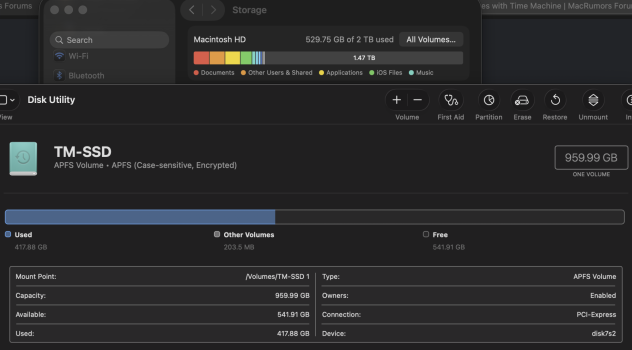
I decided to do some testing, erasing my secondary, short-term (i.e., much smaller capacity) drive, and executing a fresh backup.

Time-Machine_backup_comparison.png

The (initial) backup is indeed smaller. Excluding the OS footprint, the difference is ~88 GB.

I decided to try what @Basic75 mentioned, using diff -rq to compare the internal and backup drive /Users folders. Suffice it to say, the list was thousands of files, and I wasn’t going to wait for it to finish. Some of the files I noticed were cache and other temp files from Web browsers, seemingly temp files from Xcode, system log files, some databases, as well as temp and log files from other third-party apps.

I also found this, which seems to confirm:


Basically, it’s possible your system just has that many temp or otherwise rebuildable files.

Of course, you certainly can use a cloning utility as an additional backup option, which would (presumably) grab even the disposable files.
 
Register on MacRumors! This sidebar will go away, and you'll see fewer ads.