Become a MacRumors Supporter for $50/year with no ads, ability to filter front page stories, and private forums.

MacRumors

macrumors bot
Original poster
Apr 12, 2001
70,687
42,482


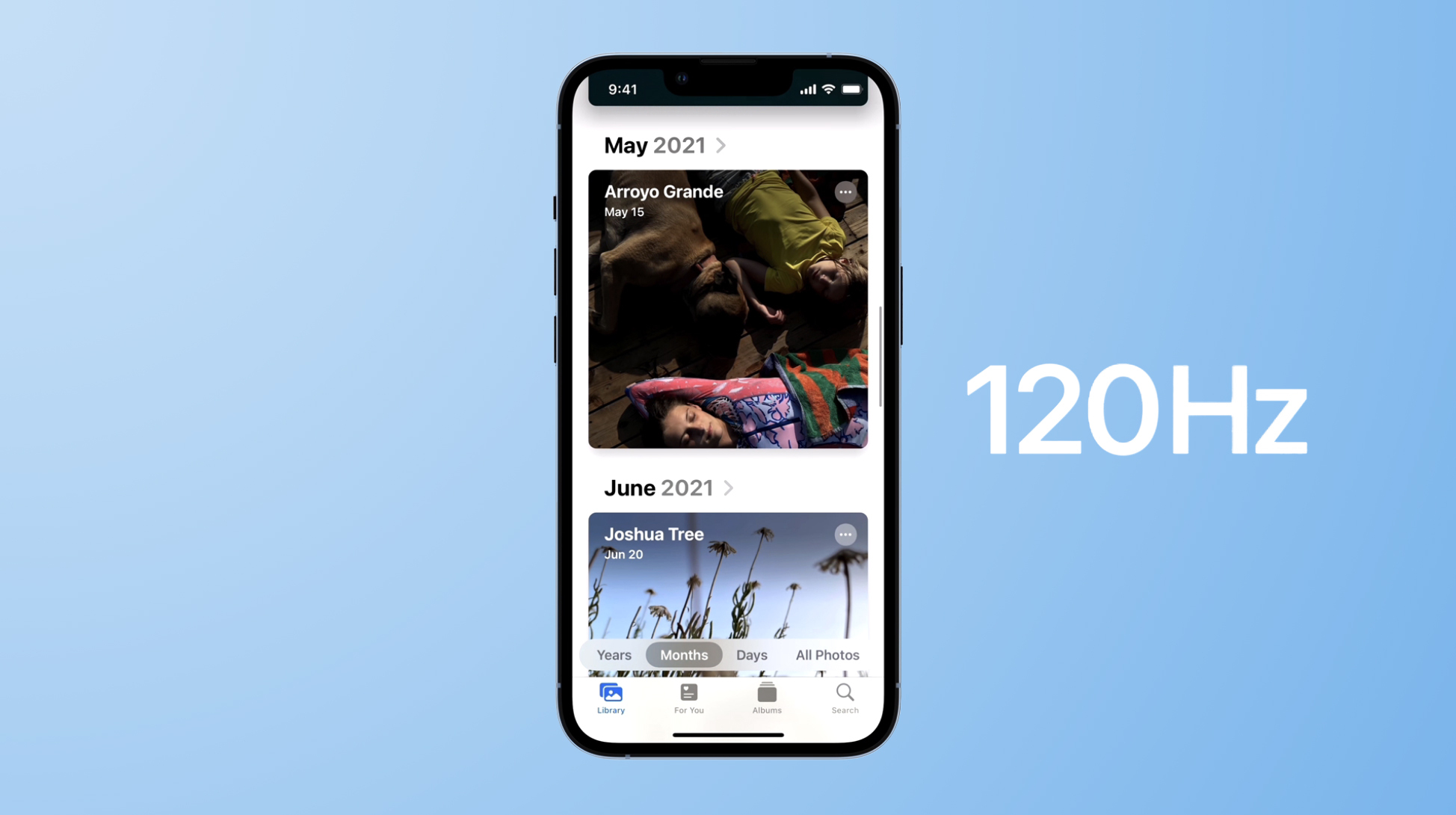
Any iPhone, iPad, or Mac with a ProMotion display is capable of rendering buttery smooth 120Hz animations. However, Apple's Safari browser is locked to 60fps page rendering by default, making scrolling feel noticeably choppier for some users than in Chrome or Firefox. Thankfully, recent versions of Safari include a hidden setting that lets you unlock 120Hz rendering.
iphone-14-pro-120hz-promotion-blue.jpg

At 60Hz, your screen refreshes every 16.7 milliseconds, meaning each frame of a scrolling page stays on screen for that duration. At 120Hz, the refresh interval drops to 8.3 milliseconds, so the image updates twice as often. This reduces the perceived blur and judder as content moves across the screen, making motion look more fluid and responsive. For a better idea of the difference, visit Blur Buster's Motion Tests webpage and watch the refresh rate test in Safari.

The difference is most noticeable when scrolling text-heavy pages or panning across detailed content. That said, the improvement is more dramatic for some people than others. If you've never noticed Safari feeling "off" compared to other apps, you may not register much difference. But if you've used Chrome or Firefox on the same device and wondered why Safari felt slightly sluggish, this is the reason.

The 120Hz option is buried in Safari's Feature Flags, a developer-focused menu that doesn't require any special mode to access on iPhone or iPad. On Mac, you'll need to enable developer features first, but it's a straightforward process. Keep in mind that turning on 120Hz may impact your device's battery life if you tend to browse a lot.

Here's how to enable 120Hz scrolling on all your Apple devices.

Enable 120Hz Safari Browsing iPhone and iPad

  1. Open the Settings app.
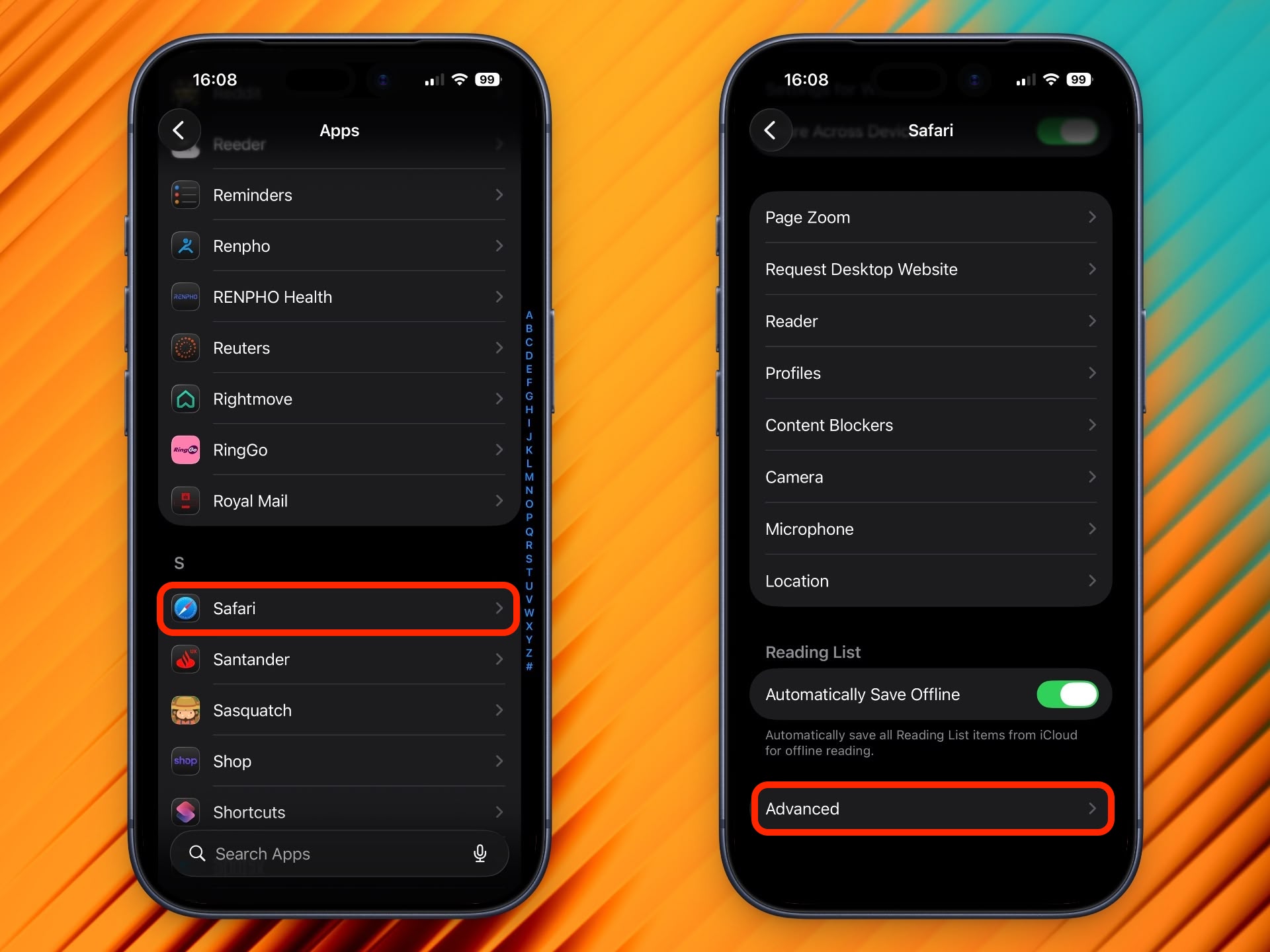
  2. Scroll down and tap Apps.
  3. Tap Safari.
  4. Scroll to the bottom and tap Advanced.
    2120hz-safari-scrolling-promotion.jpeg

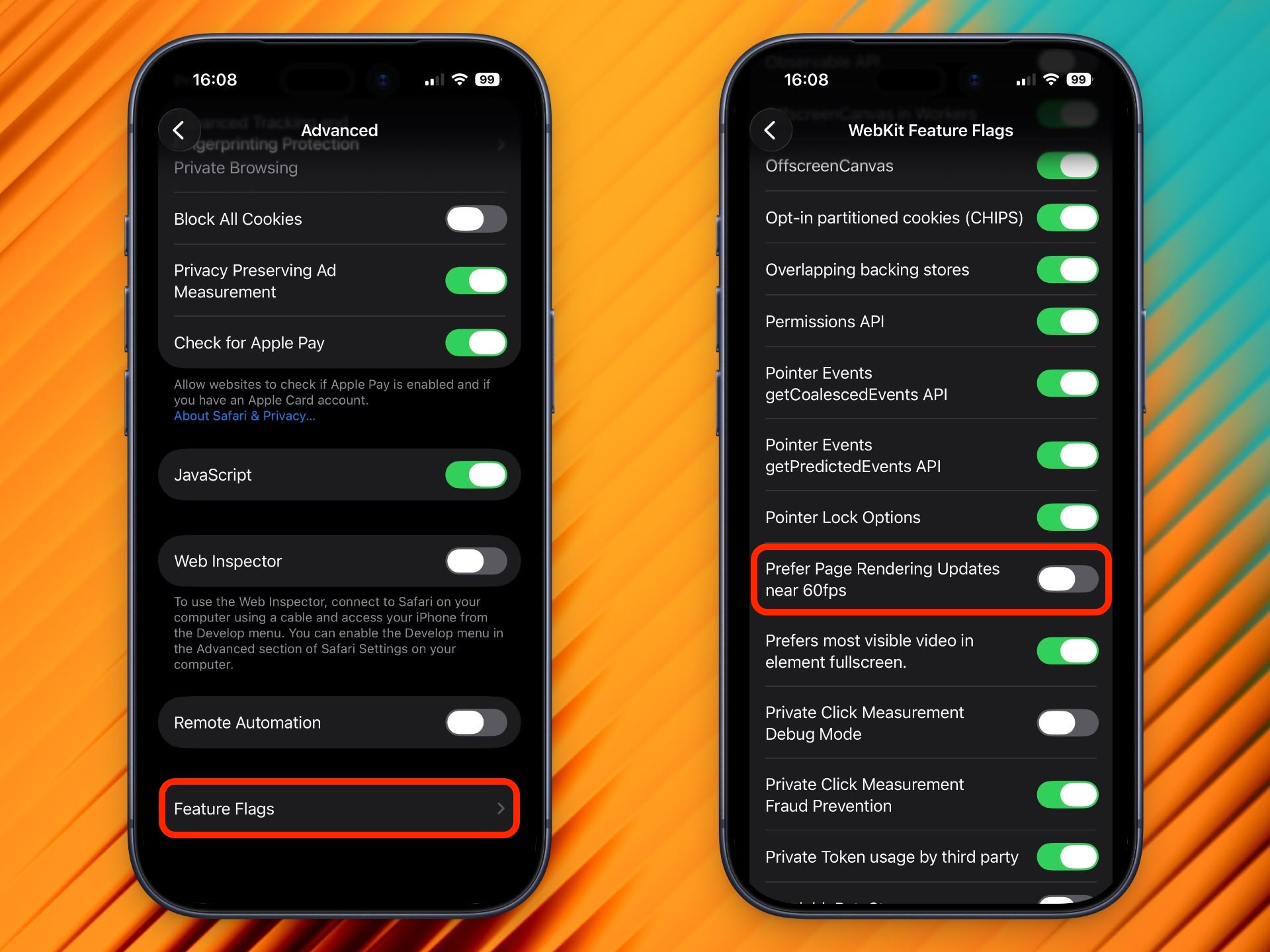
    Tap Feature Flags at the bottom of the list.
  5. Scroll to Prefer Page Rendering Updates near 60fps and toggle it off.
  6. Force quit Safari and reopen it.
    1120hz-safari-scrolling-promotion.jpeg
With this setting disabled, Safari will now render pages at up to 120Hz on ProMotion-equipped devices, including iPhone 13 Pro and later, and iPad Pro models with ProMotion.

Enable 120Hz Safari Browsing on Mac

Enabling 120Hz on Mac requires a few extra steps to reveal the Feature Flags menu.

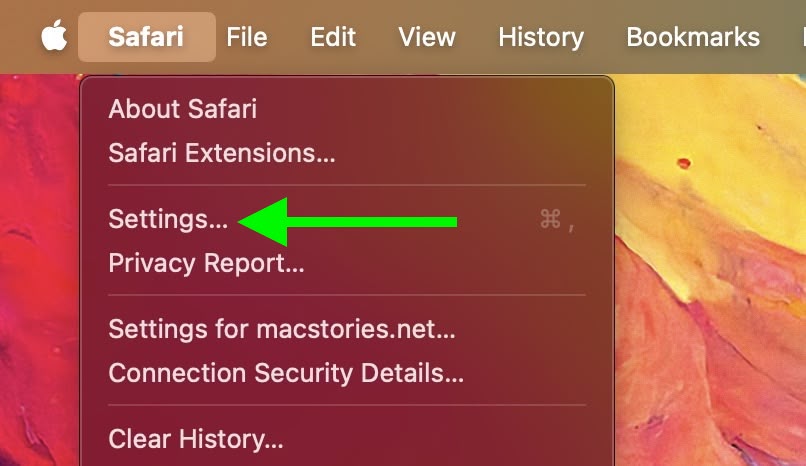
  1. Open Safari, then click Safari in the menu bar and choose Settings....
    3macos-safari-120hz-refresh.jpg

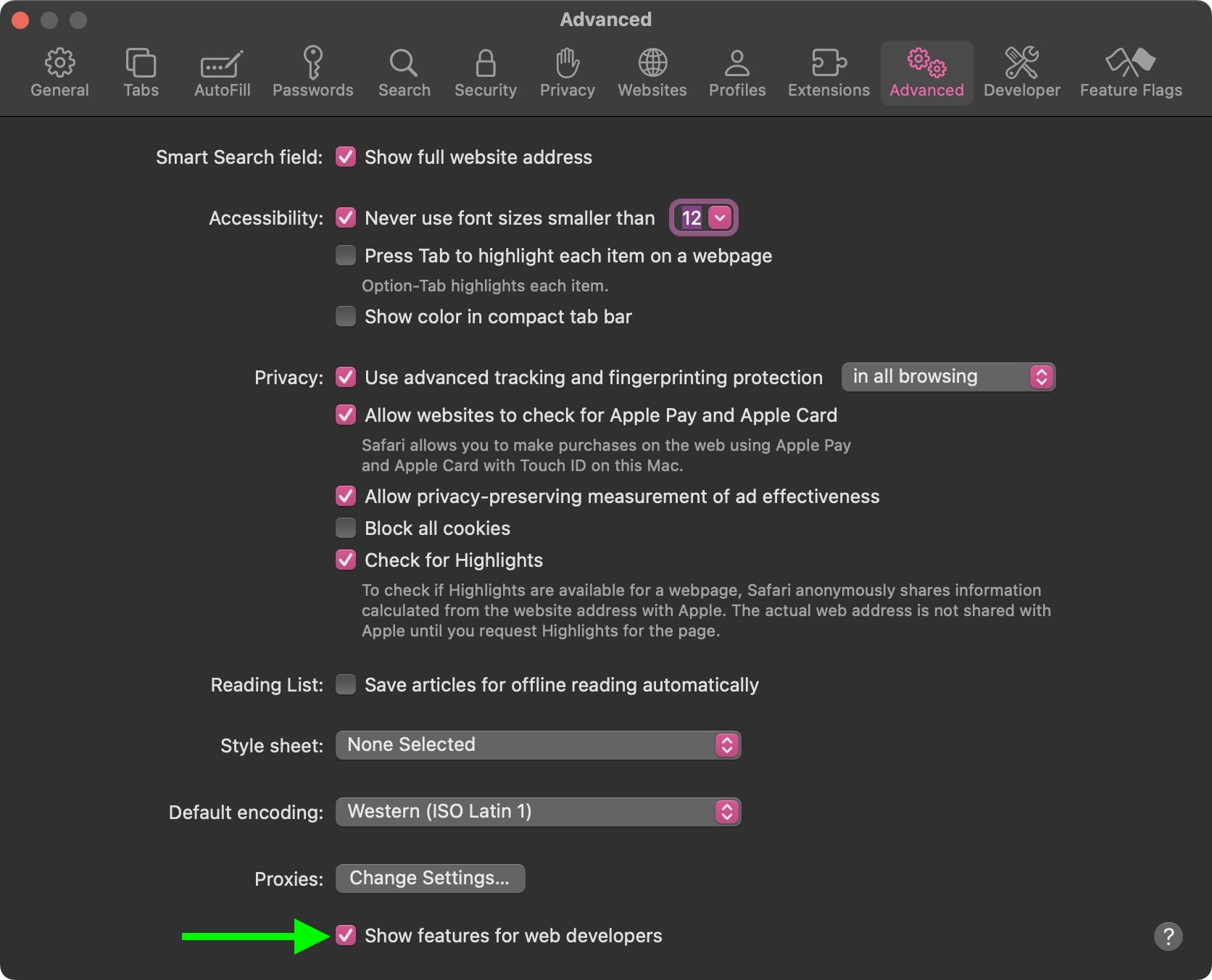
    Click the Advanced tab.
  2. At the bottom of the pane, check the box next to Show features for web developers.
    2macos-safari-120hz-refresh.jpg

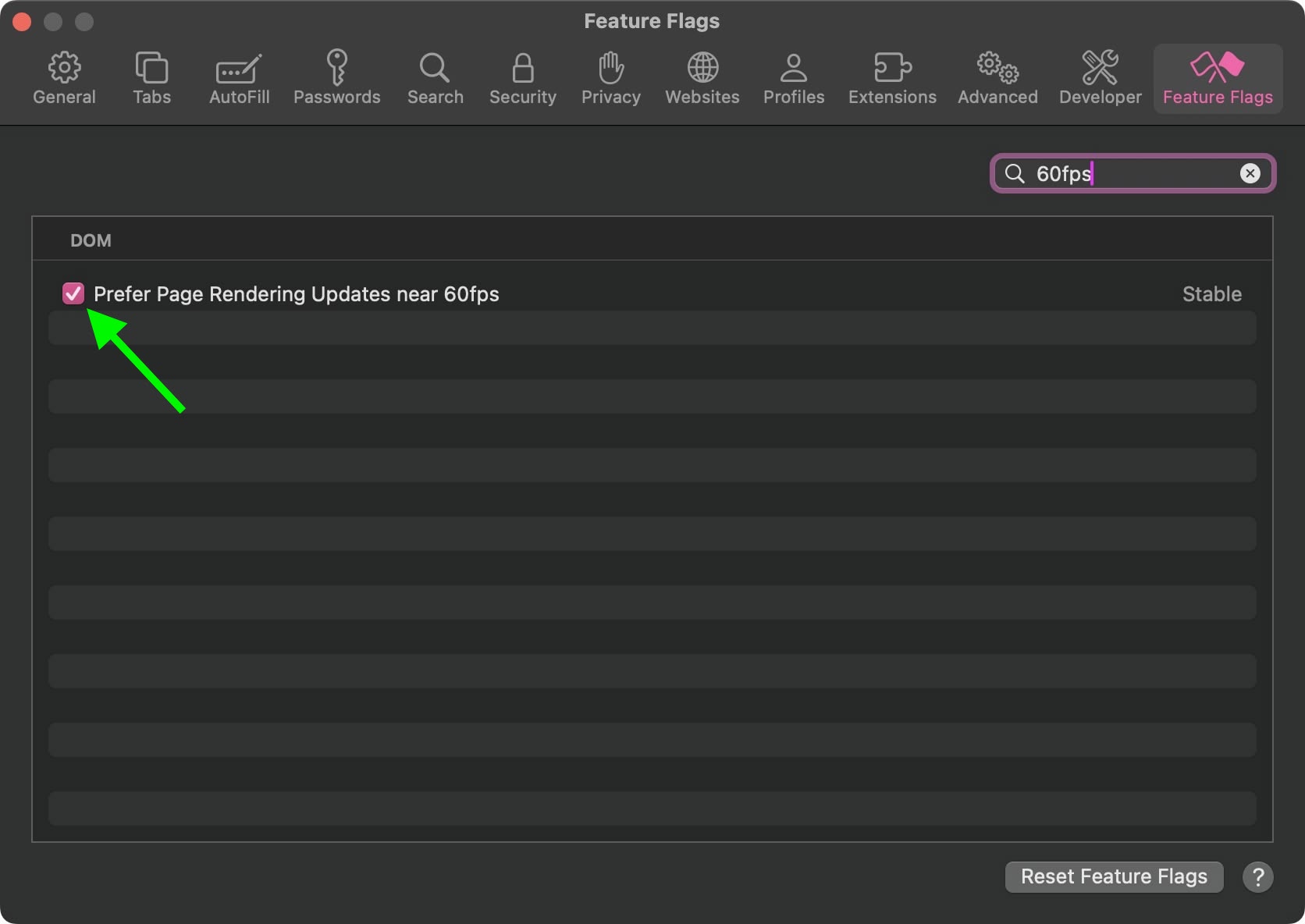
    A new Feature Flags tab will appear in the toolbar – click it.
  3. In the search field at the top right, type 60fps.
  4. Uncheck Prefer Page Rendering Updates near 60fps.
    Quit Safari completely and reopen it.
    1macos-safari-120hz-refresh.jpg

This works on any Mac with a ProMotion display, which includes the 14-inch and 16-inch MacBook Pro models introduced in 2021 and later. If you have external displays connected to your Mac that are capable of refreshing at 120Hz, they should also benefit from the change.

Kudos goes to MacStories for unearthing the 120Hz scrolling tip recently shared by developer Matt Birchler.

Article Link: Enable Smoother 120Hz Browsing in Safari
 
I can usually tell a difference between 60 and 120, it’s easy to compare on the Home Screen or other apps by toggling low power mode. But in safari I’m not seeing a difference regardless of how I have this setting set; are we’re sure we know how this “feature” works? The toggle says “prefer,” not force. I wonder if someone at macrumors was just poking around in settings and saw this, and wrote an article assuming they knew what it meant. I’d like to see some documentation from Apple explaining it because my eyes aren’t seeing the difference
 
Safari has a variable refresh rate on modern devices but it does not always hold it until scrolling finishes, the end of scrolling text is often quite juddery without this disabled. It's extremely obvious on some mobile devices, newer Macs are fine.

Good post, even if the toggle is years old.

See old thread: https://forums.macrumors.com/threads/enabling-120hz-scrolling-in-safari.2323961/

If you're on a fast mac this basically will speed up your animation speed any scrolling differences are a placebo. Use Quartz debug if you question this.
 
Last edited:
  • Like
Reactions: upandown
I didn’t know about this. Followed the instructions and I notice a difference. It’s not night and day, but it’s nice.

But if my battery life drops noticeably with this setting change, I’m happy to go back.
 
  • Like
Reactions: HazeAndHahmahneez
I can usually tell a difference between 60 and 120, it’s easy to compare on the Home Screen or other apps by toggling low power mode. But in safari I’m not seeing a difference regardless of how I have this setting set; are we’re sure we know how this “feature” works? The toggle says “prefer,” not force. I wonder if someone at macrumors was just poking around in settings and saw this, and wrote an article assuming they knew what it meant. I’d like to see some documentation from Apple explaining it because my eyes aren’t seeing the difference
This is only for JavaScript animations on the webpages, not for scrolling.

Scrolling always use 120fps regardless of this flag.
 
I can usually tell a difference between 60 and 120, it’s easy to compare on the Home Screen or other apps by toggling low power mode. But in safari I’m not seeing a difference regardless of how I have this setting set; are we’re sure we know how this “feature” works? The toggle says “prefer,” not force. I wonder if someone at macrumors was just poking around in settings and saw this, and wrote an article assuming they knew what it meant. I’d like to see some documentation from Apple explaining it because my eyes aren’t seeing the difference
Yeah I just did this on my M4 iPad Pro and don’t notice a difference. Then again, I’m also one that doesn’t mind the 60 Hz iPad mini display and don’t feel like I’m missing out not having ProMotion.
 
Register on MacRumors! This sidebar will go away, and you'll see fewer ads.