Become a MacRumors Supporter for $50/year with no ads, ability to filter front page stories, and private forums.
Thought this might fix a widespread issue where scrolling randomly stops in Safari 26 on the Mac. Unfortunately, it doesn't. Toggling the trackpad settings fixes it temporarily, but that is it. Apple needs to fix their software.
 
It seems a tiny bit smoother but not feeling like 60 to 120 hz.
If you compare it with a non 120 hz screen iPhone you still see a noticeable difference in scrolling, even with the setting set to its standard.
I will leave it like it is.
 
  • Like
Reactions: AppleEnthusiast1995


Any iPhone, iPad, or Mac with a ProMotion display is capable of rendering buttery smooth 120Hz animations. However, Apple's Safari browser is locked to 60fps page rendering by default, making scrolling feel noticeably choppier for some users than in Chrome or Firefox. Thankfully, recent versions of Safari include a hidden setting that lets you unlock 120Hz rendering.

iphone-14-pro-120hz-promotion-blue.jpg

At 60Hz, your screen refreshes every 16.7 milliseconds, meaning each frame of a scrolling page stays on screen for that duration. At 120Hz, the refresh interval drops to 8.3 milliseconds, so the image updates twice as often. This reduces the perceived blur and judder as content moves across the screen, making motion look more fluid and responsive. For a better idea of the difference, visit Blur Buster's Motion Tests webpage and watch the refresh rate test in Safari.

The difference is most noticeable when scrolling text-heavy pages or panning across detailed content. That said, the improvement is more dramatic for some people than others. If you've never noticed Safari feeling "off" compared to other apps, you may not register much difference. But if you've used Chrome or Firefox on the same device and wondered why Safari felt slightly sluggish, this is the reason.

The 120Hz option is buried in Safari's Feature Flags, a developer-focused menu that doesn't require any special mode to access on iPhone or iPad. On Mac, you'll need to enable developer features first, but it's a straightforward process. Keep in mind that turning on 120Hz may impact your device's battery life if you tend to browse a lot.

Here's how to enable 120Hz scrolling on all your Apple devices.

Enable 120Hz Safari Browsing iPhone and iPad

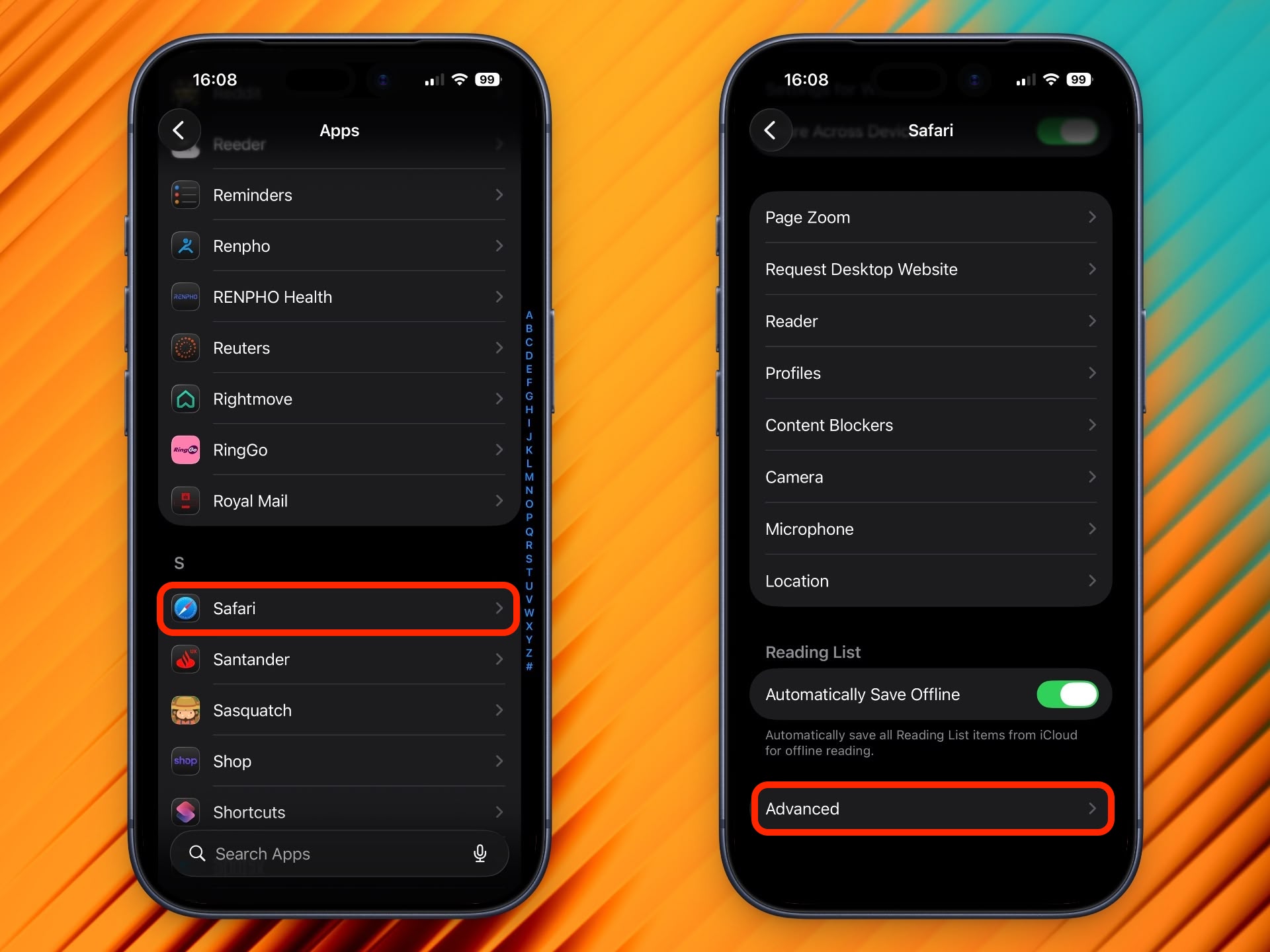
  1. Open the Settings app.
  2. Scroll down and tap Apps.
  3. Tap Safari.
  4. Scroll to the bottom and tap Advanced.
    2120hz-safari-scrolling-promotion.jpeg

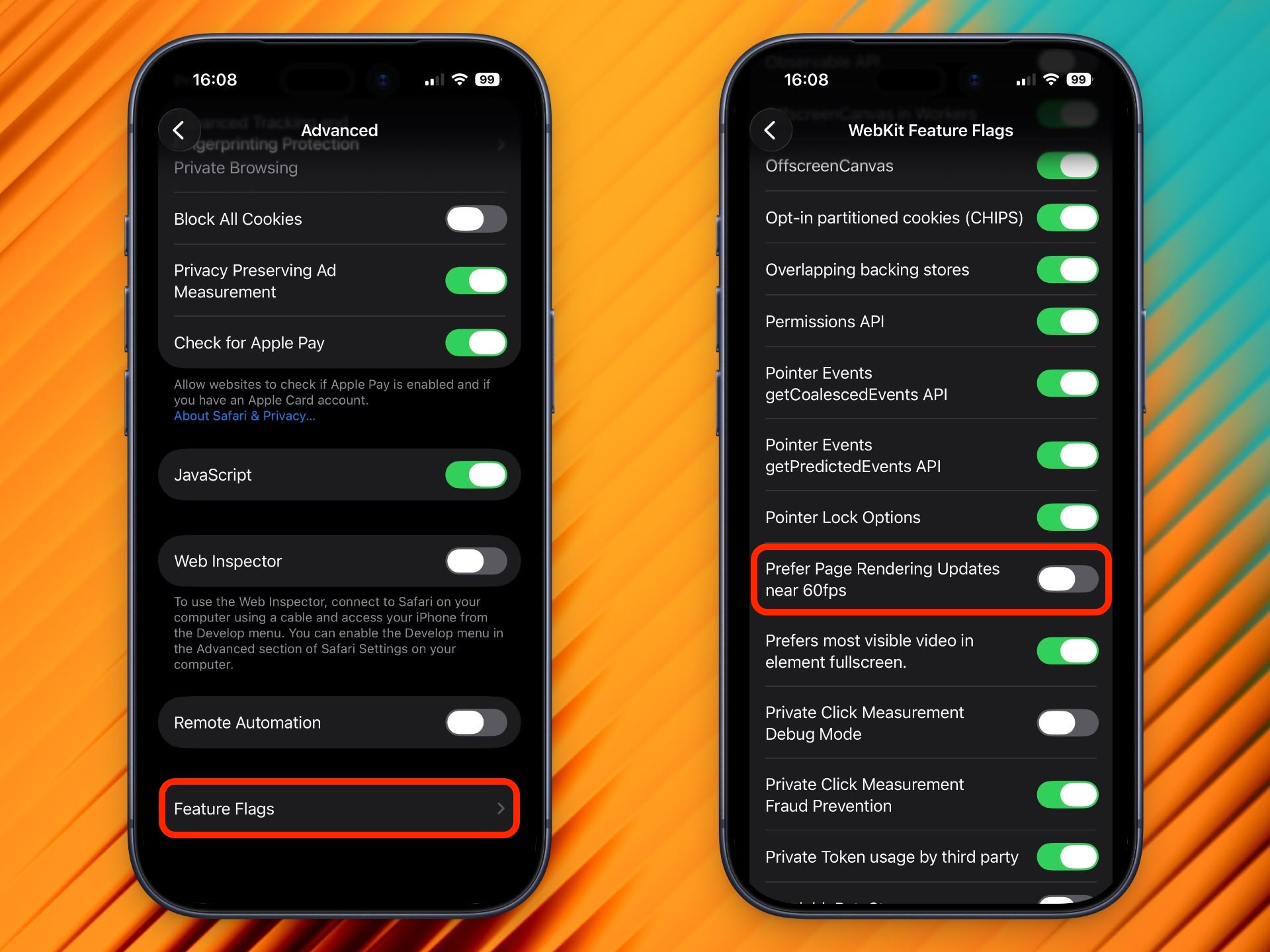
    Tap Feature Flags at the bottom of the list.
  5. Scroll to Prefer Page Rendering Updates near 60fps and toggle it off.
  6. Force quit Safari and reopen it.
    1120hz-safari-scrolling-promotion.jpeg
With this setting disabled, Safari will now render pages at up to 120Hz on ProMotion-equipped devices, including iPhone 13 Pro and later, and iPad Pro models with ProMotion.

Enable 120Hz Safari Browsing on Mac

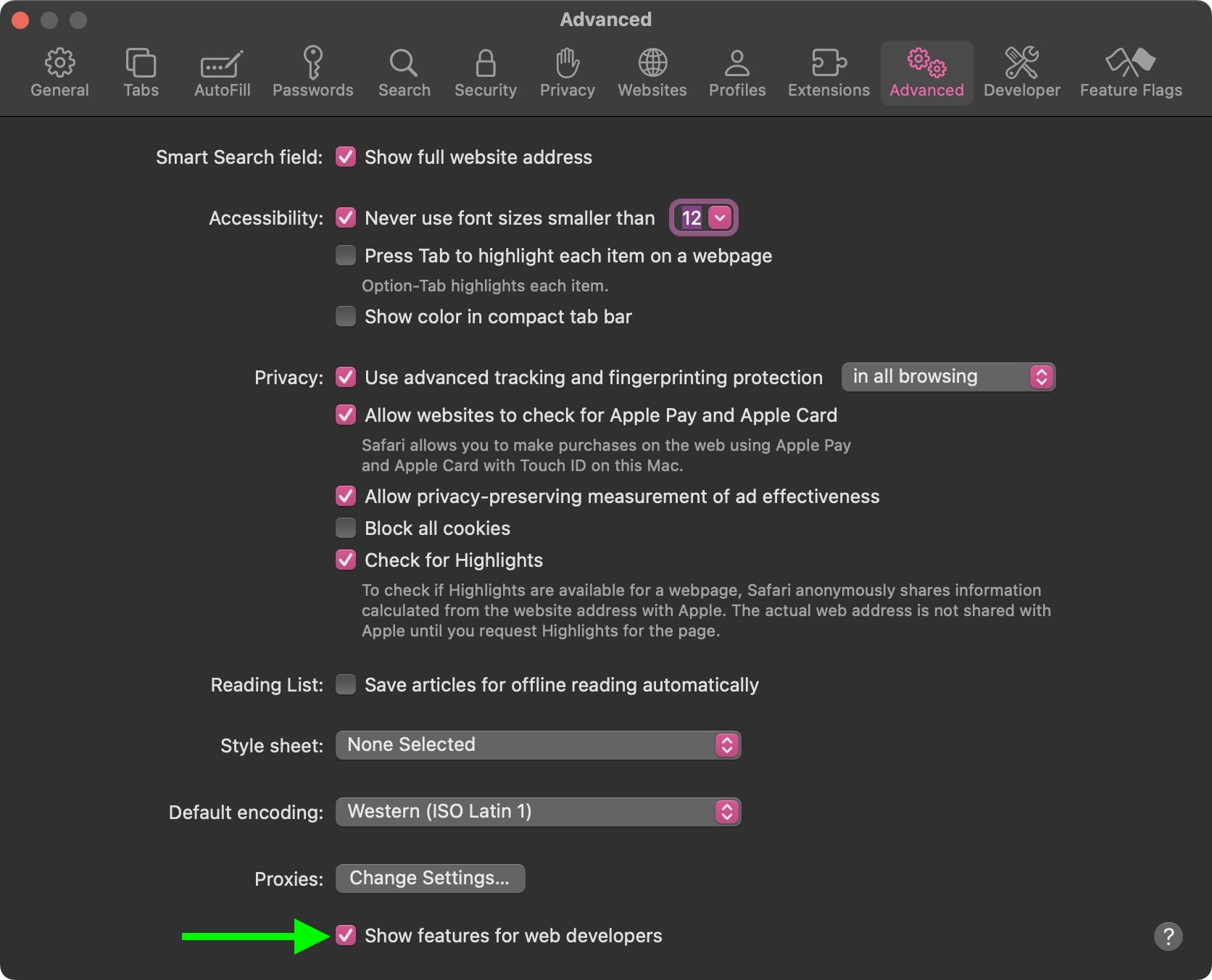
Enabling 120Hz on Mac requires a few extra steps to reveal the Feature Flags menu.

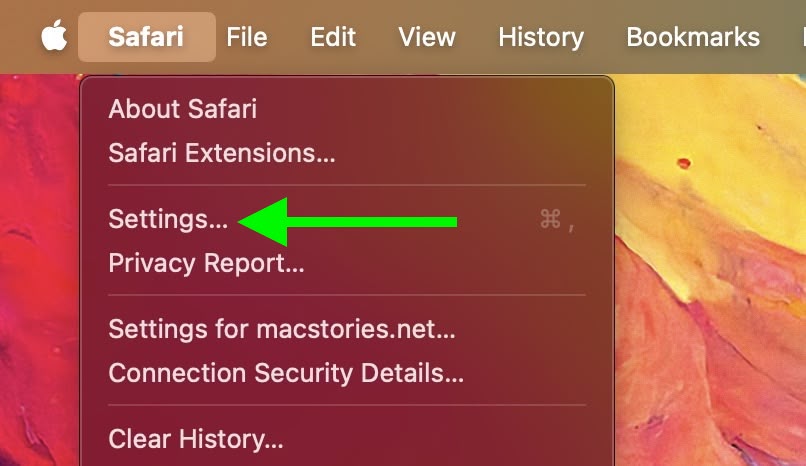
  1. Open Safari, then click Safari in the menu bar and choose Settings....
    3macos-safari-120hz-refresh.jpg

    Click the Advanced tab.
  2. At the bottom of the pane, check the box next to Show features for web developers.
    2macos-safari-120hz-refresh.jpg

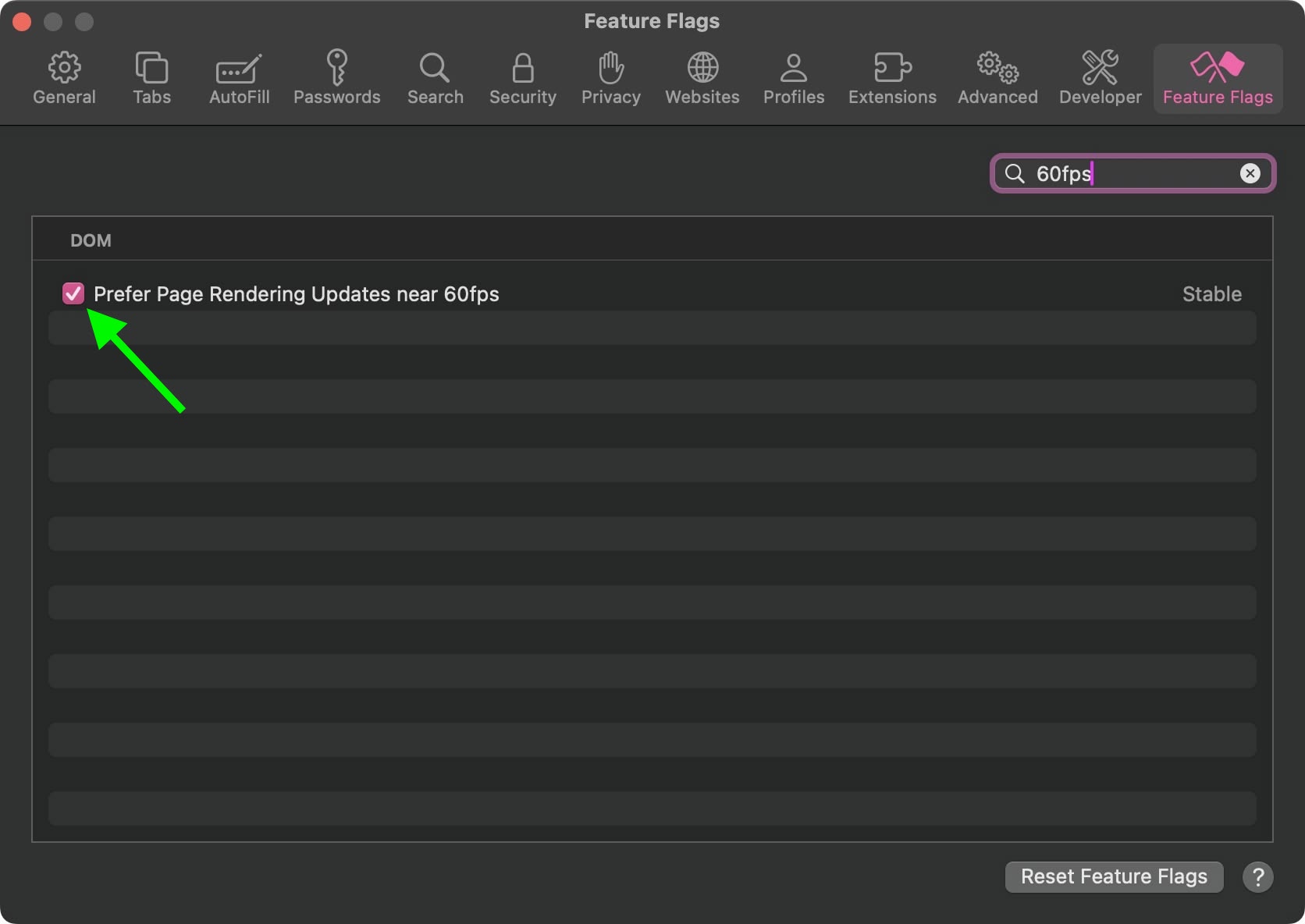
    A new Feature Flags tab will appear in the toolbar – click it.
  3. In the search field at the top right, type 60fps.
  4. Uncheck Prefer Page Rendering Updates near 60fps.
    Quit Safari completely and reopen it.
    1macos-safari-120hz-refresh.jpg

This works on any Mac with a ProMotion display, which includes the 14-inch and 16-inch MacBook Pro models introduced in 2021 and later. If you have external displays connected to your Mac that are capable of refreshing at 120Hz, they should also benefit from the change.

Kudos goes to MacStories for unearthing the 120Hz scrolling tip recently shared by developer Matt Birchler.

Article Link: Enable Smoother 120Hz Browsing in Safari

So there are like a hundred "feature flag" settings and I have practically no idea what any of those do - can we get a guide on those please?
 
  • Like
Reactions: Rade0
It will probably only scroll smoother if a website uses rAF to re-implement scrolling. The correct way to handle that is not to enable this feature, but to fire the developer who did that.
 
I can usually tell a difference between 60 and 120, it’s easy to compare on the Home Screen or other apps by toggling low power mode. But in safari I’m not seeing a difference regardless of how I have this setting set; are we’re sure we know how this “feature” works? The toggle says “prefer,” not force. I wonder if someone at macrumors was just poking around in settings and saw this, and wrote an article assuming they knew what it meant. I’d like to see some documentation from Apple explaining it because my eyes aren’t seeing the difference
Exactly this. I'm toggling it on and off to see any difference, but on my 15 Pro it looks exactly the same (it looks like 120 Hz even if the toggle is on). I suppose there is more "IFology" under the toggle.
 
  • Like
Reactions: BugeyeSTI
I thought this was the reason we even had 120hz
120Hz is used for when the animation system needs to redraw at 120 frames per second. Mostly for fast games, but it’ll also use up to 120Hz at the start and end of scrolling when the content is moving fast enough that it would benefit from higher redraw rate, but not so fast that you can’t read the text anyway.
 
So there are like a hundred "feature flag" settings and I have practically no idea what any of those do - can we get a guide on those please?
They’re intended for use by developers. Here’s the documentation on them. [Changing Feature Flag settings in Safari on macOS | Apple Developer Documentation](https://developer.apple.com/documentation/safari-developer-tools/feature-flag-settings)
 
  • Like
Reactions: jz0309
Battery life. Most people don't need 120hz to read static webpages.

I thought the whole point of ProMotion was it dynamically adjusted from 120hz down to 1hz. It’s the reason the Pros used to get better battery life than the regular iPhones as they were stuck at a permanent 60hz.

When I scroll in Safari, especially when fast, it should be 120hz period.
 
I know it can be disabled, but the iOS 26 safari tab management made me switch to chrome. Safari is still smoother. Wish I could have the best of both worlds.
 
The scrolling is in fact 120hz (or up to it) - the article is wrong - this setting only impacts animations.

Exactly, putting my Pro side to side with a 13 Mini the difference is obvious, without toggling that setting. It would be stupid to have promotion disabled only in Safari by default, doesn’t make any sense.
 
Battery life. Most people don't need 120hz to read static webpages.
Agreed.

Unless I am playing a game, or doing graphics work that requires it, I have Pro-Motion disabled on all devices, as well as disable variable refresh on my Android phones. Actually has made a difference in my personal tests.

Can I see a bit of choppy activity when scrolling? Yes! Does it bother me? No!

I collect and use many older apple systems, if choppy scrolling bothered me, then I could never live with myself when playing on my old OS9 systems.
 
  • Like
Reactions: ignatius345
This is absolutely hilarious. Everyone who thought scrolling was so much smoother, was using 60hz all along. I have never used this acronym but now is the time: LMAO
I think I’m one of these people. I enabled this feature on Safari on my 15 Pro just for kicks. I literally cannot tell the difference. Switching it back in case it saves battery life.
 
This is absolutely hilarious. Everyone who thought scrolling was so much smoother, was using 60hz all along. I have never used this acronym but now is the time: LMAO
They were right. I have a 16e but used to have a 13 Pro and the scrolling was noticeably smoother without toggling this setting. Also, read a couple comments before yours: “Exactly, putting my Pro side to side with a 13 Mini the difference is obvious, without toggling that setting. It would be stupid to have promotion disabled only in Safari by default, doesn’t make any sense.”

Edit: As someone else mentioned, this toggle only applies to animations, not scrolling.
 
Is battery life really that much worse?

It will depend on how much browsing in Safari you do, and even on which webpages you’re browsing.

But this setting exists for a reason: Apple likely wouldn’t have been able to meet their battery life claims for the iPhone and Mac without it.
 
i see zero difference on the iphone.


On mac Im not sure either. But it sure is the same jittery vsync hell as before when using smooth scroll via mos.

In fact, Vivaldi is the only browser with smooth presentation when using smooth scrolling. Firefox does better than Safari but Vivaldi (and probably chrome) wins hands down.
 
I’m pretty sensitive to frame rate, but on a 17 Pro the difference if there is any is not significant. I’d think it would be more visible than that which makes me wonder if either my eyes aren’t as sensitive as I thought or if framerate with it on is model dependent. Low power mode is certainly noticeable, though.

In any case, not worth the battery hit if I can’t tell the difference.

I did find a couple of unusual codecs that are turned off by default in that list, so it’s nice to know I can now use Matroska in Safari if the need ever arises.
 
Are you f kidding me?!?!? I spend majority of the time on Safari and it wasn't 120?? I don't see any difference now tho
 
Register on MacRumors! This sidebar will go away, and you'll see fewer ads.