Become a MacRumors Supporter for $50/year with no ads, ability to filter front page stories, and private forums.

VelcroFace

macrumors newbie
Original poster
I like to keep my files locally and use iCloud only as backup… and to synchronize with my other devices. Since I upgraded to Tahoe, everything in my Documents and Desktop folders has been moved to iCloud. This is supposed to happen only when my drive runs out of space. At the moment, there is 190 GB available.

It’s a simple matter to right-click on a folder and select “Download Now.” The very next morning, though, all those files have been moved back to iCloud.

I don’t like trusting my data only to iCloud. I use Time Machine and iDrive as secondary backups. However, after iCloud has done its work, there is nothing left for iDrive to upload.


Michael
 
Last edited:
Since I upgraded to Tahoe, everything in my Documents and Desktop folders has been moved to iCloud.
This is normal how it is has always been. iCloud is not "extra space" for when your SSD is full. It's a complete copy of everything on your Mac. Your data should exist in both places and stay synchronized automatically.

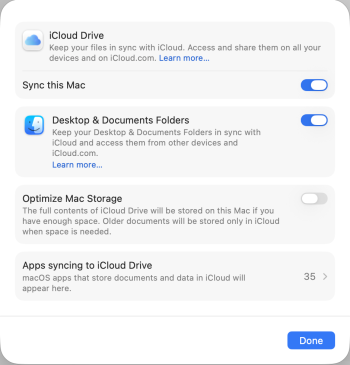
The choice to "Optimize Mac Storage" is for when you don't have the local space to store everything. Turning it on keeps only recently used files on your Mac.

Here are my settings. I have a large enough SSD to hold everything, so I keep this setting off. My data exists in full both locally and on iCloud. If I turned "Optimize Mac Storage" on, it wouldn't change anything.

Screenshot 2026-02-27 at 9.42.36 AM.png
 
This is normal how it is has always been. iCloud is not "extra space" for when your SSD is full. It's a complete copy of everything on your Mac. Your data should exist in both places and stay synchronized automatically.

The choice to "Optimize Mac Storage" is for when you don't have the local space to store everything. Turning it on keeps only recently used files on your Mac.

Here are my settings. I have a large enough SSD to hold everything, so I keep this setting off. My data exists in full both locally and on iCloud. If I turned "Optimize Mac Storage" on, it wouldn't change anything.

View attachment 2608222
I also have this set up but I worry any sync mishaps could accidentally delete files and I wouldn’t be aware of it.

Or is that just paranoia? I’m contemplating turning off iCloud Drive for that reason.
 
If I turned "Optimize Mac Storage" on, it wouldn't change anything.
That’s just it. There is plenty of space on my SSD. And yet, iCloud wants to move everything to the cloud. Every day, I have to download it all over again. I’ve been on a Mac for nine years, and this never happened with any previous OS.
 
I also have this set up but I worry any sync mishaps could accidentally delete files and I wouldn’t be aware of it.

Or is that just paranoia? I’m contemplating turning off iCloud Drive for that reason.
I don’t think that files would be deleted. If so, it would be a terrible bug that would have went discovered by now.
 
That’s just it. There is plenty of space on my SSD. And yet, iCloud wants to move everything to the cloud. Every day, I have to download it all over again. I’ve been on a Mac for nine years, and this never happened with any previous OS.
You’re saying that all of your local files are deleted every day?
 
  • Like
Reactions: Starfia
Hi, VelcroFace –

It also took me a little time to understand what you meant there. I think you mean your files from the Desktop and Documents folders aren't just backed up to iCloud, but the local copies are repeatedly removed from your Mac.

There's only one thing that comes to mind, related to a previous major macOS upgrade. After I'd made the upgrade, I found my main drive, which should have had over 100 gigs free, was acting as though it was practically full, and, as a result, I'd get extremely slow performance and a crash less than 15 minutes after a restart. That would result in another restart, and another imminent crash. (Sadly, it was only one of two or three major issues with that upgrade.)

I believe the problem turned out to be that local Time Machine snapshots had somehow gone off the rails during the upgrade, filling the remaining space in a way that was difficult to detect without investigating. If I recall, some Terminal command purged them.

I don't know whether that's what's happening to you, but an actually-but-not-apparently full drive would be a reason that iCloud Drive would retain the remote copies of your Documents and Desktop folders while removing the local ones. Maybe one more thing to attempt to rule out.
 
  • Like
Reactions: VelcroFace
Thanks for the ideas and suggestions. I decided to simply turn off “Optimize Mac Storage.”

Since then, some other issues have cropped up. I’m now forced to reformat and reinstall everything, due to some file corruption. Wondering if I should’ve stayed with Sequoia.
 
Thanks for the ideas and suggestions. I decided to simply turn off “Optimize Mac Storage.”

Since then, some other issues have cropped up. I’m now forced to reformat and reinstall everything, due to some file corruption. Wondering if I should’ve stayed with Sequoia.
turn off “Optimize Mac Storage.” -> that's the safest choice and the most understandable, so you know where your files are. Sorry you have to reformat and reinstall everything.
 
Hi, I also have an issue with iCloud Drive-Documents and Desktop. I never really liked iCloud drive- It's not intuitive at all and sometimes buggy. Anyway, I turned on sync Documents and Desktop in system settings as I needed to sync a few documents but it's actually the whole folder they are syncing with is not what I want so I turned this option off, and I tried several times to delete the 2 folders in my Finder (in iCloud Drive) and as soon as I delet them, they re-appear. What can I do? It takes up space and it's annoying. If you have tips. please share them. Thanks a ton!
 
Register on MacRumors! This sidebar will go away, and you'll see fewer ads.