
Got a tip for us?
Let us know
Become a MacRumors Supporter for $50/year with no ads, ability to filter front page stories, and private forums.
iMac 27" SSD Upgrade - Important Tip!
- Thread starter NATO
- Start date
- Sort by reaction score
You are using an out of date browser. It may not display this or other websites correctly.
You should upgrade or use an alternative browser.
You should upgrade or use an alternative browser.

Sensamic
macrumors 68040
Here is someone who did what I want to do and explained the results:
http://forums.mactalk.com.au/28/82842-ssd-firewire-800-enclosure.html
If I understand correctly, the OS and applications go faster on the external SSD than with the internal HDD of the imac. However, the reads/writes dont improve much because of the limits of FW800.
What confuses me is the reads/writes. What do they affect exactly? Will they cause the OS and applications to slow down or something?
The reads/writes are only for when you transfer files from an external HDD to your internal HDD and around, right?
So, resuming: the SSD in an external enclosure works faster and better for OS and applications than the internal HDD, but works the same as the internal HDD for transfer of files between different drives, right?
http://forums.mactalk.com.au/28/82842-ssd-firewire-800-enclosure.html
If I understand correctly, the OS and applications go faster on the external SSD than with the internal HDD of the imac. However, the reads/writes dont improve much because of the limits of FW800.
What confuses me is the reads/writes. What do they affect exactly? Will they cause the OS and applications to slow down or something?
The reads/writes are only for when you transfer files from an external HDD to your internal HDD and around, right?
So, resuming: the SSD in an external enclosure works faster and better for OS and applications than the internal HDD, but works the same as the internal HDD for transfer of files between different drives, right?
You're right that the OS and apps will speed up, but the sustained transfer could be a little lower. Most of the time you are doing sustained transfers is from USB, FireWire or network, so they couldn't be faster than that anyway!
You can't fit a 3.5" drive in the optical bay, only 2.5" and you should have some kind of enclosure for it.
You can't fit a 3.5" drive in the optical bay, only 2.5" and you should have some kind of enclosure for it.
Sensamic
macrumors 68040
So finally today I received my SSD!! I've got to say I'm very impressed. Using it externally as the main drive is a great option if you dont want to open up the imac.
The OWC SSD is really good. The OS and apps open more quickly than with the internal hard drive of the imac. Sustained transfer speed is the same as the imacs drive. I havent found it slower nor quicker. It is basically the same. Installing apps is faster, but the best part is that now my imac is COMPLETELY quiet. It is so so good. Im here now, at night, and I cant even hear the fans. The SSD makes no noise at all. No vibration, either. It has been on for over 5 hours and it hasnt get warm at all. Amazing.
Im very happy I didnt need to open the imac. I didnt want to go through all the trouble. This way is simpler. The external enclosure is really cool. Looks amazing with its transparency and the blue led.
Ive got to give 10/10 to OWC and its product. Its better than I expected.
I really recommend this option for those who dont want to open the imac and are looking to make it quieter. You wont get the amazing speeds of the SSD in sustained transfer rates, but you get other benefits, such as complete silence and faster boot times and app loading times. Elsewhere, the speed overall is exactly the same as with the internal 7200rpm hard drive.
Im so happy I dont hear the f***** seagate hard drive noise any more!! 😀😀😀😀 Now I can work in complete silence as I need to.
The OWC SSD is really good. The OS and apps open more quickly than with the internal hard drive of the imac. Sustained transfer speed is the same as the imacs drive. I havent found it slower nor quicker. It is basically the same. Installing apps is faster, but the best part is that now my imac is COMPLETELY quiet. It is so so good. Im here now, at night, and I cant even hear the fans. The SSD makes no noise at all. No vibration, either. It has been on for over 5 hours and it hasnt get warm at all. Amazing.
Im very happy I didnt need to open the imac. I didnt want to go through all the trouble. This way is simpler. The external enclosure is really cool. Looks amazing with its transparency and the blue led.
Ive got to give 10/10 to OWC and its product. Its better than I expected.
I really recommend this option for those who dont want to open the imac and are looking to make it quieter. You wont get the amazing speeds of the SSD in sustained transfer rates, but you get other benefits, such as complete silence and faster boot times and app loading times. Elsewhere, the speed overall is exactly the same as with the internal 7200rpm hard drive.
Im so happy I dont hear the f***** seagate hard drive noise any more!! 😀😀😀😀 Now I can work in complete silence as I need to.
Another question I couldnt seem to find:
Would I need any sort of enclosure if I wanted to put a 3.5'' HDD (no SSD) in the optical bay? Still trying to gauge what kind of use I'd be able to get out of an iMac.
No room for 3.5" HDD in optical bay.
Can't boot from ssd
Hi guys,
I just replaced the DVD drive in my 27" i7 iMac with a speedy ssd drive. Before putting the drive in the iMac, I installed Snow Leopard on it from my MacBook Pro.
When I first restarted my iMac, it booted from the main hard drive. I went in Startup preferences and changed the boot drive to ssd. After rebooting, I see the apple logo but it's stuck there, no spinning wheel.
I figured, a pram reset wouldn't hurt, but it didn't help. Then I tried to reinstall OSX from the external USB DVD drive I bought (Asus) but booting from it hangs.
What's funny is that both drives are recognized and work just fine when I boot from my main iMac hard drive, so they're installed correctly.
Has anybody seen this? What could it be?
Thanks!
Hi guys,
I just replaced the DVD drive in my 27" i7 iMac with a speedy ssd drive. Before putting the drive in the iMac, I installed Snow Leopard on it from my MacBook Pro.
When I first restarted my iMac, it booted from the main hard drive. I went in Startup preferences and changed the boot drive to ssd. After rebooting, I see the apple logo but it's stuck there, no spinning wheel.
I figured, a pram reset wouldn't hurt, but it didn't help. Then I tried to reinstall OSX from the external USB DVD drive I bought (Asus) but booting from it hangs.
What's funny is that both drives are recognized and work just fine when I boot from my main iMac hard drive, so they're installed correctly.
Has anybody seen this? What could it be?
Thanks!
That's exactly what I have. Any other idea?
You need to make sure you use
Partition Map Scheme : GUID Partition Table
You'll need to erase/format the drive to change this.
I don't really understand why, but upgrading from 10.6.0 to 10.6.4 worked. I put the iMac in target mode and booted off the SSD from my Macbook Pro (which booted way fine and fast). Then, I simply upgraded.
Thanks so much!
Now I have another problem though if you want to stick with me 🙂 My optical fan is way faster than it should. I taped the sensor directly ON the SSD drive. This seems to be the recommended way. Is there anything else I could do to make the fan behave better?
Thanks again!
Thanks so much!
Now I have another problem though if you want to stick with me 🙂 My optical fan is way faster than it should. I taped the sensor directly ON the SSD drive. This seems to be the recommended way. Is there anything else I could do to make the fan behave better?
Thanks again!
Check it's the latest version of Mac OS X (10.6.3 at least).
Otherwise reinstall by making a partition on the internal drive and restore the DVD to that, which you can then boot from.
The iMac was released with 10.6.x with custom drivers. The general release of 10.6.x+1 included these drivers, so anything below 10.6.x+1 would not boot the iMac.
I've just stuck the sensor on my SSD and iStat says the ODD fan is going at 998rmp. I have no idea what's normal, but it's not loud so I'm leaving it alone. You may be able to control it better with SMC but I don't have any further info on how to do this.
I've just stuck the sensor on my SSD and iStat says the ODD fan is going at 998rmp. I have no idea what's normal, but it's not loud so I'm leaving it alone. You may be able to control it better with SMC but I don't have any further info on how to do this.
The iMac was released with 10.6.x with custom drivers. The general release of 10.6.x+1 included these drivers, so anything below 10.6.x+1 would not boot the iMac.
This seems to be the case indeed. I can boot just fine from the external DVD drive if I use the installation DVD that came with my iMac. Retail Snow Leopard (10.6.0) doesn't boot, either installed or from the DVD.
I thought I'd follow up on this, I figured it might help other people in the future.
I just reinstalled OSX from my external DVD drive using the discs that came with my iMac and:
- The installation disc booted perfectly
- Installation was flawless
- After installation, the SSD drive booted normally
- No more loud fan!
So it seems that in order to avoid problems, you should ALWAYS use the discs that came with the computer and NOT the retail discs.
All my problems seem to have gone away, and my 27" i7 is now REALLY speedy. The difference is incredible.
I just reinstalled OSX from my external DVD drive using the discs that came with my iMac and:
- The installation disc booted perfectly
- Installation was flawless
- After installation, the SSD drive booted normally
- No more loud fan!
So it seems that in order to avoid problems, you should ALWAYS use the discs that came with the computer and NOT the retail discs.
All my problems seem to have gone away, and my 27" i7 is now REALLY speedy. The difference is incredible.
SSD at the superdrive location
Hi cmer (and others),
I would like to put a SSD drive at the optical drive location, on my 27" iMac (core i7).
I've already replace a HDD on a 24" iMac alu, but I would prefer to have any visual information before starting this replacement.
So do you know any tuto with pictures to do that, or any advice ?
Which SSD did you chose ? And which caddy ?
Thank you 🙂
ps : sorry for my english I'm french 😀
Hi cmer (and others),
I would like to put a SSD drive at the optical drive location, on my 27" iMac (core i7).
I've already replace a HDD on a 24" iMac alu, but I would prefer to have any visual information before starting this replacement.
So do you know any tuto with pictures to do that, or any advice ?
Which SSD did you chose ? And which caddy ?
Thank you 🙂
ps : sorry for my english I'm french 😀
Anyone know where I can purchase a converter like this online? I looked everywhere and can only find male sata to female slim sata converter. Any links would be appreciated. Thank you 🙂
a very cheap method is following:
Additional to this post, please have a look on my last post with many other pictures:
https://forums.macrumors.com/posts/8927668/
yesterday i opened my i5 again and tested following adapter (SLIM-SATA --> SATA), appr. 10 Euro / 14 USD
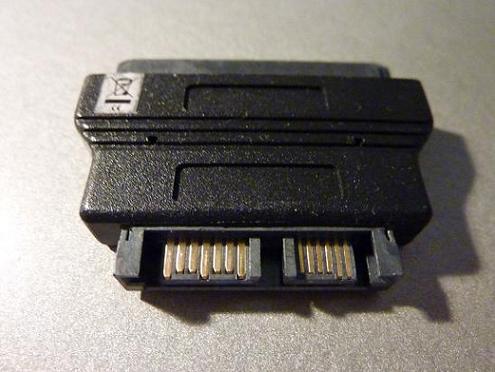
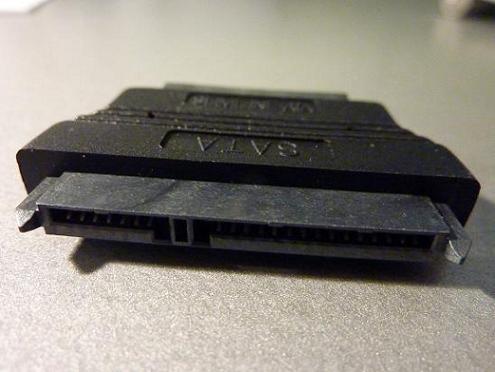
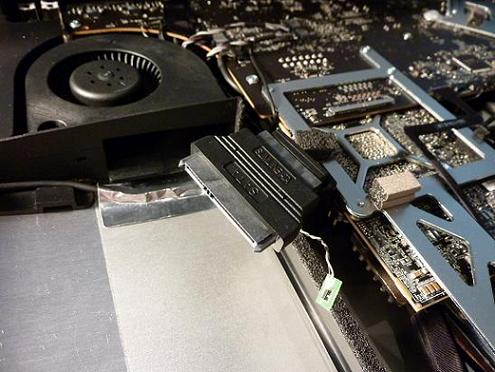
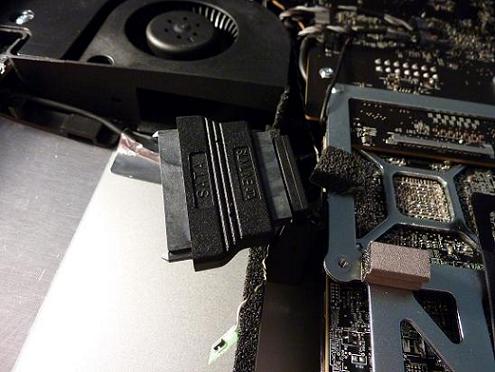
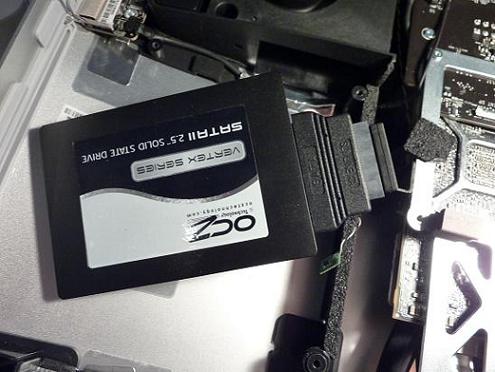
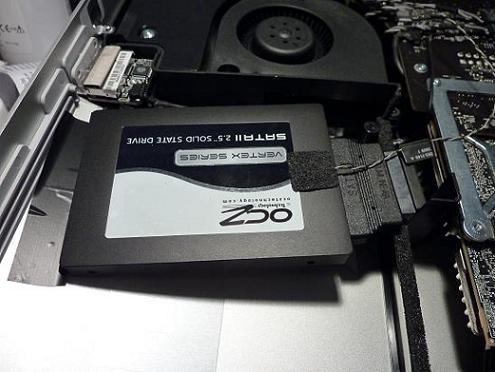
If you didn´t move or pull your imac, you can fix the ssd with tape, but it´s not recommended.
With new and cheap adapter everything works perfect.
Silent and fast system
🙂
Optical Drive kit confirmed to work with 27"
I called ifixit regarding the kit and they would not certify it to work with anything other than MacMini's.
Part #SZ-IMACOPT-01
from http://www.maxupgrades.com/istore/index.cfm?fuseaction=Product.display&product_id=208
is what I used with my 1 week old 27" Imac.
yes, replacing the optical drive is quite easy, especially with this:
http://www.ifixit.com/Apple-Parts/12-7-mm-SATA-Optical-Bay-SATA-Hard-Drive-Enclosure/IF107-081
I called ifixit regarding the kit and they would not certify it to work with anything other than MacMini's.
Part #SZ-IMACOPT-01
from http://www.maxupgrades.com/istore/index.cfm?fuseaction=Product.display&product_id=208
is what I used with my 1 week old 27" Imac.
for anyone having trouble with the hard drive fan i unplugged my fan and i couldn't be happier with the results, it is dead quite and honest to god the temps are the same as before probably because there are two other fans (they are all under 55 and that is under very heavy workload). I am very happy with the results, just incase anyone was wondering what would happen if they disconnected the hdd fan.
Here's some more info on upgrading an 27" Imac with an SSD - the iFixit guide is pretty good but there's some things it doesn't tell you, I'll try to fill in those gaps - hopefully this will help you avoid my mistakes and should make the process quite easy.
- Preparations: SuperDuper is an easy way to backup your entire OS to an external drive (needs to be completely empty) and then restore it afterwards again to the SSD, this can take a considerable time though so better do it beforehand - backing and restoring took about 2 hours each way for 145gb of data for me (backup drive was a slow old 160gb 2.5" usb drive though)
- Lifting the glass cover is pretty easy. some cheap 3$ suction cups easily do the job and the cover is pretty light.
- Removing the sync cable with a pair of tweezers is a bit fidly, so either have a good pair of long tweezers ready or do it by hand - the display can be lifted enough to reach in.
- The sync connector only has contacts on the bottom side so it's easy to remeber which way to put it in again.
- For removing the 8 screws that hold in the screen you need a long narrow screwdriver, my T10 was part of a multitool (where you only replace the very tip) and was too wide to reach in, luckily I was able to remove the screws easily with normal type T9 screwdriver (part of a different set) that I had.
- None of the other connectors needs to be removed if you're only replacing the HD - I used a pair of paperbacks to prop the screen up, and that worked pretty well.
- First remove the sata connectors before unscrewing the HD - they sit pretty tight and if you try to do it the other way around (as I did) the HD will move around and might damage something.
- Take care when buying the 3.5" to 2.5" adapter...I had two on hand, none of which was really suitable (manage to use one, but it was a bit of a hassle...) The main point here is that the adapter needs to have holes for the same type of screws that go into 3.5" HD's...both of mine had slightly smaller ones. The spacing should also be the same as the two outermost holes on a 3.5" HD (on both of mine they were spaced more closely so I was only able to fasten one screw on each side)
The adapter also shouldn't extend too far away from the holes or it won't fit (the akasa adapter I had wouldn't fit in at all).
- An easy way to short the Temp sensor is to use a short bit of a paperclip (I used 32mm ones), just break a bit off bend it around and insert it. Inserting that is easy and it'll sit tight, just wrap some electrical tape around it and job done.
- I think disconnecting the fan as somebody mentioned might be potentially harmful - according to istatmenu that fan still runs at 1100rpm with the wire shorted, so if you disconnect the fan you'll also remove any airflow from that part of the case. The fan running at 1100rpm should be enough to cool what little heat the ssd produces as well as any other parts in that airflow path.
- When screwing the screen back in be very careful with the screws, especially at the bottom end if one slips and enters the case it's a huge hassle to get it back out again...either use a heavily magnetic screwdriver or assist with tweezers. The top end is a bit of a hassle due to the strong magnets there, well at least there's little chance with those screws disapearing into the case ;-)
As for the SSD used:
I originally planned to go with an Intel (already used a 80gb one in my macbook since the end of last year) but with about 145gb of data that I actually want to have on my primary drive that seemed a bit tight - so I went with a 240gb Mushkin Callisto Deluxe instead ( 270mb/s r/w and up to 50000 iops) so far I'm very happy - AJA reports r/w speeds around 260mb/s and that's on a decently loaded drive (145gb of data across 600'000 files)
- Preparations: SuperDuper is an easy way to backup your entire OS to an external drive (needs to be completely empty) and then restore it afterwards again to the SSD, this can take a considerable time though so better do it beforehand - backing and restoring took about 2 hours each way for 145gb of data for me (backup drive was a slow old 160gb 2.5" usb drive though)
- Lifting the glass cover is pretty easy. some cheap 3$ suction cups easily do the job and the cover is pretty light.
- Removing the sync cable with a pair of tweezers is a bit fidly, so either have a good pair of long tweezers ready or do it by hand - the display can be lifted enough to reach in.
- The sync connector only has contacts on the bottom side so it's easy to remeber which way to put it in again.
- For removing the 8 screws that hold in the screen you need a long narrow screwdriver, my T10 was part of a multitool (where you only replace the very tip) and was too wide to reach in, luckily I was able to remove the screws easily with normal type T9 screwdriver (part of a different set) that I had.
- None of the other connectors needs to be removed if you're only replacing the HD - I used a pair of paperbacks to prop the screen up, and that worked pretty well.
- First remove the sata connectors before unscrewing the HD - they sit pretty tight and if you try to do it the other way around (as I did) the HD will move around and might damage something.
- Take care when buying the 3.5" to 2.5" adapter...I had two on hand, none of which was really suitable (manage to use one, but it was a bit of a hassle...) The main point here is that the adapter needs to have holes for the same type of screws that go into 3.5" HD's...both of mine had slightly smaller ones. The spacing should also be the same as the two outermost holes on a 3.5" HD (on both of mine they were spaced more closely so I was only able to fasten one screw on each side)
The adapter also shouldn't extend too far away from the holes or it won't fit (the akasa adapter I had wouldn't fit in at all).
- An easy way to short the Temp sensor is to use a short bit of a paperclip (I used 32mm ones), just break a bit off bend it around and insert it. Inserting that is easy and it'll sit tight, just wrap some electrical tape around it and job done.
- I think disconnecting the fan as somebody mentioned might be potentially harmful - according to istatmenu that fan still runs at 1100rpm with the wire shorted, so if you disconnect the fan you'll also remove any airflow from that part of the case. The fan running at 1100rpm should be enough to cool what little heat the ssd produces as well as any other parts in that airflow path.
- When screwing the screen back in be very careful with the screws, especially at the bottom end if one slips and enters the case it's a huge hassle to get it back out again...either use a heavily magnetic screwdriver or assist with tweezers. The top end is a bit of a hassle due to the strong magnets there, well at least there's little chance with those screws disapearing into the case ;-)
As for the SSD used:
I originally planned to go with an Intel (already used a 80gb one in my macbook since the end of last year) but with about 145gb of data that I actually want to have on my primary drive that seemed a bit tight - so I went with a 240gb Mushkin Callisto Deluxe instead ( 270mb/s r/w and up to 50000 iops) so far I'm very happy - AJA reports r/w speeds around 260mb/s and that's on a decently loaded drive (145gb of data across 600'000 files)
Getting my new 27 i7 this week. Looking to replace the Superdrive with an SSD.
A few questions maybe you all can help me with.
1. Does anyone know of a speed decrease because of the Superdrive sata connection vs the HD connection?
2. Also is there a way to use that Superdrive as a portable drive?
3. Can I prep a USB drive with my Snow Leopard disc to install off of that since I will be removing the Superdrive?
Thanks Much!
A few questions maybe you all can help me with.
1. Does anyone know of a speed decrease because of the Superdrive sata connection vs the HD connection?
2. Also is there a way to use that Superdrive as a portable drive?
3. Can I prep a USB drive with my Snow Leopard disc to install off of that since I will be removing the Superdrive?
Thanks Much!
Getting my new 27 i7 this week. Looking to replace the Superdrive with an SSD.
A few questions maybe you all can help me with.
1. Does anyone know of a speed decrease because of the Superdrive sata connection vs the HD connection?
2. Also is there a way to use that Superdrive as a portable drive?
3. Can I prep a USB drive with my Snow Leopard disc to install off of that since I will be removing the Superdrive?
Thanks Much!
1. The connection speed is the same in the imac - both are 3.0 SATA.
2. No there isn't because it is slot loading. You can get a slimline dvd burner of similar spec for like $30 at newegg.
3. Yes you can, you can also copy your current install from the internal hard disk to your SSD when installed using something like SuperDuper. That of course only works if your current install is less than the size of the SSD