

Become a MacRumors Supporter for $50/year with no ads, ability to filter front page stories, and private forums.

MacRumors

macrumors bot
Original poster


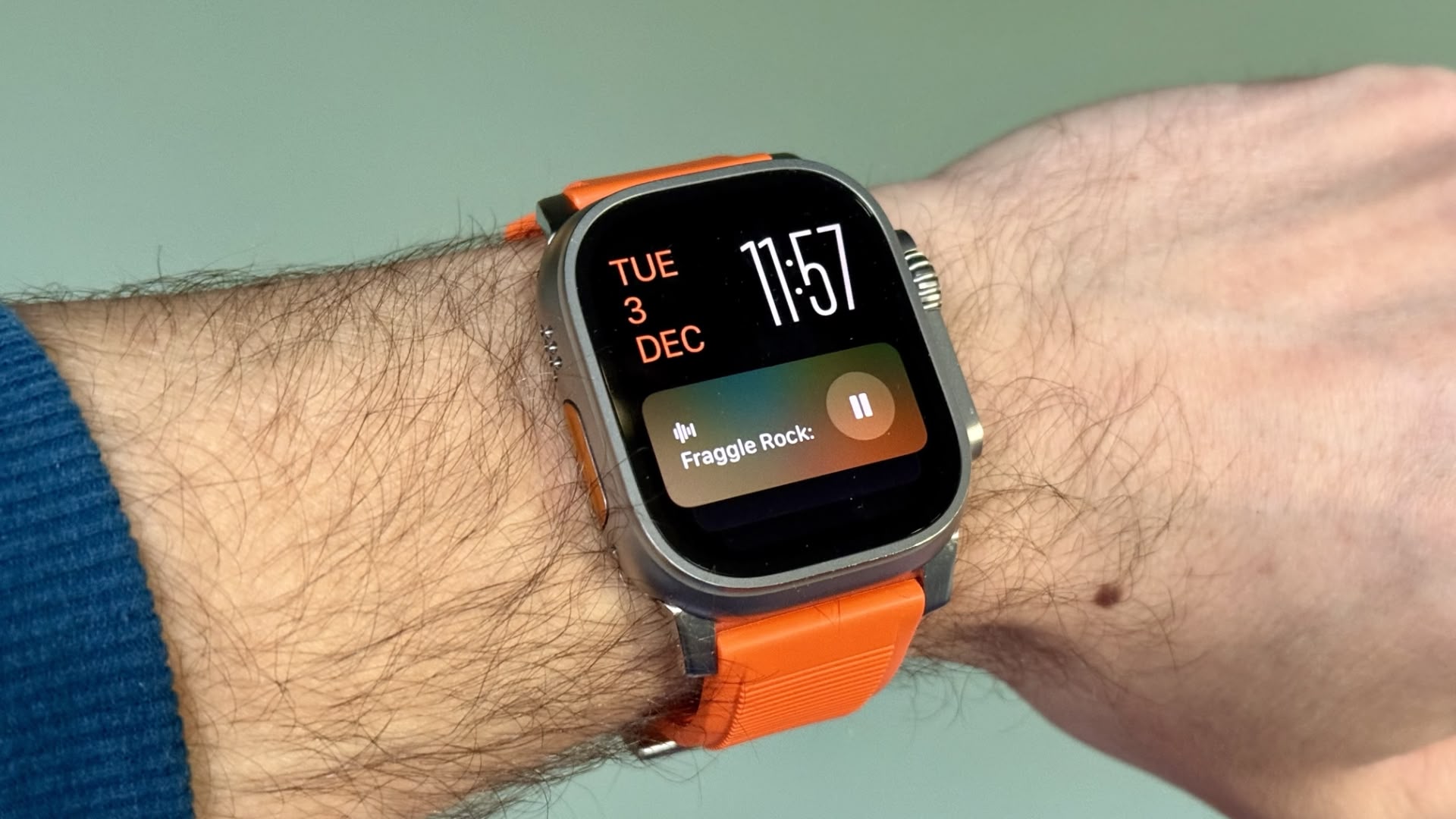
In watchOS 26, the Smart Stack for your Apple Watch is pretty clever. The collection of widgets can be pulled up with a scroll of the Digital Crown, and shows you relevant information throughout your day. But sometimes, its eagerness to help can be a bit much, especially when it comes to Live Activities.
live-activities-watch.jpg

You're probably familiar with this scenario: You raise your wrist expecting to see your customized watch face, but it's been replaced by media playback controls because someone's watching your Apple TV, or a timer you set earlier for cooking that still has ages left to run. Live Activities in the Smart Stack can clearly be useful, but having them automatically take over your display isn't always ideal. Here's how to take back control:
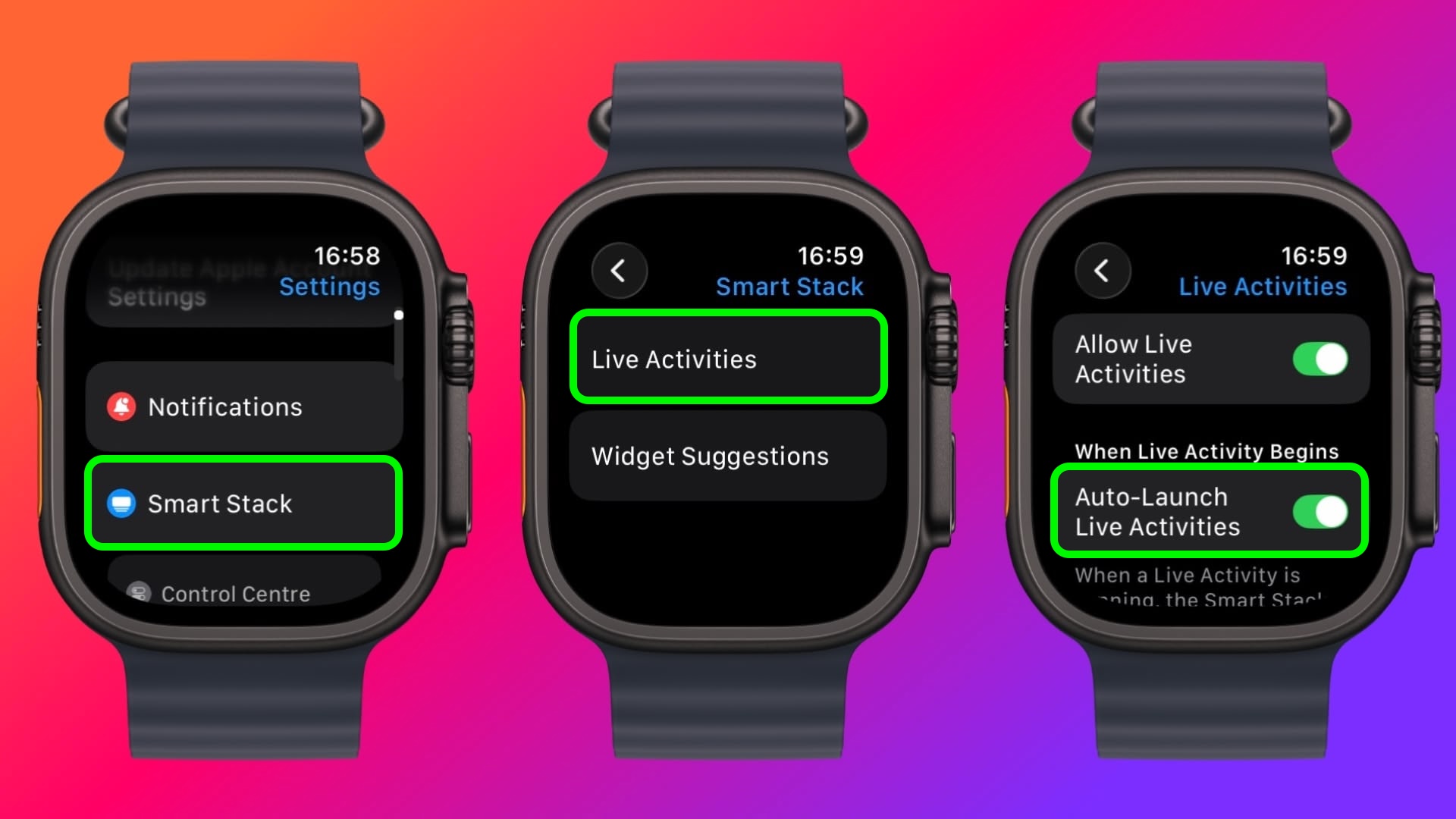
  1. Open Settings on your Apple Watch.
  2. Tap Smart Stack.
  3. Select Live Activities.
  4. Toggle off the switch next to Auto-Launch Live Activities.
live-activities-apple-watch-watchos26.jpeg


After disabling auto-launch, Live Activities will still be available in your Smart Stack when you want them – you'll just need to manually scroll to see them instead of having them pop up automatically.

If you want more granular control, you're in luck. From the same settings screen you can control which Apple apps display Live Activities. Using the Watch app on your iPhone, you can also manage Live Activities settings for third-party apps. This lets you keep the notifications you find useful while preventing the less important ones from interrupting your watch face.

Pro Tip: If it's just those persistent media controls that bug you, head to Media Apps in the same settings menu and turn off Live Activities completely, or alternatively under "Auto-Launch," select Off or Smart Stack for a more focused watch face experience.

Article Link: Live Activities Taking Over Your Apple Watch? Here's the Fix
 
  • Like
  • Haha
Reactions: Z-4195 and viggen61
My problem is still the Smart Stack automatically activating when the crown is turned accidentally. The fact they don't let you deactivate this is asinine, especially considering 1) they completely changed the core functionality of both buttons a while back, and 2) they've added so much more customization to almost everything else.
 
But the Smart Stack settings have been glitched since iOS 18. Enabling Auto-Launch for Media also enables it for Recorder, and vice versa. Try separating the two and, after about 15 attempts, the UI just freezes.

You’re welcome 😘
 
Just remember, even though you bought the watch, it is not yours. It belongs to Apple and they are so much smarter than you and they know what you should see on your watch even if you don't.
 
  • Sad
Reactions: tshane
Now please someone give me a tip on how to stop apps from annoying me to grant them push notification permission every single time I launch them. I know why they want it, I don’t want them to have it. But they just won’t stop.
 
Apple should implement a Magic Toggle to toggle off -by default- all the new settings they implement.
On my Mac, on my iPhone, on my Watch, I spend a lot of time toggling off "new" features, from Live Activities to Liquid Glass 🤢.
 
Had to jump through hoops to figure out how to disable the annoying voice updates during workouts that would disrupt my music every time I complete a mile or close a ring. Looks like Apple enabled a lot of settings by default on the 23.0 update.
 
  • Like
Reactions: Shifts
This is a very useful tip, in my case because if I join a Zoom meeting while I’m wearing my watch, according to the Live Activity the meeting never ends. Or at least not until I make a FaceTime or phone call or join another meeting.

So I’ll look down in the evening to see a staff meeting that started 10 hours ago and ended 9 hours ago still ticking up minutes.

I assume this is a Zoom bug but at least with that selected I don’t have to see it.
 
Now please someone give me a tip on how to stop apps from annoying me to grant them push notification permission every single time I launch them. I know why they want it, I don’t want them to have it. But they just won’t stop.
That’s interesting, because any well designed app should only ask once, and maybe repeat if you change some setting that requires push notifications (or microphone access, or whatever). It could be I don’t use many push notification apps, but nothing I’ve seen pesters like that.

Sadly, I think that’s entirely on the app side; the App has to know whether push notifications are on or not, and don’t think(?) the nagging is via an API that Apple could prevent it. (And if it is, then maybe something is goofed up on your install?)
 
  • Like
Reactions: CarAnalogy
The Apple Watch has become confusing - especially not having used it every day since launch of Version 0. I wore 0-3 and stopped when I didn't regularly workout anymore. Recently bought the newest Ultra and often times I find myself accidentally swiping on ****, pausing audio, splitting workouts and having overall unexpected experience.

I don't use this stack. I have selected a different watch face. Yet somehow that stack UI comes back time and time again. Maybe I have become old and stupid, or the watch has becoming complicated. 🤷
 
Or in my case, just don't update to any version that contains that ridiculous "Smart Stack" feature in the first place. I wouldn't care if they would just let you turn it off and stop robbing the watch of a gesture (besides the infuriating removal of the Dock – which I use every day).
 
You're probably familiar with this scenario: You raise your wrist expecting to see your customized watch face, but it's been replaced by media playback controls …
Too familiar with this:
Media playback controls sometimes showing when the iPad is playing a podcast or any other audio source and sometimes not. When I use the iPad for that purpose I want the watch always to replace the face. I wished I knew what causes this erratic behavior. I am thinking maybe the room temperature …
 
  • Like
Reactions: Weezus410
Actually, I didn’t ever think about disabling some of them. I’m going to do that with the timer. It’s always popping up and getting cancelled accidentally, and then I either miss it or have to guess about how much time is left.


In watchOS 26, the Smart Stack for your Apple Watch is pretty clever. The collection of widgets can be pulled up with a scroll of the Digital Crown, and shows you relevant information throughout your day. But sometimes, its eagerness to help can be a bit much, especially when it comes to Live Activities.

live-activities-watch.jpg

You're probably familiar with this scenario: You raise your wrist expecting to see your customized watch face, but it's been replaced by media playback controls because someone's watching your Apple TV, or a timer you set earlier for cooking that still has ages left to run. Live Activities in the Smart Stack can clearly be useful, but having them automatically take over your display isn't always ideal. Here's how to take back control:
  1. Open Settings on your Apple Watch.
  2. Tap Smart Stack.
  3. Select Live Activities.
  4. Toggle off the switch next to Auto-Launch Live Activities.
live-activities-apple-watch-watchos26.jpeg


After disabling auto-launch, Live Activities will still be available in your Smart Stack when you want them – you'll just need to manually scroll to see them instead of having them pop up automatically.

If you want more granular control, you're in luck. From the same settings screen you can control which Apple apps display Live Activities. Using the Watch app on your iPhone, you can also manage Live Activities settings for third-party apps. This lets you keep the notifications you find useful while preventing the less important ones from interrupting your watch face.

Pro Tip: If it's just those persistent media controls that bug you, head to Media Apps in the same settings menu and turn off Live Activities completely, or alternatively under "Auto-Launch," select Off or Smart Stack for a more focused watch face experience.

Article Link: Live Activities Taking Over Your Apple Watch? Here's the Fix
THANK YOU!
 
Register on MacRumors! This sidebar will go away, and you'll see fewer ads.