I've seen no mention about this but Dictation & Speech has been MASSIVELY changed. On Yosemite, Dictation is used on a text field (you can't invoke it outside one) and all actions are related to text editing, formatting, selection and navigation.
On El Capitan, you can invoke Dictation outside a text field. You have all the functions present in Yosemite plus a lot of other system functions, app-specific functions and window-specific functions.
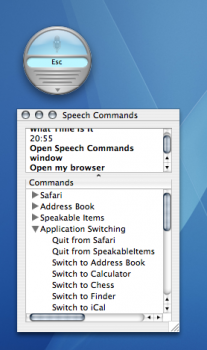
For example, when you say "Show commands" you get a list of all commands (same as in Yosemite). This is what it lets you do in Finder (with no file selected):
This is in TextEdit (when writing something):
And here is in Safari (no text selected):
I can confirm that it's easy to use voice to order the computer around. You can hide, open and close apps ("Hide/show/close System Preferences") and windows ("Hide/open/close window"), go to menu bar items ("Open/close Apple/File/View/Help menu") and you can navigate the user interface (just read the name of the button, for example while reading MacRumours you could say "Click Buyer's Guide" to click on the button named Buyer's Guide; you can also ask to scroll up, down, to top and to bottom).
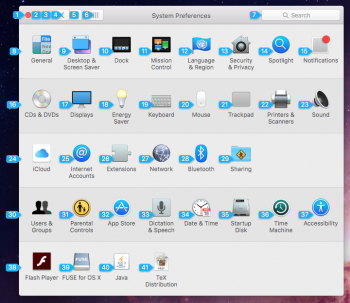
"What if the two buttons appear with the same name?", you ask. Just say "Show numbers" which will label each button with a number and then say "Click <number>" like "Click 2". Below check how System Preferences is visually labelled with numbers (if you wanted to open Mission Control, you could say either "Click Mission Control" or "Click 11"):
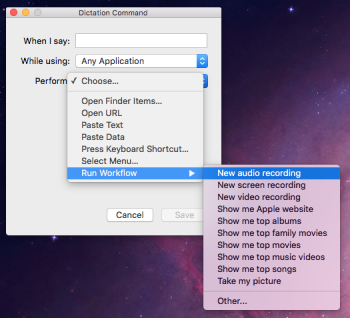
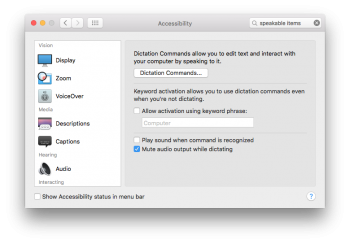
EDIT: you can also create Dictation commands by saying "Make this speakable" which will bring the following wizard to create your own commands (you could also do this through Automator since Yosemite).