Become a MacRumors Supporter for $50/year with no ads, ability to filter front page stories, and private forums.
One important thing that you don't mention; APFS snapshots can be created by any application, because its a part of the file system itself. You can even create and manage snapshots manually in Terminal app. Therefore, it's not like macOS manages all snapshots. I guess if you only have Time Machine creating snapshots on your system, it is true that macOS will take care of them and delete them for you when necessary, and you can "forget about it" to an extent.

I don't use TM. I use CCC for maintaining backup clones, and I have it set to create snapshots on the clones only, to not have my system drive fill up with them. I can set them to be deleted after a certain time, or delete them manually. MacOS never touches them.

My bonus tip:
People coming from windows to mac often think that the Finder doesn't support copy/paste of files like windows explorer. But it does. Select a file and copy, cmd-C - navigate to a different folder and paste. The file(s) will be copied there. Add option to the paste command, opt-cmd-V, and the files will be moved to the new location.
I was wondering how to copy-paste files on macOS and this helped. Thank you! (Yes, I'm a Windows refugee.)
 
  • Like
Reactions: genexx and Ben J.
I will thank each of you individually, but off the top - SUCCESS!

245 GB available now! Amazing!

I don't know why, but all the while, last night, while in Disk Utility, I somehow could not see in the 'view' drop down the option to 'show APFS snapshots'. Until this morning! Then I clicked on the '...', and delete worked, and I have the desired result.

Not that you need to know my personal business, but I've been stressed to the max. Won a legal battle with a condo where they would not fix a common element leak they were responsible for that destroyed much of our condo, for months. A two year battle from the day we moved in. Now resolved, condo sold in a depressed market, but proceeds in the bank, have a nice apartment now. So much work to get here. Then my 6 lb 17 year old amazing Yorkie I had to put down on March 28th, almost a month now, a huge loss, unbelievably sad, but getting another one in the next few weeks. Firefox failed on this M2 while in the midst of buying investments, could not solve it, so had to go with my second choice of browsers (Safari) and re-establish all my banking bookmarks and passwords. Took a lot of work. And my hearing is going and I have full tinnitus with no solution in sight and one of my first loves (stereo) is now not as fun. The joys of approaching the age of 70.

But the forum has really come through for me and I really appreciate that!

Ben - right from the start, solid, patient advice! Thank you!

V0lume4 - thanks for the suggestion!

eddjedi - thank you!

genexx - a lot of amazing interesting details, I appreciate that!

Alameda - Time Machine 'is not enabled', I've always hated it. It might be SuperDuper backup that is doing it, but that's never been the case with SuperDuper, and this snapshot issue doesn't exist on my 2018 Intel, on my M2, on my MacBook.

What Ben J. added to genexx - APFS snapshots can be created by any application - fascinating. So I never spent much time observing remaining space on my drive, it always seemed to improve whenever I cleaned out files in Photos or Music. I bought the 2018 Mac Mini used with a tiny internal drive in 2018, much of the drive was taken up by 'Other' and that was easy to recover. Staying with Sequoia now, Roon and MinimServer etc are now stable for serving music around the apartment, and, well, I hate the look of aqua. Icons look stupid on my iPhone. But that's another matter for another day.

Thank you MacRumour Community!

Dave

 
  • Like
Reactions: eddjedi and Ben J.
Dave. That's great to hear! Snapshots will never cause problems for you again, now that you know how to delete them. A little moment of joy in your life with its many challenges perhaps.

When you get over this little hill, and feel ready to move on, I suggest you check the Superduper manual on how it's handling snapshots, if it does. Next maybe, try to get to know the new structure of macOS boot structure with its 'signed system volume', SSV, which is very different from the old OSX days. Important to understand.

I wish you all the best.
 
Thank you. I purchased it again last night and it could not recover the 188.1 GB it said it would/could delete, so (before success was achieved today) I sent them a request to dig deeper and tell me how to get the remaining 188 GB removed.
 
  • Love
Reactions: turbineseaplane
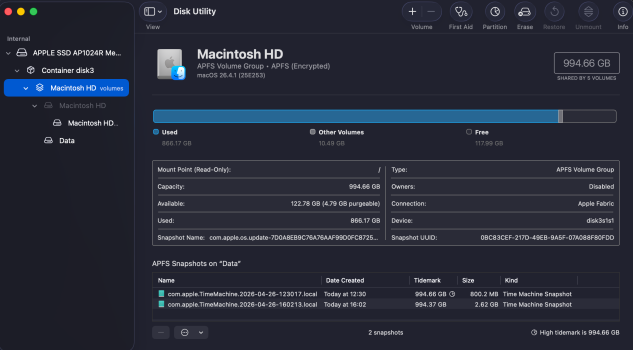
Glad you got it sorted! It does seem like odd behaviour, as you can see in my previous screenshot, my two snapshots took up almost the entire of my remaining disk space, but still showed 100GB+ left in Finder, and has never warned me that I'm running out of disk space or prevented updates etc. As you can see below, I just backed up to Time Machine (for the first time in a few months) and those huge snapshots have gone, now I've just got a couple of small snapshots, and my actual remaining disk space is showing in Disk Utility.

I wonder if not using Time Machine is causing this issue? Maybe your alternate tool still generates the snapshots but doesn't manage them effectively? Still, at least now you know how to manually delete them.

Screenshot 2026-04-26 at 16.20.04.png
 
I highly recommend DaisyDisk to track this stuff down.
It's been covered in the thread.
Thank you. I purchased it again last night and it could not recover the 188.1 GB it said it would/could delete, so (before success was achieved today) I sent them a request to dig deeper and tell me how to get the remaining 188 GB removed.
It should be as simple as; scan as administrator, drag snapshots (in hidden files) to collector and empty collector. But be careful, you might do damage deleting 'hidden files' in Daisydisk this way. (Hence the 'administrator' and password prompts). Daisydisk also deletes all snapshots at once, which you might not want. Much safer to do it in Disk Utilities.
 
  • Like
Reactions: turbineseaplane
Yes, I dragged to collector and it kept counting down for 5 seconds after I pressed delete and told me how much extra drive space was uncovered, but it wasn't realized and it still showed a yellow caution that it could not delete the files - a kind of mixed message so I reached out to them for more info.
 
  • Like
Reactions: Ben J.
Something else worth reading up on…
And also seen in the following screenshot:
Glad you got it sorted! It does seem like odd behaviour, as you can see in my previous screenshot, my two snapshots took up almost the entire of my remaining disk space, but still showed 100GB+ left in Finder, and has never warned me that I'm running out of disk space or prevented updates etc.

View attachment 2625067

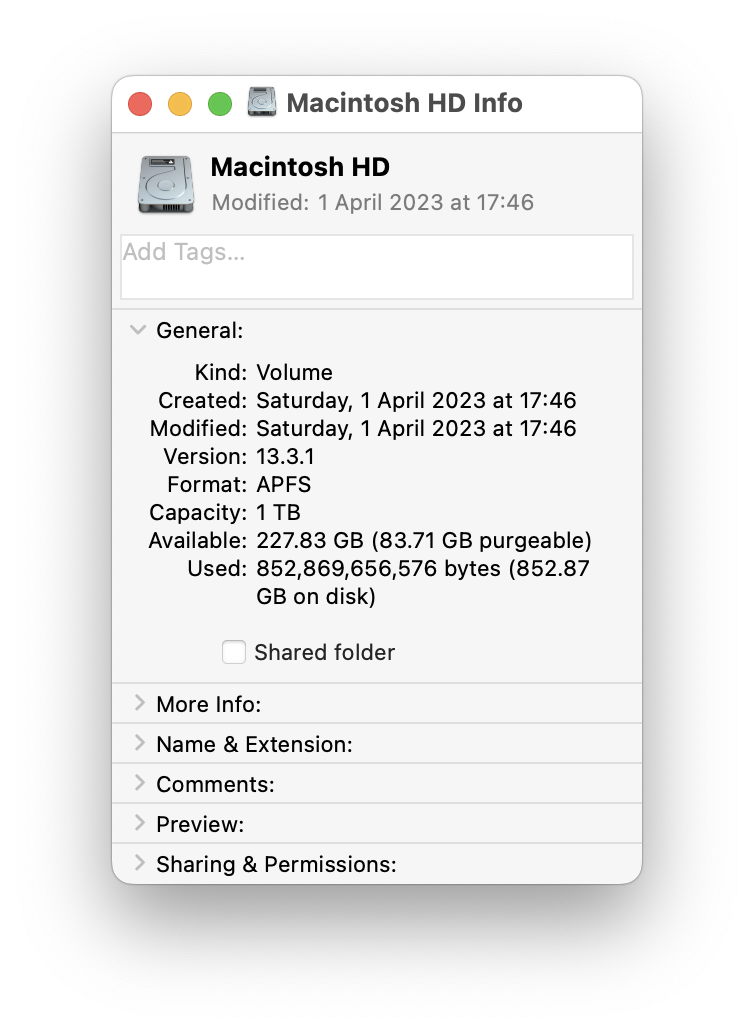
P.S. Alternatively, using Get Info on Macintosh HD in Finder will show available as well as purgeable space.
 
  • Like
Reactions: kitKAC
What Ben J. added to genexx - APFS snapshots can be created by any application - fascinating
One important thing that you don't mention; APFS snapshots can be created by any application
Not quite any application. To create snapshots the developer needs a special entitlement com.apple.developer.vfs.snapshot from Apple. I am only aware of backup apps (CCC, ChronoSync, etc.) being granted this entitlement. My understanding is that a developer needs some reputation with Apple to get it.
 
Anyone have any suggestions for iPadOS?
I have a similar type situation a 32GB iPad cant install iPadOS updates due to lack of space - all is installed are some basic apps, System taking up 7GB and iPadOS itself taking 11GB.
The app taking the most space is Phots (9GB don't want to remove it, not using icloud backup) then the next biggest app is Voice Memos with 500MB.
Thanks.
 
Snapshots are not, in themselves, a problem. They will be removed if the space is needed. Like Time Machine, they are catalogue links to files that are the same, and keeping copies of the files that have been modified.

The category "System Data" is broadly "anything else". There have been lots of posts about System data running away to huge levels, and there does seem to be some bug, possibly to do with iCloud, where it keeps expanding. Of course, snapshots will record these changes, so there's a double whammy.
And you can paste a 10 gig file 100 times and it won’t take up any more disk space.

That's because a copy uses the same mechanism as snapshots: it's just a link, until you modify the file.
 
Register on MacRumors! This sidebar will go away, and you'll see fewer ads.