Become a MacRumors Supporter for $50/year with no ads, ability to filter front page stories, and private forums.

DavidQPR

macrumors regular
Original poster
Since updating to 26.2 I have been unable to get a Time Machine backup to complete. On both my MacBook Pro M4 and iMac M3 the backups fail. I have tried dozens of times on both machines. Thinking it must be a failing external drive, which is a few years old, I bought a new 1TB SSD external drive. Same result - it fails every time on both machines.
I have used Time Machine for many years and am at a loss what is going on. Any ideas? Thanks
 
Same result - it fails every time on both machines.
I have used Time Machine for many years and am at a loss what is going on. Any ideas?
Are there no error messages? Click the little red circle next to the backup task in TM settings.
 
Thanks for your reply. I hadn't tried this. Something about a Brave extension. I will have to investigate this. Not sure why it would stop a backup?
Screenshot 2025-12-31 at 20.45.00.png
 
I have uninstalled the only Brave extension I had, a picture-in-picture extension and am trying the back up again.
 
It has failed again with a different error. Think I might just give up and use an alternative cloning app.
Screenshot 2025-12-31 at 22.09.00.png
 
Do these two files fail on every backup?

Can you view the content of these files in TextEdit? (I don't want to see the content, just whether you can)

What are their permissions and extended attributes? Use ls -le and xattr -l.

The Time Machine Mechanic can help you to extract more detail from the system log.
 
Last edited:
Thanks for the reply. For now I have removed my external drive from Time Machine and am trying a trial of Carbon Copy Cloner.
 
Another thought is to run a first aid check on your drive via Disk Utility. Possibly some corruption that is preventing the files from backing up.

Also, you might try excluding the offending files from the backup to see if that helps you get further in the process.
 
Another thought is to run a first aid check on your drive via Disk Utility. Possibly some corruption that is preventing the files from backing up.

Also, you might try excluding the offending files from the backup to see if that helps you get further in the process.
Hi. I did all that before. I have downloaded a months trial of CCC. Successfully did backup of both my MacBook Pro and iMac something that Time Machine seems incapable of doing. Thanks for all replies
 
  • Like
Reactions: VineRider
Are there no error messages? Click the little red circle next to the backup task in TM settings.
I am running pre Tahoe release on my M1 MBP
I get messages warning me that the disk format used by Time Machine will not be supported by future releases. This message provides a link. I click the link to get to an Apple verbose web page that says the same thing in effect with no solution.
So . . . I stay where I am re releases as I like Time Machine.
 
I get messages warning me that the disk format used by Time Machine will not be supported by future releases.
At a guess this a disk that has been used for some years with TM and is formatted HFS+. So a kind warning that at some time in the future, you will need to reformat as AFPS. But you haven't told us the message, so can't be sure.
I am running pre Tahoe release on my M1 MBP
Care to tell us the version?
I click the link to get to an Apple verbose web page that says the same thing in effect with no solution.
If we had a link to the page we could read what Apple is saying and so might be able to help to understand it.
 
I was a bit brief apologies. I was writing the post on another macbook ( M1 Air) at the time.
The macbook in question is an M1 macbook pro.
The MacOs version is:
PastedGraphic-1.png

The warning message is here:
Screenshot 2026-01-04 at 6.04.04 pm.png

The "Learn More" link is https://support.apple.com/en-us/102423?cid=mc-ols-TimeMachine-article_102423-Settings-04282025

The explicit warning is here:
PastedGraphic-4.png

The same linked section states that an external disk attached to said time machine targets running Mac OS Extended (Journaled) filesystem will be compatible.

The Airport Time Capsule in question is definitely running APFS.


Screenshot 2026-01-04 at 6.12.26 pm.png

(yes I upgraded the 1TB disk some time ago to 6TB)

There is no option to set the file format if erasing the INTERNAL disk using airport utility - can only do this for a usb disk attached to the time machine proper.

PastedGraphic-3.png


Edit: I tried doing this using Disk Utility but the drive only appears to Disk utility if the macbook is connected to the time capsule and if connected Disk Utility cannot make changes. I am not sure how the time machine / time capsule software would like a change in disk format though even if I could do it

So . . . .Apple instead of simply stating that legacy devices only support APFS and will not be compatible . . . Apple had to be very very obtuse.

The end result is the same. The time capsule is useless if I upgrade to 26.x

I could remove the 6TB disk and using a USB case attach it to the Mac Book but then I lose the ability to use the file store for my second Mac Book as both mac books are mobile and are not 100% connected all the time. I will look into having the same disk in a USB case attached to the current time capsule but I suspect it runs USB2 speeds and this things will run like real slow

Hope this helps
 
I am wondering if a mistake was made when I did the 1TB to 6TB disk upgrade.
I formatted as APFS instead of the default Time Capsule HFS+ (how I did this format I cannot remember just now)
Maybe the Airport utility format will return the disk to HFS+ ????
 
Ah . . .reading the text again it is NOT the disk format that is the issue. It is the Time Capsule itself that will not be supported . . . presumably by Tahoe+

Oh and the native format for the Time Capsule disk is HFS+ and can be reformatted to such using the airport utility.
 
Time Machine has become increasingly unreliable for me on 26, too. I basically have to run Amphetamine to keep the computer on, and leave it overnight. Backups are taking in the realm of multiple hours to complete, and the last one I saw was 30 gigs worth of data.

As I type this, I may have realized why I have so much changed data (a VM that's being backed up instead of skipped) so it may be a "me" problem, but it's still annoying.
 
It's not an unreliability issue. Apple has announced (easy to find on Google) last June that Airport Time Capsule will only be supported thru MacOS 26. When MacOS 27 comes in (assuming) this September, it will no longer be supported. It's saying get another solution, you have 9 months.
 
  • Like
Reactions: ignatius345
also having issues. use to work perfectly on my M1 with Tahoe onto the TM HDD.
I've now upgraded MBP M5 Max, same Tahoe version.
TM backup keeps failing on the first initial backup around 65/70 -> 80/85% (350/400GB point). This is the initial backup, i've removed, formatted, health checked the external drive, all passes.
Curious enough, my TM is set to backup every hour, even after this initial fail, it then tries and backup a smaller data volume the next hour which also fails somewhere around 65%+ point.
I used TheTimeMachineMechanic on someone's recommendation. Attached is the output/log file
Let me add, my MBP disk is encrypted, my TM also.
I'm trying, just to see if it works... a unencrypted TM target.
 

Attachments

Last edited:
also having issues. use to work perfectly on my M1 with Tahoe onto the TM HDD.
The APFS disk format is heavily optimized for SSDs and does not play well with HDDs, which will just get more and more fragmented over time until they're unusably slow -- especially doing the kind of intensive use that Time Machine puts them though.

So, it's possible that your drive which was working fine before has gotten more fragmented over time. This has happened to me several times now and I now just make a practice of reformatting backup HDDs when they stop working reliably. Try reformatting your HDD drive and starting a fresh Time Machine backup, and I think you'll find it works smoothly again -- until fragmentation sets in again down the road.

Here's some explanation from Eclectic Light Company, specifically pertaining to using HDDs with APFS format:
In APFS, one of its most important features, copy on write, is almost designed to cause fragmentation. It’s essential for the file system metadata, as there’s no journalling, which has proved a saving grace in HFS+. The end result is that file system metadata in APFS get hopelessly fragmented, which in turn causes performance problems on hard drives.

And another more recent article specifically about Time Machine.
Another good reason for preferring SSD rather than hard disk storage is the use of APFS, and its tendency over time to result in severe fragmentation in the file system metadata on hard disks. Provided that an SSD has Trim support it should continue to perform well for many years.
 
Last edited:
The APFS disk format is heavily optimized for SSDs and does not play well with HDDs, which will just get more and more fragmented over time until they're unusably slow -- especially doing the kind of intensive use that Time Machine puts them though.

So, it's possible that your drive which was working fine before has gotten more fragmented over time. This has happened to me several times now and I now just make a practice of reformatting backup HDDs when they stop working reliably. Try reformatting your HDD drive and starting a fresh Time Machine backup, and I think you'll find it works smoothly again -- until fragmentation sets in again down the road.

Here's some explanation from Eclectic Light Company, specifically pertaining to using HDDs with APFS format:


And another more recent article specifically about Time Machine.
hmmm, gives me an idea...
note i reformatted my target drive so fragmentation can't be the cause, but wonder if i can format the output drive as something other than APFS.

Time Machine has been perfectly stable for me otherwise, previously. saved my @ss on my an occasion when user/me did something dumb... 😉
 
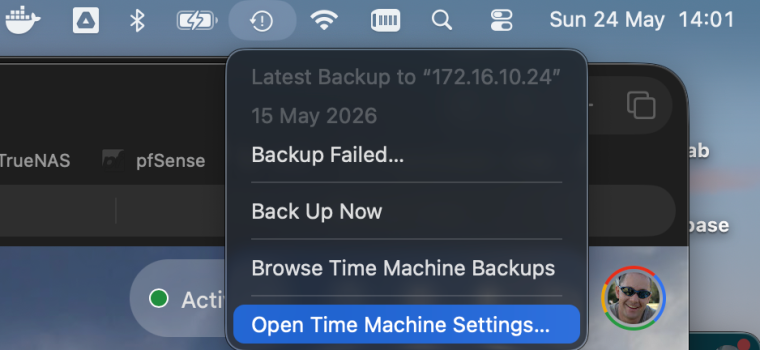
interesting, the time machine icon top of my screen says backup failed.
but the logs from TheTimeMachineMechanic gives below ...
I formatted the drive straight APFS, no encryption or case sensitive or anything this time.

```
Analysis from 2026-05-24 08:18:39 +0200 to 2026-05-24 10:18:39 +0200 for 2 hours:
Backing up 1 volumes to TM (/dev/disk5s2,TMBackupOptions(rawValue: 530)): /Volumes/TM 1
Backing up 1 volumes to TM (/dev/disk5s1,TMBackupOptions(rawValue: 1)): /Volumes/TM
Current free space on backup volumes:


✅ /Volumes/TM 1 = 1,62 TB

Destination IO performance measured:
Wrote 1 50 MB file at 167.04 MB/s to "/Volumes/TM" in 0.299 seconds
Concurrently wrote 500 4 KB files at 55.40 MB/s to "/Volumes/TM" in 0.037 seconds
Wrote 1 50 MB file at 108.77 MB/s to "/Volumes/TM 1" in 0.460 seconds
Concurrently wrote 500 4 KB files at 79.09 MB/s to "/Volumes/TM 1" in 0.026 seconds


Started 1 auto backup cycles, and 1 manual backups;
last backup completed successfully 1.5 minutes ago,
last manual backup started 85.7 minutes ago,

Created 1 new backups

Created 2 new snapshots, and deleted 1 old snapshots.

Of 1 volume backups:
1 were full first backups,
0 were deep scans,
0 used FSEvents,
0 used snapshot diffs,
0 used consistency scans,
0 used cached events.

Backup results:

Finished copying from volume "Data"

3347267 Total Items Added (l: 389.66 GB p: 381.58 GB)
0 Total Items Propagated (shallow) (l: Zero KB p: Zero KB)
0 Total Items Propagated (recursive) (l: Zero KB p: Zero KB)
3347267 Total Items in Backup (l: 389.66 GB p: 381.58 GB)
2637498 Files Copied (l: 389.15 GB p: 381.03 GB)
541670 Directories Copied (l: Zero KB p: Zero KB)
148390 Symlinks Copied (l: 5.6 MB p: Zero KB)
3890 Files Linked (l: 302.2 MB p: 310.3 MB)
15819 Files Cloned (l: 202 MB p: 244.9 MB)


✅ No error messages found.

Scheduling system checks are disabled.
 
interesting, the time machine icon top of my screen says backup failed.
When you open TM settings in Settings > General, do you see a little red error icon next to the backup disk? Press the little red error icon. Take screenshot of error message.
 
When you open TM settings in Settings > General, do you see a little red error icon next to the backup disk? Press the little red error icon. Take screenshot of error message.
sometimes, being more awake, after having applied more coffee does help.
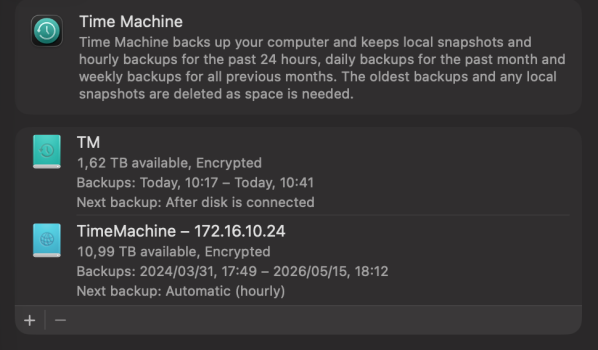
just noticed, the menu bar time machine icon/having reported failed also list my home TM backup target IP of my TrueNAS.
The Settings/General/Time Machine see attached shows / implies backup completed.
Will connect the external drive shortly again and see if the on hour backup completes successfully.

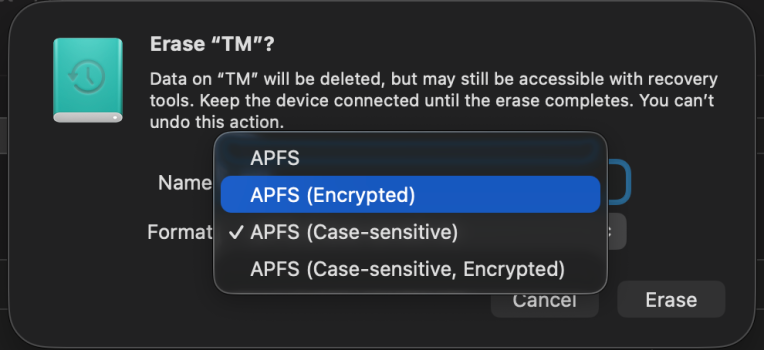
... for reference, I've also attached screen shot from the disk erase under Disk Utilities which show the format option used which seem to have allowed me to complete the backup.

The one highlighted in blue is what I chose that made the difference, of course the one with the tick below it is the default which was used repeated with error/failure. Maybe this works/helps someone else.

G
 

Attachments

  • Screenshot 2026-05-24 at 14.01.48.png
    Screenshot 2026-05-24 at 14.01.48.png
    112.7 KB · Views: 13
  • Screenshot 2026-05-24 at 14.01.59.png
    Screenshot 2026-05-24 at 14.01.59.png
    317.5 KB · Views: 15
  • Screenshot 2026-05-24 at 14.06.25.png
    Screenshot 2026-05-24 at 14.06.25.png
    134.9 KB · Views: 13
hmmm, gives me an idea...
note i reformatted my target drive so fragmentation can't be the cause, but wonder if i can format the output drive as something other than APFS.
Not if you intend to use it with Time Machine. You can try HFS+ with carbon copy cloner but I think it’s also going to tell you it needs APFS at this point since it is also snapshot based.
 
Register on MacRumors! This sidebar will go away, and you'll see fewer ads.