
Got a tip for us?
Let us know
Become a MacRumors Supporter for $50/year with no ads, ability to filter front page stories, and private forums.
iM 4,1-14,4 Cant get Windows fully working iMac 10,1
- Thread starter leo015
- Start date
- Sort by reaction score
You are using an out of date browser. It may not display this or other websites correctly.
You should upgrade or use an alternative browser.
You should upgrade or use an alternative browser.

It should be possible using the legacy version of Windows.
I got Windows 11 installed on my early 2009 24" using the plop boot manager and a legacy Windows usb installer:
View attachment 2368013
Hey, hew did you make a Legacy USB? The problem isn't much so the installation but something wrong with my BIOS parameters. For example, if I boot a Plop CD , which is Legacy I suppose then I still get a black screen on the built in display.It should be possible using the legacy version of Windows.
I got Windows 11 installed on my early 2009 24" using the plop boot manager and a legacy Windows usb installer:
View attachment 2368013
Regarding the guide from MrMacintosh, I tried it. I still get the same results.
So I came across this forum post (https://bugs.launchpad.net/ubuntu/+source/linux/+bug/597070) which I find very similar to my case. Even though the user has the same symptoms on Linux, I believe this is the problem I'm experiencing also.
Specifically, this comment here:
Any idea how we could test something out along these lines for Windows?
Specifically, this comment here:
I have established that my main physical screen (iMac display) is detected by the OS radeon driver as output eDP-0, name 'Color LCD', and it is connected but not lit. The external physical screen is detected as output DisplayPort-0, name 'L1710B', and is connected *and* is lit.
Both these outputs are connected to logical (X) screen 0 and they both fit into the viewport of 1920x1080.
If I let KMS set up the graphics it sets DisplayPort-0 to have resolution 1920x1080 (it should be 1280x1024). The kernel modesetting seems to get confused between the two display ports, using the resolution of eDP-0 and assigning it to DisplayPort-0, but then disabling the eDP-0 for some reason.
If I use 'nomodeset' at boot then DisplayPort-0 gets resolution 1280x1024 (correct). This is probably the result of radeon driver probe.
Since it is possible to show terminal output on the iMac display before X starts I suspect that X (or the radeon driver) switches off this output as not being usable.
To me the question is why does the eDP-0 output get switched off? The logs do not offer much except
...
(EE) Radeon(0): channel eq failed: 5 tries
(EE) Radeon(0): channel eq failed
(EE) Radeon(0): clock recovery reached max voltage
(EE) Radeon(0): clock recovery failed
....
perhaps the radeon driver fails to establish the clock frequency for the monitor (iMac display) and switches it off as a precaution against damage?
Earlier I used the ati proprietary driver on ubuntu 10.10 and that worked when driving the iMac display, so it is possible, just not with the OS radeon driver (yet).
Any idea how we could test something out along these lines for Windows?

[GUIDE] General Framebuffer Patching Guide (HDMI Black Screen Problem)
General Framebuffer Patching Guide using Hackintool Please do not quote this guide in its entirety. Post a link instead. 15 Jan 2019: Intel FB-Patcher has been renamed to Hackintool. 19 Jan 2019: Guide overhauled. Please be aware of possible HDMI hot-plug issues. After boot you may have to...
www.tonymacx86.com
Also found this which is an interesting read on a similar subject. Perhaps could help with brainstorming.

Nguyen Duc Hieu
macrumors 68040
I thought you would pursuit the approach of Registry Editing....
As you already have Windows up and running, visible on the external display.
Now all you have to do is fiddling with Regedit to get the internal display show something.
Maybe I'm wrong.
But for reference purpose, if you can post some image in the Device Manager, Properties of the graphic Drivers, etc... or the Regeditor parameters, it will be of much helpful information, rather than your own wording description.
As you already have Windows up and running, visible on the external display.
Now all you have to do is fiddling with Regedit to get the internal display show something.
Maybe I'm wrong.
But for reference purpose, if you can post some image in the Device Manager, Properties of the graphic Drivers, etc... or the Regeditor parameters, it will be of much helpful information, rather than your own wording description.
Nguyen Duc Hieu
macrumors 68040
The below links are just for your reference, if you insist in following this path.
Worst case scenario is your Windows will runs weirdly, or both of you display will be black out.
Just make a reserved SSD with Windows pre-install to prepare for such cases.


 superuser.com
(The below 2 links I just leave here to access later)

 www.howtogeek.com
 www.howtogeek.com
Worst case scenario is your Windows will runs weirdly, or both of you display will be black out.
Just make a reserved SSD with Windows pre-install to prepare for such cases.
Setting Hardware Information in the Registry - Windows drivers
Setting Hardware Information in the Registry
learn.microsoft.com
Resolution of 4K displays changes to 1024 X 768 when the display port goes to stand by or power off - Microsoft Q&A
When 4k displays on display port go standby or power down, the 1024x786 simulated displays mess up all window locations of my programs and desktop icons. The Problem Hi, in short the title should be sufficient to explain what's going on. However there's…
answers.microsoft.com
What registry key or windows file determines where monitors are placed in a multi monitor environment?
I have a laptop with a USB to VGA adapter which allows me to add a third monitor to my laptop (the second monitor uses the onboard slot). It worked fine on Windows Vista - you could go into Windows'
(The below 2 links I just leave here to access later)
Windows Registry Demystified: What You Can Do With It
The Windows Registry is a database where Windows and many programs store their configuration settings.
www.howtogeek.com
The 50 Best Registry Hacks that Make Windows Better
We're big fans of hacking the Windows Registry around here, and we've got one of the biggest collections of registry hacks you'll find. Don't believe
www.howtogeek.com
I thought you would pursuit the approach of Registry Editing....
As you already have Windows up and running, visible on the external display.
Now all you have to do is fiddling with Regedit to get the internal display show something.
Maybe I'm wrong.
But for reference purpose, if you can post some image in the Device Manager, Properties of the graphic Drivers, etc... or the Regeditor parameters, it will be of much helpful information, rather than your own wording description.
The below links are just for your reference, if you insist in following this path.
Worst case scenario is your Windows will runs weirdly, or both of you display will be black out.
Just make a reserved SSD with Windows pre-install to prepare for such cases.
Setting Hardware Information in the Registry - Windows drivers
Setting Hardware Information in the Registrylearn.microsoft.com
Resolution of 4K displays changes to 1024 X 768 when the display port goes to stand by or power off - Microsoft Q&A
When 4k displays on display port go standby or power down, the 1024x786 simulated displays mess up all window locations of my programs and desktop icons. The Problem Hi, in short the title should be sufficient to explain what's going on. However there's…answers.microsoft.com
What registry key or windows file determines where monitors are placed in a multi monitor environment?
I have a laptop with a USB to VGA adapter which allows me to add a third monitor to my laptop (the second monitor uses the onboard slot). It worked fine on Windows Vista - you could go into Windows'
(The below 2 links I just leave here to access later)
Windows Registry Demystified: What You Can Do With It
The Windows Registry is a database where Windows and many programs store their configuration settings.
The 50 Best Registry Hacks that Make Windows Better
We're big fans of hacking the Windows Registry around here, and we've got one of the biggest collections of registry hacks you'll find. Don't believe
To be honest I had not considered the Registry Editing route, as I thought the problem was pre-boot. However we have nothing to lose to give it a shot. I will post a screenshot of the information you asked when I'm home.
In the meantime, more interesting finds which could be of help :
https://github.com/driver1998/VgaShim

iMac - How to make Ubuntu work properly with iMac graphics card
I recently installed Ubuntu 16.04 64-bit on my old mid-2010 iMac, but quickly ran into some issues. When installing, the screen would go black after the grub interface, unless I added "nomodeset" t...
I've selected the 'Show hidden devices' option in Device Manager and now I can see an additional Monitor under display adapter, however it says it's disconnected. See the attached pictures for reference.
Regarding the Regedit, what exactly do you want me to take a screenshot of?
Regarding the Regedit, what exactly do you want me to take a screenshot of?
Attachments
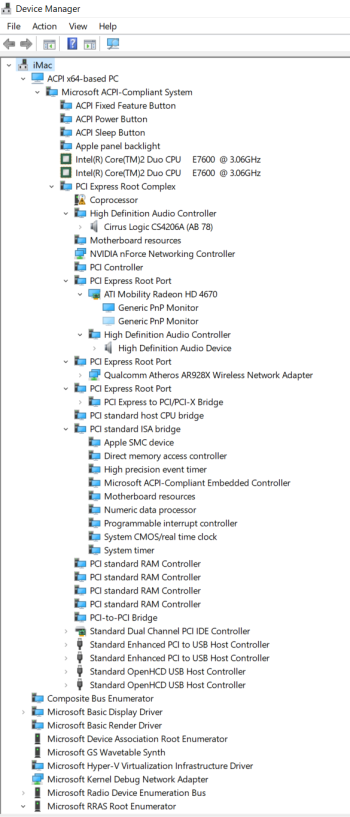
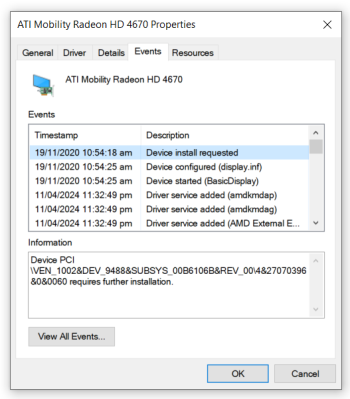
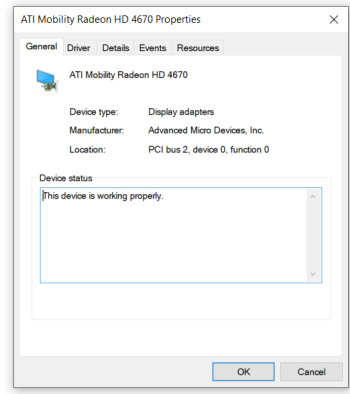
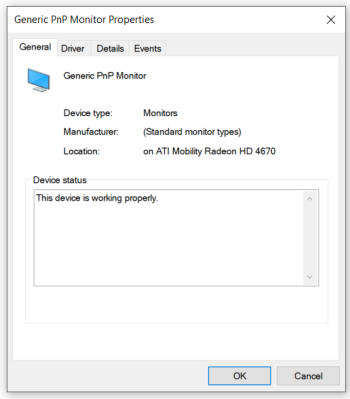
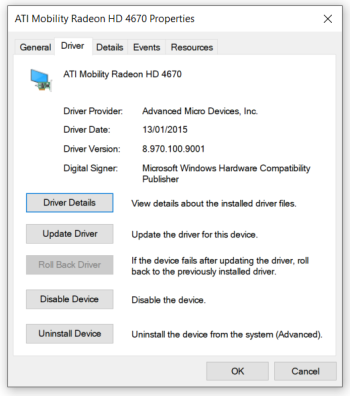
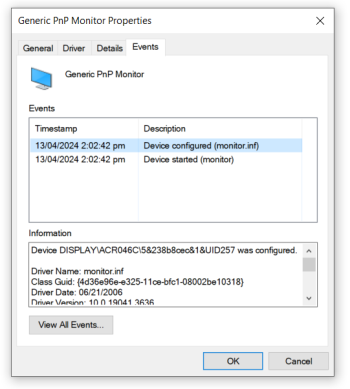
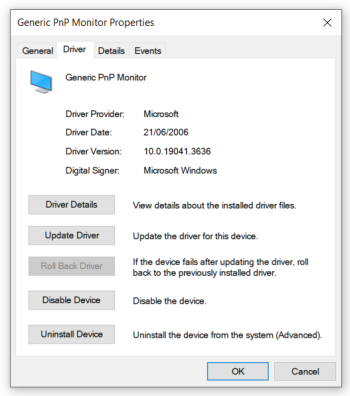
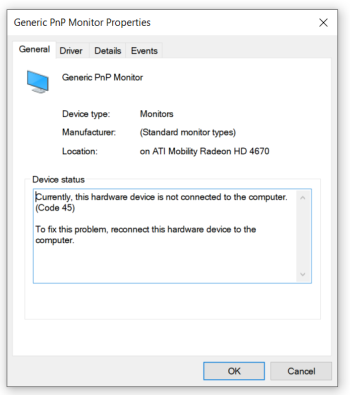
Nguyen Duc Hieu
macrumors 68040
I've selected the 'Show hidden devices' option in Device Manager and now I can see an additional Monitor under display adapter, however it says it's disconnected. See the attached pictures for reference.
Regarding the Regedit, what exactly do you want me to take a screenshot of?
HKEY_LOCAL_MACHINE\SYSTEM\CurrentControlSet\Control\GraphicsDrivers\Configuration\
HKEY_LOCAL_MACHINE\SYSTEM\CurrentControlSet\Control\GraphicsDrivers\Connectivity\
But I don't know how to read those codes. Sorry....

Yomaho
macrumors newbie
Hello,It should be possible using the legacy version of Windows.
I got Windows 11 installed on my early 2009 24" using the plop boot manager and a legacy Windows usb installer:
View attachment 2368013
Looks great.
Could you explain how to use plop boot manager please ?
Because I have the same black screen problem since 1 year. Finally i was able to install windows 10 in legacy but i still have the same graphics problems.
Maybe the plop boot manager could solve the problems ?
this thread seems dead, but it seems like your issue is caused from logic board firmware and/or a kernel issue, could be either one, but seems more likely to be firmware because you have tried multiple OS re-installs with no luck, and you also think its an issue caused pre-boot before the OS loads.
The GPU also has its own firmware living on the card itself, which can cause issues, which cannot be easily flashed/updated using software and instead requires special programming tools and lots of know-how. Avoid flashing the GPU, the easiest and safest option would be to take it apart and replace the GPU with another identical model (many are sold already pre-flashed with different update versions), or if you dont care about loosing Mac OS driver support, then upgrade to a better GPU for windows. Here is a link to a GPU upgrade thread, there are plenty more tutorial guides if you search.
Alternatively, if you want to be risky but want to try something free and without taking apart the iMac, you can assume that the logic board firmware is corrupted. To fix that, you should install a natively supported MacOS like High Sierra and try to re-flash / update the EFI firmware, but take caution and beware if done incorrectly, you have the potential to brick your Mac from powering on and booting into anything at all. Do your research first because apple makes it harder than a typical BIOS update on a regular windows PC. If i remember correctly, Apple only allows their automatic software update utility to perform a firmware flash when it find that the current firmware is out of date and needs an update, which is unlikely that its not already on the latest version.
Here is a link to where you can download the firmware for any model of mac
Here is a link to MacEFItoolkit which can be used to help troubleshoot and patch the firmware, recommend to read the manual linked on the github
Here is a link to MacBRTool which can be used to manually flash the bootROM firmware, but recommends to take apart the mac and disconnect the internal drive prior to running the update
if nothing else works then replace the entire logic board, or just get another old legacy imac
The GPU also has its own firmware living on the card itself, which can cause issues, which cannot be easily flashed/updated using software and instead requires special programming tools and lots of know-how. Avoid flashing the GPU, the easiest and safest option would be to take it apart and replace the GPU with another identical model (many are sold already pre-flashed with different update versions), or if you dont care about loosing Mac OS driver support, then upgrade to a better GPU for windows. Here is a link to a GPU upgrade thread, there are plenty more tutorial guides if you search.
Alternatively, if you want to be risky but want to try something free and without taking apart the iMac, you can assume that the logic board firmware is corrupted. To fix that, you should install a natively supported MacOS like High Sierra and try to re-flash / update the EFI firmware, but take caution and beware if done incorrectly, you have the potential to brick your Mac from powering on and booting into anything at all. Do your research first because apple makes it harder than a typical BIOS update on a regular windows PC. If i remember correctly, Apple only allows their automatic software update utility to perform a firmware flash when it find that the current firmware is out of date and needs an update, which is unlikely that its not already on the latest version.
Here is a link to where you can download the firmware for any model of mac
Here is a link to MacEFItoolkit which can be used to help troubleshoot and patch the firmware, recommend to read the manual linked on the github
Here is a link to MacBRTool which can be used to manually flash the bootROM firmware, but recommends to take apart the mac and disconnect the internal drive prior to running the update
if nothing else works then replace the entire logic board, or just get another old legacy imac