
Got a tip for us?
Let us know
Become a MacRumors Supporter for $50/year with no ads, ability to filter front page stories, and private forums.
15" MacBook Pro (SB) Thermal application/guide
- Thread starter fr4c
- Start date
- Sort by reaction score
You are using an out of date browser. It may not display this or other websites correctly.
You should upgrade or use an alternative browser.
You should upgrade or use an alternative browser.
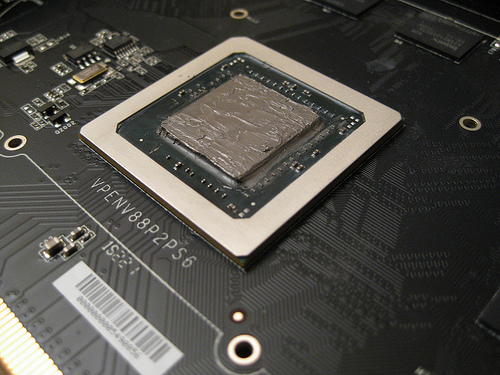
A wee bit thick there. Better than OEM, but still a little heavy. It's not grease. The sole function of TP is to fill in air pockets between imperfect surfaces.
I usually let the pad do the spreading if possible.
I rice grain in the center prevents air pockets and the pad will spread it out to the edges.
I usually let the pad do the spreading if possible.
I rice grain in the center prevents air pockets and the pad will spread it out to the edges.
MiniDisplay Port AFFECTS CPU THERMALS (obviously)
First off, i'd like to say a big thanks for the OP for posting this thread and because of his thread, I took apart my 2011 17" mbp to reapply the TIM. Secondly, I found a HUGE discrepancy in my thermal readings: https://forums.macrumors.com/posts/12098419/
Initial tests indicated that my temperatures did not seem to idle below 50C even when idle. When running a stress test using prime95 using 8-8k FFT's for 20 minutes each, the temperatures were about 86C even hitting 91C before the fans kicked up to 5500rpm.
The big discrepancy for me was THAT I HAD THE MINIDISPLAYPORT OUTPUT to a 24" monitor along with using SwitchResX (to disable the 17" laptop LCD). The GPU used was the discrete GPU since it is used to output to external monitor.
With the external monitor setup, the idle temperatures floated from 51C - 56C EVEN WITH THE THERMAL PASTE REAPPLIED. This led me to conclude this entire process wasn't worth the effort.
I've had about 20 startup/shutdown cycles now. Initial tests show the CPU hitting 86C under full load but dropping back down to 51C-56C on idle REAL QUICK (under a minute at best). This proved that the TIM applied was indeed legit and working great.
This morning, I had to unplug the external monitor so I started up the laptop without anything on the displayport output side. The idle temperatures were about 31C-33C. I opened up safari and mail and did some daily work and temperatures floated around 41C for idle at most. This led me to test out the minidisplay port output and when I plugged in the external monitor thru the port, the temperatures jumped up to the 49-52C WHEN IDLE. Unplugging it caused it to drop back down to 41C. The discrete GPU was STILL BEING USED even without an external monitor connected to the display port. I made sure it wasn't a discrete vs. built in HDM3000 intel issue.
I am now quite certain there's something going on with the display port power usage. Perhaps the discrete GPU is working harder causing more CPU heat...but until you unplug the device from the port, you will see both GPU and CPU temps drop down to the low 40C. It's a huge thermal issue.
Too bad I did not get a chance to test out the laptop without an external monitor connected to the minidisplay port so I can check the temperatures BEFORE I applied the arctic silver 5 TIM. I will conclue now after only about 20 cycles, reapplying the paste indeed works fantastically. I must retract my earlier conclusions now because it was the external monitor connection that somehow raised all the CPU/GPU temperatures for whatever reason.
When full on 8-8k FFT loaded on the CPU, the temperature without an external monitor connected hit about 86C then the fans kicked up to 5500RPM lowering it back down to 78C! But then the fans will die back down to 4000RPM's which will float the CPU temps back up to around the 80C's. I will contest without a doubt now that the AS5 TIM really made a huge difference in allowing the heat from the CPU to reach the heatsinks and the fans can cool the heatsinks down causing CPU/GPU temps to drop significantly increasing laptop usage lifespan.
First off, i'd like to say a big thanks for the OP for posting this thread and because of his thread, I took apart my 2011 17" mbp to reapply the TIM. Secondly, I found a HUGE discrepancy in my thermal readings: https://forums.macrumors.com/posts/12098419/
Initial tests indicated that my temperatures did not seem to idle below 50C even when idle. When running a stress test using prime95 using 8-8k FFT's for 20 minutes each, the temperatures were about 86C even hitting 91C before the fans kicked up to 5500rpm.
The big discrepancy for me was THAT I HAD THE MINIDISPLAYPORT OUTPUT to a 24" monitor along with using SwitchResX (to disable the 17" laptop LCD). The GPU used was the discrete GPU since it is used to output to external monitor.
With the external monitor setup, the idle temperatures floated from 51C - 56C EVEN WITH THE THERMAL PASTE REAPPLIED. This led me to conclude this entire process wasn't worth the effort.
I've had about 20 startup/shutdown cycles now. Initial tests show the CPU hitting 86C under full load but dropping back down to 51C-56C on idle REAL QUICK (under a minute at best). This proved that the TIM applied was indeed legit and working great.
This morning, I had to unplug the external monitor so I started up the laptop without anything on the displayport output side. The idle temperatures were about 31C-33C. I opened up safari and mail and did some daily work and temperatures floated around 41C for idle at most. This led me to test out the minidisplay port output and when I plugged in the external monitor thru the port, the temperatures jumped up to the 49-52C WHEN IDLE. Unplugging it caused it to drop back down to 41C. The discrete GPU was STILL BEING USED even without an external monitor connected to the display port. I made sure it wasn't a discrete vs. built in HDM3000 intel issue.
I am now quite certain there's something going on with the display port power usage. Perhaps the discrete GPU is working harder causing more CPU heat...but until you unplug the device from the port, you will see both GPU and CPU temps drop down to the low 40C. It's a huge thermal issue.
Too bad I did not get a chance to test out the laptop without an external monitor connected to the minidisplay port so I can check the temperatures BEFORE I applied the arctic silver 5 TIM. I will conclue now after only about 20 cycles, reapplying the paste indeed works fantastically. I must retract my earlier conclusions now because it was the external monitor connection that somehow raised all the CPU/GPU temperatures for whatever reason.
When full on 8-8k FFT loaded on the CPU, the temperature without an external monitor connected hit about 86C then the fans kicked up to 5500RPM lowering it back down to 78C! But then the fans will die back down to 4000RPM's which will float the CPU temps back up to around the 80C's. I will contest without a doubt now that the AS5 TIM really made a huge difference in allowing the heat from the CPU to reach the heatsinks and the fans can cool the heatsinks down causing CPU/GPU temps to drop significantly increasing laptop usage lifespan.
Last edited:

iMacDragon
macrumors 68020
I am now quite certain there's something going on with the display port power usage. Perhaps the discrete GPU is working harder causing more CPU heat...but until you unplug the device from the port, you will see both GPU and CPU temps drop down to the low 40C. It's a huge thermal issue.
Quite simple really, both are on the same heat pipe, so if the discrete gpu is enabled, it's also outputting heat into it, leading it to be less efficient at taking heat away from cpu, and thus causing cpu to run hotter too.
Quite simple really, both are on the same heat pipe, so if the discrete gpu is enabled, it's also outputting heat into it, leading it to be less efficient at taking heat away from cpu, and thus causing cpu to run hotter too.
NO - that's not right - the discrete GPU was ENABLED EVEN WITHOUT THE EXTERNAL MONITOR CONNECTED via the mini display port. There's NOTHING connected to the display port but the discrete GPU is enabled...without an external monitor connected, the idle temperatures for both GPU/CPU are LOW. That's the discrepancy. But then again, perhaps you meant that it's driving the external monitor when it's connected to the display port end.
Whatever the reason, it sucks because you get hotter temperatures simply by using the display port connected to an external monitor. The idle cpu and gpu temps without anything connected are substantially lower.

daneoni
macrumors G5
large text
I've noticed this too. When i connect to my ACD the temps spike up. right now i'm coasting at 61-67C but it's gone up to 71C at times. Maybe it has something to do with the way the MDP is now designed whereby the GPU is using 8 PCI lanes instead of the normal 16 with the remaining lanes being routed to Thunderbolt. I dunno...just guessing.
It's also annoying that Apple won't allow you the option to use the HD 3000 to drive external displays even though they're more than capable of handling it.
Last edited:
I don't think the 15"/17" internal GPU HD3000 can USE the display port - but I do know the 13" mbp can output display port but it only has the integrated gpu!
nice spread! i've found a good way to apply the bare minimum is to put a bit of saran/plastic wrap around your finger and use that to spread the thermal compound around the surface. it's easy to control how much thermal material is on the die and you can ensure every single nook and cranny of the surface is covered.This is a rough idea of how to apply AS5 onto the chips, though you can probably use a even thinner layer (and less messy).
a much simpler technique than using a credit card or piece of paper to accomplish the same.

Perhaps I should have made it clearer when I posted the picture, but that's not my MBP. I simply Google'd a image to give a MR member a rough idea of how to apply the TC 😱nice spread! i've found a good way to apply the bare minimum is to put a bit of saran/plastic wrap around your finger and use that to spread the thermal compound around the surface. it's easy to control how much thermal material is on the die and you can ensure every single nook and cranny of the surface is covered.
a much simpler technique than using a credit card or piece of paper to accomplish the same.
It's still a little too much in my opinion, as you only need half of what is on that chip. Finger/plastic wrap works well to control the amount you use; toothpicks works also if you don't have a spudger.
Perhaps I should have made it clearer when I posted the picture, but that's not my MBP. I simply Google'd a image to give a MR member a rough idea of how to apply the TC 😱
It's still a little too much in my opinion, as you only need half of what is on that chip. Finger/plastic wrap works well to control the amount you use; toothpicks works also if you don't have a spudger.
I used a non-latex (food handling type) glove (box you buy from costco). Put a non-cooked rice grain size drop on the cpu and use the finger with glove on to rub around the surface of the cpu and it covers enough. You only need to cover about less than 3/100" thick - which is quite THIN.

AppleScruff1
macrumors G4
nice spread! i've found a good way to apply the bare minimum is to put a bit of saran/plastic wrap around your finger and use that to spread the thermal compound around the surface. it's easy to control how much thermal material is on the die and you can ensure every single nook and cranny of the surface is covered.
a much simpler technique than using a credit card or piece of paper to accomplish the same.
Actually that's way too much paste in the photo.

Transeau
macrumors 6502a
A note to all:
After ripping open my brand new 17" and reapplying the as5 compound I can tell you that there is no way I can idle around 31c. In fact booting the system up now after about 10 cycles (on and off) with prime95 tests show the CPU idle at about 48-55c. Unless u live in an arctic climate living room I don't see how it can idle so low unless you Do absolutely nothing on your mbp even then you are idling about 44c+
My room temp is 28c, my idle temp is still 31~34c. Maybe you did it wrong?
My room temp is 28c, my idle temp is still 31~34c. Maybe you did it wrong?
No you are RIGHT. I had a discrepancy due to the mini-display port connected to an external monitor which cause increased CPU/GPU HEAT - even when idle.
Right now if I don't connect an external monitor, my idle is around 38C. I believe when I boot up in a 68F ambient room, I can get around 34C idle.
Transeau
macrumors 6502a
looks like you nailed it... can you run handbrake for a couple of minutes and see what it gets up to?
thanks
The "CPU A" hits about 86 and the CPU Cores easily hit 93c - But this is 100% expected and is documented in Intel's product spec sheet.
Code:
The temperature at which the Adaptive Thermal Monitor activates the Thermal Control
Circuit is factory calibrated and is not user configurable. The default value is software
visible in the TEMPERATURE_TARGET (1A2h) MSR, Bits 23:16. The Adaptive Thermal
Monitor does not require any additional hardware, software drivers, or interrupt
handling routines. Note that the Adaptive Thermal Monitor is not intended as a
mechanism to maintain processor TDP. The system design should provide a thermal
solution that can maintain TDP within its intended usage range
Code:
The processor's rated frequency assumes that all execution cores are active and are at
the sustained thermal design power (TDP). However, under typical operation not all
cores are active or at executing a high power workload. Therefore, most applications
are consuming less than the TDP at the rated frequency. Intel Turbo Boost Technology
takes advantage of the available TDP headroom and active cores are able to increase
their operating frequency.
To determine the highest performance frequency amongst active cores, the processor
takes the following into consideration to recalculate turbo frequency during runtime:
The number of cores operating in the C0 state.
The estimated core current consumption.
The estimated package prior and present power consumption.
The package temperature.
Any of these factors can affect the maximum frequency for a given workload. If the
power, current, or thermal limit is reached, the processor will automatically reduce the
frequency to stay with its TDP limit.So basically, the CPU will continue to increase the core speed as long as the cores are below 100c. There is no way for the little tiny fans to keep up with that so the CPU will throttle and keep it at a safe level.
Bottom line is people need to look at the idle temp, not the MAX temp as the idle temp is controllable.
Guy Mancuso
macrumors 6502a
Going back to my thermal paste install it all worked okay as far as the thermal paste but something went crazy with my MBP as the power/battery controls of my unit went south. I could not power off using hard reset and could not power back on. After a couple cycles . It went back to Apple and it was returned within my 14 day period and I have a new MBP. My idle is 60C but I agree with some above posts I have a 30 Inch NEC display here and alot of firewire and USB connections that are adding to the heat and I think one reason we are seeing a lot of variance in these temps is we are getting numbers from folks that have very little or nothing connected to there units. Basically we have no base numbers to go by. Not many are reporting what is connected to these units. In the store when I brought it in I idled at 48c with nothing connected but with all my hardware at home it is 60c. I will wait and do the thermal paste again in a couple weeks when I get a new drive and have to open it up again plus I want to see how it does in that time. I honestly think something was wrong with my other machine even before I started as this one seems much better. Not sure why that is though
I'm considering doing this, but am still unsure. I have a question, though.
I've read on a few sites that Indigo Xtreme is the best when it comes to cooling. So why is it that most of you have used AS5? From what I can gather it seems as if the Indigo Xtreme is something completely different, and may not work on a MBP.
Also, how long can I wait before replacing the thermal paste (If I go through with it)?
I've read on a few sites that Indigo Xtreme is the best when it comes to cooling. So why is it that most of you have used AS5? From what I can gather it seems as if the Indigo Xtreme is something completely different, and may not work on a MBP.
Also, how long can I wait before replacing the thermal paste (If I go through with it)?
Just another datapoint for reapplying thermal paste on a 2011 15" MBP 2.2 ghz. All temperatures are CPU A and ambient temperatures are 66F/19C.
Before:
Load: 85C @ 5100 RPM
Idle: 45C @ 2000 RPM
After:
Load: 85C @ 4600 RPM
Idle: 42C @ 2000 RPM
Not dramatic, but I'm glad I did it just for the rush of cracking my brand new $2000 laptop open.
Before:
Load: 85C @ 5100 RPM
Idle: 45C @ 2000 RPM
After:
Load: 85C @ 4600 RPM
Idle: 42C @ 2000 RPM
Not dramatic, but I'm glad I did it just for the rush of cracking my brand new $2000 laptop open.
RainCityMacFan
macrumors 6502a

Prodo123
macrumors 68020
A very resourceful thread . . .
Just wondering, what tools do you need to do this job?
Screwdriver, thermal paste, credit card or brush (depends on which thermal paste you have), and patience. Also, properly ground yourself or you will give your machine static damage.
RainCityMacFan
macrumors 6502a
Screwdriver, thermal paste, credit card or brush (depends on which thermal paste you have), and patience. Also, properly ground yourself or you will give your machine static damage.
What kind of screw drivers? I don't need tri-wing screw drivers do I? Just some philips and Torx?
Prodo123
macrumors 68020
What kind of screw drivers? I don't need tri-wing screw drivers do I? Just some philips and Torx?
1. Philips screws will remove the bottom panel.
2. A spudger can remove the battery cable. CRUCIAL! Or you risk major electric trauma.
3. Philips screws seem to be holding down the motherboard and the heatsink.
So, Philips screwdrivers and a spudger would do.
Prodo123
macrumors 68020
MiniDisplay Port AFFECTS CPU THERMALS (obviously)
First off, i'd like to say a big thanks for the OP for posting this thread and because of his thread, I took apart my 2011 17" mbp to reapply the TIM. Secondly, I found a HUGE discrepancy in my thermal readings: https://forums.macrumors.com/posts/12098419/
Initial tests indicated that my temperatures did not seem to idle below 50C even when idle. When running a stress test using prime95 using 8-8k FFT's for 20 minutes each, the temperatures were about 86C even hitting 91C before the fans kicked up to 5500rpm.
The big discrepancy for me was THAT I HAD THE MINIDISPLAYPORT OUTPUT to a 24" monitor along with using SwitchResX (to disable the 17" laptop LCD). The GPU used was the discrete GPU since it is used to output to external monitor.
With the external monitor setup, the idle temperatures floated from 51C - 56C EVEN WITH THE THERMAL PASTE REAPPLIED. This led me to conclude this entire process wasn't worth the effort.
I've had about 20 startup/shutdown cycles now. Initial tests show the CPU hitting 86C under full load but dropping back down to 51C-56C on idle REAL QUICK (under a minute at best). This proved that the TIM applied was indeed legit and working great.
This morning, I had to unplug the external monitor so I started up the laptop without anything on the displayport output side. The idle temperatures were about 31C-33C. I opened up safari and mail and did some daily work and temperatures floated around 41C for idle at most. This led me to test out the minidisplay port output and when I plugged in the external monitor thru the port, the temperatures jumped up to the 49-52C WHEN IDLE. Unplugging it caused it to drop back down to 41C. The discrete GPU was STILL BEING USED even without an external monitor connected to the display port. I made sure it wasn't a discrete vs. built in HDM3000 intel issue.
I am now quite certain there's something going on with the display port power usage. Perhaps the discrete GPU is working harder causing more CPU heat...but until you unplug the device from the port, you will see both GPU and CPU temps drop down to the low 40C. It's a huge thermal issue.
Too bad I did not get a chance to test out the laptop without an external monitor connected to the minidisplay port so I can check the temperatures BEFORE I applied the arctic silver 5 TIM. I will conclue now after only about 20 cycles, reapplying the paste indeed works fantastically. I must retract my earlier conclusions now because it was the external monitor connection that somehow raised all the CPU/GPU temperatures for whatever reason.
When full on 8-8k FFT loaded on the CPU, the temperature without an external monitor connected hit about 86C then the fans kicked up to 5500RPM lowering it back down to 78C! But then the fans will die back down to 4000RPM's which will float the CPU temps back up to around the 80C's. I will contest without a doubt now that the AS5 TIM really made a huge difference in allowing the heat from the CPU to reach the heatsinks and the fans can cool the heatsinks down causing CPU/GPU temps to drop significantly increasing laptop usage lifespan.
Go apply thermal paste to the Thunderbolt IC controller, located under the speaker. I'm sure that thing's what's getting your computer hot, not the CPU.
My original plan was to get my MBP, and apply a new coat of thermal paste soon after. The MBP was originally idling around 45 C. After a couple days of usage, however, I've noticed that the temps have dropped significantly. As I type this, I'm idling around 32 C. I just got Boot Camp with Windows 7 working properly yesterday and it was idling somewhere around 36-38 C. I think these new machines are definitely hit or miss. I haven't gone in and looked at the TP job, but I think mine is probably a good one.
Go apply thermal paste to the Thunderbolt IC controller, located under the speaker. I'm sure that thing's what's getting your computer hot, not the CPU.
utter nonsense.
side note for those who haven't done this yet:
without external monitor connected while still running on iGPU, idle temps are now 28-30C idle. This is with safari, mail, firefox, ichat, itunes running in BG with safari in foreground.
I will now conclude it was worth the effort! Thanks OP!

Do not reapply the thermal paste under those heatsinks. They are for better or worse nothing more than just a cover; the gap between those piece of metal and the chips is about .5mm so you can only use thermal pads or if you must use thermal paste, you need a mesh to enforce it.
What is being talked about here? I thought everyone was removing the heatsinks, cleaning off the thermal paste and reapplying AS5. Is this mention about the metal plate covering the thunderbolt chip, or is everyone doing AS5 doing it wrong? 😕