
Got a tip for us?
Let us know
Become a MacRumors Supporter for $50/year with no ads, ability to filter front page stories, and private forums.
Bootcamp Windows 10 from External Drive?
- Thread starter bmac89
- Start date
- Sort by reaction score
You are using an out of date browser. It may not display this or other websites correctly.
You should upgrade or use an alternative browser.
You should upgrade or use an alternative browser.


IowaLynn
macrumors 68020
Windows will boot from Thunderbolt after being installed internally on nMP and then cloned to TB.
So install still has to be done on a port that shows as internal. I have a OC with rear SATA that allowed install and booting, but that required motherboard support.
Helps to know Mac model.
So install still has to be done on a port that shows as internal. I have a OC with rear SATA that allowed install and booting, but that required motherboard support.
Helps to know Mac model.
alfacentauro
macrumors newbie
Inspired by yjchua95 method and researching a little bit in Msoft, I've used a little bit more complete method to partition and implement W10 on my 13" rMBP mid14 using two simple scripts. Worked flawessly with a USB Inateck FEU3NS-1E & EVO 850 combo
This one to create partitions:
Type in an elevated cmd
diskpart
list disk
Take note of the disk you want to select (#7 in my case) then
exit
Copy the text below in green and save it a pendrive as CreatePartitions-UEFI.txt Launch it by typing in an elevated cmd
diskpart /s L:\CreatePartitions-UEFI.txt where L is my pendrive letter where the script was saved as CreatePartitions-UEFI.txt
rem == CreatePartitions-UEFI.txt ==
rem == These commands are used with DiskPart to
rem create four partitions
rem for a UEFI/GPT-based PC.
rem Adjust the partition sizes to fill the drive
rem as necessary. ==
select disk 7
clean
convert gpt
rem == 1. System partition =========================
create partition efi size=260
rem ** NOTE: For Advanced Format 4Kn drives,
rem change this value to size = 260 **
format quick fs=fat32 label="System"
assign letter="S"
rem == 2. Microsoft Reserved (MSR) partition =======
create partition msr size=16
rem == 3. Windows partition ========================
rem == a. Create the Windows partition ==========
create partition primary
rem == b. Create space for the recovery tools ===
shrink minimum=1000
rem ** NOTE: Update this size to match the
rem size of the recovery tools
rem (winre.wim) **
rem == c. Prepare the Windows partition =========
format quick fs=ntfs label="Windows"
assign letter="W"
rem === 4. Recovery tools partition ================
create partition primary
format quick fs=ntfs label="Recovery tools"
assign letter="R"
set id="de94bba4-06d1-4d40-a16a-bfd50179d6ac"
gpt attributes=0x8000000000000001
list volume
exit
Open up File Explorer. In your C drive, create a new folder named WIN2GO.
Put the install.wim file in this folder.
Copy the text below as ApplyImage.bat and launch it as admin
rem == ApplyImage.bat ==
rem == These commands deploy a specified Windows
rem image file to the Windows partition, and configure
rem the system partition.
rem Usage: ApplyImage WimFileName
rem Example: ApplyImage E:\Images\ThinImage.wim ==
rem == Set high-performance power scheme to speed deployment ==
call powercfg /s 8c5e7fda-e8bf-4a96-9a85-a6e23a8c635c
rem == Apply the image to the Windows partition ==
Dism /apply-image /imagefile:C:\WIN2GO\install.wim /index:1 /ApplyDir:W:\
rem == Copy boot files to the System partition ==
W:\Windows\System32\bcdboot W:\Windows /s S: /f UEFI
:rem == Copy the Windows RE image to the
:rem Windows RE Tools partition ==
md R:\Recovery\WindowsRE
xcopy /h W:\Windows\System32\Recovery\Winre.wim R:\Recovery\WindowsRE\
:rem == Register the location of the recovery tools ==
W:\Windows\System32\Reagentc /Setreimage /Path R:\Recovery\WindowsRE /Target W:\Windows
:rem == Verify the configuration status of the images. ==
W:\Windows\System32\Reagentc /Info /Target W:\Windows
Thank you so much!!!! finally works after i tried some methods!!
Two questions:
1) Once you have Windows 10 Bootcamp working on an external drive, how would you go about cloning this to another external drive if upgrading to a higher storage SSD? Is it possible to do this without being booted into the Windows Bootcamp that you would like to clone (i.e., use another Windows machine for it)?
2) Can you take the external drive with Windows 10 Bootcamp on it and boot it from a different Mac than the one you use it with primarily? Specifically, I am curious how some of the Steam games run on two different Macs. Would I run into graphics drivers issues? The two Macs both have Intel HD graphics.
1) Once you have Windows 10 Bootcamp working on an external drive, how would you go about cloning this to another external drive if upgrading to a higher storage SSD? Is it possible to do this without being booted into the Windows Bootcamp that you would like to clone (i.e., use another Windows machine for it)?
2) Can you take the external drive with Windows 10 Bootcamp on it and boot it from a different Mac than the one you use it with primarily? Specifically, I am curious how some of the Steam games run on two different Macs. Would I run into graphics drivers issues? The two Macs both have Intel HD graphics.

hfg
macrumors 68040
Two questions:
1) Once you have Windows 10 Bootcamp working on an external drive, how would you go about cloning this to another external drive if upgrading to a higher storage SSD? Is it possible to do this without being booted into the Windows Bootcamp that you would like to clone (i.e., use another Windows machine for it)?
2) Can you take the external drive with Windows 10 Bootcamp on it and boot it from a different Mac than the one you use it with primarily? Specifically, I am curious how some of the Steam games run on two different Macs. Would I run into graphics drivers issues? The two Macs both have Intel HD graphics.
That is easy to do from within OS X with "Winclone" ... plus you can continue to use Winclone on a periodic basis to keep a backup image for when disaster strikes. You can also easily move an internal Bootcamp install to an external drive using Winclone.
http://www.twocanoes.com/products/mac/winclone
That is easy to do from within OS X with "Winclone" ... plus you can continue to use Winclone on a periodic basis to keep a backup image for when disaster strikes. You can also easily move an internal Bootcamp install to an external drive using Winclone.
http://www.twocanoes.com/products/mac/winclone
Thanks, however, I think I prefer doing this from the Windows side.
Is there a free/DOS way of doing this?
To be clear, I am purely talking EFI boot Windows on external drives. External SSD to another external SSD.
You might also use a 2-drive docking station with internal disk duplicate as it is OS and format independent.
Really appreciate your trying to help, however, I am not sure you understand what I am trying to do.
I will be as specific as possible. This is what I have
1) Macbook (OSX only - I do not ever intend to have Bootcamp on this, not enough storage!)
2) 128GB Samsung EVO 840 Pro SSD with a SATA-to-USB 3.0 cable containing an EFI boot of Windows 10. I use this on the above Macbook. Works great.
3) 240GB Sandisk SSD Extreme 500 - the small puck shaped one with a USB 3.0 connector.
How to clone 2) to 3) to still be able to use 3) on 1).
Macrium Free? Is there a DOS way of doing this?
I can get ahold of a third Windows PC for this operation.
hfg
macrumors 68040
OK ... I didn't know that the target SSD wasn't a standard SATA form factor to enable use in a dock/copy bay.
Regarding moving the Windows installation from one computer to another ... Windows generally has issues with activation and drivers when trying to simply move the physical disk to a different computer. There are ways around the driver issues by disabling them prior to the move, but the activation will cause a problem, although if it is a retail version, you can easily use the phone-in activation help to get that transferred over.
With Windows 8.1 I recall there was a way to create an official "Windows-To-Go" portable installation from the Enterprise edition of Windows (and there were hacks to allow this to also work with the Professional version posted on these Forums). I don't know that Windows 10 supports this however.
Good luck ....
Regarding moving the Windows installation from one computer to another ... Windows generally has issues with activation and drivers when trying to simply move the physical disk to a different computer. There are ways around the driver issues by disabling them prior to the move, but the activation will cause a problem, although if it is a retail version, you can easily use the phone-in activation help to get that transferred over.
With Windows 8.1 I recall there was a way to create an official "Windows-To-Go" portable installation from the Enterprise edition of Windows (and there were hacks to allow this to also work with the Professional version posted on these Forums). I don't know that Windows 10 supports this however.
Good luck ....
Regarding moving the Windows installation from one computer to another ... Windows generally has issues with activation and drivers when trying to simply move the physical disk to a different computer. There are ways around the driver issues by disabling them prior to the move, but the activation will cause a problem, although if it is a retail version, you can easily use the phone-in activation help to get that transferred over.
With Windows 8.1 I recall there was a way to create an official "Windows-To-Go" portable installation from the Enterprise edition of Windows (and there were hacks to allow this to also work with the Professional version posted on these Forums). I don't know that Windows 10 supports this however.
Good luck ....
That's a good point re: license. I am using Windows 10 Education version. I will look into this a bit more. I'm just afraid of corrupting the drive so that it will stop booting altogether.
Note that WinClone Basic doesn't allow you do certain things-- such as transferring windows to an external.That is easy to do from within OS X with "Winclone" ... plus you can continue to use Winclone on a periodic basis to keep a backup image for when disaster strikes. You can also easily move an internal Bootcamp install to an external drive using Winclone.
http://www.twocanoes.com/products/mac/winclone

Works fine on all my systems. Sometimes, getting both access methods activated can be a bit tricky, but most VMs-activated after the tools installation and a reboot or two.
But how do you set it up? What option do you use for creating the VM?
Fusion doesn't recognize my external drive as a Boot camp drive.
hfg
macrumors 68040
But how do you set it up? What option do you use for creating the VM?
Fusion doesn't recognize my external drive as a Boot camp drive.
First, open VMware Fusion and in the control window you will see a list of existing Virtual Machines on the left side (may be empty if you have none). You want to "Add" a new VM, so click the button in the upper left corner and select "New Boot Camp". The new pop-up window will give you 2 choices ... select the first one "Create a Boot Camp virtual machine". (The other one will create a stand-alone VM from your BootCamp installation).
Fusion will take a few minutes to create the new VM, and you will have the opportunity to customize your VM (memory, number of CPU cores, etc.). Run the new VM and be sure the VMware Tools get installed and you reboot. That should be it ... you are good to go. Run it for a few minutes and then go see if it activated, and if not try to manually get it to activate (it sometimes takes awhile, probably due to Microsoft server loads).
Good luck ...
You want to "Add" a new VM, so click the button in the upper left corner and select "New Boot Camp". The new pop-up window will give you 2 choices ... select the first one "Create a Boot Camp virtual machine". (The other one will create a stand-alone VM from your BootCamp installation).
Yeah, no go.
The only popup says "No Bootcamp Volumes Found" with a big yellow exclamation point.
I'm pretty sure it only checks the internal hard disk and since mine is external....
EDIT.
Just installed new Fusion update and after that it worked.
Thanks


RedTomato
macrumors 601
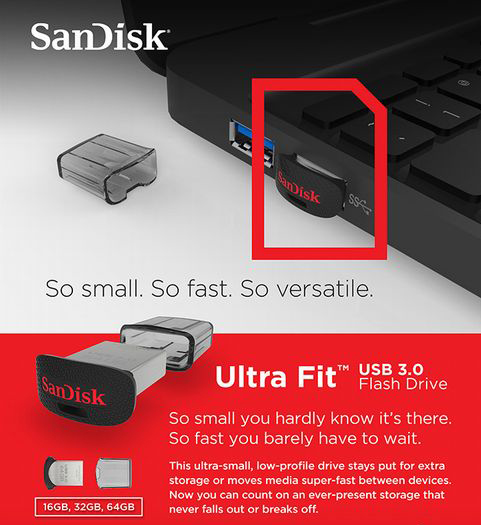
Just dropping in to say I have now successfully installed Windows 10 on an external USB Flash Drive. I only have a 128GB MBA so I didn't have enough on-board space. I used a tiny flash drive that sticks out about 3mm from my MBA.
Instructions:
- Sandisk Ultra Fit USB3. Holds 128GB for about £20 online.
- WintoUSB - free download from http://www.easyuefi.com/wintousb/
- Windows 10 - you can get a free preview ISO from Microsoft.
1. In WintoUSB, on OSX, set up your flash drive.
2. I plan to use this for running games like Skyrim, so I opted to install the Home Edition (Runs fewer services and uses less background CPU)
3. I set the virtual HDD to 50GB to have space for large games, but this was a guess.
4. I used VHDX structure - more modern. The free version of WintoUSB only allows the older VHD structure, but this should be OK. I didn't test VHD though.
5. After install, get boot camp drivers from Apple website (in Windows) or use Boot Camp Assistant in OS X to put on another USB stick (2gb file, takes an hour to build on the USB stick). I chose to use Boot Camp Assistant to make sure I got the right drivers for my MBA.
So far, it works more or less fine. Skyrim works well, far smoother than OSX. I have noticed however in Windows that I can lock it very easily by opening two or more apps at the same time. Perhaps an issue with the USB Flash drive being unable to handle too many concurrent accesses. As long as I stick to one app (or one browser tab) at a time, all is fine.
Also, there is no way to set the computer to always boot from Windows. This means that every boot, I have to hold down Option for the selector, otherwise OSX loads. OSX system prefs boot selector doesn't work. This is only really an issue when first setting up and going through the pain of multiple consecutive reboots.
Instructions:
- Sandisk Ultra Fit USB3. Holds 128GB for about £20 online.
- WintoUSB - free download from http://www.easyuefi.com/wintousb/
- Windows 10 - you can get a free preview ISO from Microsoft.
1. In WintoUSB, on OSX, set up your flash drive.
2. I plan to use this for running games like Skyrim, so I opted to install the Home Edition (Runs fewer services and uses less background CPU)
3. I set the virtual HDD to 50GB to have space for large games, but this was a guess.
4. I used VHDX structure - more modern. The free version of WintoUSB only allows the older VHD structure, but this should be OK. I didn't test VHD though.
5. After install, get boot camp drivers from Apple website (in Windows) or use Boot Camp Assistant in OS X to put on another USB stick (2gb file, takes an hour to build on the USB stick). I chose to use Boot Camp Assistant to make sure I got the right drivers for my MBA.
So far, it works more or less fine. Skyrim works well, far smoother than OSX. I have noticed however in Windows that I can lock it very easily by opening two or more apps at the same time. Perhaps an issue with the USB Flash drive being unable to handle too many concurrent accesses. As long as I stick to one app (or one browser tab) at a time, all is fine.
Also, there is no way to set the computer to always boot from Windows. This means that every boot, I have to hold down Option for the selector, otherwise OSX loads. OSX system prefs boot selector doesn't work. This is only really an issue when first setting up and going through the pain of multiple consecutive reboots.

Feenician
macrumors 603
Nicely done. I didn't think the
Nicely done! I thought this wasn't possible and partitioned my internal disk, just putting my steam folder on an external. This method will get me 40gb back. Thanks
Just dropping in to say I have now successfully installed Windows 10 on an external USB Flash Drive. I only have a 128GB MBA so I didn't have enough on-board space. I used a tiny flash drive that sticks out about 3mm from my MBA.
Instructions:
- Sandisk Ultra Fit USB3. Holds 128GB for about £20 online.
- WintoUSB - free download from http://www.easyuefi.com/wintousb/
- Windows 10 - you can get a free preview ISO from Microsoft.
1. In WintoUSB, on OSX, set up your flash drive.
2. I plan to use this for running games like Skyrim, so I opted to install the Home Edition (Runs fewer services and uses less background CPU)
3. I set the virtual HDD to 50GB to have space for large games, but this was a guess.
4. I used VHDX structure - more modern. The free version of WintoUSB only allows the older VHD structure, but this should be OK. I didn't test VHD though.
5. After install, get boot camp drivers from Apple website (in Windows) or use Boot Camp Assistant in OS X to put on another USB stick (2gb file, takes an hour to build on the USB stick). I chose to use Boot Camp Assistant to make sure I got the right drivers for my MBA.
So far, it works more or less fine. Skyrim works well, far smoother than OSX. I have noticed however in Windows that I can lock it very easily by opening two or more apps at the same time. Perhaps an issue with the USB Flash drive being unable to handle too many concurrent accesses. As long as I stick to one app (or one browser tab) at a time, all is fine.
Also, there is no way to set the computer to always boot from Windows. This means that every boot, I have to hold down Option for the selector, otherwise OSX loads. OSX system prefs boot selector doesn't work. This is only really an issue when first setting up and going through the pain of multiple consecutive reboots.
Nicely done! I thought this wasn't possible and partitioned my internal disk, just putting my steam folder on an external. This method will get me 40gb back. Thanks

bergui45
macrumors newbie
I could successfully install Windows10 Threshold2 on a 128 GB SSD Transcend docked in the Highpoint Rocketstor 5212 Thunderbolt. The MBPro 15" mid 2012 sees this Windows SSD as disk0.
The only wise trick to have a successful installation was to disconnect both SSD and HDD inside the laptop to prevent any mess on my El Capitan within the Crucial M4 SSD and Yosemite in the 1 Tera Samsung Spinpoint inside the optical bay.
I used a USB stick with Windows to USB and an iso of the WIN10 Threshold2. The installation went in EFI/Boot
Then i installed the Bootcamp drivers downloaded from El Capitan specific for my MBPro 15" mid 2012
The installation of The Bootcamp drivers went flawlessly
The mess comes later when Windows update dowloaded some updates... and then the **** hits the fan with endlessly reboot and some trying to fix. I had previously not let Windows install update automatically but requested to be warned before any installation but Windows put a brutal foot in the door and installed what messed my system.
I read that it could be the NVIDIA drivers not OK with my Geforce 650M.
Another concern is that Windows also made an image of my system and collapsed the previous image of my working system.
My thoughts are that Windows is still a piece of crap when compared to Yosemite or El Capitan.
I would be glad to hear from someone else having success with the Windows Update mess on Windows threshold2.
The only good thing for Microsoft is automatic activation since i previously had Windows 7 Pro activated...
[doublepost=1466631497][/doublepost]Just some more words: since i used EFI/Boot and GPT format i cannot use Winclone because its asks for MBR "only" when you want to restore an image...
;-(
The only wise trick to have a successful installation was to disconnect both SSD and HDD inside the laptop to prevent any mess on my El Capitan within the Crucial M4 SSD and Yosemite in the 1 Tera Samsung Spinpoint inside the optical bay.
I used a USB stick with Windows to USB and an iso of the WIN10 Threshold2. The installation went in EFI/Boot
Then i installed the Bootcamp drivers downloaded from El Capitan specific for my MBPro 15" mid 2012
The installation of The Bootcamp drivers went flawlessly
The mess comes later when Windows update dowloaded some updates... and then the **** hits the fan with endlessly reboot and some trying to fix. I had previously not let Windows install update automatically but requested to be warned before any installation but Windows put a brutal foot in the door and installed what messed my system.
I read that it could be the NVIDIA drivers not OK with my Geforce 650M.
Another concern is that Windows also made an image of my system and collapsed the previous image of my working system.
My thoughts are that Windows is still a piece of crap when compared to Yosemite or El Capitan.
I would be glad to hear from someone else having success with the Windows Update mess on Windows threshold2.
The only good thing for Microsoft is automatic activation since i previously had Windows 7 Pro activated...
[doublepost=1466631497][/doublepost]Just some more words: since i used EFI/Boot and GPT format i cannot use Winclone because its asks for MBR "only" when you want to restore an image...
;-(
RedTomato - Windows installed into VHDX will not be update-able to a newer version the usual way through Windows update. I couldn't apply the November update last year. It will probably be the same come the July update... There are ways to though (google), but I thought it wasn't worth the hassle and bought a used 120GB SSD + SATA-USB3 cable instead (£25 total off eBay) 🙂.
bergui45
macrumors newbie
Yes me too, i couldn't get the november 15 update (more than 20 unsuccessful attempts...) so i grabbed an iso of the threshold update. Holy sh... Windows update messed once again.
So i decided to stay off Windows for a while, waiting for a reliable fix.
Let me know what is VHDX?
So i decided to stay off Windows for a while, waiting for a reliable fix.
Let me know what is VHDX?
EthanHawkeman
macrumors newbie
Just dropping in to say I have now successfully installed Windows 10 on an external USB Flash Drive. I only have a 128GB MBA so I didn't have enough on-board space. I used a tiny flash drive that sticks out about 3mm from my MBA.
Instructions:
- Sandisk Ultra Fit USB3. Holds 128GB for about £20 online.
- WintoUSB - free download from http://www.easyuefi.com/wintousb/
- Windows 10 - you can get a free preview ISO from Microsoft.
1. In WintoUSB, on OSX, set up your flash drive.
2. I plan to use this for running games like Skyrim, so I opted to install the Home Edition (Runs fewer services and uses less background CPU)
3. I set the virtual HDD to 50GB to have space for large games, but this was a guess.
4. I used VHDX structure - more modern. The free version of WintoUSB only allows the older VHD structure, but this should be OK. I didn't test VHD though.
5. After install, get boot camp drivers from Apple website (in Windows) or use Boot Camp Assistant in OS X to put on another USB stick (2gb file, takes an hour to build on the USB stick). I chose to use Boot Camp Assistant to make sure I got the right drivers for my MBA.
So far, it works more or less fine. Skyrim works well, far smoother than OSX. I have noticed however in Windows that I can lock it very easily by opening two or more apps at the same time. Perhaps an issue with the USB Flash drive being unable to handle too many concurrent accesses. As long as I stick to one app (or one browser tab) at a time, all is fine.
Also, there is no way to set the computer to always boot from Windows. This means that every boot, I have to hold down Option for the selector, otherwise OSX loads. OSX system prefs boot selector doesn't work. This is only really an issue when first setting up and going through the pain of multiple consecutive reboots.
Hi RedTomato,
So I have a SanDisk USB 3.0 Flash Drive. I tried following your steps, however I wasn't able to get far.
USB Flash Drives on Windows do not show/allow multiple partitions. I suspect I'll have to play around with my USB stick to get to do the necessary installations, but WintoUSB (within Windows) will not allow installation onto the flash drive.
I did do some googling, I know I can create a MBR via CMD on my USB however I think I will need to find a way to make windows show the unused space and allow me to partition it.
So in summary, my USB Flash Drive I'm unable to make partitions on it for the time being until I find a decent software. Were there other steps or did you find a way to partition your USB stick?
bergui45
macrumors newbie
Just dropping in to say I have now successfully installed Windows 10 on an external USB Flash Drive. I only have a 128GB MBA so I didn't have enough on-board space. I used a tiny flash drive that sticks out about 3mm from my MBA.
Also, there is no way to set the computer to always boot from Windows. This means that every boot, I have to hold down Option for the selector, otherwise OSX loads. OSX system prefs boot selector doesn't work. This is only really an issue when first setting up and going through the pain of multiple consecutive reboots.
Should you installed the Boot camp drivers you'll have a new Boot camp control panel inside Windows: This control panel let you choose your startup preference: if you set Windows then your Mac will automatically boot to Windows!
Should you need to Boot OS X just hold down the option key before next Boot!
RedTomato
macrumors 601
Hi RedTomato,
So I have a SanDisk USB 3.0 Flash Drive. I tried following your steps, however I wasn't able to get far.
USB Flash Drives on Windows do not show/allow multiple partitions. I suspect I'll have to play around with my USB stick to get to do the necessary installations, but WintoUSB (within Windows) will not allow installation onto the flash drive.
I did do some googling, I know I can create a MBR via CMD on my USB however I think I will need to find a way to make windows show the unused space and allow me to partition it.
So in summary, my USB Flash Drive I'm unable to make partitions on it for the time being until I find a decent software. Were there other steps or did you find a way to partition your USB stick?
I didn't have to partition it manually at all. WintoUSB did everything. A blessed relief after spending hours with Partition Guru, DiskPart, MiniTool Partition Wizard, RM PrepUSB and various others trying to get partitions set up properly for Win10 on a flash drive and failing every time.
I've looked at my notes again, and there are some steps left out / don't really remember all the details. I'm a bit reluctant to blow away my current working win10 on Flash drive install, especially after getting Skyrim working on it.
- For the install, I used Win10 running in a VM on VMWare Fusion on OSX.
- Downloaded (on OSX) the MS Win10 Preview ISO and put it in the VM shared folder.
- In the Win10 VM, I fired up WintoUSB, pointed it at the ISO, and at the 128GB flash drive.
- The SanDisk was originally formatted in Apple GUID and invisible to WintoUSB. I had to reformat it in OSX to FAT so that Windows could see it. WintoUSB then saw and reformatted the SanDisk.
- WintoUSB then showed me a MBR partition diagram. The 128GB SanDisk became a 115.69GB MBR disk with a single 115.69GB NTFS partition. I was asked which partition I wanted to use for the system partition, and which one to use for the boot partition.
- The only action available is to select the same NTFS partition for both roles.
- Next action is to choose a VHD or VHDX virtual drive.
- Next action is select a virtual HDD size, which defaults to 14GB. Accepting this brings up an 'insufficient space error' - presumably it knows 14GB isnt enough for Win10? (Then why offer it as the default?). I wasn't sure what was best so I went with 50GB.
- While the USB install was running, Win10 (in the VM) threw up a couple of 'drive errors, please restart to restore' messages. I ignored them and they went away.
- I had to to go through various restarts of both the VM and the laptop itself to get it all working. Remember to hold down Option when restarting the MBA laptop to get it to boot from the USB. There were a few stalls, freezes, error messages, and repair warnings, but I kept on restarting and giving it time to go through the issues, and it got there in the end.
- After the install, you are left with a 50GB C: drive and the rest of the space is a D: (or E: ) drive.
Hope that helps.
FYI I keep the VMware VM files (and other large files) on a PNY StorEdge 128GB SDXC card.
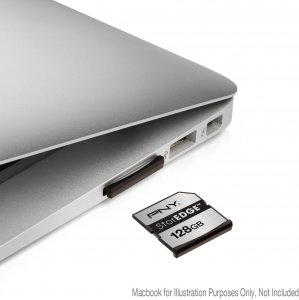
It's more expensive and slower than the USB3 128GB SanDisk, but it frees a USB slot and uses far less power at idle so I can leave it plugged in the MBA all the time and still get good battery life. I haven't tried installing Win10 directly on the StorEdge, but it may cope with multitasking better with its more expensive controller, even if it runs slower overall.