Become a MacRumors Supporter for $50/year with no ads, ability to filter front page stories, and private forums.

beta2k

macrumors newbie
Original poster
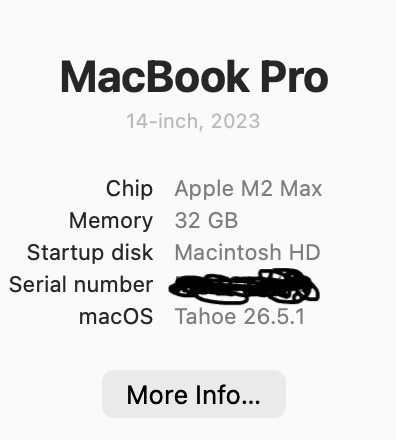
I use time machine backup on a Lacie External 2TB HDD to backup my MacBook Pro 2023 (M2 Max) running Tahoe 26.5.1.
1783842600491.png

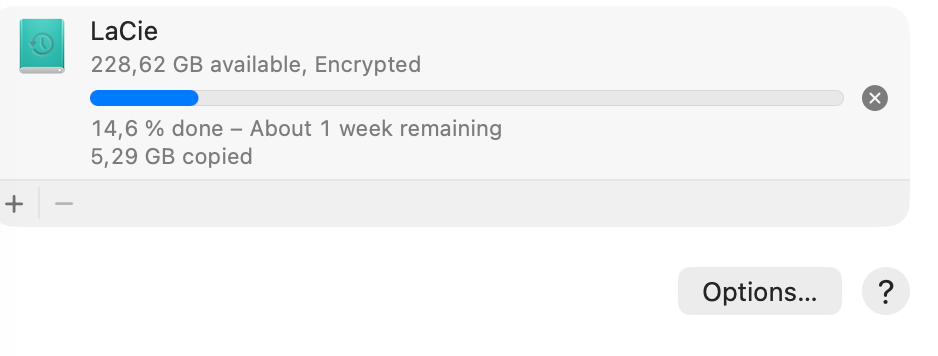
Everything worked normally for years, but now the backup says that it would take several days to finish and the progress is extremely slow.
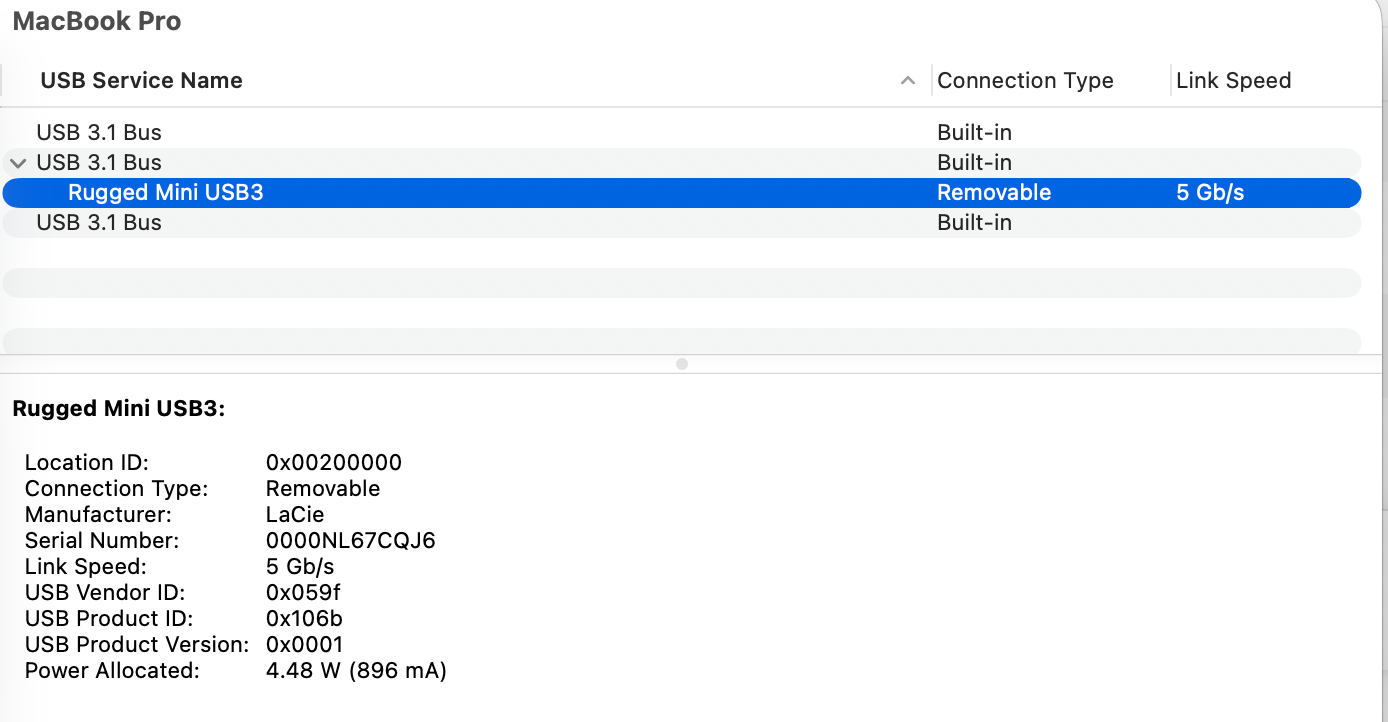
The USB connection should be fine:
1783783645428.png


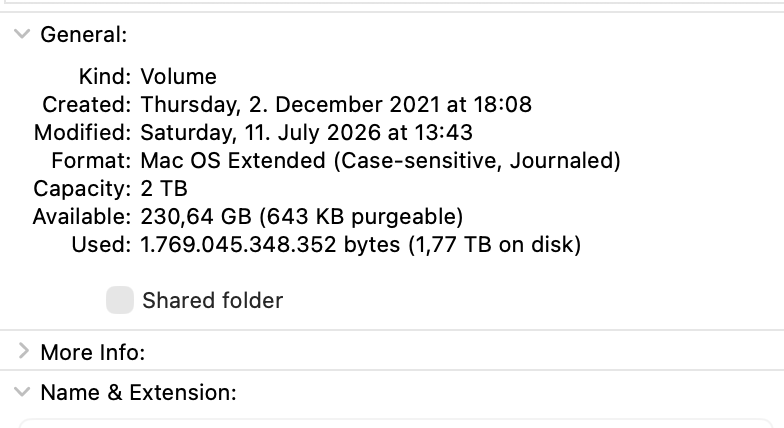
This is the "get info" on the drive:
1783842678385.png


This is the "progress":
1783842712308.png


The external drive has the Mac OS Extended file system, which seems not to be the best option, which would be APFS. However, previously the backup also worked. I doubt that the "old" file system is the reason. I also changed the cable. Any ideas?
 

Attachments

  • 1783842698417.png
    1783842698417.png
    36.3 KB · Views: 74
Almost certainly HFS+. TM on Tahoe basically fell off a cliff for HFS+ destinations — mine went from painless incrementals to multi-hour scans on the same LaCie drive after upgrading, no other changes. Two things to try before nuking it: `sudo mdutil -sa` to check if Spotlight is still indexing the backup volume, and if it is, `sudo mdutil -i off /Volumes/YourBackupName`. The mds_stores rebuild fights TM's own file walk on HFS+ and it gets ugly. Real fix is reformatting to APFS if you can eat the retention loss — Apple's snapshot-based TM path expects APFS now, and HFS+ falls back to a file-by-file compare that gets exponentially slower the fuller the volume is (I hit a wall around 70% on a 4TB LaCie).
 
Reformat the drive to APFS and start over.

BETTER solution:
After you reformat the drive, try either CarbonCopyCloner or SuperDuper.
Both are FREE to download and use for 30 days.
Try either one.
Or try BOTH and see which one suits you better.
 
  • Sad
Reactions: ignatius345
If you should follow Fishrrman's advice and switch to CCC or DS (which are both, unlike TM, so-called cloning software, using macOS compare and copy files functionality to make one drive reflect another byte-for-byte) my recommendation is that you continue to use macOS Extended (also known as HFS+)

Google AI:
Using APFS on a traditional Hard Disk Drive (HDD) is generally not recommended unless you are using the drive for macOS Time Machine backups, where it is mandatory. APFS is specifically optimized for Solid State Drives (SSDs) and can cause slower performance, high fragmentation, and excessive "thrashing" (seeking) on spinning platters

I got myself a 4TB external HDD to replace three 2.5" SATA SSDs for backup duties a few weeks ago, and I noticed it working all the time. I changed the file system from APFS to HFS+ and the drive would only spin up and run when there was read/write activity.

Only downside for me is that HFS+ doesn't have snapshots, or the fine functionality of APFS volumes. The drive is for backing up three volumes, and since it wouldn't be practical to use fixed size partitions as 'cloning destinations', I use CCC's ability to clone to folders, so they can 'share' available space just like APFS volumes. Instead of snapshots, I use CCC's Safetynet to be able to restore files from up to 50 days ago.
 

Attachments

  • Skjermbilde 2026-07-12 kl. 16.36.06.png
    Skjermbilde 2026-07-12 kl. 16.36.06.png
    352.1 KB · Views: 61
  • Skjermbilde 2026-07-12 kl. 16.35.46.png
    Skjermbilde 2026-07-12 kl. 16.35.46.png
    1 MB · Views: 64
"my recommendation is that you continue to use macOS Extended (also known as HFS+)"

Won't CCC now require the use of APFS to work with m-series Macs?

I know that CCC would clone Mojave from APFS to HFS+ on my 2018 (Intel) Mini. I actually did that.

But don't believe you can still do this when your source is an Apple Silicon Mac.
I could be wrong.
 
Short version: reformat, start again. Will work fine for years again (unless it is hardware failure).

My experience is that TM occasionally gets corrupted (it is complicated system) and slows down or hangs. I tried to fix it long time ago and it failed. Now I simply reformat - or keep the old drive as old backup and replace. APFS seems to be more robust than the old HFS+, but it already happened on one of my TM APFS drives also. But that was SSD and may have failed in hardware.
CCC or SD are not TM replacement, they are different backup solution. If better is matter of opinion - I use combo of TM and CCC. I used both depending on situation when something failed or was deleted and both worked as advertised.

And that Google AI nonsense about APFS not for HD is obsolete info from early times of APFS, classical AI stupidity digging out obsolete information from its memory. Today APFS on HD works fine and is the only format Apple suggests. Actually, Apple recently announced that encrypted HFS+ will be not supported starting from macOS28. Apparently does not apply to TM HFS+ encrypted drives, but still...
 
Ben J. raises a real point about APFS on spinning drives. APFS snapshot overhead adds up fast on HDDs, and Time Machine behavior on HFS+ destinations has gotten noticeably worse in Tahoe. Both issues compound at 2TB.Two paths forward. If you want to stay in the Time Machine ecosystem, reformatting the drive as APFS and starting fresh often helps even on HDDs. If you want to switch apps, CCC and SuperDuper are both solid. I've been using Back That Data Up for awhile now and really it - APFS snapshots with hardlinked unchanged files under the hood, so each backup is a full browsable copy but takes seconds to write.
 
  • Like
Reactions: Alpha Centauri
I'm also using a 2023 M2 Max, though our DAS backup HW is quite different. Nonetheless I'm not impressed with Tahoe, was effectively forced from Sequia to install after a logic board replacement, and quite honestly it was (just now) the first time I had to force quit ejection of my TM drive. Another program was using it...yeah, right.

To give you an idea, just backed up 20GB in 2 minutes on TM. Yes, it is a NVMe I'm using. Point is that I'm in agreement that your troubles with Tahoe stem with your use of HFS+

Very much hoping that Golden Gate will indeed be a fraction of what Snow Leopard that it's touted to be in Apple's campaign.

Edit: TM disc not ejecting with TM. Tried again after another backup soon after, same message. Log Out achieved nothing and "disc couldn't be ejected as in use by another program" still again. Never had this TM warning/ message in
Sequia.

Thus far haven't been able to safely eject this TM disc in Tahoe.


TM.png
 
Last edited:
Update from my side: First of all, thanks to everyone for the help and hints. I got a new drive, formatted it with APFS and this one works flawlessly now. As i dont want to erase the old disk, I will just keep it to access the data there.

It's a bit disappointing that it seems that Tahoe made the old TM backup disk which is formatted with the "Mac OS Extended file system" unusable in the sense that i cannot create backups on it anymore.
 
Ben J. raises a real point about APFS on spinning drives. APFS snapshot overhead adds up fast on HDDs, and Time Machine behavior on HFS+ destinations has gotten noticeably worse in Tahoe. Both issues compound at 2TB.Two paths forward. If you want to stay in the Time Machine ecosystem, reformatting the drive as APFS and starting fresh often helps even on HDDs. If you want to switch apps, CCC and SuperDuper are both solid. I've been using Back That Data Up for awhile now and really it - APFS snapshots with hardlinked unchanged files under the hood, so each backup is a full browsable copy but takes seconds to write.
This has been my experience as well. TM starts off fine with an HDD, but over time gets slower and slower because APFS causes file fragmentation on disk (not an issue on an SSD, but brutal on an HDD which has to physically move heads all around the platters).

I’d hoped to switch over to SSD for my backups, but it’s too expensive right now so I’m making do. So, I have two pretty big HDDs and I just rotate between them. At present I have an archived TM backup drive that goes back to about a year ago, and then another that I swapped in this spring. When this current one starts running too slowly, I’ll reformat the old one and make this one the archive.

iMac 2026-07-21 at 2.44.57 PM.png


I would also note that if you’re using CCC, their official recommendation is to use APFS anyway, even when backing up to an HDD:
Unless you are specifically using a disk to share files with a Mac running an OS older than High Sierra, we recommend using APFS for all backup devices – despite any potential performance disadvantage.
 
Last edited:
Update from my side: First of all, thanks to everyone for the help and hints. I got a new drive, formatted it with APFS and this one works flawlessly now. As i dont want to erase the old disk, I will just keep it to access the data there.

It's a bit disappointing that it seems that Tahoe made the old TM backup disk which is formatted with the "Mac OS Extended file system" unusable in the sense that i cannot create backups on it anymore.
The APFS version of Time Machine is very different from the old HFS+ version. The old version used weird, “multi-linked” files which were quite prone to corruption. The new version uses snapshots which are enabled by the APFS format and is way more reliable than the old version. If you have the stomach for a deep dive on the subject, Eclectic Light Company gets way into it.

Worth noting that Carbon Copy Cloner also now backs up using snapshots. CCC does give you a lot more control. I don’t think it’s an either/or situation. I myself use CCC for weekly and monthly backups, but have a Time Machine drive backing up 1x/day. TM is quicker and easier to recover files from, but CCC gives a ton of flexibility and also lets you run an audit of all the files on the backup to proactively check for (and repair) file corruption. IMO TM and CCC work great together but have different strengths.
 
  • Like
Reactions: Ben J.
Reformat the drive to APFS and start over.

BETTER solution:
After you reformat the drive, try either CarbonCopyCloner or SuperDuper.
Both are FREE to download and use for 30 days.
Try either one.
Or try BOTH and see which one suits you better.
Very ignorant advice. While cloning is intellectually simple, you very much want the incremental backup offered by TM.

Here is a common failure scenario: You make a perfect backup, and everything is fine. Then you accidentally delete some files but don't know or maybe the software screwed up and killed the file, and you did not notice. Then you make a second "clone". What you just did was overwrite your only good copy of the file. NEVER use a backup system that overwrites older backups. You want all those old versions of the file.

But keeping every old version takes too much space, right? No. APFS only records changes. I can do a full backup every hour for years and not use much space if nothing changes.

OK, if some other backup system works like Time Machine and only writes changes to the disk and uses a=some other COW (copy on write) file system to do this, then use it. Some of these competing backup systems even do very good deduplication at the block level. I used TM, but I also use Proxmox Backup Server to back up virtual machines, but I do not overwrite old backups.

Making a clone of the disk works fine if you don't overwrite the clone. Put it in a fire safe and then use another disk for the next backup. Maybe you rotate a dozen disk drives. But this is expensive.
 
OK, if some other backup system works like Time Machine and only writes changes to the disk and uses a=some other COW (copy on write) file system to do this, then use it.
Carbon Copy Cloner absolutely saves revisions of files by default, even though there are people who are constantly pushing the old “clone” paradigm.
 
"Very ignorant advice. While cloning is intellectually simple, you very much want the incremental backup offered by TM."

I've never used tm, not once, ever.
I've always used either CarbonCopyCloner or SuperDuper.
Never had a problem with backing up that way.
Must be going on 15 years now, probably longer.
I've done migrations and restores from cloned backups. Worked fine for me.

I've seen very few reports from Mac users whose reliance on CCC or SD failed them in "a moment of need". One or two, at most. Might have been "user error".
but...
To the contrary, I've seen MANY reports through the years from Mac users who thought they had a reliable backup created by tm, and then, in a moment of extreme need, discovered... they didn't.
 
Making a clone of the disk works fine if you don't overwrite the clone. Put it in a fire safe and then use another disk for the next backup. Maybe you rotate a dozen disk drives. But this is expensive.
No need for a dozen where a NAS and an offsite, NAS or DAS, will do.

Due to location and noise it didn't work for me but I'm using 3 x NVMe. Two cloned with Super Duper, one of those always offsite and rotated. The last one is a TM backup. Might even add a HD additional for an extra TM redundancy. So using both SD and TM I'm fairly confident with this set up.

After two logic board replacements (one just recently) I was up and running immediately. 600 GB date was transferred in 8 minutes and it took far longer getting Tahoe set to my preferences. Actually that's one gripe I did have as Tahoe was the only option shown after having Sequia prior to the hardware failure. I'm sure I could have/ should have done it differently.
 
Register on MacRumors! This sidebar will go away, and you'll see fewer ads.