Hi
@Bill Forest
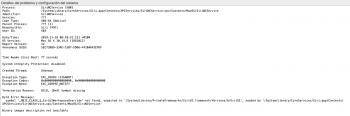
What did not work, did you have any errors like: "No such file or directory"
Using the Terminal can seem complicated even with simple commands...
That's right, Dosdude1 wrote "cd
/path/to/bkltpatch10.14.2" ("
/path/to/" corresponds to the path where the folder bkltpatch10.14.2 is located) because it is imperative that the Terminal "be" in the folder where are contained the file (s) to copy (the command "cd" means "Change Directory").
In order to simplify I copy and unzip the archive on the desktop, so you get on the desktop a folder named: "Fix Backlight control with F1-F2 keys for iMac 7.1 & 8.1"
In the Terminal you have to write "cd" (with a space after) and by dragging the folder "Fix Backlight control with F1-F2 keys for iMac 7.1 & 8.1" from the desktop to the Terminal you get something like this:
"cd /Users/
USERNAME/Desktop/Fix\ Backlight\ control\ with\ F1-F2\ keys\ for\ iMac\ 7\,1\ \&\ 8\,1"
(for info
USERNAME will be your username, the same name of your Home folder)
and after pressing Enter we obtains something like this:
"Fix Backlight control with F1-F2 keys for iMac 7.1 & 8.1
USERNAME $"
(for info
USERNAME will be your usetname)
you can see that the Terminal is in the folder because the name of the folder is just before "
USERNAME $"
(at Terminal launch and before running the commade "cd" there was nothing in front of "
USERNAME $")
After checking that the Terminal is in the right folder then you can write "sudo" (with a space after) and drag the file "install.sh" in the Terminal next to "sudo "
You get something like this:
"sudo /Users/
USERNAME/Desktop/Fix\ Backlight\ control\ with\ F1-F2\ keys\ for\ iMac\ 7\,1\ \&\ 8\,1/install.sh"
(as previously
USERNAME will be your username)
Then you can press Enter.
If you do not enter the command "cd" but you run the command "sudo install.sh" the Terminal will indicate errors: "No such file or directory"